


If you want DevOps alerts that your team actually acts on, the most effective pattern is a three-step pipeline: GitHub generates the signal, monday.com turns it into assigned work, and Microsoft Teams delivers the notification in the right channel with a clear call to action. This article shows how to set up that end-to-end workflow so Issues, Pull Requests, and build status become trackable, accountable, and fast to respond to.
Next, you’ll learn how to decide which GitHub events deserve an alert and how to group them by operational goal (incident intake, code review flow, CI/CD health). That selection step is what separates a useful alerting system from a noisy chat feed.
Then, we’ll walk through field mapping so alerts aren’t just “FYI messages,” but become structured monday items with owners, severity, status, and links—making the notification actionable rather than distracting.
Introduce a new idea: after setup and mapping, you’ll also get a practical way to choose between native integrations and automation tools, plus a troubleshooting checklist for missing, duplicated, or misrouted alerts—so your workflow stays reliable over time.
What is a GitHub → monday.com → Microsoft Teams DevOps alerts workflow?
A GitHub → monday.com → Microsoft Teams DevOps alerts workflow is an automation pipeline that converts GitHub events into structured work items in monday.com and pushes the resulting alerts (notifications) into Microsoft Teams so engineers can triage, assign, and resolve quickly.
To better understand why this workflow works so well, it helps to separate signal, work, and communication:
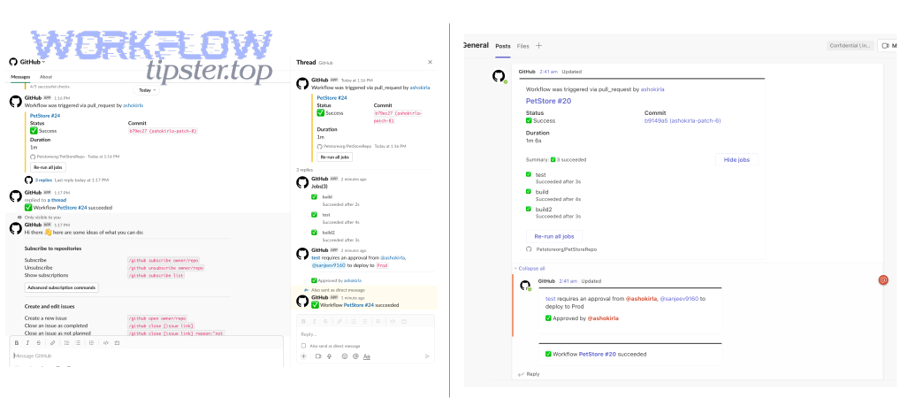
1) GitHub provides the signal (what happened).
GitHub is the event source. It produces signals such as:
- A new Issue labeled “incident”
- A Pull Request that needs review
- A failing workflow run on the default branch
- A status check that turns red after deployment
2) monday.com converts signal into work (who owns it).
monday.com is where you turn “something happened” into:
- An item with an owner
- A severity level
- A status stage (New → Investigating → Fix in progress → Done)
- A link back to the GitHub artifact
3) Microsoft Teams delivers the notification (where people act).
Teams becomes the delivery and collaboration layer:
- The right channel sees the alert
- The message contains a summary + link + owner + next step
- Mentions (optional) make urgency explicit when needed
A simple way to remember the macro logic is: GitHub tells you what changed, monday tells you what to do, Teams tells the right people now. Once you build that foundation, you can refine routing, formatting, and noise controls without redesigning the whole system.
According to a study by the Reuters Institute for the Study of Journalism at the University of Oxford, in 2025, 43% of surveyed people who did not receive alerts said they had actively disabled them due to overload or lack of usefulness—an outcome DevOps teams should avoid by prioritizing signal over noise.
Which GitHub events should you alert on for DevOps—Issues, PRs, or build status?
There are three main types of GitHub events you should alert on—Issues, Pull Requests, and build/workflow status—based on the criterion of operational impact: incident intake, delivery flow, and release health.
Specifically, if your Teams channels feel noisy today, the fix is not “fewer tools”—it’s choosing event types that map cleanly to action. Start with this high-level grouping:
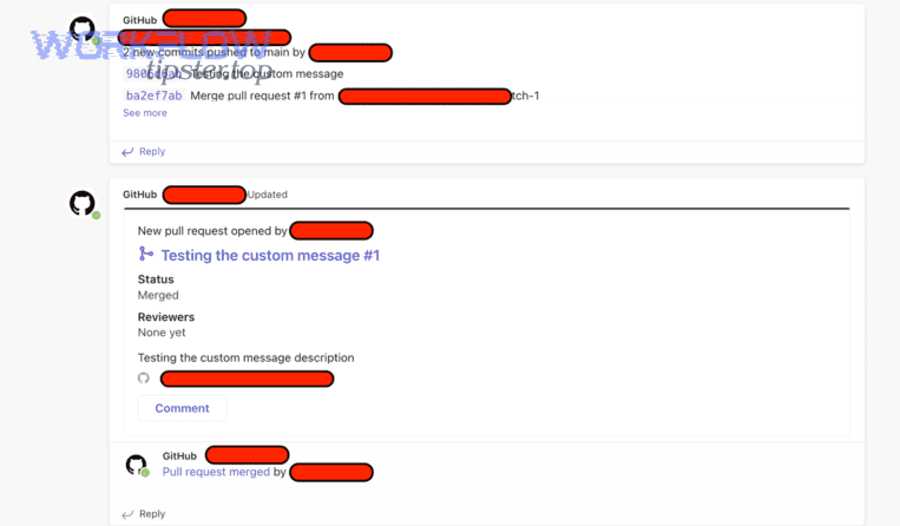
- Issues (incident intake / support-to-engineering)
- Pull Requests (review flow / merge readiness)
- Build & workflow status (CI/CD health / deployment safety)
What GitHub Issue events should trigger an alert in monday and Teams?
There are four common Issue alert types you should trigger—new incident Issues, priority label changes, assignment changes, and escalation comments—based on the criterion of urgency and ownership.
To illustrate, Issues become the best alert source when they represent real operational work, not every discussion thread.
Recommended Issue triggers
- Issue opened with an incident label (e.g.,
incident,sev1,bug,customer-impact) - Label added that increases urgency (e.g.,
priority:high,sev2,security) - Assignee changed (ownership shifted → alert the new owner/channel)
- Comment added containing escalation markers (e.g., “prod down”, “rollback”, “urgent”)
What to send to monday.com
- Create an item on an “Incidents” group
- Capture: repo, issue number, title, severity, link, reporter, environment
What to send to Teams
- Short summary + severity + link
- Optional: mention the on-call engineer or channel only for Sev1/Sev2
This is where “automation workflows” become a discipline: you are not just forwarding GitHub activity—you are defining a consistent operational contract between systems.
What Pull Request events should trigger an alert in monday and Teams?
There are five main Pull Request alert types—PR opened, review requested, checks failing, changes requested, and PR merged—based on the criterion of flow state (blocked vs ready vs complete).
More specifically, the best PR alerts are the ones that unblock flow. A PR alert should answer: Who needs to do what next?
Recommended PR triggers
- PR opened (create/refresh a “PR Queue” item)
- Review requested (notify the reviewer’s team channel)
- Checks failing (notify the author + CI channel; include failing job name if possible)
- Changes requested (notify author; update monday status to “Blocked”)
- PR merged (update monday status to “Done”; optionally notify release channel)
Mapping tip
- Use a monday status column like:
Needs Review→Changes Requested→Approved→Merged - Store key links in columns: PR URL, build URL, compare URL
What build or workflow status signals should trigger a Teams alert?
There are three main build/workflow alert types—workflow failures on default branch, deployment failures, and repeated flaky failures—based on the criterion of release risk.
Meanwhile, build status alerts are often the noisiest, so be stricter than you think you need to be.
Recommended CI/CD triggers
- Workflow run fails on
main/master - Deployment job fails (or a required environment check fails)
- Flaky test threshold exceeded (e.g., same job fails 3 times within N runs)
Noise control rules (high impact)
- Alert only on required workflows (not every optional job)
- Alert only on protected branches or release branches
- Batch flake alerts into a single message with a link to details
If you want a more direct “DevOps alerts” version of this pipeline, GitHub Actions can publish a webhook/message only when a job enters a failing state—so Teams receives fewer, higher-confidence notifications.
How do you map GitHub alerts into monday.com items so they become actionable work?
Mapping GitHub alerts into monday.com becomes actionable when you create one clear item model with consistent columns and a rule for update vs create, so every alert has an owner, a status, and a next step.
For example, it’s not enough to send “PR failing” into a board. You want a board that answers three operational questions in seconds: What broke? Who owns it? What is the current state?
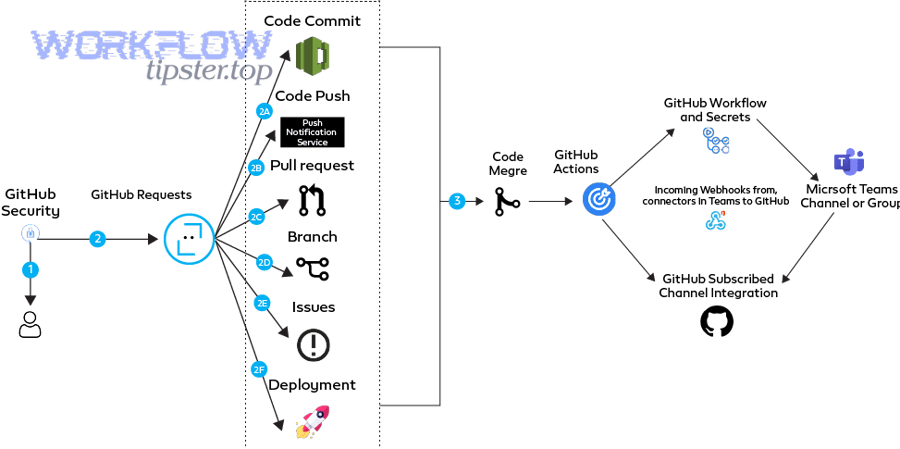
How do you structure a monday board for DevOps alerts (columns, groups, statuses)?
A practical monday board for DevOps alerts uses three groups (Incidents, PR Queue, Build Failures) and 8–12 columns that standardize triage and ownership.
Below is a quick structure that works well for most engineering teams. The table shows what each column contains so you can map GitHub fields consistently.
| monday column | What it contains | Why it matters |
|---|---|---|
| Item name | Concise title (Issue/PR/workflow summary) | Makes scanning fast in standups/triage |
| Repo (text) | owner/repo |
Enables routing and reporting |
| Event type (dropdown) | Issue / PR / Build | Enables filtering and automation |
| Severity (dropdown) | Sev1 / Sev2 / Sev3 / Info | Drives escalation and mentions |
| Owner (people) | Assignee/on-call | Turns alerts into responsibility |
| Status (status) | New → Investigating → Fixing → Done | Tracks lifecycle and reduces repeat pings |
| Environment (dropdown) | Prod / Staging / Dev | Avoids cross-environment confusion |
| Link (URL) | GitHub Issue/PR/run URL | Single click to context |
| Timestamp (date/time) | When the event occurred | Helps detect repeats and stale items |
| Alert key (text) | Unique identifier | Enables dedupe and idempotency |
Recommended statuses
- New (created automatically)
- Needs Triage (if no owner assigned yet)
- Investigating
- Fix in progress
- Waiting on Review
- Done
- Suppressed (optional: for acknowledged noise)
If you’re using monday’s GitHub integration patterns, linking PRs/Issues to the right item is crucial—especially when multiple PRs relate to one work item.
According to a study by monday.com Support from GitHub integration documentation, in 2024, linking items to pull requests helps teams connect development activity to board-level tracking and improves visibility across R&D workflows.
How do you prevent duplicate monday items from repeated GitHub events?
Duplicate prevention is best handled by comparing two approaches: creating a new item per alert vs updating an existing item using a unique alert key—and the update strategy usually wins for operational clarity.
However, there are cases where “new item per alert” is correct (for truly distinct incidents). Here’s the comparison you can apply:
Approach A: New item per alert (good for discrete incidents)
- Best when: each event is an independent case (e.g., customer-reported incidents)
- Risk: noisy systems can generate many near-duplicates
Approach B: Update existing item (best for PR/build states)
- Best when: events are state changes on the same artifact (PR checks, workflow reruns)
- Method: store an Alert key (e.g.,
repo:pr:1234orrepo:workflow:run_id) - Action: if key exists → update status/comments instead of creating a new item
Simple dedupe rule
- Issues: new item when Issue ID is new; update when labels/assignee change
- PRs: one item per PR; update on review/check state changes
- Builds: one item per failing workflow + branch; update on rerun status
This one design decision prevents the most common failure mode: Teams channels filling with repeated “still failing” alerts that nobody trusts.
How do you send the right monday alerts to the right Microsoft Teams channel?
You send the right monday alerts to the right Microsoft Teams channel by using routing rules (repo/service, severity, environment) and a consistent message structure (summary → owner → status → link → next step), so each notification lands where the correct team will act.
Next, think of routing as an engineering system, not a manual convention. If routing is ambiguous, people ignore alerts. If routing is consistent, Teams becomes a real-time incident cockpit.
Should you send Teams alerts as simple messages or rich cards?
Simple messages win in speed and compatibility, rich cards win in clarity and interaction, and the optimal choice depends on whether you need actions (buttons, fields) inside the alert.
However, the best default for most teams is: start with a structured plain message, then upgrade to cards only for high-severity or high-volume channels.
Simple message (best for most alerts)
- Pros: fast, easy, consistent across clients
- Best for: PR review requests, basic CI failures, low-sev updates
- Template:
- [Severity] [Repo] [Event] — short summary
- Owner + Status
- Link + “Next step”
Rich card (best for high-stakes alerts)
- Pros: clearer layout, can include buttons like “Open item,” “Acknowledge”
- Best for: Sev1/Sev2 incidents, on-call channels, triage rooms
If you’re already using GitHub’s Teams integration for repo subscriptions, you’ll see this same philosophy: subscribe to key activities and keep messages scannable.
How do you design Teams alerts to reduce noise but keep urgency?
You reduce noise and keep urgency by applying three controls: (1) severity gating, (2) context completeness, and (3) rate limiting—so the channel gets fewer alerts, but each one is more actionable.
More specifically, use these practical rules:
1) Severity gating
- Only @mention for Sev1/Sev2
- Route Sev3/info to a quieter channel or a daily digest thread
2) Context completeness
Every alert should include:
- What happened (Issue/PR/build)
- Where (repo, branch, environment)
- Who owns it (assignee/on-call)
- What to do next (triage / review / rerun / rollback)
- Link to the monday item and the GitHub artifact
3) Rate limiting
- Batch flake alerts into hourly summaries
- Suppress repeats if status hasn’t changed in X minutes
- Promote only “state changes” (Fail → Pass, Unassigned → Assigned)
According to a study by the University of Georgia from the Terry College of Business, in 2018, researchers reported that work interruptions—especially after hours—can be mentally draining and contribute to exhaustion, which is exactly why notification systems must be designed to minimize unnecessary pings.
Can you set this up using native integrations, or do you need an automation platform?
Native integrations win in simplicity, automation platforms win in flexible logic, and a hybrid approach is optimal when you need both reliability and advanced routing.
To better understand the decision, compare options by three criteria: setup speed, routing complexity, and long-term maintenance.
What are the pros and cons of native integrations for this workflow?
Native integrations are best when you want fast setup and fewer moving parts, but they can be limited when you need custom transformations and complex routing.
Where native is strong
- GitHub → Teams repo notifications (subscribe to repo activity)
- monday → Teams notifications for item updates and changes
- monday ↔ GitHub integration patterns for R&D visibility and tracking
Pros
- Faster to launch
- Fewer failure points
- Easier governance and permissions
Cons
- Less control over message format
- Harder to implement dedupe keys across multiple event sources
- Routing options may be constrained by built-in templates
If your goal is “we need alerts in Teams today,” native integrations are often the quickest win.
What are the pros and cons of using an automation tool for GitHub → monday → Teams?
Automation tools are best when you need branching logic (if/then), field mapping, and deduplication that spans multiple systems, but they require monitoring and careful design.
Pros
- Advanced routing (repo → team → channel)
- Strong mapping (labels → severity; author → owner)
- Ability to create/update items based on a unique alert key
- Can implement suppression windows and batching
Cons
- More moving parts (more to monitor)
- Rate limits and token issues can cause silent failures
- Costs scale with volume
A practical hybrid pattern is common:
- Use native GitHub → Teams for general repo awareness
- Use automation workflows for high-value DevOps alerts that must create/update monday work items and notify specific channels
To see why, compare these two flows:
- “Everything posts to Teams” (easy, but noisy)
- “Only actionable alerts become monday items + Teams notifications” (harder, but trusted)
How do you troubleshoot when GitHub → monday → Teams DevOps alerts are not working?
Yes—most GitHub → monday → Teams alert failures are fixable, and they usually come down to permissions, routing configuration, or noise controls that accidentally suppress real alerts.
In addition, the fastest way to troubleshoot is to isolate the break by asking: Did GitHub generate the event? Did monday receive/create the item? Did Teams receive the message in the right channel?
Are missing Teams alerts caused by permissions or channel configuration?
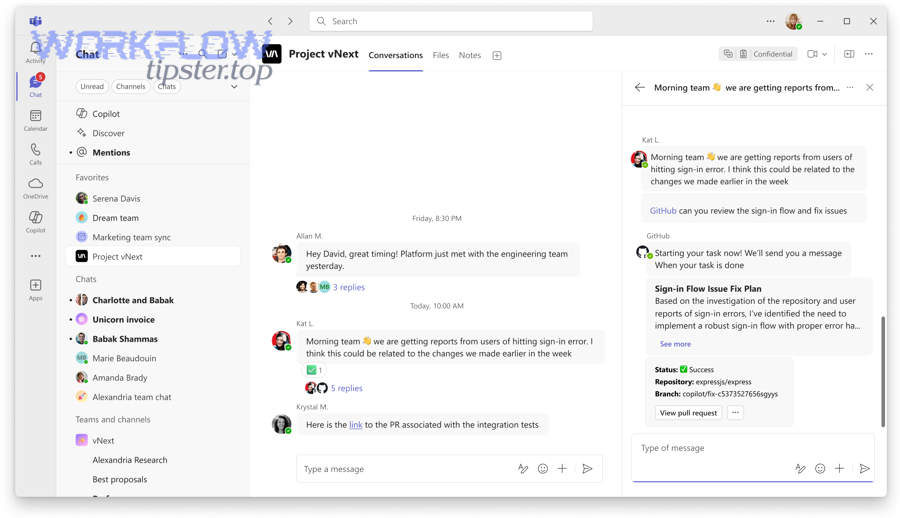
Yes—missing Teams alerts are commonly caused by (1) the app/bot not being installed where you expect, (2) insufficient permissions to post, or (3) a misselected team/channel.
To begin, check the Teams-side basics:
Teams troubleshooting checklist
- Confirm the integration/app is installed in the correct Team
- Confirm the target Channel is correct (not a similarly named channel)
- Confirm posting permissions for bots/connectors
- Confirm mention permissions if you rely on @mentions for urgency
- Send a manual “test message” from the integration (if supported)
If you rely on GitHub’s Teams subscription model, also verify:
- The Teams app was installed and granted access to the correct repositories
- The subscription command was run correctly (and in the right channel)
Are missing monday updates caused by mapping, board permissions, or filters?
Yes—monday failures are typically caused by (1) board permissions, (2) field mapping mismatches, or (3) filters that prevent item creation/update.
Next, validate monday step-by-step:
monday troubleshooting checklist
- Confirm the integration user has access to the board and group
- Confirm required fields exist and column types match what you send
- Confirm automations are pointing to the correct board/group
- Temporarily disable filters to verify events are arriving
- Check whether your workflow is creating items but failing to update (dedupe key issue)
If you’re mapping PRs/issues to items, ensure your linking mechanism is consistent (e.g., always include the monday item ID or a stable alert key).
What are the most common causes of duplicate or noisy alerts—and how do you fix them?
There are five common causes of duplicate/noisy alerts—over-broad triggers, retries without idempotency, state-change spam, multi-channel routing, and missing severity gating—and each has a direct fix.
More importantly, fix noise first; otherwise, the team learns that “alerts are unreliable.”
1) Over-broad triggers
- Cause: alerting on every commit/comment
- Fix: alert only on Issues/PR state changes and required workflow failures
2) Retries without idempotency
- Cause: automation reruns create a second monday item
- Fix: use a unique alert key and update-if-exists
3) State-change spam
- Cause: posting every intermediate build log update
- Fix: post only transitions (Fail→Pass) or summary at end
4) Multi-channel routing
- Cause: same alert sent to two channels “just in case”
- Fix: define one channel per repo/service + severity override only for Sev1/Sev2
5) Missing severity gating
- Cause: everything looks equally urgent
- Fix: map labels to severity and restrict mentions
If your team is already running related pipelines—like github to basecamp to discord devops alerts or github to linear to microsoft teams devops alerts—use the same noise controls across them so “alerts” means one consistent thing everywhere, not a different standard per toolchain.
How do you optimize GitHub → monday → Teams DevOps alerts for reliability, escalation, and governance?
You optimize this workflow by adding idempotency (dedupe), escalation rules, environment separation, and audit-friendly logging, so alerts stay trustworthy as volume grows and team structure changes.
Then, treat micro-optimizations as a “signal quality” project: the goal is not more alerts; it’s better alerts.
How do you implement an idempotency key to stop duplicate alerts across retries?
An idempotency key is a unique identifier that lets your automation decide whether to create a new monday item or update the existing one, preventing duplicates when events replay or workflows retry.
Specifically, choose a key that matches the “thing” you track:
Good idempotency keys
- Issue:
repo:issue:<issue_number> - PR:
repo:pr:<pr_number> - Build failure:
repo:workflow:<workflow_name>:branch:<branch> - Deployment:
repo:deploy:<environment>:<run_id>(or similar)
How to apply it
- Store the key in a dedicated monday column (e.g., “Alert key”)
- On new events: search for an existing item with that key
- If found: update status + add an update/comment
- If not found: create item + notify Teams
This is the difference between “we saw 12 alerts” and “we tracked one incident through 12 state changes.”
What escalation rules should you add when an alert is not acknowledged in time?
There are three effective escalation tiers—reminder, reassignment, and higher-severity broadcast—based on the criterion of time-to-acknowledge.
To illustrate, an escalation policy should trigger only when the system detects “no human action yet.”
Tier 1: Reminder (soft)
- If status remains New for 10–15 minutes → post a thread reply in Teams with a gentle reminder
- If no owner assigned → prompt assignment (“Assign an owner to start triage”)
Tier 2: Reassignment (ownership)
- If unassigned after X minutes → assign to on-call rotation / backup owner
- If owner set but no status change → ping owner directly (avoid channel-wide noise)
Tier 3: Broadcast (hard)
- If Sev1 not acknowledged → escalate to an incident channel and mention on-call lead
- Optionally create a dedicated “Incident Room” channel for the case
The escalation principle uses an antonymic pair that keeps Teams healthy: signal over noise. You don’t escalate by sending more messages; you escalate by sending the right message to the right person at the right time.
How should you separate production vs staging alerts in boards and channels?
A single board is best for unified reporting, separate boards are best for strict operational boundaries, and the optimal choice depends on whether your team frequently confuses environments.
Option A: One board, environment column (best for small teams)
- Pros: one source of truth, easier dashboards
- Cons: risk of mixing prod/staging priorities in the same triage view
Option B: Separate boards and channels (best for mature ops)
- Pros: prod stays clean and urgent; staging stays informative
- Cons: more maintenance
A hybrid works well:
- One board with a strict environment column
- Two Teams channels:
#devops-prod-alertsand#devops-nonprod-alerts - Routing rule: Sev1/Sev2 always to prod channel if environment=prod
What logging and audit practices help you prove who got notified and what changed?
There are four logging practices that keep the workflow audit-friendly—event logs, delivery logs, state history, and access controls—based on the criterion of traceability.
1) Event log
- Store GitHub event ID / run ID in monday
- Keep the raw payload link (or summarized fields) if feasible
2) Delivery log
- Record the Teams channel + message timestamp (or message link if available)
- Record whether a mention was used (important for compliance)
3) State history
- Ensure monday updates capture changes to severity, owner, and status
- Keep a “timeline” approach: what changed, when, and by whom
4) Access control
- Restrict who can edit automation rules
- Restrict who can change severity levels (optional governance)
Finally, if your broader organization also runs cross-domain pipelines—like airtable to microsoft word to google drive to docusign document signing—apply the same governance mindset: define ownership, keep logs, and standardize naming so every automation is observable, not mysterious.