


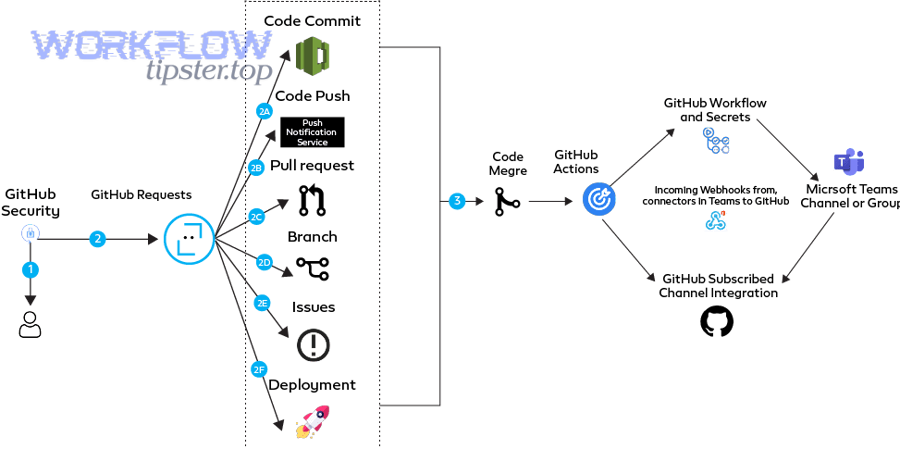
If you want faster incident awareness without living in dashboards, the most practical approach is to route the right GitHub signals into Microsoft Teams—then connect them to trackable work in Linear so every alert has an owner, a link, and a next step. GitHub already supports first-party notification experiences in Teams to keep repo activity visible where teams collaborate. (github.com)
The next challenge is avoiding “activity spam.” A healthy DevOps alerting setup doesn’t forward everything—it chooses the events that matter (failed checks, review requests, deployment outcomes) and shapes them into messages that are actionable in a channel, not just noisy updates. Research on software engineering interruptions shows that the type and urgency of interruptions can meaningfully affect time spent on tasks like comprehension and review, which is exactly why alert design matters. (kjl.name)
You’ll also want Linear in the middle for more than “nice-to-have” linking: when PRs and commits are tied to Linear issues, you can turn alerts into work triage (labels, assignees, cycles) instead of fragmented follow-up across tools. Linear’s GitHub integration is designed around that linkage and status synchronization. (newsletter.techworld-with-milan.com)
Introduce a new idea: below is a complete, end-to-end structure you can implement—from defining what the workflow actually means, to choosing the right integration method, to mapping fields for actionability, to troubleshooting the most common failure points.
What does “GitHub → Linear → Microsoft Teams DevOps alerts” mean in practice?
“GitHub → Linear → Microsoft Teams DevOps alerts” is an automation pattern where GitHub events (like PRs, issues, and CI results) become trackable work context in Linear and then become targeted notifications in Microsoft Teams channels so engineering teams can respond quickly without switching tools.
Next, to keep this workflow reliable, you need to separate signals (events worth acting on) from activity (events that are informational but not urgent). GitHub-to-Teams messaging is often strongest when it’s focused on collaboration moments—new PRs, reviews, and issue triage—because those are naturally “team-facing” events. GitHub’s own Teams integration positioning emphasizes visibility into issues, PRs, and project activity directly in Teams channels. (github.com)

The three roles in the chain: source, system-of-record, and response surface
GitHub is the source of truth for code events: pull requests, commits, workflows, releases, deployments, and security alerts (depending on your setup). The advantage of using GitHub as the source is that the events are precise and timestamped, and most teams already have an event vocabulary: “PR opened,” “checks failed,” “review requested,” “deploy succeeded.”
Linear is the system-of-record for engineering work: it provides the work object you can assign, prioritize, and plan (issues, cycles, projects). When you connect GitHub to Linear, you create a consistent identity for “what this code event means” inside your workflow: a PR can be tied to a Linear issue, which ties to a sprint, which ties to an owner. Linear’s GitHub integration exists specifically to connect those artifacts and keep issue status synchronized. (newsletter.techworld-with-milan.com)
Microsoft Teams is the response surface: it’s where the team sees the alert, discusses it, confirms ownership, and decides the next step. Teams works best when each alert contains enough context to take action immediately—link to the PR, link to the build, link to the Linear issue—so people don’t bounce across apps just to understand what happened.
What “alerts” (and “notifications”) should include—and exclude
In most DevOps teams, the word “alert” is overloaded. In this article, treat it like this:
- Notifications (low-to-medium urgency): PR created, review requested, issue assigned, checks started, release created, deploy started.
- Alerts (high urgency): CI failed on main, deployment failed, production incident indicators, security alerts that require action.
That distinction matters because interruptions are not free. A controlled study presented at ICSE 2024 (with authors affiliated with Duke University and Vanderbilt University) investigated how interruptions affect time spent and stress indicators across coding tasks, highlighting that not all interruption types have the same effect. (kjl.name)
Can you reliably send GitHub DevOps alerts to Microsoft Teams?
Yes—you can reliably send GitHub DevOps alerts to Microsoft Teams because (1) first-party GitHub notification experiences exist in Teams, (2) Teams supports webhook-style message delivery patterns, and (3) GitHub Actions can be used to push customized notifications when you need more control. (github.com)
Then, reliability depends on how you define it. “Reliable” is not just “messages show up.” Reliability also means the right event triggers once, goes to the right place, contains the right context, and continues working after people rotate tokens, rename channels, or add repositories.

What reliability looks like in a Teams alerting pipeline
A reliable GitHub → Teams pipeline usually has these properties:
- Correct triggers: Only meaningful events trigger messages.
- Correct routing: The alert reaches the correct channel or chat (e.g., #devops-alerts vs #frontend).
- Idempotency / dedupe: One event produces one alert (not five duplicates).
- Access stability: Credentials, permissions, and installs are maintained.
- Observability: You can tell when delivery fails and why.
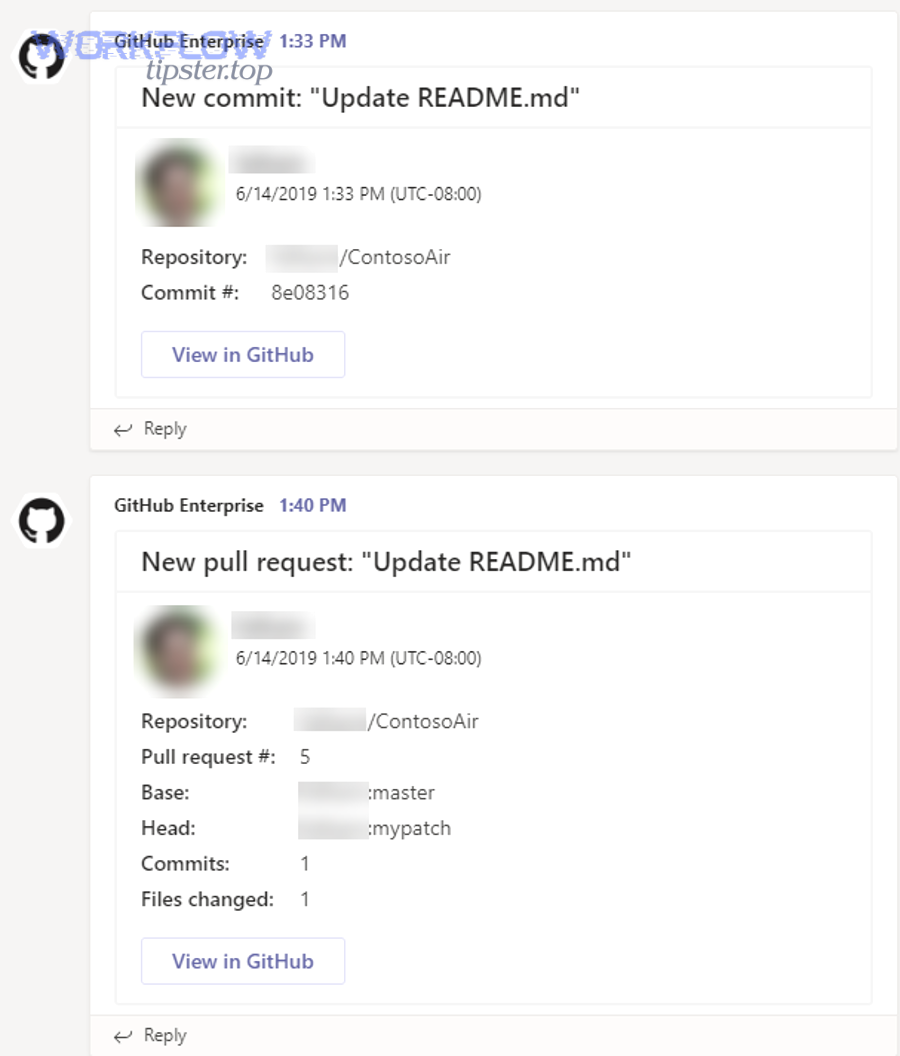
When you use the GitHub app/notification experience in Teams, you’re leveraging an established integration path that supports subscribing to repositories and receiving events like PRs and issues inside Teams. (marketplace.microsoft.com)
Should you use the official GitHub app for Teams or a GitHub Action + Teams webhook?
The official GitHub app for Teams wins in fast setup and standard PR/issue collaboration, a GitHub Action + Teams webhook is best for custom message formatting and CI/CD-specific signals, and third-party automation is optimal when you need multi-step workflows and cross-tool routing at scale. (marketplace.microsoft.com)
Next, pick based on your real constraints:
- Choose the official app when you want repository subscriptions, PR reminders, and a predictable Teams experience with minimal maintenance. The Microsoft listing describes subscribing to repositories and receiving PRs, issues, commits, and reviews. (marketplace.microsoft.com)
- Choose GitHub Actions → Teams when you need to notify only on specific workflow outcomes (e.g., failed build on main, failed deployment to production) and you want to control the payload fields and formatting. GitHub Marketplace includes actions that send customizable notifications to Teams channels. (github.com)
- Choose automation platforms (Power Automate/Zapier) when the alert must also create/update a record, route based on data rules, or involve approvals. (This is where “automation workflows” become more than a buzzword: they become your governance layer.)
What GitHub events should trigger DevOps alerts in Teams?
There are 4 main types of GitHub events that should trigger DevOps alerts in Teams—PR & review events, CI/CD workflow events, issue/triage events, and security/reliability events—based on the criterion of “does the event require a human decision or response within a defined time window?” (marketplace.microsoft.com)
Then, build an “alert matrix” so you can tune noise without guessing.
1) PR & review events (collaboration-critical)
- PR opened (for key repos)
- Review requested (especially when the reviewer is a team, not an individual)
- PR checks failed (if it blocks merge)
- PR merged (if it triggers downstream deploys)
2) CI/CD workflow events (operational-critical)
- Workflow failed (main branch)
- Deployment failed (staging/prod)
- Release published (visibility)
- Required check stalled/timeouts (if they block delivery)
3) Issue & triage events (ownership-critical)
- Issue created with high severity label
- Issue assigned to on-call/triage role
- Hotfix issue created/linked
4) Security & reliability events (risk-critical)
- Secret scanning alert (if enabled)
- Dependency alerts (if configured)
- Repo-level incidents that require action
The GitHub Teams experience is strongest when you start with PR and issue-based events, because those map cleanly into channel collaboration. (marketplace.microsoft.com)
Noise-control rules that prevent burnout
- Route “FYI” events to a low-noise channel or a digest.
- Reserve the primary channel for action-required signals.
- Add severity tiers (Info / Important / Critical).
- Use explicit ownership fields in messages (who acts next).
How do you connect GitHub to Linear so work stays synced before it reaches Teams?
Connecting GitHub to Linear means linking code artifacts (branches, commits, PRs) to Linear issues so status changes and references flow automatically, turning DevOps notifications into trackable work with ownership, priority, and planning context. (newsletter.techworld-with-milan.com)
Next, treat Linear as the place where alerts become decisions. A PR failure is not just a message—it becomes: “Which issue is blocked? Who owns it? Is it in the current cycle? Is it a hotfix?” Linear makes those answers consistent because the work object is standard.
The practical reason to sync before routing to Teams
Teams messages are ephemeral; Linear work is persistent. If you send a build failure to Teams without a linked work item, you often get:
- a short conversation,
- a “someone should fix this,”
- and then silence.
If you send the same message with a Linear link, you can:
- assign ownership immediately,
- tag severity,
- and trace the fix through to completion.
Linear’s official GitHub integration documentation focuses on enabling that GitHub ↔ issue linkage so code activity stays connected to work tracking. (newsletter.techworld-with-milan.com)
Which GitHub-to-Linear linking methods work best (branch naming, PR references, issue keys)?
PR references win for human clarity, branch naming is best for automation consistency, and commit message issue keys are optimal for low-friction enforcement across tools—so the best method is usually a combination: branch naming + PR reference for redundancy. (docs.github.com)
Then, apply these rules:
- Branch naming (e.g.,
feature/LIN-123-add-alert-routing) is ideal because it’s present from the first commit and works well with automated extraction. It’s also visible in PRs automatically. - PR references (e.g., PR title includes
LIN-123) are great because reviewers see it and can fix it quickly if missing. - Commit message keys help when you have multiple PRs or cherry-picks, but they rely on consistent contributor habits.
Enforcement tip: don’t rely on memory. Add a PR template that asks for the Linear issue link and ID, then add a check (even a simple linter) that blocks merges when missing.
What Linear objects should your automation update (issues, projects, cycles, labels)?
There are 4 main Linear objects your automation should update—issues, labels, cycles, and projects—based on the criterion of “what reduces coordination cost and increases ownership clarity.” (newsletter.techworld-with-milan.com)
Then, map them to workflow stages:
- Issues (always): link PRs, update status (In Progress → In Review → Done), set assignee/owner.
- Labels (often):
build-failing,hotfix,on-call,needs-review,blocked. - Cycles (when sprint-based): auto-attach high severity issues to current cycle or on-call cycle.
- Projects (when initiative-based): ensure alerts that impact milestones are visible at the project level.
This matters because once Teams notifications are tied to these objects, the team stops asking “who owns this?” and starts acting.
How do you build the end-to-end alert flow (GitHub → Linear → Teams) step by step?
Build the GitHub → Linear → Teams DevOps alert flow with 7 steps—goals, method choice, GitHub triggers, Linear linking, Teams routing, testing, and tuning—so alerts arrive with ownership and actionable context instead of noise. (marketplace.microsoft.com)
Then, follow this implementation checklist in order.

Step 1: Define alert goals and audiences (channels)
Start by writing down:
- Which signals are “must respond today”
- Which are “FYI”
- Which are “critical”
Create channel intent:
#devops-alerts(action-required)#devops-fyi(digest / low-noise)#release-status(deploy/release visibility)
Step 2: Choose the integration method for each signal type
A single method rarely fits everything:
- Use official GitHub app in Teams for repo subscription and PR collaboration signals. (marketplace.microsoft.com)
- Use GitHub Actions for CI/CD workflow failure notifications with customized payload and routing rules. (github.com)
Step 3: Configure GitHub triggers and filters
For GitHub Actions routing, filter hard:
- Only main branch
- Only production environment
- Only required workflows
- Only specific repositories
For review signals:
- Notify on “review requested” to team
- Notify on “checks failed” when blocking merge
GitHub’s own org/team notification settings help reduce noise when teams get review requests, but you still need routing discipline in Teams. (docs.github.com)
Step 4: Configure Linear linking and state rules
Decide:
- What status moves happen automatically
- Which labels are applied automatically
- When a human must confirm (e.g., hotfix label)
Keep the rule set small. Automation should be predictable.
Step 5: Configure Teams destinations and formatting
Messages must be readable in a channel:
- short summary line
- key metadata
- links
Avoid walls of JSON. Use consistent fields for scanning.
Step 6: Test with a controlled scenario
Run a “tabletop test”:
- Create a PR with a Linear issue
- Force a failing workflow
- Confirm Teams routing
- Confirm Linear issue updates
Step 7: Tune for noise, then document
Every time you adjust an alert rule, note:
- What changed
- Why it changed
- Who owns the rule
This prevents “tribal knowledge” alerting.
Optional cross-domain mindset: teams that build clean alerting discipline here often reuse the same thinking across other automation workflows (for example, “airtable to google slides to onedrive to dropbox sign document signing” is a very different workflow, but it uses the same principles: define signal, map fields, route to the right audience, and verify end-to-end ownership).
What fields must be mapped into each Teams alert to make it actionable?
There are 8 core fields every actionable Teams alert should include—what happened, where, who, status, severity, run context, Linear linkage, and next step—based on the criterion of “can a teammate act without opening five tabs?”
Then, use this standard message payload:
- Event type: PR check failed / deploy failed / review requested
- Repository + branch:
org/repo,main - Title: PR title or workflow name
- Actor/owner: author or responsible team
- Status: failed/succeeded/needs review
- Link(s): PR link, workflow run link
- Linear link: issue link/ID
- Next step hint: “re-run workflow,” “assign reviewer,” “create hotfix issue,” etc.
If you use the Teams GitHub app for notifications, you get many of these fields “for free” for PR and issue activities. (marketplace.microsoft.com)
How do you reduce alert noise without missing real incidents?
Immediate alerts win for critical failures, digest summaries are best for informational updates, and tiered routing (by severity/environment) is optimal for balanced signal-to-noise—so most teams should combine all three. (ics.uci.edu)
Next, apply these practical tactics:
- Severity gating: only “critical” posts into the main channel; everything else goes to digest.
- Environment routing: production failures are “alerts”; staging failures can be “notifications.”
- Dedupe windows: collapse repeated failures into one message with a counter.
- Ownership routing: route to the owning team’s channel using repo → team mapping.
Why this matters: interruptions have measurable cost. A classic interruption study by UC Irvine’s Department of Informatics (and Humboldt University’s Institute of Psychology) found that interruptions can increase stress and change how people work, even when they compensate by working faster. (ics.uci.edu)
What are the most common failure points, and how do you troubleshoot them?
The most common failure points in GitHub → Linear → Teams alerting fall into 3 groups—authentication, event logic, and delivery formatting/routing—and you troubleshoot them fastest by isolating which hop failed (GitHub trigger, Linear sync, or Teams delivery). (github.com)
Then, troubleshoot in layers instead of guessing.
Common failures by layer
Layer A: GitHub trigger failures
- Workflow didn’t run (wrong event type, wrong branch filter)
- Job skipped (conditions didn’t match)
- Secret missing/renamed
Layer B: Linear sync failures
- Issue not linked (missing issue key)
- Automation can’t update status (permissions)
- Wrong team/project mapping
Layer C: Teams delivery failures
- Webhook invalid/rotated
- Channel renamed or app removed
- Payload too large or invalid JSON formatting
- Messages route to wrong channel due to mapping rules
If you use the GitHub app for Teams, install/configuration issues often show up as “no notifications arriving,” because the subscription and permissions are part of the integration layer. (marketplace.microsoft.com)
Is it an authentication/permissions problem or an event/filtering problem?
Authentication is the likely cause when nothing arrives, filtering is the likely cause when some events arrive but others don’t, and routing/formatting is the likely cause when events arrive in the wrong place or look broken. (github.com)
Then, run this fast diagnostic:
- No alerts at all
- Check: app installed? token valid? webhook URL correct?
- Check: GitHub Actions secret exists?
- Only some alerts missing
- Check: branch filters, event types, conditionals, path filters
- Duplicate alerts
- Check: multiple workflows firing, multiple subscriptions, no dedupe key
- Wrong channel
- Check: routing map (repo → channel), environment conditions
Practical tip: create a “sandbox channel” and route all test events there until you confirm correctness.
Which tests should you run before rolling this out to the whole org?
There are 6 essential tests you should run—trigger test, failure simulation, routing test, payload audit, permission audit, and recovery test—based on the criterion of “will this still work after changes and failures?”
Then, run them in a controlled order:
- Trigger test: create PR, request review, confirm notification
- Failure simulation: force a CI failure and verify alert goes to the right channel
- Routing test: verify repo A goes to channel A, repo B goes to channel B
- Payload audit: confirm message includes PR link + workflow link + Linear link
- Permission audit: verify the integration uses least privilege
- Recovery test: rotate a secret/webhook, confirm you can restore quickly
One helpful method is to make “failure drills” part of your cadence. A DevOps notifications guide on GitHub Actions explains the general pattern of using workflows to alert teams about build and deployment status across chat tools and webhooks. (oneuptime.com)
Cross-tool alerting mindset: the same “triage routing” concept applies outside DevOps too—like “freshdesk ticket to basecamp task to discord support triage” or “freshdesk ticket to trello task to discord support triage.” The tools differ, but the operational rule stays the same: route by severity, preserve context, and assign ownership in the system that actually tracks the work.
Evidence
According to a study by UC Irvine (Department of Informatics) and Humboldt University (Institute of Psychology), in 2008, interrupted work can lead people to compensate by working faster, but with increased stress and time pressure—reinforcing why alert noise must be controlled in engineering environments. (ics.uci.edu)
How do you harden GitHub → Linear → Teams alerts for scale, security, and edge cases? (Supplementary)
You harden GitHub → Linear → Teams alerts by applying least-privilege governance, severity-based routing, idempotent delivery, and explicit boundaries between “notifications” and “incident response,” so the system remains stable as repos, teams, and workflows grow. (github.com)
Next, focus on the “micro” details that quietly break systems.
Governance & security controls (least privilege, secrets, approvals)
- Use scoped tokens and rotate them on schedule.
- Store secrets in approved secret managers (or GitHub secrets at minimum).
- Restrict who can change routing rules.
- Audit integration installs periodically.
For Teams-based notification applications, Microsoft’s tooling ecosystem also documents notification patterns (e.g., bots and webhook comparisons) that highlight multiple ways to deliver messages—useful when you outgrow basic webhooks. (github.com)
Severity and environment routing (dev vs prod, warn vs critical)
A simple routing policy scales best:
- Critical + Prod: immediate alert to
#devops-alerts+ mention on-call role - Important + Main: alert to team channel + create/update Linear issue label
- Info: digest to
#devops-fyi
Rare edge cases (rate limits, duplicates, loops, message limits)
Plan for:
- Rate limiting: batch or backoff retries
- Duplicates: add idempotency keys (event ID)
- Loops: prevent “message triggers workflow triggers message” cycles
- Message size: trim payload, link out to details
Alerts vs incident response (notification vs paging)
A Teams alert is not the same as an incident-management system. The GitHub app in Teams is excellent for collaboration visibility, but it does not replace paging and escalation logic by itself. (devblogs.microsoft.com)
If you want to show a “starter” integration flow visually, here’s one practical walkthrough video demonstrating GitHub + Teams notification patterns:
Evidence
According to a study by Duke University and Vanderbilt University (software engineering researchers) presented at ICSE 2024, in 2024, different interruption types can significantly influence time spent on software tasks like code comprehension and code review—supporting the need to engineer alerts as deliberate signals rather than constant interruptions. (kjl.name)