


If you want a reliable way to generate agreements from database records, store them correctly, and get them signed without human handoffs, this guide shows how to automate an Airtable → Word → Google Drive → DocuSign document signing workflow end-to-end—so a single “Approved to Send” record can produce a ready-to-sign agreement and return the signed PDF back to the same record.
Next, you’ll learn how to design your Airtable fields, templates, and permission model so document generation does not break when names are long, addresses wrap, or optional clauses appear—because the biggest failures happen before DocuSign ever sees the file.
Then, you’ll see practical setup patterns that make the workflow truly “no manual copy-paste,” including naming conventions, folder structures, envelope status tracking, and a simple idempotency approach to prevent double-sends—especially when multiple teammates touch the same record.
Introduce a new idea: once the system is built, you can harden it with monitoring, retries, and connector choices so your signing process runs like a dependable pipeline instead of a fragile chain.
What does an Airtable → Word → Google Drive → DocuSign automation workflow mean in practice?
An Airtable → Word → Google Drive → DocuSign automation workflow is a document signing pipeline that converts structured record data into a Word-based agreement, stores the generated file in Drive, sends it as a DocuSign envelope, and syncs status plus signed output back to the originating record.
Then, to make this definition operational (not just conceptual), you need to treat the workflow like a system with clear inputs, predictable outputs, and guardrails that prevent partial failures from turning into legal risk or operational rework.

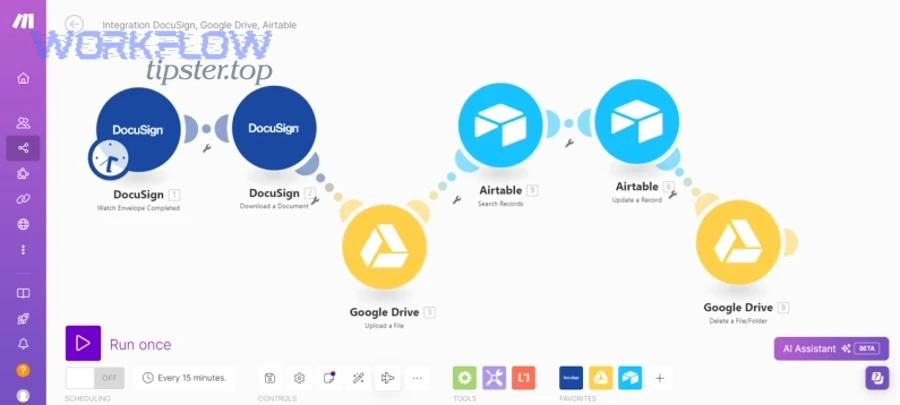

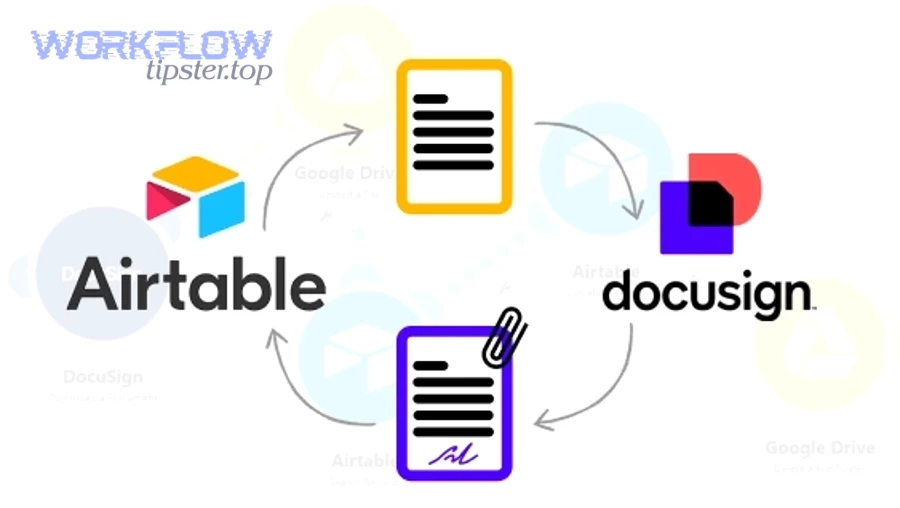
What are the required inputs and outputs for the workflow to be fully “no manual copy-paste”?
A fully “no manual copy-paste” workflow requires (1) a complete Airtable record, (2) a Word template with stable placeholders, (3) an automated file creation + Drive save step, and (4) an automated DocuSign send + return loop that writes envelope status and signed files back.
Specifically, think of it as a contract “assembly line”:
- Inputs (must exist before the trigger fires):
- A single source Airtable record that contains the agreement variables: counterparty name, signer email, effective date, pricing, addresses, legal entity name, and any optional clause flags.
- A Word template designed for merge: placeholders, controlled formatting, and sections that do not collapse when a field is empty.
- A Drive destination model: target folder rules, ownership rules (who “owns” files), and link-sharing policy.
- A DocuSign envelope plan: who signs, in what order, and how you handle CCs, reminders, and expiration.
- Outputs (must exist after the automation completes):
- A generated document file (often DOCX and/or PDF) stored in Drive with a predictable name.
- A Drive link stored back in Airtable so the record can always “point” to the created file.
- A DocuSign envelope ID stored in Airtable (this becomes your deduplication key).
- A status timeline in Airtable (sent → delivered → completed / declined / voided).
- The completed signed PDF (and optionally the certificate of completion) attached back to the record once the envelope completes. (zapier.com)
In practice, the “no manual copy-paste” outcome is not just convenience—it’s control: every contract can be reconstructed and audited from the same record that initiated it.
Is this workflow a good fit for Ops & Legal teams managing repeatable agreements?
Yes, an Airtable → Word → Google Drive → DocuSign document signing workflow is a strong fit for Ops & Legal teams because it reduces repetitive drafting, improves consistency across agreements, and creates a single audit-friendly trail from data to signed document.
However, it only stays “a good fit” when three conditions are true:
- Your agreements are template-driven.
If 70–90% of a contract can come from a standard template (MSA, NDA, SOW shell, offer letter), automation adds leverage. If every contract is bespoke from scratch, automation becomes limited to storage and status tracking. - Your data model is stable enough to merge reliably.
“Stable” means you can trust that required fields exist, are correctly formatted, and are validated before triggering send. Without this, the automation just accelerates mistakes. - Your team needs predictable throughput and visibility.
Ops teams often care about cycle time and bottlenecks; Legal teams care about accuracy, version control, and signature evidence. This workflow supports both by making contract creation and signing observable and repeatable.
According to a case study by the University of Virginia’s document imaging function, published by Internet2 in 2024, implementing DocuSign resulted in “thousands of hours in time savings annually.” (internet2.edu)
What should you set up in Airtable before you automate document signing?
There are 4 main setup groups you should create in Airtable—record readiness fields, standardized merge fields, workflow gating fields, and traceability fields—because automation cannot “fix” missing data; it only executes what your schema allows.
Next, you’ll turn Airtable into a predictable contract engine by designing it like a checklist: the record must prove it is ready before any connector is allowed to generate and send.

Which Airtable fields should you standardize to prevent broken documents and signature errors?
There are 3 main field groups you should standardize—identity fields, agreement terms fields, and signing logistics fields—based on whether they affect (A) the document text, (B) legal correctness, or (C) DocuSign delivery.
More specifically, the safest “minimum viable contract record” typically includes:
- Identity fields (who is this contract between?):
- Counterparty legal name (not display name)
- Counterparty address (structured fields or a single formatted block)
- Your internal legal entity name
- Signer full name
- Signer email
- Optional: signer title, department
- Agreement terms fields (what is being agreed?):
- Agreement type (NDA / MSA / SOW / offer letter)
- Effective date (date field, not free text)
- Term length / termination rule
- Fees, currency, payment terms
- Scope summary (short, controlled length)
- Optional clause toggles (checkboxes or single-select)
- Signing logistics fields :
- Signing order (single signer vs sequential)
- Internal approver (if needed)
- CC recipients
- Expiration / reminder cadence
- Output folder path rule (where should Drive store it?)
To reduce formatting failures during merge, you should also standardize output formatting helpers:
- Formula fields that produce “ready-to-merge” strings (currency formatting, date formatting, address block formatting).
- A “missing required fields” formula that lists what is absent, so your gate can block sends.
When you treat Airtable like a structured source of truth, you turn messy human drafting into controlled document generation—one of the most practical foundations of modern automation workflows.
How do you design an “Approved to Send” gate so only correct records trigger DocuSign?
An “Approved to Send” gate is a controlled trigger condition that only becomes true when required fields are complete, approvals are present, and the record is locked into a send-ready state—so the automation fires once, and only once.
Then, because most teams accidentally create double-sends when they rely on “record updated” triggers, you should build the gate with both validation and idempotency:
- Validation layer (prevents bad sends):
- A required-fields checklist formula (returns blank only when complete).
- An approval checkbox (e.g., “Legal approved” or “Ops approved”).
- A status single-select with explicit states: Draft → Ready for Review → Approved to Send → Sent → Completed.
- A “template chosen” field (ensures the right doc template is selected).
- Idempotency layer (prevents duplicate sends):
- An “Envelope ID” field (empty before send; filled immediately after send).
- A “Sent timestamp” field (filled once).
- Your trigger condition becomes: Approved to Send = true AND Envelope ID is empty.
This combination ensures the workflow behaves like a transaction: it either hasn’t been sent (safe to send), or it has been sent (safe to ignore). This pattern aligns with how common automation platforms structure Airtable-to-DocuSign workflows.
How do you generate a Word document from Airtable data without formatting surprises?
Generating a Word document without formatting surprises requires a template-first approach: build a controlled DOCX template, map Airtable fields to stable placeholders, and normalize “messy” data (like long text and addresses) before merge so the document layout stays predictable.
Next, you’ll shift your mindset from “writing a contract” to “designing a contract template as a rendering system,” because Word behaves differently when it renders variable-length content.

What is the best way to structure the Word template for reliable field mapping?
A reliable Word template is a structured document that uses consistent placeholder naming, protected layout zones, and repeatable section patterns so each Airtable field maps to a single location without ambiguity.
Specifically, the template should behave like a form—not a freehand document:
- Use consistent placeholder tokens for every variable (e.g., {{Client_Legal_Name}}, {{Effective_Date}}, {{Fee_Amount}}).
The exact token format depends on your document generation tool, but consistency is the real requirement. - Create “layout-safe zones” for variable content:
- Use tables for address blocks and signature blocks so spacing remains stable.
- Use controlled spacing rather than manual line breaks.
- Keep section headers separate from merge text so long values don’t distort headings.
- Separate “static legal language” from “dynamic fields.”
The more your template relies on dynamic content, the more important validation becomes upstream. - Define a single source for clause variants.
If you have optional clauses, don’t manually edit them each time; represent them as toggles in Airtable and let the generator include/exclude them.
A common mistake is to treat Word as the “logic layer.” In automation, Word is the “render layer.” Airtable is the logic layer.
How do you handle long text, multi-line addresses, and optional clauses in the generated document?
There are 4 main approaches—pre-formatting, length limits, conditional sections, and fallback defaults—based on whether the risk is visual layout breakage or legal content omission.
Then, apply them systematically:
- Pre-formatting (addresses, dates, currency):
- Build an Airtable formula for an address block that includes line breaks exactly as you want them to appear.
- Convert dates to a consistent long format (“January 15, 2026”) so the document never mixes styles.
- Format currency and numbers with fixed decimals where needed.
- Length limits (scope summaries, special terms):
- If a field can be long (e.g., “Scope Summary”), define a max length policy and enforce it via validation messages.
- Use a separate long-form appendix if needed rather than letting a paragraph explode a page layout.
- Conditional sections (optional clauses):
- Store clause toggles in Airtable (Yes/No or single-select).
- Use your generation tool’s conditional logic (or template variants) so optional clauses are included only when the toggle is active.
- Fallback defaults (avoid blank legal holes):
- If a field is optional, set a default string like “N/A” or omit the line entirely—but do not leave ambiguous blanks that confuse signers.
This approach is exactly why the “Approved to Send” gate matters: it ensures the record content is render-ready before any document is generated and sent for signature.
How do you store and organize generated documents in Google Drive so teams can find them later?
Storing contracts effectively in Google Drive requires 3 decisions—folder taxonomy, naming conventions, and ownership/permission rules—so every generated agreement is discoverable, shareable to the right people, and traceable back to its Airtable record.
Next, you’ll connect Drive storage to operational speed: if people can’t find the latest version in 10 seconds, they will recreate it, resend it, or sign the wrong one.
Which folder and file naming conventions reduce confusion across many contracts?
There are 3 common naming models—client-centric, deal-centric, and agreement-type-centric—based on how your team searches for documents and how frequently clients have multiple concurrent contracts.
Then, pick one and enforce it:
1) Client-centric (best for ongoing relationships):
Folder: /Clients/{Client Name}/Agreements/
Filename: {Agreement Type} – {Client Legal Name} – {Effective Date} – v{Version} – {Record ID}.pdf
2) Deal-centric (best for sales pipelines / projects):
Folder: /Deals/{Deal ID or Project Name}/Contracts/
Filename: {Deal ID} – {Agreement Type} – {Client} – {Date}.pdf
3) Agreement-type-centric (best for high-volume standardized docs):
Folder: /Agreements/{Agreement Type}/2026/01/
Filename: {Client} – {Agreement Type} – {Date} – {Record ID}.pdf
A record ID (or unique contract ID) in the filename is a simple but powerful traceability tool: it lets you match a Drive file to the exact Airtable record even if someone renames a folder.
How do you prevent “permission denied” issues when automation creates and shares Drive files?
Shared Drives win for centralized control, a connector-owned Drive account is best for stability, and personal drives are optimal only for solo operators—because ownership determines whether files remain accessible when people change roles.
However, the more teams involved, the more you should bias toward Shared Drives:
- Shared Drive benefits:
- Files remain with the organization, not a departing employee.
- Permissions can be managed at the drive or folder level.
- Automation ownership is less fragile.
- Connector-owned account benefits:
- Your automation platform can consistently create and move files.
- You avoid “created by a random employee” drift.
- You can enforce least-privilege access.
- Personal drive risks:
- Permission errors when the creator doesn’t have rights.
- Broken links when ownership changes.
- Accidental exposure when sharing is too broad.
If you’re using a no-code connector route, official integration guidance typically emphasizes connecting accounts, selecting triggers, and defining actions carefully because permissions and authentication are a common failure point.
How do you send the document to DocuSign and track the signing lifecycle back in Airtable?
Sending and tracking requires one consistent loop: create a DocuSign envelope from the generated file, store the envelope ID in Airtable, listen for envelope status updates, and attach the completed signed document back to the same record when the envelope completes.
Then, once that loop is stable, you can add reminders, expiration rules, and escalation rules without changing the core architecture.
What data must be passed to DocuSign to create a valid envelope every time?
There are 5 main data groups—document file, recipients, routing rules, message metadata, and signing field strategy—based on what DocuSign needs to deliver a signable envelope without manual edits.
More specifically:
- Document file
- The PDF or DOCX to sign (most teams convert to PDF for stability).
- A consistent document name (what signers will see).
- Recipients
- Signer name + signer email (required).
- Optional CC recipients.
- Optional additional signers (legal counter-sign, internal approval).
- Routing rules
- Signing order (parallel vs sequential).
- Role-based routing if you use templates (e.g., “ClientSigner,” “InternalSigner”).
- Message metadata
- Email subject (standardized for recognition).
- Email body (instructions, timeline, contact).
- Reminder and expiration settings.
- Signing field strategy
- Template-based tabs (recommended if you reuse agreement formats).
- Dynamic tabs (useful if the signing fields vary by contract type).
Many teams choose middleware for this because Airtable does not natively integrate with DocuSign in the simplest direct way; a common approach is to trigger DocuSign actions when Airtable records are created or updated using a connector workflow. (zapier.com)
How do you sync DocuSign statuses and signed PDFs back into Airtable automatically?
Automatic syncing works by capturing envelope status updates, writing status fields back to Airtable, and downloading completed envelope documents to attach them to the triggering record—so Airtable becomes the contract “dashboard,” not just the starting point.
Next, you implement this in two layers:
Layer 1: Status fields (visibility and process control)
- Envelope ID (unique key)
- Envelope status (sent/delivered/completed/declined/voided)
- Sent timestamp
- Completed timestamp
- Last status sync timestamp
Layer 2: Signed document return (proof and storage)
- Attach “Completed PDF” back to Airtable (attachment field).
- Optionally attach “Certificate of Completion.”
- Store the Drive link to the signed PDF as well, if Drive is your system of record for files.
Some connector recipes explicitly include options to return envelope documents (and even the certificate) when the envelope status updates. (zapier.com)
According to a report cited in an EDUCAUSE Review industry piece (2022), institutions reported a 41% reduction in student enrollment processing time using e-signature. (er.educause.edu)
What are the most common failure points, and how do you fix them fast?
There are 6 common failure points—bad source data, template mismatch, Drive permission errors, DocuSign recipient errors, duplicate triggers, and missing status callbacks—based on where the workflow can fail silently and create operational risk.
Then, once you know the failure modes, you can fix them with a checklist rather than trial-and-error debugging.
Why do workflows create duplicate envelopes, and how do you prevent double-sends?
Duplicate envelopes happen when the trigger fires more than once for the same record, the workflow lacks an idempotency key, or multiple team members touch the “Approved to Send” fields—so the system interprets normal edits as new send events.
Specifically, double-sends usually come from:
- Trigger design mistakes
- Triggering on “record updated” without filtering for a single transition event.
- Using multiple automations or scenarios that respond to the same state.
- Missing idempotency
- No envelope ID stored back to Airtable immediately after send.
- No sent timestamp or “locked” field that prevents re-entry.
- Human process overlap
- Two people approve the same record in close succession.
- Someone edits a required field after approval and inadvertently retriggers the workflow.
To prevent this, implement a “send lock” pattern:
- Trigger only when status changes into Approved to Send (not whenever any field changes).
- Immediately write back Envelope ID and Sent timestamp after the DocuSign send step.
- Add a condition: do not send if Envelope ID is already present.
- If you must allow re-sends, do it via a separate explicit field like “Resend requested” that resets the lock intentionally.
This is the difference between a workflow that “usually works” and a workflow that behaves like an engineered system.
What should you log and alert on so you don’t miss failed sends or unsigned contracts?
There are 5 main alert categories—send failures, permission failures, status-sync failures, timeouts/stalls, and abnormal duplicates—based on whether the impact is immediate (contract not sent) or delayed (contract stuck and forgotten).
More importantly, logging is not just a technical detail; it is a process guarantee for Ops and Legal.
A practical monitoring setup includes:
- Send failure log
- Record ID
- Timestamp
- Error message
- Failed step name (generate / drive upload / docusign send)
- Permission failure alerts
- “Cannot create file in folder”
- “Insufficient permissions”
- “Invalid OAuth token”
- Status-sync health
- Last status sync time
- Status mismatch checks (envelope completed but Airtable not updated)
- Stalled envelope reminders
- If status remains “sent” for X days, notify owner
- If signer hasn’t opened in Y days, send a reminder or task
- Duplicate detection
- Same record produced more than one envelope ID in a short time
- Same signer got multiple emails
If you keep a lightweight internal playbook (for example, a shared troubleshooting hub like “WorkflowTipster.top”), include screenshots of each connector step, the exact trigger condition, and the lock rule—because most duplicate issues come from one missed condition, not from complex bugs.
According to a recent Airtable + DocuSign integration tutorial, teams commonly rely on connector-based triggers and structured steps to implement document generation and signing reliably. (typeflow.us)
How can you optimize, choose tools for, and harden an Airtable → Word → Drive → DocuSign signing workflow?
You can optimize and harden the workflow by choosing the right connector, standardizing templates and folder rules, adding idempotency and monitoring, and designing safe fallbacks—so your pipeline scales to higher volume without increasing errors or manual interventions.
Next, you’ll expand beyond the “happy path” and make the workflow resilient to edge cases, team collaboration, and intermittent connector failures.
Which connector is better for this workflow: Zapier vs Make vs Microsoft Power Automate?
Zapier wins in simplicity, Make is best for multi-step control and branching, and Microsoft Power Automate is optimal for Microsoft-heavy environments and enterprise governance—because each platform optimizes a different constraint (speed, flexibility, control).
However, the right choice depends on your operating model:
- Choose Zapier when:
- You want fast setup and standardized triggers/actions.
- Your workflow is mostly linear (generate → upload → send → update).
- You value quick iteration over deep customization. (zapier.com)
- Choose Make when:
- You need branching logic, loops, and stronger control over data mapping.
- You want detailed scenario-level debugging.
- You expect to expand into multi-app chains over time (for example, document generation + signing + storage + record updates).
- Choose Power Automate when:
- Your org already lives in Microsoft 365.
- You need stronger admin oversight, governance, and standardized connectors.
- You want native alignment with Word-centric document practices (templates, approvals, compliance).
A practical rule: start with the connector your team can support. The best automation is the one your team can maintain without fear.
How do you eliminate the last “manual” steps (manual ↔ automated) with reusable templates and self-serve intake?
Automation wins when you replace manual drafting and chasing with reusable templates, structured intake, and auto-reminders—because every human handoff introduces delay, inconsistency, and lost context.
Then, to eliminate the last manual steps, use three levers:
- Reusable template library
- One template per agreement type with clear placeholder naming.
- Versioning: v1, v2, v3 tied to policy changes.
- Self-serve intake
- A form or intake layer that populates Airtable with validated fields.
- Clear “required vs optional” rules, so records are merge-ready immediately.
- Automated nudges
- Reminders when an envelope is sent but not opened.
- Escalation when a contract is stuck beyond SLA.
This is the same conceptual pattern you see across other modern automation workflows, including scheduling chains like “calendly to google calendar to google meet to monday scheduling,” where the goal is to remove manual coordination steps and make the workflow self-propelling.
What rare edge cases require extra design (conditional routing, embedded signing, and compliance retention)?
There are 4 rare edge case categories—identity verification, conditional routing, bulk send/rate limits, and retention/audit constraints—based on whether the constraint is technical, legal, or organizational.
More specifically:
- Identity verification / advanced authentication
- Some agreements require stricter signer verification (SMS, access code, knowledge-based authentication, etc.).
- This affects your envelope creation settings and may require specialized workflow branches.
- Conditional routing
- If agreement value exceeds a threshold, route to legal review or finance approval first.
- This requires conditional logic and a multi-stage state machine in Airtable.
- Bulk send and scaling constraints
- High-volume operations can hit connector limits, DocuSign sending limits, or rate throttling.
- You may need queueing (send 50 per hour) and backoff logic.
- Compliance + retention
- Some teams require signed agreements and audit trails stored in controlled repositories.
- Decide whether Drive is your authoritative archive or whether you also replicate to a dedicated document management system.
If your organization also runs parallel document-signing chains—such as “airtable to confluence to dropbox to dropbox sign document signing”—these edge cases become even more important because each tool adds its own permission model and failure modes.
How do you make the workflow resilient to webhook delays, retries, and partial failures?
A resilient workflow uses idempotency keys, replay-safe updates, retry policies, and a human-review fallback queue—so a delayed status update or a transient connector error doesn’t cause data corruption, duplicate sends, or missing signed documents.
Then, implement resilience with concrete mechanics:
- Idempotency
- Envelope ID stored as the unique key.
- Never create a second envelope if an envelope ID already exists unless an explicit resend flag is set.
- Replay-safe updates
- Status updates should overwrite only the status fields, not reset approvals or clear the sent timestamp.
- Document attachments should be additive (attach signed PDF if missing).
- Retries with boundaries
- Retry transient failures (timeouts, rate limits) with exponential backoff.
- Do not retry envelope creation blindly; check whether an envelope was already created first.
- Fallback queue
- If a step fails repeatedly, mark the record as “Needs Review” and notify an owner with the error context.
This is where the workflow evolves from a simple integration into an operational system—one that teams can trust for contracts that matter.
According to a case study by the University of Virginia’s document imaging function, published by Internet2 in 2024, implementing DocuSign resulted in “thousands of hours in time savings annually,” reinforcing why resilience and automation design matter when signing volume grows. (internet2.edu)