


If you’re seeing “upload failed” or you notice Slack attachments missing after you (or a teammate) “successfully” shared a file, the fastest fix is to separate upload problems from visibility problems. Upload failures are usually caused by file limits, connection instability, permissions, or security controls; “missing” files are often caused by channel access, Slack Connect restrictions, previews not rendering, or the file living somewhere else (Drive/OneDrive link) rather than being stored in Slack.
Next, you’ll learn the most common root causes behind missing attachments and failed uploads—what’s happening on the client (desktop/mobile/browser), what’s happening in the workspace, and what’s happening in the network path—so you can stop guessing and start validating.
Then, you’ll get a step-by-step playbook for end users and admins: quick checks you can do in under five minutes, deeper diagnostics when the problem persists, and a repeatable checklist you can use during incidents.
Introduce a new idea: once you understand whether the issue is Upload vs Visibility, you can fix it with a predictable sequence instead of random retries.
What does “upload failed” or “missing attachments” mean in Slack?
“Upload failed” in Slack means the client attempted to add a file to a message or conversation, but Slack did not complete the upload and store/attach the file; “missing attachments” means the message exists, but the file is not accessible or visible to the intended viewer (often due to permissions, limits, or link-based sharing).
Then, to troubleshoot cleanly, treat these as two different problem types:

Is “upload failed” always a network issue?
No—“upload failed” is not always a network issue, because it often comes from (1) file constraints, (2) permissions & restrictions, and (3) security scanning in addition to connectivity problems.
Next, here’s how those three reasons usually show up in real teams:
- File constraints (limits, type, preview rules)
Slack allows uploads up to 1 GB per file. If your file is larger, you can’t “retry” your way past the limit. Also, Slack may block certain file types or handle previews differently (a preview failure can look like “missing” even when the file exists). - Permissions & restrictions (especially Slack Connect)
Uploading/sharing can be restricted in Slack Connect conversations, and some file types can’t be added. - Security scanning / malware controls
Slack scans uploaded files for viruses/malware and won’t upload a file if it’s detected (or suspected).
Practical implication: before you debug Wi-Fi, confirm you’re not violating a rule that guarantees failure.
What’s the difference between “missing attachment” and “file preview not loading”?
A missing attachment means you can’t open the file at all (or it’s not present where expected); a preview not loading means the file exists but Slack can’t render the preview for the viewer’s context (device/app/version, file size, Office preview rules, permissions, etc.).
Then, use this quick test:
- If the file has a downloadable object/link that opens → it’s usually a preview/rendering/permission issue.
- If the file object is absent or clicking fails for everyone → it’s more likely upload didn’t complete or the file was blocked/restricted.
To illustrate, it helps to remember that file sharing in messaging apps can be upload-to-service (server-based) rather than true peer-to-peer transfer—so the “message” and the “file object” are not the same thing.
What are the most common causes of Slack attachment upload failures?
There are 7 main causes of Slack attachment upload failures: (1) file size/type limits, (2) unstable connection, (3) client issues, (4) workspace/app restrictions, (5) Slack Connect limits, (6) security filtering, and (7) external-storage links that aren’t accessible.
Next, instead of treating them as one big bucket, group them by where the failure originates:
Which file limits and file types trigger “upload failed”?
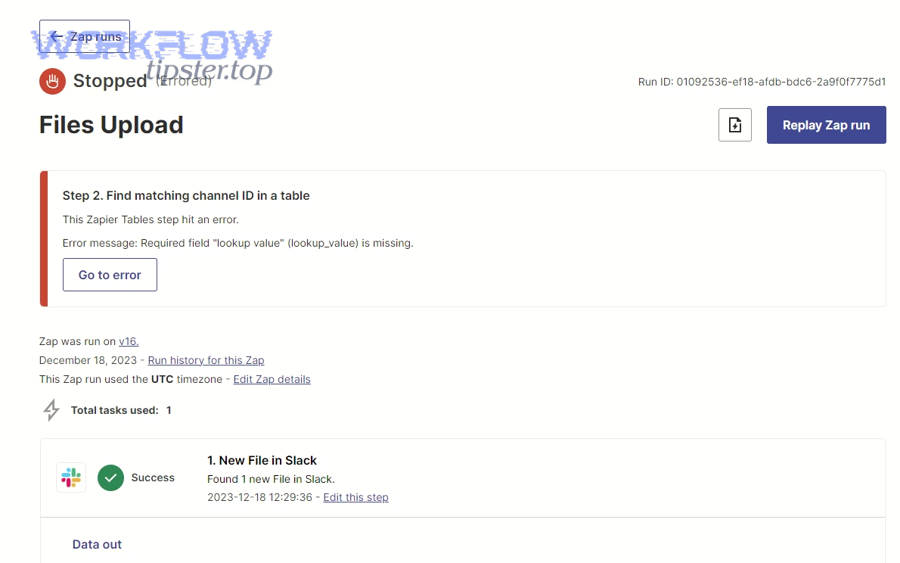
Slack supports files up to 1 GB, and on desktop you can drag-and-drop up to 10 files at once. If your attachment violates size limits, the upload won’t succeed, even if everything else is perfect.
Then, check these “limit-shaped” triggers:
- Single file is too large (common with videos, PSD/AI, large exports).
- Batch uploads where one file breaks a rule and the user assumes “all failed.”
- File types that are restricted for your conversation type (Slack Connect can be stricter).
- Preview-only confusion (file exists, preview doesn’t render, user assumes failure). Some large Office files may not display previews.
How does Slack Connect change upload behavior?
Slack Connect can restrict uploading and sharing files depending on settings and policies, so an upload that works in an internal channel may fail—or appear missing—inside a Connect conversation.
Next, if the issue happens only in Slack Connect, your fastest path is:
- Confirm whether the conversation is Slack Connect.
- Try the same file in an internal channel.
- If internal works but Connect fails, treat it as policy/restriction, not user error.
What client-side problems cause uploads to fail on desktop vs mobile vs browser?
Desktop/mobile/browser differ mostly in how they handle caching, backgrounding, and network switching—which matters because uploads are long-lived requests.
Then, check these client-specific patterns:
- Desktop app: stale cache, blocked by endpoint protection, or network proxy/VPN rules.
- Browser: extensions, strict tracking protections, corporate policies, or temporary cookie/session issues.
- Mobile: backgrounding mid-upload, cellular switching, storage permissions, or OS-level “data saver” behavior.
According to a study by University of New Hampshire from its Computer Science program, in 2006, baseline WLAN throughput in their evaluation reached about 6 Mbps and decreased as the number of concurrent socket connections increased—showing how shared wireless conditions can shrink effective upload capacity even when connectivity remains “up.”
How can end users fix “Slack attachments missing / upload failed” step by step?
Use this 6-step method to fix Slack attachments missing / upload failed: (1) confirm it’s upload vs visibility, (2) validate limits, (3) retry with a controlled test file, (4) switch client/path, (5) confirm permissions & channel access, (6) collect the right details for escalation.
Then, run the steps in order—because each step narrows the cause without wasting time.

Step 1: Is the file truly missing, or is it in another place?
Open the message where the file was shared and check whether it is:
- A native Slack file (upload stored in Slack, usually with preview/download controls), or
- A link to external storage (Google Drive/OneDrive/Dropbox link), or
- A message reference (a shared link to a file posted elsewhere in Slack).
Next, if it’s a link, the fix often isn’t “retry upload”—it’s access (the viewer may not have permission to that Drive item).
Step 2: Confirm file constraints in 30 seconds
Slack allows files up to 1 GB. If your file is close to that, don’t guess—check the file size in your OS.
Then, do a controlled test:
- Try uploading a small, known-good file (e.g., a 200 KB PNG or a 1 MB PDF).
- If the small file succeeds, your problem is probably file-specific (size/type) or path-specific (proxy/VPN).
Step 3: Retry using a “clean” client path
If the first attempt failed:
- Desktop app → browser (or browser → desktop app)
- Wi-Fi → mobile hotspot (or hotspot → Wi-Fi)
- VPN on → VPN off (if policy allows)
- Different device (if available)
Next, if changing the path fixes it, you’ve proven the issue is likely client environment or network policy, not Slack core behavior.
Step 4: Verify you’re allowed to post in the destination
Uploads can fail silently when:
- You’re posting in a channel where you have restricted posting rights
- You’re in a Slack Connect channel with file-sharing restrictions
- A workspace policy blocks the file type or blocks uploads entirely in some contexts
Then, test by uploading the same file to a personal DM with yourself. If it works there but fails in the channel, the issue is likely channel/workspace policy.
Step 5: If the attachment is “missing,” verify viewer access
A “missing file” report often means:
- The viewer is not in the same private channel/DM history where the file lives
- The viewer lacks permission to the external link target
- The file is in a thread or different channel than assumed
Next, ask the viewer to open the channel and use the Files tab/search to locate it (this distinguishes “not visible” from “not uploaded”).
Step 6: Capture the details that speed up escalation
If you need help from an admin or Slack support, capture:
- Exact error text (“upload failed”, “couldn’t upload”, etc.)
- Whether it’s desktop/mobile/browser
- File size/type
- Channel type (public/private/Slack Connect)
- Timestamp and approximate region/network (office/home/VPN)
Then, your admin can correlate this with workspace security logs and policies.
How do admins diagnose and resolve Slack upload failures at the workspace level?
Admins can resolve Slack upload failures using 4 workspace-level checks: (1) validate policy restrictions (uploads, Slack Connect, file types), (2) validate security controls (malware/endpoint), (3) validate identity & permissions, (4) validate integration behavior (Drive/OneDrive apps, link permissions, API workflows).

Next, this is where Slack Troubleshooting becomes less about “try again” and more about system boundaries.
What workspace settings or security controls block file uploads?
Slack scans uploaded files for malware and won’t upload a file if it’s detected.
Then, don’t ignore false positives: if users repeatedly report blocked uploads for the same file type, you may be dealing with a security rule rather than Slack itself.
How do you isolate a Slack platform issue vs an environment issue?
Use a controlled A/B test:
- Same user + same file + different network (office vs hotspot)
- Same file + different user on the same network
- Same user + different client (desktop vs browser)
Next, interpret outcomes:
- Fails only on one network → proxy/VPN/firewall policy
- Fails only for one user → permissions/device security
- Fails for many users across environments → potential Slack incident (check Slack Status)
When “missing attachments” are actually external-link permission problems
Many teams “share a file in Slack” by sharing a link. If the link target’s permissions don’t include the viewer, the viewer experiences it as “missing.”
Then, fix it by aligning access:
- Ensure the external file has correct sharing permissions
- Ensure the integration (Drive/OneDrive) is installed and authorized where needed
- Prefer uploading a smaller version to Slack when link permissions are hard to manage
Where API and automation errors confuse file troubleshooting
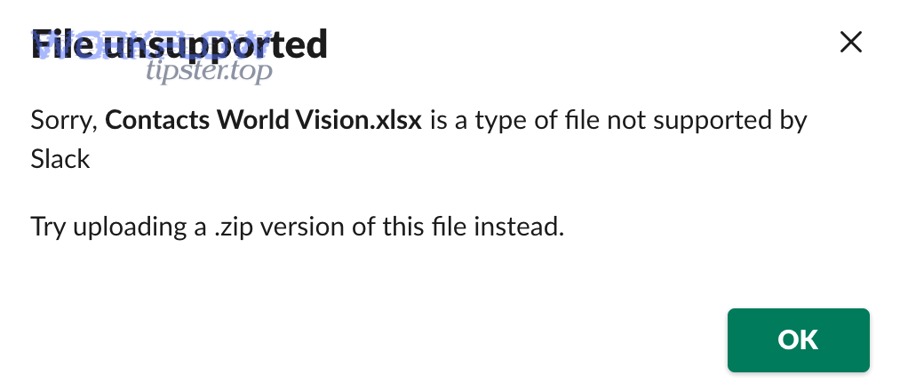
If your organization relies on bots or workflows, upload failures can be caused by automation errors that look unrelated—like a bad payload or a server-side error in an integration pipeline.
Then, treat these as separate but connected signals:
- slack invalid json payload: your integration is sending malformed data, which can cause message/file operations to fail before upload even begins.
- slack webhook 500 server error: your webhook endpoint is failing, so Slack never receives a valid instruction to attach/share the file, even if the user thinks “Slack is broken.”
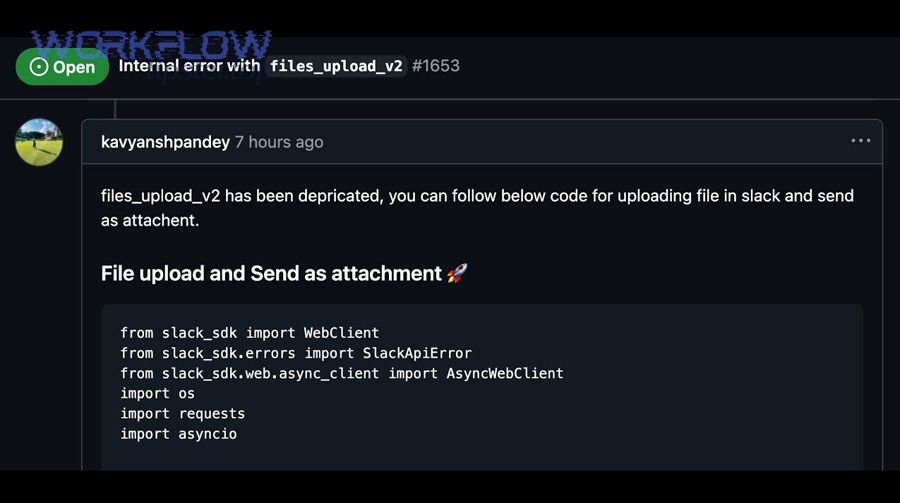
If file sharing is programmatic, use the official developer docs and SDK workflows to validate the correct upload method and required parameters.
What troubleshooting workflow prevents repeated “upload failed” incidents?
A preventive workflow that reduces “upload failed” incidents has 3 layers: user guardrails, environment hygiene, and policy clarity.
Next, here is a simple workflow you can institutionalize as a team checklist.
A repeatable “Upload vs Visibility” decision tree
Use this decision tree to stop repeated incidents:
- Did the file ever finish uploading?
If no → investigate limits, network, client, security scanning. - Can the uploader open it?
If yes but others can’t → permission/visibility issue (channel access or external link). - Does it fail only in Slack Connect?
If yes → policy/restriction likely.
Then, bake this into your internal Slack Troubleshooting SOP so support requests arrive with the right classification.
A team checklist that prevents “big file surprises”
Below is a quick checklist that sets expectations before users waste time:
- Keep common shared assets under the 1 GB limit for native Slack upload.
- For very large media, use external storage and share links—but ensure link permissions match the audience.
- When onboarding new teammates, teach them where files live (Slack upload vs Drive link).
- Standardize a “small test upload” (1 MB PDF) for diagnosing client/network quickly.
A lightweight training tactic: show users what “success” looks like
Many “missing attachment” tickets are misunderstandings about how file sharing works in messaging apps (message ≠ stored file object).
Then, a 5-minute internal training that explains:
- Uploading a Slack file (stored in Slack)
- Linking a Drive file (stored elsewhere)
- Why some people can’t open the link (permissions)
…will reduce repeat tickets significantly.
What edge cases cause Slack uploads to succeed but attachments still look missing?
Even when uploads “succeed,” attachments can still look missing due to (1) preview rules, (2) channel membership boundaries, (3) thread/context mismatch, and (4) security/policy actions after upload.
Next, these edge cases are where teams lose the most time—because the uploader insists it worked.
When a file is present but preview doesn’t display
Some large Office files may not display previews.
Then, the fix is simple:
- Ask the viewer to download/open the file rather than relying on preview.
- If downloading works, the attachment isn’t missing—it’s a preview limitation.
When “missing” is actually “you’re not in that private space”
If a file is posted in a private channel or DM, people outside that context won’t see it. They may see a message reference, but not the file object, depending on how it was shared.
Next, fix it by either:
- Adding the viewer to the right channel (if appropriate), or
- Re-sharing the file into a space they can access.
When messages move but files don’t follow expectations
In daily operations, users:
- Share links, forward messages, quote posts, or reference threads
- Assume the file is “attached here” when it actually lives “over there”
Then, instruct users to open the original context (thread/channel) and use Slack’s file browsing/search features.
When security or policy removes access after upload
Sometimes the upload succeeds, but later:
- A security system flags the file
- A retention/policy rule removes or restricts access
- The file becomes unavailable for certain audiences
Next, this is when admin logs and security tools become essential—because end users will only see “missing,” not the policy action.
According to a study by University of New Hampshire from its Computer Science program, in 2006, their WLAN performance evaluation includes baseline throughput measurements reaching around 6 Mbps, and shows throughput declining as concurrent socket connections increase—conditions that can amplify intermittent upload failures during busy office Wi-Fi usage.