


If you’re seeing Notion webhook 404 Not Found (often with the code object_not_found), you can fix it by validating three things in the right order: the Notion resource is real, your integration can access it, and your webhook/API request is pointing to the correct endpoint and environment.
You’ll also learn what “404” means in Notion’s security model, because it’s not always a “wrong URL” problem—it’s frequently a permissions/sharing problem that looks like “not found” on purpose.
Then you’ll use a practical checklist to identify the most common causes—wrong page/database ID, workspace/token mismatch, incorrect endpoint/method, or webhook subscription issues—and confirm the fix with quick, controlled tests.
Introduce a new idea: once you can consistently resolve today’s 404, you’ll shift into prevention so the same error doesn’t return after deployments, duplicated databases, or automation-tool migrations.
What does “Notion webhook 404 Not Found (object_not_found)” mean?
Notion webhook 404 Not Found (object_not_found) is an error response that means the target resource can’t be retrieved by your request—either because it truly doesn’t exist, or because your integration doesn’t have access to it—so Notion treats it as “not found.”
Next, because this error can hide multiple root causes behind the same status code, you need a mental model that separates resource existence from resource accessibility and from webhook endpoint reachability.
Is a Notion 404 always caused by a wrong endpoint URL?
No—Notion webhook 404 Not Found is not always caused by a wrong endpoint URL, for three common reasons: (1) the resource isn’t shared with your integration, (2) the ID you’re using isn’t the ID Notion expects, and (3) your token points to a different workspace/environment than the resource.
Specifically, when developers assume “404 = bad URL,” they often spend time rewriting routes and endpoints while the real fix is to share the database/page with the integration. For example, a Notion database can be perfectly visible in the UI to a human user but invisible to an integration token unless it’s explicitly connected. That mismatch produces the same “not found” behavior because the API call cannot retrieve the object.
To keep this concrete, treat 404 as a three-branch fork:
- Branch A: Wrong object (the database/page/block truly does not exist, or you copied the wrong ID)
- Branch B: Right object, wrong access (the integration token cannot see it due to sharing/permissions)
- Branch C: Right object and access, wrong context (token/workspace mismatch, wrong base URL, wrong environment)
Then, instead of guessing, you validate each branch with a minimal request: retrieve the object using the exact token your workflow uses. If retrieval fails, you focus on ID/access. If retrieval succeeds but the webhook still “fails,” you focus on webhook delivery and endpoint routing.
How is “object_not_found” different from authentication or permission errors?
object_not_found wins in “resource invisibility,” authentication errors are best for “bad credentials,” and permission errors are optimal for “valid token but blocked action,” because Notion can return 404 when the object is not accessible at all, even though your token is valid.
However, from a troubleshooting perspective, the practical difference is how you proceed:
- If your token is invalid or missing required headers, you typically get an error that points at authentication/authorization.
- If your token is valid but cannot access a specific object, Notion may return 404
object_not_foundto avoid leaking whether that object exists. - If your request is structurally invalid, you may see a 400-series parsing/validation error (this is where notion invalid json payload becomes relevant during Notion Troubleshooting).
So your “next best action” changes: with object_not_found, you prioritize ID correctness + sharing before rewriting code. That shift prevents the most common loop: “I fixed the URL three times but it still 404s.”
According to a study by Carnegie Mellon University from the IEEE International Conference on Software Maintenance and Evolution (ICSME), in 2019, participants debugging framework API misuses often struggled with abstraction-related issues (like inversion of control and object protocol constraints), which is a reminder that many “404” investigations fail because the developer’s mental model doesn’t match the framework’s rules.
What are the most common causes of Notion webhook/API 404 errors?
There are 6 main causes of Notion webhook/API 404 errors—wrong resource ID, not shared with integration, workspace/token mismatch, wrong endpoint or HTTP method, stale/duplicated object references, and webhook subscription misconfiguration—based on where “not found” is introduced in the request path.
Then, because a 404 is a symptom (not a diagnosis), the fastest approach is to map each cause to a single validation test and stop as soon as one test fails.
Before you dive into details, here’s a compact table that shows what the cause looks like and how to confirm it. This table is a diagnostic map: each row is a likely cause, and each “Quick validation” column gives you the fastest proof.
| Likely cause | What it looks like | Quick validation | Fastest fix |
|---|---|---|---|
| Wrong page/database/block ID | 404 persists everywhere | Try a minimal “retrieve” call for that ID | Replace ID with correct one |
| Not shared with integration | Works in UI, fails in API | Check whether integration is connected to that page/database | Share/connect object to integration |
| Workspace/token mismatch | Works in one environment only | Confirm token workspace vs where object lives | Use correct token or move object |
| Wrong endpoint or HTTP method | 404/400 varies by request | Verify exact endpoint path + method + version headers | Align request to docs |
| Stale ID after duplication/migration | Suddenly fails after copy | Compare old ID vs new object ID | Re-select object and update ID |
| Webhook subscription not active | Trigger “never fires,” or webhook errors | Check subscription status and callback URL | Activate/verify subscription, fix URL |
Which ID mistakes cause 404 (page vs database vs block, formatting, stale IDs)?
There are 5 main ID mistakes that cause Notion webhook 404 Not Found: using a page ID where a database ID is required, copying a share link instead of the raw ID, stripping or truncating the ID, using a block ID for a page-level endpoint, and keeping a stale ID after duplicating or migrating content—based on mismatching the endpoint’s expected object type.
Specifically, Notion’s API endpoints are strict about “what object type” they’re operating on. When you call a database query endpoint with a page ID, you won’t get a “helpful conversion”—you’ll get “not found.” That strictness is good for correctness, but brutal for speed when you’re in a hurry.
A reliable ID workflow looks like this:
- Capture the ID once, then store it in a named configuration variable (e.g.,
NOTION_DATABASE_ID_CUSTOMERS). - Verify the object type by retrieving it before you use it in other calls.
- Re-check IDs after duplication. Duplicating a database creates a new object with a new ID. If your automation still points to the original, it will appear “missing” in the new workspace context.
If you’re using an automation platform, watch for hidden transformations:
- Some tools store IDs without hyphens, some with hyphens, and some accept both.
- Some tools let you “pick a database” in the UI, but behind the scenes they store an ID that can become stale if you swap the underlying Notion database.
A simple rule prevents most issues: if you didn’t retrieve it successfully with the same token, don’t assume the ID is correct.
Can using the wrong workspace or token produce a 404?
Yes—using the wrong workspace or token can produce a Notion webhook 404 Not Found for three reasons: (1) the object literally doesn’t exist in that workspace, (2) the integration is not installed/authorized there, and (3) the object is not shared with that integration in that workspace.
In addition, this is one of the most common “everything looks correct” traps because the URL and ID may look identical across environments while the underlying object differs. It’s especially common when teams have:
- A dev workspace where tests are performed
- A prod workspace where real databases live
- A shared “template database” that gets duplicated
If you run Notion Troubleshooting in this situation, prioritize identity checks:
- Confirm which workspace the token belongs to.
- Confirm the object exists in that workspace.
- Confirm the object is shared with that integration in that workspace.
If any of these fail, you’ll chase phantom bugs in your code, because the problem is not code—it’s context.
How do you fix Notion 404 by verifying access and sharing settings?
Fixing Notion webhook/API 404 is best done by verifying access in 4 steps—confirm the object exists, share the page/database with your integration, confirm the integration is authorized in the correct workspace, and re-test with a minimal retrieve call—so you restore visibility and stop “object_not_found.”
Next, because Notion’s access model is the most frequent root cause, you should treat “sharing” as a first-class part of your deployment checklist, not a one-time setup step you do once and forget.
Is the page/database shared with your integration correctly?
Yes or No is determined by three checks: (1) the exact page/database is explicitly connected to the integration, (2) the integration token you’re using is the one that belongs to that integration, and (3) the object you’re calling in the API is within the shared scope—not just visible to you as a human user.
More specifically, “shared correctly” does not mean “I can see it in Notion.” It means the integration can see it.
Use this practical checklist:
- You shared the correct object: the exact database, not only a parent page that contains it (this is a common mistake).
- The integration appears as a connection to that page/database.
- You’re using the same integration token in your workflow that you used when you set up sharing.
- You didn’t swap tokens between tools (e.g., testing token in Postman, production token in your automation platform).
If any checkbox fails, 404 becomes expected behavior. When you fix it, the 404 typically disappears immediately—no code changes required.
How can you confirm access using a minimal “retrieve” request?
You can confirm access by sending one minimal retrieve call for the exact object ID using the exact token your workflow uses, and expecting a successful response; if it 404s, your problem is ID or sharing, not webhook delivery.
Then, because you want speed, you avoid complex calls first. A minimal retrieve call is faster to debug because it has fewer moving parts (no filtering, no payload mapping, fewer headers).
A practical sequence:
- Retrieve the object (page or database).
- If it succeeds, perform the next simplest action (e.g., list properties or query database with no filters).
- Only after those succeed, test your full workflow (filters, property mappings, downstream actions).
This sequencing prevents the classic “I debugged my webhook for two hours” problem when the real issue was that the integration never had access to the database.
How do you troubleshoot webhook-specific 404 issues (subscription, callback URL, delivery)?
Webhook-specific 404 troubleshooting works best with a 3-part method—verify subscription state, verify the callback URL route exists and is reachable, and verify your receiver responds correctly—so you distinguish “Notion can’t deliver the event” from “Notion can’t find the Notion object.”
In addition, webhook issues can be deceptive because you have two systems that can generate a 404: Notion’s API and your receiving endpoint. If you don’t separate them, you’ll fix the wrong side.
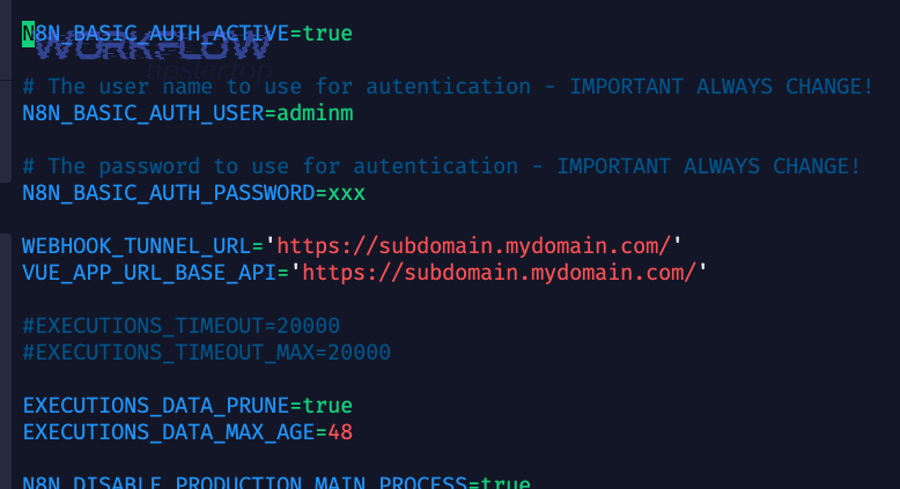
Is your webhook subscription active and pointing to the correct callback URL?
Yes—your webhook subscription must be active and correctly pointed for three reasons: (1) paused/pending subscriptions do not deliver events, (2) a callback URL that maps to a non-existent route returns 404, and (3) environment drift (staging vs production) can silently direct Notion to the wrong server.
Next, the fastest way to validate this is to treat the callback URL like a product feature: it must be correct, observable, and testable.
Practical checks:
- Subscription state: active (not paused, not pending verification).
- Callback URL correctness: exact path, exact host, correct protocol (https), no accidental typos.
- Receiver route exists: your server actually has a handler at that route and accepts the expected method (often POST).
If you are using an automation platform as the receiver (like a webhook trigger node), confirm the node is enabled, the workflow is active, and you are hitting the correct test vs production URL. Many 404 issues appear because someone tested with a “test URL” and then deployed without switching to the “production URL.”
How do you distinguish “Notion can’t reach my endpoint” vs “Notion can’t access my Notion resource”?
Notion can’t reach your endpoint when your server returns route-level 404/timeout, while Notion can’t access your Notion resource when Notion API calls return object_not_found—so you diagnose by checking where the 404 is generated and what system’s logs record it.
However, you don’t need perfect logging to separate them. Use this simple split test:
- Endpoint reachability test: Send a manual request (curl/Postman) to your webhook URL and confirm your server receives it and returns 200/202. If this fails, it’s a routing or deployment issue.
- Resource access test: Use the same token and object ID to retrieve/query the Notion object. If this fails, it’s ID/sharing/workspace.
If reachability passes but access fails, your webhook might be delivering fine, but your handler breaks when it “follows up” to Notion. That’s common because a webhook event is often just a signal, and your code then calls Notion to fetch the updated page/database content. In that follow-up call, you can also hit other issues like notion api limit exceeded (429 rate limiting) or notion invalid json payload (400 parsing errors) if the follow-up request is malformed.
According to a study by a 2023 industry report from the webhooks ecosystem, in 2023, retries and delivery logging are critical for reliability and troubleshooting—yet delivery logs are still not universally adopted—so you should prioritize endpoint observability early when you build webhook receivers.
How do you debug Notion 404 faster with logs and controlled tests?
You debug Notion webhook 404 Not Found faster by using a repeatable 5-step loop—reproduce, isolate with a minimal request, log key request/response fields, test one variable at a time, and confirm the fix with the same token and ID—so you stop guessing and start proving.
Then, because teams often troubleshoot under pressure, you want “controlled tests” that reduce variables rather than expanding them.

How can you reproduce the exact 404 outside your app (Postman/cURL) to isolate the cause?
You can reproduce the exact Notion 404 by mirroring your production request in Postman/cURL using the same token, the same ID, and the same endpoint, then changing only one variable at a time—ID, token, or endpoint—to pinpoint whether the failure is access, identity, or routing.
Specifically, the biggest mistake is reproducing with a different token “because it’s easier.” That creates false confidence.
Use a clean isolation workflow:
- Copy the failing request.
- Replace only the transport layer (your app → Postman/cURL).
- Keep these identical:
- Token
- Object ID
- Endpoint path
- Method
- Required headers
- If it fails:
- Swap only the object ID to a known-good object in the same workspace.
- If it still fails, swap only the token to a known-good token for the same workspace.
- If it still fails, re-check endpoint and headers.
This is Notion Troubleshooting with discipline: one change, one conclusion.
Which log fields are essential to capture (without leaking secrets)?
There are 8 essential log fields to capture for Notion 404 debugging—timestamp, request method, request path, response status, error code/message, request ID/correlation ID, object ID, and workspace/integration identifier—based on what you need to reproduce the failure without exposing secrets.
In addition, logging “everything” is risky and noisy. You want logs that help you answer these questions:
- Which exact object ID failed?
- Which token/integration context was used (without logging the token itself)?
- Which endpoint and method were called?
- What did Notion return (status, code, message)?
- Can you correlate this failure across systems?
A safe logging pattern:
- Never log tokens. Instead, log an internal token label (e.g.,
NOTION_TOKEN=prod_integration_v2). - Redact sensitive headers.
- Log the object ID and the action being performed (retrieve page, query database, update page).
- Include response body for errors (status/code/message) because it often contains the fastest clue.
If your webhook handler performs follow-up API calls, add a second log line that explicitly says: “Webhook received OK → follow-up API call started → follow-up API call result.” That single chain stops confusion when people blame the webhook for what is actually a follow-up Notion API 404.
According to a study by Carnegie Mellon University from the IEEE International Conference on Software Maintenance and Evolution (ICSME), in 2019, developers debugging framework API misuses encountered challenges with framework abstractions (including inversion of control and object protocol issues), which supports the practice of keeping logs structured and tests controlled so your mental model matches the framework’s actual rules.
How do “404 Not Found” fixes differ between direct API usage and automation platforms?
Direct API usage wins for precise control of requests, automation platforms are best for rapid workflow assembly, and hybrid setups are optimal for operational reliability—because the underlying 404 causes are the same (ID, sharing, token/workspace, endpoint), but the “place where mistakes happen” changes.
However, if you assume the platform “changes Notion,” you’ll look in the wrong place. Notion is still Notion; the platform simply adds another layer that can store the wrong credentials, map the wrong ID, or call the wrong environment.

Do n8n/Make/Zapier change how IDs and permissions behave in Notion?
No—n8n/Make/Zapier do not change how Notion IDs and permissions behave, for three reasons: (1) Notion still validates IDs against the same object types, (2) Notion still enforces the same sharing rules for integrations, and (3) Notion still applies the same workspace context to tokens regardless of the tool sending the request.
Next, what these tools do change is how easy it is to make a subtle mistake:
- You might select a database from a dropdown once, then later duplicate the database, but your tool still references the old ID.
- You might “connect Notion” using one account in the UI, but the integration token actually belongs to a different workspace.
- You might test with a “manual run” that uses test credentials, then schedule the workflow that uses production credentials.
So the troubleshooting approach becomes “platform-aware”:
- Validate the token stored in the platform
- Validate the object ID stored in the node/module
- Validate the webhook URL generated by the platform (test vs production mode)
What’s the fastest checklist to fix a 404 in an automation workflow?
The fastest checklist to fix Notion webhook 404 Not Found in an automation workflow has 9 checks—verify node credentials, verify workspace, verify object type, verify object ID, share object with integration, validate minimal retrieve call, confirm webhook URL mode, confirm receiver route/method, and retry with controlled input—so you remove ambiguity quickly.
In addition, this checklist helps you avoid the most common “platform spiral,” where you keep changing settings without proving which change fixed the issue.
9-step checklist:
- Confirm which integration/token the platform is using (label it).
- Confirm the workspace that token belongs to.
- Confirm the object exists in that workspace.
- Confirm the object ID is correct (and of the right type).
- Share/connect that object to the integration.
- Run a minimal retrieve/query test with the platform’s token.
- Confirm whether the webhook URL is “test” or “production.”
- Confirm your receiver route exists and accepts the method.
- Re-run with a single, controlled sample input and check logs end-to-end.
If you also see errors like notion api limit exceeded, solve the 404 first (access/ID), then handle rate limiting with backoff and Retry-After. If you see notion invalid json payload, validate your JSON structure and headers in the same controlled-test loop—don’t mix those fixes into the 404 investigation.
How can you prevent Notion webhook 404 errors from happening again?
You prevent Notion webhook 404 errors by building a 4-part safety system—pre-flight access checks, environment separation, monitoring for missing events, and reliability hardening—so “object_not_found” becomes a rare exception instead of a recurring incident.
Next, this is where micro-semantics matters: you move from “fixing a failure” to “preventing the conditions that create it,” including the antonym pair missing vs verified and reactive vs proactive Notion Troubleshooting.

What pre-flight checks should you run before deploying webhook changes?
There are 6 pre-flight checks you should run before deploying webhook changes: verify subscription state, verify callback URL route, verify TLS/HTTPS, verify minimal retrieve access, verify object IDs in configuration, and run a synthetic event test—based on catching the highest-impact failures before users do.
In practice, turn these checks into a tiny script or a checklist in your release process:
- A “health endpoint” that returns 200 for the webhook route
- A minimal Notion retrieve call that proves integration access
- A configuration linter that detects blank/malformed IDs
- A deploy step that prints the active callback URL to logs
This reduces “it worked yesterday” surprises caused by routing or environment drift.
Should you use separate dev/prod integrations to avoid workspace drift?
Yes—separate dev/prod integrations prevent Notion webhook 404 Not Found for three reasons: (1) tokens don’t get swapped accidentally, (2) object sharing stays consistent within each environment, and (3) you can rotate credentials without breaking the other environment.
More importantly, separation makes debugging faster. When someone reports “404 in production,” you instantly know which token, which workspace, and which configuration set is in play. That clarity eliminates the most expensive form of debugging: debating which environment you’re even talking about.
A simple naming system helps:
notion-integration-devnotion-integration-prodNOTION_TOKEN_DEVNOTION_TOKEN_PROD
Then you restrict where each token can be used (dev token can’t deploy to prod).
How do you design monitoring that catches “trigger not firing” before users notice?
You catch “trigger not firing” by monitoring three signals—webhook deliveries received per time window, follow-up API success rate, and sustained error spikes (including 404)—so you detect silent failures even when no one reports them.
Then, because webhooks are event-driven, you should monitor “absence” as well as “presence.”
Practical monitoring patterns:
- Heartbeat: a scheduled synthetic event or a periodic API check that confirms the system is alive.
- No-event alert: “No webhook received in the last X minutes” during expected activity windows.
- Error budget alert: “404/object_not_found rate exceeds threshold” over a rolling window.
- Follow-up failure alert: webhook received but downstream Notion retrieve/query fails (this is a common hidden failure).
If your automation tool supports retries, configure them—but also ensure you can observe them, because retries without visibility can hide recurring problems until they pile up.
How is “fixing a 404” different from “hardening webhook reliability” long-term?
Fixing a 404 wins for immediate recovery, hardening wins for sustained stability, and long-term reliability is optimal when you combine both—because a fix removes today’s root cause, while hardening prevents future causes like environment drift, stale IDs, and silent delivery gaps.
In short, a “fix” is usually one of these: update an ID, share a database with an integration, correct a token, or repair a route. Hardening, on the other hand, is a system:
- Pre-flight checks that fail fast
- Separate environments that reduce drift
- Logging that shows where errors originate
- Monitoring that alerts on silence and spikes
- Controlled tests that prevent guesswork
To better understand the mechanics behind delivery and why “visibility” matters, here’s one beginner-friendly overview video you can share with teammates who are new to webhooks: