


A Notion webhook 403 Forbidden usually means one of two things: either your webhook endpoint is refusing Notion’s request, or Notion is refusing your integration’s request—and the fastest fix is to identify which side produced the 403 and correct the exact access rule that blocked it.
Most people lose time because “403 Forbidden” sounds the same everywhere, but the underlying cause changes depending on where the 403 appears: in your server logs, in your automation tool’s webhook step, or inside an outbound Notion API call.
You’ll also want to validate that your webhook setup is “actually correct” after the fix—because a webhook can stop failing with 403 yet still not deliver usable events due to missing permissions, wrong endpoints, or tool settings that silently block runs.
Introduce a new idea: once you can reliably clear the 403, you can harden security without reintroducing “Access Denied,” so the workflow stays stable in production.
What does “Notion webhook 403 Forbidden (Access Denied)” mean?
A Notion webhook 403 Forbidden is an authorization failure in the webhook chain where a request is received but blocked by access rules, typically because the caller lacks permissions, required credentials, or is rejected by security controls.
Next, you need to treat 403 as a location problem first—because the same code (“403”) can be produced by your endpoint, your reverse proxy/WAF, or by Notion when your integration tries to access a restricted resource.
Is the 403 coming from your webhook endpoint or from Notion’s API?
Yes, you can determine the true source of the Notion webhook 403 Forbidden in minutes because (1) server access logs reveal whether the request reached your endpoint, (2) automation run logs show which step emitted the status, and (3) the response body often identifies the rejecting system.
To better understand this, start with a simple tracing rule: the system that returns the HTTP status is the system you must fix. If your web server (or proxy) returns 403, you fix endpoint access controls. If your Notion API call returns 403, you fix integration permissions and resource sharing.
Use this quick locator checklist:
- If you see an inbound request hit your endpoint (timestamp + URL path + method + source IP/User-Agent) and your system replies 403 → the block is on your side.
- If your automation tool shows 403 on a Notion node/action (after it tries to read/update Notion) → the block is on Notion’s side (permissions/scopes/resource access).
- If nothing ever hits your endpoint logs but the tool shows 403 → a proxy/WAF layer in front may be returning 403 before your app sees the request.
If your team is doing “Notion Troubleshooting” across multiple tools, standardize this as the first diagnostic step, because it prevents “fixing the wrong system.”
What are the most common “Access Denied” root causes behind a 403?
There are 5 main types of root causes behind Notion webhook 403 Forbidden—endpoint auth, integration permissions, resource sharing, security filtering, and routing mistakes—based on which gatekeeper denied access.
Specifically, here’s the grouping that maps cleanly to real fixes:
- Endpoint authentication required but not provided
Your webhook route is protected (API key, Basic Auth, JWT middleware), and Notion can’t satisfy it. - Notion integration permission/scopes/capabilities mismatch
Your token can authenticate but cannot perform the action (read/write) you’re attempting. - Notion resource not shared/connected to the integration
The integration exists, but it doesn’t have access to the specific database/page you’re touching. - WAF/CDN/reverse proxy blocking
Cloudflare/ModSecurity rules, bot protection, geo blocks, or allowlists deny the request. - Routing and URL shape errors that trigger a forbidden policy
Wrong path, redirects to login pages, path rewriting, or environment mismatch (test vs production) causes the request to hit a protected location.
A helpful mental model is to pair the message with its synonym: 403 Forbidden = Access Denied. When you decide which “access” was denied (endpoint access vs Notion resource access), the resolution becomes much faster.
What should you check first to fix a Notion webhook 403?
There are 6 first checks to fix a Notion webhook 403 Forbidden—logs, endpoint response rules, auth middleware, URL correctness, Notion integration access, and WAF/proxy policies—because those checks isolate the blocking gatekeeper with the least effort.
Then, run the checks in strict order so each step eliminates an entire class of causes instead of guessing. The goal is not “try random fixes,” but “prove which layer blocked access.”
Do you have request logs that prove Notion reached your endpoint?
Yes, you should require log proof before changing anything because (1) it confirms the request path and method, (2) it shows which layer returned 403, and (3) it prevents false fixes that only work in local tests.
To illustrate, your troubleshooting branches immediately based on a single observation:
- If you have inbound logs for the webhook request: the request reached your infrastructure. Your next move is to inspect endpoint auth rules and the exact code path returning 403.
- If you do not have inbound logs: treat it as “request blocked upstream.” Your next move is DNS, routing, firewall/WAF, and proxy-level rules.
Practical actions that create reliable proof:
- Enable access logs at the edge (CDN/WAF) and at the app (reverse proxy + application logs).
- Log the status code you return, the route, and the reason (which middleware denied it).
- Include a correlation ID in logs so you can match one delivery attempt end-to-end.
If you’re using an automation builder like n8n or Make, also keep the tool’s run logs open while you test; that creates a synchronized timeline.
What exact HTTP response are you returning to the webhook request?
Your webhook handler should return a clear, intentional HTTP status (ideally 2xx when acceptable) because 403 means your server decided the caller is not allowed, and that decision is commonly made by middleware—not your webhook logic.
More specifically, 403 often happens even when your handler “never ran.” Typical culprits include:
- Auth middleware that expects a token/cookie
Many frameworks default to session-based auth; webhook callers don’t have sessions. - CSRF protections designed for browser forms
Webhooks are server-to-server; CSRF checks can incorrectly block them. - Origin/Referer checks
These can deny non-browser requests. - Reverse proxy “deny” rules
A single rule in Nginx/Apache can return 403 before the request hits your app.
A simple fix pattern is to isolate your webhook path into its own route group, then apply webhook-safe security controls (shared secret header or signature verification) instead of browser-centric policies.
Also watch for false friends: when the payload is malformed, you should return 400 Bad Request, not 403. If you’re seeing “notion webhook 400 bad request” errors in other runs, treat that as a payload validity issue, not an access issue—mixing them up causes slow, circular debugging.
Are your Notion integration permissions and resource access causing the 403?
Yes, Notion integration permissions and resource access can cause a Notion webhook 403 Forbidden because (1) the integration token lacks required scopes/capabilities, (2) the target page/database isn’t shared with the integration, and (3) the action attempted exceeds what the integration is allowed to do.
Next, the key is to separate “authentication” from “authorization.” Your integration can be connected correctly yet still receive a 403 when it touches content it cannot access.
Which permissions/scopes/capabilities are required for your workflow to work?
A Notion integration needs specific capabilities/scopes aligned to your workflow’s actions—read operations require read access, write operations require write access, and admin-like actions require elevated permissions—because Notion blocks anything beyond the token’s authorization.
Specifically, build a mapping from “workflow step” → “permission required,” for example:
- Listen for changes → fetch details: the webhook event may only signal “something changed,” so your workflow often needs permission to query the database/page to retrieve details.
- Create pages or update properties: requires write permissions and access to the destination database/page.
- Read a database: requires read access and the database shared with the integration.
A strong operational rule is least privilege with explicit access: grant only what the workflow needs and ensure the exact resources (databases/pages) are shared with the integration. That keeps security tight while preventing accidental 403s from missing rights.
What resources must be shared/connected to the integration for the webhook workflow?
There are 4 main resource access points to check—workspace context, the specific page, the specific database, and the automation tool’s connected account—based on where the workflow is pulling or pushing data.
To better understand why this matters, consider the most common real-world symptom: “It works on Database A but fails on Database B.” That almost always indicates sharing mismatch, not broken code.
Use this resource-sharing checklist:
- Confirm the exact database/page ID your workflow touches.
- Verify the database/page is shared with the integration (not just with you personally).
- If you duplicated a database, re-share the duplicate—copies frequently lose integration access.
- If you changed workspaces or moved a page, confirm the integration still has access in the new location.
When your webhook chain includes follow-up API calls, resource access becomes the #1 source of repeated 403s—especially when teams iterate quickly and create new pages/databases without re-sharing them.
Is your endpoint security setup blocking Notion’s webhook requests?
Yes, endpoint security can block a Notion webhook request and return 403 Forbidden because (1) your route requires credentials Notion doesn’t send, (2) your security layer rejects non-browser patterns, and (3) allowlists/geo rules block upstream traffic.
Then, the fix is to replace “human login security” with “machine-to-machine webhook security,” which is built around secrets, signatures, and stable validation.
Do you require authentication headers that Notion isn’t sending?
Yes, this is one of the most common causes of 403 because (1) many webhook endpoints sit behind JWT/Bearer enforcement, (2) some routes require cookies/session state, and (3) security middleware can deny requests without your handler ever executing.
More specifically, you should design webhook verification so your endpoint can validate requests without relying on browser auth:
- Shared secret header: require a static secret in a header like
X-Webhook-Secret. - Signed requests: verify an HMAC signature header if your sender supports it.
- Dedicated path: move the webhook route out of any “app auth required” area (avoid
/admin/*or routes protected by default guards).
If you need a safe diagnostic test, temporarily allow requests to the webhook route while logging everything (and time-box the change). Once you confirm the webhook arrives, re-enable protection using a webhook-appropriate method.
Are you using IP allowlisting or geo restrictions that could deny Notion?
IP allowlisting wins in “simple perimeter control,” signature/secret validation is best for “stable identity,” and WAF rules are optimal for “broad threat filtering.” That comparison matters because allowlists break easily, while secrets are more durable.
However, in webhook systems, IP allowlisting is often brittle: IP ranges can change, traffic can originate from unexpected regions, and a strict geo rule can deny legitimate requests. If you’re seeing intermittent 403s—especially after infrastructure changes—this is a prime suspect.
A practical decision framework:
- Choose shared secret/signature validation when you need long-term stability and clear request identity.
- Choose WAF rules when you need to reduce abuse traffic without tightly controlling identity.
- Use IP allowlisting only when the sender publishes stable IP ranges and you can maintain them reliably.
If you’re running webhooks through a corporate network or a proxy, compare requests that succeed vs fail by examining headers and source IP at the edge; that evidence pinpoints whether the deny decision is policy-based or auth-based.
How do you confirm the webhook is configured correctly after fixing 403?
A webhook is correctly configured after a 403 fix when it passes a 4-step validation loop—trigger event, receive request, respond with 2xx, and complete downstream processing—so you prove both delivery and usability of the event.
In addition, you must confirm the workflow still functions when real data volumes arrive, because a “fixed 403” can turn into retries, duplicates, or stalled runs if the system isn’t hardened.
What should a successful webhook test look like end-to-end?
A successful Notion webhook test looks like one clean chain of events: the trigger occurs, your endpoint logs a request, you return a 2xx response quickly, and your automation completes its next step (fetch details, write updates, or notify a system).
To illustrate, here is a practical end-to-end acceptance checklist:
- Trigger event: change something in Notion that should emit an event (e.g., update a property).
- Receipt proof: confirm the request hit your endpoint (timestamped access log).
- Response proof: confirm your endpoint returned 2xx (and did so quickly).
- Payload sanity: verify the request contains expected identifiers (page/database IDs or event type).
- Downstream proof: confirm the follow-up action executed (e.g., updated record, sent message, wrote to DB).
This is also where “notion trigger not firing” confusion often appears. If the trigger never happens, it’s not a 403 problem; it’s a trigger configuration or event condition problem. Your evidence is simple: if there is no incoming request, nothing fired.
How do you prevent repeated failures or duplicate runs after recovery?
Idempotency wins for correctness, retry controls are best for resilience, and deduplication storage is optimal for scale. That comparison matters because webhook systems can deliver the same event multiple times when networks are unstable.
More specifically, once 403 is fixed, the most common operational pain becomes “the workflow ran twice.” Prevent it with one of these patterns:
- Idempotency key: derive a unique key from event ID + timestamp and ensure you process it only once.
- Dedup store: write processed event IDs to a small database/cache with a TTL.
- Retry-safe design: ensure your downstream actions can be applied multiple times without corrupting data (e.g., “set value” rather than “append value”).
If your environment experiences “notion timeouts and slow runs,” these protection patterns matter even more, because slow processing increases the likelihood of retries and duplicate delivery attempts.
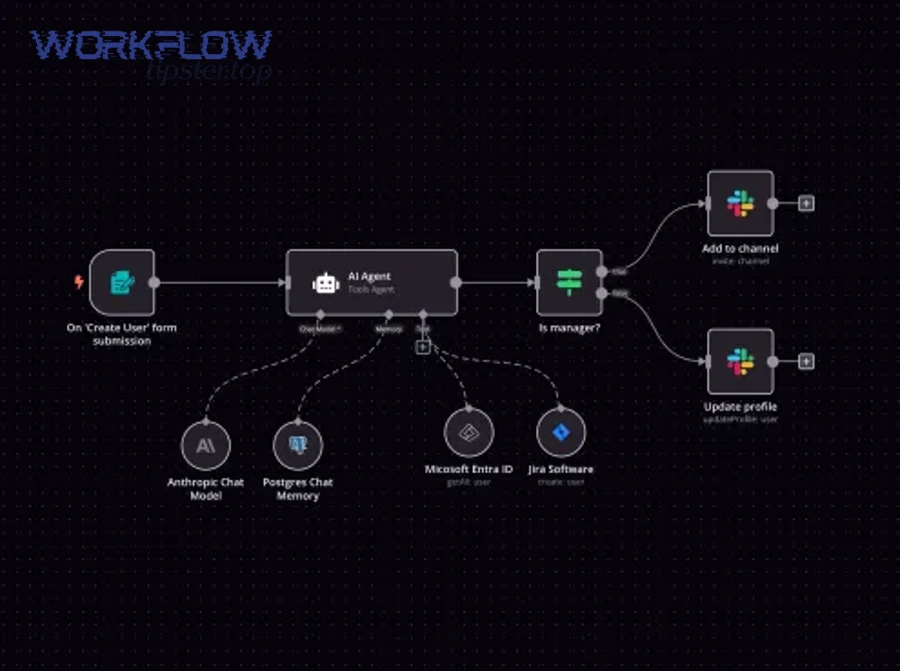
Which fixes apply when you’re using automation tools like n8n, Make, Zapier, or Pipedream?
There are 4 main tool-layer fixes for Notion webhook 403 Forbidden—verify webhook URL/auth settings, confirm the Notion connection permissions, locate the step producing 403, and validate environment consistency—because automation tools add their own security and routing behaviors.
Then, treat the tool as part of the webhook chain, not a black box. You’re still solving the same problem: who returned 403 and why—you’re just reading it through tool UI logs.
What are the most common tool configuration mistakes that lead to 403?
There are 6 common tool mistakes that lead to a 403—protected webhook URLs, wrong path/environment, auth enabled by default, workspace mismatch, missing resource sharing, and security layer blocking—based on how builders typically set up automations.
Here’s a concrete list you can hand to a team:
- Using a test webhook URL in production (or vice versa)
The production route is protected, so it returns 403. - Accidentally enabling webhook authentication
Some tools let you require auth; if enabled, external callers get 403. - Notion connection is authorized, but lacks access to the target database/page
The Notion step returns 403 when it tries to read/write. - Wrong workspace or duplicated database
You changed the target but didn’t re-share it to the integration. - Proxy/CDN blocks tool endpoints
WAF rules treat the tool callback or inbound delivery as suspicious and deny it. - Redirects to a login page
The tool endpoint or your server returns 403 instead of a clear auth challenge.
If your article library is about operational reliability, call this section “Notion Troubleshooting for automation stacks,” because it reduces repeat incidents across teams.
How do you compare “Notion permission issue” vs “tool endpoint issue” in run logs?
Notion permission issues win in “403 on Notion API steps,” tool endpoint issues are best identified by “403 on webhook receiver steps,” and network/WAF issues are optimal to diagnose through “edge logs and missing inbound traces.” That comparison matters because each case points to a different owner and fix.
To better understand, read your run logs as a timeline:
- If the first failing step is “Webhook received” (or “Trigger”) with 403: your webhook receiver endpoint is denying access.
- If the webhook receives successfully but the next step “Get page” or “Update database” returns 403: Notion is denying your integration.
- If the tool claims delivery happened but your endpoint logs are empty: an upstream security layer likely blocked the request.
A simple escalation rule keeps the workflow moving:
- 403 at webhook step → fix endpoint/proxy access rules (developer/infra owner).
- 403 at Notion step → fix integration permissions/resource sharing (Notion admin/workspace owner).
- No inbound trace → fix WAF/CDN/firewall routing (infra/security owner).
Introduce a new idea: once your tool-based workflow is stable, you should harden the endpoint and build a runbook so a single policy change doesn’t reintroduce “Access Denied.”
What are advanced edge cases and prevention strategies for Notion webhook 403 ?
Advanced 403 prevention has 3 pillars—reduce misconfiguration risk, harden webhook identity checks, and instrument monitoring—because the real long-term enemy is not “403 once,” but “403 returning unpredictably when systems change.”
Next, treat this as an antonym problem: Access Denied (403) is often caused by security tightening, while Open Access is caused by security loosening; production-safe webhook design stays between those extremes.
How can Cloudflare/WAF rules cause 403, and what safe exceptions should you add?
Cloudflare/WAF rules can cause 403 by classifying webhook requests as suspicious due to bot protection, rate limits, managed challenges, or strict rule sets, so the safest exception is a narrow allow rule scoped to the webhook path plus strong request validation.
Specifically, make your exception small and explicit:
- Allow only the webhook route (e.g.,
/webhooks/notion) rather than your whole site. - Keep WAF on, but reduce challenge/score sensitivity for that one path.
- Enforce a shared secret header or signature validation so “allowed” does not mean “untrusted.”
This design is more stable than blanket allowlisting, because you keep security while preventing false blocks on legitimate delivery attempts.
When is IP allowlisting the wrong approach compared to shared secrets/signature checks?
Shared secrets/signature checks win for stability, IP allowlisting is best for constrained enterprise senders, and “no validation” is optimal only for temporary debugging. That comparison matters because webhook sender IPs can change, while secrets remain under your control.
More specifically, choose shared secrets/signatures when:
- You cannot guarantee the sender’s IP ranges will remain stable.
- You want a clear, auditable identity check per request.
- You need to rotate credentials without touching network infrastructure.
This is not just theory—misconfiguration is a common cause of operational failures. In a 2021 study by Yale University (Department of Computer Science), researchers evaluating configuration issues reported that their tool detected more than 2,200 silent misconfigurations across widely used systems, showing how frequently “the system behavior does not match the user’s intended configuration.” (ennanzhai.github.io)
What proxy and URL pitfalls commonly trigger “Forbidden” (redirects, trailing slashes, path rewriting)?
There are 4 main proxy/URL pitfalls that trigger “Forbidden”—redirects to protected routes, trailing slash mismatches, path rewriting to an auth-gated location, and environment cross-wiring—based on how reverse proxies route requests.
To illustrate, here’s how each pitfall turns into a 403:
- Redirects: the webhook hits
/hook, gets redirected to/login, and your auth layer returns 403. - Trailing slash mismatch:
/webhookvs/webhook/may map to different route groups (one protected). - Path rewriting: proxy rewrites
/webhooks/notionto/internal/webhooks, which is behind an allowlist. - Environment mismatch: the tool points to staging, but staging denies external callers (or uses stricter rules).
The fix pattern is to “freeze the route shape”:
- Use an exact, versioned path (e.g.,
/webhooks/notion/v1). - Disable redirects on that path.
- Keep webhook routes out of areas protected by UI/login middleware.
How do you build a “403-proof” runbook for teams (monitoring, alerts, rollback, and test events)?
A “403-proof” runbook is an operational playbook that defines monitoring signals, ownership boundaries, rollback steps, and a repeatable test event—so your team can restore webhook delivery quickly without weakening security.
More specifically, your runbook should include:
- Monitoring & alerts
- Alert on spikes in 403 rate for the webhook route.
- Alert on “no webhook received” for a period where events should occur.
- Logging requirements
- Store request metadata (timestamp, route, status, correlation ID).
- Keep WAF/CDN logs accessible to the same responders.
- Rollback plan
- A safe rollback is “disable one WAF rule for one path,” not “turn off security.”
- Document how to revert to last known-good proxy config.
- Test event protocol
- A single action in Notion that reliably produces an event.
- A checklist to confirm end-to-end success.
This runbook also prevents confusion when the system is slow: if the team is seeing “notion timeouts and slow runs,” responders will know whether delays are caused by retries, downstream slowness, or an upstream block masquerading as an access issue.
According to a study by Yale University (Department of Computer Science) in 2021, misconfigurations were reported as responsible for 31% of server downtime issues (compared with 15% for software bugs), reinforcing why a documented, testable configuration runbook reduces repeated webhook failures. (ennanzhai.github.io)