


A Notion webhook 400 bad request almost always means your request is not valid enough to be accepted, so the fastest fix is to inspect the raw request (URL, method, headers, and JSON body), identify the exact validation failure, and correct it until you get 200 OK.
You’ll also want to understand what Notion is telling you in the error payload—especially when the response mentions validation_error or missing headers—because that message is the shortest path to the specific field or header that is breaking your request. https://developers.notion.com/reference/status-codes
Then you need a repeatable debugging workflow: reproduce the issue with a minimal request, validate JSON, confirm endpoint + method, verify headers, and only then revisit auth or permissions. That workflow prevents “random changes” that waste hours.
Introduce a new idea: in automation platforms, “Notion webhook” often really means a webhook-triggered API call to Notion, so you must debug not only Notion’s schema rules but also your tool’s mapping layer that can silently inject undefined values or wrong types.
Is a Notion Webhook/API 400 Bad Request Usually Caused by Your Request (Not Notion)?
Yes—Notion webhook/API 400 Bad Request is usually caused by your request because 400 signals a client-side problem (malformed syntax, invalid routing, or an invalid message), the request won’t succeed if retried unchanged, and Notion validates your payload against a strict schema. https://datatracker.ietf.org/doc/html/rfc9110
More importantly, this is good news: if you can see the request, you can fix it. The key is to treat 400 as a deterministic mismatch between what you sent and what Notion expects—then reduce the mismatch systematically rather than guessing.
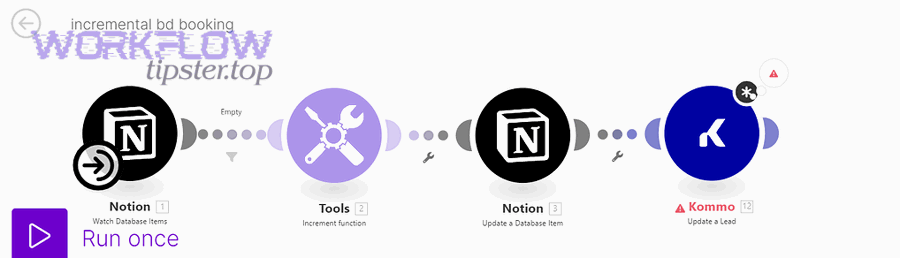
When developers say “Notion webhook 400 bad request,” they usually mean one of these real situations:
- An automation tool (like a webhook workflow) calls Notion’s API endpoint and Notion rejects it as invalid.
- A custom backend receives a webhook event, transforms data, then calls Notion—and Notion rejects the transformed payload.
- A connector “helpfully” formats fields and accidentally creates an invalid schema (common with select/multi_select, relations, and rich text blocks).
So the right mindset is: assume your request is wrong until proven otherwise, and use the error message to find the exact path that is wrong.
Is “400 Bad Request” the Same as “Not Authorized” (401/403) or “Server Error” (500)?
400 wins for “your request is invalid,” 401/403 are about missing/insufficient authorization, and 500 is a server-side failure where your request may be fine.
However, confusion happens because teams often lump everything into “Notion error.” Here’s the practical way to separate them:
- 400 (Bad Request): The server refuses because your request content is invalid—wrong JSON shape, missing required field, wrong type, missing required version header, invalid URL structure, etc. https://developers.notion.com/reference/status-codes
- 401 (Unauthorized): Your token is invalid or missing (authentication problem). https://developers.notion.com/reference/status-codes
- 403 (Forbidden / restricted_resource): Token is valid but lacks permission for that resource. https://developers.notion.com/reference/status-codes
- 500 (Internal Server Error): The server failed to fulfill a valid request—often transient or service-side.
In other words, if you’re seeing 400, “permission denied” is usually not the first place to look. Fix the shape before you debate access.
Should You Stop and Check Your Payload First Before Changing Auth or Permissions?
Yes—check your payload first because payload validation is the most common 400 cause, payload issues are visible and reproducible, and changing auth/permissions rarely fixes a schema mismatch.
Next, treat the debugging sequence like a checklist:
- Read the error message path (what field failed validation).
- Validate JSON (is it parseable, and does it match expected types?).
- Confirm endpoint + method (POST vs PATCH, correct path, correct IDs).
- Verify required headers (especially versioning).
- Only then revisit token scope/permissions.
This order keeps you from “fixing” the wrong layer and breaking something else.
What Does Notion’s “400 Bad Request” Mean and What Should You Read First in the Error?
Notion’s “400 Bad Request” means the request is a client error where the body or headers don’t match Notion’s expected schema, and you should first read the error “code” and “message” because they usually point to the exact field or header that failed validation. https://developers.notion.com/reference/status-codes
Then, hook the issue: when you see Not 200 OK, the fastest path back to 200 OK is to treat the response as a validator report, not as a generic failure.

In Notion’s API terminology, two 400 patterns are especially common:
- validation_error: the request body does not match the schema; the message often includes a “body failed validation” clue. https://developers.notion.com/reference/status-codes
- missing_version: the request is missing the required
Notion-Versionheader. https://developers.notion.com/reference/status-codes
That matters because it tells you whether to start with payload or headers.
What Is a “Validation Error” in Notion and How Do You Identify the Field That Failed?
A Notion validation error is a schema mismatch where Notion evaluates your JSON body against expected parameters and rejects the first failing node, which you identify by reading the “message” text that typically names the failing path (for example, a missing properties object or an undefined value). https://developers.notion.com/reference/status-codes
Specifically, treat the message like a “path pointer.” Typical clues look like:
- “body failed validation: body.properties should be defined, instead was undefined.”
- “… rich_text[0].text.content should be defined, instead was undefined.”
- “… is not a property that exists.” (often a property-name vs property-id confusion)
Practical method to pinpoint the failing field:
- Copy the error message into your notes.
- Identify the deepest referenced path (e.g.,
body.children[1].paragraph.rich_text[0].text.content). - Navigate to the same path in your outgoing JSON.
- Confirm whether the value is missing,
null,undefined, empty string, wrong type, or wrong nesting.
If you fix the first failing field, the next request usually reveals the next failing field (if any). This is why “one change, one retry” beats changing ten things at once.
What Is the Fastest Way to Reproduce the 400 With a Minimal Request?
The fastest way is to reproduce the 400 by sending a minimal valid request that contains only required fields, then add fields back one at a time until the request breaks again—because the breaking field becomes obvious.
Next, follow a “minimal payload ladder”:
- Start from a known-good sample for the specific operation (create page, update page properties, append blocks, query database).
- Remove optional fields until you have only:
- the required parent ID
- the minimal required property values (often just a title)
- Confirm you can reach 200 OK (or at least “not 400”).
- Add back one feature at a time:
- select/multi_select
- date
- relation
- children blocks
- rich text formatting
- The first added feature that triggers 400 is your root cause category.
This approach works even when you don’t fully understand Notion’s schema upfront, because the system itself tells you where it breaks.
What Request Parts Most Commonly Trigger Notion 400 Errors?
There are 5 main types of request parts that most commonly trigger Notion 400 errors—headers/versioning, invalid JSON, wrong endpoint or method, schema/type mismatches in properties, and tool-injected empty/undefined values—based on which layer fails Notion’s validation first. https://developers.notion.com/reference/status-codes
To keep the debugging “hook chain” tight, start with the highest-frequency failures and move downward.
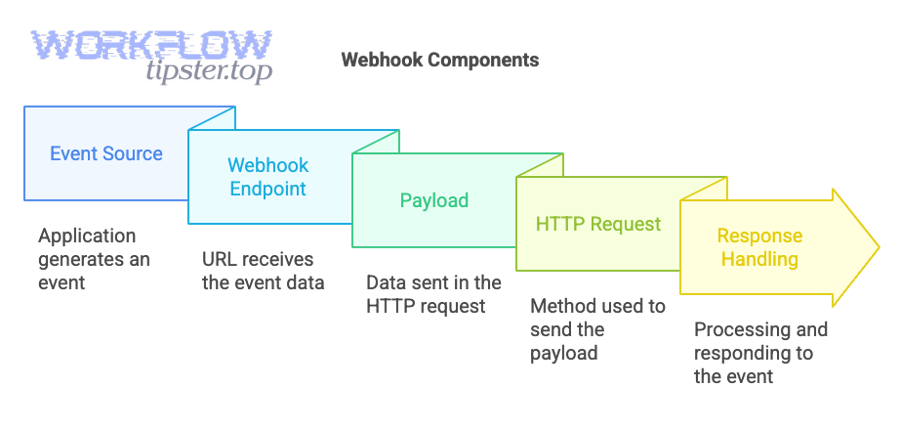
Before diving into details, the table below summarizes where to look first based on the symptom you see in the error message. (This is a quick triage map, not a replacement for deep debugging.)
| Symptom you see | Most likely layer | What to check first |
|---|---|---|
missing_version |
Header/versioning | Notion-Version header present and correct https://developers.notion.com/reference/status-codes |
validation_error + “should be defined” |
Payload completeness | Missing required fields, undefined/null values https://developers.notion.com/reference/status-codes |
| “invalid request URL” | Endpoint construction | Path, IDs, encoding, method |
| “is not a property that exists” | Database schema mapping | Property name/id, wrong database, drift |
| Works in Postman but fails in automation tool | Mapping layer | Tool-generated JSON, arrays, empty values |
Which Headers and Versions Commonly Break Notion Requests?
Headers and versions commonly break Notion requests when Notion-Version is missing, Content-Type mismatches the body, or an integration/tool drops required headers—because Notion’s API uses versioned behavior and validates the presence of the version header. https://developers.notion.com/reference/status-codes
Specifically, check these first:
- Authorization:
Authorization: Bearer <token> - Notion-Version: required; missing it can return
missing_version. https://developers.notion.com/reference/status-codes - Content-Type:
application/jsonfor JSON bodies
A practical “anti-guessing” trick is to print/log headers right before sending the request—especially in automation tools where headers can be set in one screen but overridden elsewhere.
Evidence: According to a study by Princeton University from the Department of Computer Science, in 2008, researchers showed that an invalid HTTP HEAD request could trigger an “HTTP/1.0 400 Bad Request” response until the request was made valid by including a proper Host header for a real target, illustrating how missing/incorrect headers can deterministically cause 400 errors. https://www.cs.princeton.edu/courses/archive/fall17/cos561/papers/MeasureCDN08.pdf
That same pattern applies to Notion debugging: if the header layer is wrong, the payload layer doesn’t matter yet.
Which JSON Body Mistakes Cause 400 Most Often (Missing Fields, Wrong Types, Empty Values)?
The most common JSON body mistakes are missing required objects, wrong value types for properties, and empty/undefined values in required fields—because Notion validates both structure and type, not just whether JSON parses. https://developers.notion.com/reference/status-codes
Here are high-frequency failures you can check in minutes:
- Title is empty or missing when creating a page (common when mapping from webhook payloads).
- Wrong type for a property:
- select expects a “name” object (not a raw string)
- multi_select expects an array (not a string)
- date expects a date object (not “tomorrow” text)
- Null/undefined injection:
- a mapping expression returns undefined
- a conditional block adds an empty object to an array
- Wrong nesting:
- children blocks are not structured as an array of block objects
- rich_text array contains text objects without
text.content
If you’re doing Notion Troubleshooting in a workflow tool, this is where most “mystery 400” bugs live—because everything looks like JSON, but one field is subtly wrong.
Which Endpoint or Method Mistakes Cause “Invalid Request URL” or Similar 400s?
Endpoint or method mistakes cause “invalid request URL” style 400s when you call the wrong path for the operation, use the wrong HTTP method (POST vs PATCH), or build IDs/URLs incorrectly—because the server can’t route or validate the message framing. https://datatracker.ietf.org/doc/html/rfc9110
To debug quickly:
- Confirm you are using the correct endpoint for the operation:
- Create page vs update page vs append blocks are different endpoints in Notion’s API docs.
- Confirm you are using the correct HTTP method:
- POST for create
- PATCH for update (commonly)
- Confirm the resource ID is correct and clean:
- no extra whitespace
- no curly braces copied from templates
- no mixed database/page IDs
If a request fails before it even evaluates body schema, it often points back to routing or method issues rather than your JSON content.
How Do You Debug a Notion Webhook/API 400 Step-by-Step Until You Get 200 OK?
Debug a Notion webhook/API 400 by using one method with 6 steps—capture the raw request, read the failing path, validate JSON, confirm headers and versioning, verify endpoint/method, then re-test with a minimal payload—so you can reliably reach 200 OK instead of “Not 200 OK.” https://developers.notion.com/reference/status-codes
Then, reconnect to the issue: “Not 200 OK” is just a label; your job is to find which layer breaks first and fix that layer before moving deeper.
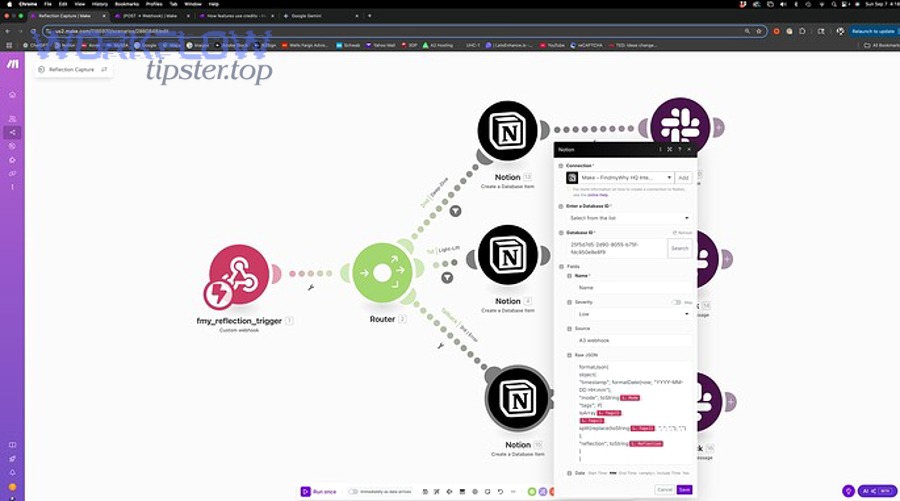
Here is the step-by-step workflow that holds up across code, Postman, and automation builders:
- Capture the exact outgoing request (URL, method, headers, raw body).
- Read the Notion error: code + message; extract failing path.
- Validate JSON and remove undefined/nulls that violate required fields.
- Confirm required headers (especially Notion-Version) and Content-Type. https://developers.notion.com/reference/status-codes
- Confirm endpoint + method matches the operation.
- Re-test minimally, then add complexity gradually.
You can also embed a single “debugging accelerator” in your process: test the same request outside the automation layer (Postman/curl), then diff the payloads.
How Do You Validate the JSON and Remove “Undefined/Null” Values Before Sending?
Validate JSON by confirming the body parses cleanly, then remove undefined/null/empty values in required paths because these values often cause “should be defined” failures even when the JSON is syntactically valid. https://developers.notion.com/reference/status-codes
Specifically, do this in a repeatable pattern:
- Step A: Validate syntax
- Ensure the body is valid JSON (no trailing commas, proper quotes).
- Ensure your tool is truly sending JSON, not a string that “looks like JSON.”
- Step B: Validate required field presence
- Title content exists for page creation.
- Parent/database IDs exist.
- Properties object exists when required.
- Step C: Purge undefined values
- If your mapping expression can return undefined, replace with:
- a safe default, or
- remove the field entirely if optional
- If your mapping expression can return undefined, replace with:
- Step D: Normalize empty strings
- Some fields cannot be empty; treat empty string as “missing” and remove.
A practical trick: if the error message includes “instead was undefined,” search your workflow for the variable feeding that field. In automation tools, this often happens when a prior node returns no data and the mapping still tries to reference it.
How Do You Confirm Database Property Names/IDs and Match the Correct Types?
Confirm property names/IDs and match correct types by opening the target database schema, mapping each outgoing property to its Notion property type, and ensuring your JSON uses the right shape for that type—because “wrong type” errors are the most common hidden cause of 400 validation failures. https://developers.notion.com/reference/status-codes
Use a schema-first checklist:
- Identify the target database.
- List the properties you plan to set.
- For each property, answer:
- What is its type (title, rich_text, select, multi_select, date, relation, people)?
- What is the valid JSON structure for that type?
- Can the incoming webhook data violate it (empty, wrong format, wrong option name)?
This is where many teams hit “works in dev, fails in prod” because database properties drift over time. If someone renames or changes a property type, old payloads suddenly become invalid.
How Do You Test the Same Request Outside Your Automation Tool to Isolate the Root Cause?
Test outside the automation tool by sending the same request with Postman or curl, because a successful external test proves the Notion schema is satisfiable and shifts the blame to the tool’s mapping, headers, or body serialization.
Next, do a simple diff approach:
- Export/copy the raw request from the automation tool (if possible).
- Rebuild the request in Postman exactly.
- If Postman succeeds but the tool fails:
- Compare headers line-by-line.
- Compare body (especially arrays and optional fields).
- Check whether the tool is sending
null/undefinedor empty arrays.
- Fix the transformation step in the tool rather than “patching” Notion settings.
This isolation step saves a lot of time because it stops you from debugging Notion when the real bug is in your mapping layer.
How Do Automation Builders Fix Notion 400 Errors in n8n/Make Without Guessing?
Automation builders fix Notion 400 errors without guessing by inspecting the final JSON generated by the tool, validating every mapped field against Notion’s property types, and removing undefined/empty outputs—because the most common failure is that the tool’s mapping produces a schema Notion rejects.
In addition, treat automation debugging as two-layer debugging: tool layer → Notion layer. If the tool layer is wrong, Notion will never return 200 OK.
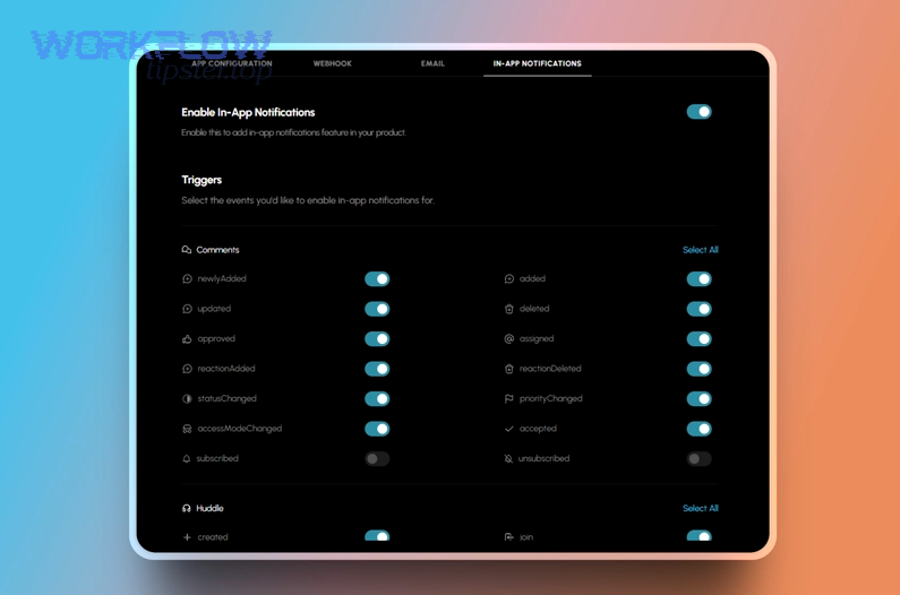
This is the section where “notion field mapping failed” becomes your most useful clue: it usually means your mapping produced a wrong type, an empty required value, or a malformed nested structure—especially for arrays like children blocks and rich text.
Which Mapping Patterns in n8n/Make Produce Invalid Arrays or “Undefined Content”?
The most common mapping patterns are empty array items, conditional branches that output undefined, and nested objects built from missing variables—because these patterns create JSON that parses but fails Notion’s schema validation. https://developers.notion.com/reference/status-codes
Here are the repeat offenders:
- Array with an empty object
- Example:
children: [{}]after a conditional block
- Example:
- rich_text with missing content
- Example:
rich_text: [{ "text": { "content": undefined } }]
- Example:
- Mapping raw strings into structured fields
- Example: mapping
"High"into select without{ "name": "High" }
- Example: mapping
- Multi-select created as a comma string
- Example:
"tag1, tag2"instead of an array of objects
- Example:
- Conditional property building
- A field exists sometimes, but when it doesn’t, the tool still sends the key with
null
- A field exists sometimes, but when it doesn’t, the tool still sends the key with
Practical fixes that work across tools:
- Add a “clean” step that removes keys with null/undefined.
- Use explicit defaults for required fields (or stop the workflow early if required data is missing).
- Build arrays only when you have at least one valid item; otherwise omit the array.
If you’re doing Notion Troubleshooting inside an automation, a “clean JSON” step is often the single highest ROI improvement.
How Do You Compare the Tool’s Generated Request vs a Known-Good Request?
Compare by placing the tool’s final request and a known-good request side-by-side, then checking three criteria—headers, property shapes, and arrays/nesting—because most differences are structural rather than semantic.
Next, use a structured comparison:
- Headers
- Is
Notion-Versionpresent? - Is
Content-Typecorrect?
- Is
- Properties
- Are property keys correct (name vs id)?
- Are values the correct type/shape?
- Arrays
- Are there empty objects inside arrays?
- Are indices correct?
- Does each child block have required fields?
A quick way to operationalize this is to keep a small library of “known-good payload templates” for your most common actions (create page, update status, append blocks). When the tool-generated JSON deviates from the template shape, you know where to look.
What Are the Less-Obvious Edge Cases Behind Notion 400 Errors ?
Notion 400 edge cases often come from webhook-vs-API confusion, strict children/rich_text validation, and query filter/operator mismatches, while “Not 200 OK” also includes other failures like notion webhook 429 rate limit—so you must classify the failure before you fix it. https://developers.notion.com/reference/status-codes
In addition, the antonym in the title (“Not 200 OK”) is more than wordplay: it’s your reminder to separate classes of failures. A 400 is solved by changing your request. A 429 is solved by changing your request frequency. https://learning.postman.com/docs/sending-requests/response-data/troubleshooting-api-requests?

Is a “Webhook 400” Sometimes Not Notion at All but the Sender ?
Yes—a “webhook 400” can be from the sender or your middleware rather than Notion, and you can tell by checking where the 400 response is generated (webhook receiver logs vs Notion API response body).
Next, isolate the source with a simple trace:
- If your webhook endpoint returns 400 to the sender, that’s your server rejecting the inbound event.
- If your workflow tool shows 400 with a Notion-style error payload (code/message), that’s Notion rejecting your outbound request. https://developers.notion.com/reference/status-codes
This distinction matters because the fixes differ:
- Sender-side inbound webhook 400 → validate inbound signature, required fields, parsing logic.
- Notion outbound 400 → validate Notion request schema.
What Rare “Children / Rich Text” Validation Patterns Cause 400 Even When JSON Is Valid?
Rare children/rich text failures happen when your JSON is syntactically valid but semantically incomplete—like rich text objects missing text.content, blocks missing required fields for their type, or arrays containing empty items—because Notion validates structure and required values, not just JSON syntax. https://developers.notion.com/reference/status-codes
Look for these micro-patterns:
- A paragraph block exists, but
rich_textis empty when the block type requires content. - A rich text item exists, but
textobject is missingcontent. - A children array contains an empty object because a loop ran once with empty input.
- Your builder creates inconsistent nesting depth (e.g.,
paragraphunder the wrong parent key).
When you suspect this category, go back to the “minimal payload ladder” and add children blocks last, one block type at a time.
How Do “Filter/Query Database” Payloads Fail Validation (Wrong Property, Wrong Operator, Wrong Type)?
Query payloads fail when you reference the wrong property key, use an operator that doesn’t match the property type, or pass a value in the wrong shape—because Notion validates filters against the database schema.
Next, debug query failures like this:
- Confirm the property exists in the target database (and hasn’t been renamed).
- Confirm the filter operator matches the property type (e.g., date operators for date, select operators for select).
- Confirm the filter value shape is correct (string vs object vs array).
If your query worked yesterday and fails today, suspect schema drift first: someone changed the database property type or name.
When Should You Treat the Problem as a Schema Drift Issue (Database Changes) Instead of a Payload Bug?
Yes—you should treat it as schema drift when the same payload used to work, the error mentions unknown properties or type mismatches, and you recently changed database properties—because Notion schema changes can invalidate previously correct mappings.
To confirm schema drift quickly:
- Check recent changes to the database properties (renames, type changes, removed select options).
- Compare your payload property keys to the current database property names/IDs.
- Run a minimal request that only sets a title; if that works, re-add properties until the first one fails again.
This is also where teams confuse 400 with other “Not 200 OK” conditions. If your workflows suddenly also show notion webhook 429 rate limit, treat that as a throughput problem—throttle, batch, or add retry-with-backoff—rather than changing payload schema. https://learning.postman.com/docs/sending-requests/response-data/troubleshooting-api-requests?