


If your Notion trigger isn’t firing, you can usually fix it by verifying the event, confirming the trigger can “see” the database item, and removing the three biggest blockers: permissions, filter/condition mismatches, and timing (polling/indexing delays).
Next, you’ll diagnose why it happens in the first place—whether the issue is Notion’s own database automation rules, your integration platform’s trigger mechanism (polling vs webhook-style), or a trigger condition that never actually matches your real-world edits.
Then, you’ll follow a step-by-step checklist that isolates variables in a controlled way: reproduce with a clean test item, check run history/logs, refresh fields/schema, reconnect authorization, and reintroduce filters one by one until you find the breaker.
Introduce a new idea: once the trigger fires reliably, you’ll choose the most dependable trigger approach (native vs third-party), then add prevention patterns—so the workflow stays stable even when your database, team permissions, or edit behavior changes.
What does “Notion trigger not firing” mean in database automations?
“Notion trigger not firing” means a database event that should start an automation (like adding a page or editing a property) does not start it, so no run is created and no downstream actions execute.
Next, this becomes easier to fix once you separate three similar-looking problems: not firing, firing late, and firing but failing after the trigger.
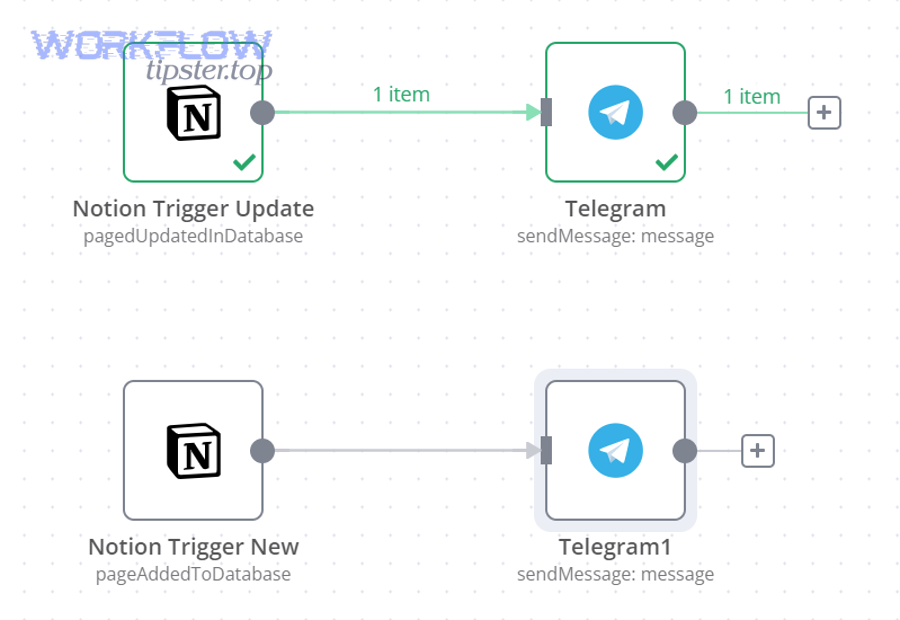
A trigger “fires” when your automation platform records a run (or Notion shows an automation execution) at the moment the event occurs. When it doesn’t, the failure is usually upstream: the trigger never saw the event, couldn’t authenticate, or decided the event did not qualify.
To keep your troubleshooting accurate, use consistent terminology:
- Event: the real-world action (you created a database item, changed Status, edited a Date).
- Trigger: the watcher (Notion automation trigger, Zapier trigger, Make module, n8n node).
- Run: the logged execution record (the proof that the trigger fired).
- Action: what happens after the trigger (update a property, send a message, create a record).
If your workflow has multiple steps, a “not firing” report is often a misdiagnosis. Many times, the trigger did fire but the first action failed due to notion permission denied, an expired connection, or a schema mismatch. That’s why you always look for run evidence before changing configuration.
What counts as a trigger event in Notion databases—new item, updated item, or specific property change?
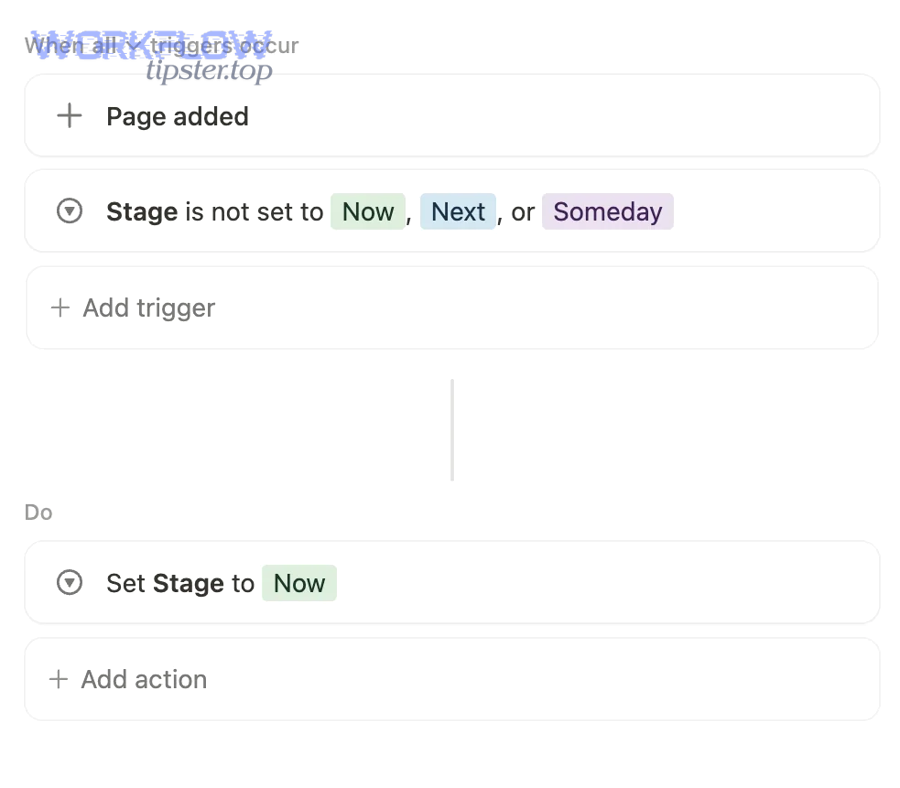
A trigger event is the specific database change your automation system is designed to detect—most commonly page added (new item) or property edited (update), sometimes constrained to a single property (like “Status becomes Done”).
Specifically, this matters because many Notion workflows change indirectly: formulas recalculate, rollups refresh, or relations update due to changes elsewhere. Those changes can look like updates to you but not qualify as “trigger events” to the automation engine.
In Notion database automations, triggers typically revolve around:
- Page added: a brand-new page appears in the database.
- Property edited: a property changes value on an existing page.
- Condition-based edits: “when Status becomes X,” “when Assignee is set,” etc.
In integration platforms, the same labels can hide different mechanics:
- A “New Database Item” trigger often means polling: the platform checks every N minutes for new items.
- An “Updated Database Item” trigger may detect changes by comparing “last edited time” or stored snapshots.
- Some triggers only detect updates that occur in a specific view or match a filter.
That’s why your first move is to identify the exact event type you’re expecting—and then create a clean test that produces that event in the simplest way possible.
Is your Notion trigger actually broken—or just delayed by polling/indexing?
No—most “Notion trigger not firing” cases are not truly broken, because the trigger often works but appears dead due to (1) polling delay, (2) indexing/scan windows, or (3) filters that only match after a later edit.
Then, once you treat delay as a first-class possibility, you stop chasing phantom configuration problems.
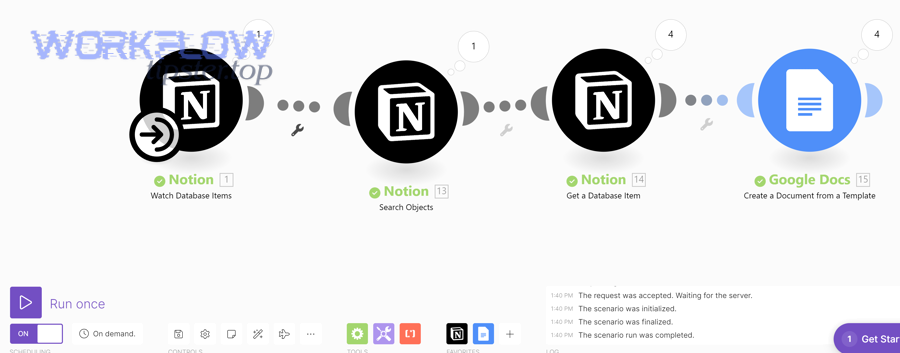
Here are the three most common “it’s not firing” illusions:
- Polling delay: your automation platform checks Notion at intervals, so your event won’t be detected instantly.
- Indexing/scan window: Notion’s own automation logic evaluates changes in a small window and can ignore “undo” or fast-reverted changes. The Notion Help Center notes database automations operate over a three-second window for property changes. (notion.com)
- Filter timing: your event happens, but the page no longer matches the view filter at the moment the trigger evaluates—so it’s skipped.
A fast way to classify your situation:
- If it fires sometimes and later → suspect polling/scan/filter timing.
- If it never fires for anyone → suspect trigger configuration or platform outage.
- If it never fires for you but works for teammates → suspect permissions/connection.
Should you expect instant firing, and how long is “normal” before assuming it failed?
Native Notion automations are usually “near real-time,” while many third-party triggers are “near periodic,” so “normal” ranges from seconds (native) to minutes (polling-based triggers) depending on your tool.
However, you should decide “failed” only after you’ve checked run history/logs and repeated a controlled test.
A practical expectation table helps:
| Trigger type | What “normal” feels like | What to check first |
|---|---|---|
| Notion database automation | Seconds-ish | Automation paused, view filters, unsupported chaining |
| Polling-based trigger | 1–15 minutes (varies) | Poll interval, “test trigger” vs live event |
| Webhook-style delivery | Seconds-ish | Endpoint auth, 401/403, retries, delivery logs |
In other words, if you expect instant firing from a polling-based trigger, you’ll constantly conclude “broken” when it’s simply waiting for the next check.
What are the most common reasons a Notion trigger won’t fire?
There are 5 main reasons a Notion trigger won’t fire—permissions, connection/auth, trigger filters, event limitations, and timing mechanics—based on whether the trigger can access the item, match the condition, and detect the change.
Moreover, sorting causes into these buckets prevents random guesswork and speeds up Notion Troubleshooting.
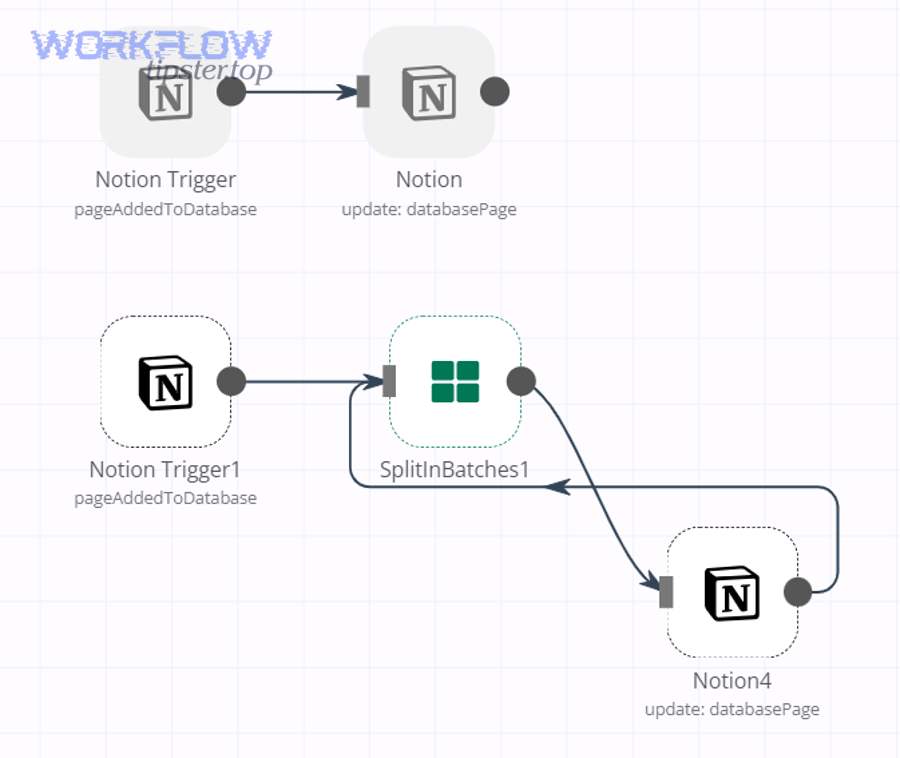
Here’s the classification that maps to real fixes:
- Permissions & access: the integration user can’t read the database or page.
- Connection/authentication drift: token expired, workspace access changed, re-auth needed.
- Filters & conditions: the page never matches the trigger view/logic at trigger time.
- Event limitations: the “change” you made isn’t counted as an event (formula/rollup, automation chaining).
- Timing mechanics: polling interval, scan windows, indexing delays.
Is permission or connection access preventing the trigger from seeing the database event?
Yes—permission or connection access can block firing because the trigger cannot read the database item, cannot list changes, or receives an authorization error, so it never reaches the point where it can evaluate your conditions.
Next, this is where “it works in tests” but fails in reality becomes common.
Signs you’re in this bucket:
- The trigger works on one database but not another.
- It works for an admin but not for a builder.
- Runs show errors like notion webhook 401 unauthorized or notion permission denied in your automation platform logs.
- Recently, you moved the database, changed teamspaces, altered sharing, or removed guest access.
Fix pattern:
- Confirm the integration is connected as the right identity.
- Re-share the database/page to the integration connection.
- Reconnect the Notion account (especially after permission changes).
- Retest with a brand-new page created by the same editor.
Are database properties, views, or filters causing the trigger condition to never match?
Yes—filters and view-based triggers can prevent firing because the item must still match the view when the event is evaluated, and a single property edit can push it outside the filtered set.
Then, the trigger appears dead even though Notion or the integration is behaving correctly.
Notion itself highlights view filters as a common failure mode: if an automation runs on a view that filters out relevant entries, it may not trigger as expected. (notion.com)
Common filter pitfalls include:
- Status changes: you change Status from “To Do” to “Done,” but your trigger only watches items where Status is “To Do,” so the item disappears from the view at evaluation time.
- Empty field constraints: your action uses date math on an empty field, causing a failure that pauses the automation.
- Multiple conditions: “Assignee is set AND Priority is High AND Due date exists”—real data rarely matches all at once.
A reliable diagnostic move is to temporarily remove filters and conditions to confirm the trigger fires at all, then re-add one condition at a time.
Which Notion changes often don’t trigger events (and why)?
There are 4 common change types that often don’t trigger events—computed changes, indirect relation effects, bulk/backfill operations, and automation chaining—based on whether the change is a direct property edit on the page at trigger time.
Especially, these are the scenarios that create “it fires sometimes” headaches.
- Formula recalculations: formulas update output without a human editing the property.
- Rollup refreshes: rollups change because related pages changed elsewhere.
- Bulk edits/imports: large operations may not behave like normal single edits for detection.
- Automation chaining: Notion notes that automations can’t currently trigger other automations, so a “triggered by another automation” design won’t fire. (notion.com)
If your workflow depends on formulas or rollups as the trigger, you often need a bridging step: write the computed output into a normal property via an action, or trigger on the upstream edit that causes the computation.
How do you troubleshoot a Notion trigger not firing step by step?
Use this 7-step troubleshooting checklist—reproduce, verify event, check run history, simplify conditions, refresh schema, reconnect auth, and retest—to make the trigger fire reliably while avoiding random changes that hide the root cause.
To better understand what’s failing, you’ll move from “is it firing?” to “what exact dependency is blocking firing?”
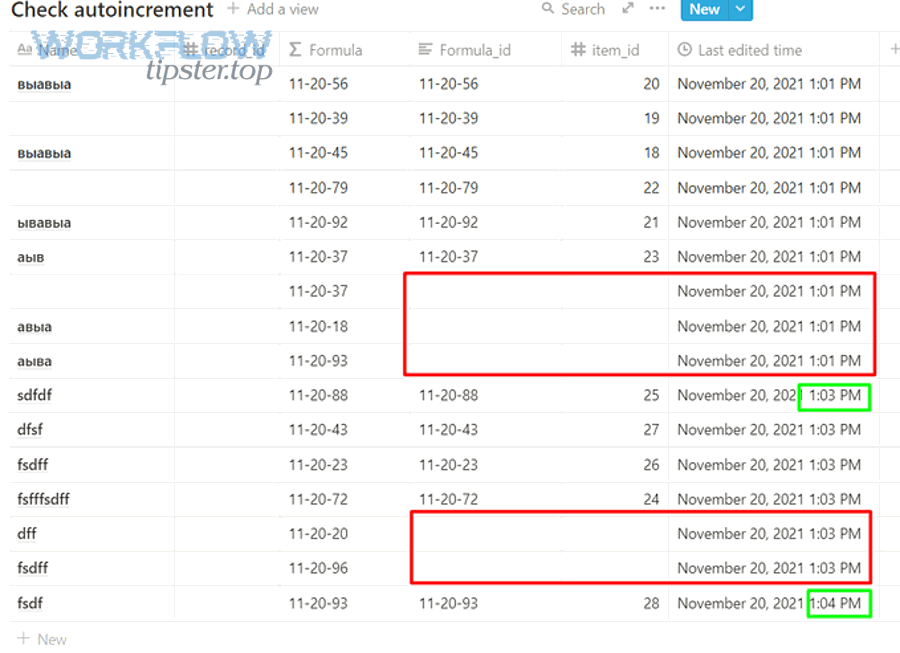
Here’s the checklist that works across native Notion automations and third-party tools:
- Reproduce with a clean test item (one database, one trigger, no filters).
- Confirm the event qualifies (new item vs update vs specific property change).
- Check run history/logs to separate “not firing” from “fired but failed.”
- Simplify conditions (remove filters, remove multi-trigger logic).
- Refresh fields/schema (reselect database, refresh properties).
- Reconnect authorization (fix access drift and credential expiration).
- Retest and reintroduce complexity one piece at a time.
This sequence is powerful because it limits variables. You’re not guessing; you’re running controlled experiments.
How do you reproduce the event with a clean test item to confirm the trigger should fire?
Create a fresh database page and perform one controlled edit that matches your trigger exactly, because clean tests remove hidden dependencies like filters, backfilled values, and previous automation side effects.
Next, once you can reproduce reliably, every subsequent change you make produces clear signal.
A clean reproduction plan:
- Create a new page in the target database.
- Set only the minimum properties your trigger requires.
- Make one edit (for update triggers) and record the timestamp.
- Avoid bulk edits, imports, or multiple rapid changes.
- Keep the page inside the trigger view (or remove the view constraint for the test).
If it still doesn’t fire, you’ve proven the issue is not “data complexity”—it’s permissions, configuration, or trigger mechanics.
Where do you check run history/logs to confirm whether it fired but failed later?
Check the automation run history in your platform (Notion automation panel, Zap/Scenario/Workflow execution logs) because a logged run proves firing, while missing runs prove the trigger never detected the event.
Then, you can stop debating and start fixing the right layer.
What to look for in logs:
- No runs at all after your test time → not firing.
- Runs exist but fail immediately → auth, permissions, or schema mapping.
- Runs start but fail downstream → action-side errors, data formatting, API limits.
When you see errors like notion api limit exceeded (429 rate limiting), the trigger might fire but the workflow fails during follow-up reads/writes. Notion’s developer documentation notes rate-limited requests return HTTP 429 and the API is rate limited to an average of three requests per second per integration. (developers.notion.com)
When should you refresh fields, reselect the database, or reconnect the Notion account?
Refresh fields when the schema changed, reselect the database when the trigger is pointing at the wrong object, and reconnect the Notion account when permissions or tokens drift—because these three fixes target different failure modes.
However, doing them in the wrong order can mask the real issue.
Use this decision guide:
- Schema drift (property renamed, type changed, new required fields) → refresh fields/reload properties.
- Database drift (duplicated databases, moved pages, wrong workspace) → reselect database/collection.
- Auth drift (access removed, token revoked, teamspace changed) → reconnect Notion account.
Avoid reconnecting first unless you have clear access signals, because it resets context and makes it harder to learn which dependency was broken.
How can simplifying filters and removing conditions confirm whether logic is blocking the trigger?
Remove all filters and conditions to create a baseline that should fire on every eligible event, because if it fires in baseline but not with logic, your logic—not your tool—is blocking it.
More importantly, this prevents the common mistake of “fixing” the wrong system.
A safe simplification pattern:
- Duplicate the automation/trigger.
- Remove filters, remove multi-step conditions.
- Trigger on the simplest event (page added or any property edit).
- Confirm firing with a fresh test page.
- Add conditions back one at a time until it breaks.
This is the fastest way to isolate one problematic filter, one property, or one impossible condition.
Evidence: According to a study by Carnegie Mellon University from the Software Engineering Institute / software engineering research, in 2014, participants using structured protocol documentation completed “state search” tasks in 10.3 minutes vs 22.4 minutes with traditional docs (a 2.17× difference), showing how structured checklists speed problem-solving. (herbsleb.org)
How do Notion native automations compare to Zapier/Make/n8n triggers for reliability?
Notion native automations win in tight Notion context and fast execution, Zapier is best for broad app coverage and quick setup, and n8n/Make are optimal for control, debugging, and advanced routing, depending on how you balance latency, observability, and complexity.
Meanwhile, reliability improves most when you pick the trigger mechanism that matches your event frequency and tolerance for delay.
Here are the criteria that matter for “not firing”:
- Event detection method: polling vs webhook-style.
- Latency: seconds vs minutes.
- Observability: do you get clear logs and retries?
- Permission model: how easy is it to see and fix access issues?
- Change semantics: how updates are detected (last edited time, snapshots, deltas).
Which is more reliable for your use case: native database automations or third-party triggers?
Native automations are more reliable when your workflow stays inside Notion and uses supported triggers/actions, while third-party triggers are more reliable when you need retries, richer logs, and multi-app orchestration.
However, “reliable” depends on whether your use case needs real-time or just eventual consistency.
Choose native Notion database automations when:
- You only need Notion-side actions (update properties, notify inside Notion).
- You want minimal moving parts.
- Your trigger logic is simple and view filters are stable.
Choose Zapier/Make/n8n when:
- You need multi-step logic, branching, or external integrations.
- You need retries and better visibility into failures.
- You frequently hit auth edge cases or require advanced error handling.
If your trigger must fire immediately and consistently, verify whether your platform’s Notion trigger is polling-based. Polling can be perfectly fine, but it changes your expectations and your “missing run” interpretation.
What’s the difference between polling and webhook-style triggers for “not firing” issues?
Polling creates “not firing” issues through interval delay and missed windows, while webhook-style triggers create “not firing” issues through delivery/auth failures and endpoint downtime, because the detection responsibility shifts from the client to the server.
In addition, polling can burn API quotas quickly if configured aggressively.
A simple way to understand the tradeoff:
- Polling: “Check every N minutes; if something changed, act.”
- Webhooks: “Send the event as it happens to a registered URL.”
Polling’s core weakness is waste and delay. A webhooks vs polling explainer notes that if 10,000 users poll every 5 seconds, an API may need to handle up to 10,000 requests per second—and cites an estimate that only 1.5% of polling requests find an update. (svix.com)
That waste is exactly how “not firing” can show up as rate limiting, timeouts, or delayed checks—especially when you scale.
If you see intermittent authorization errors like notion webhook 401 unauthorized, webhooks-style flows may be failing at delivery time, while polling flows may still work but will lag. Your fix is different: webhook flows need auth/retry/endpoint stability; polling flows need interval tuning and quota-aware throttling.
What fixes prevent Notion triggers from failing again?
There are 5 prevention fixes—idempotency flags, stable trigger design, monitoring, fallback reconciliation, and change control for schema/permissions—based on reducing missed events and making failures visible before they become silent.
Especially, prevention is what turns a fragile automation into a dependable system.
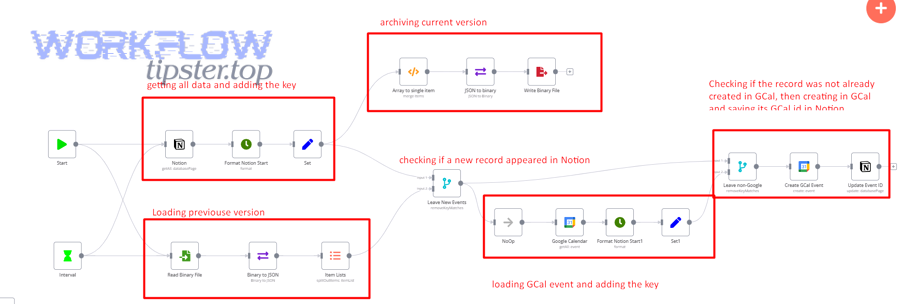
Think of prevention in two layers:
- Design-level prevention: build triggers that are hard to misfire.
- Ops-level prevention: detect and correct misses automatically.
Design-level prevention includes:
- Trigger on direct edits, not computed changes.
- Use one primary condition that matches real behavior.
- Keep view filters stable or run at database scope when possible.
- Avoid chaining automations inside Notion when it’s not supported. (notion.com)
Ops-level prevention includes:
- Add run monitoring and alerts (even lightweight weekly checks).
- Keep a small “test item” for periodic validation.
- Log item IDs and timestamps for post-mortem debugging.
Should you add a fallback schedule or reconciliation step to catch missed database events?
Yes—add a fallback schedule when missing an event is costly (sales leads, customer tickets, compliance steps), because reconciliation catches what triggers miss due to timing windows, rate limits, or permission drift.
Next, once you reconcile safely, you can tolerate occasional trigger imperfections without losing data integrity.
A safe reconciliation pattern:
- Every hour/day, query Notion for items where
Processed = false. - Process them in small batches with backoff to avoid notion api limit exceeded.
- Mark
Processed = trueonly after downstream actions succeed. - Store a
ProcessedAttimestamp for audits.
This design is common because it gives you a second chance. Even if a trigger misses one event, the scheduled sweep restores eventual correctness.
How do you design triggers to avoid duplicates or missed events when changes happen fast?
Design with idempotency and explicit state, because rapid edits can create duplicate runs or cause polling-based triggers to “skip over” intermediate states.
More importantly, this is how you stop your fix from creating a new problem.
Use three practical patterns:
- Processed flag
- Add
Processed(checkbox) and set it at the end of the workflow. - Trigger only when
Processed = false.
- Add
- Stable state transition
- Trigger on a single transition like
Status: Ready → In Progress, not “any edit.” - Avoid multi-field triggers that require simultaneous edits.
- Trigger on a single transition like
- Idempotency key
- Use a unique identifier (page ID, external ID) and store it in your target system.
- If the same key appears again, skip or update instead of creating duplicates.
These patterns also reduce permission-related confusion: if you see that nothing ever flips Processed, you know the workflow didn’t finish—often because of a permissions error (notion permission denied) or authentication drift.
Why do Notion triggers fire inconsistently (sometimes yes, sometimes no)?
Inconsistent Notion trigger firing happens because computed or indirect changes don’t behave like direct edits, automation chaining is limited, bulk operations create unusual change patterns, and workspace permission shifts can silently break access—so the same “looking edit” doesn’t always produce the same “counted event.”
Next, you’ll fix inconsistency by redesigning what you trigger on, not by endlessly retesting.
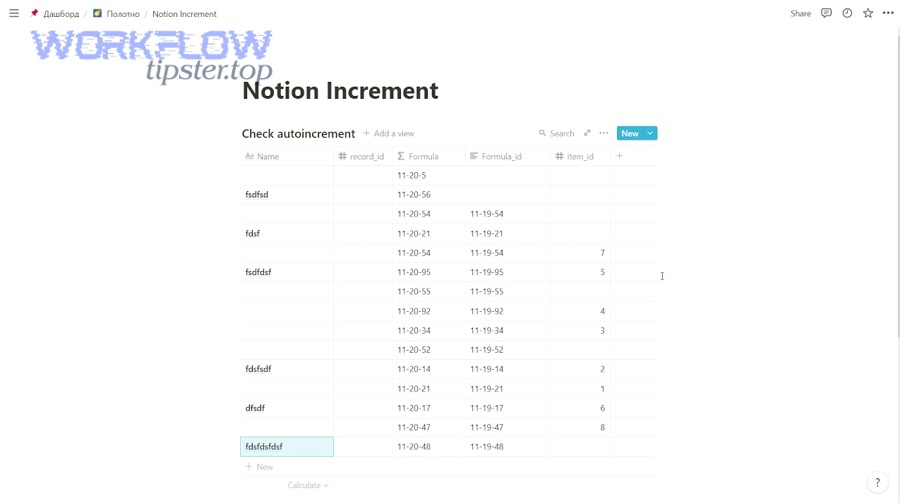
To stop the “sometimes it works” cycle, treat inconsistency as a clue: your workflow is likely depending on a micro-detail (property type, indirect update, or access condition) that varies across edits.
Do formula, rollup, and relation updates behave differently from normal property edits for triggering?
Yes—normal property edits are direct and reliably counted, while formula/rollup/relation effects are often indirect and may not be counted as discrete trigger events, so “data changed” does not always mean “trigger event occurred.”
However, you can redesign around this by triggering earlier in the chain.
A practical comparison:
- Direct edit (Status, Assignee, Due date) → most triggers can detect.
- Formula output change → may update without an “edit event.”
- Rollup refresh → changes when related pages change, not when this page is edited.
- Relation effects → may look like changes but originate elsewhere.
If your trigger depends on a computed field, convert the computed result into a direct property update (write a value into a plain text/number/select field), then trigger on that direct edit instead.
Can automations cause trigger loops—or prevent other triggers from firing as expected?
Yes—automations can create loops or block expected chaining because one automation’s action may update fields rapidly, and Notion does not support automations triggering other automations as a chaining mechanism.
In addition, loops can make you think the trigger is “not firing” when it’s actually being suppressed by design or overwhelmed by repeated updates.
Mitigation patterns:
- Add a guard property like
AutomationSourceorUpdatedByAutomation. - In your trigger conditions, exclude items where
UpdatedByAutomation = true. - Separate “write-back” actions into a different workflow that runs on schedule, not on every edit.
- Keep one automation responsible for one state transition.
This reduces both missed events and accidental duplicates—and it makes debugging far easier because you can see which system produced the change.
Are imports, bulk edits, or API-created pages less reliable for “new/updated” triggers?
Yes—bulk edits and imports can behave differently from single user edits, and API-created pages can surface timing, indexing, and permission differences, so triggers may detect them later or inconsistently depending on platform mechanics.
Then, you stabilize detection by adding explicit markers and reconciliation.
If you import data:
- Add an
ImportedAttimestamp and process items in batches. - Use a scheduled sweep to catch anything the trigger missed.
- Avoid relying on “last edited” semantics during the import window.
If you create pages via API or tools that hit Notion heavily, rate limits can cause partial writes or delayed visibility. The Notion developer documentation explicitly describes handling HTTP 429 responses with backoff and Retry-After. (developers.notion.com)
That’s not just API advice—it directly affects automation reliability when your workflow depends on follow-up reads/writes.
Can workspace changes (guests, teamspaces, SSO) silently break triggers even when the workflow still “looks connected”?
Yes—workspace changes can silently break triggers because the integration connection may remain “connected” in the UI while losing access to the specific database, teamspace, or pages it needs to observe and update.
To sum up, when your trigger stops after an org change, treat it as an access regression until proven otherwise.
High-signal scenarios:
- You moved the database into a new teamspace.
- You tightened sharing settings or removed guest roles.
- You enabled SSO/SCIM changes that alter user access.
- You duplicated a database and the trigger still points to the old one.
Fix sequence:
- Re-verify the integration’s access to the database (share it explicitly).
- Re-open automation settings and reselect the correct database/view.
- Reconnect the Notion account used by the automation.
- Run a clean test item to confirm firing.
Evidence (if any): According to a study by Carnegie Mellon University from the Software Engineering research community, in 2014, structured protocol documentation reduced mean “state search” task completion time from 22.4 minutes to 10.3 minutes (statistically significant, p < 0.001), which supports using structured, stepwise troubleshooting to resolve “trigger not firing” problems faster. (herbsleb.org)