Understand Automations: Definition, Examples & Types of Automation Workflows for Beginners (Business, Home, Personal)
Automations are repeatable “if this happens, then do that” rules that let software handle routine steps for you—so outcomes happen faster, more consistently, and with fewer manual clicks.
Next, you’ll see how automations actually run in real life: what a trigger is, what conditions do, how actions execute, and why good inputs matter as much as good logic.
Then, you’ll learn the main types—business, home, and personal—so you can recognize which category fits your goal and copy proven examples instead of starting from scratch.
Introduce a new idea: once you understand the basics, you can design automations that stay reliable over time, avoid loops and duplicates, and remain safe as you scale from one simple rule to a set of connected workflows.
What are automations, and what does “automation workflow” mean (in plain English)?
Automations are rule-based processes where software performs actions automatically after a trigger occurs, often using conditions to decide what to do and in what order.
To better understand why that definition matters, focus on the small building blocks—because every automation, no matter how “smart,” is built from the same parts.

What are the core building blocks of an automation (trigger, condition, action, workflow)?
At the core, an automation is a chain: trigger → (optional) condition → action(s), sometimes with branching logic and multiple steps.
More specifically, each block answers a different question:
- Trigger (When…?)
A trigger is the event that starts the automation. Examples: “a form is submitted,” “it’s 7:00 AM,” “a sensor detects motion,” “a new email arrives,” or “a task changes status.” - Condition (If…?)
A condition is a filter that decides whether the automation should continue. Examples: “only if the sender is a client,” “only if temperature is above 80°F,” “only if the deal value is over $1,000.” - Action (Then do…!)
An action is what the system actually performs. Examples: “create a record,” “send a message,” “turn on a device,” “assign a task,” “call an API.” - Workflow (In what order…?)
A workflow is the structure that ties multiple actions together—maybe sequential, maybe branching, maybe looping with safeguards.
When people say automation workflows, they often mean multi-step automations that coordinate several actions across tools.
The goal is not “automation for automation’s sake,” but a predictable outcome: fewer missed steps, faster turnaround, and clearer ownership.
What is the difference between automation and “automations” in apps (features vs concept)?
“Automation” is the broad concept; “Automations” is often a feature label inside a specific tool.
For example, one app might call it a “rule,” another calls it a “flow,” another calls it a “routine,” and another calls it an “automation.” The concept remains the same: a trigger initiates logic that performs actions without manual effort.
This distinction matters because beginners sometimes think the feature is the concept.
In reality, apps provide interfaces and connectors for the same underlying idea—so once you learn the model, you can transfer it across tools, industries, and personal use cases.
According to a study by MIT from the MIT Sloan School of Management, in 2025, research highlighted that automation can both replace and augment task expertise depending on the occupation, reinforcing why “automation” is a general concept beyond any single app feature.
Do automations actually save time, or do they create more work to maintain?
Yes—automations usually save time when they target stable, repeatable tasks, because they reduce manual steps, prevent rework, and standardize outcomes; however, they create maintenance work if they automate unstable processes, rely on messy inputs, or lack monitoring.
Next, the key is choosing the right tasks, because task selection determines whether you gain leverage or inherit ongoing babysitting.

What tasks are best for automations (high-repeat, rule-based, low ambiguity)?
The best candidates share three qualities: repeatable, rule-based, and low ambiguity.
Specifically:
- Repetitive admin actions: copying data from one system to another, renaming files, routing form submissions.
- Notifications and follow-ups: reminders when a deadline is near, alerts when something fails, nudges when no one responds.
- Status-driven work: “When status becomes ‘Ready,’ assign to reviewer and create a checklist.”
- Standard approvals: “If request is under X amount, auto-approve; otherwise route to manager.”
- Routine scheduling: daily summaries, weekly reports, monthly renewals.
A simple rule-of-thumb: if a human does the same steps the same way more than a few times per week, it’s a strong automation candidate—especially if mistakes are costly.
What tasks should not be automated (high risk, high variance, low trust data)?
Some tasks fight automation because their inputs change, their rules are unclear, or the downside is high:
- High-judgment decisions: evaluating nuanced situations, legal/medical decisions, or anything requiring empathy.
- Unstable processes: constantly changing steps or requirements (you’ll be updating the automation weekly).
- Low-quality data flows: messy form fields, inconsistent naming, missing IDs—automation will amplify the mess.
- High-risk actions without guardrails: deleting records, sending money, mass-messaging, or disabling security.
A safer middle path is human-in-the-loop design: automation prepares, drafts, or routes—then a person approves the final action.
According to a study by Stanford University from the Stanford Digital Economy Lab (with MIT), in 2023, access to an AI assistant increased customer-support worker productivity by about 14% on average—evidence that well-scoped automation can save meaningful time when applied to repeatable work. (hai.stanford.edu)
How do automations work step-by-step (from event to outcome)?
Automations work as an execution chain where a trigger fires, the system evaluates conditions, then runs actions while recording success or failure so you can monitor and improve reliability.
Then, once you see the run lifecycle clearly, it becomes easier to build automations that are predictable instead of mysterious.
What happens when an automation runs (inputs, logic evaluation, execution, outputs)?
A typical run looks like this:
- Trigger detection
The system notices an event (new record, time schedule, device state change, webhook call). - Input capture
It collects data tied to the event: IDs, timestamps, user fields, sensor values, message content, and metadata. - Condition evaluation
It checks whether rules are satisfied: filters, comparisons, thresholds, or matching logic. - Action execution
It performs one or more actions: create/update records, send notifications, call external services, move files, update statuses. - Outcome logging
It records what happened: success, failure, partial success, run duration, and error messages.
If you’ve ever wondered why an automation “sometimes works,” it’s often because inputs vary.
The fix is usually not adding more actions—it’s improving trigger clarity, input quality, and conditions.
A practical way to think about execution is: event + data + rules = outcome. If any part is fuzzy, the automation becomes unpredictable.
Do you need coding to build automations?
No—you don’t need coding for most beginner automations, because many tools provide no-code builders; however, coding becomes useful when you need custom logic, advanced integrations, or high-scale reliability.
Moreover, the “right” level depends on your goal:
- No-code fits when you want speed, common connectors, and easy maintenance.
- Low-code fits when you need small custom steps (formulas, scripts, webhooks).
- Code fits when you need full control: complex branching, custom APIs, strong testing, and version control.
A helpful beginner mindset is: start no-code, learn the logic model, then add code only if constraints force you.
According to a study by Stanford University from the Stanford Institute for Economic Policy Research, in 2023, the measured productivity gain from AI assistance varied substantially by worker skill level—supporting the idea that tool choice and implementation details matter as much as “whether you code.” (siepr.stanford.edu)
What are the main types of automations (business, home, personal) and what are examples of each?
There are three main types of automations—business, home, and personal—based on the environment they operate in and the outcomes they optimize (work throughput, household comfort/security, or individual routines).
To illustrate how that classification helps, look at the common triggers and actions inside each category.
What are common business automations (sales, marketing, support, ops) for beginners?
Business automations reduce handoffs and shorten cycle time across teams:
- Sales: when a lead submits a form → create CRM record → assign owner → send welcome email → schedule follow-up task.
- Marketing: when someone downloads a guide → tag audience segment → enroll in a nurturing sequence → alert sales if they click pricing.
- Support: when a ticket arrives → categorize by keywords → assign priority → notify on-call if urgent → follow up after 24 hours.
- Operations/finance: when an invoice is approved → update accounting → notify requester → archive PDF → post summary to a channel.
When these steps are consistent, automations reduce “invisible work” like reminding, chasing, and updating multiple systems.
This is where automation integrations become valuable: they connect your CRM, helpdesk, spreadsheet, messaging app, and billing tool so information doesn’t get stuck in silos.
What are common home automations (smart lighting, climate, security) for beginners?
Home automations optimize comfort and safety using sensors and schedules:
- Lighting: motion detected at night → turn on hallway lights at low brightness → turn off after 3 minutes of no motion.
- Climate: if nobody is home → reduce heating/cooling → restore when you return.
- Security: door opens while “Away” mode is active → send alert → turn on cameras → turn on exterior lights.
- Energy savings: if peak pricing starts → delay dishwasher → run when cheaper.
Home automations succeed when they respect humans: smooth behavior, minimal false alarms, and easy overrides.
What are common personal automations (phone routines, productivity) for beginners?
Personal automations reduce friction in daily habits:
- Focus routines: when work calendar event starts → silence notifications → open work apps → set a timer.
- Health habits: at 9 PM → remind to prepare tomorrow → set sleep mode.
- Travel: when you arrive at office → open commute pass → message “arrived” to family.
- Content workflows: when you finish a draft → back up file → create a task for review → store metadata.
If you want a memorable way to apply these ideas, think like Workflow Tipster: pick one small routine you do daily, automate the most annoying step, and only then expand.
According to a study by National Taiwan University Hospital from its process improvement team, in 2024, combining Lean Six Sigma with RPA in a medical claims workflow reduced process time by hundreds of minutes and improved process cycle efficiency substantially—showing how automation can reshape high-volume operational work when the process is well-defined. (nature.com)
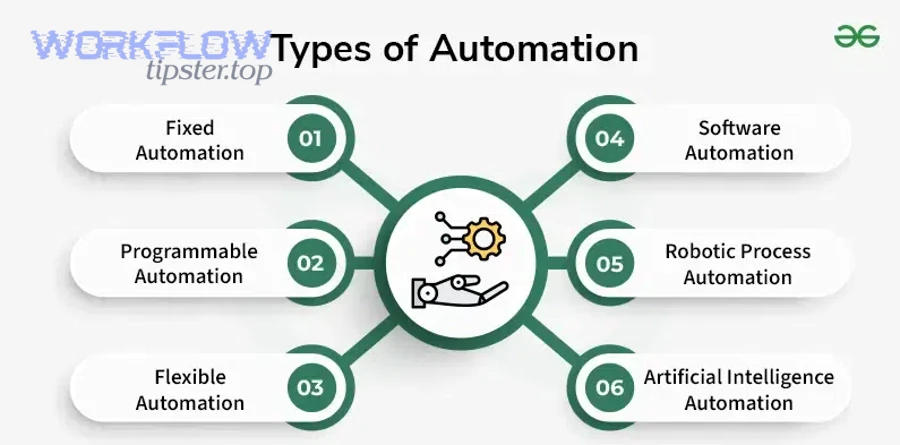
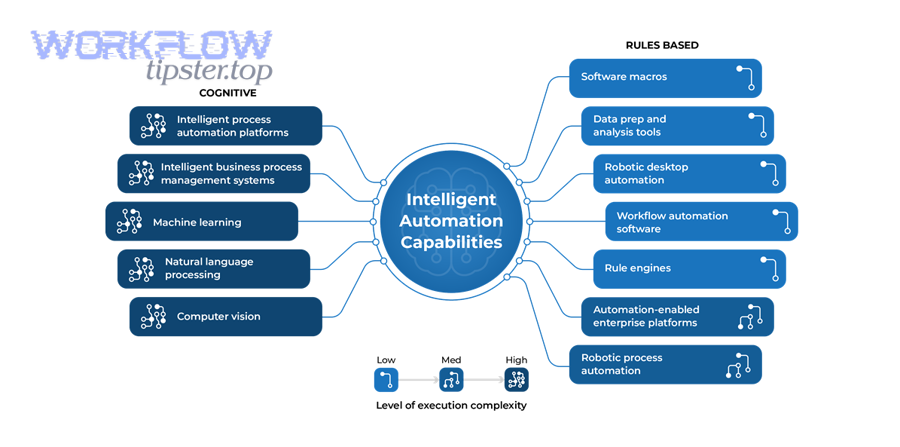
What’s the difference between rule-based automations, RPA, and AI automations?
Rule-based automations win in predictability, RPA is best for automating repetitive work in legacy user interfaces, and AI automations are optimal when the “input” is messy language or unstructured content that benefits from pattern recognition.
However, the key is matching the method to the constraint you’re facing: data access, process stability, and the level of judgment required.
Rule-based vs AI-assisted automations: which is safer and when?
Rule-based wins when you need consistency and auditability.
It’s safer because:
- You can explain the logic: “If A and B, then do C.”
- Outputs are deterministic.
- Testing is straightforward.
AI-assisted wins when inputs are unstructured or variable:
- Summarizing messages
- Classifying requests
- Drafting responses
- Extracting entities from text
The risk is that AI outputs can vary.
That’s why the safest pattern is AI for interpretation + rules for action:
- AI extracts intent or key fields
- Rules decide whether to proceed, escalate, or request confirmation
This approach prevents “hallucinated” actions by keeping execution deterministic.
API/workflow automations vs RPA (screen-clicking bots): which is more reliable?
API/workflow automations are usually more reliable because they use official integrations, stable identifiers, and structured data.
RPA shines when:
- The system has no API
- The process is locked in a legacy UI
- Humans already do the task by clicking through screens
But RPA is typically more brittle because UI changes can break bots: buttons move, fields rename, login flows add steps.
A simple reliability ranking is:
- Best: API-based workflows
- Good: well-supported connectors with stable schemas
- Riskier: UI-based RPA on changing interfaces
According to a study by Stanford University from the Stanford Digital Economy Lab, in 2023, AI assistance delivered measurable productivity gains but with heterogeneity across workers—supporting the idea that AI is powerful yet needs guardrails, especially for high-stakes actions. (digitaleconomy.stanford.edu)
How do you design a “good” automation (a beginner framework)?
There are five beginner design principles for a good automation: clear outcome, clean trigger, minimal steps, safe fallbacks, and observable results—because these reduce failure modes while keeping maintenance manageable.
Next, applying a simple planning checklist prevents 80% of “why did it do that?” surprises.
What’s a simple checklist to plan an automation before you build it?
Use this short checklist before you touch any builder:
- Outcome: What exact result should happen? (One sentence.)
- Trigger: What event should start it? (Be precise: “status changes to X,” not “when something happens.”)
- Inputs: What data must be present? (IDs, emails, labels, timestamps.)
- Conditions: What should block it? (exclude internal emails, ignore test records, require approval.)
- Actions: What are the minimum steps? (start small)
- Fallback: What happens on error? (notify, retry, log, create a review task)
- Owner: Who maintains it? (even if it’s you)
- Test cases: What are 3 realistic scenarios? (including one edge case)
If you’re building across multiple systems, list your connectors upfront—this reduces surprises when you discover that two tools don’t share the same IDs.
That’s also the moment to map your automation integrations: which system is the source of truth, and which systems are downstream consumers.
Should you start with single-step automations before multi-step workflows?
Yes—you should start with single-step automations because they build confidence, reduce blast radius, and let you validate triggers and data quality before you chain actions across systems.
Moreover, single-step wins for beginners for at least three reasons:
- Easier debugging: one action means fewer places to break.
- Cleaner learning loop: you learn trigger logic faster.
- Lower risk: you avoid sending the wrong message to the wrong audience or creating duplicate records.
Once a single-step rule runs cleanly for a week, expand it into multi-step automation workflows with clear checkpoints (like “create task” before “notify stakeholders”).
According to a study by National Taiwan University Hospital from its claims process improvement team, in 2024, structured process mapping and logging were emphasized as part of sustaining RPA improvements—supporting the idea that small, testable steps and clear documentation improve long-term maintainability. (nature.com)
What are the most common automation mistakes, and how do you prevent them?
There are six common automation mistakes—unclear triggers, messy data, missing safeguards, poor naming, no monitoring, and over-automation—because each one increases failure frequency and makes problems hard to diagnose.
To better understand prevention, treat mistakes as patterns: if you can name the pattern, you can design around it.
Can automations create loops or spam ?
Yes—automations can create loops or spam because an action can trigger the same automation again, or multiple automations can trigger each other, creating repeated notifications or duplicate records.
However, you can stop this reliably using at least three safeguards:
- Loop breakers (state flags)
Add a field like “Automated = true” or “Last updated by automation” and exclude those events from re-triggering. - Debounce/throttle rules
Only allow an automation to run once per X minutes per entity (per user, per ticket, per device). - Id-based deduplication
Use a unique ID (ticket ID, message ID, order ID) and skip if already processed.
In practice, the best prevention is designing triggers around state transitions (“status changed from A to B”) rather than general updates (“record updated”).
What basic troubleshooting steps fix most broken automations?
When an automation fails, most fixes come from the same checklist:
- Check the trigger: did it fire? did the event actually occur?
- Validate conditions: did a filter block it unexpectedly?
- Confirm permissions: did access expire or change?
- Inspect inputs: are required fields missing or malformed?
- Review run history/logs: identify the first failing step.
- Re-run with a test case: isolate whether failure is data-dependent.
- Rollback recent changes: if it used to work, restore the last known-good version.
A helpful habit is to write automation names that encode purpose and trigger, like: “Lead form → create CRM + notify owner.”
That alone makes debugging faster, because you can find the right automation quickly.
According to a study by MIT from the MIT Sloan School of Management, in 2025, research emphasized that automation changes task composition—meaning troubleshooting often requires checking both the technical logic and the human workflow that surrounds it.
How do you choose an automation approach (no-code vs code) and tool category (workflows vs routines)?
No-code wins for speed and accessibility, code is best for complex logic and high control, and choosing between workflows vs routines depends on whether you’re orchestrating multi-step cross-system processes or automating simple personal/device behaviors.
Meanwhile, a clear selection rubric prevents tool-hopping and rebuild fatigue.

Before the table below, note that it summarizes the most practical decision criteria beginners use when selecting an automation approach—so you can match your constraints to the right build style.
| Approach | Best for | Strengths | Weaknesses | When to pick it |
|---|---|---|---|---|
| No-code | common apps + simple logic | fast setup, easier maintenance | limited customization | you want results today |
| Low-code | webhooks + small scripts | flexibility without full engineering | can become messy | you need one custom step |
| Code | complex workflows + scale | control, testing, versioning | higher effort | you need reliability at scale |
| RPA | legacy UI tasks | works without APIs | brittle to UI changes | no integrations exist |
No-code vs code automations: how do you decide based on complexity and scale?
Use three criteria:
- Complexity of logic
If you need deep branching, data transforms, or custom error handling, code becomes attractive. - Scale and reliability needs
If hundreds or thousands of runs per day happen, you’ll want testing, version control, and monitoring—code helps. - Maintenance ownership
If non-technical teammates must maintain it, no-code is often better even if it’s less flexible.
A hybrid approach is common: begin with no-code to validate the process, then migrate “proven value” automations into code when stability and scale justify it.
What selection criteria matter most (integrations, reliability, permissions, audit trail)?
When selecting tools or platforms, prioritize:
- Integration coverage: do your core systems connect cleanly?
- Data model compatibility: can you pass stable IDs and structured fields?
- Reliability controls: retries, alerts, and run history
- Permissions and governance: who can edit, run, and approve?
- Audit trail: can you trace what happened and why?
- Cost scaling: pricing per run, per step, or per user
- Portability: can you export or replicate logic?
If you adopt a “Workflow Tipster” mindset here, you’ll choose tools based on constraints and outcomes—not hype.
The best tool is the one your team can maintain while keeping automations understandable.
According to a study by Stanford University from the Stanford Digital Economy Lab (with MIT), in 2023, productivity gains were real but uneven across workers—supporting the idea that tool choice and rollout strategy influence results as much as the automation method itself. (hai.stanford.edu)
How do you make automations reliable and safe at scale (avoid duplicates, failures, and security risks)?
Making automations reliable and safe at scale requires designing for idempotency, handling rate limits and retries, monitoring execution with meaningful logs, and restricting permissions—because scale magnifies small flaws into repeated errors and security exposure.
In addition, reliability is not just technical; it’s operational discipline: clear ownership, change control, and review loops.
What is idempotency in automations, and how does it prevent duplicate actions?
Idempotency means running the same operation multiple times produces the same end result, which prevents duplicates when triggers fire twice or retries occur.
Specifically, you implement idempotency by attaching a deduplication key to each run, such as:
- Order ID + action type (e.g., “invoice_sent:ORDER123”)
- Ticket ID + status transition (e.g., “escalated:TICKET55”)
- Message ID + notification channel
Then the automation checks: “Have I already processed this key?” If yes, it exits safely.
This is the single most effective design pattern for stopping duplicate emails, duplicate tasks, and double updates at scale.
How do rate limits, retries, and backoff protect your automations from breaking?
Most external systems enforce rate limits. If you exceed them, calls fail and your workflow becomes unreliable.
To illustrate, scalable automations use:
- Retries for transient failures (temporary network issues)
- Exponential backoff (wait longer after each failure)
- Jitter (random small delays to avoid synchronized retries)
- Batching (process multiple items in one call when possible)
- Queueing (buffer events instead of processing instantly)
A practical beginner rule: retry only failures that are likely transient (timeouts, 429 rate-limit errors, 5xx server errors) and fail fast on permanent errors (invalid credentials, missing required fields).
What should you log/monitor in automations (errors, run history, alerts, correlation IDs)?
Monitoring turns “it broke” into “we know exactly where and why.” A good baseline includes:
- Run history: start/end time, duration, steps executed
- Inputs: key fields used for decisions (with privacy awareness)
- Decision points: which condition path was taken
- Errors: error code, failing step, payload summary
- Alerts: notify an owner when failure rate crosses a threshold
- Correlation IDs: one ID that ties logs across services
If you only add one thing, add an alert for repeated failures.
Silent failures are the reason people stop trusting automations.
Are automations secure by default (and what permissions should you restrict)?
No—automations are not secure by default, because they often require powerful permissions across multiple systems, and misconfigurations can expose data or trigger unintended actions.
More importantly, you reduce risk with at least three controls:
- Least privilege access: grant only the minimum scopes needed.
- Secret management: rotate tokens, avoid hardcoding keys, restrict who can view credentials.
- Change control: require reviews for edits, maintain version history, and document purpose.
As you scale, treat automations like production systems: permissions reviews, audit logs, and clear ownership prevent “automation drift” where nobody knows what still runs.
According to a study by National Taiwan University Hospital from its improvement team, in 2024, traceability and recorded execution steps were emphasized for sustaining automation outcomes—highlighting why logging and governance are essential as automations scale beyond simple personal rules. (nature.com)