


If you want project work to move forward the moment a meeting is booked, you can automate Jira scheduling by chaining Calendly → Outlook Calendar → Google Meet → Jira so every confirmed time slot becomes a trackable issue with the right context and the right link.
Next, you need to understand one practical dependency: Google Meet details in Calendly are typically created by connecting and selecting a Google Calendar, so Outlook-only setups often fail unless you intentionally design the “host calendar” step. (help.calendly.com)
Then, you’ll get the most value when you map meeting data into Jira consistently—so a meeting isn’t just “on the calendar,” but also becomes a searchable Jira artifact with the right summary format, description template, and ownership rules.
Introduce a new idea: once you treat scheduling as a workflow (not a single integration), you can choose the right implementation path—native connections, no-code automation, or Jira add-ons—based on how much control you need and how quickly you want to ship.
What does “Calendly → Outlook Calendar → Google Meet → Jira scheduling automation” mean for a project team?
It means your team uses a single booking action in Calendly to automatically create an Outlook calendar event, attach Google Meet details, and generate a Jira issue that captures the meeting’s purpose, attendees, and next actions—so nothing relies on manual copy/paste.
To begin, the fastest way to understand the chain is to picture a “trigger → sync → conference link → work item” pipeline where each step adds one layer of reliability.

In practice, teams adopt this workflow because meeting scheduling often creates hidden work: confirming availability, sending links, assigning an owner, and capturing outcomes. When those steps happen manually, you get predictable failure modes:
- Someone forgets to create the Jira issue until after the meeting.
- The meeting link is missing or inconsistent across invites.
- Reschedules create duplicates and confusion.
- The “why” of the meeting disappears inside a calendar description nobody searches.
A scheduling automation fixes that by forcing structure at the moment the meeting is created—when the information is fresh and the intent is clear.
What should happen automatically after someone books a meeting in Calendly?
After a booking, four things should happen automatically: the time slot is confirmed, an Outlook calendar event is created (or updated), Google Meet details are included, and a Jira issue is created (or updated) with the meeting’s key context.
Next, define “automatic” in observable outputs so you can test it without guesswork:
- Invitee receives confirmation with the correct time zone and details.
- Outlook Calendar shows the event with correct start/end, attendees, and title.
- Google Meet link appears consistently (in confirmation + calendar event).
- Jira issue exists in the correct project with required fields filled (summary, description, owner/assignee, labels/components).
When you implement, you want each output to be deterministic. For example, if the invitee answers “What’s the goal?” in Calendly questions, that answer should always land in the Jira description in the same place, using the same label and formatting. This consistency is how the workflow becomes scalable across a team.
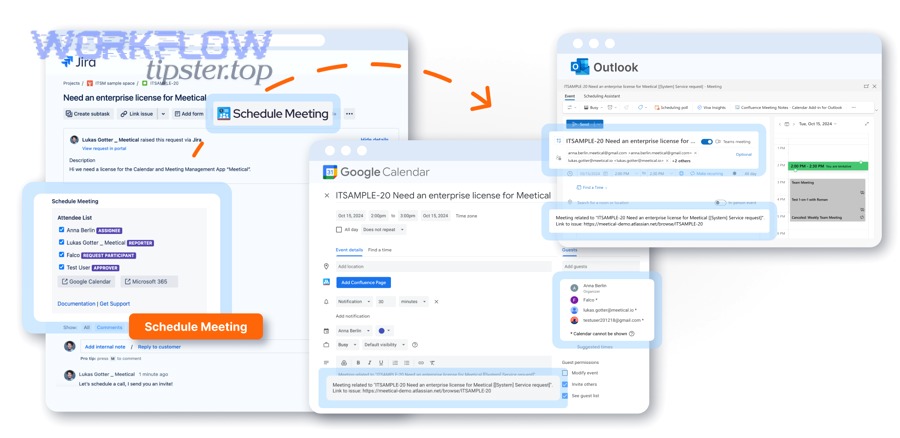
Is this workflow mainly about scheduling, tracking work, or both?
Both: the scheduling layer prevents conflicts and ensures attendance, while the Jira layer converts the meeting into a durable work object that can be prioritized, assigned, and closed.
Then, treat it as two wins that reinforce each other:
- Scheduling win: fewer back-and-forth emails and fewer missing details.
- Tracking win: meetings become visible in sprint planning, triage, and post-meeting follow-ups.
A simple comparison helps: calendars answer “when,” but Jira answers “what, who, and what next.” When you connect them, you stop losing decisions and next steps inside a calendar event title.
Do you need specific accounts and permissions to connect Outlook Calendar, Google Meet, and Jira reliably?
Yes—this chain depends on correct account connections and permissions, because (1) Calendly must be able to read/write your calendar to prevent conflicts and add events, (2) Google Meet generation requires a connected Google calendar context, and (3) Jira requires permission to create or edit issues in the target project.
Next, you should design permissions to prevent “it works for me but not for the team” problems, which typically come from mismatched admin settings and individual user connections.
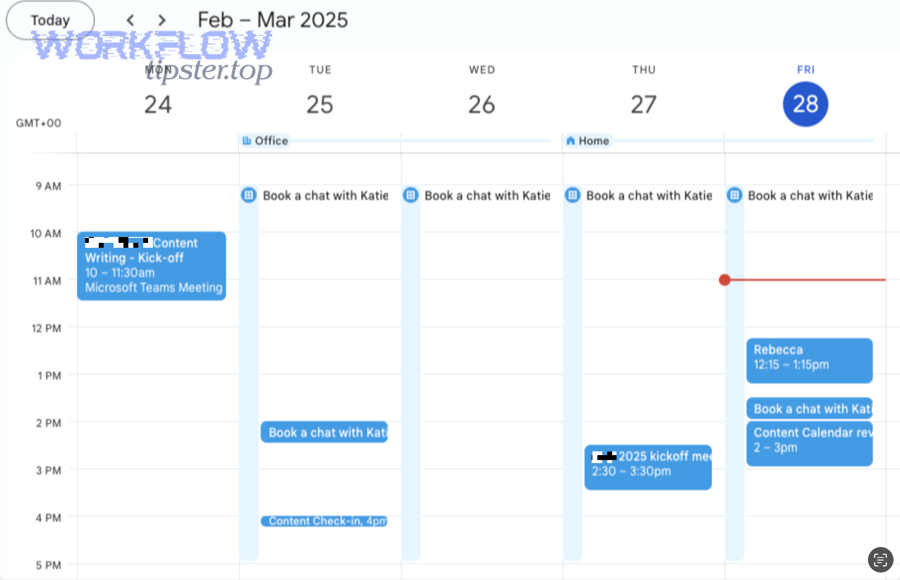
What are the minimum permissions needed in Outlook Calendar and Jira?
You need calendar permissions that allow availability checks and event creation, and Jira permissions that allow issue creation and editing in the destination project.
Then, validate minimum access by capability, not by role title:
Outlook Calendar (through Calendly connection)
- Read busy/free time to block conflicts.
- Create events and update events created by the workflow.
- Optional: manage cancellations/reschedules depending on your sync settings.
Jira
- Browse the target project (so the automation can “see” it).
- Create issues in the chosen issue type(s).
- Edit issues (needed for reschedule updates, status changes, or adding the Meet link later).
- Optional: add comments/attachments, set assignee, set labels/components, set custom fields.
A practical tip for teams: use a dedicated “automation” identity (or service account) for Jira creation where possible, so the audit trail is consistent and access is controlled. This also makes troubleshooting far easier because the workflow doesn’t break when one employee’s access changes.
Does Google Meet require Google Calendar to be connected to generate meeting links?
Yes—when you use Google Meet as the event location in Calendly, Calendly’s help guidance indicates you must connect and select a Google Calendar as the calendar to add events to in order to host Google Meet conferencing details. (help.calendly.com)
Then, turn that constraint into a design choice instead of a surprise:
- If your team is “Outlook-first” but still wants Google Meet, define one Google Calendar context that creates the Meet link.
- If your team is “Google-first,” the chain is simpler because Meet and Calendar are naturally aligned.
- If you can’t or don’t want to connect Google Calendar, choose an alternate conferencing approach and keep the rest of the chain intact.
This is also where “host identity” matters: the account that generates the Meet link often determines who can manage the meeting and what appears in the calendar invite, so you want consistency across the team.
How do you set up the automation workflow step-by-step from Calendly to Jira?
The most reliable method is a 5-step setup—connect calendars, configure Google Meet location, define a Jira creation rule, map fields consistently, and test reschedule/cancel behavior—so every booking produces a clean calendar event and a single Jira issue.
Below, you’ll build the workflow like a system: first ensure scheduling accuracy, then layer in Jira creation, then harden it against duplicates.
Step 1: Connect Outlook Calendar to Calendly
- Connect the correct Outlook account(s) for availability and event creation.
Step 2: Enable Google Meet as an event location (with the right Google Calendar selected)
- Connect Google Calendar and confirm it is selected as the calendar to add events to when using Meet. (help.calendly.com)
Step 3: Choose your Jira creation approach
- No-code integration (e.g., an integration platform that triggers “when invitee schedules” → “create issue”). (zapier.com)
- Jira Automation incoming webhook trigger (more control, more setup). (support.atlassian.com)
Step 4: Map fields and templates
- Decide which Calendly fields become Jira summary/description/labels/assignee.
Step 5: Test the hard cases
- Create → reschedule → cancel → rebook.
- Validate “one booking = one Jira issue” and that updates modify the existing issue rather than creating duplicates.
Tip: treat “testing” as part of implementation, not a final step—because reschedule/cancel behavior is where most teams lose reliability.
Which Calendly event types should trigger Jira issue creation?
There are 4 main types of Calendly event triggers you should use—Discovery, Delivery, Support, and Governance—based on what the meeting is supposed to produce in Jira.
Next, group event types by outcome so Jira stays clean:
- Discovery meetings (scope and decisions)
- Jira output: Story or Task (for planned work)
- Typical attendees: PM + stakeholder
- Good mapping: “Goal,” “constraints,” “success metrics,” link to relevant epic
- Delivery meetings (execution and coordination)
- Jira output: Task, Sub-task, or Sprint item
- Good mapping: agenda → checklist; action items → sub-tasks
- Support/incident meetings (triage and resolution)
- Jira output: Bug or Jira Service Management request
- Good mapping: severity, impact, reproduction steps, customer context
- Governance meetings (planning, retros, reviews)
- Jira output: Epic note, retrospective item list, or improvement tasks
- Good mapping: retro theme labels, owners, follow-ups
A simple rule prevents noise: don’t auto-create Jira issues for meetings that are purely informational (e.g., a recurring sync with no decisions). For those, you can still log context by adding a comment to an existing issue rather than creating a new one.
This is also where you can keep your broader system consistent across automation workflows in other domains—like “airtable to docsend to google drive to pandadoc document signing”—by using the same trigger discipline: only automate when the event should produce a durable artifact.
How should you map meeting details into Jira fields so issues stay actionable?
There are 6 core mapping categories—identity, time, purpose, link, ownership, and classification—based on what makes a Jira issue searchable and actionable after the meeting ends.
Then, use a template that is consistent across event types:
Recommended Jira Summary (consistent and scannable)
Meeting: {Event Type} — {Invitee/Account} — {YYYY-MM-DD}
Recommended Jira Description (structured)
- Purpose: (from Calendly question)
- Agenda: (optional multi-line)
- Attendees: name + email
- Time: start/end + timezone
- Join link: Google Meet URL
- Notes: placeholder for outcomes
- Next actions: placeholder for action items
Ownership
- Assignee: based on event type (e.g., round-robin for support, owner for accounts, PM for planning)
- Reporter: automation identity or meeting organizer
Classification
- Labels:
meeting,calendly, plus team tag - Components: product area
- Priority: based on event type or form answer (e.g., “severity”)
To keep the chain stable, decide which fields are “required” in Jira and ensure your mapping always fills them. If you skip this, Jira issue creation will intermittently fail (or issues will be created incomplete and ignored).
How do reschedules and cancellations sync across Outlook Calendar and Jira without duplicates?
Updating an existing Jira issue wins for reschedules, closing or commenting wins for cancellations, and creating a brand-new issue is only optimal for truly new meetings—because these choices prevent duplicates and preserve a single source of truth per meeting.
Next, you should decide your policy up front because the automation will otherwise make the decision for you—usually in the least helpful way (duplicates everywhere).

What is the best unique key to prevent duplicate Jira issues?
Calendly’s event identifier (or a workflow-stored external ID tied to the booking) is the best key, while “invitee email + start time” is the best fallback, because they are the most stable identifiers across reschedules.
Then, compare your options realistically:
- Best: a unique event ID stored in a dedicated Jira custom field (or issue property).
- Strength: survives reschedules and edits.
- Good fallback:
invitee email + original scheduled time(hashed into a key).- Strength: easy to implement; riskier if people book multiple sessions.
- Weak: title-based keys (meeting names change constantly).
- Strength: none; avoid.
A robust workflow uses the key to do “search then create” logic:
- Search Jira for existing issue with that key.
- If found, update it (reschedule) or transition/comment (cancel).
- If not found, create a new issue.
This is the difference between a workflow that works at 10 meetings/month and one that works at 1,000.
Should a cancellation close the Jira issue, comment on it, or keep it open?
Closing wins for internal delivery meetings, commenting wins for customer meetings, and keeping open wins for ongoing epics—because each choice aligns Jira status with the real operational meaning of the cancellation.
Then, use a simple policy table so teams don’t debate it every time.
This table shows recommended cancellation behaviors by meeting category, so your automation produces consistent Jira hygiene:
| Meeting type | Recommended Jira behavior | Why it works |
|---|---|---|
| Internal delivery sync | Transition to “Canceled” (or “Done” if it’s purely administrative) | Keeps boards clean; avoids stale items |
| Customer escalation/support | Add a comment + keep status (or move to “Waiting”) | Maintains customer history and accountability |
| Planning/retro/review | Comment + optional reschedule flag | Preserves governance trail without forcing closure |
A cancellation comment template that stays consistent:
- “Meeting canceled by invitee.”
- “Original time: …”
- “Next step: reschedule / follow up / close.”
What are the most common failures in this chain, and how do you fix them fast?
The most common failures are missing Google Meet links, incorrect calendars selected, permission errors, wrong Jira project/fields, and duplicate issue creation—because these are the exact places where identity, configuration, and mapping intersect.
Next, treat troubleshooting as a checklist with observable symptoms and specific fixes, rather than “try reconnecting everything.”

Why is the Google Meet link missing from the invite or calendar event?
It’s usually missing because Google Calendar isn’t connected and selected as the calendar to add events to, or because the conferencing location isn’t configured consistently across event types. (help.calendly.com)
Then, fix it in the shortest path:
- Confirm Google Calendar is connected in Calendly.
- Confirm Google Calendar is selected for “Calendar to add events to.”
- Confirm the event type location is set to Google Meet (not “custom” or “multiple locations” misconfigured).
- Test by creating a brand-new booking (don’t rely on old events).
If you still see issues, test with one user account end-to-end. In multi-user environments, individual users often need their own connection steps, and admins can’t always apply the connection universally. (help.calendly.com)
Evidence: According to a study by the University of Washington Pediatric Dentistry Clinic, in 2010, a randomized trial found different no-show outcomes between voice and text reminder groups (voice reminder no-show 8.2% vs text reminder no-show 17.7%), showing that the details of how reminders and meeting logistics are delivered can materially affect attendance behavior. (depts.washington.edu)
Why does Jira create issues in the wrong project or with missing fields?
It happens because the integration defaults to a project, required fields aren’t mapped, or your issue type scheme requires fields that your automation doesn’t supply.
Then, debug from “rules and requirements” outward:
- Confirm project mapping (hardcode the destination project per event type).
- Confirm issue type mapping (Task vs Bug vs Story vs JSM Request).
- Audit required fields in Jira (priority, component, custom fields, etc.).
- Add a validation step: if a required field is missing, don’t create the issue—send an alert to the owner.
If you’re using Jira Automation with an incoming webhook trigger, make sure your payload mapping aligns with what the rule expects, and log the payload during tests to confirm you’re sending the right JSON fields. (support.atlassian.com)
Which approach is better: native integrations, no-code automation, or Jira calendar add-ons for this workflow?
No-code automation wins for speed and flexibility, native integrations win for simplicity, and Jira add-ons win when you want meeting scheduling to live inside Jira—because each approach optimizes a different constraint: time-to-value, operational stability, or Jira-first UX. (zapier.com)
Next, choose based on your team’s actual operating model, not on what sounds most “integrated.”

When should you use a no-code automation layer instead of native connections?
Use a no-code automation layer when you need multi-step logic, branching by event type, deduplication, retries, or deeper Jira field mapping—because these capabilities are where workflows usually break when they grow.
Then, look for practical signals you’ve outgrown “simple” integration:
- You need different Jira projects per Calendly event type.
- You need “search then update” to avoid duplicates.
- You need to handle reschedules/cancellations with policy logic.
- You want to send alerts when issue creation fails.
A no-code layer also lets you standardize patterns across your organization. For example, if you already run “github to monday to slack devops alerts,” you can reuse the same operational discipline: triggers must be explicit, mapping must be consistent, and failures must surface immediately to the responsible owner.
What edge cases matter in mixed Microsoft 365 + Google Workspace environments?
The critical edge cases are identity ownership of the Meet link, which calendar is considered the “source of truth,” and how invitations behave across tenants—because small mismatches create “works for some people” failures.
Then, handle hybrid environments with one of these stable patterns:
- Single host calendar pattern: one designated Google account generates Meet links; Outlook remains the availability and event display layer.
- Event-type routing pattern: internal meetings use Teams/Outlook-only; external meetings use Google Meet with a specific Google Calendar.
- Service identity pattern: a service account owns conferencing creation while individuals appear as attendees.
The goal is not to “make everything possible,” but to reduce variability so the chain behaves predictably across the team.
How can you design the workflow for compliance, privacy, and auditability?
Design for compliance by minimizing sensitive data in Jira, controlling who can access automation credentials, and keeping an auditable trail of what was created and why.
Then, implement three concrete safeguards:
- Data minimization: store agenda metadata and links, avoid sensitive personal notes.
- Access control: restrict who can change mappings and credentials.
- Audit-friendly templates: standard summary + structured description so every issue is explainable later.
If you operate in a regulated environment, treat meeting details the same way you treat other workflow artifacts: define retention expectations, define who can view what, and keep automation changes reviewable.
What’s the simplest way to measure success after replacing manual booking?
Measure success by reduced duplicates, improved field completeness, faster handoff time from meeting booking to Jira visibility, and fewer “missing link” incidents—because those metrics reflect the exact manual labor you’re trying to eliminate.
Then, run a lightweight monthly review:
- Duplicate rate: % of meetings that created more than one Jira issue (target: near 0).
- Completeness rate: % of issues with required fields populated (target: high).
- Time-to-visible: minutes from booking to issue created (target: low).
- Failure alerts: count and root cause (target: trending down).
When these metrics improve, you’ve achieved the title’s promise: you didn’t just integrate tools—you replaced manual booking with a system that consistently turns meetings into tracked work.
If you want, tell me whether you’re building this chain around Jira Software or Jira Service Management, and I can tailor the field mapping template (summary/description/status transitions) to match the issue types and workflows you’re using.