

Replace Manual Tasks with Automation Workflows: A Step-by-Step Workflow Automation Guide for Business Teams
Replacing manual work with automation workflows is easiest when you treat it like a system design problem: pick a measurable process, define a trigger, map the data, build rules, and deliver outcomes with clear ownership. This guide walks business teams through a practical, repeatable method to build automation workflows that save time, reduce rework, and keep operations stable as you scale.
Workflow automation also becomes clearer once you can name the moving parts: triggers, conditions, actions, approvals, integrations, and run history. Below, you’ll learn what automation workflows are, how they differ from RPA and scripts, and how to design them so they stay maintainable—not fragile.
Next, you’ll choose what to automate first using a “high-volume + rule-based + measurable” filter. Then you’ll design workflows step-by-step, from inputs and field mapping to handoffs and exception paths, so you don’t automate chaos or create bottlenecks.
Introduce a new idea: once you can build one reliable workflow end-to-end, you can replicate the same pattern across scheduling, support triage, document signing, and DevOps alerts—turning scattered automations into a governed, observable workflow system.
What are automation workflows and how do they replace manual tasks?
Automation workflows are structured sequences of trigger-based steps that move data and decisions through rules, actions, and approvals so a business outcome happens consistently without repetitive human effort. Next, the fastest way to understand them is to compare a “manual chain” (emails, copy/paste, reminders) to an automated chain (trigger → logic → action → audit).

A manual process usually fails in the same predictable places: someone forgets a step, data gets retyped incorrectly, approvals get stuck, and nobody can see status without asking. Automation workflows replace those failure points by:
- Standardizing execution (the same inputs produce the same steps)
- Removing hand-typed data movement (mapping fields once instead of copying forever)
- Enforcing rules (if/then logic runs every time)
- Creating visibility (run logs, timestamps, and audit trails)
What is the basic structure of an automation workflow (trigger → rules → actions → outcome)?
The basic structure of an automation workflow is trigger → rules/conditions → actions → outcome, with optional approvals, retries, and logging layered in. To better understand why this structure works, focus on what each block contributes to reliability.
1) Trigger (the “start”)
- Event-based: form submitted, record created, ticket opened, meeting booked
- Schedule-based: daily at 9am, every Friday, end-of-month
- Webhook/API-based: another system posts an event to your workflow
2) Rules/conditions (the “brain”)
- If/then branches (route VIP leads differently)
- Filters (only act when required fields exist)
- Thresholds (escalate if priority = high)
3) Actions (the “hands”)
- Create/update a record
- Send a message
- Generate a document
- Assign a task
- Request approval
- Call an external API
4) Outcome (the “done”)
- A lead is routed to the right owner
- A contract is sent for signature
- A support ticket becomes a tracked task
- A release alert reaches the right channel
Optional reliability layers
- Approvals/human-in-the-loop for policy or high-risk decisions
- Retries + backoff for flaky integrations
- Deduplication to prevent double-processing
- Run history for traceability
A practical way to think about it: triggers create urgency, rules create accuracy, actions create momentum, and outcomes create measurable value.
Is workflow automation the same as RPA or scripting?
No—workflow automation is not the same as RPA or scripting, because workflow automation orchestrates a process, while RPA mimics UI actions and scripts automate code-level tasks. However, the confusion is common because all three can reduce manual work.
Here’s the clean comparison business teams can use:
- Workflow automation: best for multi-step processes across tools (handoffs, approvals, routing, notifications, document flow)
- RPA: best for legacy UI-heavy tasks where no API exists (copying from old systems, clicking through screens)
- Scripting: best for custom transformations and engineering control (complex logic, performance constraints, bespoke integrations)
What matters is maintenance:
- UI changes often break RPA bots.
- Scripts need engineering ownership and deployment discipline.
- Workflow automation tends to be easiest to own and iterate—especially for business operations—when designed with clear inputs, rules, and observability.
Evidence (why redesign matters, not just “add AI”): According to a study by Stanford University from the Department of Medicine (Clinical Excellence Research Center), in 2023, researchers argued that reducing administrative burden requires standardization and workflow redesign, not simply adding AI on top of complex processes. (pubmed.ncbi.nlm.nih.gov)
Which business processes should you automate first?
You should automate processes first that are high-volume, repetitive, rule-based, and measurable, because they deliver fast ROI while minimizing operational risk. Then, once you see consistent success, you can expand into more complex workflows that require approvals, exceptions, or richer data transformation.
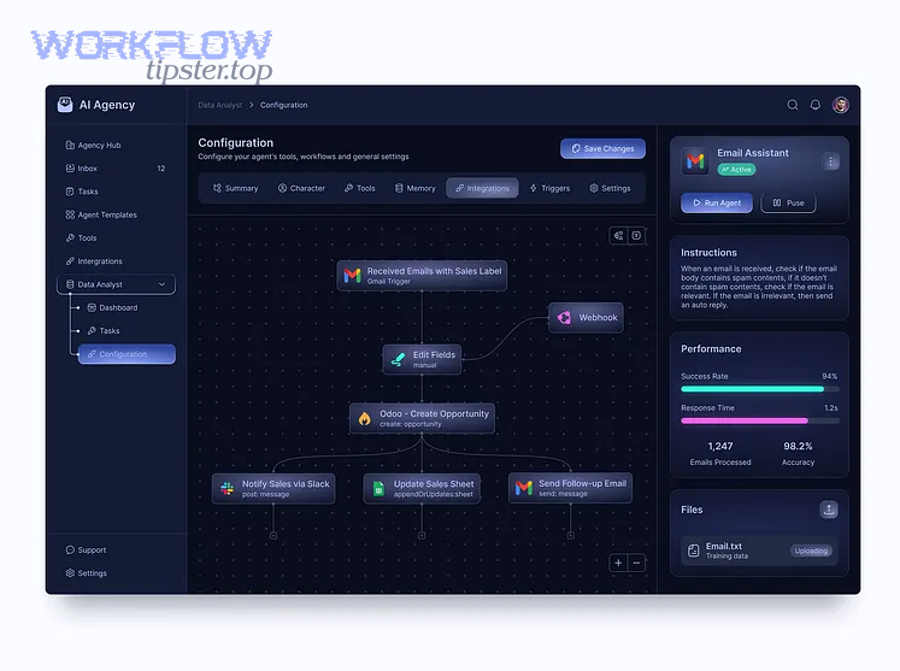
Use this selection filter to prioritize:
- Volume: happens daily/weekly, not quarterly
- Repetition: same steps repeated, not reinvented
- Rules clarity: “if X then Y” logic exists
- Data availability: required fields can be captured reliably
- Outcome is measurable: cycle time, error rate, SLA, cost
- Ownership is clear: one team can maintain the workflow
What are the best “quick win” automation workflow categories for business teams?
There are 6 main types of “quick win” automation workflows—intake, routing, synchronization, notifications, approvals, and document lifecycle—based on the criterion of how information moves from request → decision → completion. Next, the simplest way to apply them is to map each type to a department and a measurable outcome.
Quick win categories (with what they improve):
- Intake automation (fewer missing fields, faster starts)
- Routing automation (right owner, fewer handoffs)
- Data sync automation (single source of truth, fewer duplicates)
- Notification automation (fewer “status check” messages, faster response)
- Approval automation (shorter cycle time, clearer compliance)
- Document workflow automation (faster signature cycles, fewer lost versions)
To make these concrete, the table below lists real-world workflow patterns business teams commonly implement. Each row is a “recipe” you can model.
If you want these quick wins to stay reliable, treat them as workflows (owned, logged, monitored), not as one-off hacks. That’s where mature automation programs differ from random automations.
Also include the operational label you’ll hear in many teams: automations—plural—because the goal isn’t a single clever flow; it’s a portfolio that reduces manual work across departments.
Should you automate a process that is not standardized yet?
No—you generally should not automate a process that isn’t standardized yet, because you’ll (1) automate confusion, (2) multiply exceptions, and (3) create brittle maintenance that breaks every time the team changes a step. Then, once the process is stable, automation becomes a force multiplier instead of a risk multiplier.
- Automating a moving target increases breakage: if steps change weekly, your workflow logic becomes outdated immediately, creating silent failures and inconsistent outcomes.
- Unstandardized inputs produce unpredictable outputs: when required fields aren’t consistent, routing rules and approvals can’t run deterministically, so you end up with manual cleanup—often worse than before.
- Exceptions swallow the core workflow: if 40% of cases are “special,” the workflow becomes a maze of branches, and ownership becomes unclear.
What to do instead is “standardize just enough”:
- Write the process as a minimum viable process (MVP): start, required fields, decision points, end state
- Define a single source of truth for data (where the workflow reads and writes)
- Create a clear owner who decides rule changes
Once those basics exist, automation workflows can run reliably and scale safely.
How do you design an automation workflow step-by-step?
Designing an automation workflow works best as a 7-step method—goal → scope → inputs → trigger → logic → actions → exceptions—so you ship a workflow that is measurable, testable, and maintainable. Next, follow the sequence in order, because skipping inputs and exceptions is the fastest way to build brittle automation.

Step 1: Define the outcome in one sentence
Example: “When a qualified lead is created, assign it to the correct owner and schedule a follow-up task within 5 minutes.”
Step 2: Set scope and boundaries
- What starts it?
- What counts as “done”?
- What is explicitly out of scope?
Step 3: Identify the source of truth
Pick where the workflow reads/writes canonical data. If you can’t name it, you’ll end up syncing duplicates forever.
Step 4: Define required inputs and validation
Which fields are mandatory? What happens when one is missing?
Step 5: Choose the trigger type
Event, schedule, or webhook, based on how the process naturally begins.
Step 6: Build logic and actions
Use rules to route and actions to execute.
Step 7: Design exception paths
Retries, fallbacks, approvals, and alerts.
What inputs, triggers, and rules do you need before building?
Before building, you need (1) inputs that are consistently captured, (2) a trigger that fires reliably, and (3) rules that are explicit enough to encode without human interpretation. To begin, treat these three elements as your “workflow contract,” because they determine whether your automation will run predictably or drift into manual intervention.
Inputs checklist (what your workflow must know)
- Required fields (owner, priority, due date, customer ID, document link)
- Data types (text vs number vs date vs single-select)
- Validation rules (must not be blank; must match format)
- Identity fields (record ID, email, external reference)
- Permission context (who can read/write what)
Trigger checklist
- Event trigger: “record created” is safer than “record updated” if your system updates constantly
- Schedule trigger: good for batching (daily summaries, compliance checks)
- Webhook trigger: best for real-time external events, but requires security controls
Rule checklist
- Routing logic (territory, priority, workload, SLA)
- Filters (only run when status = ready)
- Branch conditions (if contract value > threshold then approval)
- Timing logic (delay until business hours)
If you define these clearly, you eliminate the #1 cause of broken workflows: “We built it, but it triggers at the wrong time with the wrong data.”
How do you map workflow steps and handoffs without creating bottlenecks?
You map workflow steps without bottlenecks by automating predictable actions, keeping humans for high-judgment approvals, and designing handoffs with explicit ownership and SLAs. However, the bottleneck risk spikes when you add approvals without clear rules or visibility.
1) Separate actions from decisions
- Actions: create task, send email, update record, generate doc
- Decisions: approve spend, override routing, accept exceptions
Automate actions first; then gate decisions with approvals only when necessary.
2) Use the “one owner per stage” rule
Each stage should have one accountable owner. Shared ownership is where workflows stall.
3) Put approvals at the decision point, not everywhere
Approvals should be rare and meaningful:
- High risk (financial, legal, privacy)
- High cost (large contracts, escalations)
- High ambiguity (exception cases)
4) Add escalation and timeout rules
- “If not approved in 24 hours, escalate to manager”
- “If SLA is breached, notify channel”
5) Design human-in-the-loop as a fast lane, not a traffic jam
- Prefill context (links, record details, history)
- Provide clear buttons (Approve / Reject / Needs info)
- Log decisions for audit
When you do this well, the workflow feels like a guided system—not a maze of waiting.
How do you implement automation workflows without breaking operations?
You implement automation workflows safely by using a 4-phase rollout—build, test, launch, monitor—so failures are visible and reversible. Next, treat implementation as operational change management, because even a perfect workflow can break operations if it changes behavior without training, alerts, and ownership.
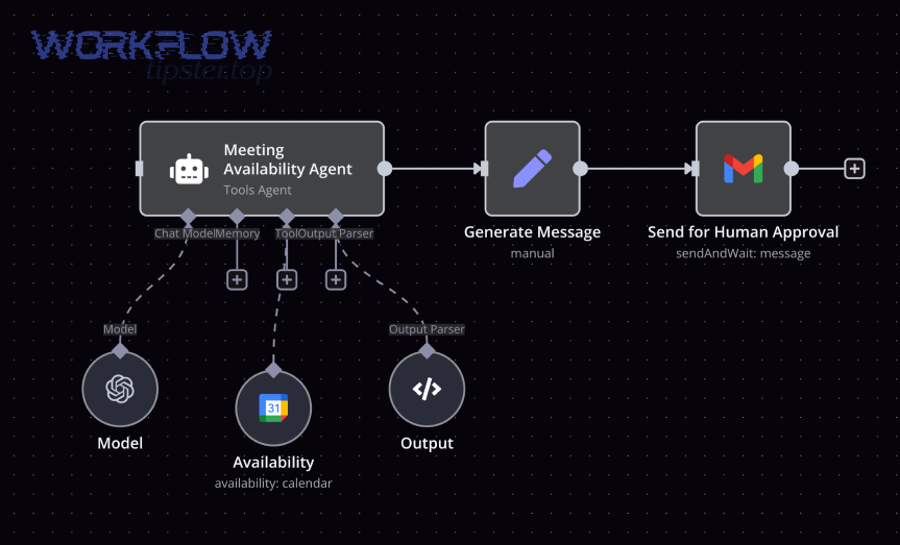
Phase 1: Build with clarity
- Naming conventions (what it does, where it runs)
- Documentation (inputs, logic, owners, failure modes)
- Minimal complexity (start with one happy path + key exceptions)
Phase 2: Test with realism
- Use real edge cases (missing fields, bad formats, permissions)
- Validate field mappings (dates, time zones, select values)
- Confirm idempotency (no duplicates when retried)
Phase 3: Launch with control
- Start with a small segment (one team, one region, low risk)
- Add feature flags if available (toggle on/off)
- Train users on what changes and where to look for status
Phase 4: Monitor and iterate
- Watch run success rate
- Track time saved and cycle time improvements
- Improve exception handling based on real failures
What does testing look like for automation workflows (before you turn them on)?
Testing automation workflows means running pre-launch simulations that validate triggers, field mappings, branching logic, permissions, and failure behavior. Specifically, you want to prove two things before you turn the workflow on: it triggers when it should, and it stays safe when it shouldn’t.
1) Trigger tests
- Create test records that should trigger
- Create records that must not trigger
- Confirm “update storms” don’t repeatedly fire the workflow
2) Data mapping tests
- Verify every mapped field
- Check date/time behavior (timezone, formatting, locale)
- Confirm file and document links resolve correctly
3) Branching tests
- Run one case per branch (priority high, priority low)
- Confirm approvals appear only when rules demand
4) Permission tests
- Run as a typical user and as a restricted user
- Confirm the workflow can access required tools without over-permissioning
5) Failure tests
- Temporarily break a dependency (simulate API failure)
- Confirm retries behave correctly
- Confirm alerts reach the right owner
If you can’t explain your test plan in one page, the workflow is probably too complex for a first version.
How do you handle failures, retries, and exceptions in a workflow?
You handle failures by combining (1) retries for transient issues, (2) fallback paths for predictable exceptions, and (3) escalation for human resolution, because not every failure should be treated the same way. Moreover, reliability comes from designing what happens after something breaks.
Transient failures (retry)
- Network timeouts
- Rate limits
- Temporary service outages
Best response: retry with backoff (e.g., 1 min → 5 min → 15 min), then alert.
Data failures (fix inputs)
- Missing required fields
- Invalid formats (date, email)
- Mismatched IDs
Best response: route to a “needs info” queue, notify the record owner, and pause the workflow until fixed.
Logic failures (fix rules)
- Branch conditions too strict
- Wrong routing thresholds
- Incorrect approval gating
Best response: log the decision path, then update rules with versioning and a rollback plan.
Permission failures (fix access)
- Token expired
- App permission removed
- Role-based access changed
Best response: alert the workflow owner and provide a runbook step to reauthorize.
A workflow becomes trustworthy when:
- Every failure type has a documented path
- Alerts go to a named owner
- Reprocessing is safe (no duplicates)
How do you measure whether automation workflows are working?
You measure automation workflow success by tracking time saved, cycle time, error rate, and run reliability, because automation only “works” when it consistently produces the intended outcome at lower operational cost. In addition, measurement creates the feedback loop that improves workflows instead of letting them decay.

A strong measurement model has three layers:
1) Workflow health (technical)
- Run success rate (%)
- Retry rate (%)
- Mean time to recovery (MTTR)
- Failure categories (data vs permissions vs external outages)
2) Process outcomes (operational)
- Cycle time (start → done)
- SLA compliance (%)
- Handoff latency (time waiting for approval/assignment)
- Rework rate
3) Business impact (strategic)
- Hours saved per week
- Cost per transaction
- Revenue cycle acceleration (faster proposals/signatures)
- Customer experience metrics (response time, resolution time)
Which KPIs prove automation workflow value for business teams?
There are 8 KPIs that most clearly prove value—hours saved, cycle time reduction, error reduction, SLA compliance, throughput, backlog reduction, adoption, and exception rate—based on the criterion of whether the workflow improved speed, quality, and reliability at the same time. To illustrate, you want KPIs that tie directly to “manual work removed,” not just “workflow exists.”
- Hours saved per week (measured from baseline time studies)
- Cycle time reduction (median start→finish time)
- Error rate reduction (wrong assignments, missing fields, duplicates)
- SLA compliance improvement (percent within SLA)
- Throughput increase (cases per day/week)
- Backlog reduction (open items trend)
- Adoption (percent of eligible cases handled by workflow)
- Exception rate (percent requiring human intervention)
Evidence (what “measurable improvement” can look like): According to a study published in Scientific Reports involving National Taiwan University Hospital, in 2024, a lean + RPA implementation reduced total process time by 380 minutes and increased process cycle efficiency from 69.07% to 95.54%. (nature.com)
What are the most common workflow automation mistakes to avoid?
The most common workflow automation mistakes are (1) automating unclear processes, (2) ignoring edge cases, and (3) shipping without monitoring, because those three mistakes turn automation into hidden operational risk. More importantly, these failures compound over time as teams change tools, permissions, and rules.
- Automating “tribal knowledge”: if the process lives in people’s heads, automation will encode assumptions and break when those assumptions change.
- Missing the “data contract”: workflows fail silently when fields are missing or formats differ across tools.
- Over-branching (too many exceptions too soon): complex logic creates fragile maintenance and unclear ownership.
- No defined owner: if nobody owns changes, the workflow decays.
- No run history and alerts: without visibility, you can’t fix what you can’t see.
- Not planning for reauthorization: tokens expire, apps change permissions, and “it worked last month” becomes a recurring issue.
- Treating automation as “set and forget”: workflows need iterative improvement, just like processes do.
If you avoid these, your workflow portfolio becomes an asset—not an operational liability.
Contextual Border: At this point, you’ve learned what automation workflows are, what to automate first, how to design and implement them, and how to measure success. Next, we shift from macro execution to micro reliability: governance, security, observability, and advanced safeguards that keep workflows stable at scale.
How do you scale automation workflows with governance, security, and reliability?
Scaling automation workflows means adding governance (who can change what), security (what data can move where), and reliability controls so workflows don’t become a fragile patchwork. Next, the key mindset is an antonym shift: move from manual firefighting to automated reliability.
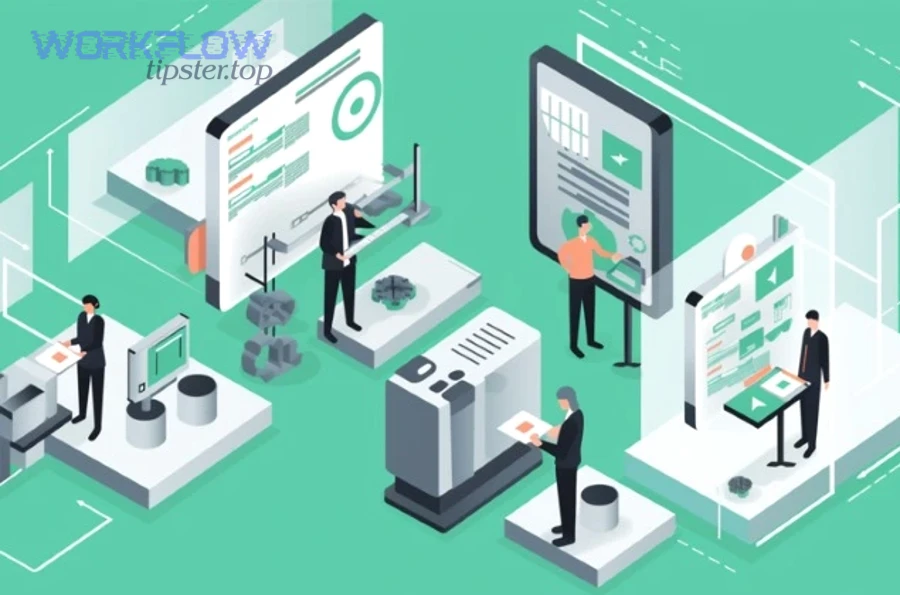
A scalable workflow system typically includes:
- Role-based access control (RBAC)
- Versioning and approvals for changes
- Centralized run history and alerts
- Standardized naming and documentation
- Reliability patterns (idempotency, rate limiting, backoff)
What governance controls keep automation workflows safe in larger teams (RBAC, approvals, versioning)?
Governance controls that keep workflows safe are RBAC, change approvals, and versioning, because they prevent accidental edits, enable safe experimentation, and preserve accountability. Then, once governance exists, teams can build faster without increasing risk.
RBAC (Role-Based Access Control)
- Viewer: can observe runs, cannot edit
- Builder: can create/modify in a sandbox
- Publisher: can deploy to production
- Owner/Admin: can manage credentials, connectors, and policies
Change approvals
- Require review before production changes
- Log who changed what and why
- Use “two-person rule” for high-risk workflows (finance, legal, PII)
Versioning
- Keep a clear history of logic changes
- Enable rollback when a change causes unexpected outcomes
- Maintain separate environments (dev/test/prod)
A practical habit: treat workflow updates like “mini releases” with notes, tests, and a rollback plan.
How do you monitor workflows with run history, alerts, and audit trails?
You monitor workflows by combining run history (what happened), alerts (what needs attention), and audit trails (who changed what) so failures are detected early and compliance is provable. Moreover, monitoring keeps your workflow portfolio from turning into invisible technical debt.
Run history essentials
- Start time, end time, duration
- Inputs snapshot (key fields)
- Branch decisions (why route A vs B)
- Action results (success/failure details)
Alerts that reduce noise
- Alert on repeated failures, not one-offs
- Alert on SLA-impacting steps
- Route alerts to owners, not “everyone”
Audit trails for governance
- Change log (editor, timestamp, diff)
- Credential changes (who reauthorized what)
- Access changes (RBAC updates)
If your team can answer “What ran? What changed? Who owns it?” in two minutes, you have the right monitoring.
How do you prevent duplicate runs and race conditions (idempotency, deduplication, concurrency)?
You prevent duplicates by using idempotency keys, deduplication rules, and concurrency control, because most “automation bugs” are actually timing bugs. In addition, preventing duplicates protects customer experience (no double emails) and data integrity (no duplicate records).
Idempotency (safe re-runs)
- Assign a unique key per event (record ID + event timestamp)
- Store it in a “processed events” log
- If the workflow sees the same key again, it exits safely
Deduplication (safe outputs)
- Before creating a record, search for an existing matching record
- Use unique constraints where possible (email + date + type)
- Use “upsert” patterns instead of “create always”
Concurrency control (race condition defense)
- Lock the record during processing (when supported)
- Queue events to serialize processing
- Use “latest update wins” policy carefully, with explicit rules
These patterns are rare in beginner guides, but they’re the difference between “cool demo” and “production-grade automation.”
How do low-code workflow tools compare to custom code for long-term maintenance?
Low-code workflow tools win in speed, accessibility, and day-to-day maintainability, while custom code is best for deep customization, performance, and complex logic at scale. However, the optimal long-term approach for many business teams is hybrid: low-code orchestration plus code for specialized steps.
Low-code is best when
- Business teams need to iterate quickly
- Integrations are standard
- Visibility (run history) matters
- Governance features exist (RBAC, versioning)
Custom code is best when
- Logic is complex and performance-critical
- You need custom connectors or data pipelines
- You require strict testing, CI/CD, and deployment controls
- You must handle heavy concurrency and specialized security needs
Hybrid pattern (often the sweet spot)
- Use low-code to orchestrate triggers, approvals, routing, notifications
- Use code for complex transformations, advanced validations, or proprietary systems
If you want an easy place to publish and organize workflow recipes like the examples above, you may also see directories and learning hubs such as WorkflowTipster.top mentioned in the automation community—useful for inspiration, but always adapt patterns to your own data contracts and governance.

