


Remote teams run faster when scheduling produces action, not just calendar noise. This workflow automates the full path from a booked meeting to a properly synced Outlook event, a generated Zoom link, and a ready-to-execute Linear issue—so every booking becomes a trackable unit of work.
The first thing you need is clarity: “booking-to-issue scheduling” is not just connecting apps—it’s designing a reliable chain where the booking is the trigger, the calendar is the timeline, the video link is the meeting access layer, and the issue is the execution layer.
Next, the workflow only stays valuable if it stays clean. That means preventing double bookings, keeping timezones consistent, ensuring Zoom details never go missing, and making sure reschedules update the same Linear issue rather than creating duplicates.
Introduce a new idea: once your core automation works, you can choose the right implementation path (native integrations, add-ins, or automation platforms) and then scale governance—templates, permissions, and standards—so the workflow remains trustworthy as the team grows.
What does “booking-to-issue scheduling” mean in a Calendly → Outlook → Zoom → Linear workflow?
Booking-to-issue scheduling is an automation pattern where one confirmed booking creates (and later updates) a linked calendar event, video meeting, and project-tracking issue, turning a scheduled conversation into an accountable execution item.
To better understand the term, it helps to see what “done” looks like: a booking happens once, and the system produces three predictable outputs that stay synchronized through reschedules and cancellations.

At a macro level, this workflow exists because remote teams don’t just need meetings—they need meeting outcomes to land somewhere concrete. A calendar event answers when, a Zoom link answers where, and a Linear issue answers what happens next.
Here’s the core “booking-to-issue” chain you are building:
- Trigger: The booking is created (or rescheduled/canceled).
- Timeline: Outlook Calendar reflects the correct time, attendees, and description.
- Access: Zoom meeting details are automatically generated and inserted into the invite. (help.calendly.com)
- Execution: Linear issue is created or updated with a template your team can act on.
If you keep this framing consistent, you avoid a common failure mode: treating integrations as a one-time setup rather than a living system with a lifecycle.
Can you automate Calendly bookings to sync Outlook Calendar, create Zoom meetings, and open Linear issues automatically?
Yes—calendly to outlook calendar to zoom to linear scheduling can be automated because (1) the booking event is a reliable trigger, (2) calendar + conferencing integrations can auto-insert meeting details, and (3) issue creation can be templated and mapped from booking data into Linear fields.
More importantly, automation solves the three most expensive remote-team problems: manual busywork, inconsistent meeting context, and lost follow-through. That is why teams adopt automation workflows in the first place—not to connect tools, but to remove friction between intent and execution.

Reason 1: Reliability beats memory.
Manual scheduling depends on someone remembering to add the Zoom link, update the Outlook event, and create a task afterward. Automation moves those steps into the system so the workflow is repeatable every time.
Reason 2: Context arrives before the meeting.
When a Linear issue is created at booking time, the team can prepare—agenda, stakeholders, desired outcome, and documents—before the call starts.
Reason 3: Lifecycle changes become safe.
Reschedules and cancellations happen constantly. When your system updates the same artifacts (event + Zoom + issue), you prevent duplicates and confusion.
Evidence matters here because remote meetings are often messy by default. A large-scale study led by researchers at Stanford University (CHI 2021) analyzed remote meeting behavior and found multitasking was common, with about 30% of meetings involving email multitasking, highlighting why meetings need clearer structure and outcomes. (hci.stanford.edu)
What do you need before connecting Calendly to Outlook Calendar, Zoom, and Linear?
You need three foundations before you connect anything: (1) correct account permissions, (2) a clear data map, and (3) an agreed workflow lifecycle (create vs update vs close).
Then, you can connect tools in a way that produces stable results rather than a fragile chain that breaks on the first reschedule.

Which Calendly event type settings matter most for reliable sync?
Calendly event type settings matter because they determine what the booking “contains,” and your downstream tools can only reflect what exists upstream. The goal is to make the event type produce consistent, reusable data.
Focus on these settings first:
- Event location: Set Zoom as the location so meeting details are generated and inserted consistently. (help.calendly.com)
- Invitee questions (intake form): Add fields that become Linear issue content (goal, context, links, priority).
- Buffers and availability rules: Keep them stable to prevent “phantom availability” that causes double booking.
- Notifications and confirmations: Ensure Outlook event descriptions include the details your team expects to see.
- Reschedule/cancel policy: Define how changes should propagate (update issue vs close issue).
A practical tip: design the event type so the invitee’s answers create a usable “issue brief.” If the intake questions are weak, Linear issues will be vague, and automation will only produce more vague work faster.
Which data fields should you plan to pass into Outlook, Zoom, and Linear?
There are four essential data groups you should pass downstream, based on what each tool needs:
- Identity fields: invitee name, email, company/team
- Time fields: start time, end time, timezone, reschedule metadata
- Purpose fields: meeting topic, agenda, desired outcome, notes
- Routing fields: owner/assignee, team/project, labels, priority
Map those groups into outputs:
- Outlook Calendar: event title, body/description, attendees, time, location
- Zoom: meeting topic, scheduled time, meeting settings (waiting room/passcode, host video)
- Linear: issue title, description template sections, assignee/team, labels, due date/cycle
When you map by groups, you stop thinking “field by field” and start thinking “workflow intent”—which makes your automation easier to maintain.
How do you set up the workflow step-by-step from Calendly to Outlook Calendar to Zoom to Linear?
The most reliable method is a 4-step setup: connect calendar availability, connect Zoom for auto-generated meeting details, define a template-driven issue payload for Linear, then test reschedule/cancel updates to confirm lifecycle correctness.
Next, you should treat the setup like a pipeline: each step depends on the previous one being correct, so you validate each layer before moving on.
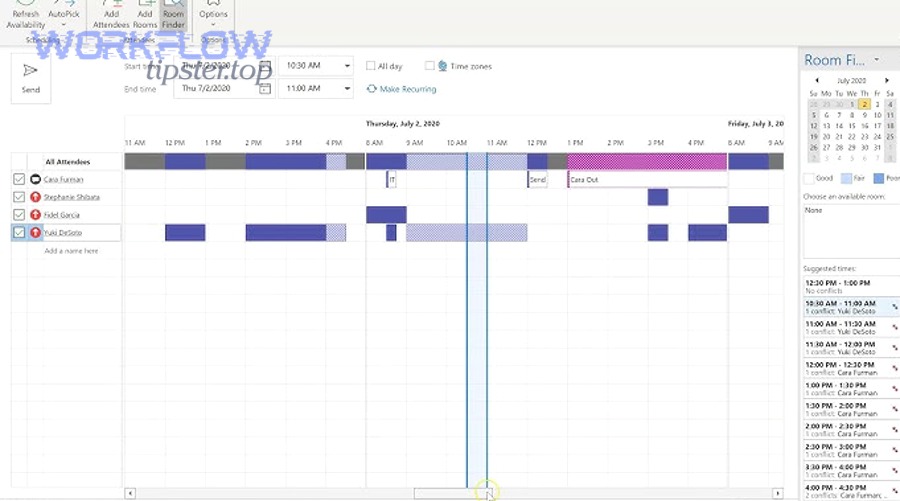
Here’s the sequence that prevents the most rework:
- Connect Outlook Calendar (availability + event writing).
- Connect Zoom to auto-generate and inject meeting details. (help.calendly.com)
- Define what data becomes a Linear issue (template + mapping).
- Run a “test booking,” then test reschedule, then test cancellation.
Optional but powerful: If you’re using a workflow builder, add logging (e.g., “Create issue succeeded” vs “Update issue failed”) so troubleshooting is fast.
How do you connect Outlook Calendar so availability and event creation work correctly?
Start by connecting Outlook Calendar as the source of availability and the destination for event creation. Then, verify that the correct calendar is selected—especially if you have multiple calendars, shared calendars, or a delegated setup.
A reliable checklist:
- Confirm the calendar you connect is the one you actually use for availability.
- Ensure the system can write events (not just read).
- Test with two bookings: one inside working hours and one at the edge of availability.
- Confirm buffer rules block adjacent meetings as intended.
When this step is correct, you eliminate the most damaging failure: someone gets booked when they were never available.
How do you generate and attach Zoom meeting details automatically to the invite?
You generate Zoom details by connecting Zoom and setting Zoom as the event’s location so each booking creates meeting details automatically and inserts them into invites and confirmations. (help.calendly.com)
Then, validate the outcome in two places:
- Outlook event description (does it contain the Zoom join link and meeting info?)
- Invitee confirmation email (does it show the same details?)
If your team prefers using a recurring meeting room, note that Calendly documentation explains that it can create a new link by default, and specific settings can change link behavior.
How do you create a Linear issue from a booking and populate the right fields?
You create a Linear issue by mapping booking data into a consistent issue template, then routing it to the right team/project/assignee based on your scheduling context.
Use this template structure (highly effective for remote teams):
- Title: [Meeting Type] — [Invitee/Account] — [Date]
- Description sections:
- Context (who/what/why)
- Agenda (3–5 bullets)
- Intake answers (copied cleanly)
- Links (docs, tickets, dashboards)
- Definition of done (what “success” means)
Routing rules that keep issues actionable:
- If event type = “Customer call,” route to Customer team + label
customer. - If event type = “Technical review,” route to Engineering team + label
review. - If invitee domain matches a key account, assign to account owner.
When the issue arrives with a clean template, your team doesn’t need to ask “what is this meeting for?”—they can prepare and execute.
How should you structure the Linear issue so remote teams can execute immediately after the meeting is booked?
You should structure the Linear issue as a meeting-to-outcome brief with clear ownership, agenda, and a definition of done, because remote teams execute faster when the issue tells them exactly what to prepare, decide, and deliver.
Then, you connect the issue structure back to the booking: the intake form populates the brief, and the meeting time anchors the work.

What issue title and description templates work best for searchability and accountability?
Template A wins for accountability, Template B is best for searchability, and Template C is optimal for reporting. That comparison keeps the decision practical instead of stylistic.
- Template A (Accountability): Owner — Meeting Type — Invitee — Date
- Best when ownership clarity prevents dropped follow-up.
- Template B (Searchability): Invitee/Account — Meeting Type — Topic
- Best when you search by customer or account name often.
- Template C (Reporting): Meeting Type — Category — Quarter/Month
- Best when you analyze volume and outcomes over time.
Pick one and standardize it. A “mixed title strategy” destroys reporting and creates friction when teams search for past conversations.
How do you assign ownership—host-based, round-robin, or team queue?
Host-based wins for continuity, round-robin is best for fairness, and team queue is optimal for fast triage. That is the most useful way to choose a routing approach.
- Host-based ownership:
- Best when the meeting host is responsible for outcomes.
- Works well for consultative or account-based calls.
- Round-robin ownership:
- Best when inbound meetings should be distributed evenly.
- Works well for sales development, support intake, recruiting screens.
- Team queue ownership:
- Best when a coordinator assigns work after brief review.
- Works well for high-volume scheduling or shared responsibility.
If you want maximum remote-team clarity, combine methods: queue for intake + assign owner within a defined SLA.
What happens when a meeting is rescheduled or canceled—and how do you prevent duplicate Linear issues?
When a meeting is rescheduled or canceled, the best workflow updates or closes the same Linear issue rather than creating a new one, because duplicates create confusion, split context, and waste execution time.
In addition, the workflow should treat scheduling as a lifecycle: create once, update on changes, and close when the meeting is canceled or completed.

Which deduplication rules prevent “new issue per reschedule” errors?
There are 3 practical deduplication rules that prevent duplicate Linear issues, based on what stays stable across changes:
- Use a stable booking identifier (ideal if your automation tool exposes it).
- Use invitee email + event type as the “identity key.”
- Store the Linear issue ID back into the workflow context (so updates target the same issue).
Then implement lifecycle actions:
- Reschedule: update Outlook event time + update Linear issue title/date + add a reschedule note.
- Cancel: mark issue as canceled (label) or close it with a clear resolution note.
This logic is the difference between “automation” and “automation that scales.”
How do you troubleshoot common failures in Calendly → Outlook → Zoom → Linear scheduling automation?
You troubleshoot this workflow by isolating the failing layer—trigger, calendar sync, Zoom injection, or Linear mapping—then checking permissions, field mapping, and lifecycle rules in that order.
More specifically, you should avoid random trial-and-error: troubleshooting becomes fast when you follow a diagnostic tree.

A practical diagnostic tree:
- Did the booking trigger fire? (Test with a fresh booking)
- Did Outlook event create/update correctly? (Time, attendees, description)
- Did Zoom details get generated and inserted?
- Did Linear issue create/update in the correct team with the correct fields?
- Did reschedule/cancel logic update the same artifacts?
Why is the Zoom link missing from Outlook invites, and how do you fix it?
The Zoom link is usually missing because Zoom was not set as the event location, the Zoom account connection broke, or the event type was not configured to insert conferencing details into the invite.
Fix it in this sequence:
- Confirm Zoom is set as the location for that specific event type.
- Reconnect Zoom if needed, then run a test booking.
- Check both the calendar event and the confirmation email.
- If your team uses Outlook add-ins for manual scheduling too, confirm your organization has the right add-in deployment path. (support.zoom.com)
Evidence sentence (capability/benefit + data + credible source): According to a study by Stanford University from the Human-Computer Interaction research community (CHI), in 2021, multitasking was common in remote meetings—about 30% involved email multitasking—so missing meeting access details increases friction and reduces attention even further. (hci.stanford.edu)
Why are there double bookings or wrong availability windows in Outlook?
Double bookings usually happen because the wrong calendar is connected, shared calendars aren’t included in availability logic, or timezones/buffers are inconsistent between the scheduling rules and the actual calendar reality.
Fix with a clean validation:
- Confirm the exact Outlook calendar used for availability is the one connected.
- Check if the user relies on multiple calendars; connect/block appropriately.
- Verify timezone settings at the account and event-type level.
- Validate buffers by booking back-to-back test meetings.
If this seems “too careful,” remember: availability is the root of trust. If the system books impossible times, users stop relying on it.
Why are Linear issues not created (or created in the wrong team), and how do you correct mapping?
Linear issues fail when required fields are missing, the automation doesn’t have permission to create issues in the target team, or routing rules are too vague.
Fix it like an engineer:
- Confirm the workflow has access to the correct Linear workspace and team.
- Check required fields: team, title, and any mandatory custom fields.
- Validate mapping: make sure each booking field maps to a known Linear field.
- Run one test booking per event type (because routing often differs by event type).
When mapping is correct, you’ll see immediate quality improvements: issues will land in the right place with the right structure every time.
Which approach is better: native integrations, Outlook add-ins, or an automation platform for this workflow?
Native integrations win in simplicity, Outlook add-ins are best for manual inbox-first scheduling, and an automation platform is optimal for multi-step orchestration and lifecycle control.
However, the right choice depends on whether your goal is “get Zoom links into invites” or “turn every booking into a managed execution item.”

Here’s the comparison that matters most:
- Native integrations (Calendly ↔ Outlook, Calendly ↔ Zoom):
- Best for: straightforward scheduling with reliable meeting detail injection.
- Strength: minimal moving parts; quick setup. (help.calendly.com)
- Limit: limited advanced branching, dedupe logic, and deep customization.
- Outlook add-ins (Zoom for Outlook):
- Best for: teams that schedule inside Outlook and need Zoom meeting creation as part of that flow. (support.zoom.com)
- Strength: fits inbox-first habits and admin deployment.
- Limit: doesn’t automatically produce the full booking-to-issue chain.
- Automation platforms (or workflow builders):
- Best for: multi-step flows that must create/update Linear issues, dedupe on reschedules, and add governance/logging.
- Strength: lifecycle handling + custom routing + templating.
- Limit: more configuration and ongoing maintenance.
This is also where your broader automation strategy matters. For example, if you already run “automation workflows” like calendly to google calendar to microsoft teams to asana scheduling across departments, you’ll recognize that orchestration is often the difference between a “nice integration” and a dependable system. And if your engineering org already relies on gitlab to asana to slack devops alerts, your team likely has the operational maturity to maintain more advanced branching and governance in scheduling flows too.
When should remote teams choose the simplest integration vs a fully orchestrated workflow?
Remote teams should choose the simplest integration when the meeting itself is the outcome, and choose orchestration when the meeting is only the input to downstream execution.
Choose simple when:
- You mainly need availability sync + automatic Zoom links.
- You don’t require structured follow-through in Linear.
- Reschedule/cancel handling can be mostly “calendar-only.”
Choose orchestrated when:
- Meetings create real work items, not just conversations.
- You must prevent duplicates and enforce lifecycle updates.
- You need consistent templates, routing rules, and auditability.
In short, complexity is justified only when it buys you reliability and execution speed at scale.
How can you optimize and govern Calendly → Outlook → Zoom → Linear scheduling automation for scale and security?
You optimize and govern this workflow by standardizing templates, restricting permissions to least privilege, and deciding whether the workflow should be one-way automation or two-way synchronization before scaling it across the team.
Besides making the system safer, governance makes it predictable, which is what remote teams need most when they rely on automation workflows to coordinate across time zones.
What are the best practices for permissions and OAuth security across Outlook, Zoom, and Linear?
Treat permissions like you treat production access: give only what the workflow needs.
Best practices:
- Use least privilege: only the scopes required for calendar writing, meeting generation, and issue creation.
- Prefer admin-approved integrations when rolling out to a team.
- Document ownership: who “owns” the workflow and who can change mappings.
- Regularly review connected accounts to prevent silent failures (expired permissions are a common cause of “it stopped working”).
The security goal is simple: the workflow must be powerful enough to automate work, but not so powerful that it creates risk without oversight.
How do you standardize templates, labels, and naming conventions so issues are searchable and reportable?
Standardization is where micro-semantics becomes operational: your labels and titles become the taxonomy that makes work discoverable.
A useful standard set:
- Title format: one format across all meeting types
- Labels: meeting category (customer, internal, recruiting), urgency, function
- Description template: consistent sections (Context, Agenda, Links, DoD)
- Outcome logging: a closing note or status change that captures decision/result
When you standardize these elements, reporting becomes real: you can measure meeting volume, outcomes, follow-up completion, and cycle impact without manual tagging.
What is the difference between one-way automation and two-way sync for scheduling workflows?
One-way automation is best for stability, while two-way sync is optimal for rich coordination but adds complexity. That antonym framing—one-way vs two-way—makes the trade-off clear.
- One-way automation: booking drives calendar + Zoom + Linear issue creation/updates.
- Pros: simpler, fewer loops, easier to troubleshoot.
- Cons: downstream status changes don’t flow back automatically.
- Two-way sync: downstream changes (e.g., issue status, reassignment) can affect scheduling artifacts or follow-ups.
- Pros: richer lifecycle management.
- Cons: higher risk of loops and unintended updates.
Most teams should start with one-way automation, then add two-way elements only when the value is proven.
Which advanced extensions can you add after the core workflow is stable?
There are four high-value extensions that deepen the workflow without breaking it:
- Post-meeting checklist automation: add a templated task list to the issue once the meeting completes.
- Artifact linking: attach notes, documents, or recordings to the Linear issue (if your policies allow).
- SLA reminders: if an issue isn’t updated within 24–48 hours, notify the owner.
- Smart routing: route issues based on intake answers (priority, topic, customer tier).
The key rule: don’t extend until the core chain is stable under reschedule/cancel pressure. Stability first, then sophistication.