


A scheduling automation that connects Calendly → Microsoft Outlook Calendar → Microsoft Teams → Trello removes the repetitive coordination work that slows remote teams down by turning each booking into a consistent chain of calendar blocks, meeting links, and trackable tasks.
The workflow succeeds only when your calendar connection is accurate, because availability rules and conflict checking decide whether the system prevents double-booking or quietly allows it to happen.
It also depends on conferencing reliability, because a meeting without a working Teams link forces last-minute messaging, resends, and reschedules that undo the value of automation.
Introduce a new idea: once the “booking → calendar → conference link → task” chain is stable, you can design Trello so prep and follow-up become a repeatable operational habit instead of a scramble.
What does “Calendly → Outlook → Teams → Trello scheduling automation” mean in practice?
It means one booking creates four coordinated outcomes—availability protection, a calendar event, a Teams meeting link, and a Trello work item—so remote teams can run meetings as a predictable operating system instead of a manual negotiation.
To better understand how this feels day-to-day, start by visualizing the exact moments the workflow changes state—scheduled, rescheduled, and canceled—and what each system should do at each moment.
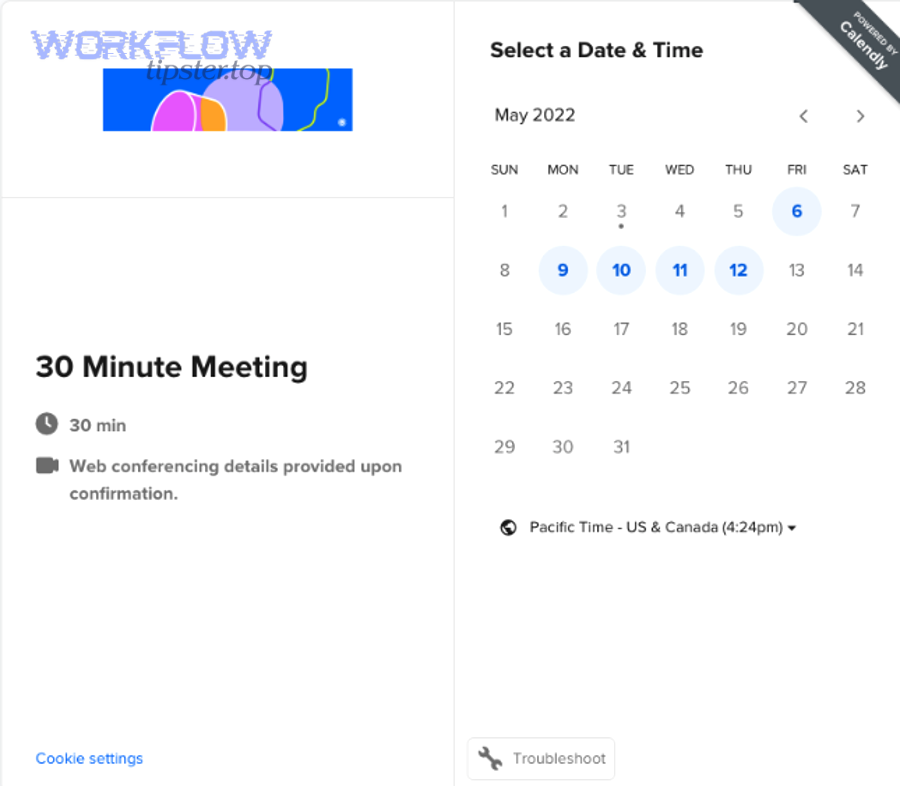
What happens automatically when a meeting is booked, rescheduled, or canceled?
There are 3 main states of this workflow—Scheduled, Rescheduled, and Canceled—based on the lifecycle of the same meeting request.
More specifically, when you map each state to concrete actions across Outlook, Teams, and Trello, you eliminate ambiguity and prevent the most common automation failure: “it worked once, then it drifted.”
1) Scheduled (new booking)
When someone picks a slot in Calendly, the workflow should:
- Block availability in Outlook Calendar by creating an event (or confirming a conflict-free time, depending on your settings).
- Generate a unique Teams link and attach it to the invite so the attendee never asks, “Where’s the link?”
- Create a Trello card that includes meeting metadata (who, when, timezone, purpose) plus a checklist for prep and follow-up.
2) Rescheduled (same meeting, new time)
Reschedules are where automations break if you don’t define update logic.
- Outlook should move the existing event (not create a second one).
- Teams should keep conferencing details valid (some setups create a new link; others preserve the same link—your job is to test and document the rule).
- Trello should update the same card: new due date/time, new status, and a note that the meeting was rescheduled (so teammates don’t prep for the old time).
3) Canceled
Cancellations are operational gold if handled cleanly.
- Outlook should remove or mark the event canceled so availability re-opens.
- Teams should stop being the “source of truth” for anything—no one should join a dead meeting.
- Trello should archive the card or move it to a “Canceled” list, preserving context without cluttering the active pipeline.
If you want one rule that reduces chaos: treat the Trello card as the work record, and treat the calendar invite as the attendance record.
Is this workflow the best option for remote teams managing recurring internal and external meetings?
Yes—calendly to outlook calendar to microsoft teams to trello scheduling is a strong fit for remote teams because it (1) removes back-and-forth coordination, (2) protects availability automatically, and (3) turns every meeting into a trackable task with consistent follow-through.
However, the best results show up when your meetings produce real work (prep, decisions, follow-ups), because then Trello becomes a control panel—not just a notification sink.
It’s a great fit when:
- You run high-volume scheduling (sales calls, support escalations, recruiting screens, stakeholder reviews).
- You need consistent conferencing across distributed time zones (Teams link always present, always correct).
- You want meeting outcomes to become work (cards with checklists, owners, deadlines, and post-meeting actions).
It’s less ideal when:
- You must keep meeting details out of task tools for compliance reasons (then store minimal metadata in Trello and link back to the calendar event).
- Your scheduling depends on complex approvals (then you’ll likely need a workflow tool with conditional logic).
Evidence (why automation matters): According to a study by University of North Carolina at Charlotte from the Management faculty’s research coverage, in 2025, reporting on meeting “hangovers” noted that about 90% of workers experience productivity decline after bad meetings, highlighting why reliable meeting systems and follow-up matter.
How do you connect Calendly to Outlook Calendar so availability and event creation work correctly?
Connecting Calendly to Outlook Calendar is a calendar sync setup process that requires 3 core decisions—choose the correct Outlook account, configure conflict checking, and select the calendar where new events are written—so availability is accurate and double-booking is prevented.
Next, the fastest way to make this reliable is to treat “availability” as a rule system you test, not a setting you assume is correct.
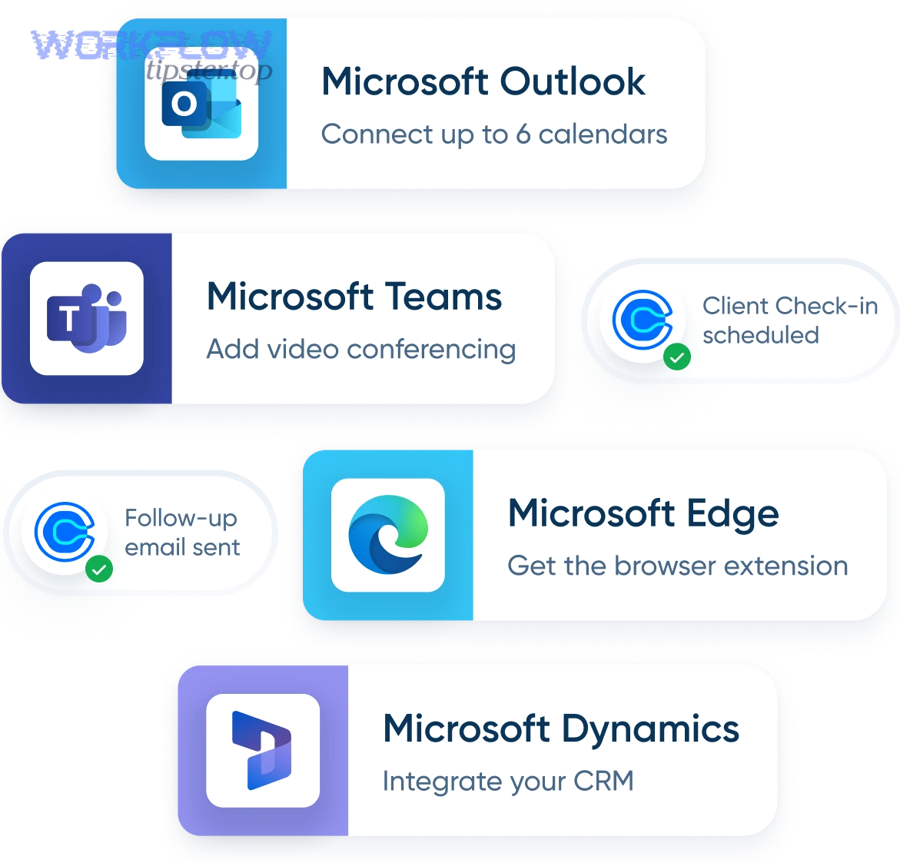
Which Outlook calendar should you connect for conflict checking and which should receive new events?
Outlook conflict-check calendars win for accuracy, while a dedicated “bookings” calendar is best for clean visibility, and a shared team calendar is optimal for collaborative coverage—so the right choice depends on who owns time, visibility needs, and permissions.
However, most remote teams get the best results by separating “where to check conflicts” from “where to add events,” because these two roles solve different problems.
Option A: Conflict-check your primary Outlook calendar (best baseline accuracy)
- Pros: Most complete view of your busy blocks.
- Cons: Can expose personal scheduling patterns if shared broadly (depending on org policy).
Option B: Add events to a dedicated “Meetings booked via Calendly” calendar (best organization)
- Pros: Keeps your calendar tidy and makes reporting easier.
- Cons: If you forget to include it in conflict checking, you can create internal conflicts.
Option C: Use a shared team calendar (best for pooled scheduling)
- Pros: Great for round-robin scheduling and shared ownership.
- Cons: Permission complexity increases; you must verify edit access and how “busy/free” is interpreted.
A practical remote-team rule: conflict-check what truly blocks time; write events where the team expects to find them.
What are the most common Outlook-Calendly setup mistakes that break scheduling automation?
There are 6 common Outlook-Calendly mistakes—wrong account, wrong conflict-check calendars, missing edit access, busy/free mismatches, too many sub-calendars, and timezone assumptions—because calendar permissions and visibility rules quietly change how automation behaves.
Specifically, these issues show up as “double bookings,” “ghost availability,” or “events not appearing where expected.”
Mistake 1: Connecting the wrong Outlook account or tenant
- Fix: Confirm the exact Microsoft account that owns the calendar and has correct licensing/policy.
Mistake 2: Conflict checking the wrong calendars
- Fix: Include the calendars that contain real busy blocks (and exclude calendars that shouldn’t block time).
Mistake 3: No edit access to the calendar you’re writing to
- Fix: Ensure the account has edit permissions; view-only calendars cannot accept writes.
Mistake 4: Misunderstanding how “Busy” is interpreted
- Fix: Validate that events marked “Busy” truly prevent bookings and that your organization’s free/busy visibility matches expectations.
Mistake 5: Assuming you can conflict-check unlimited sub-calendars
- Fix: Plan around the practical limits of what the integration can check.
Mistake 6: Timezone drift between tools
- Fix: Standardize: store the meeting timezone explicitly in invites and Trello cards, and run DST test cases before rollout.
Evidence (integration-specific constraint): According to a guide by Calendly’s Help Center, updated 2025, Outlook Calendar connections can select up to 4 sub-calendars for conflict checks, and event creation requires edit access to the destination calendar.
How do you ensure Microsoft Teams meeting links are created and included every time?
You ensure Teams links are created every time by connecting Teams as the conferencing provider, standardizing invite templates, and testing the reschedule/cancel flows—so the link is automatically added to the calendar invite and confirmation emails without manual steps.
Then, the key is to treat “conferencing” as a first-class dependency, because one broken link forces human intervention and breaks the automation chain.
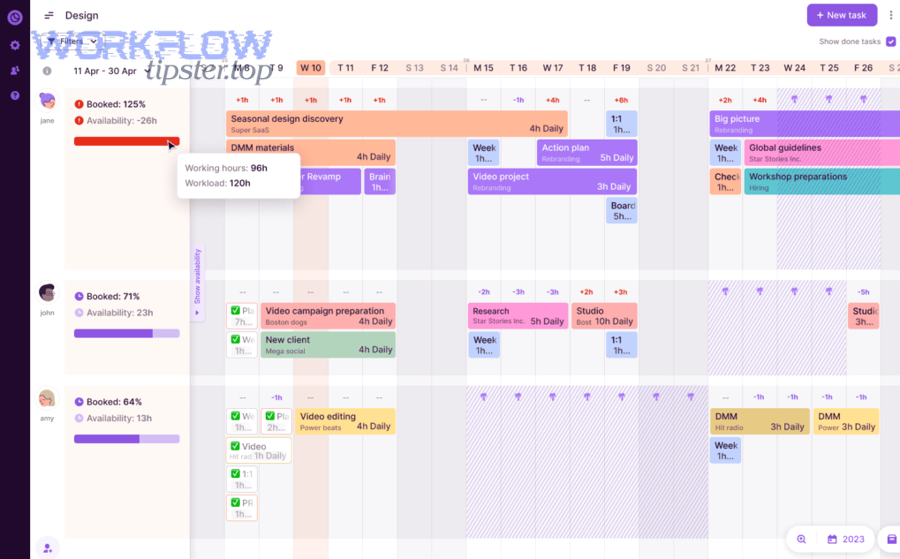
Should you use Teams as the default meeting location for all event types?
No—Teams should be the default meeting location only when (1) the majority of meetings are virtual, (2) attendee access is consistent, and (3) your team wants one standard link format, because mixed meeting types often require different locations and messaging.
Moreover, remote teams often run a blend of internal (Teams) and external (sometimes Zoom or in-person) meetings, and the goal is to keep the attendee experience predictable.
Use Teams as default when:
- Your organization is Microsoft-first and guest access is reliable.
- Your meetings are mostly virtual and recurring.
- You want one standard operating pattern for joining and troubleshooting.
Don’t use Teams as default when:
- You host events that require webinars, registration, or other conferencing features that differ from Teams.
- Your external guests frequently can’t join Teams due to policy restrictions.
What’s the difference between “adding a Teams link” and “creating a Teams meeting,” and why does it matter?
Creating a Teams meeting is best for reliable join behavior and invite consistency, while merely adding a link is best for simplicity, and the optimal choice depends on whether you need a unique meeting instance per booking or a reusable join destination.
On the other hand, if you don’t understand which one your setup produces, you’ll misdiagnose issues when reschedules or cancellations happen.
Why it matters operationally:
- A unique meeting instance is easier to audit and reduces “wrong meeting” confusion.
- A reused link can be simpler for internal workflows but may cause confusion if people join from old invites.
What to verify in a test booking:
- Does the invite include dial-in details where expected?
- Do reschedules keep the link valid?
- Do cancellations remove the event cleanly across calendars?
Evidence (what the integration promises): Calendly’s Teams conferencing documentation states it can create Microsoft Teams links automatically for every Calendly meeting and add conferencing details to calendar invites and confirmation emails.
How do you connect the workflow to Trello so every meeting becomes a trackable task?
You connect the workflow to Trello by mapping each scheduled meeting to a Trello card with a consistent naming convention, ownership, due dates, and checklists—so meetings generate structured work instead of scattered notes and forgotten follow-ups.
Next, you design the board so it reflects your team’s actual meeting lifecycle rather than forcing a generic Kanban pattern.
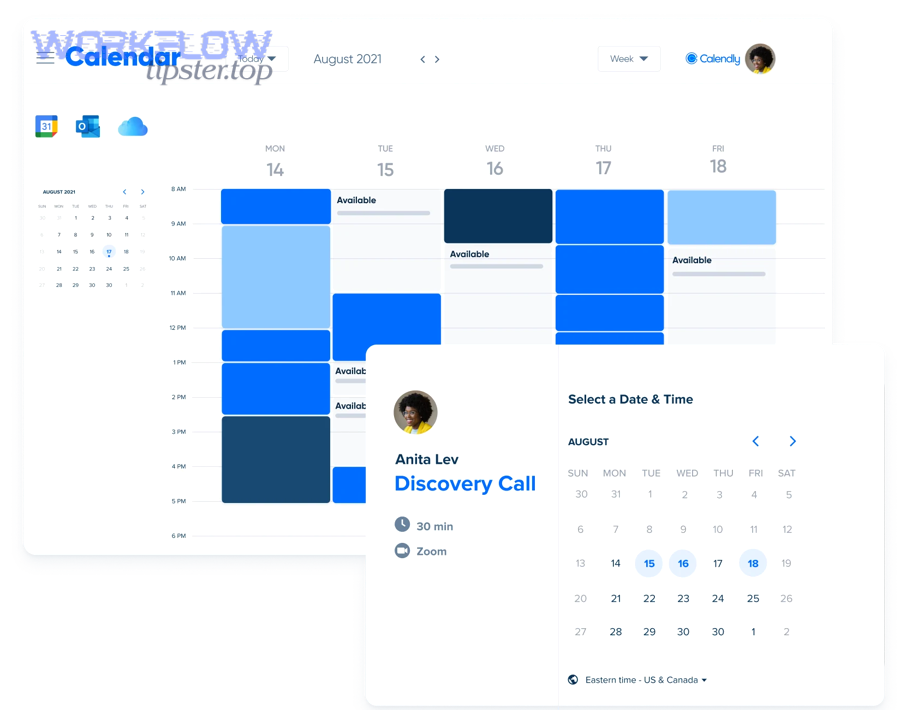
Which Trello card structure works best for meeting scheduling: one card per meeting or one card per account/project?
One card per meeting wins for accountability, one card per account/project is best for long-running relationship context, and a hybrid model is optimal for teams that run repeated meetings with the same stakeholders—so the right choice depends on volume and reporting needs.
Meanwhile, remote teams often start with “one card per meeting” because it enforces consistent prep and follow-up.
Option A: One card per meeting (best for execution discipline)
- Every booking creates a card with: agenda, pre-read links, decision points, and follow-up tasks.
- Great for operational rhythm and metrics .
Option B: One card per account/project (best for continuity)
- Meetings become checklist items or comments under a single record.
- Great when the relationship matters more than individual meeting tracking.
Option C: Hybrid (best for scale)
- One “account/project” card + one “meeting instance” card only for high-stakes meetings (QBRs, escalations, exec reviews).
A practical rule: if the meeting can fail without preparation, it deserves its own card.
What fields should you map from Calendly/Outlook into Trello to prevent context loss?
There are 8 core fields you should map—attendee identity, meeting time, timezone, event type, Teams link, location/context, notes, and status—based on the goal of keeping every Trello card actionable without requiring people to open three other apps.
For example, your card should answer “who/when/why/how to join/what’s next” at a glance.
Before the list, here’s a simple reference table showing what a “good” mapping looks like and why it exists.
| Field in Trello | Comes from | Why it matters |
|---|---|---|
| Card title naming convention | Calendly event type + attendee | Prevents duplicates and improves search |
| Due date | Meeting start time | Makes the meeting show up in time-based views |
| Description | Invitee + agenda prompt + join info | Creates a single prep surface |
| Custom field: Timezone | Calendly timezone | Prevents “I thought it was my time” errors |
| Custom field: Meeting status | Scheduled/Rescheduled/Canceled | Keeps lists clean and accurate |
| Checklist: Prep | Template | Converts meetings into repeatable work |
| Attachment/link | Calendar invite or doc link | Keeps sensitive details in the right system |
| Labels | Event type or priority | Enables reporting and filtering |
Card naming convention example:
[Event Type] — [Invitee Name] — [YYYY-MM-DD]
This small discipline makes automation workflows feel “human-friendly” instead of robotic.
Where to mention your cross-workflow language naturally: If your org also runs operational automations like freshdesk ticket to jira task to microsoft teams support triage, you can keep the same pattern: clear trigger → standardized record → consistent routing, so meeting work and support work follow the same logic.
Evidence : Zapier’s integration page for Calendly and Trello describes setting up triggers from Calendly events to actions like creating Trello cards, emphasizing workflow-based mapping between the apps.
How do you build a reliable end-to-end automation (and avoid duplicates or broken sync)?
You build a reliable end-to-end automation by designing 5 parts—tool choice, trigger scope, field mapping, update rules (idempotency), and test coverage—so the workflow remains stable under reschedules, retries, permission changes, and timezone shifts.
More importantly, reliability comes from decisions you make upfront about what “one meeting” means across systems.
Which automation approach is better: native integrations or an automation platform?
Native integrations win for simplicity, an automation platform is best for conditional logic and multi-step flows, and a hybrid approach is optimal when you want native stability plus targeted customization—so the right answer depends on how complex your rules are.
However, remote teams often underestimate complexity, so it helps to choose using a decision rubric instead of gut feeling.
Native approach (simple, fewer moving parts)
- Best when: one event type, consistent Teams conferencing, straightforward calendar behavior.
- Risk: limited control over reschedule/cancel edge cases.
Automation platform approach (flexible, rule-driven)
- Best when: multiple event types, different Trello boards, conditional owners, reschedule updates, or “create vs update” logic.
- Risk: more maintenance and permission surfaces.
Hybrid approach
- Use native where it’s rock-solid (calendar + conferencing), and use automation tooling for Trello logic (templates, routing, deduplication).
A practical comparison you can test: if you need “update the same Trello card on reschedule instead of creating a new one,” you’re already in automation-platform territory for most teams.
What test cases should you run before rolling the workflow out to the whole team?
There are 10 must-run test cases—scheduled, rescheduled, canceled, timezone change, DST boundary, multi-attendee, group event, round-robin, permission revocation, and retry behavior—because these are the scenarios that trigger duplicates, missing links, or calendar conflicts.
To illustrate, your goal isn’t to prove the happy path works; your goal is to prove the workflow survives reality.
Core lifecycle tests
- Schedule a meeting normally.
- Reschedule the meeting twice (time moves forward and backward).
- Cancel the meeting and confirm Trello cleanup.
Time-related tests
- Book across timezones (invitee in a different region).
- Book around a daylight saving boundary.
Complexity tests
- Group event (multiple attendees).
- Round-robin (different host assigned).
- Different event types routed to different Trello lists.
Failure-mode tests
- Remove calendar edit permissions and observe what breaks first.
- Force a retry scenario (e.g., temporary API failure) and confirm you don’t get duplicate Trello cards.
If your team also runs a parallel scheduling pattern like calendly to google calendar to zoom to trello scheduling, reuse the same test harness: the tooling changes, but the failure modes (timezones, retries, duplicates) stay almost identical.
Evidence (why meeting systems must be resilient): According to a study by Stanford University from a Human-Computer Interaction research group, in 2021, large-scale analysis of remote meetings documented multitasking and distraction patterns that increase when meetings are poorly managed—making consistent meeting setup and follow-through more important, not less.
What advanced settings and edge cases can break the workflow—and how do you fix them?
Advanced edge cases break this workflow when permissions, policies, retries, and time rules diverge across tools—so the fix is to add governance (who can do what), idempotency (update the same record), and time hygiene (timezone + DST discipline).
In addition, this is where the antonym in the title becomes practical: automation only beats “manual back-and-forth” if it stays correct when things get weird.
How do you handle permissions, shared calendars, and Teams policies without breaking automation?
You handle permissions reliably by standardizing ownership (who authenticates), documenting calendar access rules, and aligning Teams guest/policy behavior—so the integration doesn’t silently fail when an admin changes settings.
Especially in larger organizations, “it worked last month” often means “permissions drifted.”
A practical governance checklist
- Use a dedicated service account (or clearly documented owner account) when policy allows.
- Confirm Outlook calendars used for writing events grant edit access to the authenticating user.
- Validate Teams guest join policies if you invite external attendees.
- Document what happens when a host changes roles or leaves the company.
How do you prevent duplicate Trello cards when retries or reschedules occur?
You prevent duplicates by using one unique meeting identifier as an idempotency key, updating the existing card on changes, and logging the last processed event—so retries create updates, not clones.
For example, the card can store an “Event ID” custom field, then your automation checks: if Event ID exists → update; else → create.
Deduplication tactics that work in practice
- Card naming convention + Event ID field (name is human-friendly, ID is machine-friendly).
- Single source of truth rule: Calendly event lifecycle drives updates; Trello reflects state.
- Reschedule logic: update due date, update title date stamp, add “Rescheduled” label, preserve checklist.
What should you do about timezones and daylight saving changes for distributed remote teams?
You should store time in two formats—canonical time (ISO timestamp) and human time (timezone-labeled display)—because this prevents DST drift and reduces “I joined an hour late” incidents across global teams.
More specifically, make timezone visible everywhere: calendar invite, confirmation, and the Trello card.
Time hygiene best practices
- Put timezone in the card title suffix or a dedicated custom field.
- Add a checklist item: “Confirm timezone for invitee” for external meetings.
- Run DST boundary tests every quarter if you operate across regions.
How do you keep meeting data secure when pushing details into Trello?
Minimal metadata in Trello wins for privacy, full notes in Trello are best for execution speed, and a link-out approach is optimal for regulated teams—so your choice depends on risk tolerance and board visibility.
On the other hand, “more context” can become “more exposure” if boards are widely accessible.
A safe default pattern
- Store in Trello: attendee name, time, event type, owner, status, links to approved docs.
- Store outside Trello: sensitive notes, private phone numbers, confidential agendas—kept in the calendar event or an access-controlled document.
If you follow this pattern, the workflow stays useful without turning your task board into an uncontrolled data repository.
Evidence (why reducing back-and-forth matters): A scheduling research post by Doodle reports that for groups of 10–15 participants, scheduling can take significantly longer without structured tools, reinforcing why systemized scheduling and clear workflows reduce coordination overhead.