


If your team schedules meetings in Google Calendar but hosts them in Zoom, the fastest way to eliminate copy-paste is to connect the official integration so a Zoom Meeting is created from the calendar event and the join details appear automatically—link, ID, passcode, and dial-in (when enabled). (support.zoom.com)
Next, you’ll see what “automation” really means in this context: a repeatable workflow where teammates can create a meeting from the calendar UI, keep the invite accurate, and reduce follow-up messages about “where’s the link” or “what’s the passcode.” (support.zoom.com)
Then, you’ll learn which setup path fits a team environment—installing through the official listing, understanding permissions, and choosing between an add-on, a browser extension, or an automation layer depending on how standardized you want meeting creation to be. (workspace.google.com)
Introduce a new idea: once the core setup is working, small edge cases—mobile behavior, shared calendars, delegated scheduling, and which edits sync back—become the difference between “automatic” and “almost automatic.” (support.zoom.com)
What does it mean to “add Zoom to Google Calendar” for scheduling?
Adding Zoom to Google Calendar means you connect an integration so a calendar event can generate a Zoom Meeting and automatically insert the join information into the invite, instead of manually pasting meeting links. (support.zoom.com)
To understand why this matters, it helps to separate what happens in the calendar from what happens in Zoom. Specifically, Google Calendar is your scheduling surface (time, guests, notifications), while Zoom is your meeting surface (host settings, security rules, audio/video defaults). When the integration is properly installed and authorized, the calendar becomes the “front door” for scheduling and the meeting details become part of the event itself. (support.zoom.com)
Here’s what “automation” does and does not mean:
- Automation does mean: the invite gains consistent join details without copy/paste; teammates follow the same steps; meeting info is less likely to be missing or outdated. (support.zoom.com)
- Automation does not always mean: zero clicks, full sync of every setting change, or perfect behavior across every device and calendar scenario. Some edits only apply to the calendar event, not the Zoom meeting. (support.zoom.com)
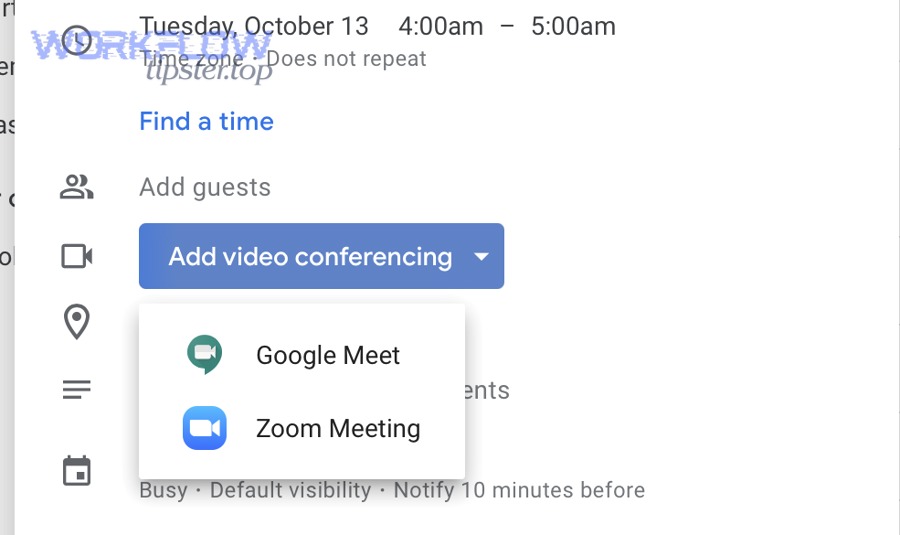
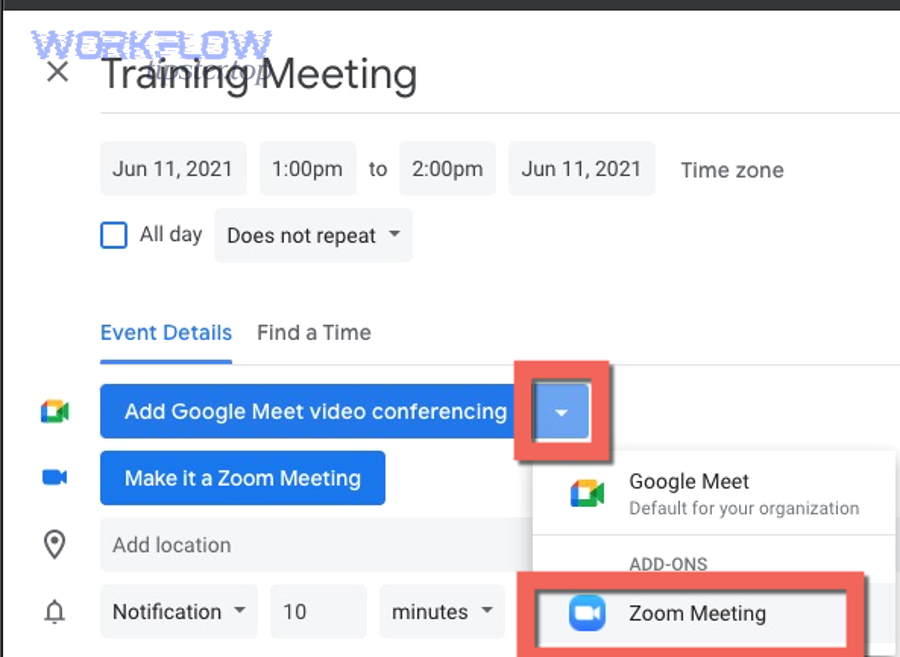
A practical way to think about it is the “handoff” moment: you create an event, add guests, and select Zoom Meeting in the video conferencing option. From that point, the event contains a join link and related details that guests can use immediately. (support.zoom.com)
Can you schedule a Zoom meeting directly from Google Calendar (without manual links)?
Yes—most teams can schedule a Zoom meeting directly from Google Calendar without manual links because the official add-on (and in some cases an extension) inserts the join details automatically, reduces copy/paste errors, and keeps invitations consistent across the team. (support.zoom.com)
To make that “yes” actionable, you need to know why it works when it works:
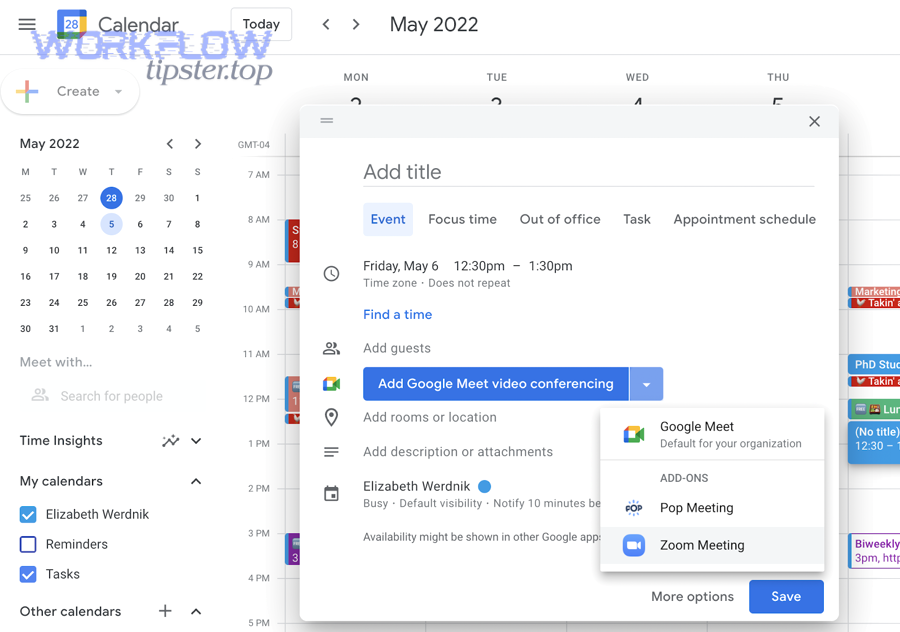
- The integration adds conferencing details automatically after you select Zoom Meeting in the event’s video conferencing dropdown. (support.zoom.com)
- The workflow is repeatable for teammates, so your invites don’t depend on one person remembering to paste a link. (workspace.google.com)
- The meeting details are standardized based on account settings (like passcodes and waiting room), which reduces last-minute attendee confusion. (support.zoom.com)
However, the promise is strongest on the web experience and may be more limited when you rely purely on mobile or complex scheduling scenarios. That’s why the next step is making sure prerequisites are correct before you judge whether “no manual links” is realistic for your exact team setup. (support.zoom.com)
What needs to be in place before it works (accounts, permissions, and access)?
There are 5 prerequisites most teams should confirm: the correct Google account context, permission to install/use add-ons, a working Zoom sign-in, calendar access approval, and a consistent browser/app environment. (support.zoom.com)
1) Google account type and context
- Teams using Google Workspace may need admin enablement or allowlisting for add-ons; personal Google accounts can often install for individual use. (support.zoom.com)
- If you switch between multiple Google accounts in one browser, you can accidentally authorize the wrong one, which often causes “Zoom option missing” or “authorization loops.” (support.zoom.com)
2) Add-on availability and install permissions
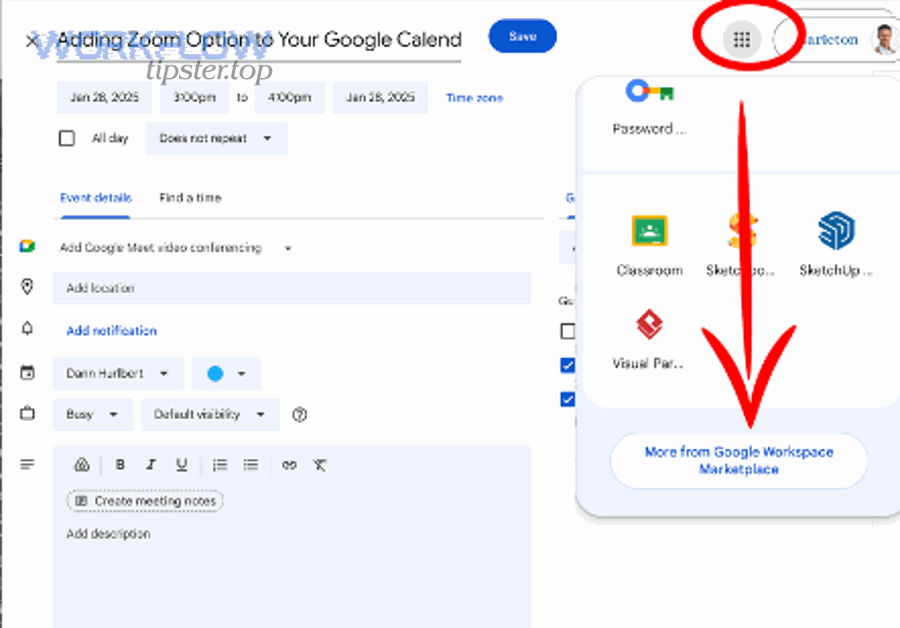
- The Zoom integration is typically installed via the Google Workspace Marketplace, and org admins can restrict what users can install. (support.zoom.com)
3) Zoom authentication
- The first time you add Zoom Meeting, you’ll typically sign in and authorize access, which is what enables event creation to generate meeting details. (support.zoom.com)
4) Calendar permissions
- The integration needs permission to see events you open and add conferencing details; permission prompts are part of the install/authorize flow. (workspace.google.com)
5) Platform constraints
- Web is generally the most reliable surface for setup and advanced meeting settings; mobile can schedule but may not support every configuration step in the same way. (support.zoom.com)
If any one of these is missing, “no manual links” becomes “sometimes manual links,” which is exactly what teams want to avoid.
How do you add Zoom to Google Calendar using the official add-on?
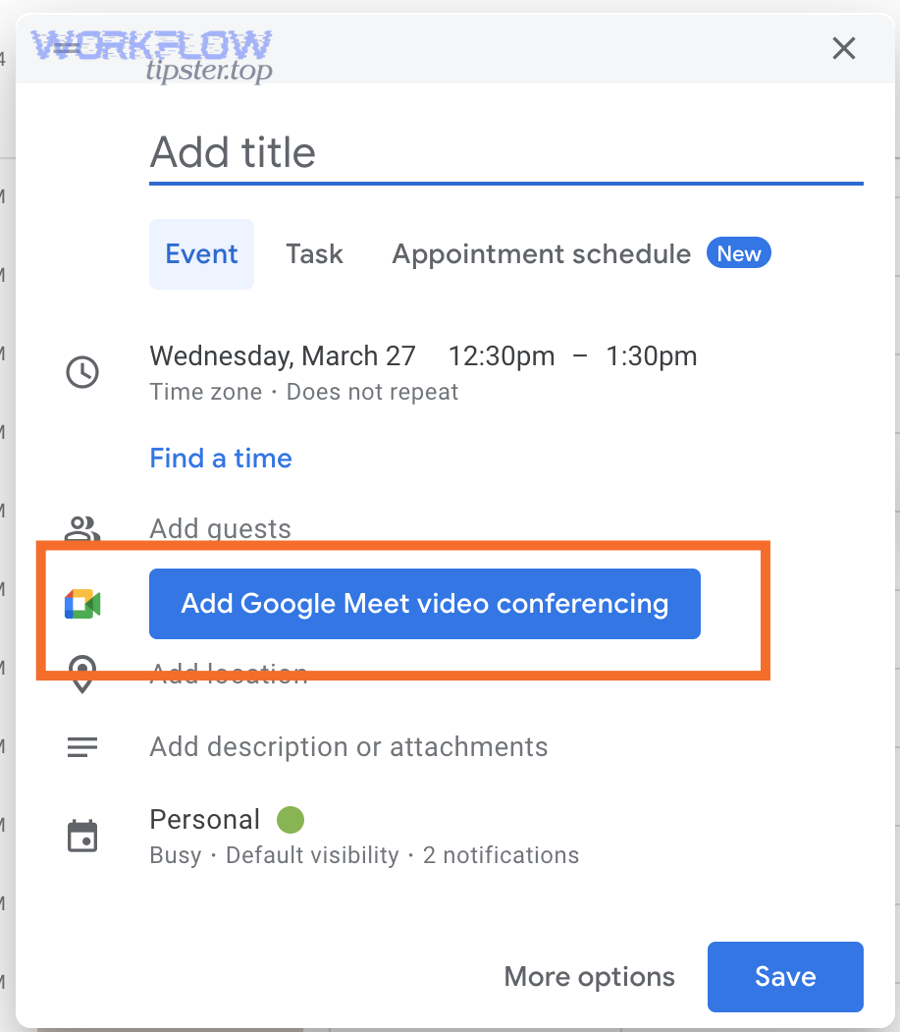
The official method is to install the Zoom for Google Workspace add-on, authorize the required permissions, then create or edit an event and select Zoom Meeting from the video conferencing option so the join details are generated automatically. (support.zoom.com)
To keep the process smooth, follow the sequence that matches how teams actually work: install once, authorize once, then schedule repeatedly. More specifically, the official documentation outlines installation steps for admins (domain-wide) and individuals (personal use), and then shows how to schedule from Google Calendar using the Add video conferencing dropdown. (support.zoom.com)
A practical setup flow for teams looks like this:
- Install the add-on from the marketplace listing (admin-wide or user-by-user depending on your organization). (support.zoom.com)
- Authorize access when prompted (this links your Google account context with Zoom). (support.zoom.com)
- Create an event, add title/time/guests, then open “More options” if needed. (support.zoom.com)
- Select Zoom Meeting from the video conferencing dropdown so Google Calendar inserts the join options into the event. (support.zoom.com)
- Save and send invites so attendees receive the correct details. (support.zoom.com)
If you want a quick visual cue that you’re in the right place, look for the Zoom icon in the right-side panel after installation; that’s often where you can adjust meeting settings once the event is created. (support.zoom.com)

How do you create a Zoom meeting from a new calendar event vs an existing one?
Creating from a new event is fastest for clean scheduling, while adding Zoom to an existing event is best for retrofitting invites—new events optimize speed, existing events minimize disruption to already-invited guests. (support.zoom.com)
To connect this to everyday work, think about when the “meeting decision” happens:
New event workflow (best when you know it’s a Zoom call upfront)
- You create the event and immediately choose Zoom Meeting as the conferencing method.
- The join details appear right away, so your invite is correct before anyone accepts.
- This reduces follow-up messages and avoids last-minute meeting changes.
Existing event workflow (best when the event exists but lacks a meeting link)
- You edit the event and add Zoom Meeting afterward.
- Guests may receive an updated invitation depending on notification settings.
- This is useful when a discussion turns into a live call, but it’s more prone to confusion if multiple edits happen quickly.
The most important operational difference is communication timing: new events prevent confusion before invites go out; existing events require careful update messaging so guests don’t join the wrong link.
Which Zoom meeting details should appear automatically in the invite—and what should you verify?
There are 4 core invite elements you should expect to appear automatically—join link, meeting ID, passcode (when enabled), and dial-in details (when enabled)—and you should verify them because they determine whether attendees can join on the first try. (support.zoom.com)
To keep invites consistently “join-ready,” use this checklist right after you add Zoom Meeting:
- Join URL: confirm it appears in the event details and is clickable for attendees.
- Meeting ID: verify it exists (helpful for phone join or when links get blocked by email clients).
- Passcode: confirm it’s visible if your Zoom settings require it.
- Dial-in numbers: confirm they appear if your account enables phone access.
- Time zone and time: make sure the event time zone is correct (especially for distributed teams).
- Guest list: confirm the right guests are included before sending.
Also note an important nuance about edits and sync: documentation indicates that only changes to topic, date, time, and time zone sync to Zoom, while other details may only apply to the Google Calendar event. That’s a big reason teams should verify the invite after significant edits. (support.zoom.com)
Evidence: According to Zoom’s documentation, only changes to the topic, date, time, and time zone sync to Zoom, while other meeting details apply only to the Google Calendar event. (support.zoom.com)
How do you make Zoom scheduling feel “automatic” for a team (standardized, repeatable, no rework)?
Making Zoom scheduling feel automatic means standardizing a repeatable workflow (install once, schedule from the calendar, send consistent invites) and aligning default meeting settings so teammates don’t need manual steps, manual links, or manual corrections. (support.zoom.com)
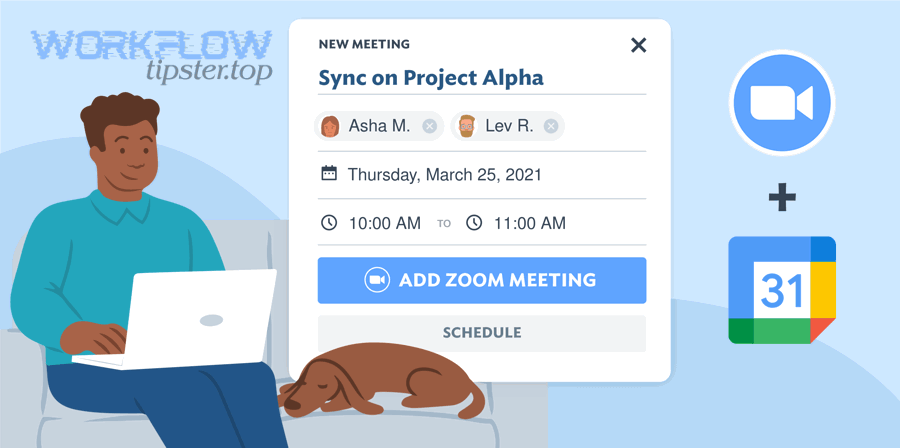
To make “automatic” real, the key is shifting from individual behavior (“I remember to paste the link”) to team systems (“the invite always contains correct join details”). More importantly, teams should design a scheduling approach that survives staff changes, busy weeks, and rushed meeting creation.
A simple team standard might look like this:
- Everyone uses the same installation method (official add-on).
- Everyone schedules meetings from the calendar event UI (not from random personal templates).
- Default meeting security is consistent, so invites always include the right join experience.
- Meeting edits follow a “verify details after changes” habit, especially for reschedules.
This is exactly where meeting defaults and security choices become operational, not theoretical: if half your team uses passcodes and half doesn’t, “no manual links” still produces “manual explanations.”
What settings reduce back-and-forth (passcodes, waiting room, join restrictions, notifications)?
There are 4 settings that reduce back-and-forth the most: passcodes, waiting room, authenticated join restrictions, and consistent notification behavior, because they prevent unauthorized access, reduce join failures, and eliminate last-minute attendee confusion. (support.zoom.com)
To keep the invite experience frictionless, set expectations around these common options:
- Passcodes: improve security but require that the invite reliably displays the code (or users will ask for it).
- Waiting room: improves control, but teams should align on host behavior (who admits whom and when).
- Authenticated users only: reduces unwanted attendees, but can block external guests if policy is too strict.
- Join before host: reduces “host isn’t here yet” messages, but can create security tradeoffs depending on your meeting type.
Then connect settings to workflow: if you use strict join rules, the calendar invite becomes even more important—because attendees must use the correct link and method the first time.
Can you standardize meeting setup with templates or default settings across the team?
Yes, you can standardize meeting setup across the team using account-level defaults and policies (and sometimes templates), because consistent defaults reduce configuration time, reduce security drift, and keep the calendar invite experience predictable across different organizers. (support.zoom.com)
To make this practical, teams should agree on a baseline “meeting profile”:
- Internal meetings: authenticated users, waiting room optional, passcode on.
- External client calls: waiting room on, passcode on, dial-in allowed if needed.
- Large group sessions: controlled entry, limited disruption controls, and clear invite instructions.
The benefit of standardization is not just time saved. It also reduces the risk that one organizer schedules a “wide open” meeting while another schedules a “locked down” meeting—and then everyone wonders why joining feels different every time.
Evidence: According to the marketplace listing updated in 2024, the Zoom for Google Workspace add-on is designed to schedule, join, manage, and customize meetings from Gmail and Google Calendar, reflecting its focus on standardized workflows across Google surfaces. (workspace.google.com)
What are the best ways to connect Google Calendar and Zoom for teams?
The best approach depends on your criteria: the official add-on wins for native scheduling in the calendar UI, a browser extension can be simpler for some individual workflows, and third-party automation wins when you need cross-tool “Automation Integrations” that coordinate schedules and workflows beyond calendar-to-meeting creation. (support.zoom.com)
To choose correctly, decide what you value most: simplicity, standardization, or automation breadth. Specifically, teams that want the cleanest “no manual links” experience typically start with the official add-on because it lives inside the calendar flow. Teams that need broader automation—like creating tasks, logging activity, or syncing incident response—often introduce an automation layer later.
Before the comparison, here’s the context this table covers: it summarizes the common integration paths and how they perform against what teams usually care about (setup effort, governance, reliability, and scale).
| Method | Best for | Strength | Tradeoff |
|---|---|---|---|
| Official add-on | Teams that live in Google Calendar | Native scheduling flow, consistent invites | May require admin approval and has sync limitations |
| Browser extension | Individual schedulers | Quick to start for some users | Less standardized across team devices/browsers |
| Third-party automation | Multi-tool workflows | Cross-app orchestration (beyond meetings) | More setup, depends on automation rules |
Add-on vs browser extension vs third-party automation: which option matches your workflow?
The add-on wins in native calendar scheduling, the extension is best for lightweight personal workflows, and third-party automation is optimal when you need end-to-end orchestration across tools and policies. (support.zoom.com)
To make this choice with fewer regrets, compare by the criteria teams actually feel:
1) Governance and admin control
- If your org controls installations, the add-on path aligns with marketplace governance and admin deployment patterns. (support.zoom.com)
- Extensions can be blocked or inconsistent depending on browser management policies.
2) Scheduling speed inside Google Calendar
- Add-on: select Zoom Meeting in the conferencing dropdown and the invite updates immediately. (support.zoom.com)
- Extension: can be fast, but depends on browser and user configuration. (chromewebstore.google.com)
3) Standardization and training
- Add-on: easiest to document as “the one way we do it.”
- Mixed methods: increases onboarding effort and troubleshooting.
4) Automation beyond meetings
This is where teams often expand into broader “Automation Integrations.” For example, once you trust calendar-to-meeting creation, you might connect meeting creation to downstream workflows like:
- Turning meeting outcomes into tasks (think “gmail to clickup” patterns where scheduling triggers follow-up work).
- Logging observability or incident signals (“airtable to sentry” style flows where structured records connect to monitoring contexts).
Those examples aren’t required to schedule a meeting, but they illustrate why some teams choose a third-party automation layer: they want meetings to trigger work, not just happen on the calendar. (zapier.com)
Evidence: According to Zoom’s documentation, the add-on supports scheduling directly from Google Calendar and includes troubleshooting and limitations sections, indicating it’s built for teams but has defined boundaries. (support.zoom.com)
Why isn’t Zoom showing in Google Calendar (or why isn’t it working) after setup?
Zoom may not show in Google Calendar because the add-on isn’t installed or enabled, you’re signed into the wrong Google account context, your organization restricts marketplace apps, or authorization didn’t complete—each cause has a distinct fix path. (support.zoom.com)
To resolve this efficiently, treat it like a decision tree instead of random clicking. More specifically, you want to determine whether you have a user-level issue (wrong account, incomplete authorization) or an admin/policy issue (install blocked, add-ons restricted).
Common symptom clusters:
- Symptom: No “Zoom Meeting” option in the video conferencing dropdown
Likely causes: add-on not installed, not enabled, or you’re in a different Google account than the one that installed it. (zapier.com) - Symptom: Zoom option appears, but authorization fails
Likely causes: permissions not granted, sign-in mismatch, or policy blocks. (support.zoom.com) - Symptom: Meeting details appear, but edits don’t behave as expected
Likely causes: sync limitation—some fields don’t sync back to Zoom and remain calendar-only. (support.zoom.com)
Once you recognize the symptom pattern, you can fix the root cause without repeatedly reinstalling.
What are the quickest fixes you should try first?
There are 6 quick fixes you should try first: refresh the calendar, confirm your active Google account, re-open the event in “More options,” re-authorize the add-on, sign out/in, and check whether the add-on is enabled—these solve most “Zoom missing” cases fast. (zapier.com)
To keep this team-friendly, here’s a short checklist you can share internally:
- Refresh the page (or log out/in) after installation so the UI loads the add-on option. (zapier.com)
- Confirm the correct Google account is active in the browser (especially if you have multiple profiles). (support.zoom.com)
- Open “More options” in the event editor; sometimes the full conferencing dropdown is clearer there. (support.zoom.com)
- Click the Zoom icon in the right-side panel and complete any pending authorization prompts. (support.zoom.com)
- Re-authorize permissions if you previously declined or if your org recently changed access settings. (support.zoom.com)
- Try a clean browser profile (no extensions interfering) for first-time setup.
If you fix the UI visibility but still see unexpected behavior later, treat it as a sync/limitations issue rather than a missing-install issue—because those two categories require different solutions.
When is it an admin/policy issue rather than a user setup issue?
It’s an admin/policy issue when marketplace app installation is restricted, an allowlist is required, or organizational settings prevent add-ons from running—whereas user setup issues usually resolve with re-authorization, correct account selection, and a refresh. (support.zoom.com)
To make this distinction quickly, compare these signals:
Signals it’s likely admin/policy-controlled
- You can’t install from the marketplace or you see permission warnings that imply organizational restriction. (support.zoom.com)
- Teammates in the same domain report the same missing option.
- Only certain groups/OU’s can install apps (common in larger orgs). (support.zoom.com)
Signals it’s likely user-level
- You installed successfully but don’t see Zoom until you refresh. (zapier.com)
- The Zoom option appears only in one browser profile (account mismatch).
- Authorization prompts repeat (often a sign-in mismatch rather than a domain block). (support.zoom.com)
If you determine it’s admin-controlled, the most productive next step is to provide your admin a short request: “Please allow/approve the Zoom for Google Workspace add-on and confirm any allowlisting requirements.” This reduces back-and-forth and gets you to a yes/no faster. (support.zoom.com)
Evidence: Zoom’s documentation explicitly includes admin installation guidance and references allowlisting/installation resources, which is a strong indicator that some environments require admin enablement rather than user-only setup. (support.zoom.com)
Introduce a new idea: even with perfect installation, advanced scheduling contexts—shared calendars, mobile creation, and what edits sync—are where “automatic” can quietly become “manual,” so teams should plan for those scenarios upfront. (support.zoom.com)
What advanced Zoom–Google Calendar scenarios should teams plan for?
Teams should plan for shared/delegated scheduling, mobile limitations, sync boundaries for event edits, and security/compliance constraints because these scenarios determine whether invitations stay accurate and whether “no manual links” remains true in real-world workflows. (support.zoom.com)
To deepen this, focus on micro-level behaviors: who “owns” the meeting, where the integration UI appears, what changes propagate, and which policies silently block join. More specifically, advanced planning is less about adding features and more about preventing edge-case failure.
Here’s a quick video walkthrough you can use to align teammates on the flow (install → add Zoom Meeting → verify invite details):
How does Zoom scheduling work with shared calendars, delegated access, and room/resource calendars?
In shared and delegated setups, Zoom scheduling depends on who has scheduling privileges and which account is authenticated, because the authenticated Zoom user typically determines meeting ownership, while the calendar event can be created or edited by someone else. (support.zoom.com)
To make delegated scheduling predictable, teams should define a “host ownership rule”:
- If assistants schedule for executives, decide whether meetings should be hosted by the executive’s Zoom account or the assistant’s.
- If a shared team calendar creates events, ensure the person adding Zoom Meeting is the intended meeting owner.
- If a room/resource calendar is included, treat it as a booking object; it doesn’t automatically become the meeting host.
Also watch for privacy settings: if meetings are marked private and a delegate cannot manage private events, they may not see invite link details or attendee lists, which changes how “automatic” the process feels to the scheduler. (support.zoom.com)
Practical team tip: document one delegated workflow and train everyone on it. Delegated scheduling is where inconsistency creates the most confusion (“Why does the host keep changing?”).
What can you do on mobile vs desktop when adding Zoom to events?
You can add Zoom Meeting from the Google Calendar mobile app in many cases, but desktop/web is better for advanced configuration and verifying meeting settings, because some settings changes require using Google Calendar in a web browser or Zoom’s web portal. (support.zoom.com)
To avoid “it worked on my laptop but not on my phone,” set expectations:
- Use mobile for fast scheduling and quick edits (time changes, guest updates).
- Use web/desktop when you need to confirm meeting settings or troubleshoot missing options.
- After mobile-created meetings, quickly verify invite details if the meeting is high-stakes (external attendees, strict security rules).
In practice, the most common mobile-related failure is not that scheduling is impossible—it’s that people can’t find the same controls they saw on desktop, and they assume something is broken when it’s really a UI constraint. (support.zoom.com)
Which event edits sync cleanly—and which changes can cause mismatches?
Topic/date/time/time zone edits sync most reliably, while other meeting details may remain calendar-only, which can cause mismatches if teams assume every event edit updates the Zoom meeting configuration. (support.zoom.com)
To prevent mismatches, use a simple rule: after major edits, verify the Zoom join details and meeting settings.
Common mismatch patterns include:
- Rescheduling by copying events: teams copy/paste an event and accidentally reuse old meeting details, leading guests to join the wrong meeting.
- Changing event ownership: changing the calendar event owner doesn’t necessarily transfer Zoom host ownership.
- Editing meeting settings in the wrong place: changing calendar details doesn’t always change Zoom meeting settings; sometimes you must update settings through the add-on panel or Zoom itself.
A good operational habit is a “last-minute verification” before sending invites for important meetings: open the event, confirm the Zoom meeting details, and ensure the invite reflects the current plan.
How do security and compliance settings affect “no manual links” scheduling?
Security and compliance settings can either preserve “no manual links” (by embedding secure join details correctly) or reintroduce manual steps (when restrictions block joining and organizers must send additional instructions), so teams should align settings with attendee reality. (support.zoom.com)
To make this concrete, consider how security choices change what attendees experience:
- Passcodes and waiting room can be great for control, but only if your invite clearly contains everything needed to join.
- Authenticated users only is a strong default for internal meetings, but it can break external calls if client domains can’t authenticate.
- Restricted join rules can trigger last-minute manual work (organizer sends alternative instructions, resends links, or changes settings mid-meeting).
If your organization prioritizes compliance, treat the integration as part of the security posture: standardized settings plus consistent calendar-generated invites can actually reduce risk compared to ad-hoc pasted links—because the workflow becomes auditable and repeatable. (support.zoom.com)