


Yes—you can integrate Gmail with ClickUp so your team can reliably turn important emails into trackable tasks, keeping context, ownership, and deadlines in one place instead of letting follow-ups disappear in an inbox.
Next, you’ll see the main ways teams connect Gmail to ClickUp (native email inside tasks, the Gmail Chrome extension, and automation platforms) so you can choose the fastest setup for your workflow.
Then, you’ll learn a step-by-step connection process, plus practical mapping rules (subject → task name, body → details, labels → routing) so email-to-task doesn’t create messy, duplicate work.
Introduce a new idea: once the core integration is working, you can scale it with automation recipes and governance—so the workflow stays secure, compliant, and stable even with shared inboxes and high email volume.
What does it mean to integrate Gmail with ClickUp to turn emails into tasks?
Integrating Gmail with ClickUp means you capture an email’s content and context (subject, message body, attachments, and thread reference) and convert it into a ClickUp task your team can assign, prioritize, track, and close.
To better understand why this matters, think of email as “incoming requests” and ClickUp as “the execution system”: the integration is the bridge that turns requests into work items with clear ownership, status, and due dates.
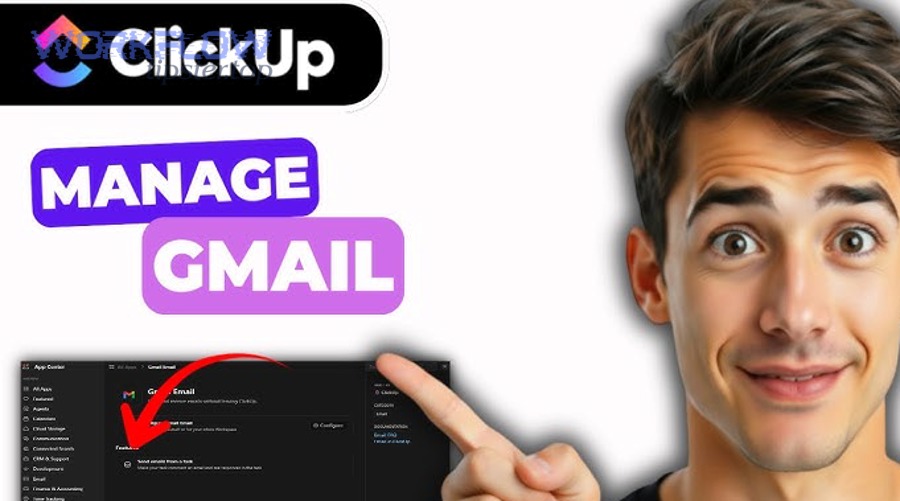
A good Gmail-to-ClickUp integration typically supports three outcomes:
- Capture: Save the email into ClickUp so the team can reference it later (even if the email thread continues).
- Convert: Create a ClickUp task from the email, so work becomes visible in the team’s list, board, or sprint.
- Communicate: Keep conversations linked to the task, so updates and decisions don’t get buried across multiple inboxes.
When teams say “turn emails into tasks,” they usually mean more than just copying text. They want:
- A stable source of truth: the task holds the final decision, next steps, due dates, and assignee.
- Searchable context: the original email is accessible from the task so anyone can audit the request quickly.
- A repeatable workflow: triage rules determine which emails become tasks and where those tasks live.
In ClickUp, one common pattern is linking an email account so you can send/receive email within a task thread, keeping email communication tied to a specific work item. ClickUp describes linking a Gmail account inside tasks via the Email area so you can send messages from within the task and keep the conversation attached to the work.
Evidence: According to a study by University of California, Irvine from the Department of Informatics, in 2008, people often compensate for interruptions by working faster, but they experience higher stress and time pressure—making it valuable to convert email interruptions into structured tasks instead of constant inbox switching.
Can you connect Gmail to ClickUp without coding?
Yes—most teams can connect Gmail to ClickUp without coding because (1) ClickUp supports Gmail connection features inside tasks, (2) ClickUp provides a Gmail Chrome extension workflow for creating tasks from emails, and (3) no-code automation platforms can trigger task creation from Gmail conditions.
Next, once you accept that “no-code” can still be powerful, the key is selecting the method that matches your team’s intent: quick manual capture, structured in-task email communication, or rules-based automation.
Here’s what “no-code” realistically looks like in a team setting:
- You want speed (one-off conversion): A user clicks a button in Gmail and creates a task instantly.
- You want accountability (ongoing work): The email lives with the task so updates, attachments, and replies remain traceable.
- You want scale (automation): A labeled/starred email triggers task creation in a specific list with consistent fields.
If your organization already uses Automation Integrations to connect tools across departments, Gmail → ClickUp is a natural fit because it takes the highest-friction intake channel (email) and routes it into the place where work is measured and completed.
Evidence: According to a study by Ohio State University from its research reporting (as summarized by ScienceDaily), in 2008, workers who used instant messaging reported less interruption than colleagues who did not—suggesting that structured communication channels can reduce disruptive switching compared to unstructured, constant inbox checking.
What are the main ways to connect Gmail to ClickUp for teams?
There are 3 main ways to connect Gmail to ClickUp for teams—(A) in-task Gmail linking/email inside tasks, (B) the Gmail Chrome extension for one-click conversion, and (C) automation platforms that create tasks from Gmail triggers—based on whether you need communication, speed, or rules-based routing.
To illustrate the tradeoffs, the most important question is not “Can we connect them?” but “What workflow do we want the connection to produce?”
A simple decision rule helps:
- Pick A (in-task email) if the email thread is part of ongoing execution and must stay attached to the task for visibility.
- Pick B (Gmail extension) if the main goal is quickly turning one email into one task with minimal friction.
- Pick C (automation) if you need consistent routing, deduping patterns, and scalable rules (labels, senders, keywords).
This table contains the most common connection methods and helps a team choose the best option based on setup effort, scale, and governance needs.
| Method | Best for | Strengths | Watch-outs |
|---|---|---|---|
| In-task Gmail linking (Email in tasks) | Ongoing client/vendor email tied to work | Strong context + audit trail inside the task | Needs consistent team habits (where to send/reply) |
| Gmail Chrome extension | Fast “email → task” conversion | Minimal friction; quick capture | Can create duplicates if teams click repeatedly or route inconsistently |
| Automation platform (e.g., triggers) | Rules-based routing at scale | Consistent intake rules; structured fields | Requires careful mapping + dedupe strategy |
Which option works best if you want to create a ClickUp task from a single Gmail email fast?
The Gmail Chrome extension wins for speed, in-task email wins for ongoing conversation, and automation platforms win for consistent routing—so if your priority is “fastest capture,” the Gmail extension is usually the best starting point.
Then, once fast capture is in place, you can standardize where those tasks go (default list), which fields get filled, and how the team avoids duplicates.
Which option works best if you need rules-based automation from Gmail to ClickUp?
Automation platforms win for rules-based automation, in-task email is best for human-driven correspondence, and the Gmail extension is best for manual capture—so if you want “when an email is labeled/starred/from a sender, create a task,” automation is the most reliable path.
More specifically, rules-based automation works best when your team agrees on a label taxonomy (what labels mean) and a routing map (which label goes to which ClickUp list).
Which option works best for shared/team inbox workflows?
Automation platforms win for shared inbox governance, in-task email works best for task-level correspondence ownership, and the Gmail extension is best for individual capture—so for a shared inbox, automation usually provides the cleanest, most consistent routing.
Moreover, shared inbox success depends on one non-negotiable principle: the inbox is not the owner; a person (assignee) is the owner, and the integration must force that ownership into ClickUp.
Evidence: According to a study by University of California, Irvine from the Department of Informatics, in 2008, interruptions increase stress and time pressure—so shared inbox workflows benefit from automation that reduces constant manual triage and switching.
How do you connect Gmail to ClickUp step-by-step?
The best method is to connect your Gmail account in ClickUp and verify with a test email in 5 steps—prepare permissions, link the account, choose workspace rules, run a test message, and confirm the email-to-task behavior—so teams can reliably capture email context inside tasks.
Below, once you follow a structured setup sequence, you reduce the two most common failures: wrong account linking and unclear team permissions.
A practical step-by-step checklist looks like this:
- Define your destination: Which ClickUp Space/Folder/List should hold email-created tasks?
- Decide your unit of work: One task per email, or one task per email thread?
- Clarify permissions: Who can link accounts, send emails from tasks, or configure templates/signatures?
- Link Gmail: Connect the Google account through ClickUp’s linking flow.
- Verify: Run a controlled test and confirm content, attachments, and routing.
What prerequisites should a team check before connecting Gmail to ClickUp?
There are 6 key prerequisites a team should check before connecting Gmail to ClickUp: (1) correct Google account access, (2) ClickUp role permissions, (3) a defined destination list, (4) label/routing conventions, (5) ownership rules, and (6) a test plan—based on ensuring stable setup and consistent behavior.
To begin, the biggest blocker is usually not technology; it’s ambiguity about where tasks should go and who owns the resulting work.
- Account clarity: Each team member knows which Gmail identity they’ll connect (personal vs work).
- Workspace structure: You already have a “Triage” List (or similar) that is safe for intake.
- Routing standards: You have a small label set (e.g., Action, Waiting, Escalate) if you plan to automate.
- Ownership policy: Every email-created task must have an assignee within X hours.
- Task template: You have a minimum task format (title, description, requester field, due date rule).
- Verification plan: You will test from a known sender with a known subject/attachment.
If your team also runs cross-app workflows like airtable to slack for alerts or google docs to confluence for documentation publishing, treat Gmail → ClickUp similarly: define the input, define the output, define the owner, and test with a controlled example.
How do you link a Google account safely and correctly?
Linking a Google account safely means you authenticate with the correct Gmail identity, approve only the necessary access, and confirm ClickUp is using the intended “From” address inside tasks so email communication stays consistent and auditable.
Then, once the account is linked, you should immediately validate by creating a test task and checking that the Email area shows the linked account.
- Use the right browser profile: If you’re logged into multiple Google accounts, open an incognito window or a dedicated profile to avoid linking the wrong one.
- Confirm the sender identity: In a task, verify the “From” dropdown matches the correct address.
- Define team constraints: Decide whether only admins can connect shared inboxes or configure email templates/signatures.
- Document the configuration: Put “Email-to-task rules” in a shared page (this is where workflows like google docs to confluence help keep standards visible).
How do you confirm emails are being captured into ClickUp tasks correctly?
Yes—you can confirm the integration is working by running a controlled test email and checking (1) the task title matches the subject, (2) the email body is preserved in the task, and (3) the email reference/attachment behavior matches your chosen method.
Next, once the baseline test passes, you can test edge cases like replies, forwarding, and attachments.
- Test 1 (Plain email): Short subject, plain text body, no attachments.
- Test 2 (HTML email): A formatted message to see how ClickUp renders content.
- Test 3 (Attachment): A small PDF or image attachment.
- Test 4 (Thread): Reply to the same email and check whether you want one task or multiple tasks.
- Test 5 (Team routing): If automated, apply a label and verify the task lands in the right list.
Evidence: According to a study by University of California, Irvine from the Department of Informatics, in 2008, interruptions increase stress and perceived time pressure—so the verification step matters because a flaky email-to-task workflow can create more switching rather than less.
How do you turn Gmail emails into ClickUp tasks the “right way” for teams?
Turning Gmail emails into ClickUp tasks the right way means you use a consistent mapping rule and a triage workflow so every converted email becomes a clear work item with an owner, a next step, and a deadline—rather than a copied message with no accountability.
To better understand the “right way,” treat email conversion as intake processing: you’re not archiving an email—you’re defining execution.
The team-friendly workflow usually has four stages:
- Capture (convert or attach)
- Triage (decide priority + category)
- Assign (owner + due date)
- Execute & close (status changes + final reply)
If you already run customer workflows like airtable to intercom for support or lead management, you’ll recognize the pattern: intake without ownership is noise; intake with structured routing becomes measurable work.
What should map to what when converting an email into a ClickUp task?
There are 7 core mappings teams should use when converting an email into a ClickUp task: subject → task name, body → description, sender → requester field, recipients/CC → watchers, attachments → task attachments, labels → tags/routing, and thread link → reference URL—based on preserving intent and accountability.
Specifically, mapping is what prevents your ClickUp list from becoming a second inbox.
- Task name (Title): Use the email subject, but add a short prefix when needed (e.g., “REQ:” “BUG:” “APPROVAL:”).
- Description: Paste the email body or include a summarized “Decision + Next step” at the top, then include the email content below.
- Requester (Custom Field): Store the sender name/email so the team can respond quickly.
- Tags: Use a small tag set (e.g., Billing, Product, Legal, Urgent).
- Assignee: Assign immediately during triage—don’t leave intake tasks unowned.
- Due date: Use service rules (e.g., “customer requests within 24h”) instead of leaving due dates blank.
- Link back to Gmail: Include the Gmail message/thread URL (or the attached email record if using the extension).
Should you create one task per email or one task per email thread?
One task per thread wins for ongoing conversations, one task per email is best for discrete requests, and a hybrid approach is optimal for shared inbox triage—so the “right” choice depends on whether the email stream represents one evolving work item or multiple independent actions.
However, once you pick a unit of work, the team must apply it consistently or the workflow will create duplicates and confusion.
- One task per thread if the work unfolds through multiple replies, you want a single task history, and you measure success by “issue resolved.”
- One task per email if each email is a separate request, you need independent due dates, and you run batch processing.
- Hybrid if a shared inbox receives mixed types, combining thread tasks for complex issues with atomic tasks for routine requests.
Evidence: According to a study by University of California, Irvine from the Department of Informatics, in 2008, people compensate for interruptions by working faster but experience more stress—so thread-level consolidation can reduce unnecessary task switching when many emails belong to the same underlying work.
How do you keep email context visible without cluttering the task?
Keeping email context visible without clutter means you store the original email as an attachment or reference, but you write a short “executive summary” at the top of the task that states the decision, owner, next step, and due date so the task stays scannable.
Moreover, this is where teams usually win or lose: if the task looks like a raw email dump, people stop using it.
- Top of task description (5–8 lines): request summary, owner and next step, due date rule, “waiting on,” and a link to the original thread.
- Below the summary: original email content (or attached record), key attachments, and follow-up notes (as comments).
If your organization uses documentation flows like google docs to confluence, store your standardized summary template in one shared page and keep it consistent across teams.
What Gmail-to-ClickUp automations are most useful for teams?
There are 5 high-impact Gmail-to-ClickUp automations teams use most—label-based task creation, sender-based routing, keyword-based prioritization, SLA-based due dates, and status-based notifications—because they reduce manual triage and keep work visible in the right list.
Next, once you choose a small set of automations, you can scale without chaos by enforcing dedupe rules and consistent mapping.
A team automation strategy should follow a simple principle: automate only what you can define clearly. If your team cannot describe the rule in one sentence, it is not ready for automation.
Which Gmail triggers should create a ClickUp task automatically?
There are 6 Gmail triggers that should create a ClickUp task automatically for most teams: (1) new labeled emails, (2) starred emails, (3) emails from priority senders/domains, (4) emails with specific subject keywords, (5) emails sent to a shared inbox alias, and (6) emails matching a “request format”—based on predictable routing and measurable intake.
To begin, label-based automation is usually the cleanest because labels represent intentional classification.
- Label-based intake: If email gets label “Action,” create a task in “Triage” list.
- VIP sender routing: If sender is “@bigcustomer.com,” create task and assign to account owner.
- Keyword routing: If subject contains “invoice” or “refund,” route to Billing list.
- Shared inbox intake: Emails to support@ create tasks with default tags and a response SLA.
- Attachment-based workflow: If email has an attachment and subject includes “signed,” route to Contracts list.
Which ClickUp task actions should update your email workflow?
There are 5 ClickUp task actions that should update your email workflow: status changes, assignee changes, due date updates, priority changes, and “blocked/waiting” signals—because each action communicates a meaningful state change that email stakeholders often need.
Then, once you connect task state to communication, your team stops replying to emails with “checking” and instead replies with a clear status and next step.
- Status → email update: When status changes to “In Progress,” notify requester with ETA.
- Blocked → request info: When status becomes “Blocked,” email requester for missing details.
- Due date change → stakeholder alert: When due date slips, notify internal owner and requester.
- Assignment → ownership confirmation: When reassigned, message new owner with context link.
- Done/Closed → closure email: When completed, send closure summary and attach deliverable link.
If you already use airtable to slack to alert teams about status changes, consider mirroring that principle here: status changes should trigger lightweight notifications, not noisy message floods.
How do you prevent duplicate tasks from repeated triggers?
Preventing duplicate tasks requires 3 controls: (1) a dedupe key (message ID or thread ID), (2) a “processed” label rule (remove or replace the label after task creation), and (3) a single destination owner for automation configuration—so repeated triggers don’t create parallel tasks for the same email.
More importantly, duplicates are usually a governance problem: too many people can configure automations without shared standards.
- Use one label as a gate: Only the “To-ClickUp” label triggers automation.
- Auto-remove the gate label: After creating the task, remove “To-ClickUp” and add “Logged.”
- Store the message/thread ID: Put it into a custom field or task description for traceability.
- One automation owner: Centralize ownership (ops lead or admin) so changes don’t fragment behavior.
- Audit weekly: Spot-check duplicates and adjust rules.
Evidence: According to a study by Microsoft Research from its research division, in 2016, email activity patterns and interruptions were linked to stress and workplace outcomes—so duplicate tasks are not just “messy,” they actively increase switching and cognitive load when teams chase the same request twice.
What are the most common Gmail-to-ClickUp integration problems, and how do you fix them?
There are 6 common Gmail-to-ClickUp integration problems—wrong account linking, permission blocks, missing/delayed emails, duplicate tasks, broken formatting, and attachment issues—and you fix them by validating account scope, testing routing rules, and standardizing conversion behavior across the team.
Next, once you debug systematically, most issues resolve without reworking your entire workflow.
A quick diagnostic approach:
- Confirm the method you’re using (in-task email vs extension vs automation).
- Re-test with a controlled email.
- Verify permissions and scope.
- Check routing rules and destination list.
- Inspect formatting/attachment behavior.
- Apply a dedupe strategy.
Is the integration failing because of permissions or account access?
Yes—permissions or account access cause most integration failures because (1) the wrong Google account is authenticated, (2) workspace admins restrict OAuth/scopes, or (3) ClickUp role limits prevent linking/sending email features.
Then, once you confirm the permission model, you can reconnect with the correct account and re-run the test.
- Confirm you’re logged into the intended Google account before linking.
- Re-link the account inside the task Email area if needed.
- Check role permissions (who can add integrations or manage connected email accounts).
- For managed domains: ask a Google Workspace admin to verify whether third-party OAuth access is restricted.
Are emails missing, delayed, or not turning into tasks?
No—emails are not “randomly missing” in most cases; they usually fail conversion because (1) the trigger condition isn’t met (label/star/sender rule), (2) the destination list is misconfigured, or (3) rate limits/processing delays occur during high volume.
To better understand the cause, compare what you expected to happen versus what the rule actually defines.
- Verify the trigger: confirm the email actually has the label/star/criteria at the time automation checks.
- Verify the destination: ensure the automation points to the correct list and the list still exists.
- Test with a fresh email: old threads may not trigger the same way as new emails.
- Check for rule conflicts: multiple automations acting on the same label can cause inconsistent outcomes.
- Add a fallback: if automation fails, allow manual conversion via the Gmail extension.
Are formatting and attachments breaking when converted into tasks?
Yes—formatting and attachments can break because (1) HTML emails may render differently in tasks, (2) large attachments may exceed limits or fail to copy, and (3) forwarded emails can add complex quoting that becomes clutter inside task descriptions.
Moreover, the fix is usually not “stop converting,” but “change how you store context” so the task stays readable.
- Use an executive summary at the top of the task and store raw email content below.
- Prefer attaching the email record (when available) over pasting long HTML blocks.
- For attachments: test with small files first; if large files fail, store a link (Drive/Share) and attach that reference.
- Standardize the conversion method: mixing multiple capture methods can produce inconsistent formatting across tasks.
How do you scale Gmail-to-ClickUp workflows for security, compliance, and high-volume operations?
Scaling Gmail-to-ClickUp workflows requires 3 pillars—security controls, governance standards, and operational hardening—so your team can process high email volume, shared inbox routing, and compliance requirements without breaking automation or exposing sensitive data.
Next, once the core workflow is stable, scaling becomes about controlling who can connect what, what data is stored where, and how failures are detected early.
If you operate a business with multiple integration points (for example, airtable to slack alerts for ops and airtable to intercom for customer communication), Gmail → ClickUp should follow the same scaling mindset: one owner, clear standards, and measured change.
What Google Workspace admin settings can block or restrict Gmail–ClickUp connections?
Google Workspace admin restrictions can block Gmail–ClickUp connections by limiting third-party OAuth app access, restricting scopes, or enforcing sign-in/security policies that prevent users from authorizing ClickUp to access Gmail.
Then, once you identify the restriction, the fix is administrative: allow the app, approve scopes, or define which organizational units can connect.
- OAuth app access control: only “trusted” apps can access Gmail data.
- Scope restrictions: Gmail read/send scopes may require explicit approval.
- Organizational unit policies: some teams (finance/legal) may be blocked by default.
- SSO enforcement: users must sign in via approved identity flows.
What are the privacy and data-retention tradeoffs when syncing emails into tasks?
Syncing email content into tasks increases visibility and accountability, but linking-only approaches reduce data duplication—so storing full email text wins for auditability, while storing references wins for minimizing sensitive data exposure.
However, once you decide your retention posture, your team must align ClickUp permissions and list access so only the right people can see sensitive correspondence.
- Full content stored in ClickUp: pros—strong audit trail; cons—increases data surface area.
- Link-only/reference approach: pros—lower duplication; cons—context can be lost if access changes.
- Store a short summary + reference link by default.
- Store full email content only for work items that need long-term auditability.
- For regulated workflows, create restricted lists/spaces and limit who can access email-heavy tasks.
How should teams design labels, routing rules, and ownership for a shared inbox?
Teams should design shared inbox labels and routing rules in 4 groups—Intake labels (Action/Waiting), Category labels (Billing/Product), Priority labels (Urgent/VIP), and Status labels (Logged/Resolved)—based on creating consistent automation triggers and forcing clear ownership in ClickUp.
More specifically, the routing model must answer one question: “When this label appears, which list gets the task, and who owns it next?”
- One intake label triggers creation (e.g., “To-ClickUp”).
- Category labels route destination (Billing → Billing Intake list).
- Priority rules set SLA (VIP → due date within 4 hours).
- Ownership rules assign roles (account owner, triage lead, on-call rotation).
- Post-processing labels prevent duplicates (“Logged” replaces “To-ClickUp”).
If your operations team already relies on “Automation Integrations” across tools, treat label taxonomy as a shared integration contract, not a personal preference.
What are advanced failure patterns (token expiry, rate limits, duplicates), and how do you harden the workflow?
Advanced failure patterns include OAuth token expiry loops, rate limits during spikes, duplicate task creation from repeated triggers, and inconsistent routing due to rule drift—and you harden the workflow by centralizing automation ownership, adding monitoring checks, and implementing a clear fallback capture path.
In addition, hardening is not just “more automation”; it’s automation plus accountability.
- Centralize ownership: one admin/team owns Gmail → ClickUp automation changes.
- Version your rules: store routing rules in a single doc and update it intentionally (this is where google docs to confluence can make the standard visible and enforceable).
- Add a weekly audit: sample tasks for duplicates, wrong routing, missing assignees.
- Use a fallback method: if automation fails, users can still convert emails manually via the Gmail extension.
- Limit automation scope: fewer triggers, clearer rules, better reliability.
Evidence: According to a study by University of California, Irvine from the Department of Informatics, in 2008, interruptions increase stress and time pressure—so hardening matters because unstable integrations create repeated “check and re-check” behaviors that amplify interruption cost at scale.