


If you want to sync Google Calendar to Trello, the most reliable approach is to decide what you’re syncing (events → cards, cards → events, or just due dates → calendar) and then pick a method that matches your workflow: a one-way calendar feed, an automation tool, or a manual planning routine.
The next decision is whether you need visibility or true coordination: visibility means you can see Trello due dates on your calendar (often one-way), while coordination means updates create or change items in the other tool (usually automation-based, sometimes two-way, and more complex).
You can also treat “events” and “cards” as different parts of the same system: events protect time; cards track work. When you connect them, you reduce double entry and make deadlines harder to miss—but you also introduce rules, permissions, and edge cases that you should plan for.
Introduce a new idea: once you understand what “sync” really means and which method fits your needs, the setup becomes a checklist—not a guessing game.
Can you sync Google Calendar to Trello?
Yes—Google Calendar to Trello can be synced because you can (1) publish Trello due dates into Google Calendar via an iCalendar feed, (2) automate events-to-cards or cards-to-events with an integration tool, and (3) standardize a manual workflow that keeps both tools consistent even when automation isn’t possible.
Next, the reason people struggle is that they treat “sync” like a single button, but it’s actually a choice among visibility, automation, and governance (who owns changes, and where).
Here’s the practical framing that prevents wasted time:
- If you just want Trello deadlines on your calendar: use a Trello calendar view + iCalendar feed (typically one-way).
- If you want Google Calendar events to create Trello cards: use an automation workflow (trigger → action).
- If you want Trello cards to create Google Calendar events: also automation (often with rules around which list/label qualifies).
- If you want “two-way” updates: you can do it, but you should only attempt it when you can clearly define ownership and conflict rules.
Finally, think about what success looks like. For most teams, success is not “perfect two-way sync.” It’s reliable conversion of time-bound items: meetings and appointments become actionable cards, and cards with due dates become visible calendar blocks. When you narrow the goal, the integration becomes simpler, and maintenance drops dramatically.
What does “Google Calendar to Trello sync” actually mean?
Google Calendar to Trello sync is a workflow category where calendar events (time commitments) and Trello cards (work commitments) are connected so that dates, due dates, or new items flow between them—typically through iCalendar feeds, automation triggers, or manual rules.
To begin, “sync” can mean three very different things:
Is it a one-way feed or a two-way sync?
A one-way feed means Trello publishes a calendar view (usually due dates) that Google Calendar can subscribe to, but edits in Google Calendar don’t change Trello. In contrast, a two-way sync attempts to propagate changes in both directions, which is harder because you must handle conflicts like “event time changed” vs “card due date changed.”
A useful mental model is: feeds show, automations change.
One-way feeds are popular because they’re stable and low-maintenance. In fact, Trello’s iCalendar feed is commonly used as a visibility layer—and community guidance notes the iCal feed is read-only, meaning edits in the calendar won’t flow back into Trello. (community.atlassian.com)
What data can be shared between events and cards?
Most integrations map a small set of fields reliably:
- Title ↔ Card name
- Description ↔ Card description
- Start/end time ↔ A card’s due date (and sometimes a time block)
- Location ↔ A custom field or description line
- Participants ↔ Card members or checklist items (less consistent across tools)
The limitation is important: Trello is task-first; Google Calendar is time-first. You can map between them, but the mapping is never perfect unless you enforce strict conventions.
When should you avoid “sync” and use a workflow instead?
Avoid sync when:
- You can’t define ownership (who edits the “source of truth”).
- Your team changes schedules constantly and expects both tools to update instantly.
- You have sensitive calendars/boards and don’t want links or external subscriptions floating around.
In those cases, a workflow is safer: for example, “every meeting with label X becomes a card,” but only one direction. That reduces conflict and makes troubleshooting easier.
What are the main ways to connect Google Calendar and Trello?
There are 4 main ways to connect Google Calendar and Trello—(1) iCalendar feed subscription, (2) automation platforms, (3) built-in or marketplace Power-Ups, and (4) manual workflow—based on how much control, directionality, and maintenance you’re willing to manage.
Next, treat these options as a ladder: climb only as high as you need.
What is the Trello Calendar view + iCalendar feed method?
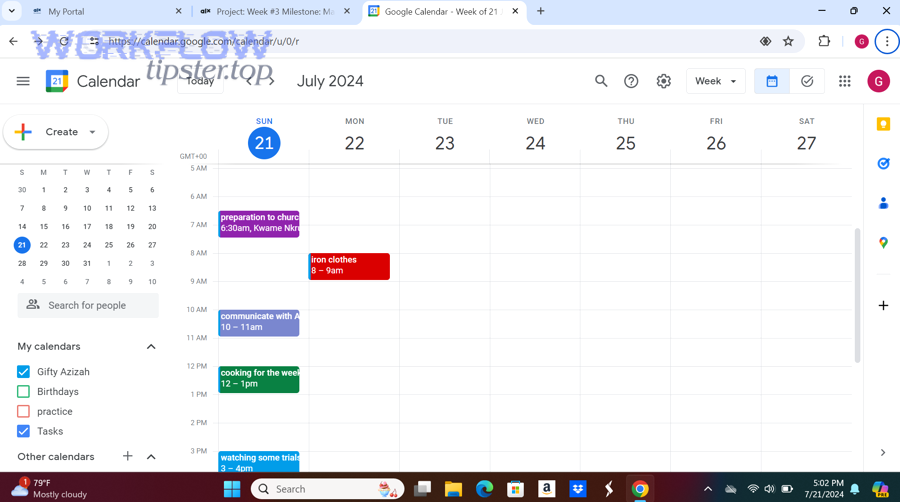
This method uses Trello’s calendar visualization (cards with due dates) and publishes an iCalendar feed URL that Google Calendar can subscribe to. It’s ideal when your goal is: “show Trello deadlines in my calendar.”
Trello support documentation explains that a board admin can enable the iCalendar feed from the Calendar Power-Up settings. (support.atlassian.com)
What you get:
- A calendar overlay in Google Calendar containing Trello due dates
- Low setup cost
- Low ongoing maintenance
What you don’t get:
- Editing events in Google Calendar to update Trello cards (commonly read-only from the calendar side) (community.atlassian.com)
- Instant refresh in many calendar clients (some update on a schedule)
What is the automation platform method?
Automation platforms connect triggers and actions, like:
- Trigger: “New Google Calendar event”
- Action: “Create Trello card in list X”
- Action: “Update card due date when event changes” (advanced)
- Trigger: “New Trello card with due date”
- Action: “Create Google Calendar event”
A clear example is Zapier, which publishes prebuilt integrations for Google Calendar and Trello, such as turning Trello tasks into Google Calendar events or creating cards from new events. (zapier.com)
This is where “Automation Integrations” shine: you’re no longer viewing data—you’re moving it with rules.
What is the manual workflow method?
Manual workflows are underrated, especially for small teams or high-stakes calendars. The idea is to standardize a few rules:
- Every meeting that requires prep has a Trello card created during scheduling.
- Every Trello deliverable that must happen on a date gets a due date immediately.
- Weekly planning includes a quick “calendar ↔ board alignment” pass.
Manual workflows are the most resilient when tools change, Power-Ups break, or permissions get messy. They’re also the easiest to explain to new teammates.
To illustrate: a team that already runs playbooks like “airtable to activecampaign” or “freshdesk to google sheets” will recognize the pattern—define a source of truth, define triggers, define exceptions—and the Google Calendar ↔ Trello bridge becomes just another repeatable system.
Which method is better: iCalendar feed vs automation tool vs manual setup?
iCalendar feed wins in simplicity, an automation tool is best for hands-off creation and updates, and manual setup is optimal for strict control and low risk—because each method excels under different constraints like reliability, directionality, and maintenance.
Next, the easiest way to choose is to compare them using the same decision criteria. The table below summarizes what you get, what you give up, and who it’s best for.
| Method | Best for | Direction | Strength | Trade-off |
|---|---|---|---|---|
| iCalendar feed (subscribe) | Seeing Trello deadlines in Google Calendar | One-way | Fast, stable, low effort | Often read-only; refresh can be slow |
| Automation tool | Creating cards/events automatically | One-way or two-way | Scales, reduces manual work | Needs rules, monitoring, and field mapping |
| Manual setup | Teams with sensitive data or complex exceptions | Any | Full control and clarity | Requires habit and discipline |
Now let’s make it practical:
When is one-way visibility the best choice?
Choose visibility when:
- You mostly need to see due dates alongside meetings.
- Your board is well-maintained (due dates are consistently used).
- You can tolerate update delays.
This is a common “personal productivity” setup: your calendar becomes the time dashboard, while Trello remains the work dashboard.
When do you need true automation?
Choose automation when:
- You repeatedly create the same type of event or task.
- You want scheduling to automatically generate work items (or vice versa).
- You want checklists, labels, or templates applied consistently.
Automation is also best when you want to reduce interruptions caused by remembering to copy info between tools. That matters because interruption recovery is expensive: According to a study by the University of California, Irvine from the Department of Informatics, in 2008, participants reported significantly higher stress and workload after only 20 minutes of interrupted work. (ics.uci.edu)
If automation removes even a fraction of those context switches, it’s not just convenient—it’s protective.
When is manual still the smartest approach?
Manual wins when:
- You must keep calendars private and minimize link-sharing.
- Your workflow involves nuance that automations can’t infer.
- You need a predictable onboarding story: “Here is the rule; follow it.”
In short, the “best method” is the one you can sustain. If your team won’t maintain due dates in Trello, iCalendar won’t help. If your team won’t maintain automation rules, workflows will drift. Pick the method that matches behavior, not fantasy.
How do you set up the most common Google Calendar to Trello automations?
The most common way to set up Google Calendar to Trello automations is to choose 3 core workflows—(1) event → card, (2) card due date → event, and (3) reminders/updates—then configure triggers, field mapping, and filters so the right items sync and the wrong ones don’t.
Then, start simple and earn complexity. Below is one short video walkthrough you can reference while you build your first workflow:
How to create Trello cards from new Google Calendar events?
The cleanest setup is: New Event (Google Calendar) → Create Card (Trello), with a filter that limits which events qualify.
Recommended mapping:
- Event title → Card name
- Event description → Card description (include agenda, links, prep notes)
- Event date/time → Card due date (or due date + a custom “Start time” field)
- Attendees → Card members (optional; depends on your platform)
- Calendar name → Board/List selection (e.g., “Client Calls” calendar → “Client Work” list)
Your most important step is the filter. Without it, every personal event becomes a card, and your board turns into noise. Common filters:
- Only events with a keyword like
[TASK] - Only events in a specific calendar
- Only events with a category/color
A well-known pattern is described in Zapier’s guide: automatically create a new Trello card for new Google Calendar events to streamline meeting and event management. (zapier.com)
How to create Google Calendar events from Trello cards with due dates?
This is the mirror workflow: New Card (or Updated Card) → Create Event, but only when the card has a due date and meets criteria (list/label).
Best practices:
- Only sync cards from “Scheduled” or “This Week” lists
- Use a label like “Calendar” to control inclusion
- Map “card due date” as event start time, and set duration (e.g., 30 or 60 minutes) if you’re time-blocking
- Include the card URL in the event description so you can jump back into the work instantly
Zapier’s integration directory includes examples such as converting Trello cards into Google Calendar events so deadlines remain visible. (zapier.com)
How to handle updates (event changes, card changes) without duplicates?
Duplicates happen when your integration can’t identify “the same object” across systems. To prevent that, you need a stable ID strategy:
- Write the Google event ID into the Trello card (description or custom field)
- Write the Trello card URL into the Google event description
- Configure the automation to “find then update” instead of “always create”
If your tool supports it, use an “upsert” pattern:
- Search for existing card/event by stored ID
- If found, update it
- If not found, create it and store the ID
This is also where governance matters. Decide which side is authoritative:
- If meetings change constantly, Google Calendar should own time.
- If deliverables change constantly, Trello should own deadlines.
Once ownership is clear, updates become predictable.
How do you troubleshoot sync issues between Google Calendar and Trello?
There are 6 main troubleshooting categories for Google Calendar to Trello sync issues—permissions, missing due dates, feed refresh delays, incorrect calendar URL, field mapping errors, and automation duplication—based on where the breakdown occurs in the connection chain.
Next, troubleshoot from the bottom up: data → link → refresh → rules.
Why are Trello due dates not showing up in Google Calendar?
Start with the obvious-but-common causes:
- The card has no due date (calendar views only display what has dates).
- You subscribed to the wrong board feed (teams often have multiple).
- The iCalendar feed wasn’t enabled by a board admin.
Trello support notes that if you don’t see the option to generate an iCalendar feed, a board admin may need to enable it in the Calendar Power-Up settings. (support.atlassian.com)
Also, be realistic about refresh. Many calendar clients do not refresh subscribed calendars instantly. Community troubleshooting guidance has noted that Google may check subscribed Trello calendars about once per day, which means changes won’t appear immediately. (community.atlassian.com)
What causes duplicate cards or duplicate events?
Duplicates usually come from:
- Using “create” actions without a “find existing” step
- Triggers firing on both “created” and “updated” events
- Two automations that overlap (e.g., one per calendar, one per label)
- Recurring events interpreted as new events
Fixes:
- Add an ID field strategy (store event ID / card URL)
- Use a single automation for a single purpose
- Add filters so only certain events/cards qualify
- For recurring events, decide whether you want one card per instance or one “series card” with a checklist
How do you fix incorrect time zones or shifted due times?
Time issues come from mismatched assumptions:
- Google Calendar events are time-zone aware.
- Trello due dates can include times, but many workflows treat them as date-only.
Solutions:
- Force a standard time zone in your automation settings.
- If you use date-only due dates, set calendar events to a default time (e.g., 9:00 AM) rather than midnight.
- Use a “time-blocking” list so only items with explicit time get created as events.
What to do when the iCal URL changes or stops working?
If your board feed URL changes, external calendars can break. A practical checklist:
- Re-copy the feed URL from the board.
- Remove the old subscribed calendar in Google Calendar.
- Subscribe again using the new URL.
- Confirm you’re signed into the correct Google account.
Atlassian community troubleshooting also suggests verifying the URL and allowing time for refresh. (community.atlassian.com)
How do you debug failed automation runs quickly?
Use a “three-log” approach:
- Trigger log: Did the event/card trigger? (Was it created/updated in the expected calendar/list?)
- Filter log: Did it pass filters? (Keyword, label, calendar, list)
- Action log: Did it create/update the target object? (Any permission errors?)
If your platform supports it, send failed runs into a dedicated Trello list (“Integration Errors”) so issues become visible work items instead of hidden problems.
How do you reduce sync fragility over time?
Treat your integration like a product:
- Document the rules (what syncs, what doesn’t)
- Assign an owner (someone responsible for changes)
- Review monthly: remove unused rules, consolidate overlapping automations
This is the difference between a “cool setup” and a reliable system.
What are advanced (and rare) considerations for Google Calendar ↔ Trello workflows?
There are 4 advanced considerations for Google Calendar ↔ Trello workflows—governance, privacy/security, team-scale patterns, and time-blocking edge cases—based on how integrations behave in real organizations rather than ideal demos.
Next, if you’re building this for a team, these “rare” details become the difference between trust and chaos.
How do permissions and admin control affect syncing?
Permissions decide what’s even possible:
- If only certain users can enable Power-Ups or access feeds, your setup becomes admin-dependent.
- If automations run under one service account, you must manage what that account can see and create.
A strong pattern is: one board owner enables feeds, one integration owner maintains automations, and everyone else uses the results.
What are privacy/security implications of sharing calendar feeds?
A calendar feed URL can behave like a “capability link”—anyone with the link might access the calendar view depending on configuration. Even when it’s restricted, teams should assume links can leak through:
- forwarded emails
- shared docs
- screenshots
- old onboarding notes
Best practices:
- Treat feed links like credentials.
- Rotate links if you suspect exposure.
- Prefer automation with authenticated connections over publicly shareable feed URLs when dealing with sensitive projects.
How do teams manage multiple boards and multiple calendars without chaos?
At scale, one board ↔ one calendar breaks down. Use a routing strategy:
- Calendar categories map to boards (e.g., “Product Launch” calendar → “Launch Board”)
- Event keywords map to lists (e.g.,
[OPS]→ Operations list) - Labels map to sync rules (only “Calendar” label creates events)
This is also where consistent naming matters. A predictable naming convention (“Client – Meeting – Topic”) makes mapping and searching dramatically easier.
What edge cases appear in time-blocking and recurring work?
Recurring events and recurring work behave differently:
- Recurring events create many instances; do you want many cards?
- Recurring work often wants one card with a checklist (“Week 1, Week 2, Week 3”).
If you time-block:
- Don’t create calendar events for every single card.
- Only create events for deep work, deadlines, or time-sensitive tasks.
- Use buffers and “prep cards” for meetings—otherwise your calendar becomes a wall of noise.
Finally, remember why you’re doing this: to reduce cognitive overhead. If the system creates more cleanup than clarity, downgrade to a simpler method and rebuild from there.