


Connecting Airtable to ActiveCampaign is the fastest no-code way to turn your Airtable records into updated ActiveCampaign contacts—so your lists, tags, segments, and automations stay in sync without manual exports.
Next, this guide helps you decide whether you truly need an integration (and what you gain if you do), so you don’t overbuild a workflow that should have stayed simple.
Then, you’ll follow a practical setup path: prepare your Airtable base, choose the right ActiveCampaign destination (lists vs tags vs automations), map fields safely, and launch a reliable contact sync.
Introduce a new idea: once your core integration works, you’ll learn how to prevent duplicates, monitor failures, and scale into advanced governance and compliance patterns without breaking your marketing engine.
Do you need a no-code integration to connect Airtable to ActiveCampaign?
Yes—an Airtable to ActiveCampaign integration is worth it for marketers because it (1) reduces manual data entry, (2) keeps segmentation accurate with consistent updates, and (3) triggers automations faster from real-time database changes instead of periodic imports.
Next, the real decision is not “can you connect them,” but “will the connection improve your daily marketing outcomes without introducing data chaos.”

A no-code integration makes the most sense when Airtable is your operational source of truth for leads—forms, event lists, partner referrals, or product-qualified leads—and ActiveCampaign is where you run email sequences, tagging, lead nurturing, and deal routing. In that situation, “manual import” becomes a recurring bottleneck: a delay between lead capture and follow-up, inconsistent formatting, and duplicate contacts.
Here are clear “yes” signals:
- You add or update leads daily (or multiple times per week).
- You rely on tags/segments to drive automations (welcome series, webinar reminders, sales handoff).
- Your team needs traceability (who changed what, when, and why).
- You want to build repeatable Automation Integrations across multiple acquisition channels without re-inventing every pipeline.
Here are “not yet” signals:
- You only import occasionally (e.g., monthly).
- Your segmentation is minimal (one list, one sequence).
- Your Airtable fields are not standardized (names, emails, phone formats vary wildly).
A small warning: automation can amplify mistakes. If your base contains inconsistent emails, missing required fields, or “test” leads, the integration will move those mistakes into ActiveCampaign at scale. According to a study by the University of Hawaiʻi, Shidler College of Business, in 2015 (published in the EuSpRIG 2015 proceedings), the average spreadsheet cell error rate across multiple development studies was 3.9%, highlighting how small per-cell error rates can still create large downstream risk when scaled.
What does “Airtable to ActiveCampaign integration” mean for contact syncing?
An Airtable to ActiveCampaign integration is a no-code workflow that turns Airtable records into ActiveCampaign contact updates by using triggers (when a record changes) and actions (create/update a contact), with field mapping that keeps your contact data consistent over time.
To better understand why this matters, treat “sync” as a controlled data pipeline: it is not just “send data,” it is “send the right data, to the right object, with predictable update rules.”

What data usually moves from Airtable into ActiveCampaign contacts?
Most marketer-friendly setups sync a consistent “contact core” plus segmentation fields, based on the criterion “data that changes how you message or route the lead.”
Common fields to sync (core identity):
- Email (primary key in most systems)
- First name / last name (or full name split)
- Phone (optional, but normalize formatting)
- Company / website (B2B often needs this)
Common fields to sync (segmentation + automation control):
- Lead source (UTM source, channel, referral partner)
- Lifecycle stage (New, MQL, SQL, Customer)
- Consent status (Subscribed, Unsubscribed, Double opt-in pending)
- Product interest / category (what they asked about)
- Owner / territory (if sales routing matters)
Operational fields that help you debug:
- Airtable Record ID (stored as a custom field in ActiveCampaign)
- Sync status (Synced / Error / Needs review)
- Last sync timestamp
If you align these fields early, your integration becomes stable because every downstream automation can rely on predictable data.
What’s the difference between adding a contact and updating an existing contact?
Adding a contact creates a brand-new record in ActiveCampaign; updating a contact modifies an existing one—usually matched by email—so your segmentation and automations reflect the latest Airtable truth.
However, the practical differences that impact marketers are bigger than “create vs update”:
- Duplicates risk: Create-only workflows can generate duplicates if you don’t match on email consistently.
- Overwrite risk: Update workflows can overwrite better data with worse data (e.g., blank Airtable field overwriting a filled ActiveCampaign field).
- Automation triggers: Some automations trigger on “tag added” or “list subscribed,” not on field updates—so update logic must be paired with tag/list events if you want consistent launches.
The safest pattern is usually: Upsert contact (create-or-update) + apply tags/lists + optionally add to automation, so you get both data accuracy and action consistency.
How do you set up Airtable → ActiveCampaign contact sync step-by-step with no-code tools?
Use a no-code “Airtable → ActiveCampaign” workflow in 6 steps—prepare your Airtable fields, choose your ActiveCampaign destination, connect the integration tool, map fields, test with controlled records, then enable the automation—so contacts sync reliably without duplicates.
Then, once the mechanical setup is correct, you can improve quality with view-based syncing, readiness flags, and consistent tagging.

A practical universal sequence (works whether you use Zapier, Make, or a dedicated connector):
- Define the goal: “When a lead is Ready to Sync in Airtable, create/update an ActiveCampaign contact.”
- Standardize key fields: Email required; names consistent; consent status explicit.
- Choose the trigger: New record in view, updated record in view, or status change.
- Choose the action: Create/update contact; then add tag; then subscribe to list; then add to automation if needed.
- Map fields carefully: Avoid overwriting with blanks; store Airtable Record ID.
- Test with 5–10 records: Include edge cases (missing last name, international phone, consent=false).
- Turn on + monitor: Watch first 48 hours; refine filters; add alerting.
If you’re using an integration directory flow, Zapier explicitly positions ActiveCampaign ↔ Airtable as a no-code setup path with trigger/action mapping steps. If you prefer scenario building, Make positions the same pairing as a visual workflow builder with many modules (including tags, automations, and bulk record actions).
How should you prepare your Airtable base before connecting it to ActiveCampaign?
You should prepare Airtable by creating a “clean sync surface” so your automation only reads standardized, marketing-ready data.
A preparation checklist that prevents 80% of failures:
- Create a dedicated table like Leads (avoid syncing from chaotic mixed tables).
- Add a Ready to Sync checkbox or a Status single-select:
- Draft → Ready → Synced → Error
- Create a view called “Ready for ActiveCampaign” filtered by:
- Ready = true
- Email is not empty
- Consent status is valid
- Add computed/normalized fields:
- Lowercased email
- Clean phone format (if needed)
- Split names (if your AC personalization needs it)
- Add audit fields:
- Last modified time
- Last synced time
- Error message (optional but helpful)
This view-first approach makes your workflow simpler because the integration tool does not need complicated conditional logic to decide “which records count.”
Which ActiveCampaign objects should you target: lists, tags, or automations?
Tags win for flexible segmentation, lists are best for permission-based subscription grouping, and automations are optimal for the actual customer journey—so the best practice is to combine them in a controlled order.
A marketer-friendly decision framework:
- Use lists for subscription structure
- Examples: Newsletter, Customers, Webinar Updates
- Good for deliverability and permission clarity
- Use tags for intent and context
- Examples: Lead Source:Partner, Interest:Pricing, Stage:MQL
- Best for branching automations and reporting
- Use automations for sequence execution
- Examples: Welcome sequence, Nurture series, Demo follow-up
- Triggered by tag add, list subscribe, or custom field changes (depending on your design)
A common reliable flow is:
- Upsert contact
- Subscribe to list
- Apply tags
- Add to automation (if automation isn’t triggered by tags automatically)
This structure keeps the “what is the contact” step separate from the “what should we do with the contact” step.
Which no-code option should marketers use to integrate Airtable and ActiveCampaign?
Zapier wins in speed and simplicity, Make is best for complex routing and bulk operations, and dedicated sync tools are optimal for ongoing data synchronization—so the right choice depends on whether you prioritize ease, flexibility, or long-term syncing depth.
However, the best tool is the one that matches your workflow shape: single-path “if this then that” versus multi-branch operations with enrichment and governance.

This table contains a tool-selection snapshot to help you choose the no-code platform that best matches your Airtable → ActiveCampaign contact sync needs.
| Criterion | Zapier | Make | Dedicated sync tool |
|---|---|---|---|
| Setup speed | Fast | Medium | Medium |
| Logic complexity | Basic–Medium | High | Medium |
| Bulk/batching | Limited–Medium | Strong | Strong |
| Ongoing “sync” feel | Workflow-based | Workflow-based | Sync-first |
| Best for | Quick campaigns | Advanced ops | Data consistency |
Zapier vs Make: which is better for Airtable → ActiveCampaign workflows?
Zapier is better for straightforward “lead in → contact updated → tag applied” workflows, while Make is better when you need multi-step branching, bulk updates, and richer data manipulation.
Here’s what that means in marketer terms:
- Choose Zapier when
- You want to launch fast
- Your workflow has 1–3 actions
- You’re okay with a simpler error-handling model
- Your team values low maintenance
- Choose Make when
- You need conditional routes (e.g., B2B vs B2C path)
- You want to enrich data before sending to ActiveCampaign
- You plan to use batching or advanced modules
- You want more visibility into scenario structure
If your marketing team already runs other workflows like google calendar to trello task automation for campaign operations, you’ll often prefer Make’s visual branching—because it matches the way ops teams think about “flows” rather than single zaps.
When is a dedicated “sync tool” better than automation platforms?
A dedicated sync tool is better when you want “data synchronization as a product,” not “workflow automation as a sequence,” especially for recurring updates, scheduled syncing, and deeper mapping across many fields.
Look for a sync-first tool when:
- Airtable is your operational CRM-like database
- Contacts update frequently (status changes, enrichment, scoring)
- You want robust mapping and consistent upsert behavior
- You want less “glue-work” and fewer moving parts
Automation platforms are excellent for event-driven marketing actions; sync tools are excellent for ongoing data consistency.
What are the most common Airtable → ActiveCampaign automation workflows for marketers?
There are 4 main types of Airtable → ActiveCampaign marketing workflows—(1) lead capture to nurture, (2) qualification to segmentation, (3) sales handoff to pipeline, and (4) re-engagement based on status changes—grouped by the criterion “what marketing decision the data is meant to trigger.”
Next, once you choose the workflow type, you can implement it as a repeatable pattern: view filter → upsert contact → apply tags/lists → trigger automation.

How do you auto-add a new Airtable lead to ActiveCampaign and apply the right tags?
You auto-add a new lead by triggering on a “Ready for ActiveCampaign” view (or status change), upserting the contact, and applying tags that encode source and intent so automations can branch accurately.
A proven tagging recipe:
- Source tags (where did they come from?)
- Source:Webform
- Source:Partner
- Source:Event
- Intent tags (what do they want?)
- Interest:Demo
- Interest:Pricing
- Interest:Newsletter
- Stage tags (where are they in lifecycle?)
- Stage:New
- Stage:MQL
- Stage:SQL
A practical example flow:
- Airtable record becomes Ready
- Create/Update contact in ActiveCampaign
- Add Source + Interest tags
- Subscribe to Newsletter list (if consent=true)
- Trigger welcome automation
If you also run commerce workflows like airtable to woocommerce, keep your tags consistent across systems (e.g., Interest:ProductCategory) so your reporting stays unified.
How do you start the correct ActiveCampaign automation when a field changes in Airtable?
You start the correct automation by using a status-driven trigger (e.g., Lifecycle Stage changes) and then adding the contact to the matching automation—or adding a tag that the automation is designed to listen for.
Two reliable patterns:
Pattern A: Tag triggers automation (recommended)
- Airtable Stage changes to “MQL”
- Integration adds tag “Stage:MQL”
- ActiveCampaign automation starts when “Stage:MQL tag is added”
Pattern B: Directly add to automation
- Airtable Stage changes
- Integration uses an action “Add contact to automation”
Pattern A is often more maintainable because tags create an audit trail: you can see why someone entered a journey just by reading their tag history.
According to a study by Stanford University (with collaborators from UC San Diego) published in 2017 (CHI), personalized email conversations in their experiment increased response rate from 15% to 32%, showing how personalization and structured messaging can materially impact engagement when scaled.
How can you prevent duplicates and bad data when syncing Airtable to ActiveCampaign?
You prevent duplicates and bad data by (1) using email as the primary match key, (2) controlling sync eligibility with Airtable views/status fields, and (3) protecting against overwrites by blocking blank-field updates and logging every sync attempt.
More importantly, preventing “bad data” is not only about cleanliness—it’s about preserving the logic that drives segmentation and automation triggers.

What deduplication rule should you use: email, phone, or a custom ID?
Email wins for most marketing stacks, phone is useful only when email quality is low, and a custom ID is optimal when you manage complex multi-source identity resolution.
A practical decision rule:
- Use email when
- You’re doing email marketing (obvious)
- Consent and deliverability depend on the email address
- Most leads come from forms that validate email
- Use phone when
- Your business is SMS-first or call-first
- You reliably normalize phone numbers (country codes included)
- Use a custom ID when
- You have multiple systems creating people records
- You want Airtable Record ID stored in ActiveCampaign
- You need reversible traceability (contact ↔ record)
A strong marketer-friendly approach is: Email as matching key + store Airtable Record ID as a custom field so you can always trace back and debug.
How do you build a “Ready to Sync” and “Synced” status system in Airtable?
You build it by creating explicit lifecycle statuses and using filtered views so only approved records flow into ActiveCampaign.
A simple status model that scales:
- Draft (data incomplete; not eligible)
- Ready (validated and approved to sync)
- Synced (successfully created/updated in ActiveCampaign)
- Error (needs review; includes error reason)
Then add:
- Last Synced At timestamp
- Sync Attempts counter (optional)
- Last Error text field (optional)
This creates a clean operational loop: your team can fix errors in Airtable, move the record back to Ready, and let automation re-run—without touching ActiveCampaign manually.
How do you test, monitor, and fix failed Airtable → ActiveCampaign sync runs?
You test and maintain your Airtable → ActiveCampaign sync by (1) running controlled test records, (2) monitoring run logs daily at launch, and (3) implementing retry rules and error-routing fields so failures become actionable tasks instead of silent data loss.
In addition, the goal is to transform “automation failures” into a predictable workflow: detect → classify → fix → re-sync.
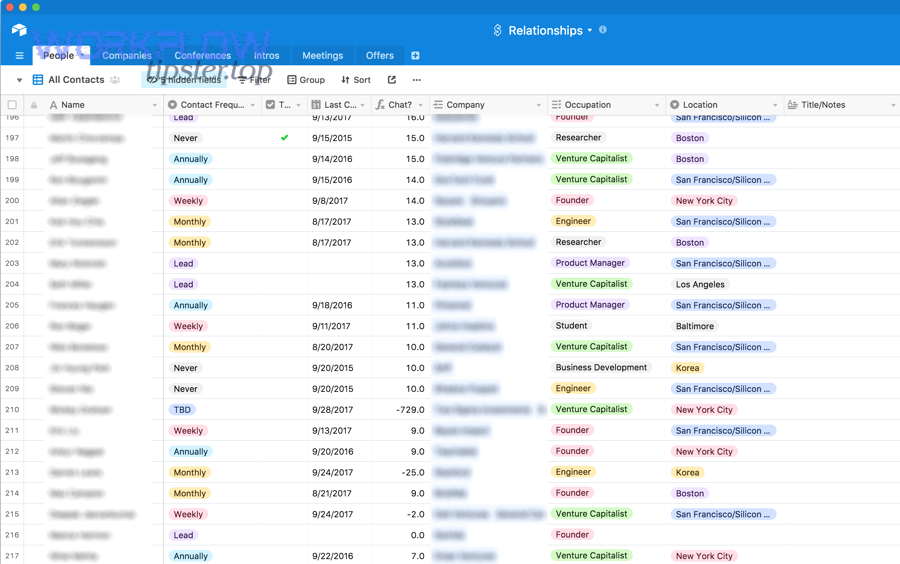
A practical testing checklist:
- Test 2 records per lead source (form, partner, manual)
- Test 1 record with missing optional fields (phone blank)
- Test 1 record with long values (company name, job title)
- Test 1 record with consent=false
- Confirm:
- Contact created/updated correctly
- Tags applied correctly
- List subscription correct
- Automation triggered exactly once
- Airtable status flips to Synced (or logs error)
If you want a visual walkthrough, this video demonstrates one approach to connecting Airtable to ActiveCampaign with a no-code integration flow (use it as a reference, not as a strict blueprint for your business rules).
What are the most common integration errors and what do they mean?
There are 6 common categories of Airtable → ActiveCampaign sync errors: authentication, required-field failures, mapping mismatches, invalid data formats, duplicates/merge conflicts, and rate/timeout issues—grouped by the criterion “where the failure happens in the pipeline.”
- Authentication errors
- Meaning: API key/token is wrong, expired, or permissions are insufficient
- Fix: reconnect account; verify access scope
- Required-field errors
- Meaning: email missing, or a required custom field missing
- Fix: block those records with view filters; add validation fields
- Mapping mismatch
- Meaning: trying to write text into a number field, or sending an option not in a dropdown
- Fix: normalize values in Airtable; constrain with single-select fields
- Invalid email/format
- Meaning: email string is not valid, phone format breaks validation
- Fix: add validation formula; flag records to “Error” view
- Duplicate/merge conflicts
- Meaning: tool cannot decide whether to create or update
- Fix: enforce email normalization; use “find contact by email then update” pattern
- Rate limits/timeouts
- Meaning: too many tasks too quickly; API throttling
- Fix: schedule/batch; reduce triggers; add delay/queue steps
Should you use real-time triggers or scheduled sync for reliability?
Real-time triggers win for speed-to-follow-up, while scheduled sync is best for stability under volume—so the best approach is real-time for high-intent leads and scheduled batching for low-intent or high-frequency updates.
Use real-time triggers when:
- Lead follow-up speed drives conversion (demo requests, pricing requests)
- Your volume is manageable
- You can control eligibility via views/status
Use scheduled sync when:
- Records update frequently (scoring, enrichment, internal notes)
- You push large batches (events, imports)
- You want predictable load and fewer API spikes
A hybrid pattern is often ideal:
- Real-time for “Ready:Demo”
- Scheduled nightly for “Stage updates” and enrichment fields
How can you optimize Airtable ↔ ActiveCampaign syncing for compliance, governance, and advanced use cases?
You optimize Airtable ↔ ActiveCampaign syncing by treating your integration as a governed data system—explicit consent handling, clear source-of-truth rules, careful treatment of relational Airtable fields, and deliberate decisions about whether you sync only contacts or also CRM objects.
Besides improving reliability, optimization is what prevents “integration drift,” where workflows slowly break as your team adds new fields, sources, and campaigns.

How do you handle consent (GDPR/CCPA) fields when syncing contacts?
You handle consent by syncing explicit consent status fields and using them to control list subscription, automation entry, and messaging permissions.
A practical consent design:
- Airtable fields:
- Consent: Email Marketing (true/false)
- Consent Source (form/event/partner)
- Consent Timestamp
- Region (EU/US/Other) if relevant
- ActiveCampaign behavior:
- If consent=true → subscribe to list + allow automation entry
- If consent=false → do not subscribe; optionally tag “Consent:No” for internal tracking
- For double opt-in flows → add “DOI:Pending” tag and start the DOI automation
This keeps compliance logic visible in both systems, not hidden inside one automation tool.
What should be the source of truth: Airtable or ActiveCampaign?
Airtable should be the source of truth for operational lead data and workflow status, while ActiveCampaign should be the source of truth for engagement history and campaign behavior—so each system owns the data it is structurally best at maintaining.
A simple governance rule marketers can live with:
- Airtable owns:
- Lead metadata (source, product interest, qualification notes)
- Routing decisions (owner, territory, lifecycle stage)
- Approval states (Ready/Synced/Error)
- ActiveCampaign owns:
- Subscription state (and email deliverability constraints)
- Campaign engagement (opens, clicks, automation steps)
- Messaging rules (when emails send, what sequence runs)
If you try to make both systems “own everything,” you create conflicts, inconsistent updates, and hard-to-debug segmentation.
Can you sync relational Airtable fields (linked records/rollups) into ActiveCampaign?
Yes, you can sync relational Airtable fields into ActiveCampaign only after you flatten them into sync-friendly text/number fields, because most no-code tools cannot reliably map linked-record structures directly into standard CRM contact fields.
A flattening playbook:
- Convert linked records to a single text summary:
- Example: Products Interested → “Product A; Product B”
- Convert rollups to numeric values:
- Example: Total Purchases → 3
- Convert multi-select to tag lists:
- Example: Interests (multi-select) → apply tags per interest
Keep the relational structure in Airtable for internal reporting, but expose a “marketing sync layer” that is intentionally simplified.
Should you sync only contacts, or also deals/pipelines in ActiveCampaign CRM?
Contacts-only syncing is best for most email-first marketing teams, while syncing deals/pipelines is optimal when you run sales processes in ActiveCampaign CRM and need Airtable-driven stages, assignments, and notes to shape pipeline execution.
Choose contacts-only when:
- You primarily run email sequences and segmentation
- Sales uses a different CRM (or doesn’t need deal objects)
- You want minimal complexity and maximum stability
Choose contacts + deals when:
- ActiveCampaign is your CRM and pipeline is central
- Deal stages must reflect Airtable qualification logic
- You need automated deal creation from Airtable events (e.g., “Qualified”)
In practice, most teams start with contacts-only, stabilize tagging and automations, then expand into deals once governance is clear—because deal syncing multiplies the number of failure modes (required fields, stage mapping, ownership rules).
According to a study by Stanford University published in 2017 (CHI), personalized email interactions in one experiment increased response rate from 15% to 32%, reinforcing that better-structured personalization can improve engagement—so investing in clean segmentation and correct syncing can have real downstream performance impact.