


Yes—you can connect Freshdesk to Zoho CRM and reliably sync tickets, contacts, and accounts by choosing the right integration method, mapping fields with clear ownership rules, and validating the sync with a small, repeatable test plan before going live.
Then, the next decision is which connection path fits your team: a native connector-style setup for straightforward support-to-CRM visibility, or a workflow-based approach when you need multi-step automation, routing, and conditional logic across tools.
After you connect the systems, the biggest success factor becomes data design: you must define which records are authoritative, how contacts and accounts are matched, which ticket fields are worth syncing, and how you prevent duplicates from quietly spreading across both platforms.
Introduce a new idea: once the integration works, long-term reliability comes from monitoring sync health, fixing permission and required-field issues quickly, and adopting conflict rules that prevent “last update wins” from corrupting customer truth over time.
What does it mean to “connect Freshdesk to Zoho CRM” for syncing tickets, contacts, and accounts?
Connecting Freshdesk to Zoho CRM means linking the helpdesk and the CRM so they can share customer and case information—typically syncing Freshdesk tickets with Zoho CRM contacts and accounts—using a connector app or an automation workflow that moves data in defined directions.
To better understand the integration, it helps to separate “connection” from “sync,” because each term controls different outcomes for your support process and CRM data quality.
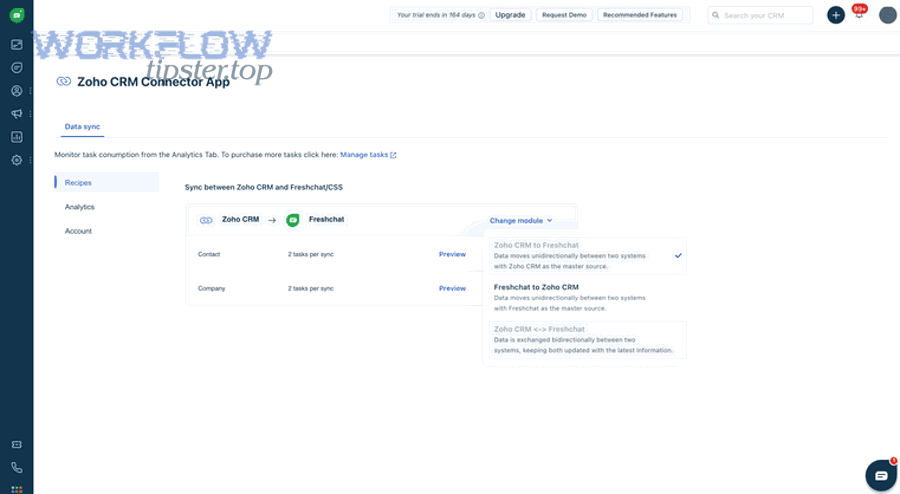
Connection is the authentication and authorization layer. An admin authorizes Freshdesk to access Zoho CRM (or an intermediary tool) so the systems can read and write data under controlled permissions. Without a stable connection, sync actions fail or silently stop.
Sync is the rule set that decides what data moves, when it moves, and how it is transformed. Sync rules typically cover:
- Objects/modules: Freshdesk Tickets ↔ Zoho CRM Contacts/Accounts (and sometimes Leads or Deals, depending on your setup).
- Direction: one-way (Freshdesk → Zoho CRM or Zoho CRM → Freshdesk) or two-way.
- Triggers: on ticket creation, ticket updates, contact creation, status changes, or time-based schedules.
- Mapping: field-to-field alignment (e.g., ticket subject → CRM note, requester email → contact email).
Integration is the larger operational result: agents can see customer context from Zoho CRM inside Freshdesk (or vice versa), and support updates can be reflected back in the CRM so sales and success teams have the same story. When done well, integration improves collaboration; when done poorly, it creates duplicate records, mismatched accounts, and confusion about who owns the “true” customer profile.
In practice, the cleanest mental model is this: Zoho CRM stores who the customer is (contacts/accounts), while Freshdesk stores what happened (tickets, conversations, resolution timeline). That model will guide your mapping and your sync direction later in the article.
Do you need admin access and API credentials to integrate Freshdesk with Zoho CRM?
Yes—you typically need admin-level access in Freshdesk and sufficient administrative permissions in Zoho CRM because (1) you must install/authorize the connector, (2) you must define and save field mappings and sync rules, and (3) you must manage permissions and required fields to prevent sync failures.
Next, once you accept that admin access is required, the fastest way to avoid setup loops is to prepare prerequisites before you click “connect.”

What prerequisites must be ready before setup (users, fields, modules, and data hygiene)?
There are 6 prerequisites you should prepare before setup: platform roles, CRM modules/layouts, required fields, identifiers, duplicate cleanup, and a test environment (or a safe pilot subset) based on how strict your CRM governance is.
1) Confirm roles and access
- In Freshdesk, ensure you can access admin settings, marketplace/apps, and ticket field configuration.
- In Zoho CRM, ensure you can manage modules (Contacts/Accounts), fields, layouts, and API access under your role.
2) Verify CRM modules and layouts
- Decide which Zoho CRM modules your integration will touch: usually Contacts and Accounts; sometimes Leads if your CRM uses leads as the entry point.
- Confirm the specific layout(s) that will receive synced updates, because required fields can vary by layout.
3) Audit required fields and validation rules
- List required fields on Contacts and Accounts (and any validation rules) that might block record creation or updates.
- Decide how the integration will populate those fields or whether it should only update existing records.
4) Choose stable identifiers for matching
- For contacts, email is the most common identifier; phone is risky because formatting varies.
- For accounts, domain name can help, but it can also misfire for shared domains (e.g., Gmail) or multi-brand groups.
5) Clean duplicates before you sync
- Merge obvious CRM duplicates and align account ownership rules.
- In Freshdesk, standardize requester emails where possible and confirm how “contacts” are represented.
6) Prepare a pilot scope
- Start with one group/brand/team or a subset of ticket categories.
- Use a limited window (e.g., “new tickets only”) so you can validate results before syncing historical records.
Which credentials and security settings should you prepare to avoid connection failures?
To avoid connection failures, prepare three things: an authorized Zoho CRM admin account for OAuth approval, clear permission scopes for the connector/tool, and a least-privilege plan that still permits reading/writing the fields you map.
OAuth authorization readiness matters because many integrations rely on a secure consent flow. If your Zoho organization enforces MFA, IP restrictions, or strict role-based permissions, you must confirm that the authenticating user can approve the connection and that the resulting token has access to the target modules.
Least privilege helps protect customer data. However, if you restrict permissions too much, sync will fail on updates that touch locked fields. The practical approach is to:
- Grant the integration user access to only the needed modules (Contacts/Accounts, plus any notes/activities if required).
- Grant field-level access to the mapped fields only.
- Exclude sensitive fields (government IDs, financials, private notes) from mapping unless your use case genuinely requires them.
Operational safeguards reduce risk during early rollout. A good safeguard is a kill-switch plan: know exactly where to disable the integration, and document what happens to in-flight updates if you pause it during troubleshooting.
Which method should you use to connect Freshdesk to Zoho CRM: native connector or automation tools?
The native connector usually wins for stability and simpler admin maintenance, while automation tools are best for custom workflows and multi-step logic, and a data-sync platform is optimal when you need advanced mapping, deduplication control, and scheduled synchronization across larger datasets.
However, choosing correctly requires comparing the methods using the same criteria—data depth, control, reliability, and operational overhead—so you don’t accidentally build an integration your team cannot maintain.
This table contains a practical comparison of integration methods, showing what each approach is best at and where it tends to break first.
| Method | Best for | Strength | Common risk |
|---|---|---|---|
| Native connector (app/marketplace) | Standard ticket-to-contact/account visibility | Simple setup, fewer moving parts | Limited custom logic; mapping constraints |
| Automation tool (workflow-based) | Trigger-action workflows and conditional routing | Flexible logic; multi-step actions | Duplicate risk if matching logic is weak |
| Data-sync platform | Two-way sync, scheduled sync, advanced mapping | Strong mapping & monitoring | Higher setup effort; ongoing governance needed |
When is the native Freshdesk–Zoho CRM connector the best choice?
Yes—the native connector is the best choice when you want (1) predictable syncing of core objects like tickets and contacts, (2) fewer external dependencies and lower maintenance, and (3) a quicker path to shared visibility between support and CRM teams.
Then, once you choose a native connector, you typically gain a simpler admin experience: installation, authorization, a manageable mapping screen, and fewer workflow chains to debug later.
The native connector is especially suitable if:
- Your team mainly needs context sharing (agents see CRM context; sales sees ticket outcomes).
- You can use standard fields and do not need complex transformations.
- You want easier onboarding for new admins and clear ownership of settings.
Most importantly, native connectors reduce “integration sprawl.” Instead of maintaining many tiny automations, you maintain a single set of sync rules aligned to your operating model: Zoho CRM for customer truth, Freshdesk for ticket truth.
When is an automation tool better than the native connector?
Yes—an automation tool is better when you need (1) conditional workflows across many steps, (2) custom branching logic based on ticket category, SLA, or account tier, and (3) integrations that extend beyond Zoho CRM to other apps in your stack.
Next, automation becomes powerful when your process is not just “sync data,” but “trigger actions,” such as notifying a team, creating tasks, and updating CRM fields only when specific conditions are met.
For example, you might use Automation Integrations to build a flow like this: when a ticket from a strategic account escalates to high priority, the workflow updates the Zoho CRM account health field, posts a notification, and creates a follow-up task for the account owner. You can also coordinate cross-tool handoffs in scenarios like clickup to gitlab (task-to-code workflow alignment) or google docs to asana (document-driven task creation) when your integration strategy spans more than Freshdesk and Zoho CRM.
Automation tools are also useful if your organization requires strict control over when CRM records are created. Rather than auto-creating new CRM contacts for every unknown requester, you can gate creation based on domain allowlists, account tier, or agent approval.
How do you connect Freshdesk to Zoho CRM step-by-step as a helpdesk admin?
The most reliable method is a step-by-step connector setup with 6 stages—install, authorize, select objects, map fields, define sync rules, and validate test cases—so you can connect Freshdesk to Zoho CRM and confirm tickets, contacts, and accounts sync as intended.
To begin, treat this like a controlled rollout rather than a single click, because most integration failures come from missing required fields, mismatched identifiers, and unclear ownership rules.
How do you install and authorize the connector without permission errors?
To install and authorize the connector without permission errors, use an admin account on both systems, approve access to the correct Zoho CRM organization, and confirm module permissions before you save any mapping or sync configuration.
Specifically, the clean authorization flow depends on choosing the right “integration user”—a dedicated admin/service account that remains active and is not tied to a single employee’s login lifecycle.
Stage 1: Install
- Open Freshdesk admin settings and locate the apps/marketplace area.
- Find the Zoho CRM connector option (or your chosen integration method) and initiate installation.
- Review permissions requested by the app/tool before proceeding.
Stage 2: Authorize
- Sign into Zoho CRM using the intended integration user.
- Approve access for the connector to the specific modules required.
- If Zoho prompts for organization selection, verify you choose the correct org and environment.
Stage 3: Confirm baseline access
- Check that the integration user can read and edit Contacts and Accounts.
- Confirm field-level permissions for any field you plan to map.
Common permission error fixes
- If authorization succeeds but syncing fails, review Zoho CRM role restrictions and required field rules.
- If the integration user is inactive or its password changed, re-authorize and rotate credentials properly.
How do you configure what gets synced (tickets, contacts, accounts) and when?
There are 4 main configuration categories for what gets synced and when: object scope (tickets/contacts/accounts), event triggers (create/update), direction (one-way/two-way), and filters (which tickets or accounts qualify) based on the operational outcomes you need.
More specifically, you should configure scope first, because a broad scope creates noisy data and increases duplicate risk.
1) Define object scope
- Tickets: Decide whether you sync ticket metadata only or include conversation summaries/notes.
- Contacts: Decide whether you create new contacts automatically or only update existing ones.
- Accounts: Decide whether tickets should link to accounts automatically by domain or by explicit association rules.
2) Choose triggers and timing
- Trigger on ticket creation if your CRM needs immediate visibility.
- Trigger on ticket status change if the CRM only needs lifecycle outcomes (open, pending, resolved, closed).
- Use scheduled sync if you want stable batching and reduced API pressure.
3) Apply filters for pilot safety
- Start with a specific Freshdesk group or category (e.g., “Billing Support”).
- Restrict to specific account tiers or domains for early validation.
- Exclude spam-like or unknown consumer domains if you are in a B2B environment.
4) Decide update rules
- Define whether updates overwrite CRM fields or only fill blanks.
- Define whether agent changes should ever update CRM ownership fields (often: no).
What data should be synced between Freshdesk and Zoho CRM, and how should it be mapped?
There are 3 core data groups to sync—ticket context, customer identity, and account linkage—mapped through stable identifiers (email, account ID/domain) and carefully chosen fields so Freshdesk stays the system of record for case history while Zoho CRM remains the system of record for customer profiles.
In addition, the right mapping strategy reduces noise: you sync what helps cross-team decisions, not everything that happens inside a ticket thread.

Which ticket fields should map to Zoho CRM to keep context without noise?
There are 8 ticket field groups you should map to Zoho CRM—subject, ticket ID/link, status, priority, category/tags, assigned group/agent, timestamps, and resolution summary—because they convey case state and customer impact without overloading CRM timelines with every message event.
Then, once you choose these fields, you can build a consistent “ticket snapshot” that sales and success teams can understand quickly.
Recommended ticket-to-CRM mapping (high-signal fields)
- Ticket Subject: concise problem label.
- Ticket ID + URL: direct navigation back to Freshdesk for full thread context.
- Status: open/pending/resolved/closed to show lifecycle.
- Priority/Severity: operational urgency.
- Category/Tags: issue classification (billing, bug, onboarding, outage).
- Assigned Group/Agent: ownership in support.
- Created/Updated/Resolved timestamps: cycle time indicators.
- Resolution Summary: a short outcome statement, ideal for CRM notes.
Fields to avoid syncing by default
- Full conversation transcripts (unless compliance permits and you have a clear need).
- Internal agent notes that contain sensitive operational details.
- Attachments with PII unless governance explicitly allows it.
The goal is to make the CRM timeline useful: it should show “what happened and where to look,” while Freshdesk remains the detailed record of interactions and troubleshooting steps.
How do you link a Freshdesk ticket to the right Zoho contact and account?
To link a Freshdesk ticket to the right Zoho contact and account, match the requester to a Zoho contact using a stable identifier (typically email), then associate that contact to the correct account using existing CRM relationships or a controlled rule (such as verified domain-to-account mapping).
Specifically, the best linking strategy is a two-step association: contact match first, account association second, because accounts are easier to mis-assign when domains are shared or when subsidiaries use multiple domains.
Step 1: Contact matching
- Primary key: requester email ↔ Zoho contact email.
- Fallback key: phone number, only if standardized and unique.
- Manual review path: if no match exists, decide whether to create a new contact automatically or flag for review.
Step 2: Account association
- If Zoho CRM already links the contact to an account, use that relationship as the source of truth.
- If you must use domains, restrict domain-based mapping to approved B2B domains and maintain an allowlist.
- For multi-entity customers, use a unique account identifier rather than domain when possible.
Why this matters: the ticket-to-account link drives reporting, escalation routing, and lifecycle visibility. A single mis-linked strategic ticket can mislead the CRM owner about customer health and distort account analytics.
How do you prevent duplicates when syncing contacts and accounts?
Yes—you can prevent duplicates when syncing contacts and accounts by using (1) strict matching keys like email for contacts and a verified identifier for accounts, (2) rules that update existing records instead of creating new ones, and (3) a pilot-first validation process that catches mismatches before full rollout.
Moreover, duplicate prevention works best when you design “creation gates” rather than relying on cleanup after the fact.
Duplicate prevention tactics that actually hold up
- Contact creation gate: only create contacts when the requester domain is approved or when an agent confirms creation.
- Update-first behavior: attempt to find-and-update before create; never “create always.”
- Normalization: standardize email case and trim whitespace; standardize phone formatting if used.
- Account matching gate: avoid auto-creating accounts from ticket data; prefer linking to existing accounts.
Operational guardrails
- Define who owns merges: CRM ops, revenue ops, or a designated admin group.
- Set weekly review for new records created via the integration during early rollout.
- Track “unmatched ticket” counts to spot identity linking issues.
If duplicates already exist, merge them before turning on any rule that creates records automatically. Otherwise, the integration will amplify the problem and make it harder to determine which record is authoritative.
How do you test the integration to confirm tickets, contacts, and accounts are syncing correctly?
Yes—you should test the integration before going live because (1) it confirms permissions and required fields won’t block sync, (2) it validates contact/account matching rules to prevent duplicates, and (3) it ensures your mappings produce readable CRM context that teams can act on.
Then, once you adopt a consistent test plan, you can re-run it anytime you change mappings, CRM layouts, or automation logic.
What are the must-run test cases for a “go-live ready” sync?
There are 7 must-run test cases for a go-live ready sync: new ticket creation, ticket update, ticket resolution, new requester identity, contact match, account association, and negative-case failure validation based on the real outcomes your teams depend on.
To illustrate, each test case should have an expected result in both systems so you can quickly identify where the chain breaks.
- Test 1: New ticket → CRM visibility: Create a Freshdesk ticket from an existing CRM contact; confirm the CRM record shows a ticket snapshot and link.
- Test 2: Status update: Change ticket status (open → pending → resolved); confirm CRM updates the mapped status fields/notes.
- Test 3: Priority escalation: Raise priority; confirm CRM captures severity and timestamp changes.
- Test 4: Known contact match: Submit ticket from a known email; confirm it links to the correct Zoho contact.
- Test 5: Account association: Confirm the ticket links to the correct account when the contact has an existing account relationship.
- Test 6: New requester behavior: Submit ticket from an unknown requester; confirm your rule (create contact, or flag/hold) behaves correctly.
- Test 7: Negative-case validation: Temporarily remove permission to a mapped field or trigger a required-field block; confirm you can detect the failure and recover.
Practical tip: keep a “pilot test sheet” where you record ticket IDs, contact IDs, expected mapping results, and screenshots. That sheet becomes your regression test when you update the integration later.
What common setup mistakes cause missing or partial sync—and how do you fix them quickly?
There are 6 common mistakes that cause missing or partial sync: insufficient module permissions, required fields not mapped, wrong matching keys, conflicting layouts/validation rules, overwriting rules without ownership, and hidden rate-limit/throttling issues.
In addition, the quickest fixes come from checking the problem in the same order the data flows: authorization → module access → field access → mapping → trigger → matching.
1) Permissions mismatch
- Symptom: sync works for some fields but not others.
- Fix: verify field-level permissions in Zoho CRM for the integration user.
2) Required fields not satisfied
- Symptom: new record creation fails; updates might succeed.
- Fix: map required fields or change rule to “update only” for that module.
3) Weak contact matching
- Symptom: duplicates appear or tickets link to the wrong contact.
- Fix: enforce email as primary key and disable fallback creation until validated.
4) Account association errors
- Symptom: tickets attach to the wrong account due to shared domains.
- Fix: rely on existing CRM relationships and restrict domain mapping to allowlists.
5) Overwrite conflicts
- Symptom: CRM data changes unexpectedly after ticket updates.
- Fix: set rules to “fill blank” or “write only selected fields,” and define a source-of-truth policy.
6) Throttling / rate limits
- Symptom: intermittent sync; bursts of failures during high volume.
- Fix: batch updates, reduce trigger frequency, or move heavy sync to scheduled runs.
Should the sync be one-way or two-way for Freshdesk and Zoho CRM?
One-way sync is best for most support teams because it reduces conflicts and protects customer truth, while two-way sync is useful when both teams must edit shared fields in real time, and hybrid sync is optimal when you keep CRM profiles authoritative but allow selective helpdesk signals to update CRM health fields.
Meanwhile, your best choice depends on how you define “system of record” and how costly a wrong overwrite is for your organization.
Which direction reduces errors for most support teams (and why)?
Freshdesk-to-Zoho one-way updates reduce errors for most teams because (1) Zoho CRM remains the authoritative source for customer identity, (2) Freshdesk remains the authoritative source for ticket history, and (3) fewer fields are exposed to conflicting edits across departments.
More importantly, this direction supports a clean operational narrative: sales and success teams consume ticket outcomes without needing to edit ticket data inside the CRM.
Recommended default for B2B support
- Zoho CRM → Freshdesk (profile context): customer tier, account owner, region, lifecycle stage, key notes.
- Freshdesk → Zoho CRM (support signals): ticket snapshot, current status, resolution summary, severity flags.
When two-way makes sense
- Your CRM ops team actively updates contact fields based on support verification (e.g., phone corrections) and you trust the governance model.
- You have strict conflict rules and a limited set of shared fields with clear ownership.
How to avoid two-way conflict damage
- Share only a small set of fields bidirectionally (e.g., “preferred contact method”).
- Lock ownership fields in CRM (account owner, segment) so helpdesk updates never overwrite them.
- Prefer “fill blanks” behavior rather than “overwrite always” on shared profile fields.
How do you troubleshoot and optimize Freshdesk–Zoho CRM sync for edge cases and long-term reliability?
You troubleshoot and optimize long-term sync reliability by enforcing a source-of-truth policy, monitoring failures by category (permissions, required fields, matching, and throttling), and implementing guardrails for multi-team setups, compliance boundaries, and conflict resolution so the integration remains stable as your processes evolve.
Besides setup, this is the section that keeps your integration working six months from now—after new fields, new teams, and new workflows appear.
How do you handle sync conflicts and choose a source of truth when both systems change the same record?
To handle sync conflicts, choose a single source of truth for each shared field, restrict bidirectional updates to a minimal set, and define conflict rules (who can update what, when, and under which conditions) so you prevent “last update wins” from overwriting accurate CRM data.
However, conflict resolution is not a technical detail—it is a governance decision that must match how your teams actually work.
Field ownership model (practical and durable)
- Zoho CRM owns: contact identity fields (name, company), segmentation, lifecycle stage, account owner, renewal dates, strategic notes.
- Freshdesk owns: ticket lifecycle, SLA compliance, internal routing, agent notes, resolution summaries.
- Shared (carefully): preferred contact method, language preference, escalation flags—only if you can govern edits.
Conflict patterns to watch
- Support updates a “phone” field with ticket text and overwrites a verified CRM value.
- Sales updates company name formats and breaks account matching rules used by the integration.
- Automations set default values repeatedly and overwrite human edits.
Conflict prevention moves
- Use “update only if blank” for profile fields coming from Freshdesk.
- Keep “ticket snapshot” fields separate in CRM (notes/activities) so they do not overwrite identity fields.
- Document the policy in a short admin playbook and train both support and CRM ops teams.
What should you do when sync fails due to API limits, throttling, or intermittent errors?
When sync fails due to limits or intermittent errors, reduce event frequency, batch or schedule updates, implement retry rules, and add monitoring that distinguishes transient failures from permanent configuration errors so you restore reliability without loosening data governance.
Specifically, API-related failures often look random, so your first job is to make the failure pattern observable.
Stabilization checklist
- Batch heavy updates: prefer scheduled sync for non-urgent fields.
- Reduce triggers: avoid syncing on every minor ticket update; trigger on key events (created, resolved, escalated).
- Add retries: retry transient failures with backoff instead of repeated immediate attempts.
- Monitor volume: track daily sync counts and error rates; spikes often correlate with new automation or new teams.
How to decide if the issue is throttling or configuration
- If failures occur during volume spikes and recover later, throttling is likely.
- If a specific field always fails, permissions or required field constraints are likely.
- If creation fails but updates work, required fields or validation rules are likely.
When to change integration method
- If your process requires complex branching logic and multi-step actions, shift toward an automation approach.
- If you need robust two-way scheduled synchronization with advanced mapping and reconciliation, consider a data-sync platform.
How do you manage multi-brand or multi-team setups without mixing accounts or contacts?
To manage multi-brand or multi-team setups safely, segment routing rules by brand/group, use verified account identifiers instead of domains, and limit record creation pathways so each team’s tickets link to the correct CRM account without cross-contamination.
Next, multi-brand reliability comes from consistent segmentation keys rather than ad-hoc naming conventions.
Segmentation strategies that work
- Brand-based Freshdesk groups: each group maps to a CRM segment or business unit field.
- Allowlisted domains per brand: only map by domain when the domain-to-account relationship is certain.
- Account ID mapping table: maintain a controlled mapping of brand identifiers to CRM account IDs for strategic customers.
Operational safeguards
- Use pilot rollouts per brand, not a global rollout on day one.
- Log all “new account created” events (if you allow them) and review weekly.
- Require manual review for unknown domains in B2B environments.
How do you keep the integration compliant (PII, retention, audit trails) without over-syncing?
Yes—you can keep the integration compliant by limiting synced fields to the minimum necessary, separating ticket snapshots from identity fields, enforcing role-based access, and aligning retention and audit practices across Freshdesk and Zoho CRM so sensitive data does not spread unnecessarily.
More importantly, compliance improves when you treat integration as “controlled data sharing” rather than “copy everything everywhere.”
Compliance-first mapping principles
- Data minimization: sync only fields that support cross-team decision-making.
- PII boundaries: avoid syncing full transcripts, attachments, or sensitive identifiers unless required.
- Access control: restrict who can view ticket snapshots inside the CRM based on roles.
- Auditability: keep clear logs of integration changes and authorization events.
Retention alignment
- Ensure that if Freshdesk retains conversations for a defined period, CRM notes created from ticket snapshots follow an aligned retention rule.
- If you must store ticket outcomes in CRM for long periods, store only summaries and links rather than full content.
Practical final check: review your mapped fields with security/compliance stakeholders before enabling any rule that creates or copies customer records automatically. That one decision determines whether your integration remains trustworthy as your organization grows.