


Connecting Airtable to Stripe is the fastest way for no-code teams to turn payment events into reliable operations—so every successful charge, paid invoice, or active subscription automatically updates the right Airtable record without manual copy-paste.
You’ll also need a clean plan for what “Stripe data in Airtable” actually means—what objects you track (customers, payments, invoices, subscriptions), what fields you map, and which IDs become your single source of truth so your base stays consistent as volume grows.
Next, you’ll choose the integration method that matches your workflow: a no-code connector, a webhook-first setup, or a light custom approach—then you’ll implement the core pattern (trigger → find record → upsert → update status) that makes automations dependable.
Introduce a new idea: once the foundation works, you can harden it—testing, monitoring, security, and scaling rules—so your Airtable–Stripe integration remains accurate even when refunds, disputes, proration, or multi-currency edge cases appear.
Do you need to integrate Airtable with Stripe to automate payments and keep records updated?
Yes—integrating Airtable with Stripe is worth it for most no-code teams because it reduces manual entry errors, shortens order-to-fulfillment time, and creates a single operational view of payments, customers, and subscriptions.
Then, to keep that decision practical (not theoretical), anchor it to three real outcomes you can measure in a week:
- Fewer mistakes: no more typos in amounts, statuses, or emails.
- Faster fulfillment: Airtable can trigger tasks, emails, and access provisioning the moment a payment succeeds.
- Clearer accountability: every record has a timestamped payment state and a Stripe reference ID.

According to a study by the University of Washington, in 2019, researchers found 3.2% of manually entered outpatient point-of-care glucose values involved numeric mistranscription, demonstrating how human data entry can produce meaningful error rates even in controlled workflows.
Is your goal Stripe → Airtable (track payments) rather than Airtable → Stripe (create charges)?
Yes—most teams should start with Stripe → Airtable because it’s more reliable: Stripe is the system that “knows” whether money actually moved, while Airtable is best as your operational dashboard for fulfillment, support, onboarding, and reporting.
Then, once you’ve stabilized tracking, you can add Airtable → Stripe actions safely:
- Create a payment link or invoice from an Airtable record
- Store the hosted URL back in Airtable
- Let Stripe confirm success through events (instead of assuming it’s paid)
A good rule: don’t let Airtable “declare” payment success—let Stripe confirm it.
Should Airtable be the “source of truth” for customers and orders?
It depends, but in most setups the best answer is: Airtable is the source of truth for internal operations, and Stripe is the source of truth for payment status and billing artifacts (charges, invoices, subscriptions).
Next, define two simple policies:
- Identity policy: One Airtable customer record must map to exactly one Stripe customer ID.
- State policy: Any “Paid/Unpaid/Refunded/Disputed” field in Airtable is updated from Stripe events, not from human guesses.
That split prevents the most common failure mode: teams manually editing payment status in Airtable and accidentally triggering fulfillment on unpaid orders.
What does “Airtable to Stripe integration” mean for no-code teams?
An Airtable to Stripe integration is a workflow connection that uses Stripe events and Stripe objects (customers, payments, invoices, subscriptions) to create or update Airtable records, so teams can automate operations without building a full billing system.
Next, it helps to translate the two systems into one shared vocabulary:
- Stripe produces billing truth (events + objects).
- Airtable turns that truth into action (records + views + automations).
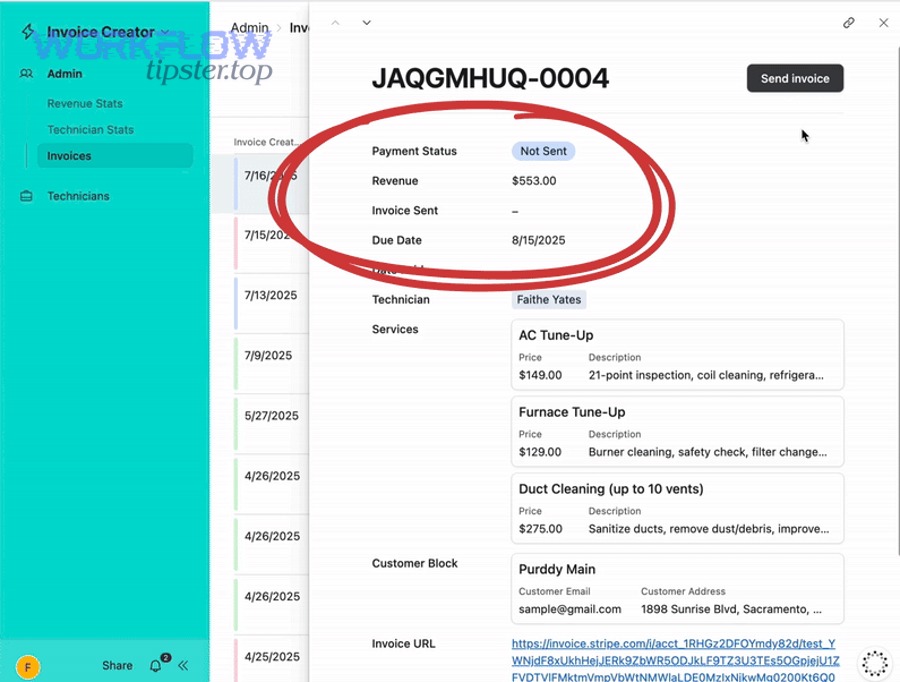
What Stripe objects should you track in Airtable (customers, payments, invoices, subscriptions)?
There are 4 main types of Stripe objects to track in Airtable—Customers, Payments, Invoices, and Subscriptions—based on what operational question you need to answer (who paid, what paid, why paid, and what renews).
Then, model them like a small database (even if you’re “no-code”):
- Customers table: 1 record per Stripe customer
- Payments table: 1 record per charge/payment intent (depending on your approach)
- Invoices table: 1 record per invoice for receipts, failed payments, retries
- Subscriptions table: 1 record per subscription lifecycle
Linking these tables lets you answer common questions quickly:
- “Which customers are active but failed their last payment?”
- “Which invoices are overdue, and which customers do they belong to?”
- “Which subscription plan is driving the most churn?”
What fields should you store in Airtable vs never store?
Airtable should store operational fields (IDs, statuses, dates, plan names) while Stripe should keep sensitive payment data (card details and anything you don’t need for operations).
Next, apply a practical “minimum viable data” checklist.
Store in Airtable (safe + useful):
- Stripe customer ID, subscription ID, invoice ID
- Payment status (paid/failed/refunded/disputed)
- Amount, currency, created date
- Customer email (if needed for operations)
- Plan/price ID (for subscription routing)
Avoid storing in Airtable:
- Full card numbers, CVC, raw bank account details
- Anything you can’t justify operationally
- Overly verbose event payloads that create clutter (store references instead)
This keeps your base lean and reduces accidental exposure risks in shared workspaces.
Which integration methods can connect Airtable and Stripe, and when should you use each?
Zapier wins for speed-to-launch, Make (or similar scenario builders) is best for visual complexity, and webhook-first tools (like n8n) are optimal for control—so the “best” method depends on your branching logic, volume, and governance requirements.
Then, compare methods using three criteria that matter for Airtable–Stripe workflows:
- Reliability (retries, dedupe, idempotency support)
- Complexity (branching, lookups, multi-step logic)
- Scale (high event volume, cost per task, monitoring)

Should you use Zapier/Make/n8n vs native Airtable options vs custom API?
Zapier/Make/n8n are best for most teams because they provide triggers, actions, and logs without engineering work, while native Airtable automations are best for internal record logic, and custom APIs are best only when you need strict control or very high scale.
Then, choose based on your “pain”:
- Need quick wins: Zapier-style connectors
- Need complex routing: scenario builders with filters/routers
- Need control + webhooks: n8n/webhook-first approach
- Need tiny enhancements: Airtable Automations + “Run a script”
- Need enterprise-grade constraints: custom API/queueing
If you’re already building many Automation Integrations across tools, prioritize a platform that gives consistent monitoring and error handling across workflows—not just one-off recipes.
Do you need one-way sync or two-way sync between Stripe and Airtable?
Stripe → Airtable wins for accuracy, Airtable → Stripe is best for controlled creation tasks, and two-way sync is only optimal when you have explicit conflict rules—so most teams should start one-way and add the reverse direction selectively.
Then, use this decision rule:
- One-way (Stripe → Airtable) when you care about “what happened in billing”
- One-way (Airtable → Stripe) when you need “create a billing artifact safely”
- Two-way only if you can define:
- Which fields are editable in Airtable
- Which fields are immutable once created in Stripe
- How conflicts are resolved (last-write-wins is usually dangerous)
As a sanity check, if you can’t explain conflict resolution in one sentence, you’re not ready for two-way sync.
How do you set up the Airtable base structure before connecting Stripe?
You set up the Airtable base by defining tables, keys, and status fields first, so Stripe events can “land” predictably—this prevents duplicate customers, mismatched invoices, and fragile automations later.
Then, build the base around one guiding idea: your schema should mirror Stripe reality, not your spreadsheet habit.

What tables and relationships should your Airtable base include for payments and subscriptions?
There are 4–5 main tables you should include—Customers, Orders/Invoices, Payments, Subscriptions, and (optionally) Events—based on whether you want simple tracking or full auditability.
Then, connect them like this:
- Customers ↔ Subscriptions (1-to-many)
- Customers ↔ Invoices (1-to-many)
- Invoices ↔ Payments (1-to-many; sometimes 1-to-1 depending on product)
- Events (optional) ↔ Everything (for troubleshooting + dedupe)
Practical fields that make linking easier:
stripe_customer_id(text, unique)stripe_subscription_idstripe_invoice_idstripe_payment_id(or charge/payment intent ID)payment_status(single select)billing_email(email)
Which Airtable fields should be your primary keys (Stripe IDs vs email)?
Stripe IDs win for long-term integrity, email is best as a lookup helper, and internal Airtable record IDs are best only inside Airtable—so your canonical keys should be Stripe object IDs wherever possible.
Then, implement a clear key strategy:
- Canonical:
stripe_customer_id - Secondary:
billing_email - Human-friendly:
customer_name(optional) - Operational:
order_number(optional, if you have one)
This prevents a classic problem: one person changes an email address, and your automation accidentally creates a second “customer.”
How do you build the core automation: update Airtable when Stripe payment events happen?
A reliable Airtable–Stripe automation follows one method: listen for a Stripe event, find the matching Airtable record by Stripe ID, upsert the record, then update status fields and timestamps so every payment state is visible in Airtable.
Then, make the flow resilient by designing for three realities:
- Stripe may send multiple related events for one outcome.
- Events can arrive out of order.
- Retries happen when endpoints fail.
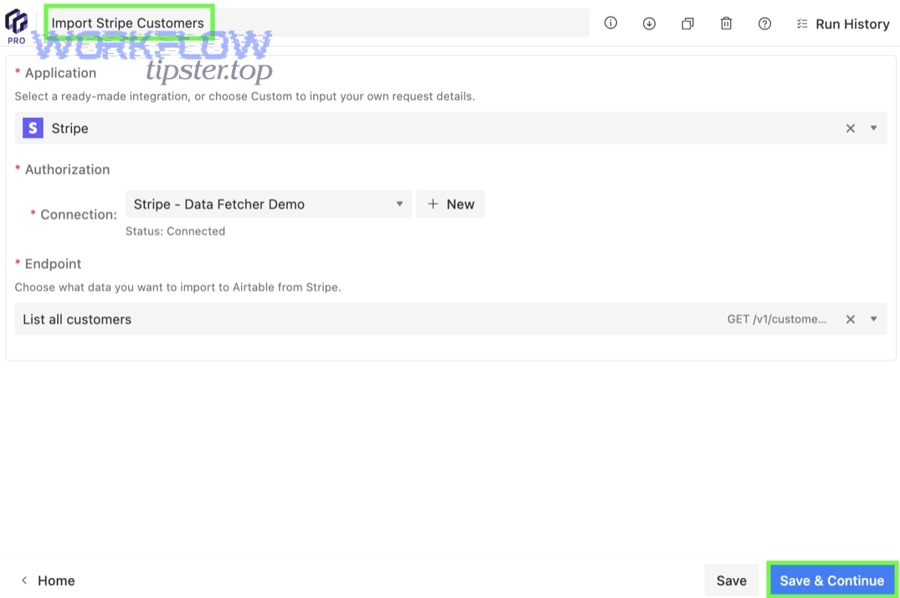
According to Stripe’s documentation, webhook events help you respond to asynchronous billing outcomes such as successful recurring payments or customer disputes, which makes event-driven updates the safest way to keep Airtable current.
How do you map Stripe statuses to Airtable statuses (paid, failed, refunded, disputed)?
There are 4 main status groups—Paid, Failed, Refunded, and Disputed—based on the operational action they should trigger: fulfill, retry, reverse access, or escalate to support.
Then, define a small “status dictionary” in Airtable:
- Paid → fulfill / grant access / mark complete
- Failed → notify / retry window / pause fulfillment
- Refunded → reverse benefits / log reason / update totals
- Disputed → flag for support / freeze risky actions / capture evidence
Add two supporting fields to preserve meaning:
status_updated_at(datetime)status_source_event(text; store the Stripe event type or ID)
This makes your status field auditable and reduces “mystery changes.”
How do you prevent duplicates when Stripe sends multiple events?
You prevent duplicates by storing a unique Stripe identifier (event ID or object ID) and using upsert logic—so the same event can’t create multiple Airtable records.
Then, use one of two simple patterns:
Pattern A: Event log table (strongest)
- Create an Events table in Airtable
- Store
stripe_event_idas a unique field - If it already exists → stop (already processed)
Pattern B: Upsert by object ID (simpler)
- For payments: upsert by
stripe_payment_id - For invoices: upsert by
stripe_invoice_id - For subscriptions: upsert by
stripe_subscription_id
For no-code tools, this often looks like:
- Search Airtable for the ID
- If found → Update record
- If not found → Create record
How do you automate customers and subscriptions for recurring revenue workflows?
There are 3 main subscription automation layers—customer identity, subscription lifecycle, and invoice/payment outcomes—based on what changes over time and what actions you need to trigger.
Then, treat subscriptions as a living state machine, not a one-time purchase.

Which subscription lifecycle events should trigger Airtable updates?
There are 5 core lifecycle update types you should trigger from—created, status-changed, payment-failed, invoice-paid, and canceled—based on whether the customer should gain access, keep access, lose access, or be contacted.
Then, align your Airtable fields to the lifecycle:
subscription_status(trialing/active/past_due/canceled)current_period_end(datetime)trial_end(datetime, optional)cancel_at_period_endlast_invoice_status(paid/open/uncollectible)
Stripe provides subscription-focused webhook guidance and event types you can listen for to detect status changes and payment failures in the subscription lifecycle.
How do you link a Stripe subscription to the right Airtable customer and plan record?
You link correctly by storing the Stripe customer ID in your Airtable Customers table, then attaching each subscription to that customer ID and to a plan record via price/plan identifiers—so one customer can hold multiple subscriptions without confusion.
Then, implement a predictable linking sequence:
- Receive subscription event
- Read
stripe_customer_idfrom the payload - Find the Airtable customer record by
stripe_customer_id - Upsert the subscription record and link it to the customer
- Link the subscription to a Plans/Prices table using
stripe_price_id(recommended)
This avoids brittle linking based on email alone and supports upgrades/downgrades cleanly.
What are the most common Airtable ↔ Stripe workflows you should implement first?
There are 3 common workflow types—payment-to-fulfillment, invoice-to-collections, and subscription-to-access—based on how quickly they produce value and how safely they can be automated without handling sensitive payment data.
Then, start with workflows that create visible operational wins while staying low-risk.

Which “payment → fulfillment” workflows are easiest to launch in a day?
The easiest workflows are: “mark paid,” “notify team,” and “create fulfillment tasks,” because they only require a Stripe event trigger and an Airtable record update.
Then, use a simple fulfillment checklist:
- Update
payment_status→ Paid - Set
paid_attimestamp - Assign an owner (ops/support)
- Create a task record (or a linked checklist)
- Send a confirmation email (optional)
If you run multiple product operations, use Airtable views like:
- “Paid – Needs fulfillment”
- “Failed – Needs outreach”
- “Active subscriptions – This week renewals”
Which “Airtable → Stripe” workflows are safest (payment links, invoices) without handling card data?
The safest outbound workflows are creating a hosted invoice or payment link and writing the URL back to Airtable—because the customer completes payment in Stripe’s hosted environment, not inside Airtable.
Then, structure it like:
- Airtable record: “Ready to bill”
- Automation creates Stripe invoice/payment link
- Airtable stores
checkout_urlorinvoice_url - Stripe events confirm paid/failed and update Airtable
This pattern also pairs well with other internal playbooks—for example, if your team already manages request intake in google docs to evernote or schedules handoffs via asana to outlook calendar, Airtable becomes the central operational layer while Stripe stays the billing authority.
How do you test, monitor, and troubleshoot an Airtable–Stripe integration?
You test and troubleshoot best by using Stripe test events, Airtable automation run history, and a reconciliation view—so you can isolate whether failures come from triggers, mappings, permissions, or duplicates.
Then, treat troubleshooting as a three-step funnel:
- Did the event fire?
- Did the automation run?
- Did the record update correctly?

What should you check first when records don’t update or amounts look wrong?
First check the trigger and the identifier mapping, because most failures come from listening to the wrong event type or searching Airtable using the wrong key.
Then, validate in this order:
- Event type: Are you listening to the event that represents the outcome you care about?
- Lookup key: Are you searching by
stripe_customer_id/stripe_invoice_idrather than email? - Amount format: Is Stripe sending amounts in minor units (like cents) and you’re storing as dollars?
- Currency field: Are you mixing currencies in one amount field without a currency column?
- Permissions: Can the integration update the targeted table/fields?
A quick fix that prevents recurring confusion: store both amount_minor and a computed amount_major (or a formatted display field) alongside currency.
How do you reconcile Stripe vs Airtable to catch missing or mismatched records?
You reconcile by building a daily “audit” view that compares recent Stripe records (invoices/payments) to Airtable records—so you can spot gaps, duplicates, and unexpected statuses.
Then, implement a simple reconciliation routine:
- Filter Airtable records created “last 7 days”
- Group by
payment_status - Identify records missing Stripe IDs
- Identify Stripe IDs that appear twice
- Export a quick summary for manual review
If your connector supports backfills, schedule a nightly “pull recent invoices” job and update Airtable records using upsert logic, rather than creating new records each time.
How do you keep the integration secure and scalable for growing teams?
Zapier-style connectors win for quick scaling, webhook-first setups win for high-control scaling, and stricter permission design wins for security—so you scale safely by reducing who can edit sensitive fields and by designing for retries and rate limits.
Then, treat “secure and scalable” as two checklists: access control and event resilience.

Should you use webhooks (real-time) or scheduled imports (batch) as volume grows?
Webhooks win for real-time accuracy, scheduled imports win for simplicity, and hybrid is optimal for scale—so most teams should use webhooks for critical states (paid/failed) and scheduled backfills for reconciliation.
Then, apply a pragmatic hybrid model:
- Webhook path: updates
payment_statusimmediately on success/failure - Batch path: nightly import verifies last 24–72 hours and fixes missing updates
- Alerting: notify ops if failures exceed a threshold
Do you need role-based access and audit logs for payments data inside Airtable?
Yes—role-based access matters because payment-related fields drive fulfillment decisions, and auditability matters because teams need to understand who changed what and when.
Then, implement guardrails that no-code teams can actually maintain:
- Lock “Stripe ID” fields from casual edits
- Restrict who can edit
payment_status - Use views to limit visibility (ops vs support vs finance)
- Store
status_source_eventso status changes are traceable - Keep a small “Changes” table if you need additional internal auditing
If you’re also running adjacent pipelines (for example, tracking product roadmaps in airtable to aha), these guardrails prevent cross-team edits from accidentally breaking billing-related operations.
How do you handle edge cases in Airtable–Stripe automations (refunds, disputes, proration, multi-currency)?
You handle edge cases by modeling them explicitly—refunds and disputes as state transitions, proration as invoice line complexity, multi-currency as normalization rules, and backfills as controlled imports—so Airtable remains accurate without becoming a messy event dump.
Then, treat edge cases as “micro semantics”: they don’t change the core integration pattern, but they change your status mapping, reporting, and automation safety rules.

How should Airtable represent refunds and chargebacks (paid vs refunded vs disputed)?
Paid wins for fulfillment, refunded is best for reversing benefits, and disputed is optimal for escalation—so your Airtable status should reflect the operational response, not just the accounting label.
Then, implement a clear lifecycle:
- Paid → deliver value
- Refunded → remove/adjust value + log reason
- Disputed → freeze risky actions + escalate to support
Best practice fields:
refund_amount(optional)dispute_status(optional)support_owner(for disputes)resolution_notes(short text)
This structure ensures your team doesn’t treat “refunded” and “disputed” as the same thing—they require different actions.
How do you model proration and plan changes without corrupting revenue tracking?
Proration is best handled at the invoice line level, plan changes are best tracked as subscription history, and reporting is best built from invoices—so your Airtable should store “what Stripe billed,” not what you wish was billed.
Then, follow two rules:
- Never overwrite historical amounts when a plan changes—create a new invoice/payment record.
- Track the subscription’s current plan separately from invoice history.
If you need deeper accuracy:
- Add an “Invoice Line Items” table
- Store quantity, unit amount, and line descriptions
- Link line items to the parent invoice
This keeps plan changes readable and prevents “blended” totals that hide churn or expansion revenue.
How do you store and compare multi-currency amounts (minor units vs major units)?
Minor units win for precision, major units win for readability, and currency codes are mandatory—so store amounts in minor units with a currency field, and compute major units for display.
Then, set a consistent convention:
amount_minor(integer)currency(e.g., USD, EUR)amount_major_display(computed/formula)
Reporting tip: never sum amount_major_display across currencies unless you also convert currencies using a consistent FX source and timestamp, otherwise totals become misleading.
How do you backfill historical Stripe data into Airtable safely?
A safe backfill uses pagination + upsert keys + staged imports, so you can re-run the backfill without duplicating records and without rewriting newer updates incorrectly.
Then, do it in a controlled sequence:
- Define the date range (e.g., last 90 days)
- Import invoices/payments in batches
- Upsert by Stripe object ID
- Link to customers by
stripe_customer_id - Run a reconciliation view to confirm counts and totals
- Only then expand the window (e.g., 1 year)
If your integration tool supports retries, enable them—but still store processed IDs so retries can’t generate duplicates.