


If you want your team to stop losing decisions inside scattered Google Docs, the fastest win is a clear Docs-to-Notes workflow: import a Doc when you need a stable snapshot, or link/attach via Google Drive when you need collaboration to stay in Docs while the context lives in Evernote.
Next, you’ll choose between manual import (best for “final” docs) and automation (best for repeated capture), so your team doesn’t debate the process every time—your workflow decides for you.
Then, you’ll use Google Drive as the bridge—either selecting a Drive file inside Evernote or pasting a Drive link—so the note becomes the “home” for summaries, owners, and next steps while the Doc remains the editable source of truth.
Introduce a new idea: once the workflow is defined, the real productivity jump comes from standardizing naming, tags, and ownership so every imported or linked Doc turns into a searchable, reusable team asset—not just another file someone has to hunt down later.
What does “save & sync Google Docs to Evernote notes” mean for teams?
“Save & sync Google Docs to Evernote notes” means capturing Docs into a repeatable Docs-to-Notes workflow—either as an imported snapshot or a Drive-linked note—so teams can find, share, and act on the content without losing context. Then, the key is to define what “sync” truly means in your environment, because that single word changes how you structure the whole workflow.

Is “sync” the same as “import,” or does it mean something else?
Sync is an ongoing relationship between the Doc and the note, while import is a one-time snapshot that freezes the Doc into a file you store in Evernote. More specifically, “sync” often sounds like “whatever changes in Google Docs updates inside Evernote,” but in practice teams usually implement one of three realities:
- Snapshot (Import): The content is captured at a point in time (good for final SOPs, approvals, handoffs).
- Pointer (Link/Attach): Evernote stores context; Google Docs stores the living file (best for collaboration).
- Automation (Rules-based capture): A system creates/updates notes based on triggers (best for scale).
To better understand the difference, think in terms of outcomes rather than features:
- If your team needs auditability (“what did we approve last month?”), import wins because it creates a fixed record.
- If your team needs collaboration (“we’re still editing this”), link/attach wins because Google Docs remains the editable source.
- If your team needs consistency (“every weekly report must land in the same notebook”), automation wins because rules eliminate human variance.
A practical rule that keeps everyone aligned: Evernote holds the “why” (summary, decisions, tasks), while Google Docs holds the “draft” (collaborative writing and edits). This is also where your “hook chain” begins: the title promises “save & sync,” the introduction commits to import vs automate, and this section defines what “sync” can realistically mean so the rest of the article stays consistent.
What is the central entity in a Google Docs → Evernote workflow, and what are its key attributes?
The central entity is a Docs-to-Notes workflow: a structured method to move, reference, or automate Google Docs content into Evernote notes so teams can retrieve it reliably. In addition, you’ll get better results when you treat this as a system with attributes—because systems can be standardized, while “tips” can’t.

What are the minimum building blocks of a Docs-to-Notes system?
There are 5 main building blocks of a Docs-to-Notes system: Source, Capture method, Container, Metadata, and Retrieval—based on the criterion of “what must be true for the team to find and use the knowledge later.” Specifically:
- Source (Google Docs)
Where the writing happens: drafts, collaboration, comments, revisions. - Capture method (Import / Link / Automation)
How the Doc becomes usable in Evernote. - Container (Evernote note)
Where the team stores context: summary, decisions, owners, tasks, links. - Metadata (Title / notebook / tags / dates / owners)
How knowledge gets organized and filtered. - Retrieval (Search + shared access)
How someone who wasn’t in the meeting finds it later.
When these are missing, teams fall into predictable failure patterns:
- No metadata → “I remember we wrote it somewhere, but I can’t find it.”
- No container context → “Here’s the Doc link… but what are we supposed to do with it?”
- No capture rules → “Everyone does it differently, so the knowledge base becomes chaotic.”
This is where a semantic SEO lens matters: “Google Docs to Evernote” isn’t just an integration—it’s an information lifecycle. Your workflow either turns documents into knowledge assets, or it turns them into buried files.
What are the main ways to move a Google Doc into Evernote?
There are 3 main ways to move a Google Doc into Evernote: manual import (snapshot), Drive attach/link (pointer), and lightweight capture (extract)—based on the criterion of how much the Doc must live inside Evernote vs remain in Google Docs. Then, once you see the trade-offs, choosing the right method becomes straightforward instead of emotional.

How do you manually import a Google Doc into Evernote as a stable snapshot?
Manual import is the snapshot method: you download a Google Doc (commonly as .docx) and upload it into Evernote so the team has a fixed, searchable reference. Then, the key is to treat the imported file as “the record,” not “the draft.”
A clean team workflow looks like this:
- Step 1 — Prepare the Doc for snapshotting
Add a clear title, add a “Last updated” line, and confirm the version status (Draft / Final / Archived). - Step 2 — Download from Google Docs
Use the built-in download option and select an export format appropriate for your need (Doc format is common for preserving structure). - Step 3 — Upload to Evernote and wrap it with context
Create an Evernote note that contains:- A 3–5 sentence summary
- Owner + stakeholders
- Decision log (“Approved on…”, “Supersedes…”)
- The imported file attached
What makes this team-ready is not the upload—it’s the context wrapper. Without the wrapper, the imported file becomes yet another orphaned artifact.
How do you attach or link a Google Doc via Google Drive inside an Evernote note?
Drive attach/link is the pointer method: you connect Evernote to Google Drive or paste a Drive link so the note holds the context while the Doc remains the living, collaborative file. More importantly, this method aligns with how teams actually work—Docs stay editable, notes stay searchable.
In practice, teams use two reliable patterns:
- Pattern A: Select a Drive file directly inside Evernote
Use Evernote’s insert/plus option to choose a Google Drive file. - Pattern B: Paste the Google Drive link into the note
Copy the share link in Drive or inside the Doc, then paste it into Evernote so it becomes a structured, clickable object.
A crucial operational detail for teams: attaching a Google Drive file is essentially adding a link object rather than uploading the file contents, which affects storage and sharing expectations.
What lightweight capture methods work when you don’t need full import?
There are 3 main lightweight capture methods: summary extraction, decision extraction, and action extraction—based on the criterion of what your team needs to reuse later. For example:
- Summary extraction: paste a tight abstract into Evernote (“what this doc is about”)
- Decision extraction: paste only the decisions and rationale (“what we chose and why”)
- Action extraction: paste tasks, owners, and dates (“what happens next”)
This approach is often the fastest way to build a usable knowledge base, because the note becomes the team’s operating layer, not just a dumping ground for attachments.
Import vs automate: which Google Docs → Evernote method is best for your team?
Import wins for accuracy and auditability, automation wins for scale and consistency, and Drive linking is best for collaboration—so the best method depends on whether your team prioritizes records, repeatability, or real-time editing. Then, once you map your workflows to those outcomes, the decision stops being subjective.

What are the pros and cons of manual import (snapshots) vs automation (ongoing capture)?
Manual import wins in control and clarity, automation is best for recurring capture at scale, and Drive linking is optimal for keeping Google Docs as the living source of truth. However, teams usually make the wrong choice because they compare features instead of failure modes.
Here’s a decision table (so you can see trade-offs at a glance). The table compares methods across criteria teams actually feel: reliability, maintenance, and collaboration.
| Method | Best for | Main advantage | Main risk |
|---|---|---|---|
| Manual Import (Snapshot) | Policies, SOPs, “final” docs | Fixed record + stable reference | Becomes outdated if not refreshed |
| Drive Link/Attach (Pointer) | Living docs, shared editing | Collaboration stays in Docs | Access issues if permissions aren’t managed |
| Automation (Rules-based) | Weekly reports, intake, recurring docs | Consistency + scale | Duplicates/mess if rules aren’t strict |
The takeaway is simple: choose the method that fails in a way your team can tolerate. A stale snapshot is obvious and fixable; silent automation duplication is not.
Which method fits common team scenarios like meetings, SOPs, and project docs?
There are 4 common scenario groupings—meetings, SOPs, project docs, and weekly reporting—based on the criterion of how frequently the content changes after creation. Specifically:
- Meetings → Link/attach the agenda Doc, but capture outcomes in Evernote (decisions, actions).
- SOPs → Import snapshots for “approved” versions; link the editable Doc for future revisions.
- Project docs → Link for collaboration; add a project note that becomes the hub (timeline, risks, owners).
- Weekly reporting → Automation is ideal because the cadence is predictable and the structure is repeatable.
This is also where your “Automation Integrations” mindset becomes valuable: once you standardize one recurring flow, you can replicate the same operating model across other systems your team already runs—like basecamp to google sheets, asana to onedrive, or airtable to servicenow—without reinventing the structure each time.
Can you automate Google Docs → Evernote without code, and what should your “rules” be?
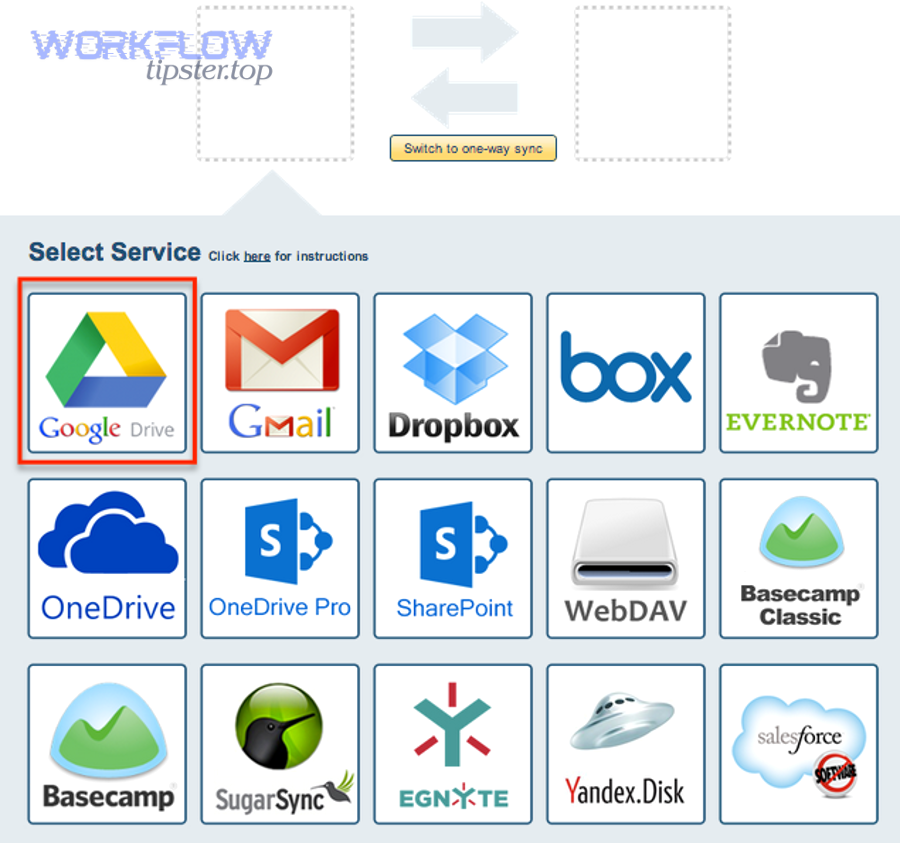
Yes, you can automate Google Docs → Evernote without code by using an automation platform that connects triggers (Doc events) to actions (create/organize notes), and it works best when you define rules for naming, notebooks, tags, and deduplication. Then, the moment you treat automation as a governed system instead of a “hack,” it becomes stable enough for teams.
What triggers and actions typically power a no-code Docs-to-Notes automation?
There are 6 main trigger/action patterns in no-code Docs-to-Notes automation: create, move, label, schedule, summarize, and route—based on the criterion of what event starts the workflow and what Evernote must receive. For example:
- Trigger: new Doc created in a folder → Action: create an Evernote note with link + template
- Trigger: Doc moved to “Approved” folder → Action: import/upload exported file + mark as Final
- Trigger: Doc updated weekly → Action: append a weekly summary into a running Evernote note
- Trigger: Doc named with a pattern (e.g., “WBR – …”) → Action: route to the correct notebook + tags
Automation platforms position Evernote + Google Docs connections as “no code” and built around trigger/action logic, which matches this exact structure.
How do you prevent duplicates and messy notes in an automated flow?
You prevent duplicates by enforcing a unique identity for each Doc (ID or canonical link) and defining a “one Doc → one note” rule with consistent naming and routing. More specifically, teams should add these safeguards:
- Naming rule: [Doc Type] + [Project/Team] + [Date/Period]
- Routing rule: folder or tag determines notebook
- Dedup rule: if a note already exists for the same Doc link, update/append instead of creating new
- Exception rule: if automation fails, the Doc is still findable via a shared “Intake” notebook
This is how you keep automation from becoming noise. Automation should reduce cognitive load, not create extra cleanup work.
How do you keep Evernote organized after importing or syncing Google Docs?
You keep Evernote organized by using a team taxonomy—standard notebooks, consistent tags, and predictable titles—so every imported file or linked Doc lands where people intuitively search. Then, once the structure is consistent, Evernote becomes a knowledge base instead of a pile.

What notebook/tag structure works best for a team knowledge base built from Docs?
There are 3 common structures that work best—by department, by project, and by document type—based on the criterion of how your team naturally asks “where should I look first?” Specifically:
- Department-first (HR, Sales, Ops, Engineering)
Best when teams operate semi-independently and need autonomy. - Project-first (Client A, Product X, Initiative Y)
Best when work is organized around delivery and outcomes. - Doc-type-first (SOP, Meeting Notes, Decisions, Templates)
Best when reuse matters and you want fast retrieval patterns.
Whichever you choose, add a universal layer of tags that cuts across everything:
- Status: Draft, Final, Archived
- Lifecycle: Active, Superseded
- Topic: Onboarding, Security, Reporting
- Ownership: Team name or function
This is the difference between “we store docs” and “we can retrieve knowledge.”
How should you title and summarize imported Docs so Evernote search works better?
A good title and summary is a search amplifier: it turns a Doc link or attachment into a human-readable entry point with intent, scope, and ownership. More importantly, teams don’t search for “Doc_2026_Final_v7”—they search for outcomes.
Use a simple template:
- Title: “Decision: Vendor Selection — Project X — 2026-01”
- Summary (3–5 sentences):
- What this Doc is for
- What decision was made (if any)
- Who owns it
- What to do next
- Link/import reference
When your team does this consistently, the note becomes the “why,” and the Doc becomes the “how.” That pairing is what makes the workflow scale.
Will formatting and collaboration elements survive from Google Docs to Evernote?
No, not perfectly—Google Docs formatting and collaboration elements (like comments and suggestion history) don’t reliably transfer when you import, so teams should plan for partial fidelity and use links for living collaboration. However, you can still preserve what matters most by choosing the right capture method and writing context into the note.

What breaks most often (tables, images, comments), and how do you fix or avoid it?
There are 4 common break categories—layout, media, collaboration, and navigation—based on the criterion of what Google Docs stores as “document structure” versus “collaboration metadata.” Specifically:
- Layout issues (tables, complex spacing, multi-column layouts)
Fix: import as a stable file type when layout matters; otherwise summarize in Evernote and link the Doc. - Media issues (images, embedded objects)
Fix: include a short “media index” in the Evernote note with the most important visuals referenced. - Collaboration loss (comments, suggestions, change history)
Fix: don’t try to import collaboration—keep it in Google Docs; use Evernote to store decisions and next steps. - Navigation loss (Doc outline, internal links)
Fix: add a mini-table-of-contents in Evernote with anchor-style headings and a “Key sections” list.
This is where the workflow mindset protects teams: if the goal is “searchable knowledge,” you don’t need perfect pixel fidelity—you need clarity and retrieval.
Evidence: According to a study by University of California, Irvine from the Department of Informatics, in 2008, researchers found that workplace interruptions meaningfully disrupt focus and workflow, which is why a reliable capture-and-retrieval system (like Docs-to-Notes) reduces rework caused by context loss.
What advanced considerations improve reliability, governance, and searchability in a Docs-to-Notes system?
Advanced reliability comes from governance: permissions discipline, metadata standards, monitoring, and clear “don’t automate this” boundaries—so your team’s Docs-to-Notes system stays trustworthy at scale. Next, you’ll handle the edge cases that usually break teams: access confusion, duplicated automation, and “where is the source of truth?”
How do you handle permissions and governance when linking shared Google Docs inside Evernote?
Google Docs permissions control file access, Evernote permissions control note access, and teams succeed when they align both so the note shares context without accidentally exposing the Doc. However, people often assume “sharing the Evernote note shares the Doc,” which is not how Google Drive works.
Use a governance checklist:
- Owner clarity: every Doc has an owner; every Evernote note has an owner.
- Least privilege: share Docs to the smallest group necessary.
- Access alignment: if a note is shared widely, ensure the linked Doc is either also shared appropriately or clearly marked as restricted.
- Offboarding hygiene: when a person leaves, transfer Doc ownership and review notebook permissions.
How can you standardize metadata (titles, tags, templates) so automated notes stay clean?
Metadata standardization is a lightweight contract: it defines how every note is named, tagged, and routed so automation outputs are predictable and search results stay useful. Specifically, create a one-page “Docs-to-Notes standard” with:
- Approved notebook list (no ad-hoc notebook creation)
- Tag dictionary (teams pick from a controlled list)
- Title formula (Doc type + scope + time)
- Note template blocks (Summary, Decisions, Actions, Links, Owner)
This is the missing layer in most teams: they automate creation, but they never automate meaning.
What rare failure modes happen at scale, and how do you troubleshoot them?
There are 4 rare failure modes—duplicate creation, broken links, permission drift, and routing mismatch—based on the criterion of whether the problem comes from identity, access, or classification. To illustrate:
- Duplicate creation: one Doc triggers multiple times
Fix: dedup rule + unique ID + update/append behavior. - Broken links: Doc moved or permissions changed
Fix: periodic audit note + “broken link” tag for remediation. - Permission drift: note shared, Doc restricted
Fix: permission alignment checklist and owner review. - Routing mismatch: automation routes to wrong notebook
Fix: keep routing rules simple; log exceptions to a single “Intake” notebook.
If you troubleshoot with the five building blocks (Source, Capture, Container, Metadata, Retrieval), you’ll quickly see where the chain broke.
When should you not automate—and instead keep Google Docs and Evernote separate?
Yes, there are times you should avoid automation—because it can create risk and noise—especially when the content is highly sensitive, rapidly changing, or requires strict human review before becoming “official knowledge.” Moreover, three reasons show up repeatedly in real teams:
- Governance risk: sensitive Docs should not be copied around automatically.
- Truth risk: rapid iteration can make automated snapshots misleading.
- Noise risk: automation without strict metadata creates clutter faster than humans can clean it.
In those cases, use a safer pattern: link-only + strong Evernote summary + clear “source of truth” label. That still gives you retrieval and context—without the automation side effects.
Evidence: According to a study by University of California, Irvine from the Department of Informatics, in 2008, interruptions and task switching measurably affect how people resume work—so reducing “search and reorientation time” through consistent documentation systems improves team execution quality over time.