Aland Johnson
Founder & Editor-in-Chief
Company / Organization
Workflow Tipster
Experience / Skills
Workflow automation patterns, integration design, webhook/API troubleshooting, data mapping and normalization, document generation and e-sign flows, operational checklists and playbooks for popular software.
About Aland Johnson
Aland Johnson is an Automation & RevOps Consultant and Technical Writer, and he serves as the Founder & Editor-in-Chief of Workflow Tipster (workflowtipster.top)—a resource for bite-sized workflow tips, tool guidance, and troubleshooting solutions for popular software used by modern teams. From 2008 to 2012, Aland developed his foundation in information systems and workplace productivity tools, focusing on how businesses operationalize data across CRM, project management, customer support, and marketing platforms. During this period, he began documenting repeatable processes, building simple integrations, and learning the practical constraints that shape automation outcomes—such as inconsistent field formats, user permissions, and data quality issues. In 2013, Aland moved into hands-on operational support roles where reliability and speed mattered daily. He supported teams working across cloud-based tools, addressing recurring problems like login failures, permission mismatches, missing required fields, and data sync inconsistencies. Between 2014 and 2016, he expanded into cross-application workflow design, connecting systems through APIs and webhooks and establishing a structured troubleshooting method: reproduce the failure, isolate the failing hop, validate credentials and scopes, inspect payload shape, confirm rate-limit behavior, and implement safe retries with logging. From 2017 to 2019, Aland specialized further in RevOps enablement—helping organizations map business requirements into automation-ready schemas and governance. This phase emphasized durable system design: clear ownership of fields and objects, consistent naming conventions, deduplication strategies, and measurable KPIs. In 2019, he earned the Salesforce Certified Administrator credential, reinforcing his expertise in CRM configuration, permissioning, reporting, and operational controls that keep automations stable as teams and pipelines evolve. In 2020, Aland broadened his marketing operations skill set by completing the HubSpot Marketing Software Certification, deepening his work in lifecycle stages, attribution, segmentation, and automated communications—areas where subtle property mapping and timing rules often cause downstream failures. Between 2021 and 2022, he concentrated on integration resilience at scale: reducing duplicates, adding idempotency safeguards, standardizing payload validation, and creating runbooks for incident response when webhooks fail or third-party APIs degrade. In 2023, Aland earned the Zapier Certified Expert credential and continued refining advanced automation patterns across multi-step workflows, conditional routing, and cross-tool data normalization. That same year, he formalized his editorial approach: every guide must be reproducible, version-aware, and supported by verification steps so readers can confirm success rather than “guess and hope.” Since 2024, Aland has been building Workflow Tipster as a practical knowledge base for operators, founders, and teams who need quick, reliable answers. His content emphasizes clarity and measurability—short, actionable tips when speed matters, and deeper troubleshooting playbooks when reliability is the priority. Aland’s guiding standard remains consistent: state the goal, show the exact steps, surface common failure modes, and include a prevention checklist so the workflow stays healthy after the fix.
Related topics
Latest posts by Aland Johnson


Automate Calendly-to-Microsoft Teams-to-ClickUp Scheduling Workflow for Ops & Project Teams (Triggers + Actions Setup Guide)
If you want a meeting booking to immediately turn into “real work,” the simplest way is to automate a single chain: Calendly booking → Microsoft Teams meeting link → ClickUp task . This guide shows the exact logic behind that chain so your team can stop copying details between apps and start executing with consistent follow-through.
Aland Johnson February 3, 2026 at 1:42 PM
Connect & Sync Calendly Scheduling to Microsoft Teams + Basecamp for Remote Teams (No-Code Workflow Guide)
Main keyword (keyword focus): calendly to calendly to microsoft teams to basecamp scheduling Predicate (main action): connect & sync Relations lexical used: Synonym (connect/sync ≈ integrate/automate), plus an Antonym angle later (automated vs manual scheduling) Remote teams can reliably schedule faster when Calendly automatically creates a Microsoft Teams meeting and then syncs the booking details into Basecamp as actionable work—so the meeting link, agenda, and follow-up tasks never live in separate places. The core outcome is simple: one booking produces one correct video link and one clear Basecamp trail.
Aland Johnson February 3, 2026 at 1:29 PM
Automate (Not Manual) Calendly-to-Calendly → Microsoft Teams → Asana Scheduling Workflow for Project Teams
If your project team is tired of copying meeting details into tasks, the fastest fix is to automate (not manual) a Calendly-to-Calendly → Microsoft Teams → Asana scheduling workflow so every booking creates the right meeting link and the right follow-up work—without extra clicks. Next, you’ll learn what “Calendly-to-Calendly” really means in practice (internal routing and handoffs), and how to design the data flow so each scheduled meeting becomes a clear, actionable Asana task instead of noise.
Aland Johnson February 3, 2026 at 1:17 PM
Automate Calendly-to-Calendly Scheduling: Sync Google Meet Links and Trello Cards for Busy Teams (Without Back-and-Forth)
Automating a Calendly → Calendly → Google Meet → Trello scheduling flow is the fastest way to reduce manual coordination, because it standardizes how people qualify, book, join, and track meetings across one repeatable system instead of scattered emails and sticky notes. Many teams still get stuck at the “Calendly-to-Calendly” step—when you need two bookings (for example: a quick screening call, then a longer meeting)—so the real improvement comes from designing two connected event types that guide invitees from step 1 to step 2 without confusion.
Aland Johnson February 3, 2026 at 1:04 PM
Automate (Not Manual) Calendly-to-Calendly to Google Meet to monday.com Scheduling for Teams
If you’re running a busy team, the fastest way to stop double-booking, missing follow-ups, and retyping meeting details is to automate a single scheduling chain: Calendly → Calendly → Google Meet → monday.com .
Aland Johnson February 3, 2026 at 12:53 PM
Automate & Sync Calendly-to-Calendly Scheduling Into Google Meet Links and Linear Issues for Product Teams
If you want a Calendly booking to reliably create a Google Meet link and turn that scheduled conversation into a tracked Linear issue, the most dependable approach is to treat scheduling as a data pipeline : trigger → validate → map fields → create/update issue → monitor failures. The first thing to get right is the Google Meet side: you must connect Google Calendar so Calendly can automatically add Google Meet conferencing details to the scheduled meeting, otherwise your “meeting link” step becomes inconsistent and breaks downstream automation.
Aland Johnson February 3, 2026 at 12:41 PM
Automate (Not Manual) Calendly-to-Calendly → Google Meet → Jira Scheduling Workflow for Project Teams
When you automate Calendly → Google Meet → Jira scheduling , you turn a booked meeting into an instant project artifact: a confirmed time, a Meet link, and a Jira issue that captures context, owner, and next steps—without anyone copying and pasting. ( help.
Aland Johnson February 3, 2026 at 12:30 PM
Calendly-to-Calendly Scheduling Automation: Set Up Google Meet + Auto-Create ClickUp Tasks for Busy Teams (Without Manual Back-and-Forth)
If your keyword focus is “calendly to calendly to google meet to clickup scheduling,” the fastest path is an automated (not manual) scheduling chain : one Calendly connects availability, Google Meet generates the meeting link, and ClickUp captures the booking as an actionable task—so nothing gets lost after someone books. This guide also covers the common “Calendly-to-Calendly” reality: teams often run multiple Calendly users, event types, or routing rules , and you need consistent meeting locations and task creation across them—not a one-off setup that breaks the moment someone changes a calendar.
Aland Johnson February 3, 2026 at 12:18 PM
Automate (Not Manual) Scheduling Between Two Calendly Accounts, Google Meet, and Basecamp for Remote Project Teams
If you want scheduling to run itself, the simplest path is to let Calendly capture the booking, let Google Meet generate the video link automatically, and let Basecamp turn that confirmed meeting into actionable project work—without anyone copying details by hand. Most teams get stuck on the “wiring” questions: which Calendly account should trigger what, what data needs to be mapped, and how to make sure the Meet link and Basecamp item always match the latest reschedule or cancellation.
Aland Johnson February 3, 2026 at 12:07 PM
Automate Calendly-to-Calendly Scheduling with Google Meet → Asana Tasks for Teams (No-Code vs Manual Setup)
If your team books meetings in Calendly and you want every booking to instantly create an actionable follow-up in Asana—with Google Meet details included—you can automate the full workflow by connecting your calendar, standardizing the data you capture, and choosing a no-code or manual setup that fits your scale. To make this work reliably, you also need to ensure Google Meet links are generated consistently (based on your connected Google Calendar and event location settings), so invitees and internal stakeholders see the same conferencing details in confirmation messages, calendar invites, and downstream Asana tasks.
Aland Johnson February 3, 2026 at 11:57 AM
How to Automate Airtable → Word → OneDrive → PandaDoc eSignature Workflow for Sales & Ops Teams (Document Signing Guide)
If you want a reliable way to generate contracts from structured data, the Airtable → Microsoft Word → OneDrive → PandaDoc eSignature workflow is one of the most practical end-to-end automation patterns: Airtable provides clean records, Word standardizes the document, OneDrive stores versions, and PandaDoc manages signing. Most teams struggle not because the idea is hard, but because the build has moving parts: permissions, templates, field mapping, and a clear status loop back into Airtable.
Aland Johnson February 3, 2026 at 11:46 AM
Automate Airtable → Microsoft Word → OneDrive → Dropbox Sign Document Signing for Operations Teams: Paperless vs Paper-Based Workflow
If you want a reliable, end-to-end signing flow, the Airtable → Microsoft Word → OneDrive → Dropbox Sign document signing workflow is one of the most practical ways to move from “structured data” to “signed agreement” without manual handoffs. Then, you’ll want to confirm whether you truly need all four tools in your stack, because the best workflow is the one that matches your document volume, compliance requirements, and the skills of the team maintaining it.
Aland Johnson February 3, 2026 at 11:34 AM
Automate Airtable → Word → OneDrive → DocuSign eSignature Document Signing for Operations & Legal Teams
Automating an Airtable → Microsoft Word → OneDrive → DocuSign document signing pipeline is the fastest way for Operations and Legal teams to generate consistent agreements, route them for eSignature, and store executed files without manual handoffs—because each step is triggered by structured Airtable record data. If your biggest bottleneck is document creation, the workflow becomes reliable only when your Word templates are governed (approved language, consistent placeholders) and your Airtable fields are normalized so every record renders into a signable DOCX the same way—every time.
Aland Johnson February 3, 2026 at 11:21 AM
Automate (Not Manual) Airtable → Microsoft Word → Google Drive → PandaDoc Document Signing for Sales & Ops Teams
STEP 1: ANALYZE THE TITLE AND OUTLINE 1.1.
Aland Johnson February 3, 2026 at 11:10 AM
Automate eSignature Document Signing from Airtable to Word to Google Drive with Dropbox Sign (HelloSign) for Ops & Legal Teams
If you want contracts to move faster without losing control, the Airtable → Microsoft Word → Google Drive → Dropbox Sign workflow is a practical way to generate documents from structured data, store them predictably, and send them for signature with trackable status from one system of record. Next, you’ll learn how to set up the workflow so Airtable fields reliably populate your Word template, the right people approve at the right time, and your signing requests don’t fail because of preventable mapping mistakes.
Aland Johnson February 3, 2026 at 10:57 AM
Automate Airtable → Word → Google Drive → DocuSign Document Signing (No Manual Copy-Paste): Step-by-Step Workflow for Ops & Legal Teams
If you want a reliable way to generate agreements from database records, store them correctly, and get them signed without human handoffs, this guide shows how to automate an Airtable → Word → Google Drive → DocuSign document signing workflow end-to-end—so a single “Approved to Send” record can produce a ready-to-sign agreement and return the signed PDF back to the same record. Next, you’ll learn how to design your Airtable fields, templates, and permission model so document generation does not break when names are long, addresses wrap, or optional clauses appear—because the biggest failures happen before DocuSign ever sees the file.
Aland Johnson February 3, 2026 at 10:46 AM
Automate Airtable → Word → Dropbox → PandaDoc eSignature Document Signing Workflow for Sales & Ops Teams (Step-by-Step Guide)
If you want contracts to move from “deal approved” to “signed and filed” without manual chasing, the most reliable method is to automate the full chain: capture structured deal data in Airtable, generate a consistent Word document, store and version it in Dropbox, and send it through PandaDoc for tracked eSignature—then sync the signing status back to the original record. Next, you also need to know what must be true before you generate and send anything: the right fields, the right signers, the right template strategy, and the right validation rules—otherwise automation will only scale mistakes.
Aland Johnson February 3, 2026 at 10:33 AM
Automate Airtable → Microsoft Word → Dropbox → Dropbox Sign Document Signing for Ops Teams (Paperless vs Wet-Ink)
Airtable → Microsoft Word → Dropbox → Dropbox Sign document signing works best when Airtable becomes your “single source of truth,” Word becomes your document template engine, Dropbox becomes your controlled file hub, and Dropbox Sign becomes your signature and audit system—so every request is created, sent, tracked, and stored with minimal manual work. To make that happen, you need a clear definition of the workflow, plus a shared data model (records, fields, roles, statuses) so each step hands off cleanly to the next without retyping, renaming, or chasing down missing attachments.
Aland Johnson February 3, 2026 at 10:21 AM
Automate eSignature Document Signing Workflow: Airtable → Microsoft Word → Dropbox → DocuSign for Sales & Ops Teams
If you want contracts and approvals to move faster, the most reliable approach is to automate the full chain: capture deal data in Airtable, generate a Word document from that data, store the file in Dropbox, send it through DocuSign for signatures, and write the signing status back to Airtable so your team always knows what to do next. To make that automation dependable, you also need the “plumbing” that teams usually skip: clear ownership of fields in Airtable, a stable Word template strategy, predictable Dropbox folder rules, and DocuSign recipient logic that prevents sending to the wrong person.
Aland Johnson February 3, 2026 at 10:11 AM
Automate (Not Manual) eSignature Workflows: Airtable → Microsoft Word → Box → PandaDoc Document Signing for Sales Ops Teams
Automating Airtable → Microsoft Word → Box → PandaDoc document signing means you can move from a “ready-to-send” record in Airtable to a sent (and ultimately signed) agreement in PandaDoc—without copy-pasting, file chasing, or manual follow-ups—while still keeping every step traceable. Then, to make that automation reliable, you need the right building blocks: a clean Airtable schema, a Word template that won’t break when data is missing, a Box structure that preserves permissions and version history, and a PandaDoc sending model that maps roles and signing order correctly.
Aland Johnson February 3, 2026 at 9:59 AM
Automate eSignature (Electronic Signature) Document Signing: Airtable → Microsoft Word → Box → Dropbox Sign Workflow for Ops Teams
Automating eSignature document signing across Airtable, Microsoft Word, Box, and Dropbox Sign is the fastest way for Ops teams to turn a “ready-to-send” record into a signed agreement with consistent files, traceable statuses, and fewer manual handoffs. Introduce a new idea: once you treat the Airtable record as the “single source of truth,” every downstream step becomes predictable.
Aland Johnson February 3, 2026 at 9:47 AM
Automate Airtable to Microsoft Word to Box to DocuSign Document Signing for Ops Teams: Paperless vs Manual Workflows
If you want faster, cleaner document turnaround, the Airtable to Microsoft Word to Box to DocuSign document signing workflow is the most practical “ops-grade” path because it turns a tracked request (Airtable) into a controlled document (Word), then a governed file (Box), then a signed agreement (DocuSign) with auditability. Next, the key decision is where to standardize : you standardize data in Airtable, you standardize layout and clauses in Word, you standardize access and retention in Box, and you standardize signature routing and evidence in DocuSign—so each system does the one job it is best at.
Aland Johnson February 3, 2026 at 9:35 AM
Automate an Airtable → Excel → OneDrive → PandaDoc eSignature Workflow for Sales Ops (Document Signing, Step-by-Step)
An Airtable → Microsoft Excel → OneDrive → PandaDoc eSignature workflow is the fastest way for Sales Ops to turn structured deal data into ready-to-sign contracts, route files to the right folder, send documents for signature, and capture signing status back to the source system without manual handoffs. To choose the right build path, you need to understand where Excel is essential versus optional, and how your integration platform (Zapier, Make, or Power Automate) changes control, branching, and governance—especially when the workflow scales beyond one template.
Aland Johnson February 3, 2026 at 9:23 AM
Automate (Not Manual) eSignature Document Signing: Airtable → Excel → OneDrive → Dropbox Sign Workflow for Ops Teams
Modern ops teams lose time when “document signing” means copying data across apps, chasing approvals in email, and hunting for the latest file version. This guide shows how to automate the full Airtable → Excel → OneDrive → Dropbox Sign chain so a record in your database reliably becomes a ready-to-sign document, gets signed, and returns as a tracked outcome—without manual handoffs.
Aland Johnson February 3, 2026 at 9:12 AM
Automate an End-to-End eSignature Workflow: Airtable → Excel → OneDrive → DocuSign Document Signing (for Sales Ops & Legal Ops)
If you want faster, cleaner document signing without chasing PDFs in email threads, you can automate the entire chain: capture deal or contract data in Airtable, generate a signing-ready document with Excel, store the file in OneDrive, and send it through DocuSign—then write the envelope status and signed file link back to the original Airtable record. Beyond speed, this workflow helps Sales Ops and Legal Ops reduce manual copy-paste, standardize templates, and enforce a single source of truth.
Aland Johnson February 3, 2026 at 8:59 AM
Automate Airtable → Microsoft Excel → Google Drive → PandaDoc Document Signing for Ops Teams (Manual vs Automated Guide)
If you want airtable to microsoft excel to google drive to pandadoc document signing to run reliably, the winning approach is to treat it like a production pipeline: capture clean records in Airtable, generate a controlled Excel template, store it in a predictable Drive folder, then push it into PandaDoc for tracked, auditable signatures. Next, you’ll also want a repeatable setup for field mapping, file naming, and permissions so your team doesn’t spend time fixing broken links, mismatched data, or “who has access?
Aland Johnson February 3, 2026 at 8:46 AM
Automate eSignature (Electronic Signature) Document Signing: Airtable → Excel → Google Drive → Dropbox Sign (HelloSign) Guide for Ops Teams
Automating eSignature document signing across Airtable, Microsoft Excel, Google Drive, and Dropbox Sign means you capture signing requests as structured records, generate or route the correct file, send it for signature, and write the signing outcome back to your system of record so your team can run the process repeatedly with fewer manual steps. Next, you’ll see how to structure each layer of the workflow so operations teams can manage templates, signers, permissions, and statuses without losing control over what was sent, what was signed, and where the final signed PDF lives.
Aland Johnson February 3, 2026 at 8:33 AM
Automate Airtable → Microsoft Excel → Google Drive → DocuSign Document Signing for Operations Teams (Paperless vs Paper-Based Approvals)
Automating Airtable to Microsoft Excel to Google Drive to DocuSign document signing means you can move a deal, request, or approval from “record created” to “document signed” without retyping data, chasing versions, or manually emailing attachments. Next, this workflow also gives operations teams a practical way to standardize templates, keep every file in one controlled storage location, and maintain an auditable trail—from the first data entry in Airtable to the final signed PDF.
Aland Johnson February 3, 2026 at 8:22 AM
Automate eSignature (Document Signing) Workflows: Airtable → Microsoft Excel → Dropbox → PandaDoc for Sales & Ops Teams
If you want contracts signed faster without losing control, the simplest answer is yes: you can automate an end-to-end Airtable → Microsoft Excel → Dropbox → PandaDoc document signing workflow by standardizing your data, generating documents from templates, storing versions correctly, and syncing signing status back to your system of record. Next, the real question becomes how to make the automation reliable —because the difference between “we sent a doc” and “we closed the loop with a signed PDF, audit trail, and clean reporting” is almost always field mapping, role routing, and failure handling.
Aland Johnson February 3, 2026 at 8:10 AM
Automate End-to-End eSignature Workflow: Airtable → Excel → Dropbox → Dropbox Sign Document Signing (No-Code Guide for Ops Teams)
If you want a workflow that turns structured Airtable records into a signable document, stores it correctly, and gets it signed without manual chasing , the Airtable → Microsoft Excel → Dropbox → Dropbox Sign chain is one of the most reliable patterns for Ops teams managing repeating agreements. Next, once the workflow chain is clear, the biggest success factor becomes data readiness : Airtable must contain the exact fields and validations needed to generate the right Excel output every time—because a signing workflow is only as clean as the record that triggers it.
Aland Johnson February 3, 2026 at 7:58 AM
Automate Airtable → Microsoft Excel → Dropbox → DocuSign Document Signing for Operations Teams (Manual vs Automated)
Automating an Airtable → Excel → Dropbox → DocuSign signing flow means you can move from “a record changed” to “a signed PDF is filed and tracked” with fewer handoffs, fewer file mistakes, and faster turnaround—especially when the same contract type repeats weekly or daily. Next, you’ll see what this workflow is , which systems do what, and how to design the data so each document is generated consistently and sent to the right signer without retyping or copy-pasting across tools.
Aland Johnson February 3, 2026 at 7:46 AM
Automate (Not Manual) Airtable → Microsoft Excel → Box → PandaDoc Document Signing for Sales Ops Teams
Automating an Airtable → Microsoft Excel → Box → PandaDoc document signing workflow means you can turn one approved record into one versioned file and one trackable eSignature request—without copy-paste, naming chaos, or “Which PDF is final?” confusion.
Aland Johnson February 3, 2026 at 7:35 AM
Automate Airtable → Microsoft Excel → Box → Dropbox Sign Document Signing for Operations Teams (Automated vs Manual)
Airtable to Microsoft Excel to Box to Dropbox Sign document signing is a practical automation workflow that turns structured record data into a ready-to-sign file, stores it in a governed folder, and routes it for legally recognized eSignature—without losing control of versions, permissions, or status updates. Next, this workflow works best when you already manage “who/what/when” in Airtable (clients, contracts, orders, HR packets) and you need Excel for templates, calculations, or standardized tables that business teams trust.
Aland Johnson February 3, 2026 at 7:23 AM
Automate Airtable → Microsoft Excel → Box → DocuSign Document Signing for Operations Teams (Not Manual)
If you need contracts, approvals, or forms signed without chasing PDFs, the fastest path is to automate the Airtable → Microsoft Excel → Box → DocuSign document signing workflow so records turn into ready-to-sign files, stored safely, and tracked end-to-end. This guide also clarifies what actually moves through each app—Airtable fields, Excel templates, Box folders, and DocuSign envelopes—so you can design the process once and scale it across teams without losing control of versions.
Aland Johnson February 3, 2026 at 7:11 AM
Automate Airtable → Google Slides → OneDrive → PandaDoc Document Signing for Sales Ops Teams (Avoid Manual Paperwork)
Automating an Airtable → Google Slides → OneDrive → PandaDoc document signing workflow is the fastest way for Sales Ops teams to turn a “record update” into a ready-to-sign document—without chasing files, copying links, or manually sending signature emails. Next, this guide explains what the workflow is, when it’s worth building, and which building blocks (data, templates, permissions, and statuses) you must set up so the automation doesn’t break the moment volume increases.
Aland Johnson February 3, 2026 at 6:58 AM
Automate Paperless Document Signing: Airtable → Google Slides → OneDrive → Dropbox Sign Workflow for Ops Teams (vs Manual)
If you want a repeatable, paperless way to send agreements for signature, an Airtable → Google Slides → OneDrive → Dropbox Sign document-signing workflow is one of the cleanest “data → document → storage → eSignature” automation patterns for operations teams. Next, you’ll see what you must prepare before you build the automation so templates, permissions, and file paths don’t break when the workflow scales to dozens (or hundreds) of signature requests per month.
Aland Johnson February 3, 2026 at 6:47 AM
Automate Document Signing: Airtable → Google Slides → OneDrive → DocuSign Workflow for Operations Teams (vs Manual Routing)
If your team still pushes contracts around by email attachments, chasing approvals and signatures manually, yes—you can automate Airtable to Google Slides to OneDrive to DocuSign document signing and reduce the “where is this file?” back-and-forth while keeping a clear audit trail.
Aland Johnson February 3, 2026 at 6:36 AM
Automate Airtable → Google Slides → Google Drive → PandaDoc Document Signing for Sales Teams: Build an Automated vs Manual eSignature Workflow
Teams can automate an Airtable → Google Slides → Google Drive → PandaDoc document signing workflow by treating Airtable as the source of truth, generating slide-based outputs from structured records, storing a signing-ready PDF in Drive, and sending that file through PandaDoc for eSignature and tracking. You’ll get the most value when the workflow is designed around repeatable document types (proposals, SOWs, quotes, onboarding packs) and when each stage has clear “inputs → outputs” and ownership, so the handoff never turns into “Where is the latest version?
Aland Johnson February 3, 2026 at 6:25 AM
Automate Airtable → Google Slides → Google Drive → Dropbox Sign Document Signing for Ops Teams (No More Manual Chasing)
You can automate this entire signing pipeline by using Airtable as the “system of record,” generating a Google Slides document from a template, saving the output in Drive, and sending the final file through Dropbox Sign—so Ops teams stop spending hours on manual reminders, link hunting, and version confusion. Next, you’ll see what this workflow actually is in plain language (record → document → storage → signature → return), including which steps should stay automated and which “manual defaults” silently create chasing behavior.
Aland Johnson February 3, 2026 at 6:14 AM
Automate DocuSign Document Signing with Airtable, Google Slides, and Google Drive: Step-by-Step Workflow Guide for Operations Teams
If you want a repeatable way to generate contracts from structured data and collect signatures fast, you can automate document signing by using Airtable as the system of record, Google Slides as the templated document builder, Google Drive as the controlled storage layer, and DocuSign as the signing and audit layer. To make this work end-to-end, you’ll define a clean Airtable schema, build a Slide template that behaves like a document, generate a PDF to Drive with consistent naming and permissions, then send a DocuSign envelope and write the signing status back to Airtable so your team always knows what’s pending, signed, or failed.
Aland Johnson February 3, 2026 at 6:01 AM
Automate Airtable → Google Slides → Dropbox → PandaDoc Document Signing (Not Manual) for Sales & Ops Teams
STEP 1 — Title & outline analysis (as requested) - Main keyword (focus): “airtable to google slides to dropbox to pandadoc document signing” - Predicate (main action): Automate (build an end-to-end workflow that generates, stores, and sends documents for eSignature) - Relations Lexical used: Antonym — Automated vs Manual (the title promises a faster, lower-error alternative to manual document prep and signing) - Search intent type reflected by the outline: How-to (setup + steps + troubleshooting), supported by Definition and Grouping sub-intents This guide shows how to automate a complete, trackable document lifecycle: create a deal-ready document from a database record, render it as a presentation-based PDF, store and version it, and send it for legally meaningful eSignature—without copy/paste and “where’s the latest version?” chaos.
Aland Johnson February 3, 2026 at 5:48 AM
Automate Airtable → Google Slides → Dropbox → Dropbox Sign Document Signing for Ops Teams (Manual vs Automated)
You can automate airtable to google slides to dropbox to dropbox sign document signing by treating Airtable as the source of truth, using Google Slides as a document template engine, Dropbox as the file system of record, and Dropbox Sign as the signing execution layer—so documents move from “ready” to “signed” with minimal human touches. To make that happen consistently, you need a clear “handoff contract” between apps: what fields must exist in Airtable, what variables your Slides template expects, where files land in Dropbox, and what status updates flow back into Airtable after each signature event.
Aland Johnson February 3, 2026 at 5:36 AM
Automate DocuSign Document Signing with Airtable → Google Slides → Dropbox: A Step-by-Step Workflow Guide for Operations Teams (Manual vs Automated)
Automating an Airtable → Google Slides → Dropbox → DocuSign document signing flow lets an operations team turn structured table data into a branded document, store a controlled copy, and send it for eSignature with repeatable tracking—without rebuilding the process every time a deal, request, or approval comes in. Next, you’ll learn what the end-to-end workflow actually includes (data, files, permissions, and handoffs) so you can map your real process before you choose tools or spend time on templates.
Aland Johnson February 3, 2026 at 5:23 AM
Automate Airtable to Google Slides to Box to PandaDoc Document Signing for Sales Teams (vs Manual Signing)
If you want faster, more consistent document signing, the Airtable–Google Slides–Box–PandaDoc document signing workflow is built to automate data collection, document generation, file storage, and eSignature delivery in one repeatable chain. Next, this guide explains what the workflow is, when it makes sense, and what “good” looks like end to end—from how records become slides-based PDFs to how those PDFs become signed documents.
Aland Johnson February 3, 2026 at 5:10 AM
Connect & Automate Box to Microsoft Excel for Teams: Sync Box Files to Excel Spreadsheets (Integration Guide)
If your team uses Box to store documents and Excel to track work, the fastest way to reduce manual updates is to connect Box to Microsoft Excel with an automation that captures new or changed files and writes the right details into an Excel spreadsheet. If your core need is collaboration (not data syncing), Box also integrates with Microsoft Office for the web so your team can create and edit Excel files in Box and save changes back automatically, without extra downloads—ideal for shared workbooks and real-time editing.
Aland Johnson January 29, 2026 at 10:08 AM
Connect (Integrate) Box to Google Slides for Teams: Step-by-Step Setup + Automation Workflows
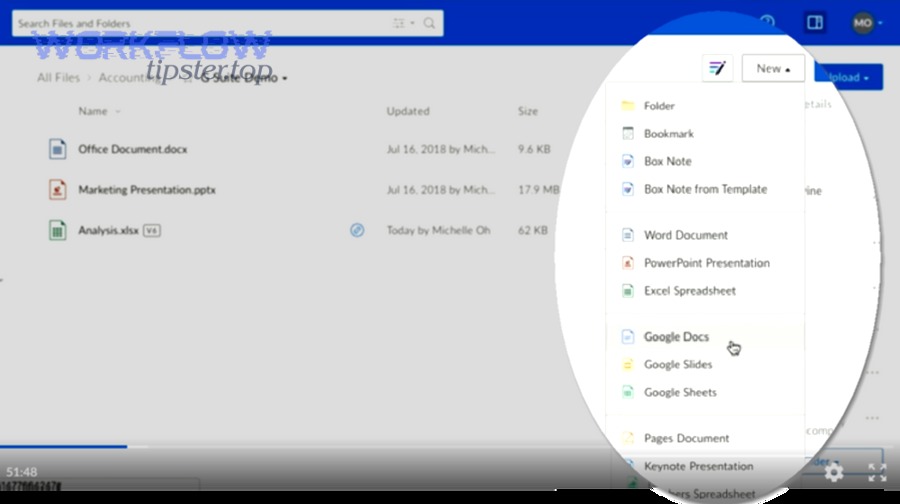
You can connect Box to Google Slides by enabling Box for Google Workspace (or Google’s third-party storage support), so your team can create, open, and edit Slides while files are automatically saved and governed in Box. ([box.
Aland Johnson January 29, 2026 at 9:57 AM
Connect Box to Google Sheets: How to Automate File-to-Spreadsheet Workflows for Teams (Connect vs Integrate)
To connect Box to Google Sheets, you typically use an integration layer (no-code or API-based) that listens for events in Box—like a new file upload—and then writes structured details into a Google Sheet for tracking, reporting, or operational workflows. Next, you’ll want to understand what “Box to Google Sheets integration” actually means in practice—where the files live, what data can be captured, and what kinds of triggers and actions are realistic for your use case.
Aland Johnson January 29, 2026 at 9:45 AM
Connect Box to Google Docs for Teams: Step-by-Step Box for Google Workspace Setup (Box vs Google Drive)
Yes—you can connect Box to Google Docs so your team can create, edit, and auto-save Docs, Sheets, and Slides directly in Box without relying on Google Drive, which reduces duplicate copies, keeps a single source of truth, and strengthens governance. Next, you’ll learn the practical setup paths (end-user add-on vs enterprise admin deployment), including the exact decisions that prevent login loops, missing “Open with” options, and broken permissions.
Aland Johnson January 29, 2026 at 9:33 AM
Connect (Integrate) Box to Airtable for Automated File & Folder Sync — Setup Guide for Teams
Connecting Box to Airtable is the fastest way to turn “files in folders” into trackable records, so your team can automatically capture Box file links, metadata, and folder structure inside Airtable—without manual copying and pasting. You can also choose the right approach for your workflow: Airtable’s native Box options for straightforward syncing and attachments, or third-party automation for more flexible trigger-action logic and multi-step processes.
Aland Johnson January 29, 2026 at 9:23 AM