


Yes—you can connect Box to Google Docs so your team can create, edit, and auto-save Docs, Sheets, and Slides directly in Box without relying on Google Drive, which reduces duplicate copies, keeps a single source of truth, and strengthens governance.
Next, you’ll learn the practical setup paths (end-user add-on vs enterprise admin deployment), including the exact decisions that prevent login loops, missing “Open with” options, and broken permissions.
Then, we’ll map permissions and version history so you understand what changes live in Google editors versus what Box tracks as file versions—especially important for audits, retention, and rollback.
Introduce a new idea: once the integration works, the real win is operational—standardizing how teams create documents, collaborate, and secure content as part of a repeatable workflow.
What does “Box to Google Docs” mean in workflow terms?
“Box to Google Docs” is an integration pattern where Box acts as the system of record (storage and governance) while Google Docs provides the editor, so teams create and collaborate on Google files while saving them back into Box automatically.
To better understand why this matters, think in terms of workflow ownership: storage, editing, sharing, and compliance are often split across tools, and the goal is to make them behave like one system.
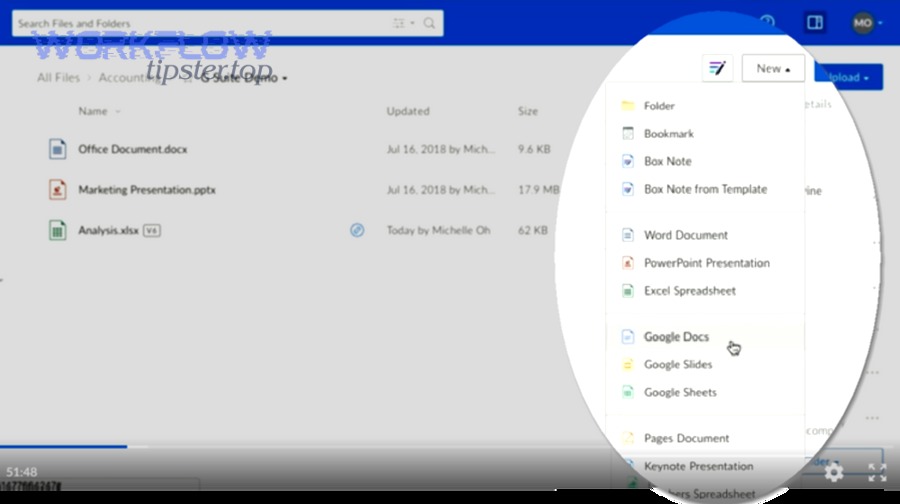
In practice, this workflow usually aims to solve four everyday problems:
- Creation without clutter: Users create Docs/Sheets/Slides from inside Box instead of creating in Drive and re-uploading to Box.
- Collaboration without detours: Teams co-edit in Google’s familiar interface while Box retains the file and applies enterprise controls.
- Governance without guesswork: Permissions, retention, legal holds, and audit trails remain anchored in Box.
- Consistency for repeatable work: Standard document flows (proposals, SOPs, meeting notes) become predictable and easier to automate.
What this does not mean is “moving Box files into Google Drive.” The point is to avoid creating parallel repositories. In other words, Google Docs becomes the editor layer, not the storage destination.
Can you create and edit Google Docs directly in Box?
Yes—Box to Google Docs works because it lets you create, collaboratively edit, and auto-save Google Docs in Box, it keeps files governed by Box permissions, and it reduces re-uploading or duplicate copies across systems.
More specifically, once the integration is enabled, users can start a new Google Doc from Box, open a Google file stored in Box into the Google editor, and save changes back into Box automatically.
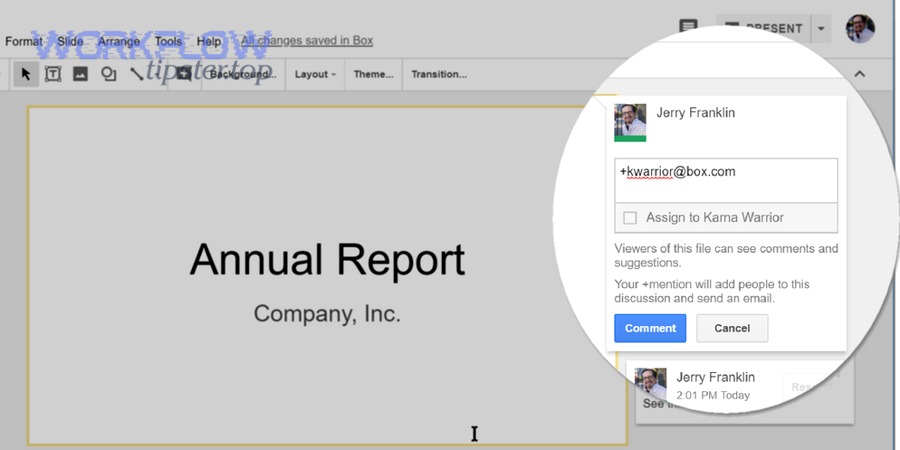
Here’s what “create and edit in Box” typically looks like day to day:
- Create: From a Box folder, choose New → Google Docs/Sheets/Slides, name the file, and the Google editor opens.
- Edit: The document opens in Google’s editor UI, but the file’s home stays in Box.
- Auto-save: Your edits are saved back into Box during the session and at close, so the Box file stays current.
- Collaborate: Co-editing happens in real time in Google Docs, while access is still governed by Box collaboration/permissions.
The strategic advantage is that teams keep a single “storage truth” (Box) while still benefiting from Google Docs’ fast collaboration and commenting features—especially when multiple departments share the same controlled content.
How do you set up Box to Google Docs integration step by step?
Set up Box to Google Docs using Box for Google Workspace in 6 steps—enable the integration, sign in with the correct account type, authorize access, confirm cookies, create a test Doc from Box, and verify auto-save back to the same Box folder.
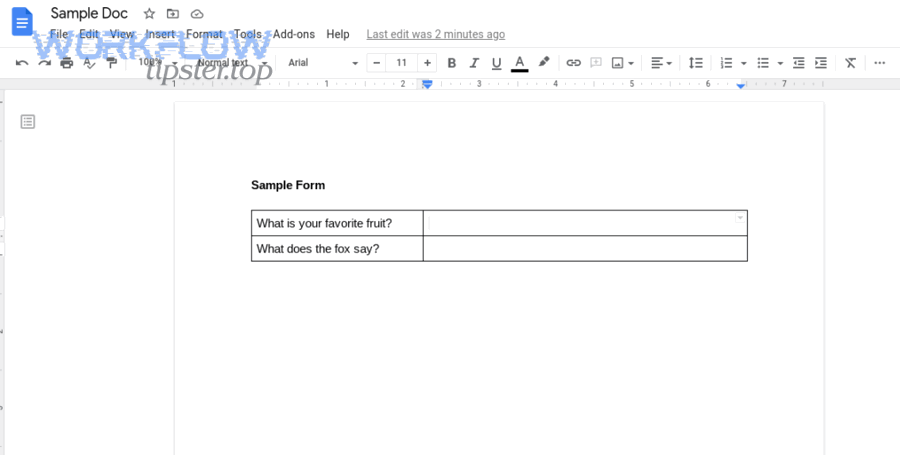
Then, treat setup like a checklist so you can reproduce success across users and departments instead of troubleshooting one-off behaviors.
Step 1: Confirm you’re using Box for Google Workspace (not a manual workaround)
Start by using the official Box for Google Workspace integration rather than “download → upload” workflows, because manual workflows create file forks and break a clean audit trail.
Operationally, this step is about eliminating hidden friction: if users must move files manually, they will create duplicates, rename versions inconsistently, and lose governance context.
Step 2: Validate account compatibility before you click “Connect”
Confirm the pairing rules between Box and Google accounts (enterprise vs personal) before setup, because mismatched account tiers commonly cause sign-in failures or authorization dead-ends.
This is where many teams lose time: a user tests with one account type, the enterprise rolls out with another, and the workflow “mysteriously” breaks.
Step 3: Enable cookies and third-party cookies where required
Enable cookies and any required third-party cookies before launching the editor, because login and authorization flows can fail silently when cookie settings block the Google editor session.
In troubleshooting terms, cookie restrictions often look like: repeated login prompts, spinning loads, or an editor window that opens but cannot save correctly.
Step 4: Authorize Google editor access and complete the first-run prompts
Complete the initial Google login and authorization prompts the first time you open a Google Doc from Box, because that first-run handshake establishes the trusted connection for future sessions.
Practically, you should do this step in a clean browser session to reduce interference from cached identities or previously blocked prompts.
Step 5: Create a test Google Doc inside a controlled Box folder
Create a test document in a folder with known permissions, because testing in a “messy” folder can hide permission errors behind confusing UI behavior.
Use a folder where you can predict outcomes: you (and only you) can edit, and at least one teammate can view or comment, so you can verify collaboration behavior.
Step 6: Verify auto-save, versioning signals, and “Open with” behavior
Verify that edits save back to Box and that “Open with” options appear as expected, because “editing works” is not enough if versions, permissions, or defaults are inconsistent for the team.
At minimum, confirm: the file stays in the same Box folder, collaborators can open it as intended, and the editor session doesn’t create unexplained duplicates.
According to a study by the University of California, Irvine from the Department of Informatics, in 2008, interruptions can make people work faster but with higher stress and workload—so a predictable, low-friction setup reduces costly context switching during everyday editing.
Which setup path should you choose: Box add-on, Box Admin Console, or Google Workspace Admin?
The Box add-on is best for quick individual enablement, the Box Admin Console is best for enterprise-standard controls, and Google Workspace Admin is optimal when you need organization-wide policy alignment—so the right choice depends on rollout scale, governance needs, and IT ownership.
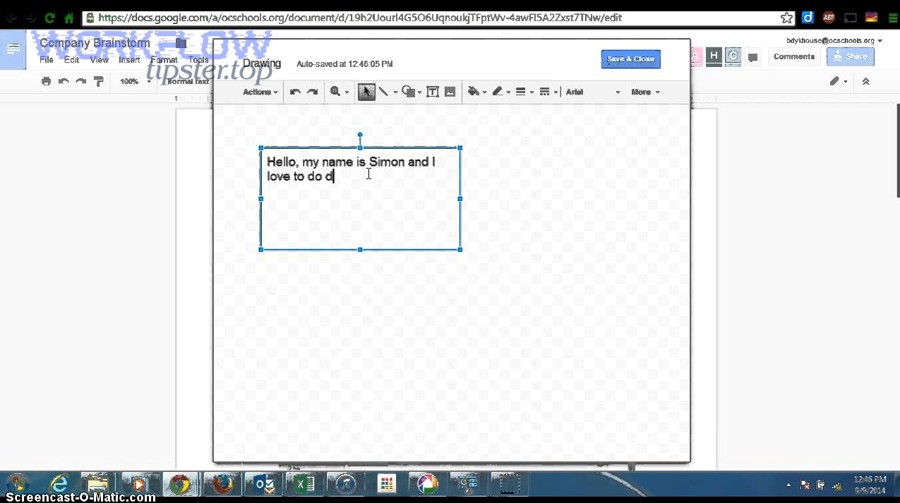
However, choosing a setup path is not only technical; it defines who owns onboarding, permissions, and support when something breaks.
This table contains a practical comparison of the three most common setup paths so teams can choose the rollout model that matches their governance and support reality.
| Setup Path | Best For | Strengths | Trade-offs |
|---|---|---|---|
| End-user add-on / self-connect | Small teams, pilot tests | Fast to start, low admin overhead | Harder to standardize, inconsistent defaults across users |
| Box Admin Console deployment | Enterprise rollout | Centralized control, consistent policies, easier governance | Requires Box admin planning and change management |
| Google Workspace Admin alignment | Org-wide security and identity policies | Consistent identity controls, supports broader Google governance | Often requires cross-team coordination (IT + Security + Box admin) |
If your content program includes repeatable Automation Integrations, the admin-led path is usually the most reliable foundation, because it standardizes behavior across teams and reduces “it works on my machine” drift.
What permissions and sharing rules apply when editing Google Docs in Box?
Box permissions still govern access, Google editor roles apply during editing, and external sharing follows the strictest combination of Box collaboration rules and Google editor access—so you must plan folder-level roles, file-level roles, and external collaborator policies together.
In addition, you should treat permissions as a workflow design decision, not a last-minute toggle, because editing and sharing are where data exposure usually happens.
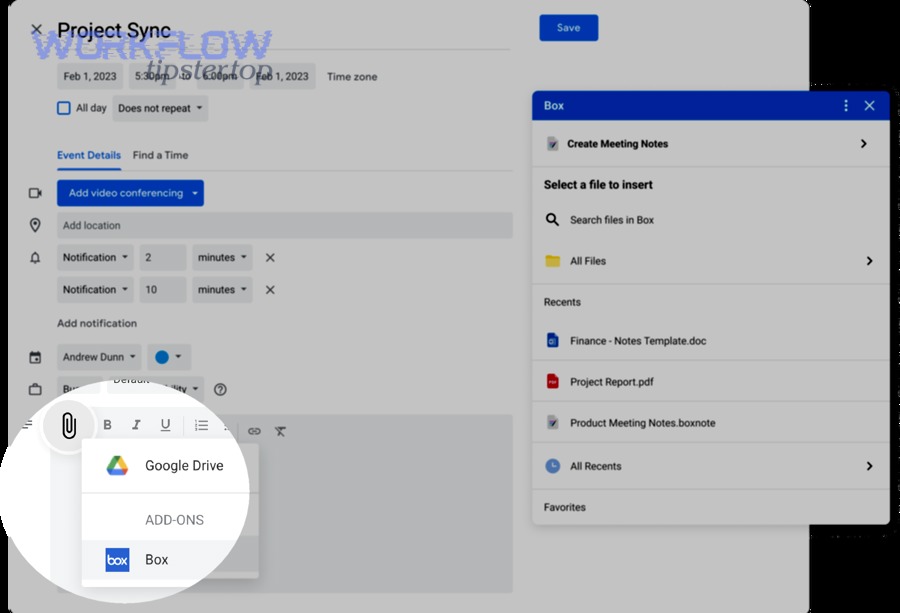
To make permissions predictable, align these three layers:
- Box folder collaboration: Decide who can view, download, edit, upload, and share at the folder level so teams don’t reinvent rules per file.
- Box file access: Confirm whether a user is allowed to open and edit the file in the first place; if they can’t, the Google editor won’t “fix” it.
- Google editor roles: Inside the editor, collaborators typically behave as viewer/commenter/editor depending on what access was granted and how the session was created.
Common “permission surprises” to prevent early:
- External collaborators: A partner may be able to view/download a Google file from Box but fail to edit if their account and integration state don’t satisfy the required conditions.
- Mixed identity environments: If users have multiple Google identities, the wrong signed-in identity can lead to “I can’t edit” even when Box permissions look correct.
- Folder inheritance expectations: Teams assume folder-level access applies everywhere, but file-level sharing links can override user expectations if not governed.
To keep governance clean, design a permissions matrix by role (owner, editor, reviewer, viewer, external partner) and apply it consistently across “document-producing” folders (templates, client deliverables, internal SOPs).
What happens to version history, comments, and autosave when you use Google Docs from Box?
Version history and comments remain usable in Google editors while Box maintains its own file versioning and activity tracking, and autosave pushes edits back into Box during the session—so you can collaborate in Google while preserving Box-level governance and auditability.
Meanwhile, the key is to understand what each system is responsible for so you can recover work, investigate changes, and meet compliance requirements without confusion.
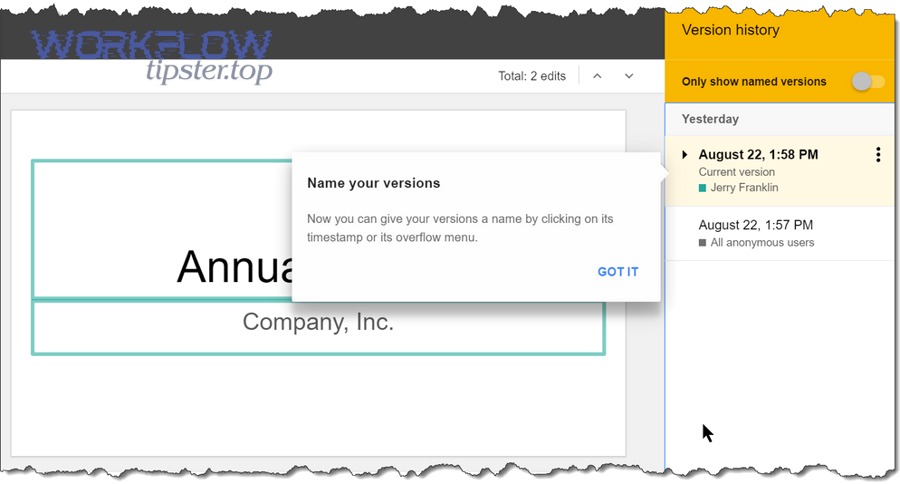
Here’s the practical split of responsibilities:
- Autosave behavior: When editing, changes save back to Box automatically during the session and at close, reducing the risk of “forgot to upload the latest version.”
- Google editor version tools: Google Docs still provides familiar in-editor version history and commenting features for collaboration and review cycles.
- Box versioning and activity: Box can show file-level history and activity, which is crucial for audits, retention, and controlled rollbacks.
How to use this split effectively in real workflows:
- Drafting and rapid collaboration: Let teams iterate quickly in Google Docs, using comments and suggestions to drive decisions.
- Governed storage and finalization: Keep finalized deliverables in Box folders with strict roles, naming rules, and retention policies.
- Audit and rollback: Use Box history when you need system-of-record evidence and use Google’s in-editor history when you need “writing process” context.
According to a study by the University of California, Irvine from the Department of Informatics, in 2008, people compensated for interruptions by working faster but experienced higher stress and frustration—so autosave and clear version pathways reduce mental overhead during frequent collaboration.
What are the most common problems—and fixes—when connecting Box to Google Docs?
Box to Google Docs issues are usually fixable because they most often come from identity mismatch, blocked cookies, missing integration enablement, or permissions misalignment—so you can resolve them quickly by checking accounts, browser settings, and folder roles in a strict order.
Especially in enterprise rollouts, troubleshooting must be repeatable, because “random fixes” don’t scale and create support debt.
Use this high-signal troubleshooting sequence (from most common to least common):
- Problem: Endless login loop or repeated authorization prompts.
Fix: Confirm cookie settings, try a clean browser profile, and ensure the correct Google identity is signed in before opening the editor. - Problem: “Open with Google Docs” option missing.
Fix: Confirm the integration is enabled for the user (or org), and verify whether default “Open with” settings have been configured. - Problem: User can view but cannot edit.
Fix: Check Box permission level first (file/folder role), then confirm the user’s Google account eligibility and integration state. - Problem: Changes don’t appear in Box after editing.
Fix: Verify the session actually opened from Box (not a Drive copy), and test autosave by making a small change and reloading the Box preview. - Problem: Formatting shifts when editing Microsoft Office files with Google editors.
Fix: Treat this as a conversion risk; test critical templates and decide whether Office-in-Box workflows should use native Office editing instead.
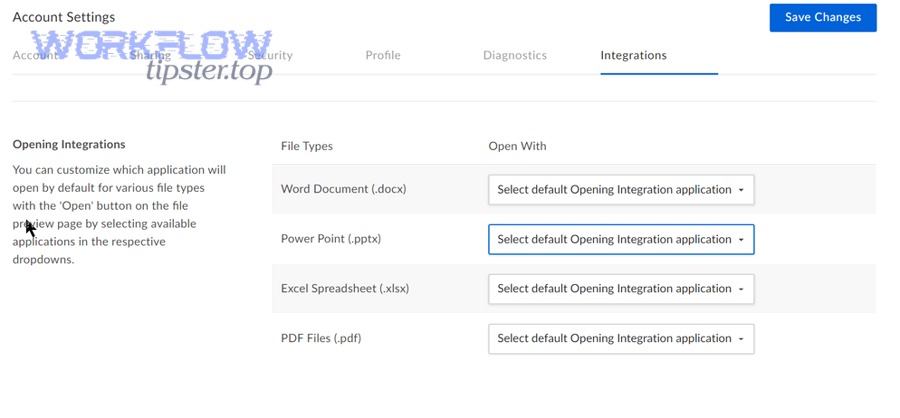
To prevent these issues from resurfacing, standardize three rollout assets:
- A one-page setup SOP: The exact steps users follow the first time they connect.
- A permissions playbook: Which Box roles map to which collaboration behaviors for internal vs external users.
- A support decision tree: Login → enablement → permissions → autosave → defaults, in that order.
If you’re already maintaining other workflows like google calendar to microsoft teams, google calendar to slack, or calendly to zoom, apply the same principle here: choose one “source of truth” system and make the rest behave like controlled interfaces rather than separate storage silos.
How do you secure Box-to-Google Docs workflows for compliance and data loss prevention?
You secure Box-to-Google Docs workflows by enforcing least-privilege access, standardizing external collaboration rules, logging and monitoring activity, and aligning retention policies—so content stays editable for teams but controlled for audits, privacy, and compliance.
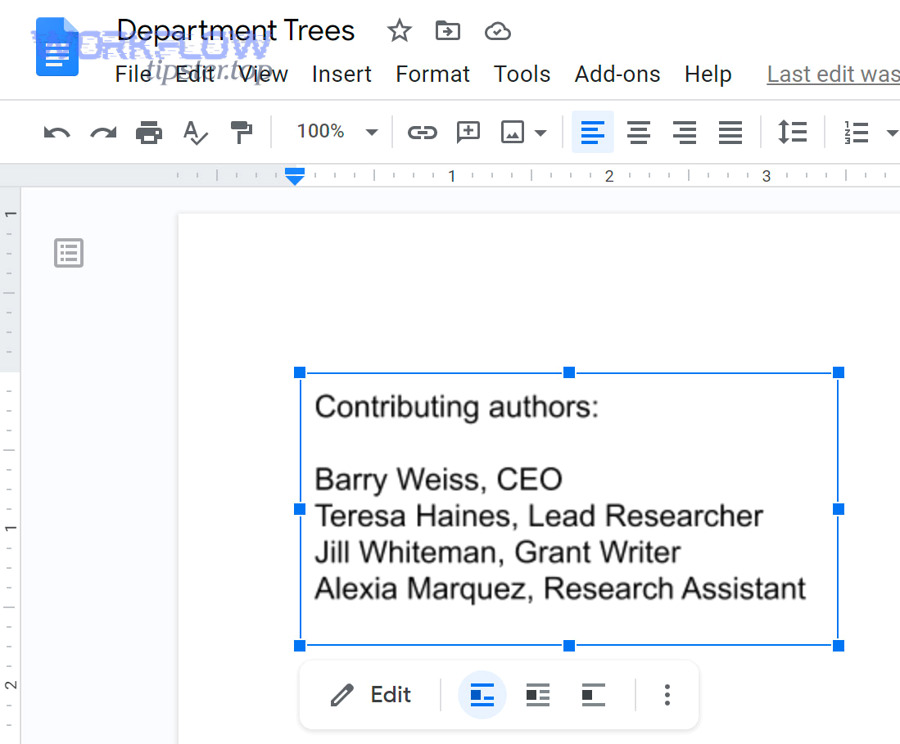
In addition, security should be designed into the workflow, because retrofitting controls after teams have shared hundreds of files is costly and error-prone.
How do you apply least-privilege permissions without slowing collaboration?
Apply least-privilege by assigning the minimum Box collaboration role needed for each persona (creator, editor, reviewer, viewer), because role clarity prevents accidental resharing and ensures the Google editor experience matches real responsibility.
To illustrate, build “collaboration lanes” such as: Editors can create and edit; Reviewers can comment; Viewers can download only when necessary; External partners are constrained to a dedicated folder with stricter defaults.
How do you prevent data leakage when sharing Google files stored in Box?
Prevent data leakage by separating external-share folders, limiting link-sharing behaviors, and requiring explicit invitation-based access for sensitive content, because broad links are the most common path for unintended exposure.
Practically, you should treat external sharing like a controlled gateway: one folder, one policy set, consistent naming, and periodic review.
How do you align audits, retention, and eDiscovery expectations across Box and Google editing?
Align audits and retention by defining Box as the system of record for storage policies while letting Google editors handle collaboration UX, because audits typically require controlled storage evidence rather than scattered editor sessions.
More importantly, document what counts as “official version history” for your organization: if Box is the record, teams must know where to look during an incident or legal request.
What security checklist should admins run after rollout?
Admins should run a checklist covering integration enablement scope, default “Open with” settings, external collaboration rules, high-risk folder reviews, and activity monitoring, because security failures usually come from defaults that were never standardized.
Specifically, schedule a 30-day post-rollout review to validate that teams are creating documents in the intended folders and that external sharing matches policy.
Evidence: According to a study by the University of California, Irvine from the Department of Informatics, in 2008, interrupted work increased stress and frustration—so security designs that reduce confusion (clear roles, clear sharing paths, clear audit locations) also reduce risky “workarounds” that users invent under pressure.