


You can sync Dropbox to Airtable by automatically capturing Dropbox file links and metadata in Airtable records, so your team can track documents, approvals, owners, and next steps in one shared system—without manual copying.
Next, you’ll see which integration approach fits your reality: a simple native connection when you only need file organization, or an automation platform when you need triggers, routing, and record updates across teams.
Then, you’ll follow a step-by-step setup that covers base design, trigger selection, mapping without duplicates, and a rollout checklist so the integration stays consistent when multiple people and folders are involved.
Introduce a new idea: once the workflow is running, the difference between “it works” and “it works for teams” comes down to permissions, link stability, and troubleshooting habits—so we’ll build those into your process from the start.
What does “sync Dropbox to Airtable” actually mean for a team workflow?
Syncing Dropbox to Airtable means you automatically turn files (or file updates) in Dropbox into structured Airtable records that include stable file links, key metadata, and workflow fields your team can act on—so files become trackable work, not just storage.
Then, to keep the workflow team-friendly, you need to agree on what “sync” covers (links vs attachments, metadata depth, update behavior) before you pick tools or build automations.

What data can you move from Dropbox into Airtable (links, metadata, attachments)?
There are 3 main types of Dropbox data you can move into Airtable—links, metadata, and attachments—based on how much you need Airtable to “store” versus “reference.”
Then, once you see the tradeoffs, you can design the right Airtable field structure so the same file always lands in the same place with consistent naming and filtering.
1) Links (most common, most scalable)
A link-based sync stores a Dropbox shared link or file URL in Airtable. This is the best default for teams because it keeps storage in Dropbox and keeps Airtable focused on tracking work.
- File URL / Shared link (URL field)
- File name (single line text)
- Folder path (single line text)
- File ID (single line text) — used as a unique key
- Created time / Modified time (date fields)
- Owner / Uploader (single select or collaborator field)
- Status (single select: New → Review → Approved → Published)
2) Metadata (what makes Airtable valuable)
Metadata turns a file into a searchable record with context. Even if you only sync links, syncing metadata is what powers views like “Needs review,” “Approved this week,” or “Missing required fields.”
- File size (number)
- MIME/type (single select)
- Tags (multi-select)
- Project or client (linked record)
- Version notes (long text)
- Approval deadline (date)
3) Attachments (powerful, but use intentionally)
An attachment-based approach puts the file itself (or a representation of it) into an Airtable Attachment field. This can be helpful for small files or previews, but it’s usually not the best default for team workflows because it can complicate storage, access control, and consistency.
A practical team rule:
If your team needs Dropbox as the source of truth, store links + metadata in Airtable.
If your team needs Airtable as a working dashboard, store links + workflow fields in Airtable and keep files in Dropbox.
Is it possible to automatically create or update Airtable records when Dropbox files change?
Yes, it’s possible to automatically create or update Airtable records when Dropbox files change, because (1) automations can watch a folder for new files, (2) they can map file data into Airtable fields, and (3) they can “find then update” records so the same file stays one record over time.
Then, the team-critical detail is defining what “change” means in your workflow so you don’t flood Airtable with noise.
What “change” can mean :
- New file added to a folder → create a record (best for intake workflows)
- Existing file updated → update a record (best for iterative creative work)
- File renamed or moved → update a record only if you use a stable identifier (like file ID) and your automation tool supports it reliably
3 reasons teams typically automate updates (not just creates):
- Visibility: stakeholders see the newest version without asking in chat.
- Accountability: an owner and status moves with the file, not with a message.
- Speed: reviewers get a record instantly, rather than waiting for manual sharing.
Team tip: If you’re not sure your tool detects renames/moves reliably, treat those as “edge cases” and handle them with a weekly reconciliation workflow (covered later).
Which “Dropbox to Airtable” integration method should you choose: native vs Zapier vs Make vs n8n?
Airtable’s native integration wins for simple linking, Zapier is best for fast template-based automation, Make is optimal for complex scenarios and data shaping, and n8n is strongest for technical teams that want self-hosted control.
Then, because tool choice affects reliability and governance, you should compare them using the same criteria your team actually cares about: setup time, complexity, update logic, volume, and permissions.

Before the comparisons, this table contains the practical criteria most teams use to decide, and it helps you choose a method based on workflow complexity rather than brand familiarity.
| Criteria | Native integration | Automation platform (templates) | Automation platform (advanced) | Self-hosted automation |
|---|---|---|---|---|
| Best for | Simple organization | Quick wins | Multi-step workflows | Custom logic + control |
| Typical outcome | Link files to records | Create records from new files | Find/update, routing, enrichment | Highly tailored pipelines |
| Team effort | Low | Low–medium | Medium–high | High (but flexible) |
When is Airtable’s native Dropbox integration the best fit?
Airtable’s native Dropbox integration is the best fit when you need lightweight file organization inside Airtable, minimal moving parts, and a “good enough” connection that doesn’t require complex triggers, routing, or dedup logic.
Then, your job is to keep the workflow simple so it stays maintainable as more team members join.
Choose native if your team needs:
- A quick way to organize and share Dropbox file links inside Airtable
- A low-maintenance setup with fewer failure points
- A workflow where “attach/link this file to that record” is the main goal
Avoid native (or supplement it) if your team needs:
- “When X happens in Dropbox, then do Y in Airtable” logic
- Multi-step workflows (routing, approvals, notifications, enrichment)
- Strict deduplication rules across large folder structures
When is Zapier the best fit for Dropbox → Airtable automation?
Zapier is the best fit when your team wants to set up Dropbox → Airtable automations in minutes, use proven templates, and focus on business outcomes (records created, links captured, tasks routed) without building complex logic from scratch.
Then, once you get the first automation working, you can add guardrails like unique keys and “find then update” steps to prevent duplicates.
Strong team use cases for Zapier:
- New file in a Dropbox folder → create a new Airtable record
- Add file link + name + path into Airtable for tracking and approvals
- Quick notifications to your team after the record is created
A practical constraint to watch:
Some folder-watching workflows depend on polling and may have limits; plan your watched folder scope and use filters to reduce noise.
Where to connect this to broader workflows: When teams already run multiple Automation Integrations (for example, an intake form feeding Airtable, plus a file sync from Dropbox), template-based tools help keep operations consistent across departments.
When is Make the best fit for syncing file metadata at scale?
Make is the best fit when you need multi-step, conditional workflows and stronger data shaping—for example, parsing folder paths into project fields, branching approvals by file type, and handling retries with more control than simple template flows.
Then, the advantage becomes measurable when your workflow stops being “one trigger → one action” and becomes “one trigger → multiple business rules.”
Choose Make if your team needs:
- Routers/branches (if file type = PDF → legal review; if PNG → design review)
- Iteration over multiple items (batch processing)
- More control over transformation (clean file names, extract client names from paths)
- Better handling of “complex but still no-code” scenarios
A common team pattern:
Dropbox folder path contains /Clients/ACME/… → Make extracts “ACME” → Airtable links the file to the ACME client record automatically.
When is n8n the best fit for technical teams (self-hosted control)?
n8n is the best fit when a technical team needs maximum control over logic, security, and customization—especially if you want to self-host, integrate with internal systems, or create robust reconciliation and backfill workflows beyond typical no-code templates.
Then, the tradeoff is operational ownership: your team maintains the system, monitors it, and improves it like any internal service.
Choose n8n if your team needs:
- Self-hosted environments or strict security requirements
- Custom deduplication and idempotency logic
- Integration with internal databases or custom APIs
- Detailed observability and recovery workflows
Practical reality check:
If your team does not have someone who can own reliability and maintenance, a hosted automation platform may be the better “team fit,” even if it has fewer technical knobs.
How do you set up a Dropbox → Airtable workflow step-by-step (no-code)?
The fastest reliable method is to set up a 4-step workflow—(1) prepare the Airtable base, (2) choose the right Dropbox trigger, (3) map fields with dedup logic, and (4) test + rollout—so your team gets consistent records instead of inconsistent manual links.
Then, because teams scale through repeatability, each step below focuses on decisions that prevent rework later.

How do you prepare your Airtable base and fields before connecting Dropbox?
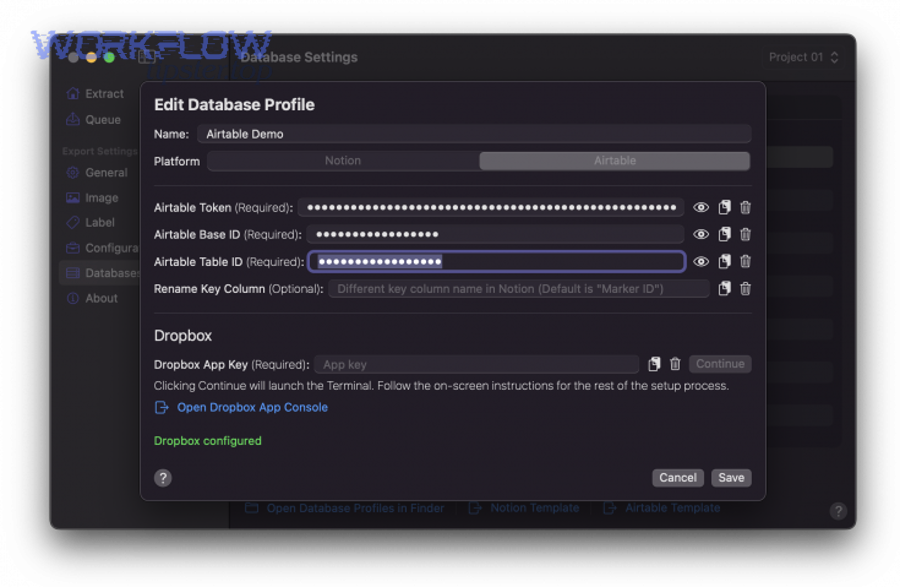
You prepare your Airtable base by creating a dedicated table for files, defining a unique identifier field, and adding workflow fields (status, owner, due date) so every incoming Dropbox file becomes actionable team work, not just a stored URL.
Then, once the base is structured, your automation becomes a predictable “data pipeline” instead of a fragile set of one-off mappings.
Minimum viable “Files” table (team-ready):
- File ID (Unique Key) — text field (this prevents duplicates)
- File Name — text
- Dropbox Link — URL
- Folder Path — text
- Project / Client — linked record
- Status — single select (New, In Review, Approved, Published, Archived)
- Owner — collaborator
- Last Modified — date/time
- Notes / Review feedback — long text
Team design rules that prevent chaos:
- Use a single source of truth folder structure in Dropbox (even simple)
- Use a single “Files” table and link it to projects/clients rather than creating a new table per folder
- Use views like “Needs Review” and “Missing Owner” to keep the system self-correcting
How do you choose the right Dropbox trigger (new file vs updated file vs new folder item)?
You choose the right Dropbox trigger by matching it to your workflow goal: “new file” is best for intake, “updated file” is best for iterative reviews, and “new folder item” is best when your team treats folder organization as part of the process.
Then, to reduce noise, scope the trigger to a specific folder (or a small set of folders) and filter by file types that matter to the team.
Trigger selection guide:
- New file in folder → creates a record for every upload (best for ops intake)
- Updated file → updates the record when revisions happen (best for creative workflows)
- New folder (or new folder item) → supports “project kickoff” patterns where folder creation signals a new project
Team caution:
If multiple people upload versions, decide whether each version becomes a new record (version tracking) or updates the same record (single-record lifecycle).
How do you map Dropbox file data into Airtable without duplicates?
You prevent duplicates by using a stable unique key (preferably a file ID or canonical path) and designing your automation to search Airtable first and then update if found / create if not.
Then, once you implement this “idempotent” pattern, your workflow survives retries, delays, and team members uploading files more than once.
Dedup mapping pattern (team-safe):
- Trigger: New file added to folder
- Extract: File ID (or full path), link, name, modified time
- Airtable: “Find record where File ID = incoming File ID”
- If found → Update record fields (modified time, link, status)
- If not found → Create new record
Field mapping best practices:
- Normalize file names (trim spaces, remove double underscores) before saving to Airtable
- Store the folder path so you can build views like “All files for Client X”
- Store last modified time so reviewers can quickly verify freshness
How do you test and validate the sync before rolling it out to the whole team?
You validate the sync by testing with a dedicated folder, confirming field mappings on multiple file types, verifying update behavior (not just create), and running a short team pilot so you catch permission issues and workflow gaps before the workflow becomes “business critical.”
Then, once validation passes, you can roll out in phases—one team, one folder set, one workflow pattern at a time.
Testing checklist (practical and team-focused):
- Upload 5 files of different types (PDF, PNG, DOCX, etc.)
- Confirm Airtable fields populate correctly (link opens, path is correct, dates are right)
- Rename a file and verify expected behavior (update vs new record)
- Move a file to another folder and confirm the workflow outcome
- Confirm dedup logic works (upload same file again → no duplicate record)
- Confirm at least two team members can open linked files (permissions test)
According to a study by the University of Michigan from the Department of Industrial & Operations Engineering, in 2015, an automated scheduling system reduced schedule creation time from 22–28 hours to 4–6 hours per month, while improving quality metrics.
What are the most common Dropbox → Airtable automation workflows teams build?
There are 3 common workflow patterns teams build with Dropbox → Airtable—creative asset pipelines, operations intake tracking, and sales/support file coordination—based on who owns the work and how the file moves through statuses.
Then, once you pick a pattern, you can standardize fields, folder rules, and handoffs so every department uses the same mental model.
Which workflow patterns work best for creative teams (assets, approvals, publishing)?
Creative teams do best with a workflow where every new asset becomes a record that moves through Review → Approved → Published, because the file link stays stable while the decision-making becomes visible and measurable.
Then, by using Airtable views and assignments, you turn “Where’s the latest version?” into a simple filter.
Pattern: Asset intake → review → publish
- Dropbox: upload new design asset to /Creative/Incoming/
- Airtable: create record with link, project, owner, status = New
- Airtable: assign reviewer and due date
- Status updates drive views:
- “Needs Review” view for reviewers
- “Approved” view for publishing
- “Published” view for reporting
Enhancements that teams love:
- Auto-tag file type (image/video/doc) to route reviewers
- Capture “final URL” (where it was published) as another field
- Keep a “revision notes” field for feedback loops
To broaden your team’s playbook, you can treat this as a reusable pattern alongside other workflows your org already runs—like basecamp to google drive for project artifacts—so teams see consistent handoffs even when tools differ.
Which workflow patterns work best for operations (intake, client docs, tracking)?
Operations teams do best with workflows that treat Dropbox as an intake channel and Airtable as the tracking system, because ops work is defined by status, owners, and deadlines—not by file storage alone.
Then, once each file becomes a record, you can build operational dashboards that show workload, bottlenecks, and SLA risk.
Pattern: Client docs intake → checklist completion
- Dropbox folder per client (/Clients/ACME/)
- New doc upload creates/updates a record
- Airtable links the file to the client record and updates onboarding status
Ops fields that make the workflow “run itself”:
- Doc type required? (single select)
- Received date (date)
- Next action (single select)
- SLA deadline (date)
- Responsible owner (collaborator)
- Missing items (formula or checkbox set)
Which workflow patterns work best for sales/support (collateral, case files)?
Sales and support teams do best with workflows that quickly attach the right file to the right record (deal, ticket, case) because speed and traceability beat perfect structure.
Then, as long as the Airtable record captures context, teams can stop digging through folders mid-call.
Pattern: Case file sync → case record updates
- Dropbox: upload case screenshot or document
- Airtable: update the related case record (or create one if new)
- Airtable: notify owner, set status, and store link to evidence file
Cross-tool consistency tip:
If your support team also runs workflows like freshdesk to asana, keep the same record fields and statuses (Owner, Priority, Due Date, Status) so work feels unified even across systems.
What security and permissions do teams need to get right when connecting Dropbox to Airtable?
Teams need to get security right by deciding (1) whether Airtable stores links or attachments, (2) who authorizes and owns the integration credentials, and (3) how link access behaves when files move or permissions change—because “broken or exposed links” are the fastest way to lose trust in the system.
Then, once you define policies, your automation becomes safer and more predictable than manual sharing.
Should you store Dropbox files in Airtable as attachments or as secure links?
Links are usually the better choice for teams because (1) access control stays in Dropbox, (2) storage remains centralized, and (3) revoking access is simpler than hunting down distributed copies—while attachments are best only when you intentionally want the file duplicated for a specific workflow.
Then, once you choose the default, you can document exceptions so people don’t improvise.
When secure links win:
- Sensitive documents require strict access rules
- Teams need a single source of truth for file versions
- You want permission changes to propagate automatically
When attachments make sense:
- Small files used as internal artifacts (thumbnails, previews)
- Offline or snapshot workflows where a copy is acceptable
- Use cases that require Airtable-native previews for speed
Practical policy language (team-friendly):
Store links by default; store attachments only for approved exceptions.
Do you need admin approval or specific account permissions to connect Dropbox and Airtable?
Yes, sometimes, because (1) admins may need to enable an app connection for the team, (2) organizations may restrict third-party app access, and (3) shared link policies can block workflows if they’re not aligned with how your team shares files.
Then, to avoid a rollout surprise, check permissions before you build anything complex.
What to confirm before rollout:
- Can users authorize the connection (or does admin approval come first)?
- Are shared links allowed at the level your workflow needs?
- Do team members have consistent access to the folders being watched?
How do you prevent broken links when files move or permissions change?
You prevent broken links by using stable identifiers when possible, keeping folder structures consistent, and designing a simple “link health” maintenance routine—because teams change permissions and move folders as part of normal work.
Then, once you treat link stability as a process (not a hope), the system stays trustworthy.
3 practical safeguards:
- Prefer stable file identifiers (store file ID or canonical path) to support updates.
- Use a “Source Folder Policy” (e.g., “once approved, files move only to /Published/”).
- Run periodic checks (weekly or monthly) to detect records with inaccessible links.
Team habit that prevents most breakage:
Assign ownership: one person (or role) owns folder structure changes and communicates them to the automation owner.
How do you troubleshoot a Dropbox → Airtable sync that isn’t working?
You troubleshoot a Dropbox → Airtable sync by isolating the failure point—trigger, permissions, mapping, or dedup logic—because most “it’s broken” reports are actually one of those four categories with a predictable fix.
Then, once you use a consistent diagnostic flow, your team stops guessing and starts resolving issues in minutes.
Why are new Dropbox files not triggering record creation in Airtable?
New Dropbox files often don’t trigger record creation because (1) the watched folder scope is wrong, (2) the trigger type doesn’t match the file event, or (3) the automation doesn’t have permission to see the folder—even though the user who built it does.
Then, once you confirm the trigger sees the file, you can move to mapping.
Fast diagnosis steps:
- Confirm you uploaded the file into the exact watched folder (not a similar folder)
- Confirm the trigger is “new file in folder” (not “updated file”)
- Confirm the integration account has access to that folder
- Check for filters that exclude the file type or name pattern
Team fix that prevents recurring confusion:
Create a clearly named “Intake” folder and document “files must land here to be tracked.”
Why are you getting duplicate records or partial metadata?
Duplicate records or partial metadata usually happen because (1) there is no unique key, (2) multiple automations overlap on the same folder, or (3) field types don’t match the incoming data, causing silent failures or missing values.
Then, once you enforce a unique key and a single source of trigger truth, duplication becomes rare.
Duplicate prevention checklist:
- Add File ID (or canonical path) and treat it as the unique key
- Use “find record → update” logic
- Ensure only one automation listens to the same folder events
- Normalize naming rules (avoid accidental “same file, different name” imports)
Metadata completeness checklist:
- Confirm Airtable field types match (dates to date fields, numbers to number fields)
- Confirm path and name fields are mapped from the correct trigger output
- Add a “Sync Status” field (Success / Needs Review) to surface partial imports
What should you monitor after launch to keep the integration reliable?
There are 3 things teams should monitor after launch—run logs, sync quality metrics, and permission/link health—because these reveal issues before users lose trust in the workflow.
Then, monitoring becomes your simplest “insurance policy” against silent failures.
What to track weekly:
- Number of runs vs number of created/updated records (are you missing events?)
- Error rate and common error messages (permissions vs mapping)
- Duplicate rate (records created with same File ID)
- Link accessibility checks (especially for sensitive folders)
Simple operational ownership model:
- One owner for the automation
- One owner for folder structure/policies
- A shared “issues” view in Airtable (records flagged as broken or incomplete)
How do you optimize Dropbox → Airtable automation for scale, compliance, and edge cases?
You optimize for scale and compliance by adding volume controls, reconciliation routines, least-privilege access, and migration/backfill plans—because the hardest problems appear after the workflow becomes important to multiple teams.
Then, once you treat the integration like a living system, it keeps working through growth, policy changes, and tool upgrades.
What should you do when you hit rate limits or high-volume folder activity?
You should handle high volume by narrowing triggers to smaller scopes, filtering early, batching updates, and scheduling non-urgent syncs—because scale problems are usually “too many events” rather than “bad logic.”
Then, once you reduce event noise, your workflow becomes faster and cheaper to run.
Scale tactics that work in real teams:
- Watch project-level folders instead of a giant root folder
- Filter by file type (only PDF/PNG, for example)
- Batch updates for metadata enrichment (run every hour instead of instantly)
- Use “created record first, enrich later” design to keep the pipeline resilient
A practical example:
A marketing team can sync only “final” assets from /Creative/Approved/ instead of syncing everything from /Creative/Working/.
How do you handle missed events, renames, and file moves without losing sync integrity?
You handle missed events by running periodic reconciliation that compares Dropbox folder contents to Airtable records and fixes gaps—because polling delays, renames, and moves can cause event-based workflows to drift over time.
Then, reconciliation turns edge cases into a routine maintenance task rather than a crisis.
Reconciliation plan (simple but powerful):
- Weekly: list files in key folders → compare to Airtable File IDs/paths
- Create missing records (backfill)
- Update moved paths (path refresh)
- Flag inaccessible links for permission review
Team rule that reduces “move chaos”:
Move files only at defined workflow stages (e.g., after approval), not ad hoc.
How do you implement least-privilege access and audit-friendly sharing policies?
You implement least-privilege by using a dedicated integration account, limiting folder access to what the workflow needs, and aligning shared link settings with compliance requirements—because “full access” integrations create unnecessary risk.
Then, auditability becomes simpler because you can trace who granted access, what scope was granted, and what data flows into Airtable.
Least-privilege checklist:
- Integration account only has access to watched folders
- Shared links follow a documented policy (team-only vs public)
- Airtable base permissions match roles (viewer vs editor vs creator)
- Review access quarterly (especially for sensitive client folders)
How can you rebuild or migrate the integration without breaking existing Airtable records?
You can rebuild safely by preserving the unique key, reusing the same field schema, and running a controlled backfill that updates records instead of recreating them—because “new automation, new records” is how teams lose history and trust.
Then, migration becomes a planned upgrade rather than a disruptive reset.
Migration steps (team-safe):
- Freeze schema changes (keep fields stable during migration)
- Confirm unique key field is populated for all records
- Turn on new automation in “test mode” using a pilot folder
- Backfill missing links/metadata using find→update logic
- Switch production folders over in phases
- Keep a rollback plan (re-enable old automation if needed)
Cross-workflow consistency note:
If your organization also runs content pipelines like box to google slides, keep the same governance pattern (unique keys, phased rollout, backfill plan) so operations stay consistent across platforms, not just within Dropbox → Airtable.
Evidence (if any):
Airtable notes that its Dropbox integration supports organizing and sharing Dropbox document links within Airtable and can be used to sync files between the two systems.