


You can connect Box to Google Slides by enabling Box for Google Workspace (or Google’s third-party storage support), so your team can create, open, and edit Slides while files are automatically saved and governed in Box. ([box.com](https://www.box.com/partners/google?))
To choose the right approach, compare a native “edit Google files from Box” setup with automation platforms that connect Box events to Google Slides actions for repeatable, no-manual steps across projects. ([support.box.com](https://support.box.com/hc/en-us/articles/360043696554-Using-Box-for-Google-Workspace?))
Before you start, align prerequisites—accounts, matching identities, and admin controls—because the most common failures come from permissions, policy blocks, or mismatched email identities between systems. ([support.google.com](https://support.google.com/drive/answer/9191990?hl=en&))
Introduce a new idea: once the connection works, you can standardize templates, control sharing, and scale governance so teams stay fast without losing security, version clarity, or auditability. ([support.box.com](https://support.box.com/hc/en-us/articles/360043696554-Using-Box-for-Google-Workspace?))
What does it mean to “connect Box to Google Slides,” and what outcomes should teams expect?
Connecting Box to Google Slides means linking Box storage and permissions to Google Slides editing so teams can create and collaborate on presentations in real time while content auto-saves and stays managed in Box. ([support.box.com](https://support.box.com/hc/en-us/articles/360043696554-Using-Box-for-Google-Workspace?))
To better understand what you’re “getting” from this connection, start by separating two ideas: where files live (Box) and how files are edited (Google Slides). ([support.box.com](https://support.box.com/hc/en-us/articles/360043696554-Using-Box-for-Google-Workspace?))

What “connect” (and “integrate”) really means
In practical terms, “connect” and “integrate” are synonyms in this context: both describe a setup where Box becomes the system of record for your presentation files, while Google Slides remains the editor your team uses to build and refine decks. ([box.com](https://www.box.com/partners/google?))
Outcomes teams should expect
When the integration is configured correctly, the most valuable outcomes are predictable:
- Create/open/edit Google Slides from Box without downloading files and re-uploading versions.
- Auto-save back to Box, reducing “where did the latest copy go?” confusion.
- Real-time collaboration in Google editors while Box maintains content governance.
- Version history and commenting accessible across the tools, depending on the integration path and policies.
- Permission-driven collaboration where Box roles and folder access control who can view, comment, or edit.
These capabilities are explicitly described in Box’s guidance for Google Workspace editing from within Box. ([support.box.com](https://support.box.com/hc/en-us/articles/360043696554-Using-Box-for-Google-Workspace?))
What outcomes you should NOT assume
Even when things work smoothly, don’t assume every Google Slides feature behaves identically when files are stored with third-party providers. Google notes that some features may be unsupported in third-party storage contexts and that administrators control whether third-party storage is allowed. ([support.google.com](https://support.google.com/drive/answer/9191990?hl=en&))
Why teams care: fewer handoffs, fewer breaks in flow
Teams build presentations through many small edits—data updates, slide swaps, stakeholder reviews, last-minute changes. A connected workflow reduces friction in those micro-steps because people stop wasting time “moving” files and start working directly on the deck. And when collaboration happens from multiple locations, reliable cloud workflows matter even more: in a well-known Stanford-led experiment on remote work, productivity increased because workers had fewer breaks and a quieter environment—conditions that tools and processes can support by reducing interruptions and rework loops. ([nber.org](https://www.nber.org/system/files/working_papers/w18871/w18871.pdf?))
Do you need Box for Google Workspace, Google Workspace third-party storage, or an automation tool to integrate Box with Google Slides?
Box for Google Workspace wins for day-to-day collaboration, Google’s third-party storage support helps organizations standardize Workspace editing with external storage, and automation tools are optimal when you need repeatable “if this happens, build a deck” workflows. ([support.box.com](https://support.box.com/hc/en-us/articles/360043696554-Using-Box-for-Google-Workspace?))
However, the “best” option depends on whether your team’s core pain is collaboration friction, process repetition, or governance constraints. ([support.google.com](https://support.google.com/drive/answer/9191990?hl=en&))
This table contains a practical decision snapshot so teams can quickly match the integration path to the real-world outcome they want (fast collaboration, strict governance, or automated deck creation).
| Option | Best for | Typical outcome | Trade-off |
|---|---|---|---|
| Box for Google Workspace (native) | Teams editing Slides daily | Create/edit Slides from Box; auto-save to Box | Less “workflow logic” unless paired with automation |
| Google Workspace + third-party storage controls | Org-wide standardization + admin governance | Workspace editing with approved storage providers | Some feature limitations; admin gatekeeping |
| Automation tools (e.g., Zapier-style) | Repeatable, trigger-based processes | Generate decks from templates; notifications; routing | Connector limits, token upkeep, policy approvals |
Which integration path is best for collaboration-first teams vs automation-first teams?
Box for Google Workspace is best for collaboration-first teams, while automation platforms are best for automation-first teams because they translate Box events into Google Slides actions without manual steps. ([support.box.com](https://support.box.com/hc/en-us/articles/360043696554-Using-Box-for-Google-Workspace?))
Specifically, collaboration-first teams typically need three things: (1) easy creation and editing from a shared folder, (2) predictable permissions, and (3) fewer duplicate copies. Box’s integration description emphasizes creating and collaborating on Docs/Sheets/Slides without leaving Box and saving Google files automatically into Box. ([box.com](https://www.box.com/partners/google?))
Automation-first teams, on the other hand, care about repeatable triggers and actions. For example, an automation flow might begin with a Box trigger (like a new comment or a file in a folder) and perform an action in Google Slides (like creating a presentation from a template). Zapier’s Box + Google Slides integration page describes exactly this trigger/action pattern and includes “Create Presentation From Template” as a common action. ([zapier.com](https://zapier.com/apps/box/integrations/google-slides?))
Practical rule of thumb
- If humans edit decks every day: prioritize native editing from Box first.
- If decks are generated repeatedly (kickoffs, weekly reports, client updates): prioritize automation first.
- If you need both: implement native editing as the base, then layer automation on top.
What are the trade-offs: simplicity vs control vs extensibility?
Native Box editing is simplest, admin-led third-party storage is most controlled, and automation platforms are most extensible because they add programmable workflows across apps rather than only enabling editing. ([support.box.com](https://support.box.com/hc/en-us/articles/360043696554-Using-Box-for-Google-Workspace?))
More specifically, “simplicity” means fewer moving parts: users sign in, create a Slides file in Box, and collaborate. “Control” means administrators decide what’s allowed, which matters if your organization needs strict compliance and standardized usage. Google’s help documentation highlights that administrators decide whether third-party storage providers can be used and notes feature support limitations in those contexts. ([support.google.com](https://support.google.com/drive/answer/9191990?hl=en&))
“Extensibility” means you can add logic: create a deck when a Box folder appears, route it for review, notify stakeholders, and archive it when done. If you publish content about workflows, you’ll often see categories like Automation Integrations because the core value is stitching tools together into repeatable systems rather than performing one-off file actions. ([zapier.com](https://zapier.com/apps/box/integrations/google-slides?))
What prerequisites and permissions are required before you connect Box to Google Slides?
There are five prerequisites to connect Box to Google Slides: matching Box and Google accounts, admin approval for third-party storage/integration, correct Box folder permissions, browser/access settings that allow editors to open, and a test workflow to confirm saving and sharing. ([support.google.com](https://support.google.com/drive/answer/9191990?hl=en&))
Next, treat prerequisites like a checklist—because most “it doesn’t work” situations are not technical bugs but identity, policy, or permission misalignment. ([support.google.com](https://support.google.com/drive/answer/9191990?hl=en&))

Prerequisite 1: Accounts and identity alignment
Google explicitly notes you need accounts with both Google and the storage provider, and that you typically need to use the same email address across the services for third-party storage usage. ([support.google.com](https://support.google.com/drive/answer/9191990?hl=en&))
Prerequisite 2: Admin permission to enable the capability
In many organizations, end users cannot “just connect” apps. Admin policies can restrict third-party storage providers or app authorizations. If your team is blocked, your fastest path is to confirm whether the integration is permitted at the admin level. ([support.google.com](https://support.google.com/drive/answer/9191990?hl=en&))
Prerequisite 3: Box folder permissions that match your workflow
A deck is usually shared and edited by multiple roles—authors, reviewers, approvers, and viewers. Box’s Google Workspace documentation emphasizes Box permission levels and governance as part of the integrated experience, which means your folder structure and roles should be intentional. ([support.box.com](https://support.box.com/hc/en-us/articles/360043696554-Using-Box-for-Google-Workspace?))
Prerequisite 4: Browser/pop-up/access settings
Some organizations run into basic access issues (pop-up blockers, restricted browsers, blocked domains). A university IT knowledge base describing Box + Google document creation calls out that documents open in a new window and that pop-up blockers can interfere. ([services.pacificu.edu](https://services.pacificu.edu/TDClient/2579/Portal/KB/ArticleDet?ID=134179&))
Prerequisite 5: A short validation test
Before you roll out to a whole team, validate with one shared folder and one test deck: create a Slides file, edit it, confirm it auto-saves, then share it with another user and confirm they can open and edit.
What permissions do end users need in Box to create and edit Google Slides files?
End users need permission to create files in the target Box folder, edit existing content, and share or invite collaborators according to your team’s governance rules so the Slides file can be created, edited, and accessed without permission errors. ([support.box.com](https://support.box.com/hc/en-us/articles/360043696554-Using-Box-for-Google-Workspace?))
Specifically, map permissions to real responsibilities instead of handing out broad access “just in case.” A practical approach for teams is to define a small set of collaboration roles:
- Owners/Leads: manage folder structure, templates, and sharing rules.
- Editors: build and revise Slides content.
- Reviewers: comment and suggest changes without editing core content.
- Viewers: view the final deck or presentation link.
Box’s integration guidance highlights that Box permission levels and governance continue to protect content even when users are editing via Google tools, so permissions are not an afterthought—they are part of the integration’s value. ([support.box.com](https://support.box.com/hc/en-us/articles/360043696994-Introducing-Box-for-Google-Workspace?))
Permission hygiene that prevents future problems
- Use group-based access for departments or project teams rather than individual invitations.
- Keep templates in a read-only library folder and let workflows copy templates into project folders.
- Define external sharing rules early so client-facing decks don’t get blocked at the last minute.
What admin settings can block the integration, and how do you verify them?
Yes—admin settings can block Box-to-Google Slides integration, most commonly by disabling third-party storage providers or restricting which integrations users may authorize. ([support.google.com](https://support.google.com/drive/answer/9191990?hl=en&))
Then, use a simple verification sequence to pinpoint the blocker quickly:
- Check #1: Is the storage-provider feature allowed for your Google Workspace org? ([support.google.com](https://support.google.com/drive/answer/9191990?hl=en&))
- Check #2: Are users allowed to authorize the Box integration or add-on?
- Check #3: Does your security posture require SSO or restricted app access, and is the integration compatible?
- Check #4: Are there sharing restrictions that prevent collaboration outside specific domains?
Google’s documentation is explicit that administrators decide whether users can use third-party storage providers, so if your setup “looks right” but still fails, the admin gate is often the true root cause. ([support.google.com](https://support.google.com/drive/answer/9191990?hl=en&))
How do you set up the native Box ↔ Google Slides editing experience step by step?
The native method is to enable Box for Google Workspace, connect your Google identity, create or open a Slides file from within Box, and validate that edits auto-save back to Box—typically in 6 straightforward steps that end with a shared-folder test. ([support.box.com](https://support.box.com/hc/en-us/articles/360043696554-Using-Box-for-Google-Workspace?))
To begin, treat setup like a controlled rollout: you’re not just enabling a feature, you’re creating a repeatable editing experience that will be used under deadline pressure. ([support.box.com](https://support.box.com/hc/en-us/articles/360043696554-Using-Box-for-Google-Workspace?))

Step-by-step setup (native editing flow)
- Confirm the integration is available in your Box environment and permitted by your organization’s policies. ([app.box.com](https://app.box.com/integrations?))
- Sign in to Box and open the target team folder where presentations will live.
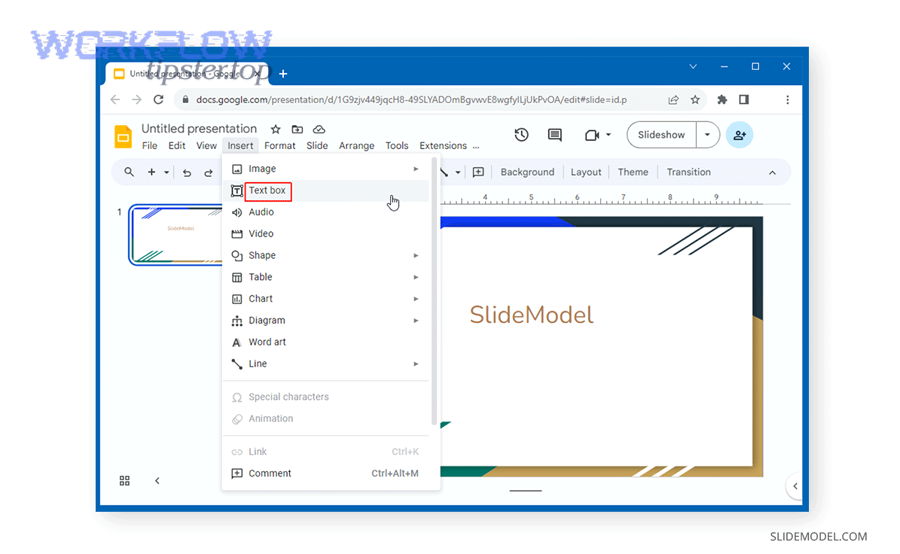
- Create a new Google Slides file from Box’s creation flow (or open an existing Google file stored/managed in Box). ([support.box.com](https://support.box.com/hc/en-us/articles/360043696554-Using-Box-for-Google-Workspace?))
- Authorize your Google account when prompted and ensure the email identity matches the expected org identity. ([support.google.com](https://support.google.com/drive/answer/9191990?hl=en&))
- Edit the deck in Google Slides and confirm changes are saved back to Box automatically. ([support.box.com](https://support.box.com/hc/en-us/articles/360043696554-Using-Box-for-Google-Workspace?))
- Validate collaboration by inviting one teammate to edit and one teammate to comment, then confirm both can access the same file from the Box folder.
What “good” looks like after setup
A successful setup produces a very specific feeling for users: they stop thinking about the storage layer because the file simply opens, edits, and returns to the folder like a native object. Box’s documentation emphasizes that Google documents can be created/opened/edited and auto-saved directly in Box, which is the exact user experience you’re aiming to validate. ([support.box.com](https://support.box.com/hc/en-us/articles/360043696554-Using-Box-for-Google-Workspace?))
How do you create a new Google Slides presentation directly from a Box folder?
You create a new Google Slides presentation from a Box folder by using Box’s “New” (create) action in the target folder, selecting Google Slides, naming the file, and letting it open in the editor with auto-save back to the same Box location. ([services.pacificu.edu](https://services.pacificu.edu/TDClient/2579/Portal/KB/ArticleDet?ID=134179&))
For example, if your team runs client projects, standardize naming at creation time because it reduces later search friction:
- Client_Project_Deck_v1 (initial draft)
- Client_Project_Deck_Review (stakeholder review)
- Client_Project_Deck_Final (approved)
Then, keep decks in a predictable folder structure (Templates → Projects → Archive) so users don’t create “shadow copies” elsewhere.
How do you confirm the file is stored in Box and shared correctly for a team?
Yes—you can confirm correct storage and sharing by verifying the deck appears in the intended Box folder, checking Box permissions on that folder/file, and having at least two teammates open the same deck via Box links to confirm edit/comment access works as designed. ([support.box.com](https://support.box.com/hc/en-us/articles/360043696554-Using-Box-for-Google-Workspace?))
Next, use this fast validation checklist:
- Storage check: The file appears in the exact folder you chose and is discoverable by search.
- Permission check: Editors can edit; reviewers can comment; viewers can view—without “request access” loops.
- Collaboration check: Two users can open the deck simultaneously and see edits/comments update in real time.
- Version check: If someone updates a slide, the next person sees the update without downloading anything.
According to a study by Stanford University researchers (published as an NBER working paper in 2013 and later in peer-reviewed form), productivity increased by 13% in a randomized work-from-home experiment, largely due to fewer breaks and a quieter environment—exactly the kind of “less friction” condition good collaboration workflows try to recreate. ([nber.org](https://www.nber.org/system/files/working_papers/w18871/w18871.pdf?))
How do you build Box → Google Slides automation workflows for recurring tasks?
The most effective method is to use a trigger-action automation platform to connect Box events (like new files or comments) to Google Slides actions (like creating a presentation from a template), typically in 4 building blocks: trigger, data mapping, action, and notification. ([zapier.com](https://zapier.com/apps/box/integrations/google-slides?))
Below, the key is to treat automation as a team system, not a personal hack—so workflows stay maintainable when roles change and projects scale. ([zapier.com](https://zapier.com/apps/box/integrations/google-slides?))

Block 1: Pick a trigger that represents real work starting
In a Box-based workflow, triggers should reflect moments that reliably predict a presentation is needed—like a new project folder, a newly uploaded brief, or an approval state change.
Block 2: Define the “source of truth” data
If the deck is generated from a template, decide where placeholder values come from (a form, a spreadsheet, a database, or metadata). This prevents decks that look automated but still require manual patching.
Block 3: Choose the Slides action that matches your use case
Automation platforms commonly support actions like creating a presentation from a template. Zapier’s Box + Google Slides page illustrates this pattern: a Box trigger starts the workflow and a Google Slides action can “Create Presentation From Template.” ([zapier.com](https://zapier.com/apps/box/integrations/google-slides?))
Block 4: Add notifications and logging
A workflow without visibility becomes a workflow people don’t trust. Add notifications to a shared channel (email, chat) and keep a log record so someone can audit what happened.
If you publish or learn from implementation guides, you’ll often see ecosystems branded as Automation Integrations because the lasting value is repeatability across teams, not one-off convenience. And if you follow creators like Workflow Tipster, you’ll notice the best workflows always include naming conventions, clear triggers, and a “human review” checkpoint before a deck is sent externally.
Which Box triggers and Google Slides actions are most useful for teams?
There are six high-value Box-to-Google-Slides workflow patterns for teams: project kickoff decks, weekly status decks, client update decks, onboarding decks, sales proposal decks, and post-mortem decks—each pairing a Box trigger with a Slides template action and a notification step. ([zapier.com](https://zapier.com/apps/box/integrations/google-slides?))
Specifically, here are practical trigger/action combinations teams use repeatedly:
- Kickoff deck: Trigger = new folder created in “Projects”; Action = create Slides from template; Notify = team channel.
- Status deck: Trigger = new weekly report file uploaded; Action = create Slides with placeholders; Notify = PM + stakeholders.
- Client update deck: Trigger = “Client Notes” file updated; Action = duplicate client template; Notify = account team.
- Onboarding deck: Trigger = new hire record created; Action = generate onboarding deck; Notify = HR + manager.
- Proposal deck: Trigger = “Opportunity Approved” status; Action = create proposal deck; Notify = sales engineer.
- Post-mortem deck: Trigger = incident closed; Action = generate retrospective deck; Notify = ops review group.
For teams comparing ecosystems, it can help to contrast similar workflows like dropbox to google slides automation patterns, because storage providers differ in how they handle shortcuts, saving locations, and governance—but the workflow logic often stays the same: trigger → template → notify. ([help.dropbox.com](https://help.dropbox.com/integrations/create-google-docs-in-dropbox?))
How do you create a “deck from template” workflow using a Box-stored Slides template?
You create a “deck from template” workflow by storing an approved Slides template in a locked Box template library, using an automation action that duplicates the template into a project folder, replacing placeholders with source data, and then posting the new deck link to your team. ([zapier.com](https://zapier.com/apps/box/integrations/google-slides?))
More specifically, build the workflow with these safeguards so it stays reliable:
- Template library permissions: Most users can view, only a few can edit templates.
- Consistent placeholder schema: Use the same placeholder names across templates (e.g., {{client}}, {{date}}, {{project_name}}).
- Destination folder rules: The workflow writes the new deck into the correct project folder, not a personal folder.
- Human checkpoint: Route the deck to a reviewer before client delivery.
Then, if your team also runs cross-app processes—like routing a task from clickup to microsoft teams—keep the same philosophy: trigger the workflow when work is “real,” create the asset from a template, and notify the team in the place they already operate. That consistency reduces training load and increases adoption.
What are the most common integration problems, and how do you troubleshoot them quickly?
There are six common Box-to-Google-Slides integration problems—access denied, wrong account identity, file not opening, edits not saving, broken sharing, and automation failures—and you can troubleshoot them fastest by isolating whether the cause is permissions, policy, identity, or connector tokens. ([support.google.com](https://support.google.com/drive/answer/9191990?hl=en&))
Let’s explore the problems in a symptom-to-fix way, because speed matters most when a deck is due in an hour. ([support.box.com](https://support.box.com/hc/en-us/articles/360043696554-Using-Box-for-Google-Workspace?))

Problem 1: “Access denied” or “request access” loops
This is almost always a Box permission mismatch (folder/file access) or a Google account mismatch (wrong signed-in identity). Start by checking folder permissions and the email identity used to authorize the editor. ([support.google.com](https://support.google.com/drive/answer/9191990?hl=en&))
Problem 2: “The file won’t open”
If the deck tries to open in a new window, pop-up blockers or restricted browser settings can stop the editor from launching. Confirm browser allowances and try from an approved browser profile. ([services.pacificu.edu](https://services.pacificu.edu/TDClient/2579/Portal/KB/ArticleDet?ID=134179&))
Problem 3: “Edits don’t show up” or “Where is the latest version?”
This can happen if users are working from copied links, duplicating decks outside the intended folder, or using multiple storage locations. Reinforce “one deck per folder” discipline and discourage local downloads unless required.
Problem 4: “Sharing is inconsistent across stakeholders”
If external collaborators can’t open the deck, this may be a policy restriction, not a user error. Review link-sharing rules and external sharing allowances in your organization.
Problem 5: “Automation ran but didn’t create the deck”
This is commonly a token/scopes issue, a connector permission change, or a rate/limit problem. Confirm the automation account still has access to the template and destination folder, then reauthorize if needed. ([zapier.com](https://zapier.com/apps/box/integrations/google-slides?))
Problem 6: “Some Google features behave differently”
If users report missing features, treat it as a known limitation check: Google notes that third-party storage providers may not support all features and that administrators control usage. ([support.google.com](https://support.google.com/drive/answer/9191990?hl=en&))
Is the issue caused by Box permissions or Google account access—and how can you tell?
You can tell the cause by testing one known-good user in the same Box folder and checking whether the failure follows the file (Box permissions) or follows the user identity/session (Google account access), then fixing the side that fails the controlled test. ([support.google.com](https://support.google.com/drive/answer/9191990?hl=en&))
Specifically, run a two-minute diagnostic:
- Test A (Box-side): Can the user create any file in the folder? If not, fix Box access first.
- Test B (Google-side): Is the user signed into the correct Google account (same org identity)? If not, switch identities and retry. ([support.google.com](https://support.google.com/drive/answer/9191990?hl=en&))
- Test C (Cross-user): Can a second user open the same deck from the same Box link? If yes, the issue is likely user/session-based.
Meanwhile, avoid “permission sprawl” as a fix—over-granting access solves today’s problem but creates tomorrow’s governance risk.
What should you do if automation runs fail due to tokens, scopes, or rate limits?
If automation runs fail, you should reauthorize the connector, confirm the automation account still has access to the Box template and destination folder, reduce requested scopes to only what the workflow needs, and add retry/logging so failures are visible and recoverable. ([zapier.com](https://zapier.com/apps/box/integrations/google-slides?))
More specifically, implement these stabilizers:
- Use a service account pattern (or a dedicated automation user) rather than a personal user whose access changes.
- Pin templates in a stable folder and avoid renaming/moving them without updating workflows.
- Add a “failure notification” step so the team knows a deck wasn’t created.
- Throttle and batch if large runs happen at the same time (e.g., Monday morning project creation).
According to a study by Stanford University (Nicholas Bloom and colleagues) in a randomized experiment later published in the Quarterly Journal of Economics, working from home produced a 13% performance increase, partly from fewer breaks—an effect that reinforces why automation that removes interruptions and manual handoffs can materially improve throughput. ([academic.oup.com](https://academic.oup.com/qje/article-abstract/130/1/165/2337855?))
Contextual border: At this point, you know what “Box to Google Slides” integration means, how to choose the right path, how to set it up, how to automate it, and how to troubleshoot it. Next, we shift from “making it work” to “making it scale” with governance, standardization, and edge-case prevention. ([support.google.com](https://support.google.com/drive/answer/9191990?hl=en&))
How can teams standardize and govern Box ↔ Google Slides at scale without losing flexibility?
Native editing plus standardized templates deliver flexibility, while admin-led controls and structured permissions deliver control—so the best scalable approach is to combine a template library, role-based sharing, and audit-friendly processes that let teams move fast within clear guardrails. ([support.box.com](https://support.box.com/hc/en-us/articles/360043696554-Using-Box-for-Google-Workspace?))
In addition, governance is not “extra paperwork”; it’s the mechanism that prevents the exact problems that make teams abandon shared systems and return to messy copies. ([support.box.com](https://support.box.com/hc/en-us/articles/360043696554-Using-Box-for-Google-Workspace?))

What is the difference between “flexible sharing” and “controlled access” for Slides stored in Box?
Flexible sharing prioritizes speed and broad collaboration, while controlled access prioritizes policy-driven restrictions and predictable permissions, so teams should use flexible sharing internally and controlled access when decks cross departments, vendors, or clients. ([support.google.com](https://support.google.com/drive/answer/9191990?hl=en&))
More specifically, “flexible sharing” supports fast iteration: teammates can comment, edit, and review without bureaucratic delays. “Controlled access” prevents risk: it limits external links, restricts who can invite others, and enforces identity rules.
- Use flexible sharing for internal brainstorms and early drafts.
- Switch to controlled access for client decks, legal/compliance decks, and executive-level materials.
Google’s documentation emphasizes the administrator role in enabling/disabling third-party storage providers, which is a reminder that controlled access is often an organizational requirement, not an optional preference. ([support.google.com](https://support.google.com/drive/answer/9191990?hl=en&))
Which governance components matter most: SSO, DLP, audit logs, and retention—what does each control?
There are four governance components that matter most—SSO, DLP, audit logs, and retention—because together they control identity, data leakage, traceability, and lifecycle management for presentations that move through many hands. ([support.box.com](https://support.box.com/hc/en-us/articles/360043696554-Using-Box-for-Google-Workspace?))
Specifically, treat governance as “parts of a system” :
- SSO (identity control): ensures only verified users access content and reduces risky credential sprawl.
- DLP (data leakage control): prevents sensitive content from being shared inappropriately (especially external links).
- Audit logs (traceability): show who accessed/edited/shared a deck and when.
- Retention (lifecycle control): defines how long versions and files persist and how archives are handled.
Box’s Google Workspace integration messaging highlights security, compliance, and governance as part of the integrated model, which is why these components belong in the same conversation as templates and automation. ([support.box.com](https://support.box.com/hc/en-us/articles/360043696994-Introducing-Box-for-Google-Workspace?))
How do you build a Box-based Slides template library that enforces brand consistency?
You build a template library by storing approved Slides templates in a protected Box folder, limiting template editing rights to a small brand team, and using automation or documented processes to copy templates into project folders instead of letting users edit the originals. ([support.box.com](https://support.box.com/hc/en-us/articles/360043696554-Using-Box-for-Google-Workspace?))
To illustrate a scalable design:
- /Templates/Brand (read-only for most; editable for brand owners)
- /Templates/Departments (sales, marketing, CS variants)
- /Projects/<Client>/Decks (where generated decks live)
- /Archive (final decks, locked and retained)
Then, codify a single instruction: “Never edit templates in place; always generate a new deck from the template.” That one rule prevents a huge percentage of brand drift.
What rare edge cases can break “single source of truth,” and how do you prevent them?
Single source of truth breaks most often from four rare edge cases—ownership mismatches, permission inheritance conflicts, duplicated copies across storage systems, and unclear version-history expectations—so prevention requires strict template copying rules, stable folder governance, and visible workflow logs. ([support.google.com](https://support.google.com/drive/answer/9191990?hl=en&))
More importantly, these edge cases show up when teams scale and new people join:
- Ownership mismatch: a deck is created under a personal account and later becomes inaccessible when roles change.
- Inheritance conflicts: project folders are restructured, causing unexpected permission changes.
- Shadow copies: someone downloads and re-uploads “Final_v7_really_final,” splitting reality into multiple decks.
- Audit gaps: automation creates decks but doesn’t log outputs, so teams can’t confirm what was generated.
According to a Stanford-led hybrid work study reported by Stanford News in 2024, hybrid work had zero effect on productivity in a large experiment and improved retention—an outcome that supports investing in scalable collaboration systems, because stable processes help distributed teams stay effective without forcing everyone into the same location. ([news.stanford.edu](https://news.stanford.edu/stories/2024/06/hybrid-work-is-a-win-win-win-for-companies-workers?))