


Syncing DocuSign to OneDrive means your completed, signed agreements automatically land in the right OneDrive folder—without anyone downloading PDFs, renaming files, or chasing “final-final-v3” versions. In practice, the goal is simple: every envelope completion produces a reliable, searchable record in OneDrive that your team can trust as the “system of record” for signed documents.
Next, most teams also want clarity on permissions and ownership: who needs admin access, which DocuSign roles control the integration, and what OneDrive rights are required so saves don’t silently fail. That’s where many “it worked yesterday” problems come from—authentication scope, folder access, and tenant policies.
Besides setup, you likely care about outcomes: how to confirm the integration works end-to-end (including attachments), how to guarantee you’re saving the final signed copy, and how to stop duplicates or wrong-folder routing before it becomes a compliance mess.
Introduce a new idea: once you treat DocuSign → OneDrive as a real workflow (not a one-time connection), the best results come from choosing the right integration method, enforcing naming and folder rules, and adding a lightweight verification + troubleshooting loop.
What does “DocuSign to OneDrive sync” mean for business teams?
DocuSign to OneDrive sync is an automated document-delivery workflow that saves completed (and typically signed) envelope documents from DocuSign into a specified OneDrive location, reducing manual handling and improving document traceability. (support.docusign.com)
Next, to make the workflow dependable, you need to define what gets delivered, when it gets delivered (e.g., completed vs completed + certificate), and where it gets delivered so the saved file matches how your team searches, audits, and shares agreements.
What files get saved to OneDrive when an envelope completes?
When you set up DocuSign → OneDrive delivery, the saved outputs typically include the signed PDF(s) and can also include supporting items such as envelope metadata or completion artifacts, depending on how you configure DocuSign Connect (webhooks) and what your preset delivery option sends. (support.docusign.com)
Specifically, business teams should plan around three practical “file realities”:
- Core signed document(s): The primary PDF(s) your signer sees and signs.
- Attachments (if used): Any supporting documents included in the envelope.
- Audit/completion evidence: Many workflows store proof-of-completion artifacts alongside the signed PDF so reviewers don’t need to open DocuSign to confirm status (this varies by configuration and compliance needs). (developers.docusign.com)
Operationally, the big win is consistency: OneDrive becomes the place where downstream processes happen—review, sharing, retention, and internal handoffs—while DocuSign remains the execution layer for signature events.
When should you use auto-save instead of manual download and upload?
Yes—auto-save is usually better than manual download/upload for DocuSign to OneDrive sync because it (1) reduces human error in file naming and routing, (2) improves speed and SLA for downstream teams, and (3) strengthens auditability by making storage behavior predictable. (support.docusign.com)
However, manual handling still has a narrow place when:
- You’re doing one-off envelopes that don’t merit workflow investment.
- Your storage destination must change per envelope in a highly bespoke way and you haven’t implemented dynamic routing rules.
- You’re operating under temporary access constraints (e.g., tenant changes, permission migrations).
According to a case study by Utah State University from Purchasing Services, in 2020, the organization reported a 70% reduction in traditional workload after shifting away from paper-heavy processes—illustrating how reducing manual handling can free staff for higher-value work. (cdn.featuredcustomers.com)
Do you need admin access and the right permissions to connect DocuSign to OneDrive?
Yes—you typically need the right DocuSign admin-level permissions (or delegated integration rights) and the correct OneDrive folder access because DocuSign’s delivery to OneDrive depends on authorized connections and destination permissions that must remain valid over time. (support.docusign.com)

Then, once the connection is established, the real risk is drift: passwords change, tokens expire, owners leave, folder inheritance changes, and your “working” integration becomes a sporadic one—so it’s best to treat permissions as part of the workflow design.
Which DocuSign roles and settings typically control integrations?
DocuSign integrations that deliver documents outward are commonly governed by account-level features and configuration areas tied to Connect/webhooks and integration enablement—meaning admins (or designated roles) often control whether Connect is enabled and which configurations can run. (support.docusign.com)
More specifically, teams should confirm:
- Connect availability: Whether Connect is enabled on the DocuSign account, because that capability is required for certain preset delivery workflows. (support.docusign.com)
- Configuration ownership: Who owns the Connect configuration and whether it’s tied to a person vs a service identity.
- Event scope: Which envelope events trigger delivery (e.g., “completed”) and whether the delivery includes documents and/or data. (developers.docusign.com)
In practice, the safest pattern is to centralize “integration ownership” with a controlled admin group, not an individual’s personal account.
Which OneDrive permissions are required for saving files into a folder?
At a minimum, OneDrive must allow the connected identity to create files in the destination folder; otherwise, DocuSign can’t reliably write the completed documents where you expect. (support.docusign.com)
To illustrate the permission model in plain terms:
- If the integration writes into a team-shared folder, the connected identity must keep write access even when teams reorganize.
- If it writes into a personal OneDrive, you risk broken access when the owner changes roles, leaves, or changes sharing policies.
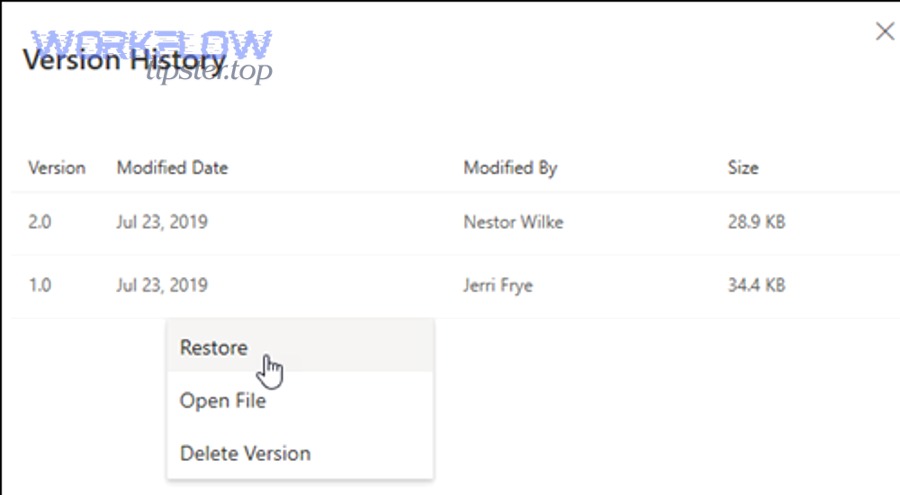
And because storage mistakes happen, OneDrive’s versioning features can be part of your recovery plan: Microsoft notes that Version History in OneDrive can show and restore older versions for many file types. (support.microsoft.com)
What are the main ways to connect DocuSign to OneDrive?
There are two main ways to connect DocuSign to OneDrive: (1) a native DocuSign Connect/preset configuration that delivers completed documents to OneDrive, and (2) a no-code automation layer that routes DocuSign completion events into OneDrive with additional logic. (support.docusign.com)

Next, the “best” method depends on whether you need simple, stable auto-save—or conditional routing, enrichment, and cross-app workflows.
This table contains a practical decision view of the two approaches—showing what each is best at, where it’s weakest, and what teams usually choose it for.
| Method | Best for | Key strength | Common limitation |
|---|---|---|---|
| Native DocuSign delivery to OneDrive | Straight auto-save on completion | Fewer moving parts | Less flexible routing logic |
| No-code automation layer | Conditional workflows | More customization | More dependencies to monitor |
Is a native DocuSign configuration the best option for straightforward auto-save?
Yes—native DocuSign-to-OneDrive delivery is usually the best option for straightforward auto-save because it’s purpose-built to send completed envelope documents to OneDrive with minimal workflow complexity. (support.docusign.com)
However, “straightforward” needs to be defined up front. Native is ideal when:
- You have one primary destination (or a small set of destinations).
- Your file naming can follow a standard template.
- Your business logic doesn’t require extra enrichment (like client IDs from another system).
When does a no-code automation tool make more sense than native setup?
A no-code automation tool makes more sense than native setup when you need conditional routing, multi-step logic, or cross-application orchestration that goes beyond “save completed PDF to folder.” (developers.docusign.com)
More specifically, it becomes the better fit when you must:
- Route documents based on envelope data (region, client type, amount).
- Save into different folders per customer/project automatically.
- Trigger additional actions (notify a channel, update a record, create tasks) after the file lands—similar to broader automation patterns you might already run in other processes.
How do you set up DocuSign → OneDrive auto-save step by step?
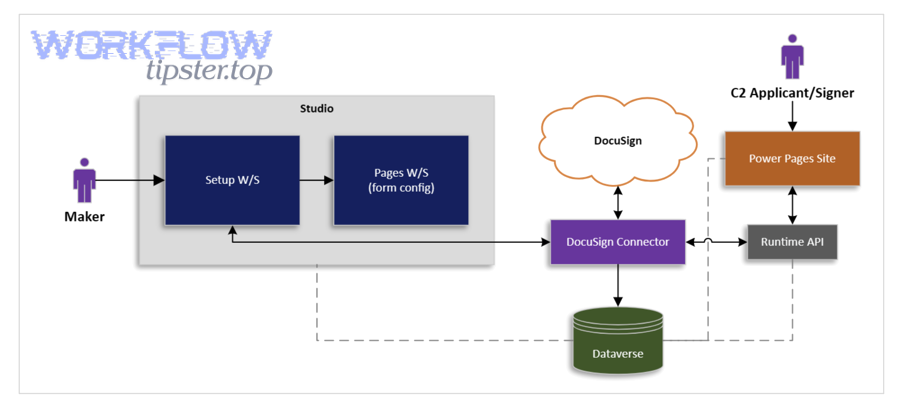
The most reliable setup method is: choose your destination folder + naming rules, enable a DocuSign Connect preset delivery configuration for OneDrive, and run a controlled test envelope to confirm the completed documents are written correctly. (support.docusign.com)
Then, you harden the workflow by standardizing folder structure and naming so that storage is not just automatic—but also useful for searching and auditing later.
How do you choose the correct OneDrive folder and structure for a team?
Choose the correct OneDrive folder by starting with your retrieval behavior: where do people look for signed documents first, and what access model must persist as teams change? (support.docusign.com)
To better understand the folder decision, use these rules:
- One owner, many consumers: Store in a governed team location, not an individual’s personal OneDrive.
- Client/project retrieval: Create a consistent hierarchy like Clients → ClientName → Agreements → Year.
- Process retrieval: If teams work by lifecycle stage, structure as Intake → In Review → Signed → Archived.
Most integration failures later are not technical—they’re organizational. Folder chaos makes even perfect automation feel unreliable because people can’t find what the workflow saved.
How do you set file naming rules so saved documents are searchable later?
Set naming rules by combining stable identifiers (client/project ID) with the agreement context (template name) and time (date), so OneDrive search and sorting work without human edits. (support.docusign.com)
Specifically, an effective pattern looks like:
- ClientName_ProjectID_AgreementType_YYYY-MM-DD_EnvelopeID.pdf
- Include EnvelopeID (or another unique token) to prevent collisions.
- Keep the first 2–3 tokens human-readable so browsing works even without search.
If you also need internal operational reporting, consider saving a lightweight “index record” elsewhere—but keep OneDrive naming simple and consistent.
How can you confirm the integration works end-to-end after setup?
You can confirm the integration works by sending a test envelope through the full signing path, verifying OneDrive delivery timing and destination, and checking that the saved file is the final signed output (including attachments and completion evidence, if required). (support.docusign.com)
Next, treat verification like a checklist—because “it saved something” is not the same as “it saved the right final document where auditors and operators expect it.”
What is the fastest “test envelope” checklist for verifying OneDrive delivery?
The fastest test checklist is: (1) send a test envelope, (2) complete signing, (3) confirm OneDrive file appears in the correct folder, (4) confirm naming rules, and (5) confirm the file opens as expected. (support.docusign.com)
To illustrate, a tight test run should include:
- A real PDF similar to production size.
- At least one attachment if attachments are part of your process.
- A second signer if routing changes with multiple recipients.
- A deliberate “failure” run (wrong folder permission) so you see what an error looks like and how your team notices it.
If you want a visual walkthrough of the OneDrive connection concept, here is a focused explainer:
How do you verify the saved file is the final signed version and not a draft?
Verify the saved file is final by confirming the envelope status is “completed,” checking for completion artifacts your process expects, and ensuring the document includes the final signatures and timestamps (not a pre-sign preview). (developers.docusign.com)
More specifically, teams should do three checks:
- Signature presence check: Open the saved PDF and confirm visible signatures (and any required signature blocks).
- Completion timing check: Confirm the file was written after completion, not during a mid-workflow event.
- Uniqueness check: Confirm the file corresponds to the final envelope instance (EnvelopeID-based naming helps prevent confusion).
If your workflow depends on the ability to correct mistakes after the fact, OneDrive’s Version History can help recover earlier versions of stored files. (support.microsoft.com)
Why isn’t DocuSign saving files to OneDrive, and how do you fix it?
No—when DocuSign isn’t saving files to OneDrive, it usually isn’t “random”; the most common causes are (1) expired/invalid authentication, (2) missing folder permissions, or (3) misconfigured event delivery rules, and each has a direct fix path. (support.docusign.com)
Then, once the core delivery works, most “ongoing pain” shifts to duplicates, wrong-folder saves, or missing attachments—issues caused by inconsistent naming/routing rules and unclear ownership.
Is the most common cause authentication or folder permissions?
Yes—authentication and folder permissions are the most common causes because DocuSign’s ability to deliver files to OneDrive depends on a valid authorized connection and write access to the destination folder. (support.docusign.com)
To begin, troubleshoot in this order:
- Check connection validity: Re-authenticate the OneDrive connection used by the integration.
- Confirm folder access: Make sure the destination folder is still shared with the correct identity and still allows file creation.
- Validate “completed” event delivery: Ensure the trigger condition is the envelope completion event you intend to use. (developers.docusign.com)
If you’re trying to keep IT governance clean, document the “owner identity” and re-auth cadence so the integration doesn’t die silently.
How do you stop duplicates, wrong folders, or missing attachments?
You stop duplicates, wrong folders, or missing attachments by tightening naming uniqueness, aligning routing rules with one single source of truth, and standardizing which envelope components must be delivered (documents vs attachments vs evidence). (developers.docusign.com)
Specifically:
- Duplicates: Add a unique token like EnvelopeID in the filename and avoid workflows that “re-run” on multiple events.
- Wrong folders: Use one routing rule set. If two systems decide the folder independently, you will eventually split records.
- Missing attachments: Ensure your chosen method delivers the full document set you expect; attachments often need explicit inclusion depending on how the workflow is configured. (developers.docusign.com)
According to a case study by University of Colorado Boulder from Business Development and Content Services, in 2019, the organization reported that 74% of document-based requests were completed in under an hour after moving to digital processes—highlighting why preventing rework (like duplicates and misroutes) directly protects cycle-time gains. (docusign.com)
How should you optimize DocuSign → OneDrive automation for edge cases and long-term governance?
You should optimize DocuSign → OneDrive automation by selecting the right integration method, enforcing tenant-safe identity and access patterns, and applying security + compliance controls so auto-saved signed documents remain reliable over time—not just on day one. (developers.docusign.com)
Next, this is where mature teams connect the workflow to broader Automation Integrations practices—because the same governance patterns you apply to flows like airtable to servicenow or activecampaign to hubspot apply here too: ownership, access, monitoring, and change control.
What is the difference between native setup and a no-code automation tool for reliability and flexibility?
Native setup is usually more reliable for simple auto-save because it has fewer moving parts, while a no-code automation tool is more flexible for conditional logic, multi-step workflows, and cross-app orchestration—but adds dependencies you must monitor. (developers.docusign.com)
However, the right decision is not philosophical—it’s operational:
- If your workflow is “save completed PDFs to a standard folder,” native wins.
- If your workflow is “save based on rules + notify + update systems,” no-code wins.
Pick based on your real edge cases, not your best-case demo path.
How do you handle multiple OneDrive accounts or tenants without breaking access?
Handle multiple OneDrive accounts or tenants by standardizing on a controlled integration identity, documenting tenant boundaries, and preventing folder destinations that depend on personal accounts or ad-hoc sharing links. (support.docusign.com)
More specifically:
- Use a service-owned destination where possible.
- Avoid routing that points to personal OneDrive roots unless you have strict lifecycle management.
- For cross-tenant scenarios, treat tenant changes as change-controlled events (test envelope + validation checklist) before rolling out.
This is less about technical capability and more about preventing “orphaned storage” when org charts change.
What security and compliance practices should teams apply to auto-saved signed documents?
Teams should apply least-privilege access, consistent retention rules, and recovery planning because signed agreements contain sensitive terms and must remain auditable, recoverable, and properly shared. (support.microsoft.com)
To illustrate a practical baseline:
- Least privilege: Only the workflow identity needs write; most users need read.
- Retention alignment: Store by policy (contract type, jurisdiction, retention period).
- Recovery readiness: Use OneDrive features like Version History where appropriate so accidental overwrites don’t become permanent loss. (support.microsoft.com)
If you’re in regulated environments, add formal review with compliance stakeholders—but keep the storage behavior consistent so audits are predictable.
How can you backfill or bulk-export historical envelopes into OneDrive?
You can backfill historical envelopes into OneDrive by exporting completed envelope documents in bulk from DocuSign (often via admin/export tooling or API-based retrieval), then writing them into OneDrive using the same folder and naming standards you use for new envelopes. (developers.docusign.com)
In addition, do the backfill in two passes to avoid chaos:
- Design pass: Lock folder structure + naming rules first, so backfilled files look identical to new ones.
- Import pass: Export in batches and validate every batch with the same “final signed version” checks you use for live delivery.
This approach prevents a common failure mode: teams backfill everything quickly, then spend weeks re-sorting because storage rules weren’t defined up front.