


If your goal is to integrate ClickUp to Notion, the most reliable path is to treat ClickUp as the system of record for tasks and Notion as the system of record for knowledge, then connect them with the right “sync” method for your workflow (preview links, search, or automation).
Many teams start by asking, “Do we even need a real two-way sync?”—because ClickUp and Notion don’t behave like identical task databases, and forcing full parity often creates duplicates, broken owners, and noisy updates.
Once you’re clear on the direction (ClickUp → Notion, Notion → ClickUp, or both), you can choose the setup approach—native link preview, ClickUp’s Notion connection, or an automation platform—and map fields so the right details flow into the right places.
Introduce a new idea: below is a practical, step-by-step structure that takes you from “what does sync mean?” to a working integration, with guardrails that keep the workflow clean as the team scales.
What does it mean to “sync (integrate) ClickUp to Notion” for a team workflow?
“Syncing ClickUp to Notion” is integrating two work systems so tasks, updates, or references flow in a consistent direction, typically by using link previews/search or automation triggers/actions rather than a perfect, real-time, two-way mirror.
Next, the key is understanding what kind of connection you’re building, because “sync” is often used as a synonym for three different outcomes:
Is “sync” the same as link preview, database connection, or two-way task mirroring?
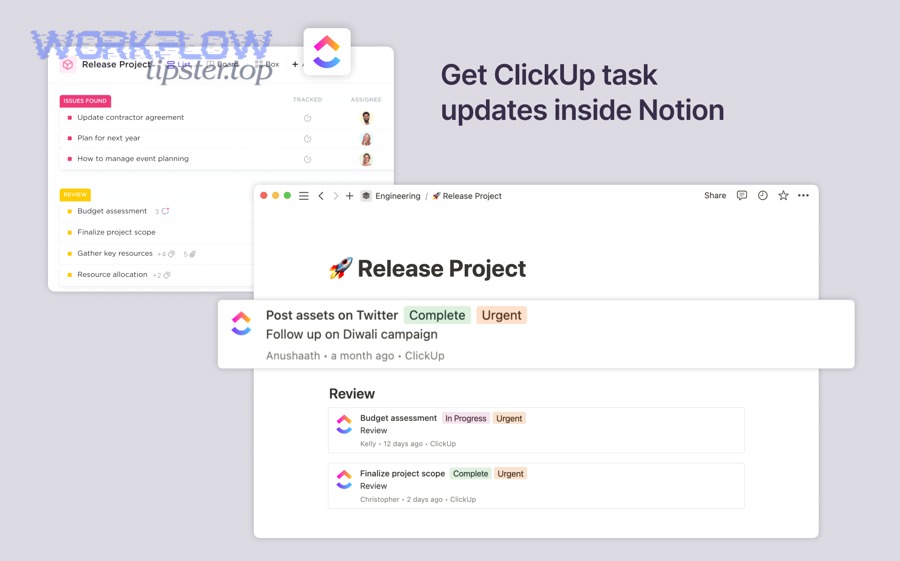
Most “ClickUp to Notion” setups are not true mirroring; they’re either (1) link preview inside Notion, (2) search/preview inside ClickUp, or (3) automation-based updates that copy specific fields on rules. Notion’s ClickUp integration is described as a link preview that brings tasks and updates into Notion pages, which is useful—but different from copying task records into a Notion database.
Which direction do teams usually want: ClickUp → Notion, Notion → ClickUp, or both?
Most teams choose one “source of truth” per object:
- ClickUp → Notion when tasks live in ClickUp, and Notion is for specs, meeting notes, SOPs, and reporting pages.
- Notion → ClickUp when planning starts in Notion (e.g., content calendar, product roadmap narrative), but execution must happen as ClickUp tasks.
- Both directions only when you have strict rules (field map, ownership, conflict resolution) and accept that “sync” still means “partial sync.”
What data typically syncs well, and what doesn’t?
Syncs well: title, status, assignee, due date, URL, priority, tags, lightweight custom fields.
Usually breaks or gets messy: threaded comments, rich text blocks, complex relations/rollups, recurring logic, permissions, and multiple assignees with different roles.

Do you actually need to sync ClickUp to Notion?
No—many teams don’t need a full sync, because a “clean” integration usually comes from linking and automating only what reduces manual work, not duplicating everything across tools.
Then, deciding “sync or not” becomes easier when you evaluate three practical reasons:
- Reduce status-check churn (fewer “where is this at?” messages).
- Keep planning and execution connected (spec → tasks; tasks → rollout notes).
- Lower context switching (fewer tabs and repeated updates).
A useful lens here is “switch cost.” In workplace multitasking research, more screen switching and time spent in email/face-to-face interaction correlated with people feeling less productive by day’s end.
What are the top 3 reasons teams integrate ClickUp with Notion?
- Single briefing hub: Notion pages become the briefing layer; ClickUp stays execution-focused.
- Automatic reporting: Notion can display task links/updates in weekly reports without retyping.
- Faster handoffs: Product/marketing writes in Notion, ops executes in ClickUp, and the connection keeps everyone aligned.
When is “no sync” the smarter choice?
No sync is smarter when:
- Your team already lives in ClickUp and Notion is rarely used (or vice versa).
- You can solve the problem with one standard template + linking (no automation needed).
- You don’t have a field model (statuses/tags/owners) and would create duplicates immediately.
How do you decide the “source of truth” for tasks vs documentation?
A simple rule:
- Tasks: ClickUp (assignment, status, due dates, workload, automation).
- Docs/knowledge: Notion (long-form, wikis, specs, playbooks).
- Bridges: links + selective automation.
What are the best ways to connect ClickUp and Notion?
There are 4 main ways to connect ClickUp and Notion—link preview, ClickUp’s Notion connection/search, automation platforms, and API/custom scripts—based on how much data you need to move and how often it changes.

However, “best” depends on speed, reliability, and how much you want to maintain.
What are the “native” options inside Notion and inside ClickUp?
- Inside Notion: ClickUp link previews let you paste a task URL and see an embedded preview with updates, which is great for reports and specs.
- Inside ClickUp: ClickUp’s Notion integration supports previewing/searching Notion content from ClickUp (helpful for finding the right doc while working on tasks).
When should you use an automation platform (Zapier/Make) instead?
Use automation when you need:
- New ClickUp task → create/update a Notion database item
- Notion database item changes → create/update a ClickUp task
- Status changes → update a reporting row automatically
Zapier explicitly positions ClickUp + Notion as a quick integration pair, which fits this “rules-based sync” approach.
To keep semantic consistency, treat these as Automation Integrations patterns—the same logic you use for “google docs to google sheets” reporting flows, “google docs to trello” editorial boards, or even scheduling bridges like “calendly to google meet.” (The tools change; the field mapping discipline stays the same.)
What’s the difference between one-way automation and two-way sync?
- One-way automation: simple, stable, fewer conflicts (recommended).
- Two-way sync: harder, requires conflict rules (what wins?), and often creates loops unless you add safeguards.
Which method is best for small teams vs scaled operations?
This table contains a practical comparison of the most common methods, so you can pick the lowest-maintenance option that still matches your intent.
| Method | Best for | Strength | Common drawback |
|---|---|---|---|
| Notion ClickUp link preview | Reporting pages, specs | Fast, low setup | Not a task database mirror |
| ClickUp Notion connection/search | People working in ClickUp who need doc access | Find/preview Notion while executing | Not a full task sync |
| Automation (Zapier/Make) | Cross-tool workflows | Copies specific fields on rules | Needs mapping + error handling |
| API/custom | Advanced teams | Full control | Highest build/maint cost |
How do you prepare your ClickUp and Notion workspaces before syncing?
Preparation is a 5-step checklist—audit your workflow, standardize fields, define ownership, validate permissions, and create templates—so your integration produces clean data instead of duplicates.

To begin, preparation matters because “sync” only works as well as your underlying data model.
What fields should you standardize first (status, assignee, due date, priority)?
Start with the fields that drive action:
- Status (must be comparable across tools)
- Assignee/Owner (one person accountable)
- Due date (single source of deadlines)
- Priority (consistent scale)
- Task URL (always store it as the “reference key”)
What Notion database structure works best for ClickUp tasks?
A practical Notion structure is:
- A Tasks (Synced) database for reference + reporting, not full execution
- Properties: Task Name, Status, Owner, Due Date, Priority, ClickUp URL, Team/Project, Last Synced
- One relation to a Projects database (optional)
What permissions or API access do you need to avoid failures?
Even if you’re not coding, integrations commonly fail because:
- Notion page/database isn’t shared with the right connection
- ClickUp workspace access is limited for the connected user
- Automation platform token expires or loses scope
ClickUp’s help article on Notion integration emphasizes that connection type and features depend on how you connect your accounts/workspaces, which is exactly why permissions must be checked early.
How do you set up a ClickUp → Notion automation step-by-step?
A ClickUp → Notion automation is a trigger + mapping + validation loop, typically in 6 steps, that creates or updates Notion database items from ClickUp task events.
Then, you’ll get the cleanest results if you sync only the fields Notion should display (reporting and context), while keeping execution in ClickUp.
Step 1: Choose the trigger (new task, status change, due date change)
Pick one primary trigger to avoid chaos:
- New task created in a specific List/Folder
- Status changes to “In Progress” or “Done”
- Due date added/updated
Step 2: Map fields into a Notion database item (title, status, owner, URL)
A stable mapping:
- Notion Title = ClickUp Task Name
- Notion Status = ClickUp Status (mapped via a lookup table)
- Notion Owner = ClickUp Assignee (or fallback owner)
- Notion Due Date = ClickUp Due Date
- Notion URL = ClickUp Task Link (your permanent reference)
Step 3: Prevent duplicates with a unique key (task ID or URL)
Your “dedupe key” should be:
- ClickUp Task ID (best if available)
- ClickUp Task URL (works well in practice)
Rule: Search Notion first for the key; if found → update; if not found → create.
Step 4: Decide what updates should “push” (status only vs full updates)
To reduce noise:
- Push status + due date + owner updates
- Avoid pushing long descriptions repeatedly (it creates churn)
Step 5: Add guardrails (filters, delays, and error handling)
Guardrails you should add:
- Filter by List/Folder or tag
- Ignore tasks marked Private or Personal
- Add a short delay before update (prevents rapid-fire edits from creating multiple runs)
Step 6: Test with 10 tasks and validate the Notion view
Test cases:
- Task with assignee vs no assignee
- Due date removed
- Status changed back and forth
- Priority changed
- Task moved to another list
Evidence: According to a study by the University of California, Irvine from the Department of Informatics (with Microsoft Research collaborators), in 2015, higher email/face-to-face interaction and more screen switching were associated with workers feeling less productive by day’s end—one reason selective automation that reduces tool-hopping can matter.
How do you set up a Notion → ClickUp automation when planning starts in Notion?
A Notion → ClickUp automation is a planning-to-execution pipeline in 6 steps that turns a Notion database entry (idea, request, roadmap item) into a ClickUp task with the right status, owner, and context link.
Next, the trick is to keep Notion as the “idea intake” and ClickUp as the “execution engine,” without mixing responsibilities.
Step 1: Design a Notion “Intake” database with required properties
Required properties:
- Title (request/idea)
- Owner
- Priority
- Target date
- Project/Team
- ClickUp Task URL (empty at first)
- “Ready for ClickUp?” checkbox (or Status = Approved)
Step 2: Set the trigger: “Status = Approved” or “Ready = Yes”
Use one gate so drafts don’t create tasks prematurely.
Step 3: Create a ClickUp task with the right template and location
Create task in the correct:
- Workspace/Space
- Folder/List
- With a template that includes Definition of Done
Step 4: Push the Notion page link into the ClickUp task for context
This is the single most important step:
- Put the Notion page URL in the task description or a custom field
- This preserves the narrative/spec in Notion while ClickUp runs the task
Step 5: Write back the ClickUp task link to Notion
After task creation:
- Update Notion’s “ClickUp Task URL” so the Notion record becomes the dashboard entry point.
Step 6: Define handoff rules between planning and execution
Example handoff rule:
- Notion status “Approved” → ClickUp status “To Do”
- ClickUp status “Done” → Notion status “Shipped” (optional, if you do a one-way completion write-back)
What should teams standardize to keep ClickUp and Notion in sync over time?
Teams should standardize 4 groups of rules—naming, statuses, ownership, and update cadence—so the integration stays consistent even when the toolset grows.
Then, standardization becomes your “hook chain” that keeps every update meaningful.
Naming conventions: how do you avoid confusing duplicates?
Use a consistent pattern:
- [Project] – [Deliverable] – [Context]
- Store the ClickUp task URL in Notion so the Notion row is never mistaken for the source task.
Status mapping: how do you map ClickUp statuses to Notion statuses?
Keep Notion statuses coarse:
- Backlog, In Progress, Blocked, Done
Map multiple ClickUp statuses into fewer Notion statuses (example):
- ClickUp “In QA”, “In Review”, “Ready to Launch” → Notion “In Progress”
Ownership: who “owns” the truth when fields conflict?
Decide:
- ClickUp owns status/assignee/due date
- Notion owns brief/spec/decision log
If there’s conflict, ClickUp wins for operational fields.
Update cadence: what should update instantly vs daily batch?
Instant updates:
- Status, due date, owner
Batch (daily/weekly):
- Reporting summaries, rollups, dashboards
What are the most common ClickUp–Notion integration problems and how do you fix them?
There are 6 common integration problems—duplicates, missing permissions, broken mappings, rate limits, update loops, and stale previews—and each has a simple diagnostic path.
Moreover, troubleshooting is easier when you treat your integration like a mini-system: inputs, rules, outputs, logs.
Problem 1: Duplicates in Notion—what causes them?
Causes:
- No unique key check before “create”
- Task name used as the key (names change)
Fix:
- Use ClickUp Task URL/ID as the dedupe key
- Search Notion first → update if found
Problem 2: Missing pages or “empty previews”—is it permissions or data?
Commonly permissions.
Fix:
- Ensure the Notion database/page is shared with the integration connection
- Ensure the ClickUp user has access to the relevant Workspace/List
Problem 3: Status doesn’t match—how do you debug field mapping?
Fix:
- Replace “free text status” with a controlled select in Notion
- Maintain an explicit mapping table (ClickUp status → Notion status)
Problem 4: Loops (Notion update triggers ClickUp update triggers Notion update)
Fix:
- Add a “Last Synced By” field
- Ignore updates if the last editor is the automation bot
- Use one-way flows where possible
Problem 5: Slow updates—what should you check first?
Check, in order:
- Automation platform task history/logs
- Token validity
- Trigger filters (too broad can slow processing)
Zapier’s ClickUp–Notion integration guidance highlights troubleshooting via integration checks and logs, which aligns with this first-step diagnostic approach.
Problem 6: People still ask “where is this?”—how do you reduce noise?
Fix:
- Put the Notion page link in ClickUp tasks
- Put the ClickUp link preview in Notion weekly reports
- Standardize one reporting view in Notion that pulls only active tasks
How do you choose the “best” ClickUp to Notion sync approach for your use case?
ClickUp wins in execution control, Notion is best for documentation and context, and automation platforms are optimal for selective field syncing—so the “best” approach depends on whether you need previews, reporting rows, or operational updates.
However, you can choose quickly by scoring your needs on three criteria: fidelity, maintenance, and risk.
If you need reporting only, what’s the simplest setup?
Best:
- Notion pages with ClickUp link previews for key tasks and epics
- Optional: a small “Active Tasks” Notion database where each row links to a ClickUp task
If you need task creation from Notion, what’s the safest setup?
Best:
- Notion Intake DB → ClickUp task create
- Write back ClickUp URL into Notion
- Keep updates one-way (Notion → ClickUp) except for “Done” status if needed
If you need two-way updates, what rules must you define first?
Rules required:
- Source of truth per field
- Conflict handling (which update wins)
- Loop prevention
- Rate limits/retry logic
- Clear ownership (who fixes it when it breaks)
What does a “minimum viable integration” look like in 60 minutes?
A fast MVP:
- Notion weekly report page template
- Paste top 10 ClickUp task links → previews
- One automation: ClickUp “Done” → update Notion status on matching row
- A short “Workflow Tipster” style internal checklist (one page) that documents: mapping, triggers, and who owns changes
Contextual Border: At this point, you’ve fully answered the core “ClickUp to Notion sync” intent (what it is, whether you need it, best methods, setup steps, and troubleshooting). Next, we’ll expand into advanced, micro-semantic scenarios that matter when teams scale.
How do advanced teams handle governance, compliance, and data modeling across ClickUp and Notion?
Advanced teams handle this with 3 layers—governance rules, content/data modeling, and audit-ready workflows—so integrations stay secure and consistent as the org grows.

Especially at scale, you’re no longer just “syncing tasks”; you’re managing a small information system.
How do you prevent sensitive work from syncing into the wrong Notion space?
Controls that work:
- Only sync from approved ClickUp Lists/Folders
- Use tags like “Client-Confidential” to block automation
- Keep separate Notion workspaces/teams for restricted content
What’s the best “data model” for portfolios (projects → epics → tasks) in Notion?
A scalable Notion model:
- Projects database
- Epics/Initiatives database (optional)
- Synced Tasks database (reference-only)
- Relations + rollups for reporting, but never treat Notion as the execution engine for ClickUp tasks
How do you audit changes and keep an integration maintainable?
Audit strategy:
- Store “Last Synced At” and “Sync Status”
- Keep an automation change log (who edited mappings, when)
- Run monthly reviews: broken mappings, unused fields, duplicate risk
Evidence: According to a study by the University of California, Irvine from the Department of Informatics, workplace interruption and multitasking research shows that increased switching and communication load can reduce perceived productivity—one reason governance that reduces chaotic cross-tool updates is a real operational win.