


Converting Google Docs to Google Sheets is the fastest way to turn a document-based table into a real spreadsheet dataset, so your team can sort, filter, validate, and analyze information in rows and columns without retyping.
Next, you’ll see why the “best” method depends on whether you need a one-time move or an ongoing workflow—because manual conversion is usually quickest today, while automation is usually safest tomorrow.
Then, you’ll learn how to protect data integrity during conversion by designing cleaner tables, avoiding common formatting traps, and running simple checks that catch silent errors before they spread across a shared Sheet.
Introduce a new idea: once you understand conversion basics, you can scale the same Docs → Sheets logic into a repeatable team system—governed by permissions, quality rules, and (when needed) scripts or integrations that keep data accurate over time.
What does it mean to convert Google Docs to Google Sheets for tables and data?
Converting Google Docs to Google Sheets for tables and data is a data-transfer workflow that moves document-based information into a spreadsheet structure, originating from copy/export/import actions, with the standout benefit of turning static tables into editable rows, columns, and analyzable cells.
To better understand what “conversion” really delivers, it helps to separate content types (what you’re moving) from data structure , because those two factors determine whether your result is clean—or chaotic.
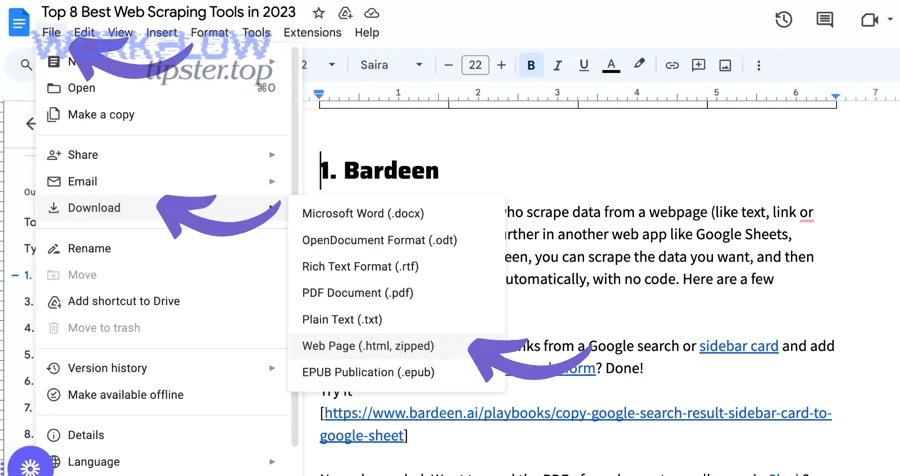
What types of Google Docs content convert cleanly into Sheets, and what doesn’t?
There are 4 main types of Google Docs content you’ll encounter during Docs → Sheets conversion—tables, plain text, lists, and mixed-layout content—based on how consistently they map into rows and columns.
1) Tables (best for conversion)
A Google Docs table already has row/column logic, so Sheets can usually interpret it as a grid of cells.
- Works well when each row represents one record (one person, one task, one invoice).
- Works best when headers are simple and consistent (one header row, no merged header blocks).
2) Plain text (convertible, but needs structuring)
Plain paragraphs can move into Sheets, but they don’t automatically become structured data.
- If you paste text, Sheets may place everything in one column.
- You typically need delimiters (tabs/commas) or a cleanup step (split text into columns).
3) Lists (convertible with rules)
Bulleted or numbered lists can become column data, but only if you decide the structure.
- One list item = one row is the simplest mapping.
- Nested lists often require manual cleanup to preserve hierarchy.
4) Mixed-layout content (hardest to convert)
Docs content with images, side-by-side elements, or heavily styled sections rarely converts into clean spreadsheet data.
- This content often needs a “rewrite as a table first” step.
- For teams, rewriting into a standardized Docs table is usually faster than fixing a messy Sheet later.
A practical rule: if you want spreadsheet behavior (sorting, filtering, calculations), convert your information into a Docs table first, then move it to Sheets.
Is converting a Google Doc the same as exporting a table from Google Docs?
Converting a Google Doc is best for moving broad content, while exporting a table is best for moving structured data, because a full document conversion preserves “document-ness” (text flow) whereas table export preserves “dataset-ness” (rows/columns).
However, most people searching “Google Docs to Google Sheets” are actually trying to solve one operational problem: “How do I get my table into a Sheet without ruining columns?” That’s table export/transfer—not full document conversion.
Here’s how to decide which meaning you’re dealing with:
- If your goal is analysis (filter, pivot, compute), you want table-to-Sheet conversion.
- If your goal is archiving content, you might want exporting the Doc and then importing plain text—though that still won’t create clean structured columns without extra work.
- If your goal is repeatable updates, you want an automation or a system of truth (Sheets as the data source; Docs as the report).
Can you manually move tables from Google Docs to Google Sheets (and should you)?
Yes—manual Google Docs to Google Sheets conversion is a good choice for teams because it is fast to execute, easy to control, and ideal for one-time transfers, especially when your table is already clean, stable, and unlikely to change after you move it.
Next, the key is to pick the right manual path: copy/paste when your table is simple and stable, and export/import when copy/paste collapses your columns or mangles formatting.
How do you copy and paste a table from Google Docs into Google Sheets without breaking columns?
Copy/pasting a Docs table into Sheets works best with 5 steps—copy the table, paste into the top-left target cell, confirm column alignment, split if needed, and validate the row count—so your table becomes a usable grid instead of a single-column mess.
Then, follow this “clean copy” sequence:
- Normalize the table in Google Docs first
- Keep one header row.
- Remove merged header cells if possible.
- Ensure each column has a consistent type (e.g., dates in one column, numbers in another).
- Copy the entire table
- Click inside the table → drag-select all cells (including header) → copy.
- Paste into Google Sheets starting at A1 (or your chosen cell)
- Paste once and do not “paste special” immediately—let Sheets interpret the table first.
- Fix column breaks if content lands in one column
- If everything appears in a single column, use Split text to columns (choose tab or another delimiter).
- If you see inconsistent breaks, go back to Docs and ensure your table cells do not contain extra line breaks that mimic delimiters.
- Validate quickly
- Confirm the number of rows and columns matches your source table.
- Scan three rows (top, middle, bottom) for shifted values.
Fast team tip: assign one person to paste and another to validate. That two-person check often catches mistakes that become expensive later.
How do you export a Google Doc and import it into Sheets when copy/paste fails?
Export/import conversion works best with 4 steps—export the Doc in a compatible format, open or convert the file into a delimiter-friendly structure, import into Sheets, and clean up formatting—so you recover correct columns when direct paste fails.
Next, use export/import when your Docs table has complex formatting that collapses during paste.
Common export paths teams use:
- Export to a word-processing format, then copy the table from there into Sheets (useful when the intermediate app preserves table boundaries better).
- Export to plain text, then use delimiters and “split into columns” in Sheets (best when you only care about the data, not appearance).
Practical cleanup after import:
- Remove empty columns created by extra spacing.
- Standardize dates (use one date format).
- Convert numeric text to numbers (so formulas work).
- Ensure headers are short, unique, and stable (automation-friendly).
What are the most common manual conversion problems (merged cells, line breaks, formatting), and how do you fix them?
There are 5 common manual conversion problems—merged cells, multi-line cells, inconsistent headers, hidden whitespace, and mixed data types—based on the mismatch between document formatting and spreadsheet structure.
Then, fix them with these targeted adjustments:
1) Merged cells (especially merged headers)
Problem: Sheets needs a single value per cell; merged headers confuse mapping.
Fix: Unmerge headers in Docs and repeat header labels if needed.
2) Multi-line content inside a cell
Problem: Line breaks can look like delimiters or create messy wrapping.
Fix: Replace internal line breaks with a separator (e.g., “; ”) before moving.
3) Inconsistent header naming
Problem: Teams rename headers later, breaking downstream analysis.
Fix: Lock a canonical header set early (short, descriptive, consistent).
4) Hidden whitespace
Problem: “Acme” and “Acme ” become different values.
Fix: Use trimming/cleanup in Sheets after paste (and avoid trailing spaces in Docs).
5) Mixed data types in one column
Problem: Numbers stored as text won’t calculate correctly.
Fix: Standardize data types after paste and test one formula to confirm.
According to a study by University of Hawaiʻi from the College of Business Administration, in 1998, 35% of 152 spreadsheet models were incorrect, showing why a quick validation step is essential even when a transfer looks “fine” at first glance.
What are the best ways to automate Google Docs → Google Sheets for teams?
There are 3 main ways to automate Google Docs → Google Sheets—no-code connectors, script-based workflows, and template-driven systems—based on how you trigger updates and how reliably you map Docs tables into Sheet rows.

Next, automation becomes valuable when your team repeats the same conversion weekly, when multiple people edit the source Doc, or when you want the Sheet to become the structured “system of record” while the Doc remains a readable report.
Which automation approaches exist for Docs → Sheets (no-code vs script), and what do they do?
There are 2 major automation approaches—no-code and script-based—based on who maintains the workflow and how flexible the transformation needs to be.
No-code automation (fast setup, great for standard workflows)
This approach connects a trigger to an action:
- Trigger examples: “New Doc created,” “Doc updated,” “New table row approved.”
- Action examples: “Create row in Sheets,” “Append values,” “Update matching row.”
It’s ideal when:
- The table structure is consistent.
- The mapping is straightforward (column-to-column).
- Non-developers need to maintain the workflow.
This is where teams often talk about Automation Integrations—because the same pattern you use for Docs → Sheets also appears in other ops workflows like airtable to notion content pipelines (“airtable to notion”) or project-routing automations like calendly to asana handoffs (“calendly to asana”). The mechanics are similar: stable fields in, stable fields out.
Script-based automation (more control, better for edge cases)
Scripts can:
- Read Docs structure programmatically.
- Normalize messy inputs (e.g., merged headers).
- Write to Sheets with custom rules.
It’s ideal when:
- Your Docs tables vary in size or formatting.
- You need validation rules before writing to Sheets.
- You need a “match and update” logic (not just append).
When is automation a better choice than manual conversion for ongoing documents?
Automation wins for repeatable workflows, manual wins for one-offs, because automation reduces rework, prevents drift, and supports governance—while manual conversion is faster when you only need results once.
Then, use automation when at least one of these is true:
- The Doc updates repeatedly (weekly reports, ongoing logs, intake forms).
- Multiple editors touch the Doc (higher risk of inconsistent formatting).
- The Sheet feeds downstream work (dashboards, reporting, operations).
- You need auditability (who changed what, when, and why).
Use manual conversion when:
- The table is small.
- The table will not change after transfer.
- You want speed over system-building.
How do you structure your Google Doc table so automation can map it into rows and columns correctly?
Automation-friendly Docs tables follow 6 structural rules—stable headers, consistent columns, no merged header cells, one record per row, predictable data types, and minimal styling—so your mapping stays reliable even when different team members edit the Doc.
Next, treat your Docs table like a database form:
- One row = one record (one task, one lead, one request).
- One column = one attribute (owner, due date, status).
- Headers never change once automation is live.
- No merged header cells; if you need grouping, add a “Category” column instead.
- Use controlled values when possible (Status: “Not started / In progress / Done”).
A simple but powerful practice is to include a “Record ID” column—so automation can update existing rows rather than creating duplicates.
Manual vs automated: which conversion method should your team use?
Manual conversion wins in speed and simplicity, automation is best for repeatability and reliability, and a hybrid approach is optimal for teams that want quick wins now and a scalable system later.
However, the decision becomes easier when you evaluate your use case against a small set of criteria, because the right choice depends less on preference and more on workflow physics: frequency, risk, and downstream dependency.
Before the table below, note what it contains: it summarizes the practical criteria teams use to choose between manual conversion, automation, or a hybrid workflow.
| Decision criterion | Manual conversion is best when… | Automation is best when… | Hybrid is best when… |
|---|---|---|---|
| Frequency | One-time or rare | Weekly/daily | Occasional now, frequent later |
| Editors | One person | Multiple contributors | Small team scaling up |
| Error risk | Low impact if wrong | High impact if wrong | Medium impact with growth |
| Data size | Small | Medium–large | Medium and growing |
| Governance | Not needed | Required | Needed later |
| Setup time | Must be near-zero | Worth investing | Start small, automate later |
What decision criteria matter most (speed, accuracy, repeatability, permissions, cost)?
There are 5 core decision criteria for choosing a Docs → Sheets method—speed, accuracy, repeatability, permissions, and cost—based on what your team optimizes for (time now vs risk later).
Then, use them like a scoring model:
Speed
Manual wins when you need a result in minutes.
Accuracy
Automation wins when you must reduce human handling and enforce rules.
Repeatability
Automation wins when the conversion happens more than once.
Permissions
Automation and hybrid win when multiple people must touch the workflow safely.
Cost
Manual costs time each run; automation costs effort once (and sometimes subscription cost) but saves time repeatedly.
A simple heuristic: if you’ve repeated the same manual conversion three times, you likely have a workflow worth automating.
How do you validate the converted Sheet to avoid silent data errors?
Validating a converted Sheet takes 4 checks—structure, counts, spot sampling, and logic tests—so you catch silent shifts (misaligned columns, missing rows, duplicated records) before they turn into team-wide assumptions.
Next, run this lightweight validation routine:
1) Structure check (grid sanity)
- Confirm headers sit in row 1.
- Confirm each column has a single meaning.
2) Count check (row/column totals)
- Compare number of rows and columns to your source table.
- Look for suspicious changes (e.g., doubled rows, collapsed columns).
3) Spot sampling (top/middle/bottom)
- Check 3 rows across the dataset.
- Verify that values match the correct headers.
4) Logic test (one formula test)
- Apply a simple formula to confirm data types (SUM for numbers, DATEVALUE for dates).
- If formulas fail, you likely imported numbers as text or introduced stray characters.
Finally, document the rule: “No Sheet gets shared to the team until it passes the 4 checks.” That one policy prevents most downstream chaos.
How do you keep Docs → Sheets data accurate, secure, and scalable over time?
The best way to keep Docs → Sheets data accurate, secure, and scalable is to use a 5-part method—standardize the source table, enforce stable headers, control access, validate writes, and choose a single source of truth—so your workflow stays reliable as documents grow and teams evolve.
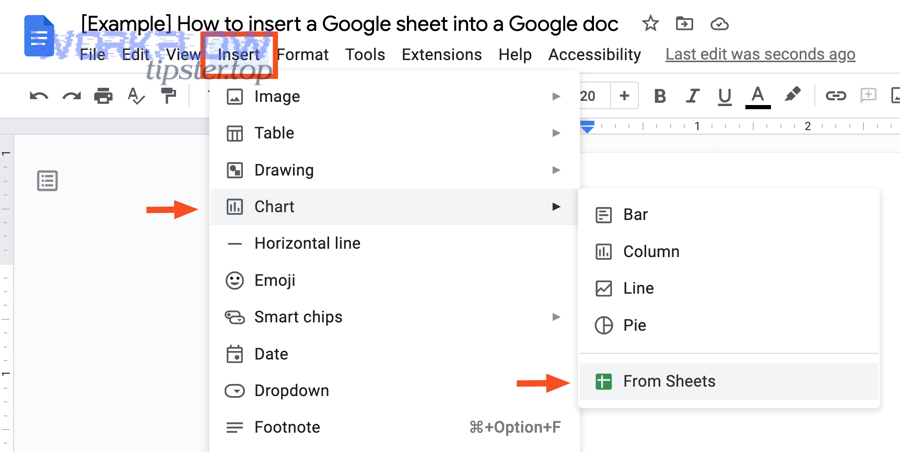
Next, this is where the mindset shifts: the goal is no longer “move data once,” but “run a system repeatedly without drift.”
How can you preserve data fidelity when tables include merged cells, multi-line content, or complex headers?
Data fidelity improves when you flatten complexity before you transfer, because spreadsheets are strict about structure while documents are flexible about layout.
Then, apply these micro-level normalization rules:
- Replace merged headers with explicit labels (repeat the group name in each column header if needed).
- Convert multi-line entries into single-line values using a consistent separator (e.g., “; ”).
- Avoid nested tables; split them into separate tables or add a “Type” column to represent hierarchy.
- Separate “notes” from “fields”: put commentary into a dedicated Notes column instead of mixing it into structured cells.
If your table is complex, your best move is often to rebuild it into an automation-friendly format once, because that one-time restructuring saves hours of recurring cleanup.
What permissions and governance practices prevent accidental data leaks or overwrites in team workflows?
Team governance prevents errors when you treat Sheets as a shared database, because overwrites are usually not malicious—they’re accidental, rushed, or caused by unclear ownership.
Next, use these control practices:
- Role-based access: editors only where needed; everyone else view-only.
- Protected ranges: lock headers and formula columns.
- Change accountability: require a named owner for the workflow (who approves structure changes).
- Template discipline: edits happen via templates, not ad-hoc “quick fixes” inside the live dataset.
- Update protocol: if a header needs to change, the team documents it first, because header changes break automation and reporting.
For sensitive workflows, keep the data in Sheets and publish a read-only view where needed, instead of allowing broad editing.
Can you programmatically extract tables from Google Docs into Google Sheets using scripts or APIs?
Yes—programmatic extraction is possible because scripts can read Docs structure, map tables into arrays, and write values into Sheets, which is useful when you need custom validation, consistent formatting, or update-in-place logic instead of repeated manual copying.
Then, think of script-based extraction as a three-stage pipeline:
- Read: identify the table, parse rows and cells.
- Transform: normalize headers, clean whitespace, convert data types.
- Write: append rows or match-and-update based on Record ID.
This approach is especially valuable when your tables are large, when the Doc changes frequently, or when your team needs predictable rules enforced every time.
What’s the best “single source of truth” setup: Doc as the report view or Sheet as the database?
Sheets should be the single source of truth for structured data, Docs should be the narrative/report view, and automation should connect them, because spreadsheets are optimized for consistency and computation while documents are optimized for explanation and presentation.
In addition, this separation reduces conflict: contributors update structured fields in Sheets, while stakeholders read a Doc that summarizes outcomes.
A practical team pattern looks like this:
- Google Sheet: canonical dataset (tasks, requests, metrics).
- Google Doc: human-friendly report (weekly summary, decisions, context).
- Connection method: manual snapshot for one-offs, automation for recurring updates.
To sum up, once you treat Docs as the place where humans read and write narrative—and Sheets as the place where systems store structured facts—your Docs → Sheets conversion stops being a fragile trick and becomes a durable workflow your team can trust.