


Yes—if you connect the right Google account to Calendly and set Google Meet as the event location, Calendly can automatically add a unique Google Meet link to each booking so invitees join with one click. ([calendly.com](https://calendly.com/integration/google-meet?))
Next, you’ll learn how to configure event types (including team scenarios like Round Robin and Collective scheduling) so the Meet link consistently appears in confirmations and calendar invites, not just in one place. ([help.calendly.com](https://help.calendly.com/hc/en-us/articles/360035661634-Calendly-Google-Meet?))
Then, you’ll get a practical troubleshooting playbook for the two most common failures: Meet links not showing up at all, and duplicate Meet links being added because of conflicting Google Calendar settings or mismatched host connections. ([help.calendly.com](https://help.calendly.com/hc/en-us/articles/360035661634-Calendly-Google-Meet?))
Introduce a new idea: once the core setup works end-to-end, you can standardize governance for teams and decide when native setup is enough versus when Automation Integrations (or other automation approaches) make more sense for advanced workflows.
What does “Calendly to Google Meet integration” mean for team scheduling?
Calendly to Google Meet integration is a scheduling workflow that connects your Calendly bookings to Google Meet so each confirmed event automatically includes video-conference details, reducing manual steps for hosts and invitees. ([calendly.com](https://calendly.com/integration/google-meet?))
To better understand what you’re “integrating,” it helps to follow the chain from booking to joining the call, because teams succeed when every link in that chain is predictable and repeatable.

What is auto-adding a Google Meet link, and where does it appear (invite, confirmation, calendar event)?
Auto-adding a Google Meet link means the conferencing URL is generated and inserted into the meeting “location” (and often the description) of the calendar event, and it is also included in the booking confirmation sent to invitees. ([calendly.com](https://calendly.com/integration/google-meet?))
Specifically, you should expect the Meet link to show up in three places that matter for day-to-day reliability:
- Calendar event: the event created in Google Calendar contains the Meet joining link in the location/details so it travels with the invite.
- Calendly confirmation: the confirmation email/notification includes the same Meet details so invitees can join even if they never open their calendar.
- Reschedules/cancellations: the system updates the event and the attendee notifications so the “one click join” experience remains consistent across changes.
More importantly, teams should treat “where it appears” as a quality gate: if you can see the Meet link in the calendar event and the confirmation message, your integration is usually healthy; if it only appears in one, you likely have a partial configuration issue. ([calendly.com](https://calendly.com/integration/google-meet?))
Can Calendly automatically generate Google Meet links for every booking?
Yes—Calendly can automatically generate Google Meet links for every booking because it (1) uses your connected Google account to create conferencing details, (2) saves those details to the Calendly event, and (3) includes them in confirmations and calendar events sent to invitees. ([calendly.com](https://calendly.com/integration/google-meet?))
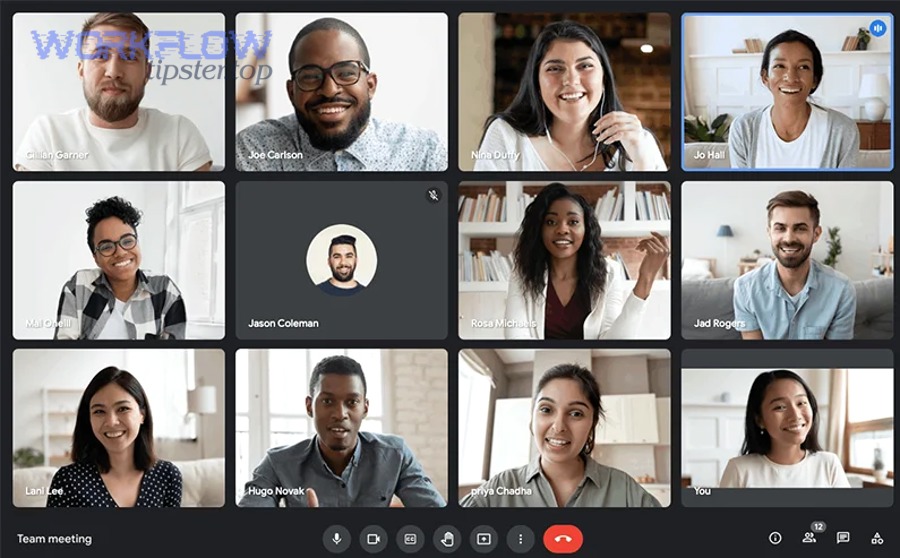
However, the “every booking” promise only holds if your event types and calendar connections are aligned, so the next step is checking the two dependencies that most often break automation.
Do you need Google Calendar connected for Google Meet links to be created?
Yes—you typically need Google Calendar connected because the Meet link is attached to the calendar event that gets created for the booking, and that event is what distributes conferencing details reliably across invites and updates. ([help.calendly.com](https://help.calendly.com/hc/en-us/articles/360035661634-Calendly-Google-Meet?))
For example, teams often confuse “Google Meet integration” with “just picking Meet as a location.” In practice, the location choice is the last step; the first step is making sure the correct Google Calendar connection is authorized and active for the host (or the team scheduling model you’re using).
- Reason 1: A calendar event is the authoritative record that most attendees rely on day-of.
- Reason 2: Calendar events handle reschedules better than standalone emails because updates propagate automatically.
- Reason 3: Calendar-based conferencing reduces “lost link” issues when messages get buried.
In short, if you want fewer moving parts for a team, connect the calendar first, confirm event creation works, and only then enforce Google Meet as the default location. ([help.calendly.com](https://help.calendly.com/hc/en-us/articles/360035661634-Calendly-Google-Meet?))
Will guests always receive the Meet link even if they don’t use Google?
Yes—guests can still receive and use the Meet link because Calendly includes the conferencing details in the confirmation notifications and calendar event details, which can be accessed from email or any calendar app that reads standard invites. ([calendly.com](https://calendly.com/integration/google-meet?))
Besides, a “Google account required” concern is usually a misunderstanding: joining a Meet call is primarily about having the link and meeting permissions, not about using Google Calendar. The realistic guest friction points are different—and teams can prevent them:
- Reason 1: Guests may not see the link if you rely on one channel (only email or only calendar) instead of both.
- Reason 2: Guests may join late if the location field is unclear (“Online meeting” vs a clickable URL).
- Reason 3: Guests may be blocked by meeting settings (waiting room/host controls) if the host identity is wrong.
To illustrate, your definition of “receive the link” should be: guests can find it in under 10 seconds inside the confirmation message or the event invite—without asking your team to resend anything.
What are the prerequisites before connecting Calendly to Google Meet for a team?
There are 4 main prerequisites before connecting Calendly to Google Meet for a team: (1) correct Google account type, (2) required permissions, (3) event type ownership clarity, and (4) a tested calendar connection that successfully creates events. ([help.calendly.com](https://help.calendly.com/hc/en-us/articles/360035661634-Calendly-Google-Meet?))

Next, treat these prerequisites as a team checklist; if you skip them, you’ll still “connect” accounts, but the integration will fail in production—especially in multi-host scheduling.
Which accounts and permissions are required (member, team admin, Google Workspace admin)?
There are 3 main permission layers for teams: individual host permissions, Calendly team/admin permissions, and (sometimes) Google Workspace admin controls—depending on whether your organization restricts third-party app access. ([help.calendly.com](https://help.calendly.com/hc/en-us/articles/360035661634-Calendly-Google-Meet?))
Specifically, a clean setup begins by deciding who “owns” the meeting link and who is allowed to create it:
- Individual host layer: Each team member connects their own Google account so Meet links reflect the correct host identity.
- Calendly team layer: Admins standardize event templates and scheduling rules so everyone uses the same location settings.
- Workspace admin layer (if applicable): IT may require admin consent for integrations, OAuth restrictions, or approved apps lists.
More importantly, teams should document one rule: “Which Google account creates Meet links for which event types?” That single decision eliminates most future ambiguity and handoffs.
Which Calendly objects must be set up first (event types, host calendar, availability rules)?
There are 5 main Calendly objects you should set up first: event types, host calendar connection, availability schedule, scheduling rules (buffers/minimum notice), and notification templates—because these define how bookings turn into calendar events with Meet links. )
For example, you can think of these objects as the “inputs” that drive the “output” (a usable invite with a clickable Meet link):
- Event types: your meeting “products” (1:1, round robin, collective) with specific location settings.
- Host calendar connection: the destination calendar where events get created (and where conferencing details attach).
- Availability rules: the time windows that prevent conflicts and reduce reschedule churn.
- Scheduling rules: buffers, limits, and notice periods that stabilize a team’s calendar load.
- Notifications: confirmations/reschedules/cancellations that deliver the link in the right channel.
To sum up, your prerequisites are complete when a test booking creates a calendar event and the location/details show a Meet link exactly where your invitees expect it. )
How do you set Google Meet as the default meeting location in Calendly event types?
You set Google Meet as the default meeting location by following 5 steps—connect the correct Google account, confirm calendar event creation, select Google Meet as the event location, test a booking end-to-end, and verify the link appears in both confirmation and calendar invite. ([calendly.com](https://calendly.com/integration/google-meet?))

Then, the key is consistency: teams don’t fail because they can’t find the setting once; they fail because different event types drift into different configurations over time.
How do you connect the correct Google account to Calendly (individual vs team-owned)?
There are 2 main connection approaches—individual connections and standardized team setup—and you choose between them by deciding whether meetings should be hosted under each member’s identity or under a shared organizational identity. ([help.calendly.com](https://help.calendly.com/hc/en-us/articles/360035661634-Calendly-Google-Meet?))
More specifically, use this practical decision framework:
- Choose individual connections if each host must control Meet settings, recordings, and permissions under their own account.
- Choose standardized setup if you want predictable configuration across the team and simpler onboarding, especially when event types are shared.
To illustrate, “wrong account connected” is the #1 silent failure in teams: the booking still happens, but the Meet link gets created under an account that can’t admit guests properly or conflicts with company policies. Confirm the host identity before you scale the template.
How do you configure each event type so Meet is used consistently (1:1, round robin, collective)?
There are 3 main event type contexts—1:1, Round Robin, and Collective—and you configure Meet consistently by setting the location to Google Meet at the event type level, then validating who the host is for conferencing when multiple team members can receive bookings. )
However, the “team” variants introduce one extra variable: the host can change dynamically, which affects which Google account generates the Meet link.
- 1:1 events: simplest—one host, one calendar, one Meet link generator.
- Round Robin: host varies—each potential host must have the location set correctly and a valid calendar connection.
- Collective availability: multiple hosts attend—decide whether one “primary host” creates the link or whether the team uses a standard policy.
In addition, create a “golden test booking” for each event type and run it after any team change (new hire, role change, permission change) to catch configuration drift immediately.
What’s the best setup for teams: each member connects Google Meet, or an admin-managed standard?
Each-member setup wins in host ownership and personalization, admin-managed standards are best for consistency and onboarding, and a hybrid approach is optimal for large teams that need both reliable templates and correct host identity. ([calendly.com](https://calendly.com/integration/google?))

Meanwhile, teams should compare these models using operational criteria—not preference—because the “best” choice depends on how your organization handles identity, guest access, and workflow scale.
This table contains a practical comparison of the two most common team setups and helps you choose based on reliability, governance, and day-to-day operations.
| Criterion | Each member connects their own Google | Admin-managed standard (templates/policy) |
|---|---|---|
| Host identity & Meet controls | Strong: Meet link matches the actual host | Variable: depends on how policy maps to hosts |
| Onboarding speed | Medium: each person must connect and verify | Fast: standardized templates reduce setup steps |
| Consistency across event types | Lower unless enforced by process | High: centralized templates reduce drift |
| Troubleshooting effort | Distributed: issues vary by host account | Centralized: easier to diagnose shared patterns |
When is “each host connects their own Google” better than “shared team policy”?
Each host connecting their own Google is better for client-facing teams, personalized meeting controls, and accountability, while shared team policy is better for standardized operations, rapid onboarding, and reducing configuration drift across many event types. ([help.calendly.com](https://help.calendly.com/hc/en-us/articles/360035661634-Calendly-Google-Meet?))
Especially for sales, consulting, or customer success, the host’s identity can affect trust and access, because the host typically controls admission settings, recording permissions, and post-call artifacts. On the other hand, internal teams often value speed and consistency more than identity nuance.
- Choose each-host when: the host’s Google Workspace settings matter per person, and meetings are highly relationship-driven.
- Choose team policy when: the process must be repeatable, and you need fewer one-off “why didn’t the link appear?” incidents.
- Choose hybrid when: templates are standardized but each host still connects their own calendar to generate links correctly.
In short, the right model is the one that reduces “ops tax” (support tickets and manual fixes) without breaking host ownership.
How does Round Robin/Collective scheduling impact Meet link ownership and host identity?
Round Robin impacts Meet ownership by rotating which host account generates the Meet link, Collective impacts it by introducing multiple hosts where one account typically becomes the “conferencing owner,” so teams must decide how host identity should appear to invitees. )
To illustrate, Round Robin failures usually happen when only some hosts have the correct event location or calendar connection; the result is a Meet link that appears sometimes and disappears other times—making the issue feel random when it’s actually deterministic.
- Round Robin tip: verify every eligible host has the same event type location setting and an active Google connection.
- Collective tip: define a “primary host” rule (who creates the Meet link) and keep it consistent across templates.
- Identity tip: match the Meet creator identity to the person who will actually lead the call, whenever possible.
More importantly, teams should test Round Robin with multiple bookings so each host gets at least one booking during validation, because single tests can miss host-specific gaps.
Why isn’t the Google Meet link showing up (or why are there duplicates)?
No—when the Meet link is missing or duplicated, it’s not “random”; it usually happens because (1) the wrong calendar/account is connected, (2) the event type location isn’t set to Google Meet for all relevant hosts, or (3) Google Calendar is set to auto-add Meet links, creating conflicts. ([help.calendly.com](https://help.calendly.com/hc/en-us/articles/360035661634-Calendly-Google-Meet?))
Next, use symptom-based troubleshooting so you can isolate the root cause in minutes instead of toggling settings blindly.

What are the most common causes (wrong calendar, location not set, permission revoked, admin policy)?
There are 5 main causes of missing Meet links: wrong calendar selection, location not set to Google Meet, disconnected/revoked Google permissions, Google Workspace admin restrictions, and conflicting Google Calendar auto-conferencing settings that override expected behavior. ([help.calendly.com](https://help.calendly.com/hc/en-us/articles/360035661634-Calendly-Google-Meet?))
Specifically, diagnose in this order because it matches the most frequent failure patterns in team setups:
- Cause 1: Wrong calendar destination — the event is created on a calendar that doesn’t generate Meet links (or isn’t the intended host calendar).
- Cause 2: Location not set in the event type — Meet is not selected as the location, or only some hosts have it set.
- Cause 3: Permissions revoked — Google authorization expired or was removed; bookings still occur but conferencing generation fails.
- Cause 4: Admin policy blocks integration — Workspace restrictions can prevent proper conferencing creation.
- Cause 5: Duplicate links from Google Calendar defaults — Google Calendar may auto-add Meet links to all events, creating duplicates when Calendly also adds one. ([help.calendly.com](https://help.calendly.com/hc/en-us/articles/360035661634-Calendly-Google-Meet?))
To sum up, missing links are usually an upstream connection problem, while duplicates are usually a downstream “two systems adding the same thing” problem.
How do you tell whether the issue is in Calendly settings vs Google Calendar/Meet settings?
Calendly is the likely source when event type location or host connection differs by event type, Google Calendar is the likely source when Meet links are added universally or duplicated across all events, and both are involved when team scheduling rotates hosts and only some hosts generate links correctly. ([help.calendly.com](https://help.calendly.com/hc/en-us/articles/360035661634-Calendly-Google-Meet?))
However, the fastest way to isolate responsibility is to inspect where the link is supposed to originate and where it is stored:
- If the calendar event exists but has no Meet link: suspect permissions, calendar destination, or location configuration.
- If the event has two Meet links: suspect Google Calendar’s “auto add conferencing” default plus Calendly adding its own. ([help.calendly.com](https://help.calendly.com/hc/en-us/articles/360035661634-Calendly-Google-Meet?))
- If the issue happens only for some hosts in Round Robin: suspect host-by-host configuration drift (not a global Google problem). )
According to a study by Stanford University from the Virtual Human Interaction Lab, in 2021, researchers linked video-meeting fatigue to specific interface and usage mechanisms—making it even more important to reduce friction like “missing links” that trigger extra messages and rescheduled calls. ([vhil.stanford.edu](https://vhil.stanford.edu/publications/videoconferencing/video-conferencing-usage-dynamics-and-nonverbal-mechanisms?))
Now that you can reliably create bookings with a single, correct Meet link—and you can diagnose missing/duplicate links—you’re ready to move beyond setup and into team-scale governance and advanced alternatives.
What are advanced team scenarios and alternatives beyond the native Calendly–Google Meet setup?
Native Calendly–Google Meet setup wins for simplicity, automation tools win for customization, and policy-driven governance is optimal for larger teams that need consistent host identity, secure permissions, and predictable outcomes across many event types. ([calendly.com](https://calendly.com/integration/google-meet?))

Below, you’ll expand from “it works” to “it scales,” using micro-semantic edge cases that typically appear only after a team grows, adds workflows, or integrates more systems.
Which advanced policies should teams standardize (OAuth access, host identity rules, onboarding/offboarding)?
There are 4 main policies teams should standardize: OAuth access management, host identity rules, onboarding checklists, and offboarding cleanup—because inconsistent identity and permissions are the hidden causes of Meet link failures and security surprises. ([calendly.com](https://calendly.com/integration/google-meet?))
Specifically, treat these as “non-negotiables” for team reliability:
- OAuth access policy: define who can connect Google accounts and how often connections are reviewed.
- Host identity rule: define which account creates the Meet link for each event type (especially Round Robin/Collective).
- Onboarding checklist: require a test booking per new hire and per event type they will host.
- Offboarding checklist: remove access cleanly so departing accounts don’t become “ghost hosts” that break Meet generation.
In addition, if your team uses multiple calendars per person, document which calendar is the “event creation destination” so the Meet link attaches where everyone expects.
When should you use automation tools (e.g., Zapier) instead of native integration?
Native integration is best when you only need a Meet link attached to the booking, while automation tools are best when you need conditional logic, multi-app routing, or post-booking workflows that go beyond scheduling—such as triggering sales or support processes. ([calendly.com](https://calendly.com/integration/google-meet?))
For example, this is where the linked phrase Automation Integrations becomes practical rather than promotional: a team may want different actions depending on booking type, lead source, or attendee answers.
- Use native setup if the core goal is: “booking creates Meet link and sends it to attendees.”
- Use automation if the real goal is: “booking creates Meet link and updates other systems with business context.”
To illustrate how teams think about automation paths, you might connect scheduling outcomes to adjacent workflows like freshdesk to pipedrive (support-to-sales handoff), dropbox sign to slack (notify a channel when a document workflow completes), or airtable to jira (create structured work items from intake data). These examples show why some teams prefer an orchestration layer when native scheduling alone is not enough.
What rare edge cases break Meet links (shared calendars, multiple calendars, duplicate conferencing providers), and how do you prevent them?
There are 4 rare edge cases that commonly break Meet links at scale: shared/resource calendars, multiple calendars with unclear event destination, duplicate conferencing providers adding links, and rotating hosts who don’t share identical event type settings. )
More specifically, prevention is about removing ambiguity:
- Shared/resource calendars: ensure the event is created on a host calendar that can generate Meet details, not only on a shared resource calendar.
- Multiple calendars: pick a primary event destination calendar and enforce it in setup documentation.
- Duplicate conferencing: disable auto-conferencing defaults in Google Calendar if Calendly is already adding the Meet link. ([help.calendly.com](https://help.calendly.com/hc/en-us/articles/360035661634-Calendly-Google-Meet?))
- Rotating hosts: enforce a “no host joins the rotation until a test booking confirms Meet link generation.” )
According to a study by Stanford University from the Department of Communication (Virtual Human Interaction Lab), in 2021, researchers argued that “nonverbal overload” mechanisms can make video calls more exhausting—so operational friction like re-sending links and re-booking meetings adds unnecessary cognitive load to already demanding workflows. ([vhil.stanford.edu](https://vhil.stanford.edu/publications/social-interaction/nonverbal-overload-theoretical-argument-causes-zoom-fatigue?))
Google Meet vs other conferencing options in Calendly: when is Meet the wrong choice?
Google Meet wins for Google Workspace-native teams, other options win when external client constraints or specialized webinar features dominate, and a mixed strategy is optimal when different audiences require different platforms for access, compliance, or feature depth. )
On the other hand, “wrong choice” usually means “wrong for the audience,” not “bad technology.” Consider these practical mismatches:
- Client access mismatch: some clients prefer a platform they already use daily and will resist switching.
- Feature mismatch: webinars, advanced moderation, or event analytics can be easier on specialized tools.
- Compliance mismatch: some industries require vendor-specific controls or meeting policies beyond a default configuration.
Thus, the best team approach is to standardize on Google Meet for the majority case (speed and consistency), while keeping alternate event types available for audiences that need different conferencing behavior.