


If you want to integrate Asana to GitLab, the most reliable approach is to sync Asana tasks with GitLab issues so planning and execution stay aligned, updates don’t get lost, and your team stops copying the same information between tools.
Next, you’ll get a practical way to decide whether you truly need two-way sync or if a simpler one-way handoff will reduce risk while still keeping stakeholders informed.
Then, you’ll learn the core mapping choices—what fields can sync cleanly, what usually cannot, and how to define rules so status, assignees, and labels remain meaningful across both systems.
Introduce a new idea: below is the step-by-step structure product teams use to set up a stable Asana–GitLab integration, operate it day-to-day, and handle edge cases without creating duplicates, conflicts, or security surprises.
What does it mean to integrate Asana with GitLab for two-way task–issue sync?
Integrating Asana with GitLab for two-way sync means you connect Asana tasks and GitLab issues so creating or updating work in one tool automatically creates or updates the corresponding item in the other, with consistent rules and field mapping.
To better understand what “two-way task–issue sync” looks like in practice, start by separating objects, fields, and events—because every integration is just those three parts working together.

At the object level, you are pairing:
- Asana Task (often inside an Asana Project, possibly in a Section/Column)
- GitLab Issue (inside a GitLab Project, often organized by Labels, Milestones, or Boards)
At the field level, you are deciding which “meaning” travels across tools. A basic, stable mapping usually includes:
- Title / Name (Task name ↔ Issue title)
- Description (Task description ↔ Issue description)
- Owner (Task assignee ↔ Issue assignee)
- Due date / target date (if your workflow uses it consistently)
- Status (Asana section or status field ↔ GitLab open/closed plus labels)
At the event level, you are deciding when synchronization happens:
- Create on one side when created on the other
- Update on one side when updated on the other
- Close/reopen behavior (e.g., closing an issue moves task to “Done”)
Two-way sync is valuable specifically because it reduces the “human middleware” problem: PMs plan in Asana, engineers execute in GitLab, and both groups need confidence that what they see is current without repeated manual copying.
According to a study by University of Zurich from the Department of Informatics, in 2014, developers reported they felt most productive when they could complete significant work without frequent interruptions or context switching.
Do you actually need two-way sync between Asana tasks and GitLab issues?
Yes—you need two-way sync between Asana tasks and GitLab issues when (1) both PMs and engineers actively update work status, (2) stakeholders depend on real-time accuracy, and (3) the cost of misalignment is higher than the risk of automation mistakes.

However, the decision matters because the “right” sync direction is not a preference—it’s a control strategy, so the next step is to match sync complexity to your workflow reality.
In product teams, two-way sync usually pays off when these conditions are true:
Reason 1: Updates happen in both tools by different roles
PMs frequently adjust priorities, scope notes, and deadlines in Asana. Engineers frequently update issue progress, close issues, and add technical context in GitLab. If only one side syncs, the other side becomes stale quickly.
Reason 2: The team uses Asana for planning cadence and GitLab for execution cadence
Sprint planning, roadmap slices, and stakeholder reporting may live in Asana. Daily engineering execution lives in GitLab issues and boards. Two-way sync bridges these cadences so “plan vs reality” doesn’t drift.
Reason 3: Context switching is already expensive, and manual copying multiplies it
When people must constantly jump between tools to compare status, they lose time and focus. A reliable sync reduces tool-hopping and reduces the “where is the truth?” overhead.
If you’re not sure, use this simple yes/no lens:
- If you need shared ownership of updates across Asana and GitLab → two-way sync is usually justified.
- If you only need visibility (e.g., Asana for reporting, GitLab as source of truth) → one-way sync is often safer.
According to a study by University of California, Irvine from the Donald Bren School of Information and Computer Sciences, in 2008, interruptions were associated with higher stress and time pressure, even when people compensated by working faster.
What can be synced between Asana and GitLab, and what usually can’t?
There are two main groups of sync outcomes: (A) fields that map cleanly between Asana tasks and GitLab issues, and (B) fields that require a workaround or should be excluded because they cause confusion.
More specifically, once you separate “portable fields” from “tool-native fields,” you can design mapping rules that stay stable instead of becoming a maintenance burden.
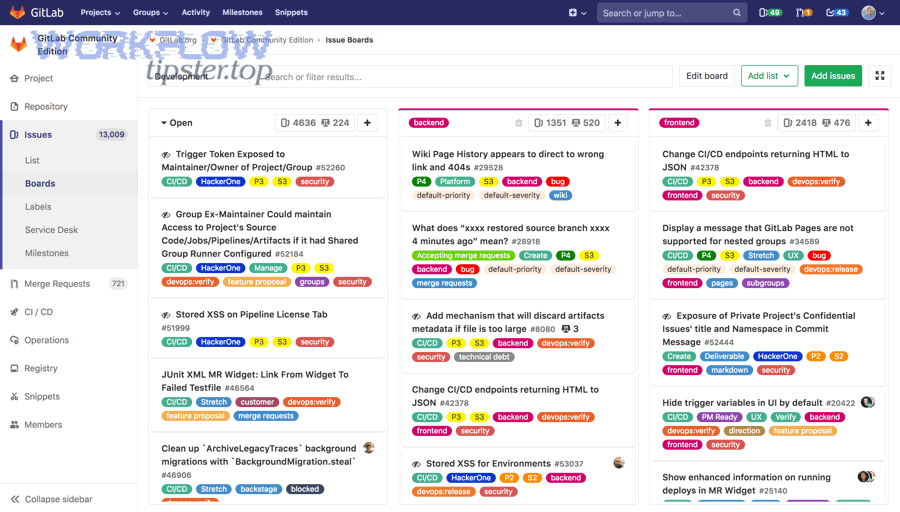
Which Asana fields map cleanly to GitLab issue fields?
There are 6 main types of fields that typically map cleanly from Asana to GitLab based on semantic equivalence (the meaning is the same in both tools): title, description, assignee, due date, status, and tags/labels.
To illustrate, the goal is not “sync everything,” but “sync what preserves meaning” so both sides remain trustworthy.
1) Title / Name
Asana Task Name ↔ GitLab Issue Title
This is the safest mapping and should almost always be included.
2) Description
Asana Description ↔ GitLab Description
This is where you store cross-tool context (acceptance criteria, links, decisions). Keep formatting simple to avoid surprises.
3) Assignee
Asana Assignee ↔ GitLab Assignee
This works well if identities match and both tools allow the assignee role to represent “single owner.”
4) Due date / Target date
Asana Due Date ↔ GitLab Due Date (or milestone target date strategy)
Use this only if your organization treats dates consistently; otherwise it becomes a source of conflict.
5) Status / State
Asana Status field or Section ↔ GitLab Open/Closed + Labels/Milestones
This is the most important mapping decision because it controls “where work lives” and “what done means.”
6) Tags / Labels
Asana Tags or custom fields ↔ GitLab Labels
Labels are a practical bridge because they’re flexible and searchable.
A useful way to visualize mapping is with a small “meaning table.” This table contains the most common field equivalences product teams rely on, and it helps you choose which fields to sync first.
| Asana (Task) meaning | GitLab (Issue) meaning | Why it’s stable |
|---|---|---|
| Task Name | Issue Title | Same purpose: identify the work |
| Description | Description | Same purpose: context + acceptance criteria |
| Assignee | Assignee | Same purpose: accountable owner |
| Due Date | Due Date / milestone strategy | Same purpose: time expectation |
| Section/Status | Open/Closed + labels | Different model, but can be normalized |
| Tags/Custom fields | Labels | Flexible categorization bridge |
How should you map Asana workflow statuses to GitLab issue states without losing meaning?
Asana wins in workflow expressiveness, GitLab is best for execution state, and labels are optimal for preserving nuance that doesn’t fit open/closed.
Meanwhile, the safest mapping strategy is to define a small “canonical state model” and then translate each side into that model rather than forcing a 1:1 mapping that doesn’t exist.
A practical canonical model for many product teams is:
- Ready / Planned (work exists, not started)
- In Progress (active development)
- In Review (code review / QA / validation)
- Done (complete, merged, or delivered)
Then translate:
- Asana: section/column names or a status custom field can represent these states.
- GitLab: open/closed is binary, so use labels (e.g., status::in-progress, status::in-review) to preserve intermediate states while “closed” represents Done.
Why this matters: if you map an Asana “In Review” column directly to GitLab “Closed,” you will create false “done” signals and break stakeholder trust.
As a reminder, GitLab also has a native Asana integration behavior that adds commit messages as comments to Asana tasks when commit messages reference task URLs or IDs, and it can close tasks using certain keywords in commit messages.
What are the integration options for Asana → GitLab and GitLab → Asana?
There are 3 main integration options for connecting Asana and GitLab: (1) native integration features, (2) two-way sync platforms, and (3) automation workflow tools—each suited to a different level of control and maintenance.
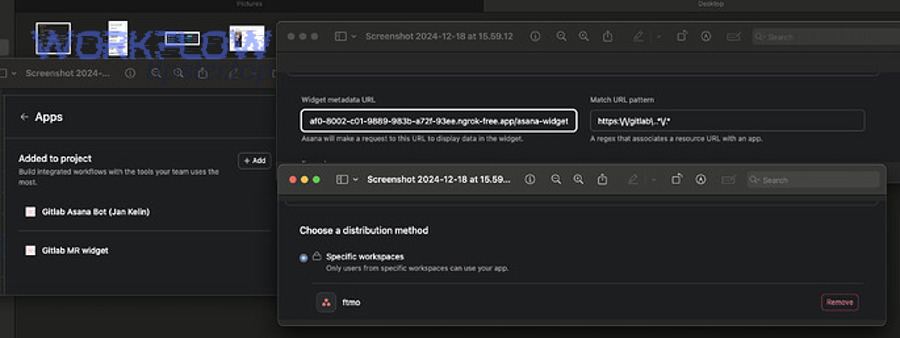
Next, you’ll choose the option that matches your team’s macro goal: “alignment with low overhead” versus “custom logic with high control.”
What is the difference between native integrations, two-way sync tools, and automation platforms?
Native integration wins in simplicity, two-way sync tools are best for bi-directional work alignment, and automation platforms are optimal for custom triggers and multi-app workflows.
However, the real difference shows up in conflict handling, field mapping depth, and ongoing maintenance.
1) Native integration (lightweight, often partial)
Best when you only need a specific behavior (e.g., posting commit messages to tasks, referencing tasks from code activity).
Usually limited in two-way field mapping depth and customization.
2) Two-way sync platforms (work-item mirroring)
Best when you want tasks and issues to stay aligned “like one system” across planning and delivery.
Often designed explicitly for “tasks ↔ issues” mirroring and real-time updates.
3) Automation workflow tools (trigger-action recipes)
Best when you want specific automations like “when a GitLab issue is created, create an Asana task,” or when you want to involve additional tools under a broader automation strategy (your wider set of Automation Integrations).
One way to choose is to compare based on directionality and rules:
- If you require true two-way sync with conflict handling → pick a two-way sync tool.
- If you require custom branching logic (multiple conditions, multi-step routing) → pick an automation platform.
- If you only need commit-to-task visibility → native may be enough.
Which option is best for product teams coordinating roadmaps and engineering delivery?
Two-way sync wins for cross-functional roadmaps, automation platforms are best for specialized workflow orchestration, and native integration is optimal for code-to-task visibility with minimal setup.
Besides, product teams usually succeed when they pick the option that minimizes “human glue work” without creating hidden complexity.
Recommended decision by team scenario:
- Small product team (1 squad) → Two-way sync is often the fastest way to eliminate duplicate updates while keeping both sides current.
- Growing org (multiple squads, shared programs) → Automation platforms can route work to the right projects, create standardized tasks, and support multi-tool coordination.
- Security-sensitive org → Evaluate what credentials are stored, what permissions are required, and whether self-hosting is needed (some tools support this).
To keep semantics clean, define your macro intent first:
- If your macro intent is “planning ↔ delivery alignment,” choose sync.
- If your macro intent is “workflow orchestration across apps,” choose automation.
This is also where teams sometimes connect adjacent processes—for example, using a form-to-intake flow (like calendly to trello for scheduling-to-triage) while keeping Asana–GitLab focused on product delivery. The key is not mixing semantics: intake routing is different from work-item synchronization.
What prerequisites do you need before connecting Asana to GitLab?
You need three prerequisites before connecting Asana to GitLab: correct permissions, a clean project structure, and an agreed “source of truth” model for statuses and ownership.

To begin, treat prerequisites as risk controls—because most integration failures come from identity mismatch, messy workflow states, and unclear rules about who updates what.
Which permissions and tokens are required in Asana and GitLab to avoid setup failures?
There are 4 main requirements you should confirm: admin-level access where needed, valid GitLab project access, an Asana personal access token (PAT) or equivalent credential, and a plan for token storage and rotation.
More importantly, credentials should follow least-privilege so the integration can do its job without creating unnecessary exposure.
Asana token basics
Asana defines a personal access token (PAT) as a credential that works much like an API key for authenticating requests to the Asana platform.
Operationally, that means:
- Create a token specifically for integration
- Name it clearly
- Store it securely
- Rotate it periodically (especially if staff change)
GitLab integration setup mechanics
In GitLab, the Asana integration is configured within a project’s integrations settings, where you enable the integration and paste the token you generated in Asana.
Practical permission checklist
- Can the integration access the relevant Asana project(s)?
- Can it create/update tasks there?
- Can it access the GitLab project and issue APIs needed for your chosen approach?
- Do you have an owner responsible for maintaining the credential lifecycle?
How do you prepare projects so the sync doesn’t create duplicates and chaos?
Preparing projects means creating a clean sync baseline: a stable naming convention, an agreed mapping for workflow states, and filters that limit what gets synced during rollout.
Then, build from controlled scope to broader scope so you never have to “clean up the whole universe” after a bad initial configuration.
A clean baseline usually includes:
1) A single “pairing rule” for tasks and issues
Decide how you will represent the relationship:
- Store the GitLab issue URL in the Asana task description or a custom field
- Store the Asana task URL in the GitLab issue description
This becomes the anchor for deduplication and auditability.
2) A consistent workflow structure
- In Asana: define sections/columns that represent true states (not personal preference columns like “Maybe later”).
- In GitLab: define a label strategy that supports mapping.
3) A controlled rollout filter
Start with:
- One Asana project + one GitLab project
- A subset of tasks (e.g., only tasks in a specific section like “Engineering Ready”)
This reduces accidental sync of unrelated work.
4) A “do not sync” list
Exclude:
- Personal tasks
- One-off reminders
- Draft ideas
Because they pollute the GitLab issue list and reduce signal-to-noise.
How do you set up a two-way Asana–GitLab sync step by step?
Set up a two-way Asana–GitLab sync by following 6 steps—connect accounts, select projects, define sync direction, map fields, configure filters, and run a pilot—so both systems stay aligned with minimal manual work.
Below, each step is designed to reduce a specific failure mode: missing data, wrong mappings, duplicates, and conflicting updates.

How do you choose the sync direction, triggers, and filters for your workflow?
There are 3 main choices to define: direction (one-way or two-way), triggers (create/update/close), and filters (which work items qualify), based on how your team actually operates.
Specifically, the most stable configuration is the one that mirrors real responsibility: PMs own planning fields, engineers own execution fields, and the sync moves the right subset of updates.
1) Decide the direction using ownership rules
- Two-way: both sides can create and update, but you must define field ownership to prevent conflicts.
- One-way (Asana → GitLab): best when Asana is intake/planning and GitLab is execution.
- One-way (GitLab → Asana): best when GitLab is source of truth and Asana is reporting.
2) Choose triggers that match your lifecycle
Common triggers include:
- When a new Asana task is created in a specific project/section → create a GitLab issue
- When a GitLab issue is created with a specific label → create an Asana task
- When a GitLab issue is closed → move the Asana task to Done
- When an Asana task status changes to “In Progress” → apply a label like status::in-progress on the GitLab issue
3) Add filters to protect signal
Filters prevent accidental sync floods. Examples:
- Only sync tasks with a specific tag like “Engineering”
- Only sync issues in a specific project or with a label like track-in-asana
- Only sync tasks in “Ready” and “In Progress” sections, not “Backlog ideas”
If your broader system includes other automations (like airtable to webflow for publishing structured content), keep those flows separate from your Asana–GitLab work sync. That separation protects semantics: publishing pipelines are not delivery pipelines, and mixing them makes both harder to debug.
How do you test and validate sync accuracy before rolling out to the whole team?
Test sync accuracy by running a pilot set of 10–30 items, validating mapping rules against expected outcomes, and documenting what “correct” looks like for status, assignee, links, and updates before you expand scope.
Then, use a structured checklist so your team doesn’t rely on “it seems fine” as the rollout criterion.
A reliable pilot process:
Pilot Step 1: Choose representative work items
Include:
- A small bug fix issue
- A feature task with acceptance criteria
- A time-sensitive item with a due date
- An item that will change assignee at least once
This ensures you test real conditions.
Pilot Step 2: Validate mapping outcomes
Confirm:
- Titles match
- Descriptions preserve essential formatting
- Assignees map correctly
- Status changes do what you expect
- Links/backlinks exist on both sides
Pilot Step 3: Validate update behavior
Make controlled changes:
- Update a description in Asana and confirm it updates in GitLab
- Close an issue in GitLab and confirm the Asana task moves appropriately
- Add a label in GitLab and confirm it maps correctly (if enabled)
Pilot Step 4: Validate failure handling
Test “bad inputs” safely:
- Add a task without required fields (see if it’s blocked or created incomplete)
- Change status in a way that conflicts with GitLab state
A lightweight method is also to test GitLab’s integration configuration before any broader automation: GitLab supports testing and saving settings in the integration configuration flow before enabling the integration.
How do you prevent conflicts, duplicates, and infinite update loops in two-way automation?
You prevent conflicts, duplicates, and loops by using three controls: field ownership rules, a stable ID/link strategy, and change filters that restrict which updates propagate across tools.

More importantly, you should treat two-way sync like a distributed system: without explicit rules, “correctness” becomes accidental.
What conflict resolution rules should you use when both sides change the same item?
Asana wins for planning fields, GitLab is best for execution fields, and a field-ownership model is optimal for resolving simultaneous changes without confusing the team.
However, “field ownership” must be explicit, or people will unknowingly fight the sync by making changes in the wrong tool.
A practical conflict model:
Planning-owned fields (Asana is authoritative)
- Priority (if you represent it)
- Due date (if set by product)
- Non-technical stakeholder notes
- Roadmap grouping / program context
Execution-owned fields (GitLab is authoritative)
- Issue state (open/closed)
- Technical labels related to implementation
- Engineering estimates if your team sets them in GitLab
- Code-review and merge-related progress
Shared fields (allow bi-directional updates cautiously)
- Title (often safe)
- Description (safe only if you define conventions and avoid overwriting)
- Assignee (safe if identity mapping is reliable)
When you define this model, you reduce the most common pain: “I changed it but it changed back,” which breaks trust in automation and sends teams back to manual updates.
How do you design a stable ID/link strategy between tasks and issues?
A stable ID/link strategy means every paired Asana task and GitLab issue stores a persistent reference to the other side so the integration can deduplicate, audit, and recover from partial failures.
Then, that reference becomes the backbone for troubleshooting and for humans who need to validate what they’re seeing.
Best-practice link strategy:
1) Store the other item’s URL in both directions
- In Asana: include the GitLab issue URL in the task description or a custom field like “GitLab Issue”
- In GitLab: include the Asana task URL in the issue description under a consistent label like “Asana Task: …”
2) Create a consistent “link block” format
Example pattern:
- Asana Task: <URL>
- GitLab Issue: <URL>
This makes it easy for people and automations to parse and reduces the risk of broken references.
3) Use a “first write creates the pair” rule
Define the pairing event:
- Either “Creating in Asana creates in GitLab”
- Or “Creating in GitLab creates in Asana”
Avoid enabling both as default unless you have strong filters, because it increases the chance of duplicate creation.
4) Use labels/tags as “sync eligibility flags”
- In GitLab: a label like sync::asana
- In Asana: a tag like sync::gitlab
This makes eligibility explicit and helps you pause syncing for a specific item when needed.
Is connecting Asana to GitLab secure for your team?
Yes—connecting Asana to GitLab can be secure if you (1) control token scope and storage, (2) enforce least-privilege permissions, and (3) validate data boundaries so sensitive information doesn’t get copied into the wrong workspace.
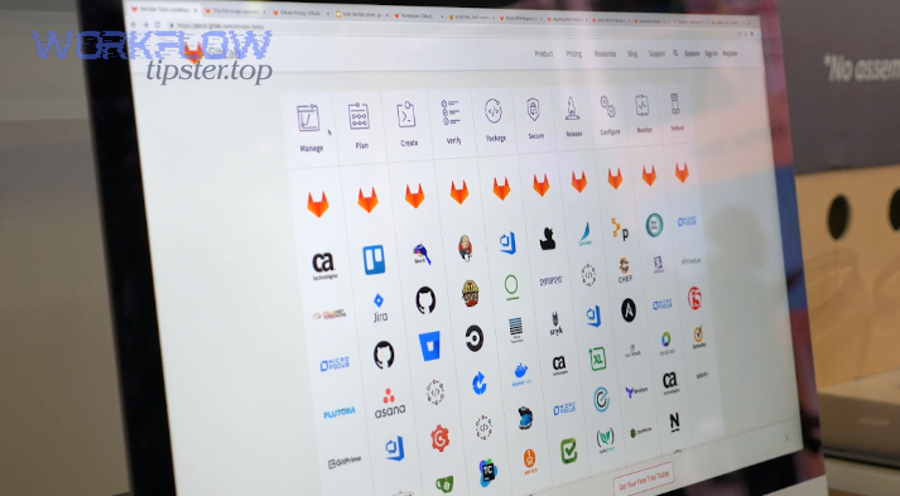
In addition, security becomes practical when you treat the integration as an application with credentials, not as a “simple connector.”
What security and governance checks should admins run before enabling the integration?
There are 7 main checks admins should run before enabling Asana–GitLab sync, based on credential hygiene, access control, and operational accountability.
Let’s explore the checklist that prevents the most common security failures: leaked tokens, over-permissioned connectors, and unintended data propagation.
1) Credential ownership
- Who created the token?
- Who owns it if the creator leaves?
- Where is it stored?
Asana tokens function as access credentials and should be treated with the same seriousness as API keys.
2) Least privilege
- Only grant permissions required for the integration’s actions
- Avoid broad admin tokens unless absolutely necessary
3) Scope clarity
- Which Asana projects will the integration access?
- Which GitLab projects will it access?
4) Data boundary rules
Define what must never sync:
- Security incidents
- PII-sensitive customer details
- Pre-release confidential notes (unless explicitly approved)
5) Auditability
- Ensure you can trace what created/updated an item
- Ensure paired URLs are present for verification
6) Change management
- Document the mapping rules
- Inform the team what to edit where (reduces accidental override conflicts)
7) Incident response
- Rotation plan if token is suspected compromised
- Ability to disable integration quickly
GitLab provides a documented place to configure and manage project integrations, and it also provides API endpoints to manage integration settings programmatically—useful for admin governance in larger organizations.
How should product teams run their daily workflow after Asana–GitLab sync is live?
Product teams should run their daily workflow by keeping planning updates in Asana, execution updates in GitLab, and using the sync as the bridge—so the team stops debating “where the truth lives” and starts making decisions on consistent data.

More importantly, your workflow should define who edits what, or the integration will become a tug-of-war instead of a productivity amplifier.
Here is a simple operating model that tends to work well:
1) Define “system of record” per decision type
Asana is the system of record for:
- Roadmap context and stakeholder-facing framing
- Priority decisions and sequencing
- Cross-functional dependencies and milestone narratives
GitLab is the system of record for:
- Technical implementation work and execution progress
- Developer workflows (branching, MR, review, closing issues)
- Engineering-specific labels and triage details
This division keeps macro semantics clean: Asana answers “why and what,” GitLab answers “how and done.”
2) Run planning and standups with the sync in mind
Weekly planning (PM-led)
- Create/organize tasks in Asana
- Ensure “sync eligibility” flags are applied
- Confirm each engineering task has (or will create) a GitLab issue pair
Daily execution (engineering-led)
- Engineers update issue progress in GitLab
- Closing issues becomes the decisive “done” event
- The sync moves the paired Asana tasks automatically
3) Keep stakeholder reporting anchored to stable fields
If exec reporting uses Asana dashboards, make sure the fields that feed dashboards are:
- Not frequently overwritten by GitLab behaviors
- Mapped in a way that doesn’t reduce meaning
For example, you might choose:
- “Status” in Asana for stakeholder view
- GitLab labels for execution nuance
- A rule that GitLab close updates Asana status to Done (but intermediate labels don’t rewrite the whole Asana workflow)
4) Use one integration playbook, not tribal knowledge
A short playbook should answer:
- Where to create work
- Where to update status
- How to add acceptance criteria
- How to pause syncing for an item
- How to handle duplicates
According to a study by University of Zurich from the Department of Informatics, in 2014, developers emphasized productivity when they could complete meaningful work without heavy context switching, reinforcing why a clean cross-tool workflow matters.
Also, if you are building a broader productivity ecosystem, keep related flows consistent but separate—for example, if a team also uses clickup to google slides to automate reporting artifacts, treat that as a reporting pipeline while Asana–GitLab remains your delivery pipeline. That separation avoids confusing semantics across unrelated systems.
Contextual Border: Up to this point, the article directly answered how to integrate and operate the Asana–GitLab sync to satisfy the primary intent. Next, the content expands into advanced micro cases—where specialized environments, identity mismatches, and scale constraints can change what “best practice” looks like.
What advanced setups and edge cases matter for Asana–GitLab two-way sync?
Advanced setups and edge cases matter when you use self-managed GitLab, complex identity systems, high-volume projects, or strict compliance rules—because these factors change how credentials, webhooks, rate limits, and mappings behave.

Especially in larger organizations, the difference between a “working integration” and a “reliable integration” is how you handle these edge conditions before they break production workflows.
How do you handle GitLab self-managed instances or multiple GitLab groups/projects in one workflow?
There are 3 main patterns for handling self-managed GitLab or multi-project routing: single-source routing, rule-based routing, and hub-and-spoke program routing based on labels or fields.
Then, you choose the pattern that matches your org structure rather than forcing everything into one project and losing clarity.
Pattern A: Single-source routing (simple)
- One Asana project syncs to one GitLab project
- Best for single-squad teams
Pattern B: Rule-based routing (scalable)
- One Asana intake project routes to different GitLab projects based on:
- Component labels
- Product area fields
- Team ownership custom field
This prevents engineers from getting noise while keeping intake centralized.
Pattern C: Hub-and-spoke (program management)
- A program-level Asana project tracks parent items
- Each squad has its own GitLab project
- Sync rules pair specific subsets of tasks to their squad’s GitLab space
If you use an automation workflow engine to accomplish routing, treat it as orchestration—your “sync logic” should remain transparent, documented, and testable.
What should you do when assignees don’t match across Asana and GitLab (SSO, email mismatch, guests)?
Assignee mismatches are best solved by using a user mapping strategy plus a fallback owner, so work never becomes unassigned or incorrectly assigned when identities don’t align.
However, the real fix is operational: decide whether assignee should sync at all if identity cannot be guaranteed.
A practical approach:
1) Normalize identity rules
- Encourage consistent email identity across tools
- Avoid multiple accounts per person
2) Use a fallback assignment policy
If the integration cannot map a user:
- Assign to a team lead or triage role
- Add a label/tag indicating “needs assignment mapping”
This prevents silent failures.
3) Decide whether assignee is authoritative
- If engineering assigns in GitLab, you may choose GitLab as authoritative for assignee.
- If PM assigns in Asana, choose Asana as authoritative.
Avoid bi-directional assignee sync if it creates “assignment ping-pong.”
How do you troubleshoot missing updates, delayed sync, or rate-limit failures?
There are 4 main categories of sync failures—credential problems, filtering/mapping mistakes, event delivery issues, and rate limiting—so troubleshooting should start by identifying the category, not guessing random fixes.
To illustrate, a stable troubleshooting process moves from “most likely” to “most impactful,” so you restore trust quickly.
Category 1: Credential failures
Symptoms:
- Nothing syncs
- Authorization errors
Fix:
- Validate token validity and permissions
- Rotate token if uncertain
- Re-test integration settings in the tool configuration flow
Category 2: Filtering/mapping mistakes
Symptoms:
- Only some tasks/issues sync
- Status updates don’t map
Fix:
- Confirm labels/tags required for eligibility
- Confirm field mapping rules (especially statuses)
Category 3: Event delivery issues
Symptoms:
- Sync is delayed or inconsistent
Fix:
- Check whether your tool relies on webhooks or polling
- Validate webhook configuration if applicable
Category 4: Rate limiting / scale
Symptoms:
- Sync works sometimes, then falls behind during peak activity
Fix:
- Reduce scope (filters)
- Batch updates where possible
- Avoid syncing noisy fields like frequent comment updates unless needed
When should you avoid two-way sync and use a controlled one-way handoff instead?
Two-way sync is powerful, but you should avoid it when compliance is strict, identities are inconsistent, or the project generates massive event volume—because one-way handoffs reduce conflict risk and make governance simpler.
In short, the antonym of “always-on two-way automation” is “controlled one-way flow,” and sometimes controlled flow is what creates reliability.
Use controlled one-way handoff when:
1) One system must be the single source of truth
- If engineering must enforce state changes only in GitLab, then sync GitLab → Asana for visibility.
2) Your workflow semantics are fundamentally different
- If Asana is used as a roadmap narrative tool, and GitLab is used as a technical execution tool, you may only want:
- Issue closed → task done
- Not full bi-directional syncing of intermediate states
3) Your organization can’t tolerate automated overwrites
- In regulated contexts, it may be unacceptable for an automation to overwrite fields that are considered records.
4) Your team is not ready operationally
- If the team cannot follow “edit here vs edit there” discipline, two-way sync becomes a blame machine. Start with one-way, then upgrade once behavior stabilizes.
Finally, remember that some platforms explicitly market real-time two-way sync between GitLab issues and Asana tasks without code, which can be powerful—but it also increases the need for clear mapping and governance.