


Syncing Asana tasks to Google Calendar is the fastest way for teams to turn task deadlines into a shared schedule, so people can see what’s due and when without constantly switching tabs. The best setup depends on whether you want simple visibility (one-way sync) or active scheduling that updates both systems (two-way sync).
Next, you’ll learn what the Asana–Google Calendar integration actually means in practice—what data moves, what stays behind, and why some teams feel “it’s not syncing” even when it technically is. That clarity prevents the most common rollout mistake: expecting Google Calendar to behave like a full project tracker.
Then, we’ll walk through native methods you can set up without third-party tools, and we’ll compare them to two-way sync options when your team needs events and tasks to stay aligned automatically. This is where teams usually decide between “good enough” and “operationally reliable.”
Introduce a new idea: once you understand direction (one-way vs two-way) and scope (project vs My Tasks), you can choose a configuration that matches your team’s workflow and avoids duplicates, missing titles, time zone issues, and permission headaches.
What does it mean to sync Asana tasks to Google Calendar for a team?
Syncing Asana tasks to Google Calendar means your team can view selected tasks with due dates as calendar entries, so deadlines become schedule-visible and easier to plan around—without turning Google Calendar into a full replacement for Asana.
To better understand this, you need to separate three concepts that often get mixed together: visibility, scheduling, and ownership. Visibility is simply “show tasks on a calendar.” Scheduling is “reserve time on a calendar for task work.” Ownership is “decide which app is the source of truth for edits.” When teams skip these distinctions, they end up with confusion like “I moved the event—why didn’t the Asana task change?”
What data actually transfers between Asana tasks and Google Calendar events?
The data that transfers is usually the minimum needed for calendar visibility: task title, due date (sometimes due time), and a link back to the Asana task—while deeper project context (custom fields, dependencies, rules) typically stays in Asana.
More specifically, think of an Asana-to-Google Calendar sync as a “calendar projection” of tasks rather than a full data bridge:
- Commonly included
- Task name → Event title (so the calendar entry is readable)
- Due date → Calendar date (so the entry lands on the right day)
- Task URL → Event reference (so a click takes you back to Asana)
- Sometimes included (varies by method/tool)
- Due time → Event time
- Description/notes → Event description
- Commonly not included
- Custom fields (priority, effort score, SLA)
- Dependencies and blocked/ blocking relationships
- Subtask hierarchies (unless a tool explicitly supports it)
- Project rules/automation logic
In practice, this means Google Calendar is best used for planning and awareness, while Asana remains best for execution and collaboration (comments, dependencies, handoffs, approvals). If your team’s goal is “see deadlines,” a simple sync is enough. If your team’s goal is “auto-create meetings or reserved time for tasks,” you’re moving toward scheduling workflows.
Does sync happen in real time, and how often does it update?
No, most sync methods are not truly real time; they update on a refresh cycle, and that delay is normal—especially for calendar subscription-style sync links that Google periodically re-fetches rather than instantly pushing changes.
Next, treat “update speed” as part of your team agreement. If a designer changes a due date at 4:59 PM and expects everyone’s calendar to reflect it immediately at 5:00 PM, you’ll create frustration. A healthier expectation is: Asana is the source of truth for deadlines; the calendar is a planning mirror that may refresh periodically.
This is also why teams that rely on exact time-blocking often choose two-way sync tools or calendar-first scheduling products rather than purely subscription-style syncing.
Can you natively sync Asana to Google Calendar without third-party tools?
Yes, you can natively sync Asana to Google Calendar using Asana’s built-in “Sync to calendar” options, and it’s ideal when your team primarily needs visibility into due dates without complex automation.
Then, the key decision is which native scope you want to publish: an Asana project’s tasks or an individual’s My Tasks. Both are supported by Asana’s guidance, but they serve different team behaviors.
How do you connect an Asana project to Google Calendar step by step?
You can connect an Asana project to Google Calendar by generating the project’s calendar sync link in Asana and adding it to Google Calendar as a calendar “From URL,” which publishes tasks with due dates as calendar entries.
To begin, use a repeatable team-safe process:
- Pick the right project scope
- Choose the project where due dates reflect reality (not “someday” placeholders).
- Ensure tasks have consistent due dates; a calendar with undated tasks is just noise.
- Generate the sync link inside Asana
- Open the project in Asana.
- Use the project menu options that lead to Sync to calendar.
- Add the link to Google Calendar
- In Google Calendar, add a calendar From URL and paste the link you copied from Asana.
- Name it clearly for the team
- Use a naming pattern like: Asana – Project Name – Due Dates
- This prevents duplicate subscriptions later.
- Sanity-check what appears
- Only tasks with due dates will show up, so “missing tasks” often means “missing due dates.”
Besides the mechanical steps, the real success factor is governance: decide who owns the project calendar subscription and whether it’s meant to be team-wide (shared calendar) or individual (each person subscribes personally).
How do you sync “My Tasks” to Google Calendar step by step?
You can sync My Tasks to Google Calendar by creating a calendar sync link from your My Tasks area in Asana and adding it to Google Calendar, which is best for individuals who want their assigned due dates visible on their personal schedule.
Next, follow a workflow that matches how people actually manage their day:
- Clean up My Tasks structure first
- If your My Tasks is a catch-all list, your calendar will become unreadable.
- Use sections (Today / Upcoming / Later) or a consistent triage routine.
- Create the My Tasks sync link
- Generate a link from My Tasks via Sync to Calendar.
- Add it to Google Calendar as a separate calendar
- Name it something like: Asana – My Tasks
- Keep it separate from meetings to avoid clutter.
- Decide your personal rule
- For example: “Only tasks with due date + due time are allowed to represent scheduled work.”
- Communicate the expectation
- My Tasks sync is personal planning—your edits should still happen in Asana if the team depends on them.
A practical advantage here: My Tasks sync supports autonomy. Each team member can decide how much Asana data belongs on their calendar without forcing the entire team into a single “one calendar for everything” strategy.
Is Asana → Google Calendar sync one-way or two-way by default?
Asana → Google Calendar sync is one-way by default, meaning changes in Asana can appear in Google Calendar, but edits you make in Google Calendar typically do not update the original Asana task.
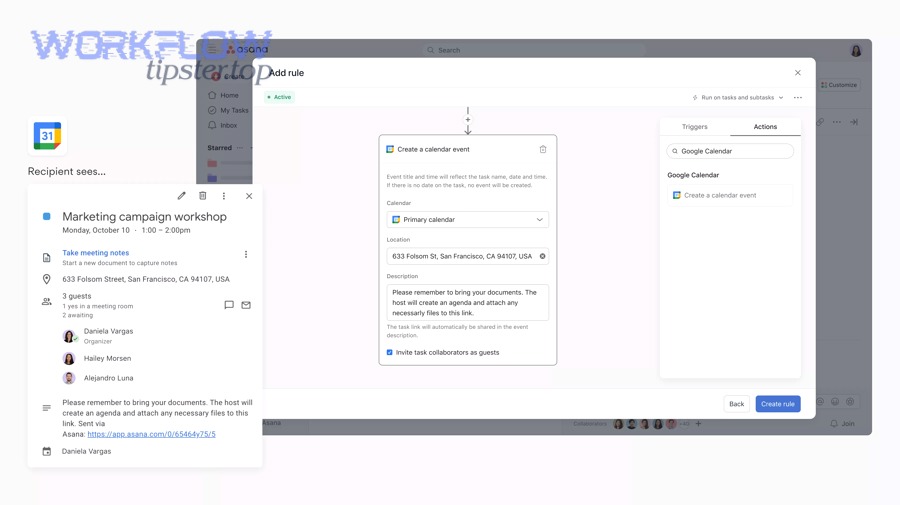
However, the nuance matters: “one-way” can still be extremely valuable if your goal is deadline visibility, not mutual editing. The problem happens when teams assume two-way behavior and start rescheduling tasks inside Google Calendar—then they discover the task didn’t change, or duplicates appear when they try to “fix” it.
To make the one-way vs two-way difference concrete, the table below contains a practical comparison of what teams can expect from each approach, and it helps you choose the right integration level for your workflow.
| Criterion | One-way Asana → Google Calendar (native sync) | Two-way Asana ⇄ Google Calendar (integration tools) |
|---|---|---|
| Best for | Deadline visibility | Scheduling + coordination |
| Source of truth | Asana | Defined per field (needs rules) |
| Typical behavior | Tasks appear as calendar entries | Tasks and events can create/update each other |
| Risk | Missing expectations (“why didn’t it change back?”) | Duplicates, sync loops if poorly configured |
| Setup complexity | Low | Medium to high |
What changes in Asana will update Google Calendar events?
There are several common changes in Asana that can update what you see in Google Calendar: task creation (with a due date), edits to the task title, and due date changes—though exact behavior depends on the sync method and refresh timing.
Specifically, teams should assume the following patterns:
- Usually updates
- Task title edits (event title updates after refresh)
- Due date changes (event moves to a new date after refresh)
- Newly added tasks with due dates (appear after refresh)
- Usually does not behave like people expect
- Completion status may not remove/hide the calendar entry immediately (or at all) depending on method/tool
- Subtasks may not become separate events unless your approach explicitly supports it
- Custom fields don’t “paint onto” calendar entries
The actionable rule: If it affects the due date and title, it’s likely calendar-visible. If it affects workflow state, workload, or dependencies, keep it in Asana.
What changes in Google Calendar will update Asana tasks?
No, by default, changes you make in Google Calendar will not update the corresponding Asana task, because native sync is not designed as a two-way editing system.
In addition, this is why teams should avoid using Google Calendar drag-and-drop as a way to “move task deadlines.” When you do that, you are only moving the calendar view, not the task itself—so your teammates may still be working off the old due date inside Asana.
If your team truly needs calendar edits to update tasks, that’s the signal to consider a two-way integration method, where you explicitly map which fields can update in either direction.
Which setup should teams choose: project calendar sync or My Tasks sync?
Project-based sync wins for shared visibility across a deliverable timeline, while My Tasks sync is best for individual planning and personal workload management—so the right choice depends on whether the team’s calendar should represent the project or the person.
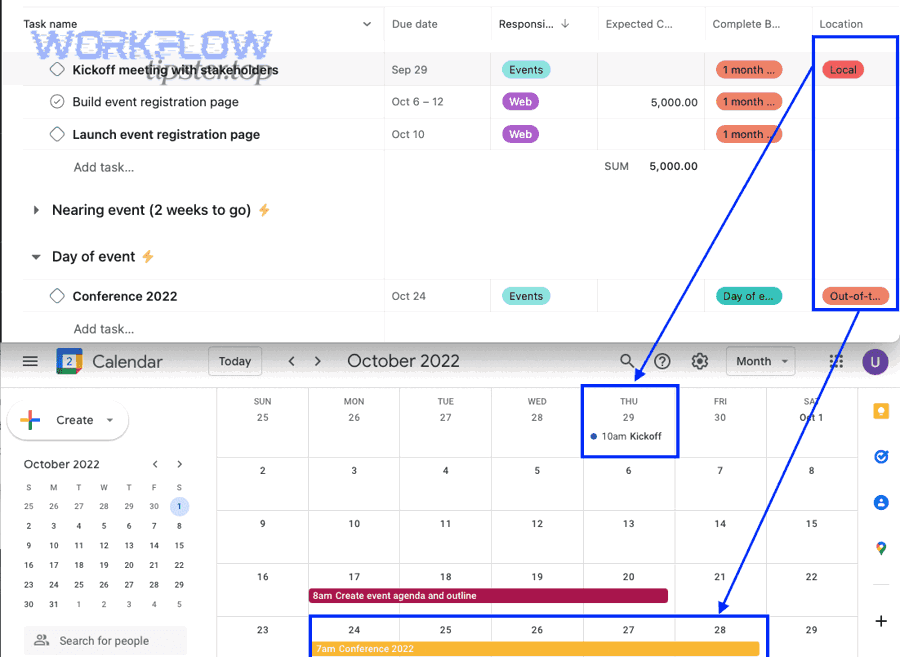
Next, treat this choice as a structure decision, not a feature decision. Teams that fail here typically end up with: (1) a project calendar that becomes noise because everything is “due,” or (2) personal calendars that hide cross-functional deadlines because the project never appears anywhere shared.
The table below contains a simple decision framework that helps teams pick the correct sync scope and avoid the “too much calendar clutter” problem.
| Team need | Choose project sync | Choose My Tasks sync |
|---|---|---|
| Shared deadline visibility | ✅ | ⚠️ only if everyone subscribes |
| Individual day planning | ⚠️ can be noisy | ✅ |
| Cross-functional launches | ✅ | ⚠️ fragmented |
| Personal time-blocking | ⚠️ indirect | ✅ |
| Onboarding simplicity | ✅ one shared pattern | ✅ but per person setup |
When is project-based sync the best fit for teams?
There are 4 common scenarios where project-based sync is the best fit: shared launch timelines, cross-functional deliverables, milestone-driven planning, and leadership visibility—because a project calendar answers “what’s due for the team” rather than “what’s due for me.”
To illustrate, project sync works best when the project itself has meaning as a schedule artifact:
- Launch calendars and marketing campaigns
- Everyone needs a single view of deadlines (draft due, legal review, publish).
- Engineering delivery milestones
- The team needs dates aligned with releases and dependencies.
- Client-facing timelines
- PMs and stakeholders want a calendar view that matches commitments.
- Executive overview
- Leaders want a quick glance at upcoming project deadlines without browsing task lists.
A key operational tip: project calendars should be curated. If every minor task has a due date, the calendar becomes unreadable. Many teams solve this by setting due dates primarily on milestones and major deliverables, while keeping smaller tasks scheduled internally via sections, priorities, or sprint cadence.
When is assignee-based (My Tasks) sync the best fit?
There are 4 main scenarios where My Tasks sync is the best fit: personal workload planning, time-blocking deep work, prioritizing daily execution, and role-based ownership—because it turns assigned due dates into a personal schedule mirror.
More importantly, My Tasks sync helps individuals resist distraction by planning their day intentionally. If you want a research-backed reason to take personal scheduling seriously, interruptions have a measurable cost: According to a study by the University of California, Irvine from the Department of Informatics, in 2008, workers experienced significant disruption from interruptions and context switching during computer-based work.
Practically, My Tasks sync becomes powerful when paired with light structure:
- Only assign due dates to tasks that truly matter
- Use due time only for tasks that must happen at a specific hour
- Keep “someday” items undated so they don’t pollute the calendar view
- Review My Tasks at the start and end of day to keep the calendar view meaningful
This is where many teams naturally expand into Automation Integrations—not to add complexity, but to keep personal planning clean while preserving accurate team commitments in the project.
How do you set up two-way sync between Asana and Google Calendar?
Two-way sync is best implemented by choosing an integration tool, defining strict mapping rules, and configuring one source of truth per field, so tasks and events can update each other without creating duplicates or sync loops.
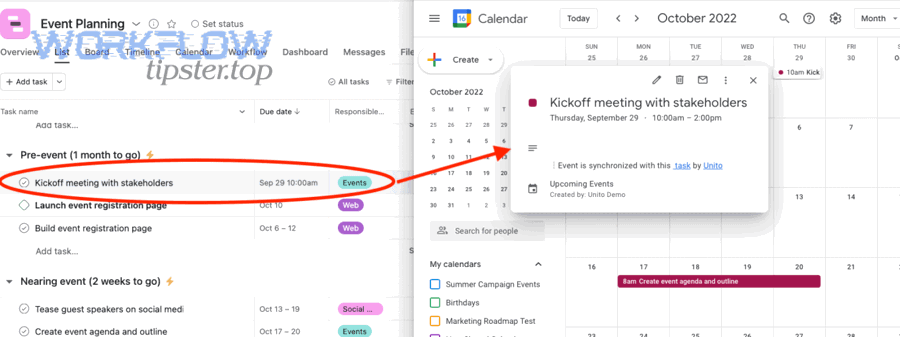
Then, treat two-way sync as a small system design project. Teams often fail by “turning it on” without deciding what the calendar event represents. Is it a due date marker? A scheduled work block? A meeting? These are different objects, and two-way sync must encode those differences as rules.
A practical example: if your goal is scheduling focus time for tasks, you might map “task in a certain section/tag” to “calendar event created with a duration.” If your goal is meeting coordination, you might map “calendar event with a specific title prefix” to “task created in Asana for follow-up.”
(If your team is also connecting other apps like activecampaign to slack or gmail to basecamp, you already understand the value of rule-based mapping: keep each system doing what it’s best at, and let the integration handle the bridge.)
What rules and field mappings are required for reliable two-way sync?
There are 5 core rules required for reliable two-way sync: scope filters, unique identifiers, field-level ownership, conflict handling, and lifecycle rules—because two-way syncing without these constraints will eventually drift or duplicate.
Specifically, build your mapping around these controls:
- Scope filters (prevent noise)
- Only sync tasks that match criteria: project + section, tag, assignee, or “has due time.”
- Only sync calendar events that match criteria: a specific calendar, keyword, or organizer.
- Unique identifier link-back (prevent duplicates)
- Ensure every synced event stores the Asana task URL (or an ID) and every synced task stores the event reference.
- This “thread” lets the system recognize the same object on future updates.
- Field ownership (avoid edit wars)
- Decide: is the due date owned by Asana or Google Calendar?
- Decide: is the title owned by Asana?
- Decide: is the time range owned by Google Calendar?
- Conflict handling (what wins when both change?)
- Choose a policy: “latest edit wins,” or “Asana wins,” or “Calendar wins.”
- Document this policy so users don’t accidentally fight the system.
- Lifecycle rules (what happens when completed?)
- Completed task → event removed, event marked free, or event remains as a record?
- Canceled event → task moved to “Canceled” section?
If you set these rules clearly, two-way sync becomes stable rather than fragile.
How do you prevent duplicates and sync loops in two-way setups?
You prevent duplicates and sync loops by using one canonical calendar per workflow, applying strict filters, and ensuring each object is created by only one rule set—because loops occur when both sides keep re-creating or re-editing each other.
In addition, apply these defensive strategies:
- Use one integration per scope
- Don’t run multiple tools that sync the same Asana project to the same Google Calendar.
- Separate “deadline calendars” from “scheduled work calendars”
- A deadline marker is not the same as a time block.
- Add a “Created by integration” marker
- Use tags, prefixes, or a dedicated calendar name to distinguish synced items.
- Avoid bi-directional mapping for every field
- Keep only a few fields bi-directional (e.g., date/time), and keep others one-directional (e.g., title).
If your team treats two-way sync as a controlled system—rather than a magical feature—you’ll get the benefit without the chaos.
What is the fastest checklist to verify the integration works correctly?
The fastest verification method is a 10-minute test that creates one task, edits its due date and title, checks calendar refresh behavior, and confirms permissions—because a small controlled test reveals 90% of setup issues immediately.
Next, run verification like a mini quality assurance routine. Teams often “assume it’s working” because something appears on one person’s calendar—then discover the wrong scope, wrong calendar, missing permissions, or duplicates weeks later.
What should you test in the first 10 minutes after setup?
There are 6 quick tests you should run in the first 10 minutes: create, title edit, date edit, time edit, completion, and visibility—based on the exact behaviors teams rely on day to day.
To begin, use one test task so you can track changes cleanly:
- Create a test task with a clear name
- Example: “TEST — Calendar Sync Validation”
- Add a due date (and a due time if your workflow uses time).
- Check if it appears on the expected calendar
- If it does not appear, verify it has a due date and you subscribed to the correct scope.
- Edit the task title
- Confirm the calendar entry updates after refresh.
- Change the due date
- Confirm the calendar entry moves to the new date.
- (If relevant) Change due time
- Confirm it becomes a timed event instead of all-day (behavior varies by setup).
- Complete the task
- Observe what happens: does the calendar entry stay, disappear, or remain until refresh?
- Document the observed behavior for the team.
If you’re testing two-way sync, add one more step: move the calendar event time and confirm whether the task changes (and which field changes).
Who on the team should own and document the sync rules?
The owner should be a project ops lead, admin, or designated workflow steward—because integrations are shared infrastructure, and someone must document scope, rules, and the “source of truth” decisions to prevent accidental breakage.
More specifically, assign ownership the same way you assign ownership for permissions and templates:
- One accountable owner
- Maintains the rules and approves changes.
- One documented playbook
- Which projects are synced, which calendars are used, what to do if duplicates appear.
- Onboarding note for users
- “Edit deadlines in Asana, not in Google Calendar (unless two-way rules say otherwise).”
- Change management
- If the project structure changes (sections/tags renamed), update sync filters.
This governance is what makes the integration dependable for teams rather than a “works on my machine” setup.
Why isn’t Asana syncing to Google Calendar correctly, and how do you fix it?
Asana sync issues usually come from one of three causes—missing due dates, permission/account mismatches, or conflicting subscriptions—and you fix them fastest by diagnosing symptoms (missing events, wrong times, duplicates) instead of redoing the entire setup.
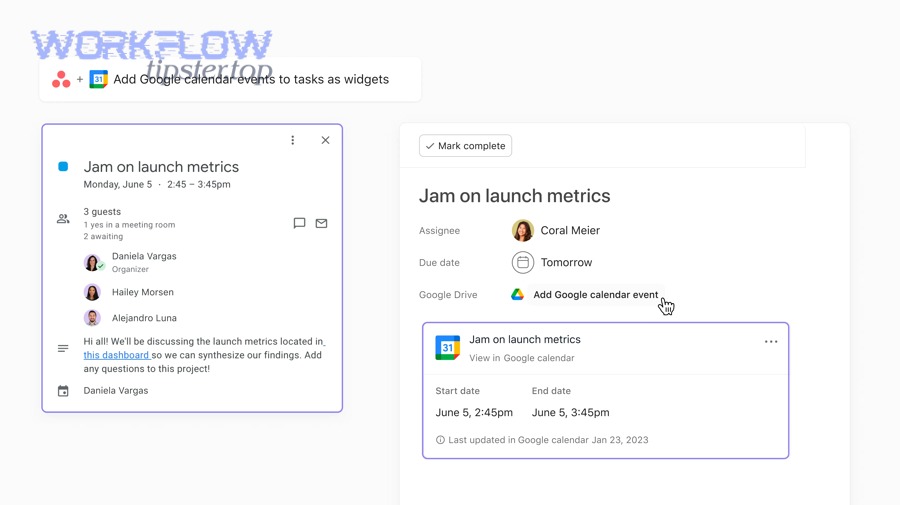
Then, approach troubleshooting like a decision tree: identify what you see, map it to the most likely cause, apply one fix, and retest with a single task. This prevents the most common mistake: creating additional subscriptions or rules that temporarily seem to help but actually create duplicates later.
Why are synced events missing titles, times, or showing as all-day events?
This happens because the sync is often driven primarily by the due date (and sometimes not by due time), so tasks with date-only metadata render as all-day entries, and tasks without clean titles or consistent fields can appear incomplete on the calendar.
Specifically, fix it with these targeted actions:
- Missing titles
- Ensure the task has a clear name; avoid placeholder task titles in synced scopes.
- If a tool maps title from another field, confirm the mapping configuration.
- All-day instead of timed
- Add a due time (if your workflow requires time blocks).
- Confirm your sync method supports timed events; some setups emphasize due dates as all-day markers.
- Wrong time
- Verify time zone settings in both Google Calendar and the user’s system settings.
- Ensure the team agrees whether due time represents a deadline or a scheduled work block.
When teams confuse “deadline” with “scheduled work,” calendars become misleading. A deadline belongs on the due date; a work block belongs as a time range, which often requires a two-way or scheduling-oriented approach.
Why are you getting duplicate events or repeated updates?
Duplicates happen when multiple sync links or multiple automation rules cover the same scope, or when two-way configurations accidentally create a loop where each side treats the other’s update as a “new item.”
To illustrate, duplicates often appear in these scenarios:
- A user subscribes to both project sync and My Tasks sync, and the same task qualifies for both.
- Two different team members create two separate “From URL” calendars for the same project and share them.
- A two-way tool is running alongside a native one-way subscription, so events get created twice.
Fix strategy:
- Inventory what’s active
- List the calendars that are “From URL” and identify which ones come from Asana.
- Remove overlapping subscriptions
- Keep only one calendar per purpose: one for project deadlines, one for personal tasks, etc.
- If two-way is enabled
- Disable native one-way subscriptions for the same scope.
- Retest with one task
- Confirm a single creation produces a single calendar entry.
Why do some users see the calendar and others don’t?
This usually occurs because the calendar subscription is personal (added to one Google account), the wrong Google account is used, or the Asana project permissions differ between users—so visibility isn’t consistently provisioned across the team.
More specifically, check these points:
- Account mismatch
- Users may have multiple Google accounts (personal + work) and added the calendar to the wrong one.
- Calendar sharing
- If one person created a shared calendar view, confirm it was actually shared with the right permissions.
- Asana permissions
- If the project is private or restricted, users may not have access to the tasks—even if they see a calendar shell.
- Workspace/admin policies
- Some organizations restrict external calendar subscriptions or app connections; verify admin settings if sync options don’t appear.
When troubleshooting across a team, always test with two roles: an admin/PM and a standard contributor. If it works for one and not the other, it’s almost always a permission boundary.
Can recurring tasks sync cleanly to recurring calendar events?
No, recurring tasks do not always sync cleanly into recurring calendar events in native setups, and teams often need workarounds or specialized tools if they require true recurring event logic.
In addition, you can reduce recurring-sync pain by choosing the right representation:
- If it’s a recurring deadline
- Keep it as an Asana recurring task and let the calendar show due markers (accept that it may not behave like a recurring meeting).
- If it’s a recurring work block
- Create a recurring calendar event (for time reservation) and link it to an Asana template task or recurring checklist.
- If it’s a recurring meeting with action items
- Use the calendar as the meeting system and generate Asana follow-up tasks per occurrence.
Evidence matters here because recurring workflows are where interruption and resumption costs show up most. According to a study by the University of California, Irvine from the Department of Informatics, in 2008, interruptions and task switching measurably affected work patterns and stress, reinforcing the value of stable scheduling systems rather than constantly shifting plans.