


If you want Asana to reflect what’s happening in GitHub without constant manual updates, the Asana–GitHub integration is designed to sync GitHub pull request status updates directly onto related Asana tasks—so stakeholders can see review/build/merge progress where planning work already lives.
To make that happen reliably, you’ll need to understand what the integration actually does (and what it doesn’t), how Asana “projects” map to GitHub “repos + pull requests,” and how status signals (review/build/PR state) appear inside tasks after you connect the apps.
You’ll also want to confirm permissions early—because the most common setup failures come from missing admin rights, incomplete authorization, or linking rules that aren’t consistent across the team (for example, some PRs include Asana task links and others don’t).
Introduce a new idea: once the connection works, your bigger opportunity is standardizing team workflows—so “PR opened,” “changes requested,” “build failed,” or “merged” becomes a shared language across product and engineering, not a status-reporting chore.
What is the Asana–GitHub integration?
The Asana–GitHub integration is a built-in connection that automatically syncs GitHub pull request status updates into Asana tasks so teams can track review/build/merge progress without leaving Asana.
Next, it helps to think of the integration as a “status surface” inside Asana rather than a full two-way mirror of GitHub. In practice, it focuses on pull requests and the signals around them—exactly the information non-developers ask for most often (“Is it in review?”, “Did CI pass?”, “Is it merged yet?”).
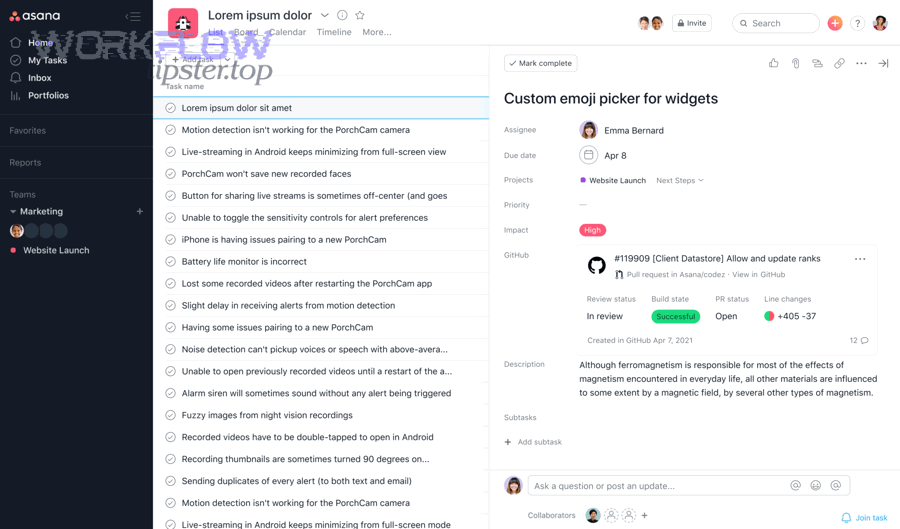
What information syncs from GitHub into Asana tasks?
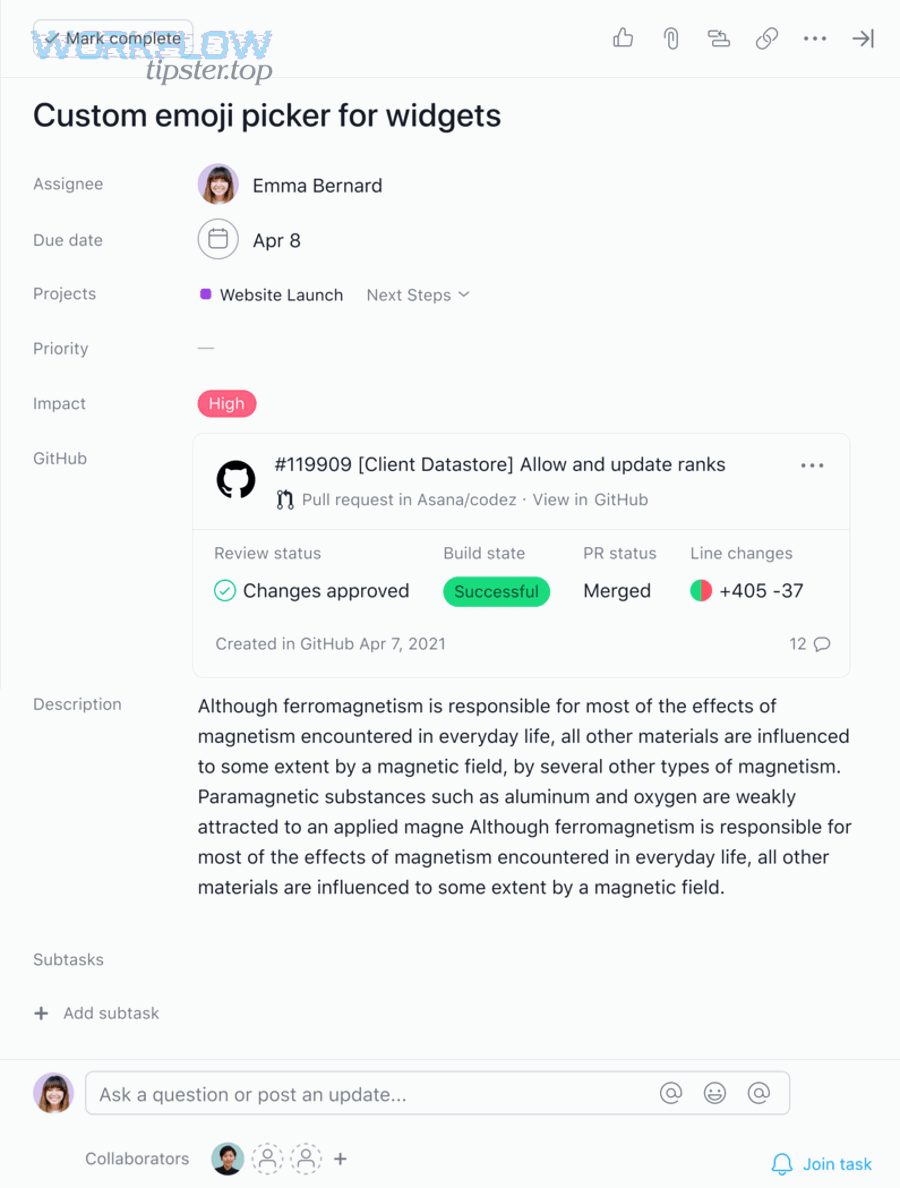
The integration syncs pull request status updates—including review status, build status, pull request status, and even line changes—into the connected Asana task, giving a quick “health panel” for work in progress.
To better understand what you’ll see day-to-day, break the sync down into the signals stakeholders care about:
- Review status: whether the PR is in review, approved, or needs changes.
- Build state: CI result signals such as success/failure (when surfaced as a build status).
- PR status: open, merged, or closed.
- Line changes: a lightweight “scope delta” indicator that can help explain why work expanded.
A useful way to align expectations is to document what each signal means for your team. For example, “Build failed” could mean “blocked,” while “Approved” could mean “ready to merge pending final checks.”
What problems does this integration solve for cross-functional teams?
It solves the visibility gap between planning work (Asana) and delivery work (GitHub) by making the current PR state visible where project updates and stakeholder communication already happen.
More specifically, it reduces two recurring costs:
- Status translation: engineers repeating GitHub updates in Asana comments.
- Context switching: non-engineers jumping into GitHub to interpret states and timelines.
According to a study by University of California, Irvine from the Department of Informatics, in 2008, interruptions and task switching were associated with measurable productivity and stress effects in knowledge work—highlighting why reducing “status-chasing” interactions matters.
Do you need admin permissions to connect Asana to GitHub?
Yes—you typically need the right level of permissions in Asana (and appropriate access in GitHub) to authorize the integration for a project, because the connection is installed at the Asana project level and requires account authorization.
Then, permission-checking becomes less about one universal rule and more about where the integration is being enabled:
- Asana side: you must be able to add/authorize apps for the project you’re connecting.
- GitHub side: you must be able to authorize the integration to access the repositories where PRs live (and comply with org policies if your repos are under a GitHub organization).
Which Asana roles and plans can use the GitHub integration?
The GitHub for Asana integration is available on paid Asana tiers (for example, Premium/Business/Enterprise in Marketplace listings), and it’s commonly deployed in workspaces where cross-functional reporting is required.
Practically, your “role” question should be answered with a setup checklist:
- Can you open the target Asana project and see the Apps / Add app option?
- Can you complete the authorization flow without being blocked by workspace admin settings?
- If you’re in an enterprise environment, is app installation restricted to admins?
If any answer is “no,” the fastest path is to involve the Asana admin early, because troubleshooting later often looks like “it installs but never links,” which wastes more time than simply validating permissions upfront.
What GitHub access is required to authorize and link repositories?
You need GitHub access that allows the integration to be authorized for the repositories where pull requests will be created, because the integration must read PR status signals to sync them into Asana tasks.
In organizations with stricter controls, expect one of these patterns:
- Authorization requires org approval for third-party integrations.
- Repository access is segmented (some repos work, others do not).
- Security teams require documentation of what the integration reads and displays.
A clean internal “integration request note” (what it does, what it syncs, and why) often speeds approvals.
How do you set up the Asana–GitHub integration step by step?
You set it up by adding the GitHub app to the specific Asana project, authorizing your GitHub account, and completing the on-screen prompts so the integration installs at the project level.
Below, the steps are written as a repeatable implementation sequence you can standardize across multiple projects.
How do you add GitHub as an app inside an Asana project?
You add GitHub by opening the target Asana project, clicking Customize, going to Apps, selecting +Add app, choosing GitHub, and then adding it to the project.
Then, make it operational—not just installed—by immediately doing two things after setup:
- Confirm the app is enabled for the project (not just “available”).
- Document the linking rule the team will use (task URL in PR description, task ID in PR title, or another standard).
These two actions prevent the most common failure mode: “We installed it… but nothing is syncing.”
How do you authorize GitHub securely without breaking team workflows?
You authorize GitHub securely by using the official authorization flow, granting access only to the repos required for the project, and aligning with organization policies for third-party app approvals.
To illustrate the workflow impact, decide before you authorize:
- Single repo vs multiple repos: Will one Asana project track PRs across multiple repos?
- One project per product area: Will each team/project own a clean repo scope?
If you’re in a regulated environment, treat authorization like a mini-change-management event:
- record who authorized,
- which repos were included,
- and where the internal “support owner” lives (e.g., DevOps lead or tool admin).
How do you link GitHub pull requests to Asana tasks?
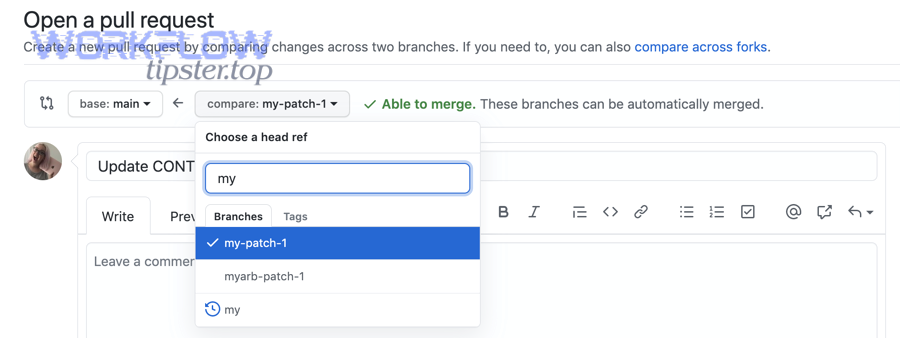
You link pull requests to tasks by ensuring the pull request contains a recognizable reference to the Asana task (most reliably, the Asana task URL), so the integration can attach PR status updates to that task automatically.
Next, treat linking like a team convention, not a personal habit. If only half the PRs are linked, stakeholders will stop trusting the Asana status view—because the data will look “randomly incomplete.”
What is the best way to reference an Asana task in a PR?
The best way is to include the Asana task URL in the pull request description, because it’s unambiguous and easy for the integration to detect and attach.
In practice, teams choose one of these conventions:
- Asana task URL in PR description (most explicit, best for automation).
- Asana task ID in PR title (fast, but requires consistent formatting).
- Both (best for humans and tools, but more work).
If you want the lowest-friction standard, use templates:
- Add a PR template section: “Asana task: [paste link]”
- Add a task template section in Asana: “PR link: [paste link]”
That way, even new team members follow the same path without training.
How do PR status updates appear inside the Asana task?
They appear as a GitHub-connected section/attachment within the Asana task that shows the PR reference and status details such as review/build/PR state (and related metadata like line changes).
To help teams interpret what they see, the table below contains common PR states and what they typically mean operationally when surfaced in Asana.
This table contains common PR signals displayed in Asana and explains what each signal usually means and the most likely next action.
| PR Signal shown in Asana | What it usually means | Typical next action |
|---|---|---|
| In review | Review requested or ongoing | Assign reviewer(s), add context, wait for feedback |
| Changes requested | Review feedback must be addressed | Create subtasks for fixes, push commits, re-request review |
| Successful build | CI passed at least one check | Proceed to final review/merge checks |
| Failed build | CI failed; merge may be blocked | Investigate logs, fix, re-run checks |
| Merged | Code integrated to base branch | Move task to done, update release notes if needed |
This translation layer is what makes the integration valuable to non-developers—because they don’t need to decode GitHub conventions to understand progress.
What are the most common Asana–GitHub integration setups?
There are 4 main setup patterns: project-level PR status sync, multi-repo status visibility, PR template-driven linking, and automation-enhanced linking using GitHub Actions—based on how many repos and teams share the workflow.
Then, choose a setup by matching your organization’s coordination style:
- If your product team needs high visibility and low complexity, choose project-level sync + strict linking rule.
- If multiple repos ship into one product outcome, choose multi-repo visibility with disciplined conventions.
- If linking compliance is low, choose templates + automation.

What is the simplest setup for small teams (one repo + one project)?
The simplest setup is one Asana project connected to one GitHub repo, with every PR including the Asana task URL so PR status updates attach automatically to the correct task.
This setup works because it has minimal ambiguity:
- one place to install the app,
- one repo scope,
- one linking rule.
If you want it to feel “effortless,” add two guardrails:
- A PR template with an “Asana task link” field.
- A Definition of Done in Asana that includes “PR linked.”
What setups work best for larger orgs (multiple repos + multiple projects)?
The best setups for larger orgs use standardized patterns so people don’t reinvent linking logic per team: consistent PR templates, consistent task templates, and an ownership model for who maintains the integration settings.
This is where Automation Integrations becomes an internal category, not just a marketing phrase: you’re building an ecosystem of predictable handoffs between tools. For example, teams that already run pipelines like airtable to slack for notifications or google sheets to activecampaign for operational workflows often understand the value of consistent triggers and formatting—even if the tools are different. (Use that mindset here.)
A scalable approach looks like this:
- Standardize linking: Asana task URL always in PR description.
- Standardize visibility: define which Asana project owns which repos.
- Standardize interpretation: publish a short “PR status glossary” for stakeholders.
- Standardize escalation: define what happens when builds fail .
What should you do if Asana isn’t syncing PR status from GitHub?
You should diagnose sync issues by checking (1) whether the integration is installed on the correct Asana project, (2) whether the PR is actually linked to an Asana task, and (3) whether authorization/repo access is still valid—because those three causes explain most failures.
Next, troubleshoot in a strict order to avoid “random clicking,” which often creates new variables. Start from the Asana side (project + app), then validate linking (PR references), then validate GitHub authorization and repo scope.
What are the top troubleshooting checks (permissions, linking, repo scope)?
The top checks are: confirm app installation at the project level, confirm the PR includes the Asana task URL, and confirm the authorizing GitHub account still has access to the repo producing the PR.
This table contains a practical “first 10 minutes” checklist you can hand to any project owner.
| Check | What to look for | Fast fix |
|---|---|---|
| App installed on the right Asana project | GitHub app visible in the project apps area | Re-add app to correct project |
| PR linked to Asana task | Asana task URL present in PR description | Paste task URL into PR description and save |
| Repo included in authorization scope | Only some repos sync | Re-authorize or adjust repo access |
| Org security approval | Integration blocked by policy | Request approval via GitHub org admin |
| Multiple tasks referenced | PR links to multiple tasks, creates ambiguity | Choose one canonical task link; move extras to subtasks |
If you still see inconsistent behavior after these checks, test with a brand-new PR and a brand-new Asana task to isolate whether the problem is historical (old links) or systemic (permissions/scope).
When should you use GitHub Actions to attach PR info to Asana automatically?
You should use GitHub Actions when you want stricter enforcement (every PR creates/updates an Asana attachment automatically) or when your team needs richer automation than the default linking habit provides.
This is especially valuable when:
- contributors forget to add the Asana link,
- PRs are created by automation,
- or you want attachments created from the PR description in a consistent way.
Asana provides a GitHub Action approach that checks PR descriptions for an Asana task URL and creates an attachment with status data—helpful when you want the workflow to be “self-healing” even if humans miss a step.
What advanced options can improve Asana–GitHub integration workflows?
Advanced options improve workflows by enforcing linking standards, expanding status visibility with automation (like GitHub Actions), and aligning team-level governance (templates, ownership, and reporting) so status data stays complete and trusted.
Then, think of “advanced” as reducing variance. The integration succeeds when the same inputs produce the same outcomes every time.
How can you standardize PR linking with templates and naming rules?
You can standardize PR linking by using a PR template that requires an Asana task URL, and by adopting a naming rule that keeps references consistent (for example, “Task: [Asana link]” in the PR body).
To make it stick:
- Put the Asana link field near the top of the template.
- Add a short example showing a correctly formatted link.
- Add a lightweight review rule: “No link = not ready.”
This turns linking into a routine, not a reminder.
What automation patterns reduce manual updates (without noisy notifications)?
The best automation patterns reduce manual updates by syncing only meaningful state changes (review/build/merged) and keeping notifications targeted to the people who must act, not everyone who wants visibility.
A clean pattern is:
- Asana shows status (visibility)
- GitHub triggers actions (execution)
- Only blockers notify (attention)
For example:
- Successful build updates status in Asana (no ping).
- Failed build updates status in Asana and notifies only the assignee/reviewer group (ping).
- Merge updates status in Asana and moves task forward via an Asana rule (optional, if your workflow uses rules).
How do you report on engineering progress in Asana using PR status fields?
You report on engineering progress by using the synced PR states inside tasks as structured signals, then aggregating them in Asana views (boards/timelines/dashboards) to show how much work is “in review,” “blocked,” or “merged.”
To better understand what reporting can look like, define three stakeholder-friendly slices:
- Flow status: Open → In review → Merged
- Quality gate: Build successful vs build failed
- Risk indicator: Large line change deltas (when relevant)
Once these are agreed, your reporting becomes consistent—even when teams change.
What are good alternatives if you need two-way sync or issue-based workflows?
Good alternatives exist when your organization needs two-way sync (e.g., tasks ↔ issues) or deeper mapping beyond PR status, but you should choose them only when your workflow truly requires bidirectional updates rather than visibility.
Two common reasons to seek alternatives:
- You want issues ↔ tasks synchronization (not just PR status).
- You want two-way field mapping (assignee, status, due dates, custom fields).
In those cases, marketplace options that focus on two-way syncing can be a better fit than the PR-status-first model.