


You can connect and sync Airtable to Xero without code by using a no-code automation layer that maps Airtable records to Xero objects, then creates or updates contacts and invoices with consistent rules. This approach reduces manual re-keying, keeps finance data consistent, and turns your Airtable base into a controlled intake system instead of a risky spreadsheet workflow.
Next, the most important success factor is understanding what “sync” really means for accounting: which system is the source of truth for contacts, invoice statuses, and payments, and how data should flow to avoid duplicates and approval violations.
Then, you’ll get the practical patterns finance teams actually use—one-way push, scheduled pull, and selective two-way updates—so you can match the integration design to month-end close, reconciliation, and internal controls.
Introduce a new idea: once the integration works, the real job becomes governance—testing, monitoring, and managing edge cases like tax codes, multi-currency, rounding, and audit trails—so the Airtable–Xero integration stays reliable as volumes grow.
What does it mean to connect and sync Airtable to Xero in a no-code way?
Connecting and syncing Airtable to Xero in a no-code way is the process of using an integration tool to translate Airtable records into Xero objects (like Contacts and Invoices), move them on a schedule or trigger, and keep key fields aligned without writing software.
To better understand what you’re building, it helps to separate three ideas that people often mix together: connection (authenticating Airtable and Xero), automation (running actions when something changes), and sync (keeping specific fields consistent over time). A finance team succeeds when all three are intentionally designed rather than “turned on” by default.
In practice, your Airtable base usually becomes a structured intake and tracking layer: sales ops, project managers, or finance coordinators add or update records; the integration validates and maps those fields; Xero becomes the accounting system of record for posting, approvals, and financial reporting. The best no-code designs treat Airtable as a workflow database and Xero as the financial ledger layer.
Before you map anything, decide what “good data” means for your team: consistent customer naming, unique identifiers, standardized invoice templates, and defined statuses (Draft, Approved, Paid). Those rules prevent the biggest integration failure: a “successful” automation that creates messy accounting data.
What data can be shared between Airtable and Xero (contacts, invoices, payments)?
There are 4 main groups of data you can share between Airtable and Xero: Contacts, Sales (Invoices/Credit Notes), Purchases (Bills), and Cash/Status signals (Payments and invoice states), based on whether the object is master data, a financial document, or a settlement signal.
Specifically, this grouping matters because each category behaves differently in accounting workflows:
- Contacts (master data): customer/supplier identity, email, address, tax number fields, default currency, and sometimes contact groups. Contacts should be uniquely identified to avoid duplicates, because duplicates ripple across invoices and reports.
- Invoices (sales documents): invoice number, issue/due dates, line items, quantities, unit prices, account codes, tax codes, tracking categories, and status (Draft/Approved). Invoices require the strictest validation.
- Bills (purchase documents): vendor bills mirror invoices but often need different approvals and account codes, so they’re commonly separated into a different Airtable table.
- Payments and status signals: whether an invoice is Paid/Part-paid, payment date, and sometimes bank transaction references. Many finance teams prefer pulling these from Xero into Airtable rather than pushing them the other way.
For an Airtable–Xero integration that automates invoices and contacts, start with the simplest, high-impact subset: Contacts + Draft invoices. Once your mapping and ID strategy are stable, expand to invoice updates, payment status pulls, and operational dashboards in Airtable.
According to a study by Dartmouth College’s Tuck School of Business (Spreadsheets Research Project), in 2008, spreadsheet field audits summarized in the literature found that a very large share of operational spreadsheets contain errors, which is one reason structured systems and validation matter for finance workflows.
Is Airtable-to-Xero integration the same as two-way sync?
No, Airtable-to-Xero integration is not the same as two-way sync because integration can be one-way (push or pull) while two-way sync continuously updates both systems, which increases convenience but also increases overwrite risk and control complexity.
However, the difference becomes clearer when you compare how finance teams typically use each approach:
- One-way push (Airtable → Xero): best when Airtable collects inputs and Xero should remain authoritative for accounting outcomes. This supports approvals and reduces accidental edits to posted documents.
- One-way pull (Xero → Airtable): best when Airtable is a reporting or coordination layer (e.g., project delivery tracking) and you want invoice/payment statuses visible to non-accountants.
- Selective two-way sync: best when only a small set of fields should flow back (e.g., Xero invoice status → Airtable; Airtable internal notes → Airtable only). Two-way sync is most stable when the “two ways” are not symmetrical.
In short, “sync” should be treated as a set of field-level contracts, not as a global promise that “everything updates everywhere.” That mindset makes no-code tools safer for finance use cases.
Can you automate Xero invoices and contacts from Airtable without code?
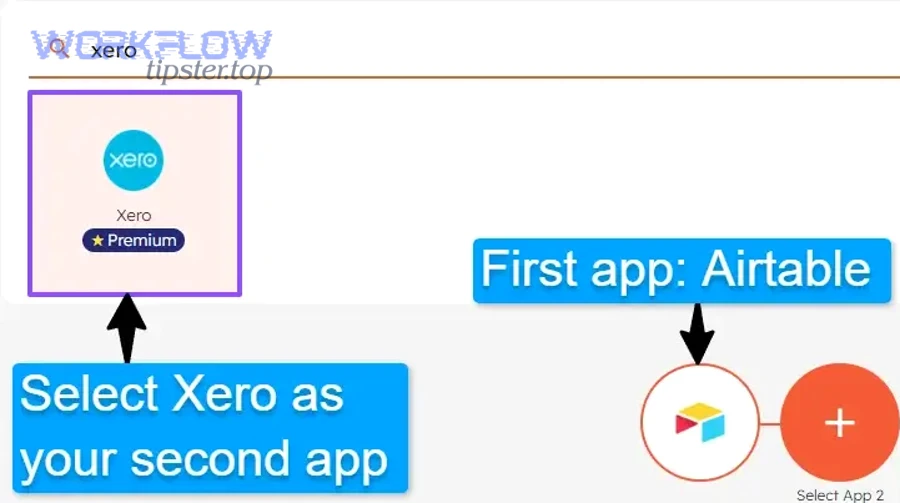
Yes, you can automate Xero invoices and contacts from Airtable without code because no-code tools can authenticate to both apps, map fields reliably, and run create/update actions on triggers or schedules—while also reducing manual re-entry, improving consistency, and providing run logs for troubleshooting.
Moreover, finance teams usually succeed faster when they treat automation as a controlled pipeline: Airtable holds prepared records, the integration validates and pushes them to Xero as drafts, and Xero handles approval and posting. This keeps the “automation” inside a governance boundary rather than letting it post financial documents without oversight.
To keep terminology consistent, think in three operational layers: Airtable (intake & workflow), Integration (automation & mapping), and Xero (accounting record). When one layer changes, the other layers should respond based on explicit rules.
What do you need before you start (Airtable base structure, Xero access, required fields)?
There are 6 essentials you need before you start: a normalized Airtable schema, required invoice/contact fields, unique IDs, Xero permissions, a test workflow, and a rollback plan, based on whether your data can be created safely and repeated without duplicates.
To illustrate, here is a practical readiness checklist finance teams can use:
- Airtable base structure: separate tables for Contacts, Invoices, and (optionally) Line Items. Avoid stuffing line items into a single long text field if you need accurate accounting.
- Required contact fields: name, email (or another unique key), billing address, and any tax identifiers your region requires.
- Required invoice fields: contact link, issue date, due date, invoice number strategy, currency, line items, tax codes, account codes, and internal status (Ready to Send / Sent to Xero / Needs Review).
- Unique identifier strategy: a stable “external ID” field in Airtable that you store back after creation (e.g., Xero ContactID / InvoiceID) so updates are deterministic.
- Xero access: an account with permissions appropriate to create drafts and read statuses; limit permissions if you are not auto-approving.
- Testing & rollback: a small test set of contacts and invoices, plus a way to identify and delete/reverse test records in Xero if needed.
Once these essentials exist, automation becomes repeatable. Without them, no-code tools often create “phantom successes”—runs that complete but produce messy accounting records you later have to clean.
Which approach is safer for finance teams: create-only automation or create-and-update automation?
Create-only automation wins for governance and predictability, while create-and-update automation is best for operational speed when your IDs and approval workflow are mature.
Meanwhile, the trade-off is about control vs convenience:
- Create-only (safer): Airtable sends a new contact or draft invoice once, stores the returned Xero ID, and then stops. Finance staff handle edits inside Xero. This minimizes overwrites and reduces the risk of changing a document after review.
- Create-and-update (faster): Airtable can push corrections (address changes, invoice line edits) as long as you lock down what can be updated and when. This requires strict ID matching and status checks.
If your organization has a month-end close process with strict approvals, start with create-only, then gradually allow updates for non-financial fields (like contact phone or internal references) after you verify stability.
When you broaden your content ecosystem and internal workflows, it’s common to coordinate multiple Automation Integrations across teams—just make sure finance automations stay governed, even if other departments run lighter processes.
How do you map Airtable fields to Xero fields to prevent duplicates and errors?
Mapping Airtable fields to Xero fields means defining a consistent translation from Airtable columns to Xero contact and invoice properties—using unique identifiers, validation rules, and status-based safeguards—so the integration updates the right records and avoids duplicates, missing fields, and posting mistakes.
More importantly, mapping is not a one-time checkbox; it is your integration’s data contract. If your contract is vague, duplicates appear. If your contract is strict, the integration becomes safer and scales with volume.
To keep finance data clean, build mapping in three passes: (1) define required fields and formats, (2) define identity matching rules, and (3) define update permissions by status (Draft vs Approved). That sequence prevents the most common failure mode: a tool that “updates” by creating new records because it can’t find the original.
What unique identifiers should you use for contacts and invoices to avoid duplicates?
There are 3 main identifier strategies to avoid duplicates: system IDs (Xero ContactID/InvoiceID), business keys (invoice number), and composite keys (email + organization), based on whether you need guaranteed uniqueness, human readability, or resilience across edge cases.
Specifically, each strategy has a place in a finance-grade Airtable–Xero integration:
- System IDs (best for updates): once a contact or invoice is created in Xero, store the returned ID in Airtable. Future updates should match on this ID first, because it’s unique and stable.
- Business keys (useful for controls): invoice number conventions can prevent duplicates if you enforce them. For example, prefix by project or client code and enforce uniqueness in Airtable.
- Composite keys (fallback matching): for contacts, email + organization name is often more reliable than name alone, especially when names are inconsistent or contain abbreviations.
Below is a practical table that shows what each identifier is best for and what can go wrong if you rely on it alone.
| Identifier type | Best use | Main risk | Best practice safeguard |
|---|---|---|---|
| System ID (Xero ContactID/InvoiceID) | Deterministic updates | Missing ID for older records | Backfill IDs by matching once, then store permanently |
| Invoice number (business key) | Human controls and reporting | Duplicates if numbering is inconsistent | Enforce uniqueness rules in Airtable before sync |
| Email + organization (composite) | Contact matching when IDs are absent | Shared inboxes or changing emails | Use composite with a second check (billing address or tax number) |
In short, a finance-grade design uses system IDs as the primary key and keeps business keys as a visible control layer. That is how you prevent duplicates even when multiple staff touch the same workflows.
Should you map invoices as draft or approved, and why does status matter?
Draft wins for risk control, approved is best for speed, and a hybrid approach is optimal when approvals are required but you still want automation—because invoice status determines who can edit, when it can be posted, and how errors propagate into financial reports.
However, the status decision also shapes your mapping rules:
- Draft-first (recommended for most finance teams): Airtable creates a draft invoice in Xero, then finance reviews and approves. Mapping can remain flexible because drafts can be edited safely.
- Auto-approved (only with strong controls): use this when invoices are highly standardized, line items are validated, and the business has approved automation for posting. Otherwise, mistakes become accounting events, not just workflow issues.
- Hybrid: draft creation is automated, then approval is manual or conditional (e.g., under a value threshold). Mapping includes rules that prevent updates once the invoice is approved.
According to Oregon State University’s College of Engineering reporting on spreadsheet integrity risks, in 2009 it was noted that a very large proportion of operational spreadsheets can contain non-trivial errors, which reinforces why finance teams should rely on validation and controlled status transitions rather than uncontrolled manual edits.
What are the best no-code integration patterns for Airtable → Xero and Xero → Airtable?
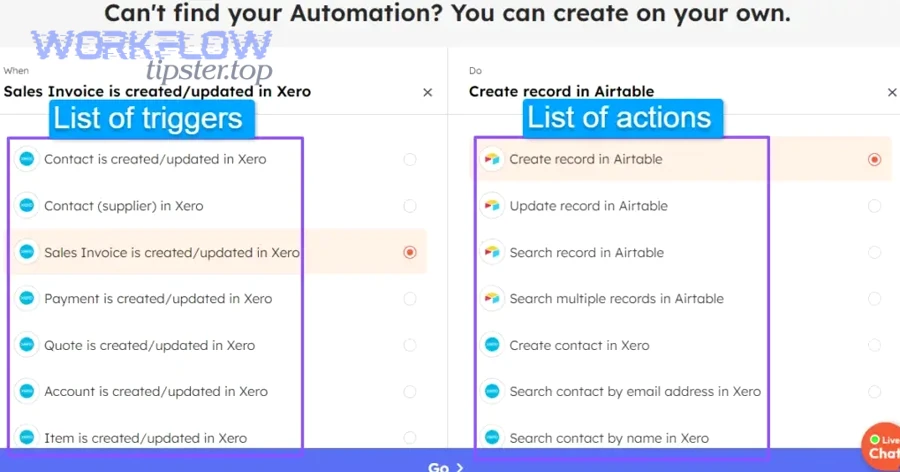
There are 5 main no-code integration patterns for Airtable → Xero and Xero → Airtable: draft creation push, contact upsert push, scheduled status pull, exception-first dashboards, and selective two-way field sync, based on whether you prioritize control, visibility, or bidirectional updates.
Besides, each pattern solves a different finance pain: reducing manual re-entry, preventing late invoices, giving project teams visibility into payment status, or enabling controlled corrections. The “best” pattern is the one that matches your approval workflow and closes the loop between operations and accounting.
Which workflow pattern fits your goal: “Airtable creates invoice,” “Airtable updates contact,” or “Xero updates Airtable status”?
There are 3 main workflow goal patterns: Airtable creates invoices to standardize sales documents, Airtable updates contacts to keep master data clean, and Xero updates Airtable status to provide real-time financial visibility, based on whether Airtable is initiating actions or consuming outcomes.
More specifically, here is how finance teams typically implement each goal:
- Airtable creates invoice (push pattern): operations prepares line items and links them to a contact; the integration creates a draft invoice in Xero; Airtable stores the InvoiceID and marks the record as “Sent to Xero.” This reduces manual invoice creation and creates an audit trail in Airtable.
- Airtable updates contact (upsert pattern): when a contact record is updated in Airtable (address, email, tax number), the integration updates the corresponding Xero contact using ContactID. This prevents duplicate contacts and keeps invoices consistent.
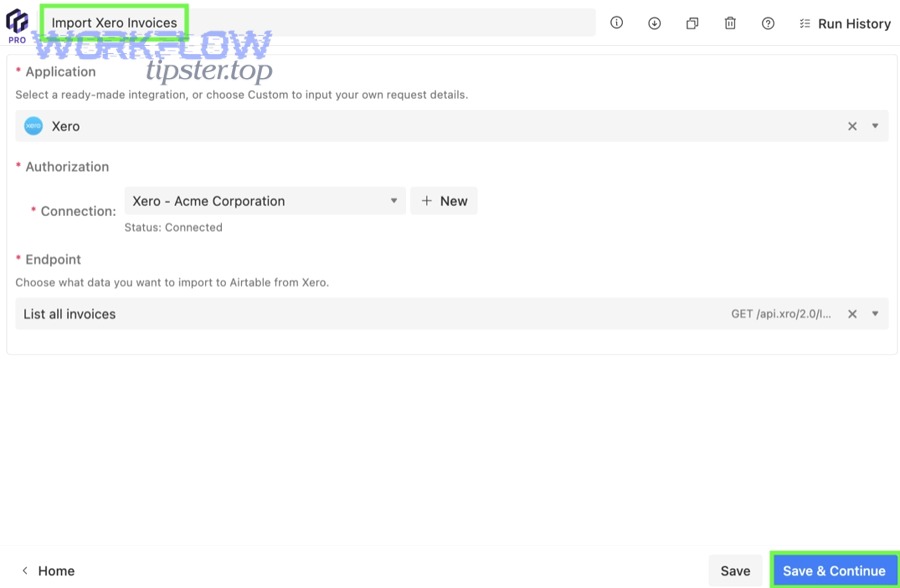
- Xero updates Airtable status (pull pattern): on a schedule, the integration pulls invoice status (Approved, Paid, Overdue) and writes it back to Airtable. Project managers can see payment signals without logging into Xero.
To connect this to broader workflow ecosystems, teams sometimes combine this with adjacent processes such as airtable to todoist task creation for invoice follow-ups—just ensure tasks are triggered by Xero status fields (Paid/Overdue) pulled into Airtable so finance logic stays grounded in accounting reality.
Do you need real-time automation or scheduled sync for accounting workflows?
Real-time automation wins for responsiveness, scheduled sync is best for stability, and a blended approach is optimal for finance because accounting workflows benefit from predictable batches while still needing timely status updates for collections and operations.
On the other hand, “real-time” can create its own noise: frequent updates increase the chance of race conditions (two staff editing the same Airtable record), rate-limit errors, and confusing mid-edit states that push partial data into Xero.
- Use real-time triggers for controlled actions like “Create draft invoice” when a record changes to “Ready for Xero.”
- Use scheduled pulls for statuses and payments so the team gets consistent dashboards (e.g., every hour or twice daily).
- Use batch windows around month-end close to reduce operational variance and give finance a stable data environment.
If your company is also integrating sales systems, you may already be running flows like gmail to pipedrive. The key difference is that accounting sync needs stricter guardrails because invoices and payments directly affect financial reporting.
How do you test, launch, and monitor an Airtable–Xero integration to keep finance data accurate?
Testing, launching, and monitoring an Airtable–Xero integration means running a controlled pilot with representative invoices and contacts, validating outputs against finance rules, deploying with clear statuses and locks, and continuously checking logs and reconciliation signals to catch errors early.
Especially in finance, the correct mindset is: an integration is a living process, not a one-time setup. Your goal is not only to “connect” Airtable and Xero, but to keep the data contract stable as staff, volumes, and workflows change.
A strong rollout sequence looks like this: test with a small dataset, confirm mapping rules, deploy with a limited scope (draft invoices only), then expand to status pulls and selective updates. Each phase should have monitoring signals so you can detect drift before it becomes a month-end problem.
What test cases should you run before turning on automation (happy path + failure path)?
There are 8 essential test cases to run: valid create, valid update, duplicate contact attempt, missing required fields, invalid tax codes, line-item mismatch, permission failure, and rate-limit or timeout behavior, based on the most common ways finance automations break in production.
To begin, run these test cases in a structured order:
- Happy path: create contact with complete fields and confirm Xero returns a ContactID stored in Airtable.
- Happy path: create draft invoice with multiple line items; confirm totals, tax, and due date are correct.
- Update path: modify contact and confirm the integration updates the existing contact rather than creating a new one.
- Duplicate prevention: attempt to create a contact with same email or external ID; confirm it upserts or errors clearly.
- Missing fields: remove a required field (like due date or account code) and ensure the integration blocks the run with a clear message.
- Tax code validation: test a wrong tax code and ensure the integration fails before creating a flawed invoice.
- Permissions: run with a user who lacks rights to create invoices and ensure it fails safely without partial data writes.
- Scaling behavior: test a small batch of many invoices to observe how scheduling and logs behave.
According to a study by Oregon State University (College of Engineering), in 2009, it was reported that non-trivial errors are commonly observed in spreadsheets used in organizations, which is why failure-path tests matter as much as happy-path tests when you shift finance workflows into structured systems.
How do you troubleshoot common sync issues like failed runs, mismatched totals, or missing updates?
Troubleshooting sync issues works best when you follow a 3-step isolation method—verify identity matching, verify field mapping and required constraints, then verify timing and permissions—because most failures come from IDs, schema mismatches, or status/lock rules.
In addition, treat every issue as a question: Did we target the right record? Did we send the right shape of data? Did we run at the right time with the right permissions? That sequence keeps troubleshooting fast and avoids random changes that create new problems.
- Failed runs: check the run log first; confirm authentication is valid; confirm the tool can access the correct Xero organization and Airtable base.
- Mismatched totals: compare line-item rounding, tax settings (inclusive vs exclusive), and currency; confirm the invoice total in Airtable equals what Xero calculates from line items.
- Missing updates: confirm the record has the correct stored Xero ID; confirm status rules allow updates (e.g., do not update after approval); confirm your schedule window includes the record.
If you maintain knowledge documentation for your operations team, it’s common to store troubleshooting playbooks in tools like airtable to confluence workflows. The critical point is that the finance version of the playbook must document ID rules, status locks, and reconciliation checks—not just “click steps.”
What edge cases and governance rules should finance teams plan for in Airtable–Xero syncing?
Edge cases and governance rules for Airtable–Xero syncing include tax and rounding rules, multi-currency constraints, multi-organization separation, update locks by status, audit trails, and permission boundaries, because finance automations must remain accurate, explainable explainable, and controllable as volume grows.
Thus, governance is the difference between “automation that saves time” and “automation that causes month-end cleanup.” The best teams formalize governance as a set of policies: what fields can change, who can change them, when changes propagate, and how the team verifies correctness.
This is also where micro-semantics deepen: the integration is no longer just “create invoices,” but a controlled system that interacts with tax regimes, currencies, approval chains, and audit requirements. If you plan for these edge cases early, your automation stays stable when business complexity increases.
How do you handle tax codes, inclusive/exclusive tax, and line-item rounding differences?
Handling tax codes and rounding requires a rule-based mapping layer that standardizes tax selection, enforces inclusive/exclusive settings, and validates totals from line items before pushing invoices, because small tax mismatches can create reconciliation drift and reporting errors.
Specifically, implement these safeguards:
- Tax code mapping table: define allowed tax codes per product/service category in Airtable and restrict entry through single-select fields.
- Inclusive vs exclusive decision: pick one approach for the integration and document it, because mixing the two across invoices creates confusing differences in totals.
- Rounding policy: round at the line-item level consistently and re-calculate totals in Airtable before sending, so Xero totals match expectations.
- Validation gate: if Airtable total does not equal calculated line-item total, block the invoice from “Ready for Xero” and require review.
According to a study by Dartmouth College’s Tuck School of Business (Spreadsheets Research Project), in 2008, a review of spreadsheet error literature highlighted how common spreadsheet errors are in operational contexts, reinforcing why validation gates and controlled inputs are essential when financial calculations are involved.
What changes when you support multi-currency, multiple Xero organizations, or multiple Airtable bases?
There are 3 major changes when you add multi-currency or multiple organizations: stricter identity partitioning, currency-aware field validation, and environment separation for connections and schedules, based on whether your integration must keep data isolated across entities and accurately represent exchange-sensitive amounts.
More importantly, multi-entity complexity can break integrations that worked fine in a single-org setup:
- Identity partitioning: the same contact name may exist in multiple organizations; you need org-specific keys and stored IDs per org.
- Currency-aware fields: ensure each invoice carries currency explicitly; confirm that unit prices and totals are in the correct currency and not converted unexpectedly.
- Connection separation: maintain separate integration connections per Xero organization and per Airtable base (or per workspace) so runs don’t cross boundaries.
When you treat each organization as a distinct data domain and document your rules clearly, scaling becomes predictable instead of chaotic.
Should you restrict two-way sync for accounting systems, and when is one-way safer?
One-way sync is safer for accounting governance, two-way sync is better for operational alignment, and a restricted two-way approach is optimal when only non-financial fields flow back—because two-way sync increases overwrite risk and can violate approval controls if not carefully locked by status.
However, you don’t have to choose extremes. A finance-grade compromise is:
- Airtable → Xero: push drafts and contact updates only when records pass validation and reach a “Ready” status.
- Xero → Airtable: pull statuses and payment signals on a schedule so operations sees what’s happening without editing the ledger.
- No updates after approval: once an invoice is approved, lock updates from Airtable and require changes in Xero with a documented process.
This design uses the antonym relationship in a practical way: control vs convenience. Accounting workflows prioritize control first, then selectively add convenience in safe channels.
What audit trail and access controls should you document for compliance and troubleshooting?
There are 4 audit trail and access control elements you should document: role-based permissions, change logs for key fields, integration run logs with outcomes, and an incident response checklist, based on what finance needs to explain outcomes and correct errors quickly.
To sum up, document these items in plain operational language that both finance and operations can follow:
- Role-based permissions: who can edit Airtable invoice fields, who can move records to “Ready,” and who can approve invoices in Xero.
- Change logs: maintain a record of changes to price, quantity, tax code, and customer identity fields; this makes investigations faster.
- Integration run logs: store run timestamps, created/updated IDs, and error messages so you can trace “what happened” without guessing.
- Incident response checklist: steps to pause automation, identify impacted invoices, correct mapping, and re-run safely.
When your team treats documentation as part of the integration—not an afterthought—you reduce the cost of every future change. That governance discipline is what turns a no-code Airtable–Xero integration into a stable finance system rather than a fragile automation experiment.