


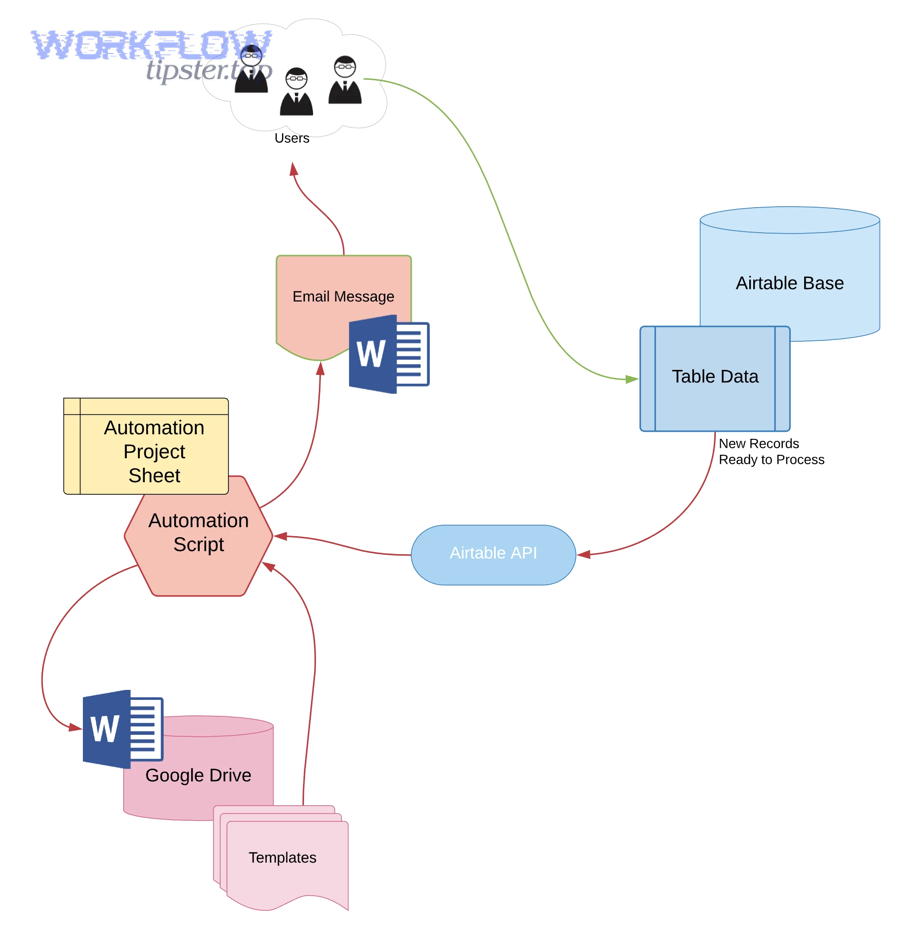
You can automate DOCX document generation from Airtable records by combining three building blocks: a clean Airtable record structure, a DOCX template with placeholders, and an automation layer that maps fields and outputs a finished Word file to the right destination.
Then, you choose the best automation approach for your team—an Airtable Marketplace app, a no-code automation platform, or a dedicated document-generation tool—based on how complex your templates are, how often you generate documents, and where files must be stored.
After that, the success of your workflow depends on how you build the DOCX template: clear placeholder naming, consistent formatting for dates and currency, and a plan for handling optional fields, images, and linked-record data without breaking the final document.
Introduce a new idea: once the workflow works for a single record, you can make it reliable for an entire team by adding trigger rules, validation checks, permissions, naming standards, and troubleshooting patterns that prevent duplicates and silent failures.


What does “automate DOCX document generation from Airtable records” mean in practice?
Automating DOCX document generation from Airtable records is a workflow process that takes structured Airtable field data, merges it into a Microsoft Word (DOCX) template, and outputs a ready-to-share document automatically when a trigger condition is met.
To keep the process practical for no-code teams, the best way to understand this idea is to follow the “record → template → generator → output” chain, because each link in that chain has a clear responsibility.
What is the minimum setup required to generate a DOCX from one Airtable record?
The minimum setup is one Airtable table with stable field names, one DOCX template with placeholders that match those fields, and one automation tool that can map values into the template and save the generated DOCX to a destination you control.
Then, you validate the setup with a single “test record” that includes realistic values (names, addresses, prices, dates) so you can see if formatting and spacing survive the merge.
- Airtable base readiness: one table, one view (optional), consistent field types (single line text, date, number, single select).
- Template readiness: a DOCX file with placeholders like {{ClientName}} or equivalent syntax supported by your generator.
- Automation readiness: a trigger (new record or status change) and an action (generate DOCX, then save/attach).
If you want a fast start using an Airtable-first approach, Airtable’s Marketplace includes apps designed to auto-fill Word/Google documents with Airtable data.
Which parts are “Airtable,” which parts are “Word,” and which parts are the automation layer?
Airtable stores the record data, Word defines the document structure in a DOCX template, and the automation layer performs the merge and delivery—so the generator does not “replace Airtable” or “replace Word,” it connects them into one repeatable production line.
Next, breaking roles apart helps your team troubleshoot quickly, because each failure typically belongs to one of these layers rather than “everything at once.”
- Airtable layer: fields, linked records, views, record IDs, attachments, status flags.
- Word layer: paragraphs, headings, tables, page breaks, styles, placeholders, optional sections.
- Automation layer: trigger rules, field mapping, formatting transformations, file naming, storage actions, retries, logs.
When this separation is clear, you can fix issues faster—for example, “blank fields” is often a mapping problem, while “weird spacing” is usually a template style issue.
Can you generate a Microsoft Word (DOCX) file from Airtable without coding?
Yes, you can generate a Microsoft Word (DOCX) file from Airtable without coding because (1) no-code document apps handle template merging, (2) automation platforms provide ready-made connectors, and (3) Airtable views and field types make record selection and mapping predictable.

However, the real win for no-code teams comes from choosing a method that matches your complexity, because a simple document and a complex contract do not need the same tooling.
When is a no-code DOCX workflow the right choice vs a manual export?
A no-code DOCX workflow is the right choice when you need consistent formatting at scale, fast turnaround from record changes, and fewer manual copy-paste errors, while a manual export is often enough when you generate documents rarely and the layout changes every time.
More specifically, the decision becomes obvious when you compare frequency, risk, and repeatability:
- Choose no-code automation when you create the same document type weekly/daily, need approvals, or must store files consistently for the team.
- Choose manual export when you create one-off documents, the template changes per client, or you are still validating the data model.
- Hybrid approach when you generate a DOCX automatically but allow a final human review before sending.
According to a study by MIT from the Department of Economics, in 2023, access to ChatGPT reduced the time to complete certain writing tasks by 40% and increased output quality by 18%, showing how automation and assistance can materially improve document production workflows.
What are the best ways to automate Airtable → DOCX for no-code teams?
There are three main ways to automate Airtable → DOCX for no-code teams: (1) Airtable Marketplace document apps, (2) automation platforms that connect Airtable to Word template modules, and (3) dedicated document-generation tools that specialize in complex templates and outputs.
To better understand which path fits, you should match each option to your document complexity, storage requirements, and the number of documents you generate per month.
This table contains a practical comparison of the three approaches so you can choose based on template complexity, setup time, and file destinations.
| Approach | Best for | Strength | Watch-outs |
|---|---|---|---|
| Airtable Marketplace doc app | Simple–medium templates tied closely to Airtable | Fast setup inside Airtable | May be limited for repeating tables or complex logic |
| No-code automation platform | Cross-app workflows and flexible routing | Triggers, branching, and multi-step delivery | Formatting edge cases can require careful template rules |
| Dedicated doc generator | Contracts, invoices, proposals with advanced logic | Template power + multi-format outputs | Extra tool to manage; needs governance |
Which approach should you use: Airtable app/extension, Make/Zapier, or a document-generation tool?
An Airtable app wins in speed-to-setup, Make/Zapier is best for multi-app routing, and a dedicated document-generation tool is optimal for advanced templates with repeating sections and multi-format outputs.
However, picking correctly depends on your “hard constraints,” because those constraints will force the decision even if another option looks easier.
- Use an Airtable Marketplace app if your team lives in Airtable and wants minimal moving parts (especially for simple templates).
- Use Make/Zapier-style automation if you must push generated documents into multiple destinations (OneDrive/SharePoint, email, CRM) and need branching logic.
- Use a dedicated generator if your documents require line items, conditional blocks, nested data, and consistent PDF/DOCX outputs.
As one example of an automation platform path, Make explicitly supports connecting Airtable with “Microsoft Word Templates” modules for workflow building.
What triggers can start DOCX generation (new record, status change, button, schedule)?
There are four main trigger types for DOCX generation: new record triggers, status-change triggers, button/manual triggers, and scheduled triggers, based on how much control you need before a document is produced.
Next, align trigger choice with your real workflow so you do not generate documents too early or too often.
- New record: best for intake forms, registrations, or standardized confirmations.
- Status change: best for approvals (Draft → Approved → Generate), which prevents premature documents.
- Button/manual trigger: best for sales or operations teams that want human control at the final moment.
- Scheduled: best for nightly batches (e.g., generate all “Approved” records at 2 AM).
Where should the generated DOCX file be stored (Airtable attachment vs OneDrive/SharePoint)?
Airtable attachment storage wins for record-level convenience, while OneDrive/SharePoint is best for organization-wide collaboration and governance, so the optimal choice depends on whether your document is primarily “part of the record” or “part of the organization’s document library.”
On the other hand, teams often choose a hybrid model: attach the DOCX or a link back to Airtable while storing the “official copy” in SharePoint or OneDrive.
- Airtable attachment: quick access, easy audit trail per record, great for internal docs.
- OneDrive/SharePoint: permission control, folder hierarchy, versioning, search, and compliance alignment.
- Hybrid: store in SharePoint, save a URL in Airtable for traceability and reporting.
How do you build a DOCX template that maps Airtable fields correctly?
A DOCX template that maps Airtable fields correctly is a Word document designed with stable placeholders, consistent styles, and predictable formatting rules so your automation tool can replace placeholders with record values without breaking layout, spacing, or typography.

Specifically, template success comes from controlling the “shape” of data—because a clean placeholder is useless if the incoming field includes unexpected line breaks, blank values, or mismatched formats.
What placeholder patterns should you use to avoid broken merges?
There are four safe placeholder patterns you should standardize—required fields, optional fields, computed fields, and repeating fields—based on whether the field must exist, may be blank, needs transformation, or needs iteration across multiple items.
To illustrate the pattern, treat placeholders like an API contract between Airtable and your template.
- Required fields: use strict placeholders (e.g., {{ClientName}}) and block generation if missing.
- Optional fields: use placeholders with defaults if your tool supports it (or write “if blank, hide line” rules in the generator).
- Computed fields: generate values in Airtable first (formula fields) to reduce complexity in the automation layer.
- Repeating fields: reserve these for linked-record lists or line items (handled by specialized generators or aggregators).
For many no-code teams, the simplest way to avoid broken merges is to enforce a naming convention and never rename Airtable fields after templates go live.
How do you format dates, currency, and numbers so the DOCX looks professional?
You format dates, currency, and numbers professionally by setting a single formatting policy (locale, decimal places, currency symbol rules) and applying it consistently either in Airtable (via formulas) or in your data source preparation before Word merges the values.
Moreover, formatting failures usually happen when Word interprets values unexpectedly, so you should control formats at the data-source level whenever possible.
- Dates: output a human-readable date string in Airtable (e.g., “27 Jan 2026”) if the template must be consistent across regions.
- Currency: store numeric value separately from display string; produce a formatted currency field for the template.
- Percentages: avoid ambiguous percent formats by storing the final display string if your merges behave unpredictably.
Microsoft’s guidance on preparing numeric formats for mail merge emphasizes correct data formatting in the source to ensure Word reads values properly.
How do you handle images, signatures, or attachments from Airtable in a DOCX template?
You handle images, signatures, or attachments by deciding whether the template should embed images (for finalized documents) or link to files (for internal drafts), then ensuring your automation tool supports the media type and size while your Airtable record stores stable file references.
In addition, media handling becomes easier when you treat “image fields” as first-class data objects rather than an afterthought.
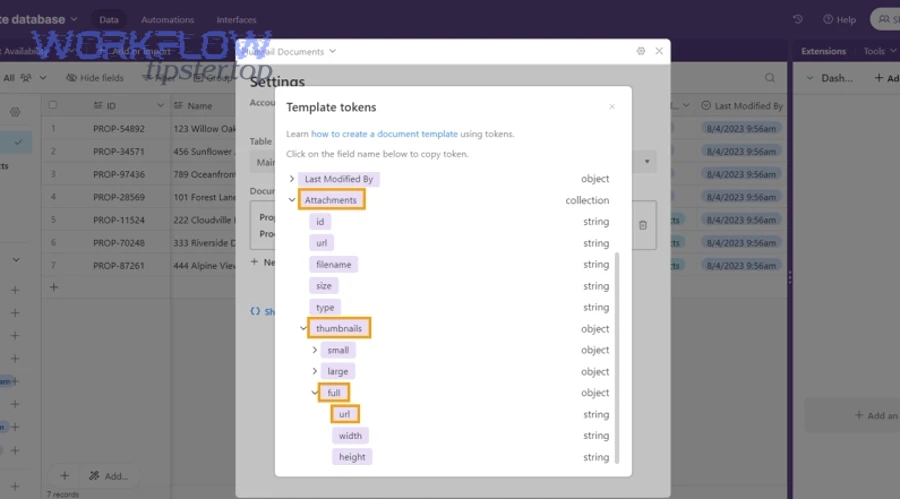
- Images (logos, photos): store as Airtable attachments or stable URLs; ensure the generator supports image insertion into DOCX placeholders.
- Signatures: store signature images separately; consider generating DOCX first and applying signatures in a later step if approvals require it.
- Attachments: for long supporting files, link rather than embed to keep the DOCX lightweight.
How do you set up an end-to-end Airtable → DOCX automation workflow step by step?
The simplest method is a template-merge workflow in seven steps—prepare Airtable data, lock field names, choose a generator, create the DOCX template, map fields, test with edge cases, and deliver the DOCX to the final destination—so you get a repeatable “one-click” outcome.

Below, each step builds on the previous one so your team can go from a single working document to a production-grade automation.
How do you prepare your Airtable base so it’s automation-ready?
You prepare your Airtable base by standardizing field types, creating a controlled view for “records eligible for generation,” and adding governance fields (status, generated flag, document link) so automation runs only when the record is complete.
Next, treat the base like a data model rather than a spreadsheet, because document automation amplifies any inconsistency in the underlying fields.
- Create a “Document Status” single select: Draft → Ready → Approved → Generated.
- Add a “Generated?” checkbox: prevents duplicates by acting as an idempotency guard.
- Use formulas for display-ready fields: formatted address blocks, full names, currency strings.
- Use a view: e.g., “Approved & Not Generated” to filter exactly what your automation should process.
How do you map Airtable fields to the DOCX template and test with sample records?
You map Airtable fields to the DOCX template by connecting each placeholder to a single Airtable field (or computed field), then testing with at least three sample records: a normal record, a record with optional blanks, and a record with long text that stresses line breaks and spacing.
Then, you move from “it works once” to “it works reliably” by building a quick test checklist.
- Placeholder audit: confirm every placeholder has a data source.
- Long text test: verify that multi-line fields do not collapse formatting.
- Number/date test: confirm currency and date formats match your template style.
- Boundary test: check worst-case lengths (long company name, long address, large line-item count).
How do you automatically attach or link the generated DOCX back to the Airtable record?
You attach or link the generated DOCX back to the Airtable record by writing the file URL (SharePoint/OneDrive link) into a URL field or by uploading the file into an attachment field via your automation tool, so the record becomes the system of record for the document’s lifecycle.
Moreover, attaching back is what turns “a generated file” into a traceable business process, because the record now shows when the document was produced and which version is current.
- Best for governance: store in SharePoint/OneDrive, save a link in Airtable, and log the timestamp.
- Best for convenience: attach the DOCX directly to Airtable so users can open it from the record.
- Best for compliance: store official copy in SharePoint with restricted permissions, save a read-only link in Airtable.
What are the most common issues when generating Word documents from Airtable, and how do you fix them?
There are three most common issue groups—blank fields, duplicate documents, and storage/permission failures—and you fix them by validating field mapping, enforcing idempotency rules, and aligning access permissions before production runs.
However, because each issue usually repeats in the same way, the smartest approach is to create a “symptom → cause → fix” playbook your team can reuse.
Why are fields blank in the generated DOCX ?
Fields go blank because the placeholder name does not match the mapped field, the record does not meet the filter/trigger criteria you assumed, or the field value is empty or incompatible with the template, so prevention comes from strict naming, required-field checks, and test records.
Specifically, blank fields are rarely “random”—they are usually predictable once you inspect mapping and record state.
- Mismatch: placeholder says {{Client_Name}} but mapping uses “Client Name.”
- Record not eligible: automation runs before status is “Approved.”
- Null values: optional fields are empty and the template still prints the label line.
- Type mismatch: attachment/image fields need special handling, not plain text insertion.
How do you prevent duplicate documents or accidental re-runs?
You prevent duplicate documents by enforcing three controls: a “Generated?” flag that blocks re-runs, a status transition rule that only triggers once, and a unique file naming pattern that includes the record ID and a date/version token.
Meanwhile, duplicates often happen when multiple triggers can fire on the same record, so you want one “single source of truth” trigger gate.
- Idempotency guard: if Generated? = true, stop the scenario.
- Status gate: trigger only when status changes to “Approved,” not on any edit.
- Unique naming: “Quote-{RecordID}-{YYYY-MM-DD}-v1.docx” to avoid overwriting and confusion.
- Run lock: write a “Generating…” state before the action starts if your platform supports it.
What should you do if files fail to save to OneDrive/SharePoint or permissions block access?
If files fail to save or permissions block access, you should verify the connection account, confirm folder-level permissions, and test write access with a simple file action before running the full DOCX generation, because storage failures are usually authentication or path issues.
More importantly, fix storage before you scale, because partial success creates a compliance nightmare: the record says “Generated,” but the official file is missing or inaccessible.
- Connection: re-authenticate the integration account and confirm it has access to the target site/library.
- Folder path: ensure the destination folder exists and does not require interactive approvals.
- Permissions model: prefer group-based permissions over individual shares for maintainability.
- Fallback: if SharePoint fails, write to a temporary folder and alert the owner for recovery.
How do you make the workflow reliable for teams (governance, naming, and maintenance)?
You make the workflow reliable by combining naming conventions, pre-generation validation, and monitoring/alerts so documents are generated consistently, stored predictably, and audited easily even when multiple people maintain the Airtable base and the automation scenario.

Besides reducing errors, reliability is what lets you treat DOCX generation as a business process rather than a fragile “automation experiment.”
What document naming and folder structure makes retrieval easy later?
The best structure is a consistent folder hierarchy plus a file naming standard that includes record identity, business context, and time, because people search by client, date, and document type long after they forget which Airtable record created it.
To illustrate a strong default, build naming and folders around how your team already retrieves documents.
- Folders: /Documents/{Year}/{ClientName}/ or /Documents/{DocType}/{Year}/{Month}/
- File naming: {DocType}-{ClientName}-{RecordID}-{YYYY-MM-DD}-{Version}.docx
- Versioning: bump version only on “Approved” changes, not on minor edits.
When you publish this article on your site, you can strengthen internal linking by grouping it under “Automation Integrations” alongside related guides like “google docs to google forms” and “google docs to convertkit,” so readers explore adjacent workflows without leaving your ecosystem.
What checks should run before generating the DOCX (data validation / approvals)?
There are four critical pre-generation checks: required-field validation, approval status confirmation, formatting sanity checks for key fields (dates/currency), and destination permission verification, based on the goal of generating once with high confidence.
Next, add these checks in the simplest place possible—often inside Airtable with views and formulas—so your automation does less “thinking” and more “execution.”
- Required fields: block generation if ClientName, Address, and DocType are empty.
- Approval gate: only generate when status = Approved (or when an approver field is filled).
- Sanity checks: ensure totals equal sum of line items; ensure dates are not in the past if that matters.
- Permission check: confirm the integration account can write to the target folder/library.
How do you monitor errors and keep the workflow from silently failing?
You prevent silent failure by logging every run, alerting on failed actions, and scheduling periodic audits of “Approved but not Generated” records, because automation without monitoring turns small data issues into large operational backlogs.
In short, monitoring is not optional once multiple teammates rely on the workflow daily.
- Run log: write a timestamp, run ID, and outcome back to Airtable fields.
- Alerts: notify a channel/email on failure, including record ID and error message.
- Audit view: create an Airtable view that shows records stuck in “Approved” for more than N hours.
- Retry strategy: allow safe retries only when Generated? is false and storage is confirmed.
How do advanced Airtable → Word DOCX use cases work (linked records, PDF output, and scale)?
Advanced Airtable → Word DOCX use cases work by expanding the template-merge model to handle linked-record lists, multi-format outputs (DOCX + PDF), high-volume batching, and tighter access control, so your automation can produce “enterprise-grade” documents without manual intervention.
Especially when your Airtable base includes line items, approvals, or sensitive data, these patterns help you avoid the typical breaking points of basic document generation.
How do you merge linked records into repeating tables (line items) inside a DOCX?
You merge linked records into repeating tables by aggregating the linked items (sorted and formatted) into a structured list and then using a document generator that supports repeating sections, so each linked record becomes a table row without manual copying.
More specifically, the workflow usually follows a repeatable sequence:
- Fetch linked records: pull line items from a related table (products/services, quantities, prices).
- Normalize fields: format currency, compute totals, and ensure consistent column order.
- Aggregate: build a repeating data structure the generator understands (array/list of rows).
- Render: repeat a table row block in the DOCX template for each line item.
Should you generate DOCX, PDF, or both (and when)?
DOCX wins in editability, PDF is best for finalization and sharing, and generating both is optimal when you need an editable draft for internal review plus a locked version for clients, signatures, or compliance archiving.
However, “both” only works well when you define which one is the source of truth and where each lives.
- DOCX only: internal drafts, collaborative editing, templates still evolving.
- PDF only: finalized contracts, invoices, documents that must not be edited easily.
- Both: DOCX stored for internal versioning; PDF stored for official distribution.
What changes when you need high-volume document generation (rate limits, queues, retries)?
High-volume generation changes three things: you must batch records, you must queue runs to respect platform limits, and you must implement safe retries with idempotency controls so a temporary failure does not create duplicates or partial outputs.
Then, you stabilize throughput by designing for “graceful degradation” rather than perfect execution every time.
- Batching: generate in groups (e.g., 50 records/run) instead of triggering on every edit.
- Queueing: process oldest Approved records first to prevent backlog growth.
- Retries: retry only failed steps and only when Generated? remains false.
- Observability: track run rates, error rates, and average generation time.
How do you handle sensitive data and access control in SharePoint/OneDrive-based workflows?
You handle sensitive data by applying least-privilege permissions, storing official documents in restricted libraries, and writing only necessary links or metadata back into Airtable, so users can locate documents without exposing confidential content to broader audiences.
Moreover, governance improves when you align your workflow with how SharePoint/OneDrive permissions actually work in your organization rather than relying on ad-hoc sharing.
- Least privilege: the automation account should write to specific folders only, not full tenant-wide access.
- Restricted libraries: separate “Client Contracts” from “General Docs” to avoid accidental access.
- Airtable visibility: limit sensitive fields with Airtable permissions and keep document links role-based.
- Audit trail: log who approved generation and when the document was produced.
As a final reminder for teams that prefer a manual fallback method, Microsoft’s mail merge documentation explains that Word can merge a main document with a data source to produce multiple output documents, and it highlights the importance of choosing and preparing the right data source before connecting it.