


Turning a structured questionnaire in a Doc into a working Form is possible—and the fastest path is to convert the “question structure”, not the document’s layout. When you focus on consistent numbering, option formatting, and section breaks, you can generate a Form in minutes instead of rebuilding it line by line.
Next, you’ll want clarity on what “Google Docs to Google Forms” actually means in practice, because different tools convert different parts of your Doc (questions, options, images, sections) with different accuracy.
Then, you’ll choose a method that matches your risk tolerance: an add-on inside Google Workspace, a third-party converter, or a clean manual rebuild. Each method is “right” for a different goal—speed, privacy, or perfect formatting.
Introduce a new idea: once you understand the conversion logic, you can design Docs that convert cleanly every time—and you’ll also know when to stop converting and start improving your Form for responses, quizzes, and reporting.
What does “Google Docs to Google Forms” mean?
“Google Docs to Google Forms” is a conversion workflow that turns text-based questions in a Doc into interactive Form questions, usually by parsing patterns like numbering, line breaks, and option lists to generate form fields and sections.
To better understand the concept, treat your Doc like a script and your Form like the interface: the converter looks for predictable signals (Question → Options → Next Question) and maps them into form components.


In practical terms, a “Docs to Forms” converter tries to extract:
- Question text (what the respondent sees)
- Question type guess (multiple choice vs checkbox vs short answer)
- Answer options (bulleted/lettered lists)
- Sections (page breaks or headings)
- Media (images next to questions, sometimes video links)
What it usually doesn’t convert perfectly is the Doc’s visual layout—columns, tables-as-layout, fancy spacing, or mixed formatting. That’s why the quality of your output depends more on how you structure the Doc than on how “pretty” the Doc looks.
Can you convert Google Docs to Google Forms without manual copy-paste?
Yes—you can convert Google Docs to Google Forms without manual copy-paste because (1) add-ons can parse your Doc’s question patterns, (2) converters can import structured text into form fields, and (3) templates let you reuse a repeatable question layout across documents.

Next, the key is understanding what “without copy-paste” truly means: you’re not avoiding all manual work—you’re avoiding retyping. You will still do a fast review pass to fix edge cases (especially question types, required toggles, and section logic).
In real workflows, “no copy-paste” succeeds when your Doc has:
- Consistent question separators (e.g., blank line between questions)
- Consistent option formatting (bullets or A/B/C, but not both)
- Clear markers for sections (Heading 2 titles, “Section:” labels, or page breaks)
Is a “no manual copy-paste” conversion ever truly 100% automatic?
Not really—because “100% automatic” requires the converter to correctly infer question type, validation rules, and scoring logic from plain text every time, and plain text is often ambiguous.
More specifically, even the best conversions typically need quick human confirmation for:
- Checkbox vs multiple choice (one answer vs many)
- Scale questions (1–5 vs 1–10) and labels
- Required fields (some Docs don’t mark “required” explicitly)
- Paragraph vs short answer (depends on expected response length)
- Grading settings for quizzes (answer keys, points, feedback)
So the promise isn’t “zero work.” The promise is no repetitive rebuilding—you spend your time on quality control and optimization instead.
What are the main ways to convert Google Docs into Google Forms?
There are 3 main ways to convert Google Docs into Google Forms—(1) add-ons inside Google Workspace, (2) third-party converters, and (3) structured manual build—based on the criterion of where the conversion happens and how much control you keep.
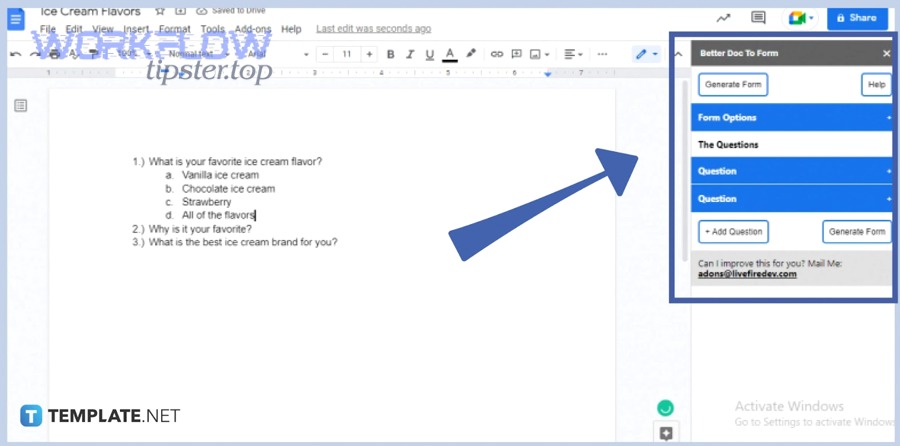
Then, to choose confidently, compare them on speed, privacy, formatting accuracy, and collaboration needs.
Before the comparison, here’s a quick table that summarizes what each method is best for, so you can pick a workflow without guessing:
| Method | Best for | Strength | Trade-off |
|---|---|---|---|
| Add-on (Workspace Marketplace) | Teams, schools, repeat workflows | Fast + stays in Workspace | Needs permissions; depends on parsing rules |
| Third-party converter | One-off conversions, mixed formats | Sometimes more flexible | Upload/privacy considerations; varies by vendor |
| Manual build (structured) | High-stakes forms, perfect control | Highest accuracy | Slower the first time, faster with templates |
Which method should you use: add-on, third-party converter, or manual build?
Use an add-on when you need repeatability and want to stay inside Google Workspace; use a third-party converter when your Doc format is messy and you accept external processing; use a manual build when correctness matters more than speed (exams, compliance, legal intake).
More importantly, your choice should match the “failure cost”:
- Low failure cost (internal survey, quick RSVP) → add-on is ideal
- Medium failure cost (client onboarding form) → add-on + strict review pass
- High failure cost (graded assessment, regulated data) → manual build or very controlled add-on workflow
Add-ons are officially supported as an extension path for Docs/Forms, and are distributed through the marketplace and related tooling docs. (support.google.com)
How do you convert Google Docs to Google Forms using an add-on step by step?
Use a Docs-to-Forms add-on in 5 steps—install → authorize → select the Doc → run conversion → review and publish—to produce a draft Google Form you can refine and share.
Next, follow this method as a reliable baseline, even if the exact menu labels differ slightly by add-on:
Step 1: Clean the Doc structure (2–5 minutes)
- One question per block
- Options as bullets or A), B), C)
- Avoid tables for question layout unless the add-on explicitly supports them
- Use clear section headings (e.g., “Section 1: Demographics”)
Step 2: Install an add-on from the Marketplace
- Pick a tool that explicitly states it can import questions, answers, and images from Docs into Forms. (workspace.google.com)
Step 3: Grant permissions carefully
- Verify what data scopes it requests (Drive access, Forms access)
- Prefer least privilege where possible
- If you’re in an organization, confirm admin policies first
Step 4: Run the conversion
- Choose your Doc
- Select parsing mode if available (multiple choice vs mixed)
- Generate the draft Form
Step 5: Review and optimize (this is where quality happens)
- Confirm question types
- Mark required fields
- Add section logic where needed
- Test the form end-to-end as a respondent

How should you format your Google Doc so the converter reads questions correctly?
Format your Doc so the converter can detect (1) question boundaries, (2) option lists, and (3) section breaks—because those three signals drive nearly every mapping decision.
Specifically, use this “conversion-friendly” pattern:
- Question label:
1. What is your role? - Options:
StudentTeacherAdministrator
- Blank line before the next question
- Section heading:
Section 2: Feedback
Avoid these common breakpoints:
- Options split across lines with extra punctuation
- Mixed bullets and numbering inside the same option set
- Two questions in one paragraph
- Tables used as alignment grids
- Decorative separators made of symbols (they can be read as content)
If you want a “template Doc” for repeated use, create a standard skeleton and duplicate it every time. This is how teams doing Automation Integrations scale consistently—whether it’s Docs→Forms today or something like convertkit to smartsheet tomorrow.
How do you turn the converted form into a quiz with points and answer keys?
Turn the converted form into a quiz by enabling quiz mode, then adding answer keys, point values, and feedback to each question so the Form can grade automatically.
Then apply this checklist:
- Switch on “Make this a quiz” in settings (or equivalent)
- For each question:
- Add Correct answer(s)
- Assign points
- Add answer feedback (why correct/incorrect)
- Decide release options:
- Immediately after each submission
- Later, after manual review (useful for free-response)
Finally, run a test submission with a known answer set and verify the score output and response sheet.
What parts of a Google Doc convert well—and what usually breaks?
There are 5 major parts of a Google Doc that behave differently in conversion—question text, option lists, images, sections, and tables—based on the criterion of how unambiguous the text structure is.
Next, use this as a prediction guide before you convert:
Usually converts well
- Clean multiple choice and checkbox questions
- Short answer prompts
- Simple section headings
- Linear numbering (1,2,3…)
Often needs review
- Images embedded between questions
- Grid-like questions (best rebuilt as multiple questions unless supported)
- “Select all that apply” wording (must be checkbox type)
- Date/time validation (needs manual setting)
Common breakpoints
- Tables for layout (converters may flatten them)
- Mixed formatting inside options
- Nested bullets
- Long paragraphs that hide multiple questions

What should you check first in the converted Form to catch mistakes fast?
Check question types, required toggles, option order, and section breaks first, because those four mistakes create the biggest respondent confusion and the hardest-to-diagnose response data issues.
More specifically, do a “3-pass QA”:
- Pass 1 (Structure, 2 minutes):
Scroll fast: do you see the right number of questions and sections? - Pass 2 (Logic, 5–10 minutes):
Click into each question: confirm type, required, options. - Pass 3 (Respondent test, 3 minutes):
Open preview, submit a sample response, confirm it lands correctly in Responses/Sheets.
If you only have time for one pass, do the respondent test—because it reveals hidden logic errors immediately.
Which approach is better for quizzes vs surveys when converting Docs to Forms?
Add-on conversion wins for surveys (speed and volume), manual refinement is best for quizzes (grading accuracy), and hybrid conversion is optimal for teams (convert fast, then apply quiz logic and QA).

Next, here’s the reason: quizzes have “hard constraints” (correct answers, points, feedback, regrade rules), while surveys prioritize “soft outcomes” (response rate, clarity, completion time).
For quizzes, prioritize
- Correct question type mapping (checkbox vs multiple choice)
- Answer key completeness
- Point weighting
- Prevention of accidental hints in wording
For surveys, prioritize
- Clear wording and consistent scales
- Section flow and progress experience
- Optional vs required balance
- Mobile friendliness
According to a study by Iowa State University from the Department of Psychology, in 2020, students performed better in courses that used frequent quizzing across 52 classes and nearly 8,000 students, supporting quizzes as a high-impact lever when you build Forms for learning outcomes. (news.las.iastate.edu)
A practical takeaway: if your Doc is a quiz bank, convert it to save time—but plan a dedicated pass to set answer keys and points with care.
How do you share the Google Form and organize responses after conversion?
Share and organize responses in 4 steps—publish/share the Form, set responder access, link responses to Sheets, and set a review workflow—so you can distribute confidently and keep data clean.
Then, implement this distribution workflow:
- Decide access level
- Public link vs restricted to a domain
- One response per user vs unlimited
- Send or embed
- Link
- Website embed
- Link to a response spreadsheet
- Create a new spreadsheet or connect an existing one
- Create a response review routine
- Filter incomplete entries
- Validate required fields
- Tag follow-ups

Official Google documentation covers publishing/sharing options and responder access patterns (including link-based access and sharing settings). (support.google.com)
In a team environment, you can treat this as a reusable “distribution pipeline”—similar in spirit to integration playbooks like google docs to pandadoc, or CRM handoffs like Salesforce routes—because the real value is repeatability, not one-time conversion. The same mindset shows up in pipeline discussions such as activecampaign to salesforce handoffs and other operational patterns your audience may already recognize.
What advanced considerations should you check before you rely on a converted Google Form?
There are 4 advanced considerations to verify—media handling, privacy/permissions, accessibility, and edge-case question logic—based on the criterion of what can silently break even when the form “looks fine.”

Next, treat this section as your “pre-launch checklist” before you send a converted Form to real respondents.
How do you preserve images, diagrams, and formatting when converting?
Preserve media by attaching images directly to the relevant Form question and verifying alignment in preview mode, because converters may import images but misplace them relative to the intended prompt.
More specifically:
- Prefer one image per question block in the Doc
- Put the image immediately under the question text
- After conversion, confirm:
- The image appears in the same question
- The image size is readable on mobile
- The image doesn’t push options off-screen
If your Doc includes complex diagrams, it can be faster to convert questions and then manually add diagrams afterward.
What privacy, permissions, and compliance rules matter for “Docs to Forms” add-ons?
Privacy matters because add-ons may request Drive/Form permissions, and those permissions determine what the tool can read, create, and store—so your organization’s policies should drive your method choice.
More importantly:
- Use organization-approved add-ons where possible
- Avoid uploading sensitive documents to unknown third parties
- Confirm whether the add-on stores documents or only processes them transiently
- If you handle regulated data, consider manual builds or vetted internal tooling
Marketplace listings typically describe the intended capability (e.g., importing Doc content into Forms) and help you confirm that the tool matches your use case before installation. (workspace.google.com)
How can you make the converted Google Form accessible and mobile-friendly?
Make the converted Form accessible by simplifying wording, avoiding “image-only” questions, using clear labels, and testing on mobile—because accessibility failures often appear only when real users interact.
Specifically:
- Use short, descriptive question text
- Avoid excessive required questions in a row
- Provide alt-like context in the question text if the image is essential
- Keep option labels scannable (short phrases, consistent casing)
- Test with keyboard navigation and mobile preview
Accessibility is not “nice to have” for surveys and quizzes—it’s often the difference between good data and drop-offs.
What edge cases cause the most conversion errors—and how do you prevent them?
The most common edge cases are multi-select ambiguity, grid questions, validation rules, and branching logic, and you prevent them by standardizing Doc patterns and doing a structured QA pass before publishing.
To illustrate:
- If the Doc says “Select all that apply,” force checkbox
- If the Doc uses a “table-like” question, split into multiple questions
- If you need numeric constraints (age, budget), set validation manually
- If the user path depends on answers, add section branching after conversion
If you publish content about these workflows (like a resource hub at Workflow Tipster), this “edge case checklist” is also where your article gains topical authority—because it moves beyond “how-to” and into “how to avoid failure.”