


Connecting Airtable to Harvest is the most practical way to automate time tracking sync—so your projects, clients, team members, and time entries stay consistent without repetitive manual updates across tools.
Next, you’ll want to choose the right integration approach (no-code connector vs API) and the right platform (Zapier, Make, n8n, or a sync tool) based on how complex your workflow is and how much data you move.
Then, you’ll need a clear data model: which objects to sync, which IDs to store, and how to prevent duplicates so your reporting stays trustworthy and your dashboards don’t drift over time.
Introduce a new idea: once the core integration works, you can improve reliability with upsert logic, logging, and governance—so the automation supports real operations instead of creating hidden mistakes.
What does it mean to connect Airtable to Harvest for time tracking sync?
Connecting Airtable to Harvest means linking two systems so time tracking data (and related records) can automatically flow between them, typically through triggers, actions, and mapped fields that keep both sides aligned.
Then, to better understand what you’re actually building, it helps to break the “sync” into three concrete pieces: what moves, when it moves, and how it matches.

In practice, “Airtable ↔ Harvest sync” usually includes:
- What moves (objects): clients, projects, people/users, tasks (sometimes), and time entries (most important).
- When it moves (triggers): on record creation/update, on schedule (hourly/daily), or when a time entry is created in Harvest.
- How it matches (keys): using stable identifiers like Harvest IDs, emails, or carefully designed composite keys (instead of names, which change).
For agencies and project teams, the real value is operational clarity: Airtable becomes your operations hub (planning, reporting, dashboards), while Harvest remains your system of record for time tracking (timesheets, approvals, billable hours). When the integration is done correctly, you stop “reconciling tools” and start managing work.
Do you need a direct Airtable–Harvest integration, or should you use an automation tool?
No—you usually do not need a direct custom integration, because no-code automation tools can connect Airtable to Harvest faster, more safely, and with less maintenance while still supporting triggers, updates, and reliable syncing.
Next, the decision becomes simple when you evaluate three reasons: speed to implement, ability to handle your workflow logic, and total cost of ownership over time.

A helpful rule:
- Choose no-code if you want a working integration this week.
- Choose API/custom if your integration becomes a product-like system with strict scale, compliance, or custom logic.
Is it possible to connect Airtable to Harvest without code?
Yes—Airtable to Harvest can be connected without code because tools like Zapier, Make, or other integration platforms provide built-in triggers/actions, authentication flows, and field mapping that cover most time tracking sync needs.
Then, the quickest no-code setup typically looks like this:
- Pick a direction first: Harvest → Airtable (reporting) or Airtable → Harvest (provisioning).
- Authorize both accounts in your automation tool.
- Choose a trigger (e.g., new time entry in Harvest, updated record in Airtable).
- Search + upsert (match by Harvest ID or email, then update; else create).
- Test with real sample records and confirm linking works (projects/clients/people).
This approach is also where Automation Integrations become a repeatable strategy: once you design one solid integration pattern (search → match → update/create → log), you can reuse it for other workflows, including airtable to microsoft teams notifications for weekly utilization or freshdesk to asana handoffs for support-to-project delivery.
When is a custom API integration the better choice than no-code tools?
A custom API integration is the better choice when you need strict control over performance, security, and complex logic—especially when you handle high volumes, require audit-grade logs, or must enforce custom business rules that exceed typical no-code branching.
Next, you can decide by checking whether any of these conditions apply:
- High volume: tens of thousands of time entries and frequent incremental sync.
- Complex transformations: multi-step allocation rules, splitting time across cost centers, custom rounding per client.
- Governance and compliance: strict access controls, detailed audit trails, and reliable replay of failed batches.
- Integration as a product: you need CI/CD, versioning, testing, and monitoring like software.
As a practical lens, automation research often emphasizes that technology can automate meaningful portions of work activities—even if full automation is rare. According to a study by the University of Oxford (Oxford Martin School) in 2013, researchers estimated that about 47% of total US employment is at risk of computerisation, highlighting how automation can materially reshape routine work patterns.
Which data should you sync between Harvest and Airtable to automate time tracking?
There are 5 main data groups you should sync between Harvest and Airtable—clients, projects, team members, tasks, and time entries—based on the criterion of “records that affect planning, reporting, and billing decisions.”
Then, once you select the groups, the key is to define a minimum viable sync that supports decisions without dragging you into unnecessary complexity.
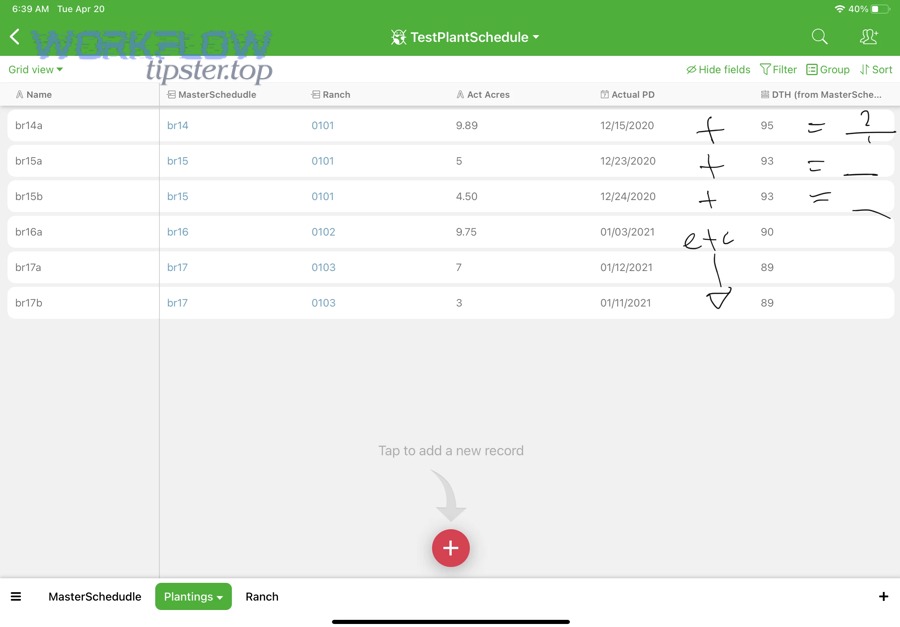
A “minimum viable time tracking sync” usually includes:
- Team members/users
- Clients
- Projects
- Time entries (with billable flags + notes)
- A lightweight log table (to track sync runs)
Which Harvest objects are most important for agencies and project teams?
The most important Harvest objects are Projects, Clients, People (Users), and Time Entries, because these are the foundation of utilization, budget tracking, staffing decisions, and client reporting.
Next, to keep it operationally clean, think of Harvest as answering: “Who tracked what time, on which project, for which client, and when?”
What to capture for each object:
- Clients: name, status, Harvest client ID
- Projects: name, client link, status, budget method (if relevant), Harvest project ID
- People/Users: name, email, active/inactive, Harvest user ID
- Time entries: date, hours, project ID, user ID, billable flag, notes, Harvest time entry ID
This set supports agency-grade dashboards in Airtable: weekly burn by client, utilization by role, time-to-budget thresholds, and spend trends.
Which Airtable tables and fields should you create for a clean data model?
A clean Airtable model typically uses 5–6 tables—Clients, Projects, Team Members, Time Entries, Reports/Dashboards, and Integration Logs—based on the criterion of “one table per real-world object with stable IDs and relational links.”
Then, once the tables exist, stability comes from consistent ID fields and linking patterns.
Recommended tables and key fields:
- Clients
- Harvest Client ID (unique)
- Client Name
- Status
- Projects
- Harvest Project ID (unique)
- Project Name
- Linked Client
- Status / Start-End dates (optional)
- Team Members
- Harvest User ID (unique)
- Email (critical if you match users by email)
- Active flag
- Time Entries
- Harvest Time Entry ID (unique)
- Date, Hours, Billable
- Linked Project, Linked Team Member, Linked Client (derived via Project)
- Notes
- Integration Logs
- Run ID / Timestamp
- Scenario/Zap name
- Object type synced
- Records created/updated
- Errors (if any)
This is also where you future-proof semantic connectivity: Airtable becomes your structured “source for analysis,” while Harvest remains the “source for tracking.”
How do you set up Airtable → Harvest automation (create/update in Harvest from Airtable)?
Airtable → Harvest automation is best done using a 6-step method—prepare IDs, choose a trigger view, map required fields, add a search+upsert step, test with real records, and monitor outcomes—so Airtable can create or update Harvest records reliably.
Next, the biggest success factor is validation before creation: you want to prevent “almost-right” records that later break reporting (wrong client link, wrong person, wrong active status).
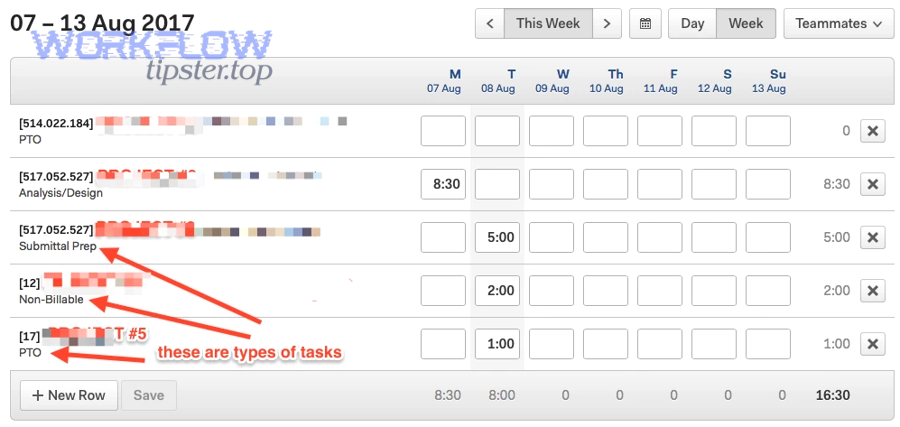
Practical setup checklist:
- Store Harvest IDs in Airtable for any object you may update later.
- Use a “Ready to Sync” checkbox or a “Sync Status” single select.
- Write records only after required fields pass validation.
How do you create Harvest projects or clients from Airtable records?
Creating Harvest projects or clients from Airtable works by creating the client first (if missing), then creating the project linked to that client, while storing the returned Harvest IDs back into Airtable to prevent duplicates.
Then, once the IDs exist, you can safely update status fields (active/inactive) without creating new entities.
Key implementation pattern:
- Trigger: Airtable record enters a “Ready to Create” view
- Search step: search Harvest client by name or external reference (preferred)
- Create if missing: create client in Harvest
- Create project: map project name + client ID
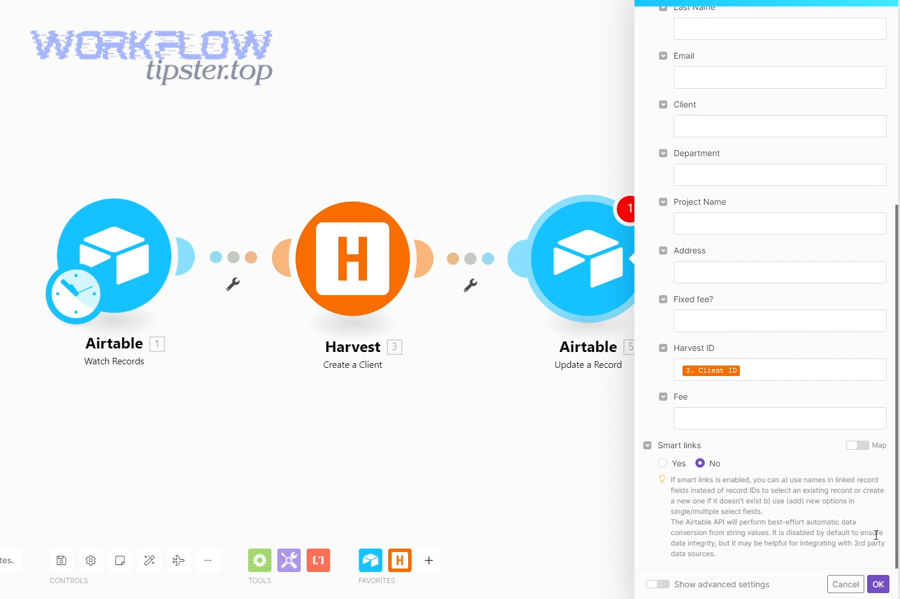
- Write back: update Airtable with Harvest Client ID + Harvest Project ID
Common pitfalls and fixes:
- Pitfall: matching clients by name only
Fix: store a unique external ID or enforce standardized naming rules. - Pitfall: creating projects before clients exist
Fix: always resolve the client first, then create projects.
How do you create Harvest time entries from Airtable (and what should you validate first)?
Creating Harvest time entries from Airtable is effective when you validate user, project, task (if required), date format, and hours rules first—because time entries are high-volume and small errors quickly become reporting noise.
Next, treat time entry creation as a “guarded action,” not a simple copy.
Validation you should enforce before creating:
- Project exists (Harvest Project ID present)
- User exists (Harvest User ID present)
- Date is correct (time zone consistency, standard ISO date formatting)
- Hours are valid (e.g., not negative; within realistic limits)
- Billable logic is correct (based on client/project rules)
If your integration platform supports it, route invalid records to:
- a “Needs Review” view in Airtable
- and an alert (email/Teams) to operations
This is where airtable to microsoft teams becomes useful: post a message to a channel when a record fails validation, so the fix happens within hours—not at billing time.
How do you set up Harvest → Airtable automation (sync time entries into Airtable)?
Harvest → Airtable automation works best as an incremental sync that pulls new/updated time entries on a schedule, upserts them by Harvest Time Entry ID, and links them to Projects and Team Members—so Airtable reporting stays accurate without duplicates.
Next, the key is to define a clear “freshness window” (for example, sync the last 7–30 days) to catch edits while keeping runs efficient.

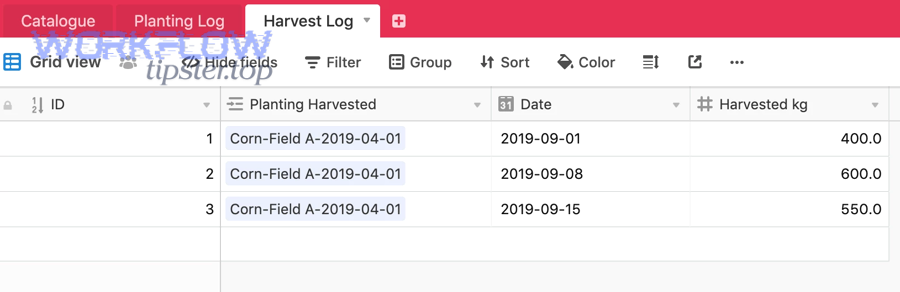
A common workflow many teams implement is: “When a new time entry is created in Harvest, update a record in Airtable,” which illustrates the core pattern of keeping Airtable updated from Harvest activity.
How do you import Harvest time entries into Airtable without creating duplicates?
You import Harvest time entries without duplicates by using an upsert rule: search Airtable for the Harvest Time Entry ID, update if found, create if not, and log every run.
Then, once the ID-based upsert is in place, you can safely run the sync daily or even hourly.
Practical upsert design:
- Unique key: Harvest Time Entry ID
- Sync window: last 14–30 days
- Update logic: always refresh hours, billable flag, notes, linked project/user
- Logging: write counts (created/updated) + errors
If you use Make, the “upsert” concept is often implemented using either a dedicated upsert module (where available) or a “search → route → create/update” structure; many teams use this to keep ID fields stable over time.
How do you link time entries to Projects, Clients, and Team Members in Airtable?
You link time entries to Projects, Clients, and Team Members by resolving the Harvest Project ID and Harvest User ID into Airtable linked records, then deriving the Client relationship through the Project link.
Next, once links exist, Airtable can compute agency-grade metrics without manual formulas scattered everywhere.
Linking pattern:
- Time Entry → linked Project (by Harvest Project ID)
- Time Entry → linked Team Member (by Harvest User ID or email match)
- Project → linked Client (by Harvest Client ID)
- Time Entry → Client becomes a lookup through Project (or a rollup path)
This creates durable reporting:
- utilization by team member (roll up hours weekly)
- burn by project/client (sum billable hours)
- trend charts by month or sprint
A real-world example discussed by practitioners is syncing Harvest project budget/spend details into Airtable and keeping them updated through automation, which reinforces why linking and consistent IDs matter.
Which integration option should you choose for Airtable ↔ Harvest: Zapier, Make, n8n, or Skyvia?
Zapier wins in fastest setup, Make is best for complex scenario logic, n8n is optimal for customizable/self-hosted workflows, and sync-focused platforms (like database integration tools) often fit best for high-volume upserts and scheduled two-way synchronization.
Next, because tool choice impacts reliability, it helps to compare on criteria that match time tracking realities: volume, logic complexity, governance, and cost.
This table contains a practical comparison of common Airtable–Harvest integration approaches so you can choose a platform that matches your workflow complexity, data volume, and maintenance preferences.
| Criterion | Zapier | Make | n8n | Sync/ETL-style tools |
|---|---|---|---|---|
| Best for | Quick templates | Advanced logic | Custom workflows | High-volume data sync |
| Learning curve | Low | Medium | Medium–High | Medium |
| Strength | Speed and simplicity | Routers/conditions, flexible mapping | Control + extensibility | Upsert, scheduling, mapping at scale |
| Typical risk | Cost at high task volume | Scenario sprawl if unmanaged | Requires ops mindset | Overkill for small teams |
Which tool is best if you want the fastest “connect and go” setup?
Zapier is best for the fastest setup because it offers ready-to-use workflows and straightforward triggers/actions that can update Airtable when Harvest activity occurs with minimal configuration.
Then, once the workflow runs, you can refine it by adding:
- filters (“only billable entries”)
- formatting (date normalization)
- logging (write run outcomes to Airtable)
This is also a pattern you can replicate for other business flows—like google drive to microsoft word conversions or notifications—without rebuilding your integration philosophy from scratch.
Which tool is best for complex workflows and advanced logic (filters, routers, conditions)?
Make is best for complex workflows because it supports richer branching logic, multi-step transformations, and scenario routing that helps you handle real agency requirements like validation, multi-table linking, and exception handling.
Next, the key is to keep the scenario readable:
- one “main path” for happy flow (upsert)
- one “exception path” for review (errors/validation)
Many practitioners build Airtable + Harvest sync patterns in Make to keep operational data (like employee lists and Harvest IDs) consistent, highlighting Make’s usefulness in workflow-style integrations.
Which tool is best for high-volume syncing and database-style upserts?
Sync/ETL-style tools are often best for high volume because they’re designed for scheduled sync, mapping, and upsert logic that behaves more like data engineering than task automation—especially when records count grows quickly.
Then, if you expect scale, tool choice matters because manual admin work expands with volume.
According to a study by the University of Oxford (Oxford Martin School) in 2013, researchers estimated that about 47% of total US employment is at risk of computerisation, reinforcing why automating routine data workflows is a meaningful operational advantage over time.
What are the most common Airtable–Harvest integration workflows for agencies and project teams?
There are 6 common Airtable–Harvest workflows—time entry sync, utilization dashboards, budget/burn reporting, project provisioning, team onboarding sync, and exception monitoring—based on the criterion of “what directly reduces manual operations and improves reporting accuracy.”
Next, it’s best to pick one reporting workflow and one provisioning workflow first, then expand.
A strong pair to start:
- Harvest → Airtable: upsert time entries (reporting)
- Airtable → Harvest: create projects (provisioning)
Which workflows help you track budgets, burn, and utilization from Harvest in Airtable?
Budget/burn/utilization workflows typically sync time entries and project metadata into Airtable, then compute rollups by week, by client, and by role to expose trends early.
Next, once rollups exist, you can add thresholds:
- alert when burn hits 70% of budget
- alert when utilization drops under target for 2 weeks
Common dashboard fields:
- Total hours (weekly/monthly)
- Billable hours vs non-billable
- Hours by client and project
- Utilization per team member
- Burn rate trend
This is also where Automation Integrations show strategic value: you’re not automating for fun—you’re creating a consistent data backbone for decisions.
Which workflows help with onboarding and keeping users/projects consistent?
Onboarding and consistency workflows create or update Harvest users/projects from Airtable, ensure correct naming conventions, and reconcile IDs so the reporting remains stable.
Next, add a governance layer:
- a “Ready for Harvest” status
- an approval checkbox for operations
- a run log with any warnings
Teams often start by syncing employee records, including Harvest IDs, into Airtable to support daily or weekly timesheet compliance reporting (e.g., “did they log 8 hours?”).
This onboarding pattern also connects neatly with adjacent operations flows such as freshdesk to asana ticket escalation or airtable to microsoft teams alerts for missing timesheets—because the core logic (match → update → log → notify) is the same.
What should you do if your Airtable ↔ Harvest sync fails, duplicates records, or misses updates?
If your sync fails or creates duplicates, you should fix it by (1) enforcing stable matching keys, (2) switching to upsert logic with logging, and (3) reducing edge-case risk with validation and incremental sync windows.
Next, treat reliability as a system, not a single fix—because time tracking data is high volume and mistakes compound quietly.
A quick triage checklist:
- Did the trigger fire?
- Did authentication expire?
- Did the search step match the right record?
- Did you write back IDs consistently?
- Did your sync window exclude edited records?
How do you troubleshoot duplicates and fix your matching keys (IDs, email, composite keys)?
You troubleshoot duplicates by replacing “name matching” with stable identifiers like Harvest IDs, and by defining one canonical key per object (user, project, time entry) so the automation updates the same record every time.
Then, once keys are stable, duplicates stop appearing—even when names change.
Best-practice keys:
- Time entry: Harvest Time Entry ID (mandatory)
- Project: Harvest Project ID
- Client: Harvest Client ID
- User: Harvest User ID (or email as fallback)
Where composite keys help:
- If a time entry ID isn’t available (rare), combine: user + date + project + hours + notes hash (but prefer IDs).
How do you prevent failed runs and silent data gaps (alerts, logs, retries)?
You prevent silent gaps by creating an Integration Logs table, enabling error alerts, and designing retries that can replay safely without duplicating records.
Next, make your automation observable:
- log counts created/updated
- store last successful sync timestamp
- route errors to a review queue
This matters because knowledge work is interruption-heavy, and manual “catch-up work” after disruptions is costly. According to a study by the University of California, Irvine (Department of Informatics), summarized with workplace interruption data, the average time elapsed before returning to the same task can exceed 25 minutes, showing how quickly small disruptions inflate operational overhead.
How can you optimize Airtable–Harvest integrations for scale, governance, and edge cases?
You optimize Airtable–Harvest integrations by adding governance rules, idempotent sync design, multi-workspace structure, and rate-limit protection—so your automation remains reliable as volume, stakeholders, and edge cases grow.
Next, these improvements matter most after you’ve shipped the core integration and your team begins trusting the dashboards.
How do you handle Harvest approvals/locked timesheets so integrations don’t overwrite approved time?
You handle approvals by treating approved periods as read-only, blocking write actions after lock dates, and routing exceptions to manual review so your automation never overwrites finalized time.
Then, enforce this with simple rules:
- store “approval status” or “lock date” reference in Airtable
- prevent updates to time entries older than your lock window
- log attempted changes as warnings
This protects billing integrity and prevents the worst kind of operational bug: “the automation changed history.”
How do you build an idempotent sync with a run-log table in Airtable?
You build an idempotent sync by ensuring every operation can run multiple times safely, using a run-log table plus unique IDs (Harvest IDs) so repeated runs update the same record rather than creating new ones.
Next, implement three layers:
- Unique key enforcement (Harvest IDs stored in Airtable)
- Search-before-write (upsert behavior)
- Run logging (timestamp, counts, errors, last sync cursor)
An idempotent design lets you:
- re-run after failures without fear
- expand sync windows temporarily (e.g., last 60 days) safely
- audit what happened when stakeholders ask questions
How do you sync multiple Harvest workspaces or clients into one Airtable operations hub?
You sync multiple workspaces by introducing a “Workspace” entity (or field) into every relevant Airtable table, storing the source workspace ID alongside Harvest IDs, and partitioning automations by workspace to avoid cross-contamination.
Then, build structure like this:
- Workspace table: workspace name, token reference, owner
- Projects table includes workspace link
- Time entries include workspace link (directly or derived through project)
This matters for agencies that manage multiple brands or business units, because one Airtable base can serve as a centralized command center—without mixing client data.
How do you reduce API/rate-limit issues with batching and incremental windows?
You reduce rate-limit issues by syncing incrementally (time-windowed pulls), batching requests where possible, and using backoff/retry logic so the integration stays stable even when volume spikes.
Next, apply practical controls:
- sync “last 14–30 days” instead of “all time”
- paginate and checkpoint (store cursor / last timestamp)
- avoid unnecessary updates (only write if values changed)
This keeps your automation efficient and protects both your tools and your team from slowdowns that turn “automation” back into “manual reconciliation.”