


If you want a reliable Airtable to Google Meet setup, the fastest path is to connect an Airtable record (who, what, when) to a Google Calendar event that automatically includes a Google Meet link—so every new request becomes a meeting invite without manual scheduling.
Many people also need clarity on what “Airtable to Google Meet integration” actually means in practice—what is being created (a Meet conference), where it lives (usually in Google Calendar), and how Airtable fields turn into meeting details.
Another common need is whether Airtable can create Google Meet meetings “directly” or if you must use a connector like Zapier/Make or a custom API approach—because the right answer depends on how much control, compliance, and scale your team requires.
Introduce a new idea: once you treat Airtable as your “source of truth” for meeting metadata, you can standardize triggers, mapping rules, and safeguards so every meeting created is accurate, consistent, and secure—then expand into Automation Integrations later.
What does “Airtable to Google Meet integration” mean?
“Airtable to Google Meet integration” is a workflow automation that uses Airtable records as structured input and automatically creates a scheduled meeting with a Google Meet join link (typically by creating a Google Calendar event with conference data).
Next, to understand it clearly, separate the workflow into where the meeting object is created and how the Meet link is generated:

In most real implementations, the integration looks like this:
- Airtable = intake + logic
- A record represents a meeting request, onboarding call, client check-in, interview, standup, etc.
- Fields store meeting data (title, attendees, time window, duration, owner, notes).
- Automation layer = connector
- Zapier/Make (no-code) or a custom script receives a trigger from Airtable and calls Google services.
- It also handles retries, error notifications, and data formatting.
- Google Calendar = scheduling system
- The event is created/updated in the calendar.
- A Google Meet conference link is attached to the event’s conference data.
Why it matters: Google Meet meetings are usually not “standalone objects” in a no-code world—they’re commonly created as part of a calendar event, because that’s how you get invites, time blocking, and attendee management in one step.
Can you create Google Meet meetings directly from Airtable?
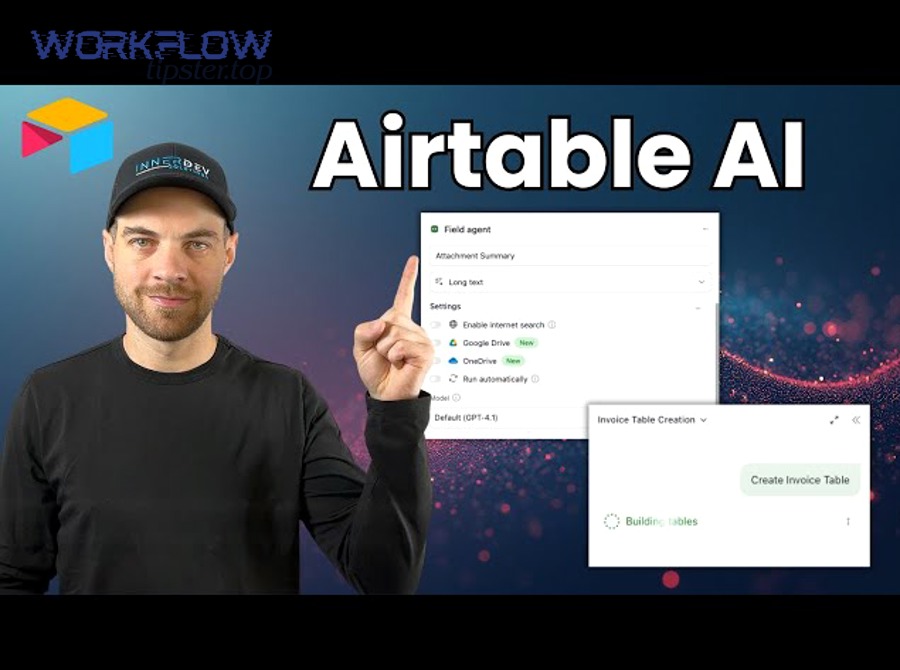
Yes—Airtable can trigger the creation of Google Meet meetings, but it typically requires a connector (Zapier/Make) or a custom API flow, because Airtable itself is not the service that generates the Meet link.
Then, to decide what “directly” means for your team, consider three practical reasons most setups use an integration layer:
- Meet creation usually happens through Google Calendar conference data
- The Meet join URL is commonly attached when creating a Calendar event with conference details.
- Airtable is great at structured data, not cross-app authentication
- OAuth scopes, Google Workspace permissions, and conference creation policies typically live outside Airtable.
- Production workflows need reliability features
- Retries, deduplication, logging, and alerting are easier in Zapier/Make or custom middleware than in a purely manual process.
In other words: Airtable is the command center; the “meeting factory” is your connector + Google Calendar/Meet.
What information do you need in Airtable to schedule a Google Meet meeting?
There are 6 main categories of Airtable fields you should prepare to schedule a Google Meet meeting reliably: Timing, Attendees, Title/Context, Ownership, Rules/Status, and External IDs—because these are the minimum ingredients your automation must map into an event.
Then, build your base so every meeting record can be processed without guesswork:
What Airtable fields are required vs optional?
To illustrate what your automation needs, treat these as required fields for a predictable “create meeting” action:
- Start date/time (or a proposed time slot)
- Duration (or end time)
- Time zone
- Attendee emails (single or multiple)
- Meeting title
- Organizer / owner (for permissions and routing)
Useful optional fields that improve quality and reduce rescheduling:
- Agenda / purpose
- Location (if hybrid)
- Notes, prep links, attachments
- Meeting type (e.g., Sales demo, Interview, Internal sync)
- Priority or SLA (for scheduling rules)
Which fields prevent duplicates and support updates?
To avoid creating multiple meetings for the same Airtable record, include fields dedicated to identity:
- Calendar Event ID (stored back into Airtable after creation)
- Meet link (stored back for visibility)
- Automation status (Queued → Created → Updated → Failed)
- Last sync timestamp
- Hash / fingerprint (optional: a computed “signature” of key fields)
These identity fields enable “create once, update forever,” which is the difference between a clean calendar and chaos.
What are the most common triggers and actions for Airtable → Google Meet workflows?
There are 4 common trigger types and 4 common action types for Airtable → Google Meet workflows, based on how teams control scheduling and reduce manual work: record changes, status transitions, time-based triggers, and form submissions → create/update event, add Meet link, notify stakeholders, and sync back IDs.
Next, use these patterns to design a workflow that matches your operation model:
What triggers work best for meeting scheduling?
Trigger options (choose 1 primary):
- New record created in a scheduling table/view
- Best for: intake forms, new leads, new requests
- Record enters a specific view
- Best for: “Ready for scheduling” filters and human review gates
- Status changes (e.g., Approved → Schedule)
- Best for: compliance, approvals, multi-step workflows
- Time-based trigger (e.g., schedule at 9am daily for queued records)
- Best for: batching and rate-limit control
A common best practice is a status-based trigger because it provides a built-in safety gate: the meeting is created only when the record is complete and approved.
What actions should the automation perform after triggering?
Action options (often chained):
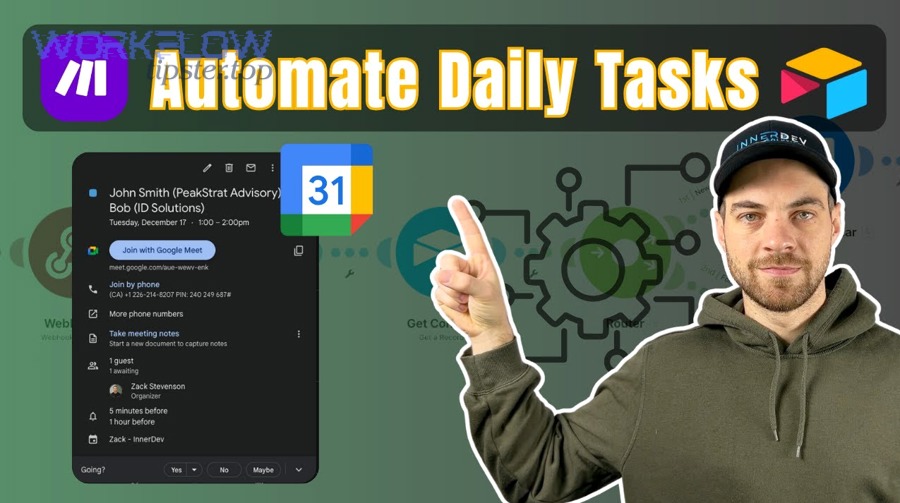
- Create Google Calendar event with Google Meet conferencing
- The core action that produces invites + Meet link.
- Update Airtable record with Event ID + Meet URL
- Makes Airtable your single source of truth for the meeting
- Send confirmations
- Email/Slack messages to host and participants (optional)
- Error routing
- If creation fails, set status to Failed and notify the owner
Why it matters for productivity: task switching is expensive—research on workplace interruptions shows measurable refocus costs, which is exactly what automation is trying to reduce. According to a study by the University of California, Irvine from the Department of Informatics, in 2008, researchers reported that it can take over 20 minutes on average to fully resume a task after an interruption.
Which no-code integration approach fits best: Zapier vs Make vs custom API?
Zapier wins for speed-to-launch, Make is best for visual complexity and data shaping, and a custom API approach is optimal for advanced governance, unique policies, and deep control—so your best choice depends on scale, compliance, and workflow complexity.

Then, compare them using criteria that actually affect outcomes in production.
This table contains a practical comparison of Zapier vs Make vs Custom API for an Airtable → Google Meet workflow, helping you choose based on reliability, flexibility, and operational overhead.
| Criterion | Zapier | Make | Custom API |
|---|---|---|---|
| Setup speed | Fastest (templates) | Fast (more design) | Slowest (build + test) |
| Complexity handling | Moderate | Strong (branching, mapping) | Strongest (anything) |
| Data transformation | Good | Excellent | Excellent |
| Governance & auditing | Good (depends on plan) | Good | Best (your controls) |
| Cost at scale | Can rise with tasks | Often efficient for complex scenarios | Dev + infra cost |
| Best for | Teams wanting “works today” | Ops-heavy, multi-step flows | Regulated, large-scale, bespoke |
In real-world terms:
- Zapier is often ideal if you want an off-the-shelf path like “Create and schedule Google Meet meetings for new or updated Airtable records.”
- Make shines when you need multi-branch logic, complex mapping, or bulk processing, and it explicitly supports Airtable + Google Meet scenarios in its integration catalog.
- Custom API is best when your organization needs:
- Strict permission boundaries (service accounts, domain-wide delegation policies)
- Nonstandard meeting rules (e.g., conference policies, naming conventions, logging)
- Robust idempotency, queueing, and observability
Meeting load also isn’t theoretical—organizations have studied how meeting patterns affect fatigue and recovery. According to a study by the University of Utah (with co-authors including Brigham Young University) from workplace health research, in 2022, results linked meeting outcomes (like satisfaction and effectiveness) to the need for meeting recovery time after virtual meetings.
How do you map Airtable fields to Google Meet meeting details safely?
A safe mapping method is (1) normalize fields, (2) validate required inputs, (3) map to event properties, (4) create/update idempotently, and (5) write back IDs, so you reliably generate correct invites and prevent duplicates.
To begin, treat field mapping as a small “data contract” between Airtable and Google:

How do you ensure time zones, durations, and attendee lists are correct?
Use these safeguards:
- Time zone
- Store time zone as a field (or infer from record owner), but never assume UTC silently.
- Start/end
- Prefer storing start datetime + duration and computing end time consistently.
- Attendee emails
- Use a validated email field type (or a strict regex check in automation).
- If you support multiple attendees, store them as a linked table or multi-select that resolves to emails.
A reliable pattern is to create a computed “Ready to Schedule” boolean based on validation rules:
- Required fields present
- Attendee list not empty
- Start time in the future (or explicitly allowed to be past for logging)
How do you avoid creating multiple meetings for one Airtable record?
Use idempotency rules:
- If Event ID is empty → create event, then write back Event ID + Meet URL
- If Event ID exists → update the existing event instead of creating a new one
- If key meeting fields change (time/attendees/title) → update and log the change
This is the single biggest quality lever in scheduling automations: “create once, update always.”
What is the recommended step-by-step setup checklist for an Airtable → Google Meet automation?
The recommended approach is a 10-step checklist that takes you from Airtable schema to a tested automation that creates a Google Calendar event with a Meet link and syncs IDs back into Airtable—so scheduling becomes repeatable and auditable.
Below, follow this exact build order to reduce errors:
What are the exact steps to launch your first working automation?
- Create an Airtable table/view for “Meeting Requests”
- Include required fields: title, start, duration/end, time zone, attendees, owner
- Add system fields
- Status, Event ID, Meet URL, Last sync time, Error message
- Define a “Ready to Schedule” rule
- Either a checkbox or formula field that becomes true when required fields are valid
- Choose your integration method
- Zapier (fast), Make (complex logic), or API (maximum control)
- Set the trigger
- Example: when a record is created/updated in a specific view or when status becomes “Approved”
- Add a “Create event” action
- Create a Google Calendar event and enable conference data so a Meet link is added.
- Write back Event ID + Meet URL into Airtable
- This turns Airtable into the authoritative tracker of scheduled meetings
- Add update logic
- If Event ID exists, update the event when key fields change
- Add failure handling
- On error: set Status = Failed, record the message, notify the owner
- Test with 3 scenarios
- Clean record → creates meeting
- Missing attendee → blocks creation
- Time changed after creation → updates existing event
If your team already uses airtable to google calendar syncing patterns, reuse that mental model: the Meet link is the conferencing layer attached to the calendar event, so your automation design stays consistent.
(One optional walkthrough video for teams that prefer seeing the flow end-to-end:)
How do you troubleshoot and harden an Airtable to Google Meet integration?
To troubleshoot and harden an Airtable to Google Meet integration, use (1) observability, (2) validation gates, (3) idempotency, and (4) policy-aware permissions so failures become diagnosable events rather than silent scheduling mistakes.
Next, apply these hardening upgrades in priority order:
Why didn’t the Google Meet link get created?
Most cases come from one of these:
- Conference data not enabled in the event creation step
- Workspace policy restrictions (some orgs limit auto-created conference links)
- Incorrect calendar selection (creating in a calendar without permission)
Fix pattern: Verify the event creation action explicitly includes conferencing / Meet creation, not just a basic event.
Why are duplicate meetings appearing?
Duplicates almost always mean idempotency is missing:
- The automation triggers multiple times for the same record
- There is no Event ID check before “create event”
- Status logic allows “re-create” after minor edits
Fix pattern:
- Add an “Event ID exists?” conditional:
- If yes → update
- If no → create
- Add a “Lock” field (e.g., Processing) to prevent race conditions in rapid edits
How do you handle errors, rate limits, and partial failures?
Harden the workflow with:
- Retry rules
- Retry transient errors (timeouts, temporary Google API errors)
- Dead-letter handling
- Failed records move to a “Needs Attention” view
- Alerting
- Notify the record owner with the error context and a direct Airtable link
- Backoff / batching
- If many records update at once, process them in controlled batches (especially in Make or custom API)
This is where broader Automation Integrations thinking helps: once you treat automations like production systems (inputs, outputs, logs, retries), reliability jumps.
What security and governance checks should teams add?
For teams, especially in regulated environments, add:
- Permission boundaries
- Use least-privilege Google accounts and restrict who can trigger scheduling
- PII minimization
- Store only what is needed in Airtable (avoid unnecessary personal notes)
- Audit-friendly logs
- Keep a change log: who requested, who approved, when it was created, what changed
- Naming conventions
- Standardize event titles (Client – Project – Purpose) so calendars stay readable
Finally, if your org runs multiple workflows (for example, “google docs to jotform” intake forms feeding Airtable, then creating meetings), document the handoffs so data remains consistent across systems and your automation doesn’t become a brittle chain.