


Airtable to Google Forms automation usually means you either (1) push Airtable record data into a Google Form via a pre-filled link, or (2) capture Google Forms submissions and create/update Airtable records—so teams can collect clean data without manual copy-paste.
Next, this guide breaks down what an Airtable-to-Forms workflow looks like in practice, what data should move between the two tools, and how to choose the right integration method based on speed, scale, and control.
Then, you’ll see the main connection options—no-code platforms, Google Apps Script, and direct APIs—plus concrete steps to generate pre-filled Google Form links from Airtable and to sync Google Forms responses into Airtable reliably.
Introduce a new idea: the “best” Airtable to Google Forms setup is the one that prevents field-mapping errors and rate-limit failures before they happen, so your workflow stays trustworthy as volume grows.
What does an Airtable to Google Forms integration workflow mean?
An Airtable to Google Forms integration workflow is a structured data pipeline that uses Airtable as a database and Google Forms as an input layer, often combining pre-filled links, automation tools, or APIs to move records and responses with minimal manual work.
Then, once you define what “moves” and what “stays,” you can design a workflow that is stable, auditable, and easy for non-technical teammates to use.

Which data moves from Airtable to Google Forms?
Airtable-to-Forms data typically moves as pre-filled answers, identifiers, and context fields—not as a full “record sync.”
- Pre-filled values: Name, email, order ID, ticket ID, project code, department, location, etc.
- Hidden identifiers (in practice, “passed identifiers”): A record ID, a short unique code, or a “lookup key” that lets you match the submission back to the exact Airtable record.
- Controlled choices: You can push “allowed values” indirectly by structuring the form questions (multiple choice/checkbox) and pre-filling defaults, but the form still enforces its own options.
A strong design rule is: Airtable provides context; Google Forms collects a human decision or confirmation. When you treat Google Forms like a human-input layer instead of a database, mapping becomes simpler and errors drop.
What are the core components of the workflow?
A dependable Airtable ↔ Google Forms system usually has these components:
- Source of truth: Airtable base/table that defines the record you care about (e.g., leads, requests, inventory, audits).
- Collection surface: A Google Form that asks only what humans must provide (approvals, confirmations, uploads, ratings, selections).
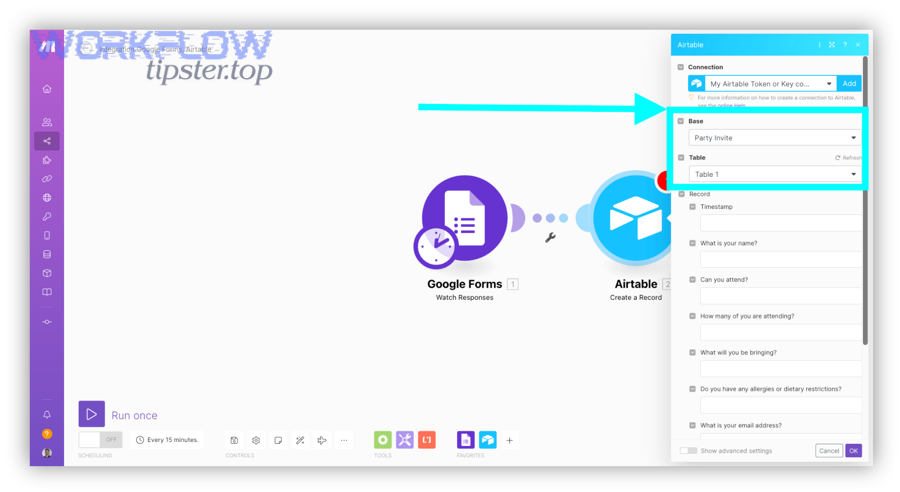
- Mapping layer: A no-code tool, Apps Script, or API logic that maps fields safely (including formats and multi-selects).
- Matching key: A consistent way to link a response to a record (record ID, short code, email+timestamp, etc.).
- Error handling: Retries, deduping rules, and alerts when the workflow fails (rate limits, permission changes, schema changes).
According to Google’s developer documentation, the Google Forms API supports creating/modifying forms and retrieving responses (including push notifications), which is why many “workflow” designs combine form creation/management with response processing.
Do you need an Airtable to Google Forms integration if you already use Google Sheets?
Yes—if you care about structured records, permissions, and automation reliability, you still need an Airtable to Google Forms integration because Airtable gives you relational data modeling, controlled schemas, and workflow-friendly views that spreadsheets often struggle to maintain at scale.
Next, the decision becomes clearer when you separate “collection” (Forms) from “system of record” (Airtable).
Yes—when Airtable is your source of truth
You should integrate Google Forms with Airtable when at least one of these is true:
- You need relational structure (linked records, reference tables, multi-step processes).
- You need controlled data types (select fields, attachments, validations, rollups) that reduce messy inputs.
- You need operational workflows (assignments, status tracking, automations, and reporting) that depend on consistent schemas.
In practice, teams use Forms for fast input and Airtable for lifecycle management: triage → assign → approve → complete → report.
No—when a spreadsheet-only flow is enough
You may not need Airtable if:
- You only collect lightweight responses and run simple summaries.
- Your process does not require linked entities (e.g., “Requester” linked to many “Requests”).
- You don’t need structured permissioning or record-level workflows.
However, many teams start in Sheets and later migrate because the “free-form” nature of spreadsheets increases cleanup cost as volume grows.
What are the main ways to connect Airtable to Google Forms?
There are 3 main ways to connect Airtable to Google Forms: (1) no-code automation tools, (2) Google Apps Script using the Forms service, and (3) custom integrations using the Google Forms API plus the Airtable Web API—each chosen based on control, complexity, and maintenance burden.
To begin, pick the method that matches your workflow’s “failure tolerance”: if a missed submission is unacceptable, you need stronger logging and retries.
No-code automation tools (Zapier, Make, n8n)
No-code tools are best when you want speed and minimal engineering:
- Zapier: Great for straightforward triggers/actions like “New Google Forms response → Create Airtable record.”
- Make: Great for visual scenarios, routers, iterators, and more advanced record handling (including bulk operations).
- n8n: Great if you want self-hosting, more customization, and code-like control in nodes.
This is where many teams start their broader Automation Integrations strategy: connect a form submission to a single workflow that updates Airtable, notifies a channel, and triggers next steps.
Google Apps Script + Forms Service
Google Apps Script works well when you want Google-native scripting without standing up a backend.
- The FormApp service can create/open forms, manage form items, and support form structure automation.
- Apps Script can also call external APIs (like Airtable’s Web API) to create or update records.
Apps Script is especially helpful when your workflow starts from Google Workspace (Forms/Sheets/Drive) and you need custom logic, conditional routing, or schema checks before writing into Airtable.
Google Forms API + Airtable Web API (custom integration)
A custom integration is best when you need:
- High-volume reliability
- Full control over retries, deduping, and monitoring
- A secure architecture with service accounts / controlled credential storage
Google’s Forms API is a REST interface that lets you create/modify forms and retrieve responses; it’s designed specifically to power deeper integrations.
Airtable’s API has a clearly defined rate limit, so custom builds must implement batching and backoff.
How do you send Airtable data into a pre-filled Google Form link?
You can send Airtable data into Google Forms by generating a pre-filled form URL in 3 steps—(1) get each question’s entry ID, (2) build a URL with those parameters from Airtable fields, and (3) distribute and track those links—so respondents start with accurate context and only confirm or add missing data.
Below, the key is to treat the pre-filled link as a “record-specific form invitation,” not a general public form.
Step 1: Design form questions and collect entry IDs
First, build your Google Form and create a pre-filled link:
- Add the questions you want to prefill (short answer, paragraph, multiple choice, etc.).
- Use the form’s Get pre-filled link option, enter sample values, and generate a link that includes parameters like entry.123456=… (those entry numbers are your field “IDs”).
Design tips that prevent headaches later:
- Keep pre-filled fields stable (avoid renaming/reordering too often).
- Include one matching key (record ID or unique code) as a short-answer field so you can match submissions back to Airtable without ambiguity.
- Avoid over-prefilling sensitive data because URLs can reveal values if shared.
Step 2: Generate prefill URLs from Airtable records
Next, generate a URL per Airtable record.
A reliable pattern is:
- Store the base form URL in Airtable (or a config table).
- Store each entry ID mapping in Airtable (or in your automation tool).
- Build a formula field (or automation step) that appends URL parameters from record fields.
What to be careful about:
- URL encoding: spaces, “&”, and special characters must be encoded.
- Multi-select: Google Forms parameters can behave differently for checkbox questions, so test with real data early.
- Null handling: don’t include parameters with empty values unless you want blanks to overwrite defaults.
If you use Make or Zapier, generate the URL in a “formatter” step and write it back to Airtable as a “Form Link” field. If you use Apps Script, you can generate and email links automatically.
Step 3: Distribute links and track completion
Finally, send and track:
- Distribution: email, Slack/Chat, CRM sequences, or an Airtable Interface button.
- Tracking: create a “Sent at” timestamp and a “Completed?” status in Airtable.
- Completion detection: either (a) capture responses into Airtable and match them back via the key field, or (b) use a “response receipt” workflow to update the record.
A strong operational approach is to set a reminder rule: if “Sent at” is older than X days and “Completed?” is false, trigger a follow-up.
How do you capture Google Forms responses into Airtable reliably?
You can capture Google Forms responses into Airtable reliably by using a trigger-based workflow (Zapier/Make) or a script-based workflow (Apps Script/API) that (1) maps every question to a stable Airtable field, (2) dedupes using a matching key, and (3) respects Airtable rate limits to avoid 429 errors.
To better understand reliability, compare a “simple create record” flow to a “create-or-update with backoff” flow—because retries and schema drift are the real long-term problems.
Method A: Zapier—Create Airtable records from new responses
Zapier is the fastest path when your needs are straightforward:
- Trigger: New Google Forms Response
- Action: Create Record in Airtable
Reliability checklist for Zapier:
- Add a matching key question in the form and map it into Airtable.
- Use lookup + update if you want to update an existing record instead of creating duplicates.
- Store raw response data in a long-text field when you anticipate schema changes, then parse later.
Where Zapier can struggle:
- Complex mapping (checkbox arrays, attachments, linked records)
- High volume bursts that hit rate limits in downstream systems
Method B: Make—Map fields and handle multi-select
Make is a strong choice when you need more control over mapping and flow design:
- You can route different responses to different tables based on answer logic.
- You can use iterators to expand arrays.
- You can use “bulk create” patterns depending on the modules available.
Practical Make mapping tips:
- For checkboxes, convert arrays into either:
- Airtable multiple select values (if names match exactly), or
- a normalized structure (a linked “Selections” table) for analytics.
- Always implement “error handlers” or scenario-level retries for transient failures.
Method C: Apps Script—Write to Airtable with rate-limit safety
Apps Script gives you the most control without a full backend:
- Use the Forms/Sheets environment to trigger on new submissions (commonly via linked responses sheet).
- Call Airtable’s API to create/update a record.
- Implement backoff and batching.
Why rate-limit handling matters: Airtable’s Web API is limited to 5 requests per second per base, and Airtable also documents broader token-based traffic limits; exceeding limits can produce 429s and force cooldowns.
If you implement Apps Script, build in:
- A queue (store pending writes in a sheet or Airtable table)
- Exponential backoff on 429
- Idempotency (same submission should not create multiple records)
According to a study by Airtable from its developer documentation, the per-base limit is 5 requests per second, which is why safe integrations rely on batching, reduced write frequency, and retry logic rather than “write immediately for every single answer.”
Airtable to Google Forms vs Airtable to Typeform: which is better for data collection?
Google Forms wins in cost and internal speed, Typeform is best for branded, high-conversion experiences, and an airtable to typeform setup is often optimal when you need advanced UX while still writing clean records into Airtable.
Meanwhile, the real differentiator is not the form tool alone—it’s how reliably your workflow maps answers into Airtable fields without creating cleanup debt.
This table contains a practical comparison to help you choose based on UX, governance, and automation reliability.
| Criteria | Google Forms | Typeform |
|---|---|---|
| Best for | Internal requests, simple surveys, quick confirmations | Marketing leads, branded surveys, guided experiences |
| User experience | Fast, familiar, minimal styling | Polished, conversational, high engagement |
| Automation options | Strong via Zapier/Make + Google Workspace tools | Strong via Zapier/Make; often richer form logic |
| Data governance | Works well inside Google Workspace permissions | Varies by plan; often external-facing |
| Operational overhead | Low | Medium (more settings, more customization) |
Best for internal ops: Google Forms
Google Forms is ideal when:
- You operate inside Google Workspace.
- You need quick deployment and low training overhead.
- You want a simple “submission → record creation” flow.
If you later need programmatic control, Google provides the Forms API for creating/modifying forms and retrieving responses, which supports deeper internal automations.
Best for branded experiences: Typeform
Typeform is ideal when:
- Completion rate depends on UX and branding.
- You want conditional logic and a “guided” feel.
- You treat the form as part of a funnel (lead → qualify → route).
A common pattern is: Typeform for front-end experience, Airtable for structured tracking, and your automation tool for routing and notifications.
Cost, limits, and automation ecosystem
When comparing ecosystems, don’t just compare subscription price—compare operational cost:
- Mapping complexity: richer forms can produce more edge cases.
- Data normalization: checkbox/multi-select answers can create cleanup work.
- Error recovery: decide how you’ll detect and fix “missed writes.”
If you expect high volume, plan around Airtable’s per-base rate limit and ensure your integration tool can throttle or batch writes.
Contextual Border: The main workflow decisions are now covered; next we expand into advanced edge cases, failure modes, and semantic-adjacent integrations that strengthen your overall system.
What advanced issues can break Airtable–Google Forms automations, and how do you prevent them?
There are 4 advanced issues that most often break Airtable–Google Forms automations—API limits, field-mapping edge cases, security/privacy leakage via links and permissions, and downstream workflow gaps—and you prevent them by adding throttling, normalization rules, and clear governance.
Moreover, these issues don’t show up on day one; they show up when your workflow becomes “real” and volume increases.
API limits, batching, and Airtable’s 5 req/sec rule
The most common silent failure mode is rate limiting.
- Airtable’s API is limited to 5 requests per second per base, and Airtable also documents broader token-based traffic constraints.
- A bursty workflow (e.g., many form submissions at once) can trigger 429 responses.
Prevention tactics:
- Batch writes (create records in groups where possible).
- Use Make scenario throttles or queue writes in a staging table.
- Implement exponential backoff on 429.
- Prefer “update existing record” over “create new record” when the record already exists.
Field mapping edge cases: attachments, linked records, and multiple select
Three mapping pitfalls are especially common:
- Attachments: file upload answers may arrive as Drive links or metadata; your automation must convert them into Airtable attachment-compatible URLs or handle them as references.
- Linked records: never write arbitrary text into a linked-record field; resolve the linked record ID (or create it intentionally).
- Multiple select: values must match allowed options exactly, or you must normalize them before writing.
Prevention tactics:
- Create a “raw response” table for submissions, then a second step that normalizes into your production table.
- Maintain a mapping table that translates form labels into Airtable select values.
- Add a “schema version” field so you can detect when questions changed.
Security and compliance: permissions, prefill privacy, audit trails
Security issues often come from convenience:
- Pre-filled URLs can expose values if they include sensitive data in query parameters, especially if users forward links.
- Apps Script and API integrations require careful scope and credential management.
Prevention tactics:
- Prefill only non-sensitive context, and keep sensitive fields blank.
- Use a short unique code rather than personal details for matching.
- Keep an audit trail in Airtable: “submission received at,” “processed at,” “processor version,” “error message.”
When to use related integrations like google forms to slack or google docs to surveymonkey
Some workflows fail not because the sync is wrong, but because the operational loop is incomplete.
- If a submission needs action, send a notification: google forms to slack is often the fastest way to shorten response time.
- If you need cross-tool survey analysis or centralized research ops, teams sometimes connect google docs to surveymonkey to keep documentation and survey programs aligned.
The key idea is: Airtable and Forms can be the core, but the “last mile” often needs notifications, approvals, and reporting triggers to make the system actually work day-to-day.
According to a study by Airtable from its developer documentation, the per-base cap is 5 requests per second—so prevention is not optional; it’s the difference between a demo workflow and an operational workflow.