


A Notion webhook 401 unauthorized error happens when your request reaches a server that expects authentication, but the credentials you sent are missing, malformed, expired, or mismatched for that workspace and target resource. In practice, the fastest fix is to stop guessing and verify exactly what token you’re using, where you’re sending it, and what Notion resource the token is actually allowed to access.
Next, you’ll need to understand what “401” means in the Notion + webhook context (and what it does not mean), because many “Notion 401” reports are actually authentication failures in a proxy, middleware, gateway, or a second API call triggered by your webhook receiver.
Then, you’ll troubleshoot the most common root causes—wrong Authorization header, missing Notion-Version header, token type mismatch (internal integration token vs OAuth access token), revoked integration access, or calling a page/database the integration was never shared to—so you can resolve the error in minutes instead of looping through random changes.
Introduce a new idea: once you can reliably reproduce (and eliminate) the 401, you can harden your workflow against recurring incidents like notion webhook 429 rate limit and notion timeouts and slow runs, and document your runbook as part of your Notion Troubleshooting process.
What does “401 Unauthorized” mean for Notion webhook/API requests?
A 401 Unauthorized means your request did not include valid authentication credentials for the resource you’re trying to access—so the server refused to treat you as an authenticated caller. (developer.mozilla.org)
To connect that definition to Notion webhooks, treat “webhook” as the event trigger and “Notion API request” as the follow-up call you usually make after the event (to read/update a page, fetch database rows, etc.). The webhook itself may arrive fine, but your follow-up call to Notion returns 401.
When is a Notion webhook request considered “unauthenticated”?
A Notion-related request is “unauthenticated” when the server can’t validate your credentials—most often because your Authorization header is missing/incorrect, your token is wrong for the auth method, or required headers (like versioning) are absent for that endpoint.
In Notion’s API, authentication patterns vary by endpoint, but you should assume:
- You must send a valid
Authorizationheader (typicallyBearer <token>for most API calls). - You must send a supported
Notion-Versionheader for API requests (Notion requires versioning on requests). (developers.notion.com)
Transition: Because a 401 is fundamentally an authentication failure, the quickest path forward is to stop treating it like a “permissions problem” and instead verify the exact identity your request is presenting to Notion.
What’s the difference between “Unauthorized” and “Forbidden” in practice?
“Unauthorized” (401) means you are not authenticated (your credentials aren’t accepted). “Forbidden” (403) usually means you are authenticated, but not allowed to do that action or access that resource.
This distinction matters because the fixes are different:
- 401 fixes focus on token correctness, formatting, and lifecycle.
- 403 fixes focus on sharing the right page/database with the integration and ensuring the integration has the right capabilities.
Transition: With that difference in mind, you can now diagnose your error by looking for the patterns that produce 401 specifically.
What are the most common causes of Notion “401 Unauthorized” errors?
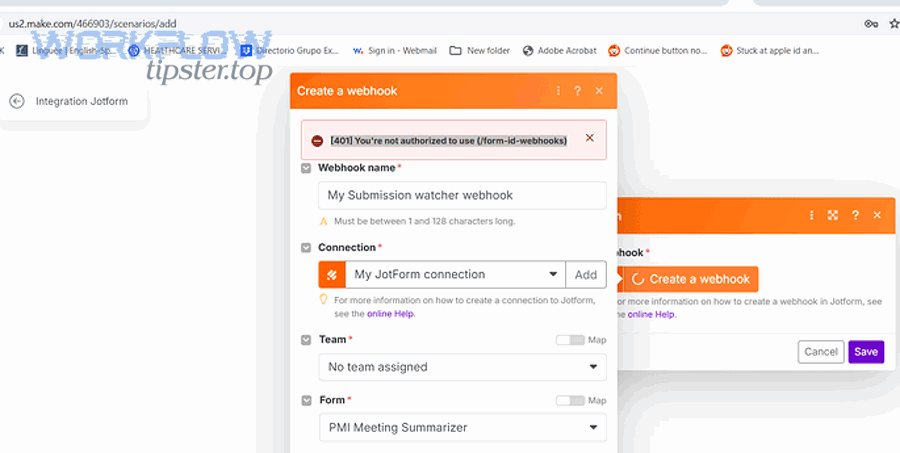
There are 7 main causes of Notion “401 Unauthorized” errors: missing/invalid auth header, wrong token type, expired/revoked token, incorrect Notion-Version header, calling the wrong workspace, using the wrong base URL/proxy, or leaking/overwriting credentials in automation variables.
Transition: If you want the fastest fix, start with the cause that matches your setup—internal integration token vs OAuth—then validate the request at the HTTP level.
Is your Authorization header missing, malformed, or using the wrong scheme?
Yes—this is the most common 401 cause because tiny formatting issues break authentication:
- Missing
Authorizationheader entirely. - Sending
Authorization: Token <...>instead ofAuthorization: Bearer <...>(or vice versa, depending on the auth model you’re implementing). - Including whitespace, invisible characters, or newline breaks when you store the token in environment variables.
- Logging/templating mistakes where your automation tool truncates the token.
Concrete checks that catch this quickly:
- Print the outgoing request headers right before the HTTP call (redact all but first/last 4 chars of the token).
- Verify the header name is exactly
Authorization(case-insensitive, but some tooling is buggy). - Verify you are not sending
Bearer Bearer <token>due to string concatenation.
Transition: Once your header is correct, the next failure mode is subtler: you might be using a token that’s valid—but not valid for this style of integration.
Are you using an internal integration token vs an OAuth access token incorrectly?
This is a frequent “looks valid, still 401” trap. Notion supports different credential flows depending on whether you built:
- An internal integration (you generate a secret and use it directly in server-to-server calls).
- A public integration using OAuth (you exchange an authorization code for an access token and use that).
If you mix them up, your call can fail authentication even though you “have a token.” Notion’s OAuth token exchange endpoint, for example, uses Basic authentication plus strict request requirements; confusing that with standard Bearer auth can cause a 401. (developers.notion.com)
Transition: After token type, the next big culprit is token lifecycle—especially in automation platforms that rotate credentials or copy old secrets across environments.
Did your token expire, get revoked, or rotate—causing stale credentials?
A token can become invalid even if your code didn’t change:
- You regenerated the Notion integration secret and didn’t update production.
- The workspace admin removed the integration or rotated credentials.
- Your OAuth flow returned a new access token, but your app is still using the previous one.
- Your CI/CD pipeline overwrote environment variables with an older value.
A reliable verification step:
- Recreate the failing request in a tool like curl/Postman using the token you believe is correct.
- If the same token fails there too, your runtime is not the issue—your credential is.
Evidence: According to a study by Carnegie Mellon University’s Mobile, Embedded & Wireless Security (MEWS) research group from 2014, among 149 popular mobile apps that used OAuth, 59.7% were found to implement OAuth incorrectly, creating real-world authentication and token-handling failures. (mews.sv.cmu.edu)
Transition: Even with the right token, Notion requests can still fail if required headers and workspace-specific expectations aren’t met.
How do you confirm your Notion integration is authorized to access the target page or database?
Yes—you can confirm authorization reliably by validating (1) the integration identity, (2) the shared resource scope, and (3) the workspace alignment before you change any code.
Transition: Notion authorization problems often look like authentication failures in logs, so confirm “scope + sharing” early to avoid debugging the wrong layer.
Did you share the page/database with the integration (Connections)?
For internal integrations, Notion access is not “global by default.” Your integration must be explicitly connected to the page/database it needs to read or modify—typically through the UI “Connections” flow.
A fast confirmation workflow:
- Open the exact page or database your automation targets.
- Use the page menu to find Connections.
- Ensure your integration is listed as connected.
- If it’s missing, connect it and retry your request.
This step matters because even a perfectly formatted token can fail if the integration cannot access the resource you’re calling—often producing confusing outcomes across different endpoints.
Transition: If you confirmed sharing but still see 401, your next check is whether your token is tied to the same workspace as the resource.
Is your integration installed in the correct workspace?
A Notion token is tied to a workspace context. If you accidentally:
- Use a token from Workspace A to call a page in Workspace B, or
- Use dev tokens against prod workspace resources,
your request can fail in ways that resemble bad auth.
What to do:
- Verify your token came from the same workspace where the target page/database exists.
- In OAuth setups, verify the user authorized the integration in the workspace you’re querying.
Transition: After resource scope and workspace alignment, the next step is to ensure you’re not diagnosing the wrong “401 origin” entirely.
Are you sure the 401 is coming from Notion and not from your webhook receiver or middleware?
Yes—you should verify the 401 source because many “Notion webhook 401” errors are actually returned by your own endpoint, an API gateway, a WAF rule, or a middleware auth layer—while Notion is behaving normally.
Transition: The easiest way to prove the source is to follow the request path end-to-end and compare request IDs, timestamps, and response headers.
Is the 401 thrown by your API gateway, WAF, reverse proxy, or auth middleware?
If you have any of these in front of your webhook receiver, they can return a 401 before your application logic runs:
- API gateway requiring its own token/header
- Cloud WAF blocking unknown signatures
- Reverse proxy enforcing basic auth
- Middleware rejecting missing CSRF or signature headers
How to validate quickly:
- Check response headers: Notion responses typically include their own patterns; your infrastructure will include headers from your provider.
- Check your server logs: if your handler never logs the request body, the 401 happened upstream.
- Temporarily route the webhook to a minimal endpoint that returns 200 and logs headers (redacting secrets).
Transition: If the webhook receiver is fine, the next false-positive is common: the webhook arrives, but your follow-up call to Notion is failing.
Is the webhook delivery fine, but your follow-up Notion API call fails with 401?
This is the classic scenario:
- Webhook hits your endpoint (200 OK).
- Your workflow triggers an API call to Notion to fetch more data.
- That Notion API call returns 401.
- Your automation platform reports “webhook 401 unauthorized,” even though it was the API call that failed.
The fix is to separate logs:
- Log webhook receipt (request ID, time, event type).
- Log Notion API call attempt (endpoint, integration identity, status code).
- Make the error message explicit: “Notion API returned 401” vs “webhook endpoint returned 401.”
Transition: Once you’ve proven where the 401 originates, you can apply a step-by-step repair checklist that eliminates the most likely causes in the fewest moves.
How do you fix a Notion 401 error step-by-step without guessing?
Use a 8-step checklist to fix Notion 401 errors: capture the failing request, verify headers, verify token type, verify Notion-Version, confirm workspace + resource access, replay the request, rotate credentials if needed, and add guardrails to prevent recurrence—so you turn “Unauthorized” into “Authorized” systematically. (developer.mozilla.org)
Transition: To better understand what’s changing at each step, treat your request as a deterministic artifact: same URL + same headers + same body should always produce the same result.

Step 1–3: Reproduce, capture, and inspect the exact failing request
Step 1: Reproduce the 401 with a single request (don’t rely on a long chain).
- Trigger the webhook once.
- Capture the failing HTTP call details.
Step 2: Capture full request details safely:
- URL + method
- Headers (redact token)
- Body (if applicable)
- Timestamp
Step 3: Inspect for the top 401 mistakes:
- Missing
Authorization - Token has extra quotes (
"token") - Token has trailing spaces/newlines
Transition: Once you can see the request clearly, you can validate correctness against Notion’s documented expectations instead of intuition.
Step 4–6: Verify token type, required headers, and workspace access
Step 4: Confirm token type matches the endpoint
- Standard Notion API calls typically use Bearer tokens.
- OAuth token creation/exchange endpoints have stricter rules and can require Basic authentication and required fields. (developers.notion.com)
Step 5: Confirm Notion-Version is present and supported
- Notion’s API documentation specifies a required version header for requests, and version mismatches can create confusing failures. (developers.notion.com)
Step 6: Confirm resource sharing + workspace alignment
- Verify the page/database is connected to the integration.
- Verify you’re using tokens from the correct workspace.
Transition: After correctness checks, the next step is proof: replay the same request outside your stack to isolate whether the bug is your runtime or the credential/scope.
Step 7–8: Replay externally, then rotate credentials only if needed
Step 7: Replay the request in a neutral environment:
- Use curl/Postman and paste the same headers.
- If it still fails, your token/scope is the issue.
- If it succeeds, your runtime is mutating the request (headers dropped, env var overwritten, proxy changed).
Step 8: Rotate credentials only after replay confirms token failure
- Regenerate the secret (internal integration) or re-run OAuth authorization to get a fresh token.
- Update your secret store and redeploy.
- Immediately revoke old secrets so you don’t accidentally revert.
Optional debugging video (authentication fundamentals):
Transition: Once your 401 is resolved, you’ll want to lock in the correct workflow depending on whether you’re using OAuth or an internal integration—because the troubleshooting patterns differ.
How is troubleshooting different for OAuth-based integrations compared to internal integrations?
OAuth-based integrations win in multi-workspace installs, internal integrations are best for single-workspace automation, and hybrid setups are optimal for teams that need both controlled access and user-level authorization.
Transition: However, the biggest difference is not philosophical—it’s operational: OAuth introduces more token lifecycle and redirect/authorization edge cases that can masquerade as “random 401s.”
OAuth vs internal integrations: What changes in the token lifecycle?
With internal integrations, you typically:
- Generate a secret once.
- Store it as a long-lived credential.
- Rotate it manually.
With OAuth, you typically:
- Generate tokens during an authorization flow.
- Store access tokens (and sometimes refresh tokens, depending on provider behavior).
- Handle re-authorization or token replacement events.
Notion’s token creation flow documents strict requirements around the token exchange and request headers; mistakes here can yield authentication failures that look like “Notion is rejecting a valid token,” when the real issue is the exchange step or missing required headers. (developers.notion.com)
Transition: After lifecycle, the next major difference is where scopes come from—because OAuth scopes are user-authorized, while internal integration access is often “connection-based” per page/database.
What are the most common OAuth-specific 401 mistakes?
Common OAuth-specific mistakes include:
- Using the authorization code after it has already been exchanged.
- Mismatching redirect URI or OAuth settings.
- Storing the wrong token (e.g., saving
refresh_tokenwhere you needaccess_token). - Mixing tokens across environments (dev/prod) because OAuth installs were tested in a different workspace.
When your logs show 401 after “it worked yesterday,” OAuth mis-handling is often the culprit—especially in systems that redeploy frequently and repopulate secrets from multiple sources.
Transition: Once you classify your integration type correctly, you can move from “auth theory” into precise error interpretation—especially when 401 is mistaken for 403 or 404.
How do 401, 403, and 404 differ when calling Notion, and why does that matter for the fix?
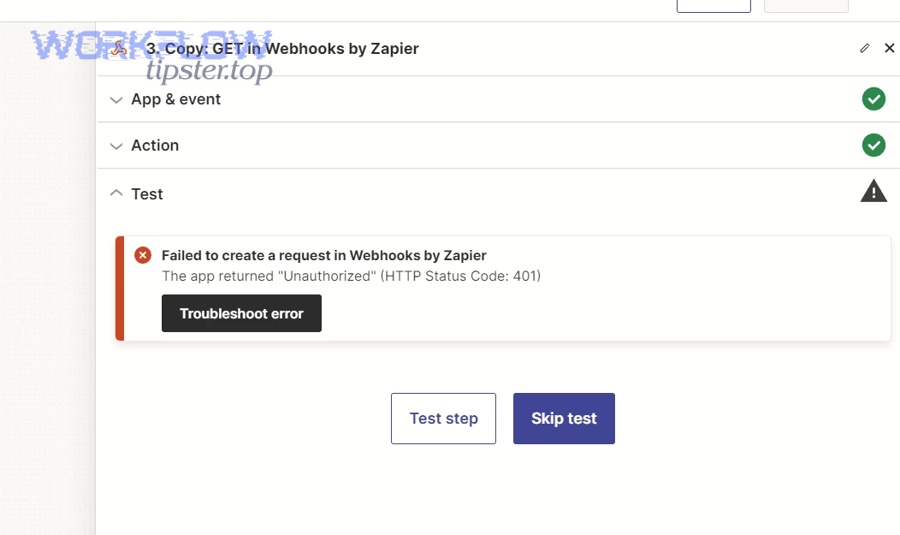
401 wins when the credential is not accepted, 403 is best explained by missing permission/scope, and 404 is optimal to interpret as wrong resource ID or not-found (sometimes masked access)—and each one implies a different fix path. (en.wikipedia.org)
Transition: To better understand the correct fix, you should map the status code to the “layer” that failed: authentication, authorization, or addressing.
Here’s a quick table that summarizes what each status usually means and what you should do next:
| Status | What it usually means | Fastest fix move |
|---|---|---|
| 401 Unauthorized | Request lacks valid authentication credentials | Validate Authorization format + token correctness + required headers |
| 403 Forbidden | Auth is valid, but access is not allowed | Share the page/database with the integration; confirm capabilities/scopes |
| 404 Not Found | Resource ID is wrong, deleted, or access is masked | Verify the page/database ID and whether your integration can “see” it |
When can a “not found” (404) actually be an access problem?
In some APIs, 404 can be returned to avoid leaking the existence of a resource you’re not allowed to access. So if you see 404 but you are sure the ID is correct, confirm whether the integration has visibility to that page/database through Connections and workspace alignment.
Transition: Once you interpret status codes correctly, your Notion Troubleshooting becomes faster because you stop applying the wrong fix to the wrong failure mode.
How do you avoid confusing 401 with 403 in automation platforms?
Automation tools often compress errors into a single label like “webhook failed.” To avoid confusion:
- Log the full downstream response (status + endpoint).
- Label the failing component explicitly: “Notion API call failed with 401.”
- Store the last known-good token fingerprint (first/last 4 chars) to detect silent changes.
This discipline helps you diagnose related issues too, like notion webhook 429 rate limit (which is not auth) and notion timeouts and slow runs (which is usually network, queueing, or payload size).
Transition: Now that your 401 diagnosis is accurate, the last step is to prevent it from happening again—especially when teams, environments, and automation tools evolve.
— Contextual Border: You’ve resolved the macro problem . Next, you’ll strengthen the micro layer: preventing “Unauthorized” regressions, monitoring token health, and building durable automation guardrails.
How do you prevent future “Unauthorized” errors and keep Notion requests authorized over time?
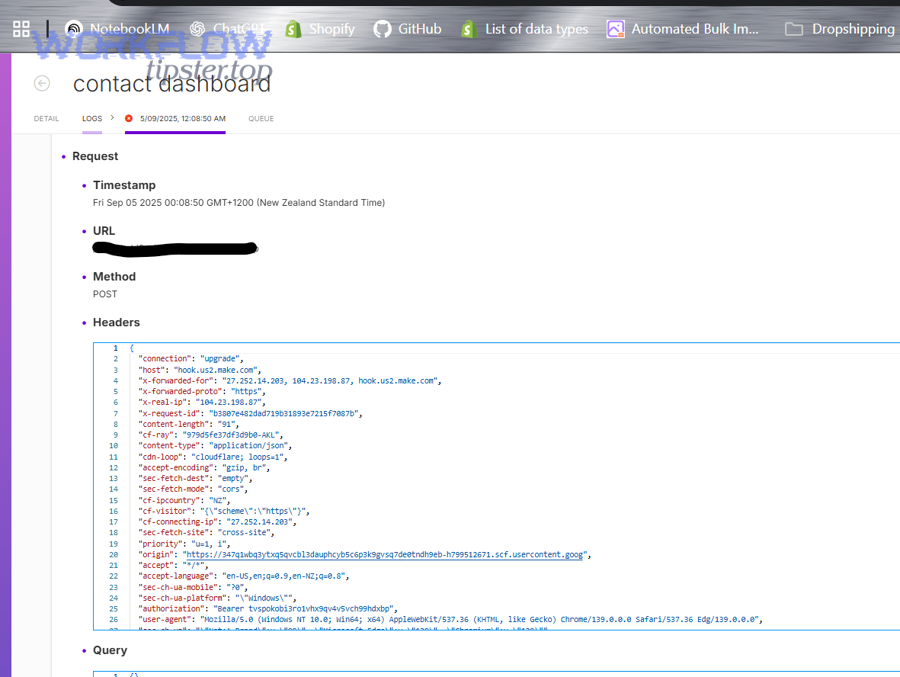
Preventing future Notion 401 errors means building a small set of credential guardrails—validation, rotation discipline, and observability—so your system detects “drift” before it becomes an outage.
Transition: More importantly, prevention is where teams save the most time, because the “same 401” usually reappears after a redeploy, a workspace change, or a copied workflow template.
What guardrails stop 401s from returning after redeploys or template reuse?
Three practical guardrails prevent most recurring 401s:
- Pre-flight auth check
- On startup (or on a schedule), run a lightweight request that verifies the token is still accepted.
- If it fails, alert and stop processing workflows that would certainly fail.
- Secret hygiene and environment isolation
- Separate dev/prod Notion integrations and tokens.
- Ensure your CI/CD cannot overwrite prod secrets with dev values.
- Avoid copying tokens into “template” workflows.
- Structured logging with safe token fingerprints
- Log token fingerprints (e.g.,
abcd…wxyz) rather than full tokens. - Log the presence of
Notion-VersionandAuthorizationheaders . - Log request IDs and timestamps for correlation.
- Log token fingerprints (e.g.,
Transition: Once guardrails exist, your next micro-optimization is to handle other “looks like auth” failures cleanly—so teams don’t mislabel them as 401.
How do you distinguish 401 from rate limits and slow workflows in monitoring?
A resilient monitoring setup separates:
- Auth failures (401/403) → credential, sharing, scope
- Rate limits (429) → backoff, batching, request reduction
- Performance failures (timeouts, slow runs) → queue backlog, payload size, retries, circuit breakers
If your alerting collapses them into “Notion failed,” teams will waste time rotating tokens when the real issue is backoff or concurrency control.
Transition: Finally, you can turn this entire playbook into a lightweight internal resource—some teams publish it as a pinned runbook or internal wiki page.
Can you turn this into a reusable runbook for teams (and link it to a troubleshooting hub)?
Yes—capture the checklist and decision logic in a single internal page:
- “If 401 → validate auth header + token type + Notion-Version.”
- “If 403 → check page/database Connections + capabilities.”
- “If 404 → verify ID + visibility.”
- “If 429 → implement exponential backoff + reduce calls.”
- “If slow → inspect retries, concurrency, and queue depth.”
If you maintain a central hub like WorkflowTipster.top, link this playbook there so every automation builder follows the same high-signal steps instead of rediscovering them independently.
Transition: In short, when you combine correct status-code interpretation, deterministic request capture, and token guardrails, “Notion webhook 401 unauthorized” stops being a mystery and becomes a predictable maintenance event.