


When you hit a Notion webhook 500 internal server error, you can fix it by first proving where the 500 is generated (Notion, your automation platform, or your webhook receiver), then applying the right remedy: retries/backoff for transient failures, or payload/permissions/endpoint fixes for repeatable ones.
Next, you’ll learn what a 500 actually means in webhook workflows, what diagnostic signals to collect from a failed run, and how to separate “Notion-side turbulence” from “my endpoint broke,” so you stop guessing and start isolating.
Then, you’ll work through the most common root causes—receiver exceptions, timeouts, payload shape issues, permission edge cases, and burst/concurrency pressure—and you’ll reproduce the failure with minimal tests so you can fix it confidently.
Introduce a new idea: once the error is under control, you’ll harden the workflow so the next outage, spike, or weird data case doesn’t turn into another incident.
What does a Notion webhook 500 Internal Server Error mean in practice?
A Notion webhook 500 internal server error is a server error that indicates an unexpected failure occurred during the webhook action or an integrated request path, and it usually requires you to confirm whether the failure happened in Notion’s processing or in your receiving system’s processing. (developers.notion.com)
That distinction matters because a 500 is not a “fix this one input field” error by default—it’s a class of failures that can come from transient service issues, timeouts, internal exceptions, or downstream dependencies. Specifically, the fastest way to stop the bleeding is to treat “500 Internal Server Error (Server Error)” as a routing problem for your debugging: route the investigation to the component that actually produced the 500, then reduce the problem to one reproducible failing call.

Is the 500 coming from Notion or from your webhook receiver?
In most real incidents, the 500 is coming from either (1) Notion’s side of the call chain or (2) your webhook receiver’s side of the call chain, and you can tell which one it is by checking who returned the HTTP response and what your logs say at the same timestamp.
Start with a simple split:
- If your webhook endpoint received the POST request (you see it in access logs) and your endpoint responded 500, then the 500 is yours.
- If your endpoint never received the request, but your workflow run shows 500, then the 500 is likely Notion-side or your automation platform’s connector-side.
To make this concrete, use a small triage tree:
- Confirm delivery
Check your receiver’s access logs (or gateway logs) for the request timestamp window.- If there’s no incoming request, you’re debugging delivery or upstream execution.
- If there is an incoming request, you’re debugging receiver processing.
- Check for correlation signals
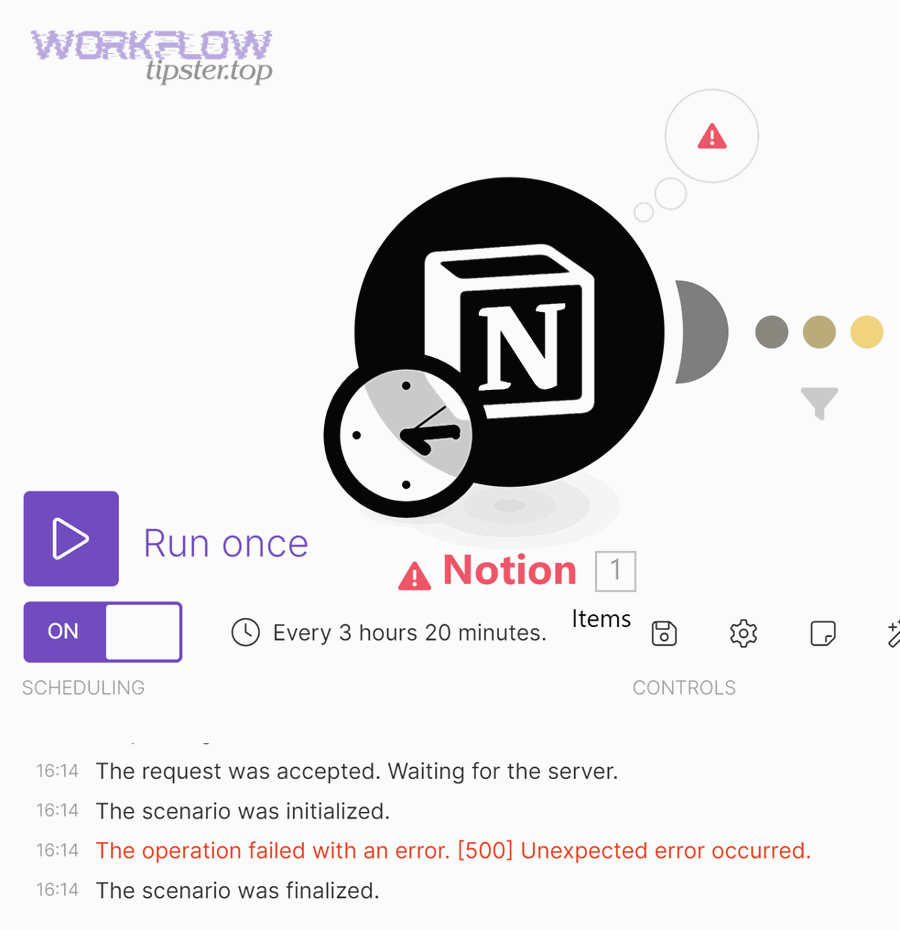
Even if Notion’s UI only shows “Unexpected error occurred,” your automation platform may show:- request duration (latency)
- retry count
- response body
- failure step name
- Look for “repeatability”
- If it fails every time with the same payload and timing, suspect payload, permissions, or deterministic receiver bug.
- If it fails intermittently, suspect transient Notion-side issues, dependency health, or bursts.
A practical tip: if multiple unrelated workflows in the same window fail with 500, treat that as a strong signal that you’re in “Notion-side instability” territory and move quickly to retries + status verification rather than rewriting logic.
What information should you capture from the failed run to debug faster?
You should capture a minimum debugging packet for every Notion webhook 500 internal server error, because the “evidence you keep” determines whether you can isolate the cause in minutes instead of hours.
Capture these items (keep secrets masked):
- Timestamp (UTC) and your local timezone conversion (misreading time creates false correlations, and notion timezone mismatch can make you chase the wrong run)
- Request URL (endpoint + path), plus environment (prod/stage)
- HTTP method and status code
- Response time (total duration) and whether timeouts occurred
- Request headers (especially content-type, user-agent, signature headers if used)
- Payload size and a redacted copy of the payload
- Retry count / retry delays (if your platform retries automatically)
- Receiver logs: stack traces, downstream dependency errors, database exceptions
- Workflow context: which button/automation step fired, which database/page triggered it, and the execution/run ID
If you capture only one thing, capture the full receiver error stack trace (when it exists). A 500 without a trace is just a symptom; a 500 with a trace is a root cause waiting to be fixed.
Can you fix most Notion webhook 500 errors without changing your workflow logic?
Yes—you can fix most Notion webhook 500 internal server error cases without changing workflow logic, because (1) many 500s are transient, (2) many are caused by timeouts or endpoint availability, and (3) many disappear once you add retries + backoff + basic receiver hardening. (notion-status.com)
That said, “most” does not mean “all,” and the difference is whether the failure is repeatable with the same input. More importantly, you should treat early fixes as stabilization, then confirm whether a deeper logic or data issue remains.
What are the fastest “first 10 minutes” checks that resolve many 500s?
The fastest first 10 minutes checks work because they eliminate the most common “it’s not your code, it’s the environment” failures before you burn time deep-diving.
Here’s the checklist, in the order that usually saves the most time:
- Is your receiver endpoint up and reachable from the public internet?
- Confirm DNS resolves, TLS cert is valid, and the endpoint returns a simple 200 on a health route.
- If you use a serverless platform, check cold start spikes and concurrency limits.
- Did you deploy or change configuration recently?
A surprising number of webhook 500s are “we changed something” incidents: updated env vars, rotated secrets, changed routes, upgraded dependencies. - Did the request time out, then surface as 500?
Timeouts can look like 500 failures in workflow UIs. Check duration fields and gateway timeout logs. - Is there a spike or burst of events?
Bursts create backpressure and trigger failures in downstream APIs and databases. - Is Notion having a service incident?
If your endpoint is healthy and multiple workflows fail, check the Notion status history and incident notes. (notion-status.com)
To keep the hook-chain tight: a “Notion Troubleshooting” mindset here means you don’t jump to editing steps or rewriting automations until you’ve proved the system is stable enough to test.
Which configuration tweaks reduce 500s immediately in Make/Zapier/n8n/custom?
The quickest configuration tweaks reduce 500s by making your workflow less fragile under transient failure and less aggressive under burst load.
Use these tweaks:
- Enable retries with exponential backoff + jitter
Retries convert transient 500s into successful runs without manual intervention. - Set a realistic timeout
If your receiver must call a slow downstream API, either increase timeout or redesign to “ack fast, process async.” - Throttle concurrency
Limit parallel webhook executions so your receiver and downstream services don’t melt under bursts. - Reduce payload size
Send only the fields you need. Large payloads are slower to parse, log, and process—and they magnify every inefficiency. - Add a “safe mode” response
If you can accept the event but not process immediately, respond 200 quickly and enqueue work.
If you apply only one change today, apply “ack fast + retry with backoff.” It turns the most common intermittent server error pattern into a non-event.
What are the most common causes of Notion webhook 500 errors?
There are five main types of Notion webhook 500 internal server error causes: receiver exceptions, receiver timeouts, payload/data shape issues, access/permission edge cases, and burst/concurrency pressure, and you classify them based on whether failures are repeatable, latency-heavy, or tied to specific objects/fields.
More importantly, each cause has a “tell.” If you can spot the tell, you can stop experimenting and start fixing.
Which receiver-side problems most often produce a 500 in webhook workflows?
Receiver-side problems are the #1 cause of webhook 500s because your endpoint is the component that actually runs your code.
These are the most common receiver-side failures:
- Unhandled exceptions
Null references, unexpected field types, missing required properties—classic runtime crashes. - Dependency failures
Your receiver calls a database, queue, or third-party API that is down or slow, and your handler crashes or times out. - Parsing failures
Wrong content-type assumptions, JSON parse errors, or incorrect character encoding. - Resource exhaustion
Memory limits, CPU throttling, or file descriptor exhaustion under load. - Bad error handling
You catch an error but still return 500 because the “fallback path” isn’t implemented.
To reduce receiver-side 500s quickly:
- Validate payload shape before deep processing.
- Guard your downstream calls with timeouts and circuit breakers.
- Return a predictable response even when internal work fails (if your workflow semantics allow it).
This is also where notion data formatting errors show up in disguise: the payload might be valid JSON, but the values (dates, numbers, select fields) might not match what your handler expects, triggering an exception chain that ends in 500.
Which Notion-side or integration-side conditions can surface as 500?
Notion-side or integration-side 500s happen when the upstream system fails internally or cannot complete its work within constraints.
Common patterns include:
- Transient internal errors
Notion returnsinternal_server_error(500) when something unexpected occurs. (developers.notion.com) - Service instability or partial outages
Symptoms: multiple workflows fail across teams, failures correlate in time, retries often succeed later. - Complex query or property edge cases
Some failures only occur when you paginate, filter, or hit formula properties that reference other databases, especially in integrated workflows (this often looks like “it works for the first batch, then fails”). - Permission mismatches that behave inconsistently
Even when the integration “seems” connected, specific pages or properties may not be shared properly, causing failures in certain runs.
If you suspect Notion-side issues, your best move is to: 1) add resilient retries, 2) reduce concurrency, and 3) confirm status/incident history before refactoring.
How do you reproduce and isolate the failing webhook call step-by-step?
You reproduce a Notion webhook 500 internal server error by replaying a captured failing payload through a controlled test path and isolating variables in three steps: capture → replay → reduce, until you can trigger the failure on demand.
Then, once you can reproduce it, you stop treating it as “random” and start treating it as “a failing test case.”
What is the best minimal reproduction workflow for a 500 investigation?
A minimal reproduction workflow is the smallest setup that still produces the 500 reliably.
Use this pattern:
- Capture one failing event
Export the payload (redacted) and note the exact timestamp and run ID. - Create a replay harness
Use a simple script or an API client to POST the captured payload to:- your staging endpoint, or
- a local endpoint tunneled publicly (only if your security model allows it)
- Reduce the payload
Remove non-essential fields until the failure disappears. Then add fields back one by one to find the trigger field or structure. - Freeze dependencies
If your receiver calls downstream services, stub them or switch them to sandbox mode so you can tell whether the 500 is coming from your logic or your dependencies. - Log at the boundary
Log immediately at request entry, before parsing, after parsing, and before returning a response. Those boundary logs tell you which step failed.
This approach is the fastest way to uncover “one weird record” causes—like a date field that suddenly changes format, a missing property, or an unexpected empty string that your code treats as a number.
Should you debug in production or staging for webhook 500 errors?
Staging wins for safety, production wins for realism, and the optimal choice depends on whether you can faithfully mirror data and permissions.
- Staging is best when:
- you can replicate the integration token scopes and shared pages/databases,
- you can replay the same payload safely,
- you want to test fixes without affecting users.
- Production is best when:
- the bug is tied to real data (specific pages/databases),
- staging does not mirror permissions or property configurations,
- you can’t reproduce outside production.
A practical compromise: capture the failing payload in production, then replay it into staging with redaction and safety checks. This avoids dangerous “live poking” while preserving realism.
What fixes work for 500 vs fixes meant for 400/401/403/404/429 errors?
A clean rule works here: 500 fixes focus on resilience and internal failure handling, 400 fixes focus on request correctness, 401/403 fixes focus on authentication and permissions, 404 fixes focus on routes/IDs, and 429 fixes focus on throttling and backoff. (developers.notion.com)
However, webhook workflows blur the boundaries because one misconfiguration can look like multiple errors. So you should treat this section as “don’t apply the wrong medicine.”
To make the mapping actionable, the table below summarizes what each status code usually means in Notion-integrated workflows and the fastest correct response.
| Status code | What it usually means in webhook workflows | Fastest correct fix |
|---|---|---|
| 500 | Unexpected internal failure (Notion-side) or your receiver crashed/timed out | Add retries/backoff; check endpoint logs; verify incidents; isolate payload |
| 400 | Malformed request/payload, invalid JSON, missing required fields | Validate payload schema; fix formatting; ensure proper JSON encoding |
| 401 | Missing/invalid credentials/token | Reconnect integration; refresh token; verify headers/secrets |
| 403 | Token is valid but lacks permission to the page/database/property | Share resources with the integration; re-check workspace access rules |
| 404 | Wrong endpoint/route or missing resource ID (notion webhook 404 not found) | Fix URL/path; confirm IDs; ensure resource exists and is shared |
| 429 | Too many requests / rate limiting | Throttle; exponential backoff with jitter; reduce concurrency |
How is a 500 different from 429 rate limit errors in Notion automations?
A 500 is “something broke unexpectedly,” while a 429 is “you’re going too fast.”
More specifically:
- 429 is deterministic under load: you typically see it when request volume spikes or concurrency is too high.
- 500 is often intermittent: it can appear during internal failures, upstream issues, or timeouts.
So the fix differs:
- For 429, your primary lever is slowing down: throttle concurrency, batch requests, and use backoff.
- For 500, your primary lever is stabilizing execution: retry safely, reduce burst pressure, and isolate payload/receiver faults.
The simplest way to avoid mixing them up is to log both the status code and the response body. If you see rate limiting language, treat it as 429 behavior even if your platform wraps errors oddly.
When a webhook “fails,” how do you distinguish auth/permissions (401/403) from 500?
A permissions problem (401/403) is usually consistent: the same workflow fails the same way every time until you change access. A 500 may come and go—even if the underlying issue is still present.
Use these tests:
- Repeatability test
- If it fails 10/10 times for the same operation, suspect 401/403 or 400.
- If it fails 2/10 times, suspect transient conditions (500/503) or load issues.
- Scope test
Try the same action on a different page/database that you know is shared correctly.- If only one resource fails, suspect a specific permission edge case or a bad property configuration.
- Log signature test
- 401/403 will often show an auth/permission message in the response.
- 500 may show a generic “Unexpected error occurred.”
If you’re dealing with integrations across teams, permissions are a frequent hidden cause. Debugging them early prevents you from building “retry layers” on top of a workflow that will never succeed.
Is the error “fixed” if it disappears after one retry?
No—the error is not truly “fixed” just because it disappears after one retry, because (1) transient recovery can hide fragility, (2) retries can mask systemic timeouts and bursts, and (3) one success does not prove reliability at scale.
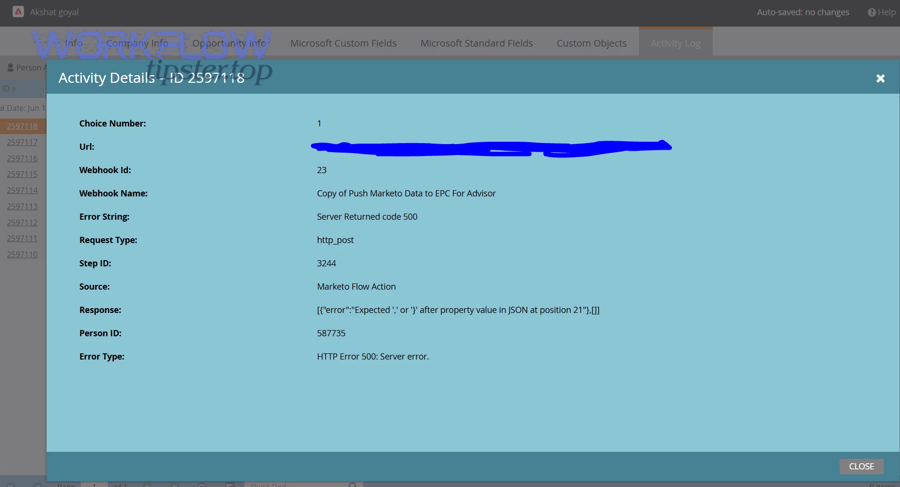
In other words, a single successful retry is a good sign, but it’s only the start of validation. Next, you need to prove the workflow is stable across time, payload variety, and real-world load.
What reliability signals prove the webhook is stable again?
A webhook workflow is stable again when the system demonstrates consistent success and acceptable latency over a meaningful window.
Use these reliability signals:
- Success rate over 24–72 hours (and over peak usage windows)
- Retry rate (if retries are climbing, you’re “surviving,” not “healthy”)
- p95/p99 latency at your receiver endpoint
- Queue backlog (if you process async)
- Error budget: how many failures are acceptable before users feel it?
You can turn this into a simple “done definition”:
- Success rate ≥ 99% (or your agreed target)
- Retry rate stable or decreasing
- No unexplained spikes in latency
- No missing events (every event is accounted for)
If you can’t account for every event, then the workflow is not stable; it’s merely quiet.
What should you monitor to catch 500s before users notice?
To catch Notion webhook 500 internal server error incidents early, monitor both symptoms and leading indicators.
Monitor these items:
- 5xx rate on the webhook endpoint (errors per minute)
- Timeouts and long-tail latency
- CPU/memory utilization (resource exhaustion predicts 500 spikes)
- Dependency health (database latency, third-party API error rate)
- Concurrency (parallel runs, burst sizes)
- Workflow run failures by step (to pinpoint which stage fails)
Add alerting that triggers on:
- sudden increases in 500s,
- sustained elevated retry counts,
- queue growth beyond a threshold.
This is especially important if you’ve seen notion timezone mismatch issues: time misalignment can delay detection and make alerts fire “late,” even when the failure started earlier.
How do you prevent Notion webhook 500 errors with resilient webhook design?
You prevent Notion webhook 500 internal server error incidents by designing your receiver to be retry-friendly, idempotent, and load-aware, using a resilience pattern that includes (1) exponential backoff, (2) fast acknowledgements, and (3) safe replay of events.
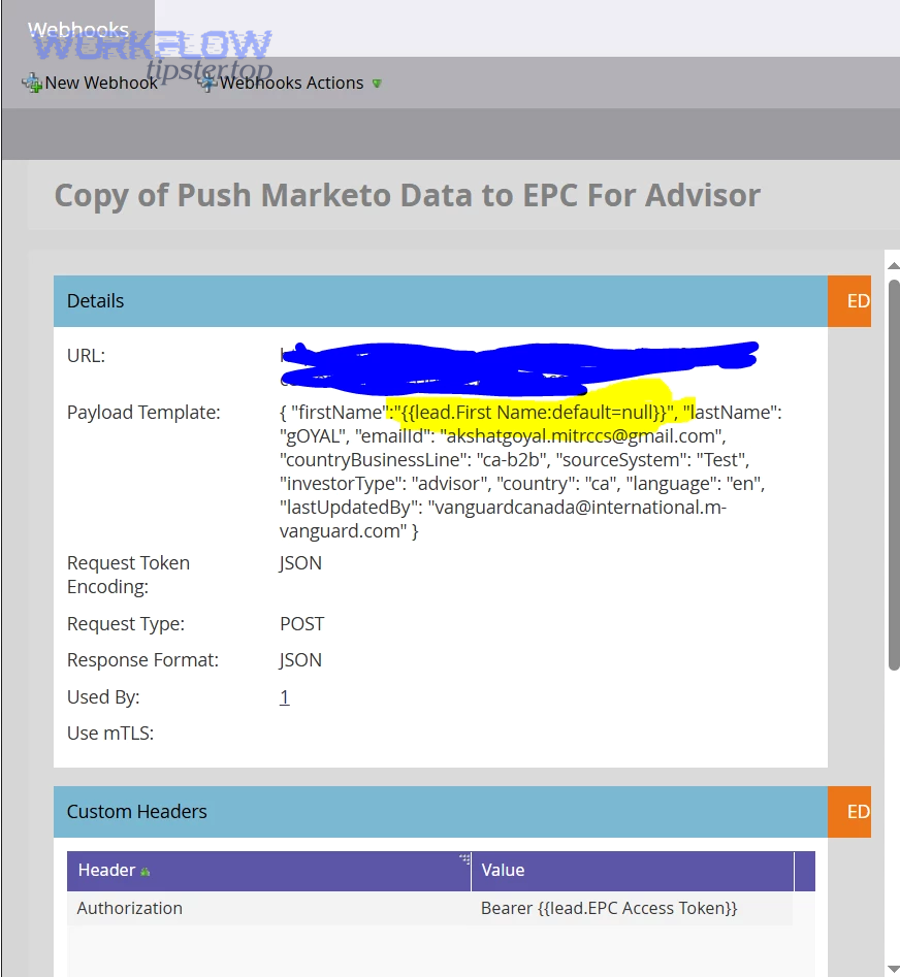
Then, instead of treating 500 as a fire drill, you treat it as a normal, recoverable condition in distributed systems.
What retry + backoff strategy works best for intermittent Notion-side 500s?
A strong default strategy for intermittent 500s is: exponential backoff with jitter, capped retries, and a fallback path.
Use this practical template:
- Retry up to 3–6 times, depending on how time-sensitive the workflow is.
- Backoff delays like 1s, 2s, 4s, 8s, 16s (with jitter so many workers don’t retry at the same instant).
- Stop retrying early if:
- the failure is clearly non-retryable (bad payload, invalid auth),
- the request consistently fails with the same deterministic signature.
This strategy is not just folklore; in research on distributed systems failure dynamics, exponential backoff is shown as a feasible mechanism to prevent self-reinforcing failure cycles. According to a study by Purdue University from the Department of Computer Science, in 2023, researchers found exponential backoff can help prevent “vicious cycles” in distributed software systems. (cs.purdue.edu)
What is idempotency in webhook receivers, and how does it prevent duplicate side effects?
Idempotency in a webhook receiver is a design property where processing the same event multiple times produces the same final outcome, which prevents retries from creating duplicates, double charges, or repeated updates.
Here’s how to implement it without overcomplicating your system:
- Create an event fingerprint
Use a stable key derived from the event: event ID, timestamp + object ID, or a hash of key fields. - Store processed fingerprints
Save them in a database or cache with a TTL (time-to-live). - Short-circuit duplicates
If you’ve already processed that fingerprint, return 200 and do nothing.
Idempotency turns retries from “dangerous” into “safe,” which is essential when you’re automatically retrying after a server error.
When should you add a dead-letter queue (DLQ) and replay pipeline for failed webhook events?
You should add a DLQ and replay pipeline when the cost of losing an event is high or when manual recovery is too slow.
Add a DLQ if any of these are true:
- The webhook triggers business-critical actions (publishing content, billing, customer updates).
- You have compliance/audit needs (you must prove what happened to each event).
- You regularly see bursts and intermittent failures.
- Your workflow must be “eventually consistent” even under partial outages.
A practical DLQ flow:
- Receiver accepts event → stores it.
- Processing fails → event goes to DLQ with error metadata.
- Replay worker retries later with backoff.
- Operator can manually replay a subset after fixing the root cause.
This also helps with tricky “notion data formatting errors” because you can replay after you patch parsing rules without losing the original event.
What’s the difference between a “successful delivery” and a “failed delivery” workflow outcome?
A successful delivery means the webhook event was received and processed (or safely queued) to completion, while a failed delivery means the event was not processed into the intended final state.
Use this success-vs-failure clarity to avoid misleading metrics:
- Successful delivery is not just “HTTP 200.”
It’s “HTTP 200 and downstream work completed or was safely queued.” - Failed delivery is not just “HTTP 500.”
It’s “the event did not reach the intended final state and cannot be recovered automatically.”
If you only measure HTTP responses, you can celebrate “green dashboards” while silently losing events. If you measure end-to-end completion, you’ll catch failures early and fix the real system—not just the status code.