


Support teams can automate ticket routing by turning each Freshdesk ticket into a structured ClickUp task and sending a Google Chat notification that tells the right people what to do next—so triage becomes fast, consistent, and visible instead of manual and guess-based.
To support that goal, this guide explains what the end-to-end workflow looks like in practice, including what your Chat alert should contain, which events should trigger the automation, and how to keep agents accountable without drowning them in noise.
It also shows how to map Freshdesk ticket data into ClickUp fields so tasks remain actionable, searchable, and traceable, and how to design triage routing rules that match real queues (priority, category, customer tier, product area).
Introduce a new idea: once the core workflow is working, you can compare implementation options (native apps vs Zapier/Make/n8n), prevent duplicates and sync loops, and then optimize governance at scale with monitoring, two-way sync decisions, and data-safety guardrails.
What does “Freshdesk ticket to ClickUp task to Google Chat support triage” mean in practice?
A Freshdesk ticket → ClickUp task → Google Chat support triage workflow is a no-code or low-code automation that captures a support request as a trackable task, routes it using triage rules, and posts a real-time alert to a team chat so ownership is immediate and transparent. Specifically, this definition matters because “triage” is not just notification—it is routing + prioritization + accountability + visibility, all in one motion.
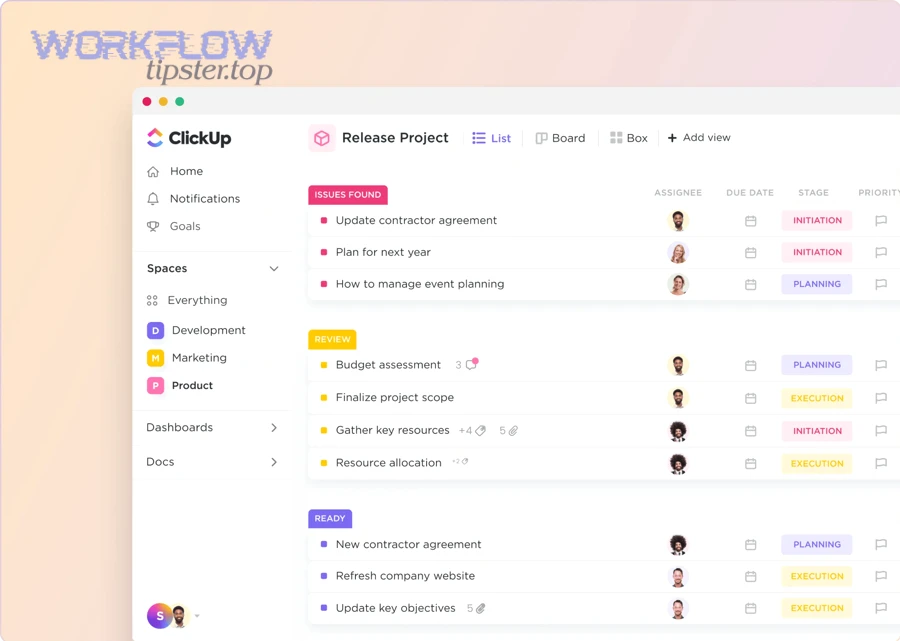
To better understand why this workflow works, focus on the “handoff moments”: when a ticket first arrives, when it changes urgency, and when it needs a human decision. Those moments are where automation prevents delay and confusion.
What information should a triage-ready Google Chat alert include?
A triage-ready Google Chat alert should include enough context to make a decision in one glance and one click—without forcing agents to open three systems just to understand the request. More specifically, your alert should answer five questions: what is it, how urgent is it, who owns it, where is the source of truth, and what action is expected now.
Include these essentials (keep the message short, but complete):
- Ticket identity: ticket ID, subject, requester name (or masked identifier), channel (email/chat/web), created time.
- Urgency: priority, SLA timer/age, customer tier (if applicable), and a “why it’s urgent” tag (e.g., billing outage, VIP escalation).
- Routing context: category/product, queue name, and any tags that explain assignment logic.
- Ownership: ClickUp assignee (or on-call role), watchers, and escalation target.
- Action links: Freshdesk ticket link + ClickUp task link (deep links, not generic dashboards).
- Minimum safe content: no passwords, no full card numbers, no secrets—use redaction rules.
If you’re using ClickUp’s Google Chat notifications feature, you can send task notifications to a Google Chat space of your choice based on a selected Space/Folder/List configuration. (Source: help.clickup.com)
Which events should trigger the workflow—new tickets, status changes, or priority updates?
The best trigger depends on what you want triage to accomplish, but most teams should start with new tickets and then expand to priority changes and SLA-risk signals once the basics are stable. Then, the trigger strategy becomes a simple principle: trigger on decision points, not on every update.
Use this practical trigger ladder:
- New Ticket Created (baseline): creates a ClickUp task + posts a first triage alert.
- Priority or SLA escalation (high value): posts an alert only when urgency increases or SLA thresholds are crossed.
- Status transitions (selective): posts alerts when the ticket becomes “Waiting on Support,” “Reopened,” or “Escalated,” not when it moves through routine states.
If you want a proven starting point, automation platforms commonly offer “new ticket → post to Google Chat” templates for Freshdesk and Google Chat—useful as a baseline for your first trigger. (Source: zapier.com)
Can you automate ticket routing from Freshdesk to ClickUp and Google Chat without building custom code?
Yes—Freshdesk ticket routing to ClickUp tasks and Google Chat notifications can be automated without custom code because (1) native/marketplace integrations can create tasks from tickets, (2) automation platforms can connect triggers and actions, and (3) chat notifications can be configured to post into specific spaces. Next, the key is choosing a workflow pattern that minimizes manual steps while preserving traceability.
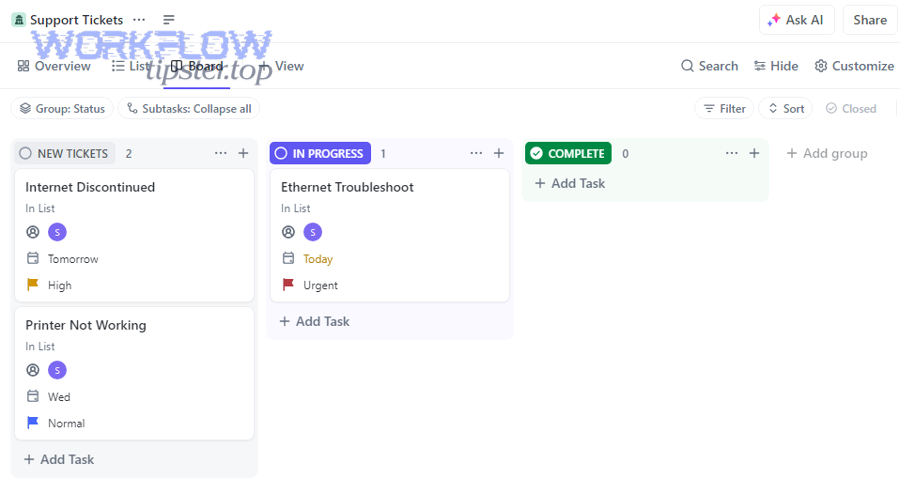
A strong “no-code triage” build usually has one defining characteristic: every ticket becomes a trackable unit of work (task) and every task points back to the source ticket (link/ID), so the team never loses the context.
What are the standard building blocks of a no-code triage automation?
The standard building blocks are: Trigger → Filter/Rules → Create/Update Task → Notify Chat → Write Back References → Monitor/Retry. More specifically, if you build only the first three blocks, you’ll get tasks—but you won’t get reliable triage. The “write back” step is what makes the workflow operational.
Use this baseline recipe:
- Trigger: New Freshdesk ticket.
- Filter: Only certain groups, priorities, or categories.
- Action 1: Create ClickUp task in the correct list/space with mapped fields.
- Action 2: Post Google Chat message with ticket summary + links.
- Action 3 (write-back): Update Freshdesk ticket with the ClickUp task URL/ID (private note or custom field).
- Guardrail: If a ClickUp task already exists for this ticket ID, update instead of creating a duplicate.
ClickUp’s Freshdesk Sync integration describes syncing ticket updates and automatically generating tasks for tickets so updates reflect between systems. (Source: help.clickup.com)
What permissions and access do you need in Freshdesk, ClickUp, and Google Chat?
You typically need (1) a Freshdesk account with API/integration access, (2) a ClickUp workspace role that can create tasks and manage the target lists, and (3) permission to post into the chosen Google Chat space via an integration or bot connector. In addition, permission problems usually show up as “it works for me but not for the team,” so treat access as part of triage design, not an afterthought.
In ClickUp’s Google Chat integration flow, notifications are configured by selecting the ClickUp source (Space/Folder/List) and choosing the Google Chat space that receives notifications—so access must exist on both sides (the ClickUp container and the Chat space). (Source: help.clickup.com)
How do you map Freshdesk ticket fields to ClickUp task fields for reliable triage?
Field mapping is the process of translating Freshdesk ticket data into ClickUp task fields so each task is searchable, assignable, and triage-ready, with the original ticket remaining the source of truth. Then, mapping becomes the backbone of routing: if you map the wrong fields (or skip them), triage becomes guesswork again.
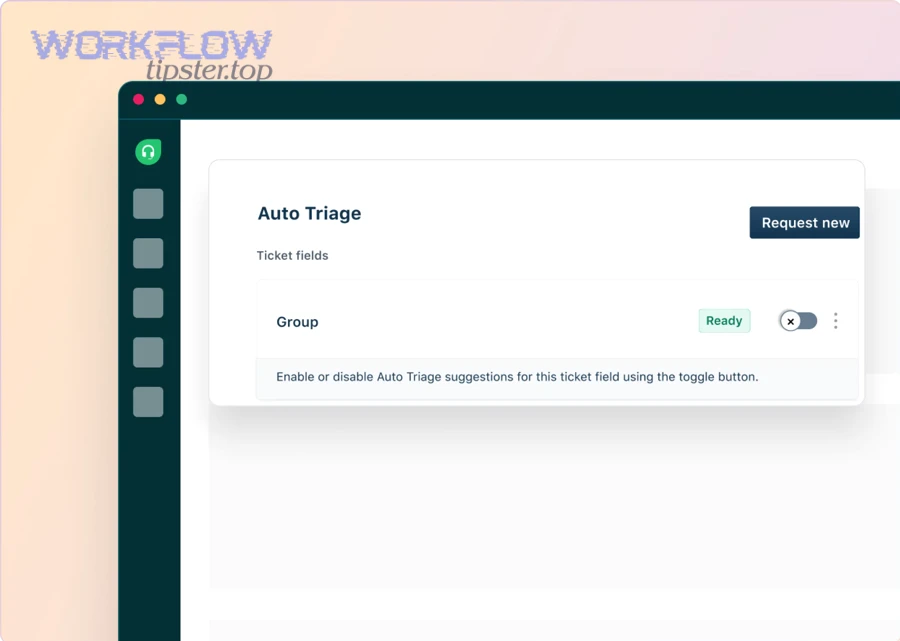
A useful way to think about mapping: “What would an agent need to decide next steps without opening the ticket?” Map that data into ClickUp.
Which ticket fields are “must-map” for triage accuracy?
The must-map fields are the ones that determine urgency, ownership, and categorization—because those are the levers triage uses to route work correctly. More specifically, your minimum mapping should include:
Urgency & timing
- Priority
- SLA due time or “age since created”
- First response target (if available)
Classification
- Category/type
- Product/feature area
- Tags
Customer context
- Customer tier (VIP/Standard)
- Company/account name (if relevant)
- Region/language (if it affects routing)
Operational ownership
- Assigned group
- Assigned agent
- Current status
In ClickUp, store these as:
- Assignee (agent/on-call role)
- Task status (triage states like New, Investigating, Waiting on Customer, Escalated)
- Custom fields (priority, category, customer tier, SLA, ticket ID)
- Tags (topic labels)
How do you write the “single source of truth” links between the ticket and the task?
You create a single source of truth relationship by ensuring both systems store the other system’s identifier, so anyone can jump between them instantly and audits are possible. Next, treat the links as non-negotiable: they are what prevent duplicates and confusion.
Use a simple “two-way reference” standard:
- In ClickUp task, store:
- Freshdesk ticket URL (in description or a custom field)
- Freshdesk ticket ID (in a dedicated custom field)
- In Freshdesk ticket, store:
- ClickUp task URL/ID (as a private note or custom field)
This is exactly the kind of implementation detail support teams often ask about—creating a task and then updating the ticket with the task ID to preserve traceability. (Source: community.zapier.com)
What are the best routing rules for support triage ?
There are 4 main types of routing rules for support triage: Urgency-based, Customer-based, Topic-based, and Capacity-based, grouped by the decision you’re trying to automate (speed, quality, fairness, or escalation). Besides that structure, the real goal is consistency: two different agents should route the same ticket the same way.
To make routing rules operational, write them in plain language first (“If priority is P1, notify on-call and create an escalation task”), then translate into filters and conditions.
What are the most common routing criteria for support teams?
The most common routing criteria are the ones that align with how teams actually organize expertise and risk. More importantly, each criterion should map to a ClickUp list/assignee and a Google Chat destination (or thread), so routing becomes visible.
Common criteria:
- Priority/SLA risk: P1/P2 tickets route to on-call; SLA breach risk triggers escalation alerts.
- Customer tier: VIP tickets route to senior agents or a dedicated queue.
- Category/product: billing → billing queue; integrations → automation queue; bugs → engineering triage queue.
- Language/region: route to language coverage hours or regional teams.
- Channel: chat vs email may require different response-time expectations.
How should you structure ClickUp lists/spaces to match triage queues?
ClickUp structure should mirror queues only as far as it improves speed and reporting; beyond that, keep it simple to avoid fragmentation. Meanwhile, you have two reliable patterns:
Pattern A: One list per queue (clear routing, clear reporting)
Best when groups are stable and permissions differ.
Pattern B: One list + strong custom fields (flexible, less fragmentation)
Best when one team owns triage but routes internally by tags/fields.
If your automation needs to notify specific Google Chat spaces based on where tasks live, ClickUp’s Google Chat integration supports selecting which ClickUp containers generate notifications and which Chat space receives them. (Source: help.clickup.com)
Which approach is better for this workflow: native integrations, marketplace apps, or automation platforms?
Native/marketplace connectors win for faster setup and direct product support, automation platforms win for flexibility and advanced routing, and developer-first tools win for custom governance and complex logic. However, your “best” choice depends on how complex your triage rules are and how much control you need over errors, logs, and deduplication.
To better choose, compare options on the few criteria that impact support outcomes: reliability, routing flexibility, visibility, and maintenance burden.
What do you gain or lose with a native/marketplace connector versus Zapier/Make/n8n?
You gain speed and simplicity with native/marketplace connectors, but you may lose deep customization and cross-app logic; with automation platforms, you gain conditional routing, multi-step flows, and broader ecosystem coverage, but you take on more configuration responsibility.
Concrete examples from common options:
- Marketplace app (Freshworks): “Create ClickUp tasks directly from Freshdesk tickets” and keep ticket details pre-filled—fast for teams that primarily want ticket→task conversion. (Source: freshworks.com)
- Zapier: offers Freshdesk triggers and Google Chat actions, including “create messages in Google Chat for new tickets” templates—useful for a fast start and multi-app automation workflows. (Source: zapier.com)
- ClickUp + Freshdesk sync (ClickUp): positions itself as syncing ticket updates and generating tasks so you can manage tickets in ClickUp and reflect changes back. (Source: help.clickup.com)
How do you choose based on your triage maturity (simple routing vs SLA-driven routing)?
Choose based on the maturity stage you’re in, because the workflow that fits today is not always the workflow that scales tomorrow.
Stage 1: Simple triage (start here)
- Trigger: new ticket
- Actions: create task + post alert + write-back link
- Goal: visibility + accountability
Stage 2: Operational triage
- Adds: priority/SLA escalation triggers, category routing, quiet hours
- Goal: speed + accuracy with less noise
Stage 3: SLA-driven triage
- Adds: dynamic queue selection, idempotency checks, multi-space chat routing
- Goal: predictable outcomes and measurable performance
This is also where you can weave in adjacent process automation language naturally—teams often standardize broader “automation workflows” once support triage becomes reliable, such as airtable to confluence to google drive to pandadoc document signing or airtable to google docs to dropbox to dropbox sign document signing for document operations that accompany escalations and approvals.
How do you prevent duplicates, alert spam, and sync loops in a triage automation?
Yes—duplicates, alert spam, and sync loops are preventable because you can (1) enforce a single ticket-to-task identity, (2) restrict alerts to decision points, and (3) add loop guards when two-way updates exist. Especially in chat-driven triage, this matters because too many interruptions reduce perceived control and increase workload.
To illustrate the practical solution: treat the ticket ID like a primary key, treat chat alerts like “signals,” and treat task updates like “events” that may or may not deserve a notification.
What rules stop duplicate ClickUp tasks for the same Freshdesk ticket?
Duplicate prevention is primarily an identity and “check-before-create” problem.
Use these rules:
- Idempotency key: use the Freshdesk ticket ID as a unique identifier stored in a ClickUp custom field.
- Search-before-create: before creating a task, search ClickUp for an existing task with that ticket ID.
- Update instead of create: if found, update fields and append a comment rather than generating a new task.
- Write-back requirement: store the ClickUp task URL/ID back into Freshdesk so the ticket itself carries the linkage.
The common real-world requirement—create a task only if criteria match, then update the Freshdesk ticket with the ClickUp task ID—is a direct expression of this dedupe strategy. (Source: community.zapier.com)
How do you reduce Google Chat noise without missing critical tickets?
You reduce noise by sending fewer, higher-quality alerts that align with triage decisions—so chat becomes a routing layer, not a transcript of every system event.
Use “signal vs noise” controls:
- Severity gating: notify only for P1/P2 or SLA-risk tickets.
- State-change alerts only: avoid alerting on internal field updates unless they change ownership or urgency.
- Batching: group non-urgent tickets into a scheduled digest (e.g., every 30–60 minutes).
- Routing to the right room: send billing to billing space, integrations to integrations space, escalations to on-call space.
- Thread per ticket: keep updates in a single thread so the channel remains readable.
According to a study by the University of California, Irvine, Department of Informatics, in 2008, interrupted work increased stress and introduced reorientation costs when returning to tasks. (Source: ics.uci.edu)
How can you optimize and govern a Freshdesk→ClickUp→Google Chat triage workflow at scale?
You can optimize and govern this triage workflow at scale by (1) monitoring reliability and outcomes, (2) choosing one-way vs two-way sync intentionally, (3) applying data-minimization rules for chat notifications, and (4) rolling out advanced routing patterns carefully. In addition, governance is what turns a “working automation” into an operational system the team can trust.
If you’re scaling, you should treat triage automation like a production service: it needs observability, change control, and failure response.
How do you monitor failures and prove the automation is working (logs, retries, and KPIs)?
Monitoring proves value when it connects automation behavior to support outcomes.
Track these KPIs:
- Time-to-triage: ticket created → ClickUp task created → first assignment.
- Time-to-first-response: ticket created → first agent response.
- Routing accuracy: % of tickets routed to the correct queue on first pass.
- Noise rate: alerts per resolved ticket (lower is better, within reason).
- Failure rate: % of runs that error, time to detect, time to recover.
Also implement operational controls:
- Retry strategy: retry transient errors (timeouts, rate limits) with backoff.
- Dead-letter queue: capture failed items for manual reprocessing.
- Audit trail: store “automation run ID” in task comments or ticket notes.
If you’re using Zapier-style automation, it frames these setups as automated workflows you can launch from templates, which helps standardize builds across teams. (Source: zapier.com)
What is the difference between one-way automation and two-way sync for support triage?
One-way automation creates or updates ClickUp tasks from Freshdesk (and posts chat alerts) while keeping Freshdesk as the primary system; two-way sync also pushes certain task changes back to Freshdesk, increasing consistency but also increasing complexity and loop risk.
Compare them like this:
- One-way (Freshdesk → ClickUp → Chat): simpler, safer, easier to govern.
- Two-way (bi-directional): better visibility across tools, but needs loop guards, strict field ownership, and clear “who wins” rules.
ClickUp’s Freshdesk Sync positioning emphasizes syncing ticket updates and reflecting changes automatically between ClickUp and Freshdesk, which is closer to the two-way sync idea (even if your exact configuration may vary). (Source: help.clickup.com)
How do you handle sensitive data in Google Chat notifications (PII redaction and access control)?
You handle sensitive data by designing notifications for triage decisions, not for full ticket content—and by restricting chat destinations to least-privilege spaces.
Practical data-safety rules:
- Redact by default: never post passwords, full payment details, API keys, or authentication links.
- Summarize instead of copying: post a short subject + category + urgency + links.
- Use role-based spaces: post to spaces only the relevant triage group can access.
- Separate VIP queues: if customer identity itself is sensitive, route alerts to a restricted space and use anonymized identifiers.
This is also where teams often connect operational processes beyond support: for example, when an escalation triggers contract or approval work, you might integrate airtable to confluence to google drive to pandadoc document signing while keeping sensitive details inside the signed document system rather than inside chat messages.
What advanced patterns help large teams (multi-queue routing, threaded updates, and staged rollout)?
Large teams benefit most from patterns that reduce cognitive load while increasing routing precision.
Use advanced patterns intentionally:
- Multi-queue routing: route by category and SLA tier to different ClickUp lists and different Chat spaces.
- Threaded updates: keep one ticket’s lifecycle updates in a single Google Chat thread (reduces channel clutter).
- Staged rollout (canary): enable the automation for one queue first, measure failure rate and noise rate, then expand.
- Change control: version your routing rules and keep a rollback plan.
If your support operation also coordinates scheduling and incident response, these same governance patterns translate well to other cross-tool processes like calendly to calendly to zoom to linear scheduling, where notifications and task creation can produce noise unless they are gated by meaningful state changes and ownership rules.