


An automated scheduling workflow that connects Calendly → Outlook Calendar → Zoom → Asana works when one booking becomes a single source of truth that reliably creates (and updates) a calendar event, a Zoom meeting link, and a trackable Asana work item—without duplicates or missed updates.
Next, the same workflow should protect remote teams from the problems that usually break scheduling systems: double-booking, time zone confusion, missing meeting links, and “ghost tasks” that never match the real meeting outcome.
Besides setup, you also need a clear definition of what “sync” means across four apps—what gets written where, which system owns changes, and how reschedules and cancellations propagate so everyone sees one consistent reality.
Introduce a new idea: once the core workflow is stable, you can optimize it for scale with naming standards, routing logic, idempotent automation rules, and security practices that reduce risk while keeping work moving.
What is an automated scheduling workflow (booking → calendar → meeting → work tracking)?
An automated scheduling workflow is a system-of-systems process where a booking tool triggers calendar creation, generates a meeting link, and creates a work-tracking record—so remote teams turn “someone booked time” into “everyone has the same plan” in one flow.
To better understand why this matters, focus on the “handoffs” that usually fail when teams scale: event details drift, links go missing, and action items end up disconnected from the actual meeting.

When you connect Calendly, Outlook Calendar, Zoom, and Asana, you’re not just wiring apps together—you’re defining a lifecycle:
- Create: a booking is made and becomes an Outlook calendar event.
- Enrich: Zoom adds conferencing details that should be present in every invite and reminder.
- Track: Asana captures the work that surrounds the meeting (prep, agenda, follow-up, decisions).
- Update: reschedules and cancellations change the same “meeting object” everywhere, not four separate copies.
The macro goal is simple: one meeting, one truth, one set of tasks. The micro mechanics are what make it reliable—especially unique IDs, consistent field mapping, and a clear decision about who is allowed to overwrite what.
Which data should flow through the workflow to keep everything consistent?
There are 8 core data fields that must flow through the workflow—title, date/time, time zone, organizer, attendees, location, meeting link, and a unique ID—because these fields determine whether the meeting is understandable, joinable, and traceable across tools.
Specifically, if any one of these fields is missing or inconsistently formatted, the workflow “looks automated” but behaves manually when something changes.
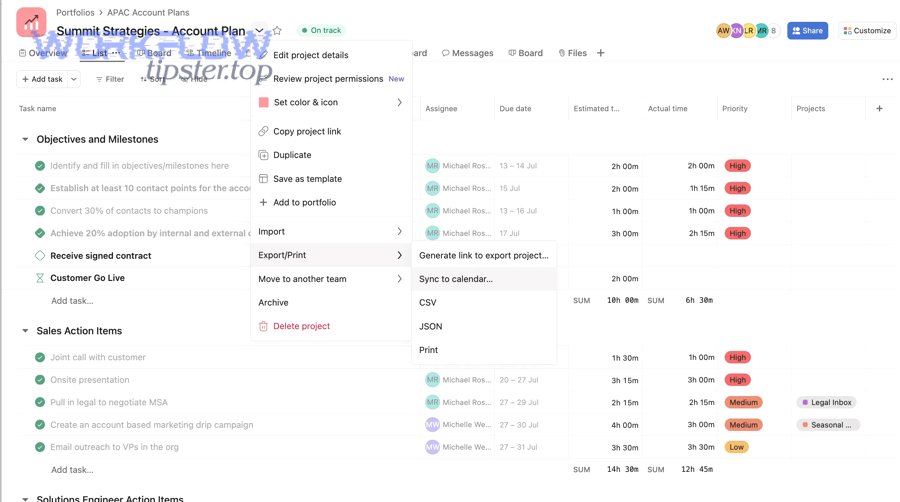
Here’s the practical mapping you want to preserve end-to-end:
- Meeting title (subject): readable, standardized, searchable.
- Start time + end time: stored in a consistent time standard.
- Time zone: explicit, not implied.
- Organizer identity: the account that creates the Zoom meeting and writes the calendar event.
- Attendees: who gets the invite and reminders.
- Location field: often used to store the Zoom link or “Zoom Meeting” label.
- Description/body: agenda, prep links, joining instructions, and metadata.
- Unique IDs: a booking ID and/or calendar event ID stored somewhere searchable (often the event description and the Asana task custom field).
To make this operational, use a rule your whole team can remember:
If the meeting can’t be joined, tracked, or updated automatically, it’s missing a core field.
A helpful way to verify your mapping is to test whether a reschedule changes the same record everywhere. If it creates a second event or second task, your IDs are not being carried through.
What does “source of truth” mean in scheduling sync, and why does it matter?
Source of truth means one system is authorized to define the meeting’s official details (time, participants, status), while the other systems consume those details and add their own layer (video link, task tracking) without creating competing versions.
Then, the most common failure pattern becomes obvious: when multiple systems can overwrite time and attendees, you get “ping-pong updates” and duplicates.

For this specific stack, a stable source-of-truth model looks like this:
- Calendly owns booking logic (availability rules, buffers, event type rules, cancellation policy).
- Outlook Calendar owns the calendar record (the event object people rely on daily).
- Zoom owns the meeting room (the link should match the event and follow changes).
- Asana owns execution (agenda, prep checklist, follow-up actions, deliverables).
That model prevents the biggest confusion in remote teams: someone changes the meeting in Outlook, but Calendly still believes something else, and Zoom is left behind. You don’t need every system to be “equal.” You need every system to be consistent.
Do you need native integrations to set up this workflow reliably?
Yes—native integrations are the safest foundation for Calendly → Outlook Calendar and Calendly → Zoom because they reduce breakpoints, handle authentication more cleanly, and maintain consistent event creation, while automation layers are best used for Asana task creation and advanced routing.
Moreover, native-first design keeps your scheduling automation workflows maintainable: fewer moving parts means fewer silent failures.
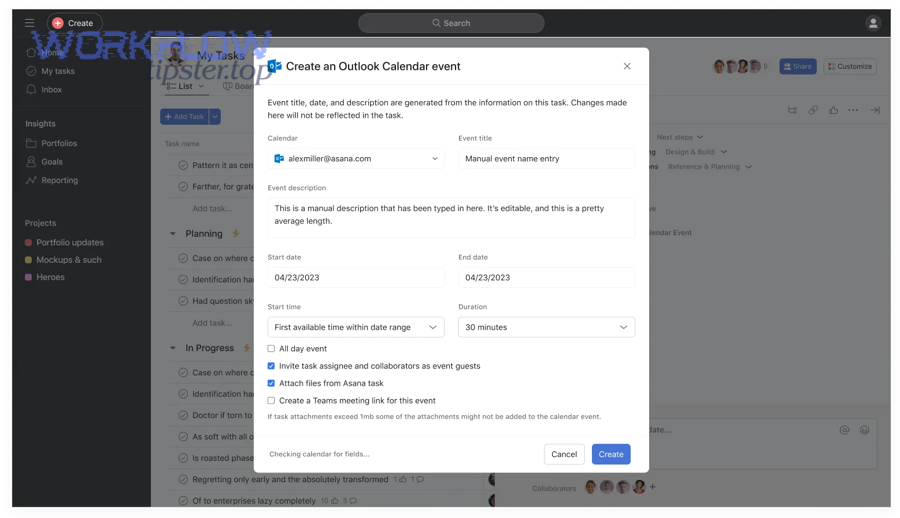
Here are three reasons native integrations matter most in the “booking and meeting” layer:
- Permissions are clearer: Native connectors typically request the exact scopes required for calendar writing and conferencing creation, reducing partial access errors later.
- Timing is more predictable: Meeting links are generated at the right moment (creation time), not via a delayed automation that sometimes runs late.
- Updates are handled more consistently: Reschedules and cancellations are more likely to update the original event rather than creating a second copy.
Then you add automation where it creates real leverage: turning a confirmed meeting into work, tracking, and accountability inside Asana.
When is a native integration enough, and when do you need automation rules?
Native integration is enough for simple booking-to-invite scheduling, while automation rules are needed for conditional task creation, team routing, and deduplication—the exact capabilities that make a remote-team workflow feel “managed” instead of “messy.”
However, your decision becomes easier if you compare by outcome, not features:

- Native-only is enough when:
- Every booked meeting should create one calendar event.
- Every meeting should have a Zoom link.
- You don’t need different Asana projects per meeting type.
- You’re fine with a lightweight process (no structured prep/follow-up).
- Automation is needed when:
- Only certain meetings should create tasks (e.g., sales calls create follow-ups; internal syncs do not).
- Routing depends on rules (round-robin, region, skill set).
- You need consistent naming, tags, or templates.
- You must guarantee “create-or-update” behavior to prevent duplicates.
This is also where you can connect broader operational flows. For example, if your operations team already runs “freshdesk ticket to jira task to google chat support triage,” you can standardize the same automation logic patterns (filters, dedupe keys, status propagation) for scheduling.
What are the minimum account permissions you should verify before setup?
You should verify 5 minimum permission categories—calendar write access, conferencing creation access, organizer identity, Asana project access, and token stability—because missing any one of these causes the most common “it worked once, then broke” outcome.
Next, treat permission checks as a preflight checklist, not an afterthought:

- Outlook Calendar: confirm the connected account can create and edit events on the target calendar (especially shared calendars).
- Zoom: confirm the same identity can create meetings and that meetings can include required settings (waiting room, passcode, recording policy).
- Calendly: confirm the user/team plan supports your use case (team routing, event types, required integrations).
- Asana: confirm the account can create tasks in the right workspace/project and can set fields like assignee, due date, and status.
- Token/session stability: confirm your integrations won’t break due to expired OAuth permissions or policy changes.
A small but critical rule: the account that creates the Zoom meeting should be the same identity the team expects to “own” the invite. That prevents missing links and permission mismatches later.
How do you set up the workflow step by step without double-booking?
Use a 6-step setup sequence—connect Outlook for availability, standardize event types, enable Zoom meeting creation, map fields into the calendar event, create Asana task rules, and test reschedule/cancel scenarios—so every booking becomes one consistent meeting record.
Then, follow the same order every time because the dependencies matter: calendar availability must be correct before you automate meeting creation and downstream tasks.
Step 1: Connect Outlook Calendar for availability and event writing
- Choose which calendar(s) block availability.
- Choose which calendar receives booked events (work calendar vs shared team calendar).
Step 2: Define Calendly event types (your “meeting product catalog”)
- Create clear event types: intro call, demo, 1:1, interview, onboarding.
- Add buffers, limits, and minimum notice.
Step 3: Enable Zoom conferencing per event type
- Ensure each event type creates a Zoom link automatically.
- Apply consistent meeting settings (waiting room, passcode policy) if needed.
Step 4: Standardize field mapping into Outlook events
- Put the Zoom link where people actually look (location + description).
- Add agenda template text in the description.
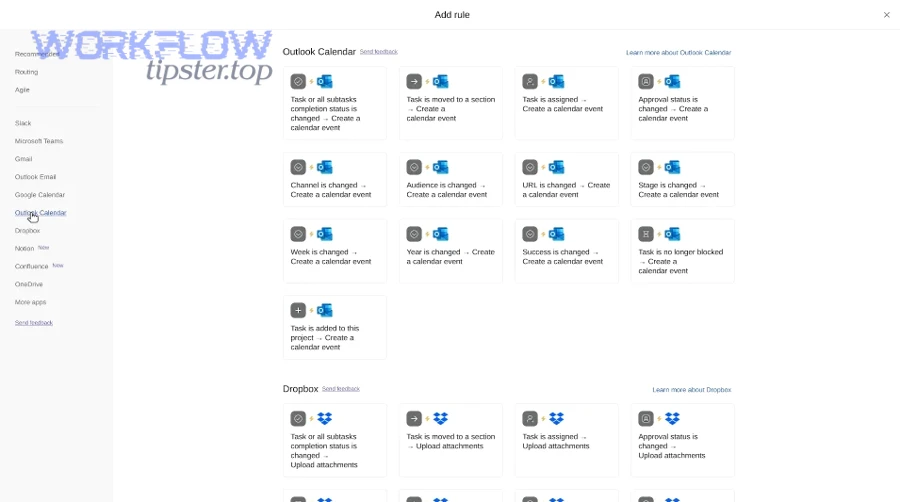
Step 5: Create Asana task rules triggered by the booking
- Create or update one task per meeting.
- Store the booking ID/event ID on the task.
- Assign to the meeting owner, set due date aligned to meeting time.
Step 6: Test the lifecycle
- New booking → reschedule → cancel.
- Verify no duplicates and updates propagate.
If your team also runs other cross-app flows—like “airtable to microsoft excel to onedrive to dropbox sign document signing”—use the same discipline here: define the record, define the ID, define the update rules, and test replays.
How do you configure availability rules for a remote team?
There are 7 main availability controls—working hours, time zones, buffers, minimum notice, daily limits, meeting windows, and multi-calendar conflicts—because remote teams need both flexibility and protection from meeting overload.
Specifically, configure these rules at the event-type level so different meetings behave differently:

- Working hours per person: reflect real local hours, not a single global block.
- Time zone handling: allow invitees to view in their time zone, but store consistently.
- Buffer times: add prep and travel buffers (even for video calls, context switching is real).
- Minimum notice: prevent “surprise meetings” that break deep work.
- Daily/weekly limits: protect focus time and prevent back-to-back overload.
- Meeting windows: restrict certain meeting types to certain days/times (e.g., demos only Tue–Thu).
- Multi-calendar conflicts: block time if the person is busy on any connected calendar.
A simple remote-team best practice: publish a policy such as “no internal meetings before 10am local time” or “no external calls after 4pm local time,” then enforce it with event-type windows.
How do you test the workflow end-to-end before rolling it out?
You test the workflow end-to-end by running 4 scenario tests—new booking, reschedule, cancellation, and attendee change—and confirming that each scenario updates the same Outlook event, the same Zoom meeting, and the same Asana task.
Next, document your test results so future admins can diagnose issues quickly:
Scenario A: New booking
- Outlook event created exactly once
- Zoom link present in location/description
- Asana task created with correct assignee and due date
Scenario B: Reschedule
- Outlook event time changes (not duplicated)
- Zoom meeting time updates or link remains valid (depending on Zoom settings)
- Asana task due date updates and notes reference the new time
Scenario C: Cancellation
- Outlook event canceled
- Asana task marked canceled/closed with a clear reason
- Notifications go to the right people
Scenario D: Attendee change
- Outlook attendees update correctly
- Asana task watchers/assignees update only if that’s your policy
If a test fails, you don’t “patch around it” with more automations. You fix the root: IDs, permissions, or mapping.
Evidence: According to a Harvard Business Review article summarizing organizational research in 2022, about 70% of meetings can keep employees from doing productive work, which makes accurate scheduling and protected availability especially important for remote teams. (hbr.org)
Which workflow design prevents duplicates and broken updates (one-way vs two-way)?
One-way sync wins for stability, two-way sync is best for flexibility, and a hybrid design is optimal for remote-team reliability—because you want one system to own meeting truth while still allowing safe updates in limited places.
However, the key is not the direction—it’s the conflict rule: when two systems disagree, which one wins?
Here’s how to think about it in practice:
- One-way (recommended default): Calendly triggers creation/updates → Outlook/Zoom/Asana reflect those updates.
- Best when you want predictable behavior.
- Lowest risk of duplicates.
- Clear audit trail.
- Two-way (advanced): changes in Outlook or Asana can push updates back to the booking system.
- Useful if internal teams frequently adjust meeting details post-booking.
- Higher risk of loops and conflicts.
- Requires stricter governance and strong dedupe rules.
- Hybrid (best for many remote teams):
- Calendly owns time/booking rules.
- Outlook allows manual notes and internal tags, but not time changes (or time changes are restricted).
- Asana controls task workflow, not meeting truth.
The most common “broken updates” story happens when someone reschedules in Outlook and the system interprets it as a brand-new meeting. That’s not a human mistake—it’s a missing automation design rule.
What is the best deduplication key strategy for scheduling automations?
The best deduplication strategy is to use one immutable unique ID (Calendly booking ID and/or Outlook event ID) as the primary key and store it in both the calendar event and the Asana task—because titles and times are not unique and will change.
Next, enforce deduplication with a “create-or-update” rule:

- Store booking ID in:
- Outlook event description (hidden metadata line at the bottom)
- Asana custom field (or task description if fields aren’t available)
- Automation rule:
- If a task with booking ID exists → update it
- Else → create it
- Never dedupe by:
- title alone
- title + date/time
- attendee list
- organizer name
Those “human-readable” fields are great for search, but terrible as keys.
How should reschedules and cancellations propagate across the workflow?
Reschedules should update the same meeting record everywhere, and cancellations should close the loop everywhere, because remote teams lose trust when one system says “cancelled” and another still shows “upcoming.”
Then, implement clear propagation rules:

Reschedule propagation
- Outlook: update time + preserve event ID
- Zoom: update meeting time or ensure link remains valid
- Asana: update due date/time, keep the same task, add a comment noting the change
Cancellation propagation
- Outlook: cancel the event and free the slot
- Zoom: cancel meeting if policy requires, or leave it unused
- Asana: mark task as canceled/closed, add reason, stop reminders
A helpful policy line for teams: “If the meeting is canceled, the task must close.” That prevents stale tasks from cluttering boards and reduces follow-up confusion.
Evidence: According to Microsoft’s Work Trend Index research published by Microsoft WorkLab in 2025, a large share of employees report work feels chaotic and fragmented—making consistent systems and reliable update propagation a practical productivity lever, not just a technical preference. (microsoft.com)
What are the most common scheduling sync failures, and how do you fix them?
There are 5 common scheduling sync failures—missing links, wrong time zones, duplicate events/tasks, attendee mismatches, and permission/token errors—and each failure has a direct fix that starts with identity, mapping, and unique IDs.
In addition, these failures tend to appear during scale: more event types, more team members, more shared calendars, and more reschedules.

To keep troubleshooting actionable, treat each failure as a “symptom → cause → fix” chain:
- Missing Zoom link
- Cause: Zoom not enabled per event type, organizer mismatch, or link placed in the wrong field
- Fix: enforce conferencing on the event type; write link to both location + description; validate post-create
- Wrong time zone
- Cause: implicit time zone assumptions or inconsistent conversion between systems
- Fix: store time zone explicitly; standardize internal storage; confirm invite display rules
- Duplicate event/task
- Cause: no dedupe key or automation replays
- Fix: store booking/event ID; use create-or-update logic; prevent multi-trigger duplication
- Attendee mismatch
- Cause: changes applied in one system but not propagated
- Fix: define who is allowed to change attendees; push updates from the source of truth
- Permission/token errors
- Cause: revoked access, expired tokens, policy changes
- Fix: audit connections monthly; set alerts for failures; document recovery steps
Why do meeting links go missing, and how do you prevent that?
Meeting links go missing because the conferencing step is not guaranteed at creation time—often due to organizer identity mismatch, disabled conferencing settings, or writing the link into a place people don’t see.
Specifically, prevention is easier than debugging if you lock down the meeting-creation rule:

Prevention checklist
- Ensure Zoom is enabled per Calendly event type (not just globally).
- Ensure the correct Zoom user is creating meetings (the intended organizer).
- Write the Zoom URL to:
- Location (so it’s visible in calendar previews)
- Description (so it’s accessible in full details and searchable)
- Add a post-create validation rule:
- If link missing → notify owner and/or retry creation
If you want this workflow to feel “automatic,” you must make “joinability” non-negotiable. A meeting without a link is not a scheduled meeting—it’s a scheduling failure disguised as a calendar entry.
How do you avoid time zone and DST mistakes in distributed teams?
Storing everything in a single organizer time zone wins for simplicity, storing in UTC internally is best for accuracy, and a hybrid approach is optimal for distributed teams—because you want stable storage and local display.
Meanwhile, time zones are not just a display preference; they’re a coordination constraint that affects when people work and how often they stretch beyond normal hours.

Practical best practices
- Always show invitees times in their local time zone (user experience).
- Always store a canonical representation (UTC or explicit time zone + offset).
- Avoid scheduling during ambiguous DST transition hours when possible.
- Include the time zone in the meeting title for cross-region meetings (e.g., “Weekly Sync (ET/PT)”).
- Make “working hours by region” a formal policy, not an informal expectation.
Evidence: According to research highlighted by Harvard Business School Working Knowledge in 2024 on time zones in remote work, time-zone separation shapes collaboration patterns and can push employees to stretch beyond typical schedules—reinforcing the need for explicit, policy-driven scheduling rules. (library.hbs.edu)
Contextual Border: The core workflow is now complete. The next section expands into optimization, governance, and advanced micro-level design so your scheduling system stays reliable as volume, complexity, and risk increase.
How can you optimize and govern an automated scheduling workflow for scale?
Optimizing and governing a scheduling workflow means standardizing naming, improving routing, enforcing idempotent automation, and applying security controls so the same workflow stays reliable under load, team growth, and frequent change.
More importantly, governance is the “antonym” of chaos: it reduces ambiguity about who owns changes, how updates propagate, and how errors are handled.

Below are the four levers that matter most when you move from “a working setup” to “a system teams trust.”
What naming conventions and templates make scheduling workflows easier to manage?
There are 4 naming and template standards—event naming, agenda templates, task templates, and metadata tags—because standard language improves search, reduces misrouting, and makes automation rules more accurate.
Next, treat naming as an automation primitive, not a cosmetic preference:

1) Event naming
- Include meeting type + customer/project + owner initials
Example: “Demo — Acme Co — MQ” - Include region markers if relevant: “Weekly Sync (ET/PT)”
2) Agenda templates (in event description)
- Goal (one sentence)
- Context links (docs, dashboards)
- Discussion bullets
- Decisions
- Next actions
3) Asana task templates
- Sections: prep, during, after
- Checklist: agenda created, materials attached, follow-up sent
- Standard labels: “Meeting Prep,” “Follow-Up,” “Decision Log”
4) Metadata tags
- A hidden metadata line in the event description:
- Booking ID
- Event type ID
- Automation version (optional)
These standards make automation rules simpler because the system can reliably detect meeting type and route actions without guessing.
Which advanced routing rules improve team scheduling quality?
There are 4 advanced routing rule families—round-robin, skill-based, region-based, and event-type-based routing—because remote teams need fairness, expertise alignment, and time-zone fit at the same time.
Then, choose one routing principle as the primary decision and treat the others as tie-breakers:

- Round-robin: balances load across a team; best for inbound calls and intake.
- Skill-based: routes by specialization (product area, language, industry).
- Region/time-zone routing: routes to someone whose working hours align with the invitee.
- Event-type routing: routes “demos” to sales engineers, “onboarding” to CS, “interviews” to recruiting.
This is where your workflow becomes meaningfully strategic. You’re not only scheduling meetings—you’re shaping response time, customer experience, and internal capacity.
How do you design idempotent automations to stop duplicates permanently?
Idempotent automation means re-running the same workflow produces the same final result—one event and one task—not duplicates, because the system checks an immutable key before it creates anything new.
Specifically, idempotency is what makes automations safe when triggers replay, connections retry, or users click buttons twice.

A durable idempotency pattern looks like this:
- Choose a primary key: Calendly booking ID (best), Outlook event ID (second-best).
- Persist it in both places: event description + Asana custom field.
- Implement create-or-update:
- If record exists → update fields only
- If record does not exist → create once
- Add replay protection:
- If last updated < X minutes ago → ignore duplicate trigger
- Log all automation runs with timestamps
When you do this, “duplicates” stop being a mystery and become a solved engineering problem.
What security and compliance practices should remote teams apply to scheduling data?
Least-privilege access wins for security, convenience is best for speed, and a policy-based hybrid is optimal for remote teams—because you need collaboration without exposing meeting data unnecessarily.
In addition, scheduling data often includes sensitive metadata: attendee emails, meeting topics, customer names, and links that could grant access.

Security practices that scale
- Least privilege: only grant calendar write access to service accounts that need it.
- Separate admin vs user accounts: avoid connecting workflows to personal accounts that can leave the company.
- Audit trails: log automation runs and changes to event/task records.
- Data minimization: don’t copy attendee lists into places that don’t need them.
- Retention policy: define how long meeting notes and metadata should persist.
If your organization is already careful about document signing flows (like “airtable to microsoft excel to onedrive to dropbox sign document signing”), apply the same governance mindset here: identify sensitive data, restrict access, and log changes so your workflow remains trustworthy.
Evidence: According to a study by researchers in the CSCW community in 2011 (published as an academic paper on global time-zone collaboration), time separation changes coordination rhythms and collaboration costs—supporting the need for explicit workflow rules and governance in distributed scheduling. (caoxiang.net)