


Calendly to Google Calendar to Zoom to monday.com scheduling works because it turns one booking into a single source of truth: Calendly captures the meeting, Google Calendar blocks the time, Zoom generates the link, and monday.com converts the appointment into an owned task with clear next steps.
Then, you can treat the workflow like a reliable “handoff pipeline”—so your team stops chasing confirmations, missing links, or forgetting follow-ups, and starts executing with the same structure every time the meeting is booked.
In addition, most teams want this automation for three practical reasons: prevent double-booking, deliver video details instantly, and create work items automatically—so meetings don’t stay as “calendar-only” events with no ownership.
Introduce a new idea: when you design this as a repeatable system, you’re not just scheduling meetings—you’re building automation workflows that connect time, context, and accountability across your tools.
Does “Calendly → Google Calendar → Zoom → monday.com” scheduling work for teams?
Yes—Calendly → Google Calendar → Zoom → monday.com scheduling works for teams because it (1) blocks time to prevent conflicts, (2) generates Zoom details automatically, and (3) creates or updates monday.com items so every meeting becomes trackable work.
To connect the logic: a team scheduling system fails when meetings exist in one place (calendar) while execution lives somewhere else (project board). Once you connect the chain, you remove the “copy/paste gap” that causes missed prep, unclear ownership, and messy follow-ups.

What does “work for teams” mean in this workflow?
“Work for teams” means the workflow consistently delivers four outcomes, even when multiple people schedule meetings:
- Availability integrity: calendars are checked for conflicts so a booking doesn’t collide with existing commitments.
- Meeting integrity: the correct Zoom conference details appear in confirmations and calendar events, not in a separate message that gets lost.
- Execution integrity: monday.com receives a task/item with an owner, status, and due dates tied to the meeting.
- Change integrity: reschedules/cancellations don’t quietly desync; the system reflects changes across tools.
If you’ve ever had a teammate ask, “Where’s the Zoom link?” or “Who owns follow-up?”—those are symptoms of missing integrity in the chain.
When should you NOT use this exact chain?
You should avoid this exact chain when your meeting should not create work in monday.com—like casual networking calls, internal 1:1s, or one-off personal appointments. In those cases, the automation can create noise and board clutter.
A practical compromise: only send specific event types (e.g., “Sales demo,” “Client onboarding,” “Support escalation”) into monday.com, while leaving other event types calendar-only.
What is the best setup to automate Calendly to Google Calendar, Zoom, and monday.com?
The best setup is a 4-stage automation: (1) connect Calendly with Google Calendar for conflict checks and event creation, (2) connect Calendly with Zoom so each booking generates meeting details, (3) use an integration layer (often Zapier) to create or update monday.com items from scheduled events, and (4) standardize the fields your team needs to execute.
Next, the reason this setup is “best” isn’t because it’s fancy—it’s because it assigns a job to each tool:
- Calendly = intake + rules (who can book, what questions to ask, what event types exist)
- Google Calendar = time ledger (conflicts, blocks, shared visibility)
- Zoom = meeting room generator (auto link creation, consistent placement in invites)
- monday.com = execution ledger (owner, status, checklist, handoff)

Which configurations matter most inside Calendly?
To make the chain reliable, focus on these configuration points:
- Calendar connection rules: choose which Google calendars are checked for conflicts and which calendar receives new events.
- Sync behavior: decide whether cancellations/reschedules in Google Calendar should cancel/reschedule the Calendly meeting (and vice versa).
- Buffers and limits: set buffer time and daily meeting caps to protect deep-work blocks (prevents “calendar overload”).
- Event types as routing: “Demo,” “Onboarding,” “Support,” etc. should map to different monday.com boards or groups (one-to-many routing).
This is also where you keep your workflow clean: the more precise your event types, the less random data you push into monday.com.
What should your monday.com item look like?
A monday.com item created from a booked meeting should be immediately actionable. At minimum, include:
- Meeting title + invitee name
- Meeting date/time + timezone
- Zoom join link
- Owner (assignee)
- Status (New / Confirmed / Completed / No-show)
- Next step (call notes / proposal / follow-up email)
If you want the workflow to drive outcomes, add two “micro-fields” that force clarity:
- Goal of meeting (captured from Calendly questions)
- Success criteria (one sentence: what outcome makes this meeting a win?)
That’s how you turn scheduling into delivery.
What are the key triggers and actions for this scheduling automation workflow?
There are 3 core trigger-action patterns: (1) “Invitee scheduled” → create calendar event + Zoom details, (2) “Event scheduled” → create monday.com item, and (3) “Event rescheduled/canceled” → update or close the monday.com item.
Then, once you think in patterns, it becomes easy to expand without breaking the system.

What should the “create item in monday.com” action include?
If you’re using an integration platform, you typically map fields from Calendly into monday.com columns. The best practice is to map only what you will use, and keep the rest in a notes field.
Suggested mapping:
- Item name: “Call with {{Invitee Name}} – {{Event Type}}”
- Date column: meeting start time
- Text column: Zoom join URL
- People column: event owner (host)
- Status column: “Scheduled”
- Long text: answers to booking questions + context
This mapping strategy prevents “column explosion,” which is one of the fastest ways to destroy adoption inside monday.com.
Which advanced triggers make this workflow feel “smart” (not just automatic)?
After your baseline is stable, add one or two upgrades:
- Conditional routing: event type → board/group (Sales, CS, Support)
- Deduplication logic: find existing item by invitee email + date, then update instead of creating a duplicate
- Reminder workflow: if status remains “Scheduled” 30 minutes before, notify owner in chat
These are the kinds of small automations that reduce operational friction without increasing complexity.
How do you prevent double-booking and missing Zoom links in this workflow?
You prevent double-booking and missing Zoom links by (1) letting Calendly check selected Google calendars for conflicts, (2) ensuring the event is added to the right Google Calendar, and (3) connecting Zoom so details are automatically included in confirmations and calendar events.
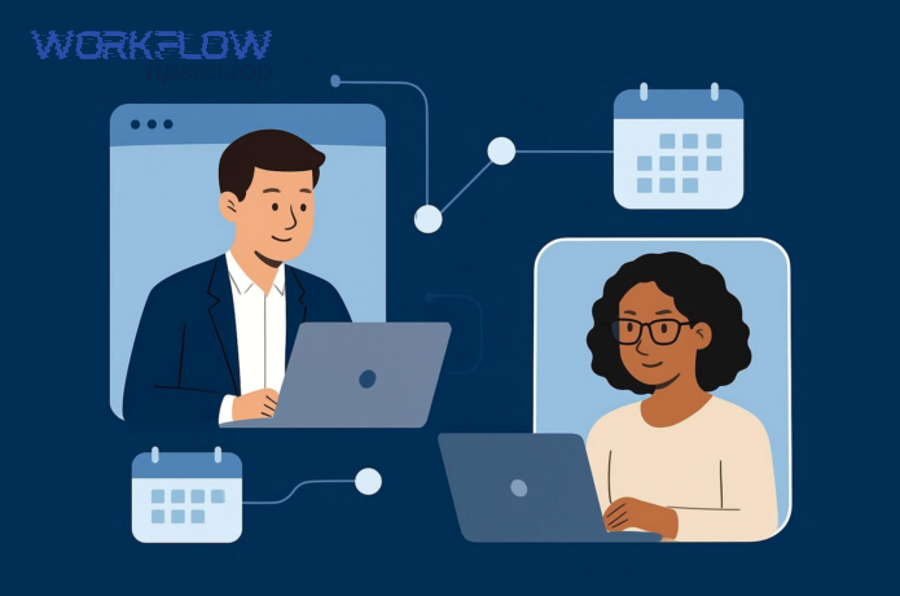
More importantly, you prevent “silent failure” by designing for the two biggest breakpoints: calendar settings and video-conferencing settings.
What calendar settings stop double-booking?
Double-booking usually happens when teams assume “Google Calendar is connected” but the wrong calendars are selected. To fix it:
- Select all calendars that contain busy time as “calendars to check for conflicts.”
- Select one calendar as the destination for new booked events (the calendar your team actually uses).
- Confirm buffer behavior: if you use buffers, make sure you understand how they appear in Google Calendar.
That last point matters because buffers can look like real meetings, and teams sometimes delete them—creating weird availability bugs.
What Zoom settings stop missing links?
Missing Zoom links usually happens when:
- Zoom is not connected, or
- Zoom is not set as the event location for the event type.
If you want a real-world check: book a test event with yourself and verify the join link appears in:
- the Calendly confirmation message
- the Google Calendar event
- the invite email
If any one of those is missing, treat it as a configuration issue—not a user error.
How do you create a reliable monday.com board from booked meetings?
A reliable monday.com board from booked meetings is built by (1) defining a single meeting-to-task lifecycle, (2) standardizing columns to match that lifecycle, and (3) ensuring each new meeting creates or updates exactly one item with clear ownership and status.

Next, the goal is to make the board behave like a meeting operations system, not a dumping ground.
What is a practical meeting-to-task lifecycle?
Use a simple lifecycle that your team can remember:
- Scheduled (created automatically)
- Prepared (owner reviewed context + notes)
- Completed (meeting occurred)
- Follow-up sent (email/proposal/task delivered)
- Closed (no further action)
When your team shares one lifecycle, reporting becomes meaningful: you can see how many meetings convert into follow-ups, how fast owners prepare, and where work stalls.
Which monday.com columns are “must-have” vs “nice-to-have”?
Must-have columns (keep adoption high):
- Status
- Owner
- Date/time
- Zoom link
- Notes/context
Nice-to-have columns (only if you’ll use them):
- Deal stage / pipeline stage
- Priority
- Meeting type (if not already in item name)
- Outcome (Won/Lost/Next step)
- Links to docs
This is where you can tie in other automation workflows you already run, like turning outcomes into documents or approvals—for example, airtable to google slides to onedrive to docusign document signing or airtable to google slides to box to pandadoc document signing when a meeting outcome becomes a proposal package. The key is not the tool chain—it’s the rule: only automate what follows a decision.
What does “reliable” look like over 30 days?
Reliability means:
- Near-zero duplicates
- Near-zero “Unassigned” items
- No broken links
- A visible “next step” for each meeting that matters
If your board fills with items that never move past “Scheduled,” your automation is technically working but operationally failing. That’s usually a lifecycle design issue, not a tool issue.
How do you troubleshoot failures in Calendly → Google Calendar → Zoom → monday.com scheduling?
You troubleshoot this workflow by checking failures in order: (1) calendar connection and sync rules, (2) Zoom integration and event location settings, (3) integration triggers/actions and field mapping into monday.com, and (4) edge cases like reschedules and cancellations.

Then, use the “single booking test” method: change one variable, book one test meeting, and validate every downstream artifact.
Which symptoms map to which root causes?
Here’s a practical diagnosis map:
- Double booking happens → conflict calendars not selected, or you’re checking the wrong Google account/calendar set.
- Event doesn’t appear in Google Calendar → destination calendar not set, or sync behavior misconfigured.
- Zoom link missing → Zoom not connected or event location not set to Zoom.
- monday.com item not created → trigger not firing, integration not turned on, or required fields not mapped
- Duplicates → missing “find item first” step or no unique key (invitee email + date)
- Reschedule doesn’t update monday.com → you only built “create” automation, not “update” automation
What’s the fastest troubleshooting checklist?
Run this checklist in 10 minutes:
- Confirm Calendly is connected to Google Calendar and configured to check conflicts and add events correctly.
- Confirm Zoom is connected and that the event type uses Zoom as location.
- Confirm your integration platform shows recent successful task runs (a booking should produce a run).
- Confirm monday.com item creation has the required fields (especially board + item name + date).
- Book a test event and validate: calendar event exists, Zoom link exists, monday item exists.
If any step fails, fix that layer before moving on.
What evidence suggests reminders and confirmations reduce “no-show” risk?
While your workflow is business scheduling (not healthcare), the behavior is similar: reminders improve attendance. According to a study by University of Kentucky from the College of Nursing, in 2016, a pilot text-reminder project observed a 2% decrease in no-shows during the intervention period (and reported a potential 1:6 return in cost-benefit analysis).
What advanced automations can you add after the core scheduling workflow is stable?
Once your core chain works, the best expansions deepen micro semantics: reliability, governance, and “edge-case handling,” so your system stays accurate under stress.

Can you auto-create meeting prep packs (docs/slides) from each booking?
Yes—if you have a standard meeting format. A simple approach is: booking → create a doc template link + add to monday item notes. A more advanced approach is generating a slide deck draft (e.g., agenda, goals, stakeholders) and attaching it.
This is where cross-tool patterns shine: you can create a parallel document workflow that starts from the meeting outcome, not the meeting itself—so you don’t generate unnecessary files.
How do you handle reschedules and cancellations without board clutter?
The clean approach is an antonym-style lifecycle: “Create” vs “Close.”
- Scheduled → item created
- Rescheduled → item updated (same item)
- Canceled → item moved to “Canceled” group or status changed to “Canceled”
This avoids duplicates and preserves history.
Should you route different event types to different monday.com boards?
Yes—when the teams and goals differ. Sales meetings usually need pipeline fields, while customer success meetings need onboarding stages, and support escalations need priority + SLA fields.
As a practical guideline: route by event type only when it changes the columns required to execute.
What related workflow patterns complement scheduling automation?
Two high-leverage complements are:
- Support triage pattern: “freshdesk ticket to trello task to google chat support triage” when customer issues need real-time visibility beyond email.
- Document signing pattern: after a meeting outcome, trigger document preparation and signing (like the slide-to-storage-to-signature workflows mentioned earlier).
The unifying rule is simple: scheduling creates time certainty; the next automation should create execution certainty.