



If your team still copies customer data into a document, exports a PDF, uploads it to storage, and then chases signatures, you can automate the entire chain with one predictable workflow: Airtable captures the request, Google Slides generates the document, Box controls access, and Dropbox Sign sends and tracks signatures.
You’ll get a clear setup blueprint for turning a single Airtable record into a signing-ready file, without breaking formatting, losing version control, or leaking the wrong link—so your “request → document → signature → archive” cycle becomes repeatable and auditable.
You’ll also learn the key operational decisions that make this workflow dependable: which Airtable fields act as the “source of truth,” which Slides export settings prevent layout drift, which Box link permissions minimize risk, and which Dropbox Sign status events should update your Airtable record.
Introduce a new idea: once you understand the system boundaries and the handoffs between tools, you can build a signing workflow that scales from a few documents per week to thousands per month—without the chaos of manual paperwork.
What is an “Airtable → Slides → Box → Dropbox Sign” automated document signing workflow?
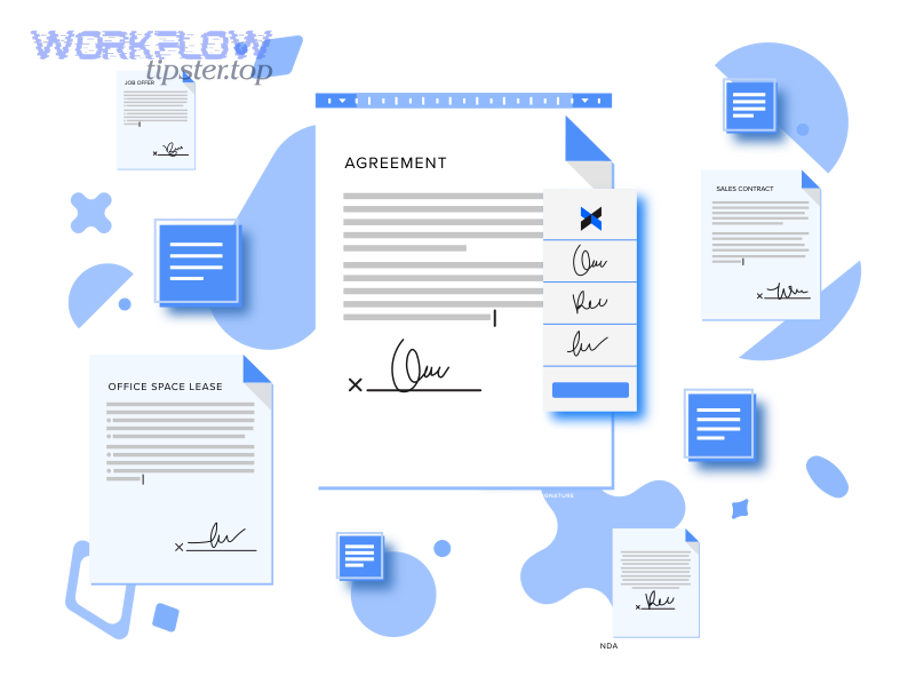
It’s a how-to automation pipeline where Airtable triggers document creation in Google Slides, stores a controlled copy in Box, then sends that Box-stored document to Dropbox Sign to collect legally valid e-signatures and return status updates to Airtable.
Then, to keep the workflow stable, think of it as four “handoffs” that must stay consistent: data → document → storage → signature. The moment any handoff becomes ambiguous (wrong version, wrong link, wrong signer, wrong template), your automation stops being trustworthy.
Why do teams use this workflow for document signing?
Teams use this workflow because it reduces repetitive manual steps, improves traceability, and standardizes how documents are generated and sent for signature—especially when one record can represent one contract, agreement, or approval packet.
More specifically, this workflow is popular in ops-heavy scenarios where the document is “mostly template” and “partly data-driven,” such as:
- Sales ops: quotes, order forms, renewal agreements
- HR ops: offer letters, policy acknowledgements
- Finance ops: vendor onboarding, payment authorization
- Legal ops: standard agreements that need consistent fields
A practical way to judge fit is this rule: if your document content is 70–90% standardized and 10–30% variable fields, this workflow usually performs well.
What are the core components and data handoffs?
The core components are (1) an Airtable base that stores structured request data, (2) a Google Slides template that renders that data into a human-readable document, (3) a Box folder structure that controls access and versioning, and (4) a Dropbox Sign request that routes the document to signers and captures status.
In addition, most teams add two “glue” layers:
- Automation runner (Zapier/Make/n8n/custom code) that moves data and files between systems
- Logging layer (Airtable fields + Box file metadata + Dropbox Sign audit trail) that helps you answer: who did what, when, and with which version?
A key enabler is that Airtable can store or reference Box content via native integration, including adding attachments from Box into Airtable records. (airtable.com)
And on the signing side, Dropbox’s help documentation explains that Dropbox Sign can upload directly from Box after you activate the integration. (help.dropbox.com)
How do you set up Airtable so it can trigger the signing process correctly?
You set up Airtable by designing a single “Signing Request” table with standardized fields (source-of-truth), a clear record status lifecycle, and validation rules so only complete records can trigger document generation and signature sending.
Next, to prevent automation errors, treat your Airtable record like a contract “build sheet”: it should contain every value needed to produce a correct document before any file gets created.
Which Airtable fields do you need as your “source of truth”?
There are 8 core field groups you should include, because they map directly to downstream requirements:
- Requester & ownership
- Requester name/email, internal owner, department/cost center
- Document identity
- Document type (template key), document title, version tag
- Party and signer details
- Company name, contact name, signer email(s), signer role(s), signing order (if required)
- Deal/transaction facts
- Amount, term, dates, service description, line items (if applicable)
- Address and legal identifiers
- Registered address, tax ID, PO number, entity type
- Storage routing
- Box folder path (or folder ID), file naming convention tokens
- Signing configuration
- Needs initials? needs date? reminder cadence? expiration date? template vs direct upload?
- Audit + lifecycle
- Status, timestamps, error message, Dropbox Sign request ID, Box file ID/link
To illustrate: if “Signer email” is empty, the signing tool cannot send anything; if “Template key” is wrong, the rendered document is wrong; if “Folder path” is missing, your archive breaks.
How do you design triggers, views, and status states to avoid misfires?
You avoid misfires by triggering automation from a filtered view that only shows records meeting strict readiness criteria, then moving records forward using status transitions.
A clean status model looks like this:
- Draft → internal data entry in progress
- Ready to Generate → required fields validated
- Generated → document created + stored
- Sent for Signature → Dropbox Sign request created
- Signed / Completed → all signatures collected
- Declined / Expired → signature failed state
- Error → automation failure state with an error message
Then, build your automation trigger on “records entering Ready to Generate,” not on “record updated,” so you don’t re-trigger every time someone edits a note.
If you’re using a no-code runner, Zapier commonly structures this as “New Record in View” → “Send signature request…” (plus file creation steps between). (zapier.com)
How do you generate a signing-ready document from Google Slides?
You generate a signing-ready document by using a locked Google Slides template, mapping Airtable fields into placeholders, and exporting a PDF with stable layout settings (page size, fonts, and margins) before sending it downstream.
Then, because signatures are sensitive to formatting (fields must align, names must match, pages must not reflow), your biggest job is not “making a PDF”—it’s ensuring the PDF looks the same every time.

How do you build a Slides template that won’t break when data changes?
You build a stable template by controlling where variability can happen.
Use these safeguards:
- Fixed text boxes for labels and legal clauses (non-variable text)
- Bounded variable areas for dynamic fields (names, dates, amounts) with:
- consistent font family and size
- line-height that prevents overlap
- truncation rules (e.g., shorten long company names)
- Table blocks for line items with max rows (or a “see attached schedule” pattern)
- Single slide size decision early (Letter vs A4) and never change it midstream
- Template locking via permissions so only template owners can edit it
A practical tactic is to design for worst-case inputs: long names, long addresses, multi-line descriptions. If it still looks clean, your automation will survive real data.
How do you export to PDF correctly and consistently?
You export consistently by using Google’s print/export flow and standardizing settings across your team.
A reliable method is to print the presentation and save it as PDF; Google’s own help guidance notes that printing a document or presentation can produce a PDF download. (support.google.com)
Here’s one quick walkthrough video you can embed in team documentation:
To keep outputs consistent, standardize:
- Page orientation (portrait vs landscape)
- Speaker notes off (unless you intentionally want them)
- Slide size (Letter/A4)
- Font strategy (prefer widely available fonts to avoid substitution)
How do you store, name, and permission documents in Box so signing stays controlled?
You store documents in Box by saving each generated PDF into a controlled folder structure, applying a deterministic file naming convention, and using restricted shared link settings (or collaborator access) so only intended people can access the document.
Next, storage isn’t just “where the file lives”—it’s where you enforce security and prevent version confusion.

What’s a best-practice folder structure and naming convention?
A best-practice structure makes it easy to answer three questions: What is it? Who is it for? Which version is current?
A common ops-friendly pattern:
- /Contracts/
- /2026/
- /Customer Name/
- /Agreement Type/
YYYY-MM-DD__DocType__Customer__RecordID__v01.pdf
- /Agreement Type/
- /Customer Name/
- /2026/
Example:
2026-02-02__MSA__AcmeCo__recA1B2C3__v03.pdf
Why this works:
- Date sorts correctly
- RecordID ties back to Airtable
- Version prevents overwriting
- DocType supports filtering
Also, keep “generated drafts” separate from “executed agreements”:
/Drafts/for pre-sign/Executed/for signed PDF + audit exports/Attachments/for addenda, schedules, IDs
How do Box shared links and permissions reduce risk?
Box link settings reduce risk by ensuring the wrong people can’t access, edit, or forward sensitive documents freely.
At the platform level, Box emphasizes granular permission levels for shared links so you can decide whether link users can view, edit, or comment—reducing the chance of accidental changes that can disrupt workflows. (blog.box.com)
At the security-policy level, UC Berkeley’s Information Security Office specifically recommends setting shared link access to “Collaborators Only” to restrict access to a controlled group you explicitly invited. (security.berkeley.edu)
At the feature level, Box documentation describes shared links as configurable with permission levels, expiration dates, and optional password protection. (support.box.com)
And Box developer docs clarify that “open” shared links can be accessed by anyone with the URL, while “company” or “collaborators” access levels restrict access to authenticated users. (developer.box.com)
Practical rule:
Use Collaborators Only / Invited People Only for anything that needs signature, use expiration dates even for internal sharing, and avoid custom URLs for sensitive docs, because “memorable” often becomes “guessable.”
How do you send the Box-stored document to Dropbox Sign and track the signature status?
You send the document by activating the Dropbox Sign Box integration (or using an automation runner), uploading the PDF directly from Box into Dropbox Sign, assigning signers and signing order, then writing signature events back to Airtable so status is visible to the whole team.
Then, the key to operational clarity is this: Airtable should show the truth of the signing state without anyone opening Dropbox Sign.
How do you create a signature request from a Box file?
You create a signature request by enabling the integration and selecting the Box file from inside Dropbox Sign’s upload flow.
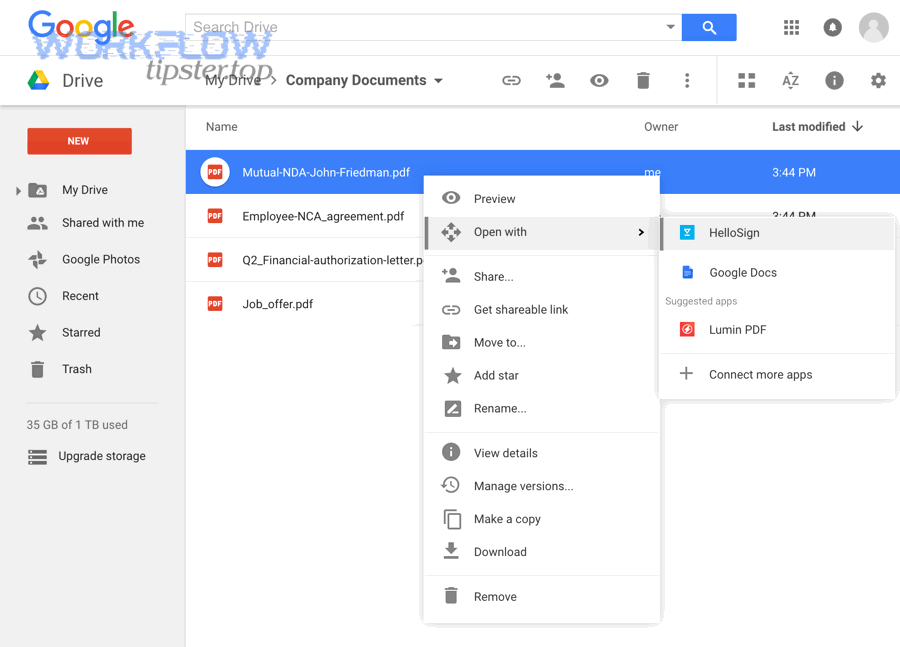
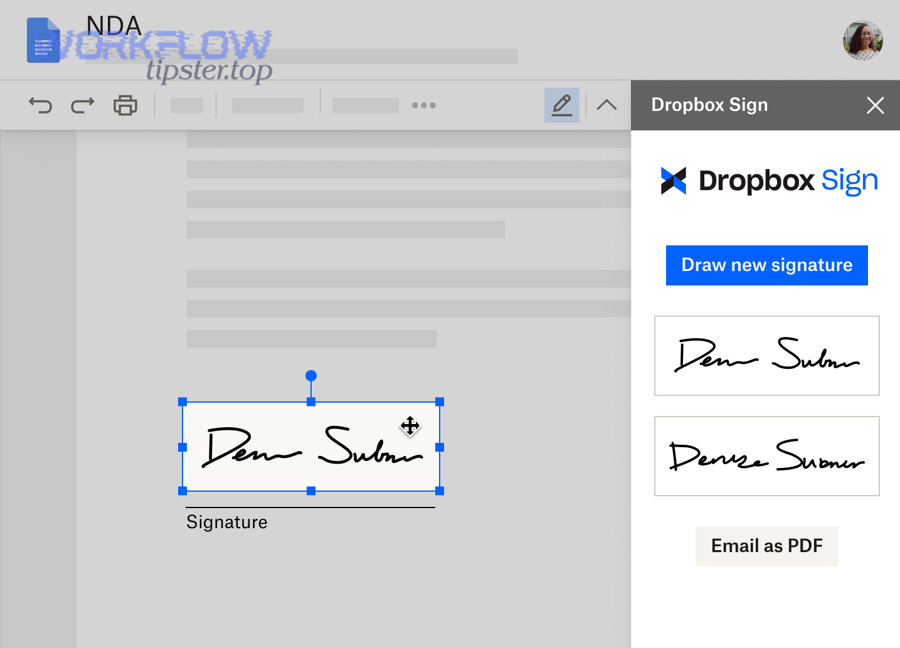
Dropbox’s own help article explains that after you activate the Dropbox Sign Box integration, you can upload directly from Box while signed into Dropbox Sign, by clicking Sign Documents and selecting files via the Box icon. (help.dropbox.com)
Operational tips that prevent mistakes:
- Confirm you’re selecting the final pre-sign PDF (not an editable deck)
- Lock the file version (or encode version in filename)
- Add a “Signer role” label (Customer signer, Internal approver, Witness)
- Set reminders and expiration aligned to your SLA (e.g., 7 days)
How do you sync Dropbox Sign status back to Airtable?
You sync status back to Airtable by mapping signature events to Airtable fields and updating the record automatically when events occur.
If you use a no-code orchestrator like Zapier, a typical pattern is “Airtable trigger” → “Dropbox Sign action” and then “update Airtable record” when signature requests are signed. Zapier’s Airtable + Dropbox Sign integration templates explicitly support sending signature requests and updating records based on signing events. (zapier.com)
Recommended Airtable fields to update:
sign_request_id(immutable ID from Dropbox Sign)signing_status(Sent, Viewed, Signed, Declined, Expired)signed_attimestampsigned_file_link(Box link to executed PDF)audit_trail_link(where you store audit evidence, if applicable)last_error(if any automation step fails)
This is where “automation workflows” become visibly valuable: your ops team stops asking, “Did they sign yet?” because the record shows it.
Which is better for your team: No-Code automation or an API-based integration?
No-code wins for speed and maintainability, API-based integration is best for control and scale, and a hybrid approach is optimal when you need both rapid iteration and strict governance.
However, the right choice depends on volume, compliance requirements, and how much customization your signing process needs.
To make the decision concrete, the table below compares common criteria teams care about when implementing this workflow:
| Criterion | No-code (Zapier/Make) | API-based (custom integration) |
|---|---|---|
| Time to launch | Fast (hours–days) | Slower (weeks) |
| Change management | Easy for ops/admins | Requires dev cycles |
| Error handling | Basic to moderate | Fully customizable |
| Security controls | Platform-dependent | Fully designable |
| Scale (high volume) | May hit limits | Built for throughput |
| Audit & observability | Basic logs | Full telemetry |
When is no-code the right choice?
No-code is the right choice when you need to ship quickly, document volume is moderate, and your workflow maps well to standard triggers/actions.
Choose no-code if:
- You’re validating the process with real users
- You can define a stable template and a simple signing route
- You can tolerate “good enough” error handling
- Your team wants to iterate without developer bottlenecks
It also fits well when you’re already orchestrating adjacent flows like “calendly to google calendar to google meet to linear scheduling” and want consistent automation patterns across operations.
When should you build with APIs instead?
APIs are the right choice when you need deeper control: complex signing logic, strict compliance handling, high-volume throughput, or advanced auditing.
Build with APIs if:
- You need multi-step signer routing (conditional order, escalations)
- You must validate identity or enforce stricter authentication
- You need strong observability (structured logs, retries, dead-letter queues)
- You run high volume or strict SLAs
- You must prevent duplicate sends at the system level
This is similar to how engineering teams treat event-driven notifications like “github to trello to discord devops alerts”—the more mission-critical the flow, the more you benefit from controlled retries and precise event handling.
What advanced considerations improve compliance, reliability, and scale in this signing workflow?
You improve compliance, reliability, and scale by enforcing link security in Box, implementing idempotency and retries in your automation, tracking an audit trail across tools, and designing for exceptions (declines, expirations, template changes) as first-class scenarios.
Next, advanced design is what turns an automation demo into an operations-grade system.
How do you handle compliance, access control, and audit trails?
You handle compliance by ensuring every handoff is traceable and access-controlled:
- Airtable: who requested, who approved, when generated, which version
- Box: where stored, who accessed, link access level, expiration rules
- Dropbox Sign: signer identity, timestamps, status events, certificate/audit data
For Box links, favor restrictive settings. Box notes shared links support permission levels, expiration dates, and optional password protection to share securely. (support.box.com)
And Berkeley’s guidance to set shared links to “Collaborators Only” is a strong baseline when you want to restrict access to invited individuals only. (security.berkeley.edu)
How do you prevent duplicates, broken links, and template drift?
You prevent operational failures by designing for them explicitly:
1) Idempotency (duplicate prevention)
- Use
record_id + versionas a unique signing key - Refuse to send if
sign_request_idalready exists for that key - Log every send attempt with a timestamp
2) Broken link prevention
- Store Box file ID (not just a URL) when possible
- Avoid moving files after sending for signature, or ensure links remain stable
- Use expiration policies that match signing windows
3) Template drift prevention
- Version your Slides template (Template_v1, Template_v2)
- Store the template version on each Airtable record
- When template changes, only new records use the new template
4) Robust retries
- Retry transient errors (timeouts, 429s) with backoff
- Do not retry permanent errors (invalid signer email) without human intervention
What rare-but-important scaling patterns should you plan for?
These patterns are “rare” early on, but become critical at scale:
- Queue-based processing: generate PDFs in batches and send in controlled bursts
- Parallel signer packs: multiple signers receive separate copies with different fields
- Regional compliance routing: storage location and signing settings vary by region
- Evidence packaging: store the signed PDF plus metadata exports in a single “case file” folder
- Exception dashboards: a dedicated Airtable view for Declined/Expired/Error that ops reviews daily
According to a study by National Chung Cheng University from the Department of Information Management, in 2007, four significant factors distinguishing e-signature adopters from non-adopters were hospital size, adequate resources, vendor support, and government policy, highlighting that scaling e-signatures is as much organizational as technical. (pmc.ncbi.nlm.nih.gov)