


If your team lives in Discord but your work lives in Google Docs, the fastest way to stop missing changes is to automate Google Docs to Discord so document updates appear in the right channel the moment they matter. The goal is simple: replace “someone should post this” with a predictable, low-noise system that posts the right update to the right place.
Next, you’ll need to understand what “document updates” actually means (edits vs comments vs approvals) and how Discord notifications can be structured so they drive action instead of adding noise. That clarity is what turns an automation into a workflow teams trust.
Then, you’ll choose a setup path: a no-code connector for speed, a webhook for control, or a hybrid approach for reliability at scale. Each path can work—what matters is matching the method to your team’s volume, permissions, and message requirements.
Introduce a new idea: once you anchor the “Docs → Discord” pipeline, you can optimize it with smarter routing, richer formatting, and governance patterns that keep automation useful long after the first week.
What does it mean to automate Google Docs to Discord for teams?
Google Docs to Discord automation is a workflow system that detects document events in Google Docs (often via Google Drive signals) and posts structured notifications or messages into specific Discord channels so teams act on updates without manual posting.
To better understand why teams adopt this, start with the core promise: the right people learn about the right document change at the right time, with a link and context that makes the next action obvious.
What counts as a “document update” when syncing Google Docs to Discord?
A “document update” is any change event your team cares about—typically edits, comments, suggestions, shares, or status milestones—captured as a signal and translated into a Discord message with context (who, what, where, and why it matters).
More specifically, teams usually treat updates as actionable moments, not raw keystrokes. That’s why a good automation defines updates at the workflow level:
- Creation events: a new doc is created (often in a specific folder like “Content Drafts” or “Specs In Review”).
- Collaboration events: a comment is added, a user is mentioned, or a suggestion is left that requires review.
- Change milestones: a doc moves folders (e.g., Draft → Review → Approved), a naming convention changes, or a “final” tag appears.
- Sharing/security events: a doc is shared outside the domain, shared publicly, or permissions change.
- Publishing cues: a final link is posted, a summary line is added, or a “ready to ship” checkbox is checked (if your team uses structured patterns).
The key is to define your update semantics early. A high-volume team might only notify on comments/mentions. A smaller team might notify on “new doc created” and “moved to review.” A compliance-heavy team might notify on permission changes.
Is Google Docs to Discord automation the same as sharing a Doc link manually?
No—Google Docs to Discord automation is not the same as manual link sharing because it provides consistent timing, structured context, and reliable routing, while manual posting depends on memory, motivation, and channel discipline.
However, the real difference shows up in outcomes. Manual posting tends to create three failure modes:
- Silence: someone forgets to post the doc, so review starts late or not at all.
- Noise: someone posts too many links without context, and the channel stops paying attention.
- Misrouting: the link goes to the wrong channel or lacks the right mentions, so the right people never see it.
Automation solves these by turning “sharing” into a repeatable process, not a social habit. In short, it’s the difference between “I told everyone” and “the system tells the right team, every time.”
Can you automate Google Docs to Discord without coding?
Yes—Google Docs to Discord automation can be done without coding because no-code connectors provide prebuilt triggers/actions, OAuth-based account connections, and message templates that can route updates to channels with filters, mentions, and formatting.
Besides saving setup time, no-code solutions also reduce maintenance burden and make ownership easier when workflows need to be handed off between teammates.
Which no-code workflows are most common for Google Docs → Discord alerts?
There are 5 main types of no-code Google Docs → Discord workflows: (1) new document announcements, (2) review and approval alerts, (3) comment/mention notifications, (4) folder-based routing, and (5) digest summaries—based on the criterion of when a team needs to take action.
Specifically, here’s what those look like in real channels:
- New document announcements (low friction, high clarity)
- Post to
#content-draftsor#specs - Include doc title, link, owner, and intended reviewer
- Use a consistent prefix like
[NEW DOC]
- Post to
- Review and approval alerts (action-oriented)
- Post when a doc is moved to a “Review” folder or tagged “Needs Review”
- Mention a role like
@Editorsor@Reviewers - Include deadline cues: “Review requested by Friday”
- Comment/mention notifications (interrupt only when needed)
- Post only when someone is @mentioned in a comment
- Route to
#review-requestsor the relevant squad channel - Add a short “reply in Doc” reminder
- Folder-based routing (organization at scale)
- Map folders to channels: SOPs →
#ops, Specs →#engineering, Briefs →#marketing - Keep each channel focused on its own documents
- Map folders to channels: SOPs →
- Digest summaries (reduce noise)
- Send a daily/weekly summary of “Docs updated” rather than real-time pings
- Useful for leadership channels or high-volume teams
If you publish lots of operational content, label this group internally as Automation Integrations so the team recognizes it as part of your systems layer, not a one-off hack.
When do you need a webhook or custom script instead of a template?
You need a webhook or custom script when templates cannot meet your requirements for data specificity, conditional routing, formatting control, or governance—while templates are best when “trigger → message” is enough.
Meanwhile, most teams reach for custom logic when they hit one of these thresholds:
- You need richer context: include change summaries, metadata, or structured fields that templates don’t expose.
- You need smarter routing: route by doc owner, keyword, folder depth, or team mapping from a roster.
- You need strict rules: avoid duplicates, throttle bursts, or enforce “only post when status changes.”
- You need centralized control: keep secrets safe, rotate webhook URLs, or log events for audits.
A helpful decision rule is this: if your workflow can be explained as “when X happens, post Y to channel Z”, no-code templates work. If your workflow sounds like “when X happens, decide among A/B/C based on conditions and build a structured payload”, you’re in webhook territory.
How do you set up Google Docs to Discord automation step by step?
The best method is a connector-driven workflow in 7 steps—select a trigger, connect accounts, choose a channel, map fields, add filters, test end-to-end, and monitor—so Google Docs updates consistently post to Discord with the right context and mentions.
To begin, treat setup like a production workflow, not a toy: your first version should be simple, but it should also be stable enough that the team doesn’t lose trust after a week.
- Choose a trigger (what event starts the workflow)
- Connect Google (Docs/Drive access)
- Connect Discord (server + channel access)
- Define the payload (title, link, owner, change type)
- Add routing filters (folder, keywords, doc owner)
- Test with real documents (including edge cases)
- Turn on monitoring (errors, retries, and ownership)

How do you choose the right trigger for your team’s workflow?
A “doc created” trigger is best for discovery, an “updated” trigger is best for active drafts, and a “comment/mention” trigger is best for review-driven teams—so the right trigger depends on whether your team is optimizing for visibility, speed, or focus.
More specifically, map triggers to the team’s operating rhythm:
- Content teams: prioritize “moved to review folder” or “tagged needs review” over “every edit.”
- Engineering/technical writing: prioritize “new spec created” and “comment mentions” so reviewers see requests, not noise.
- Operations: prioritize “SOP published” or “permissions changed,” because governance matters more than minor edits.
- Leadership: prioritize digest summaries to avoid interrupt-driven management.
In practice, you can treat triggers like a funnel: start wide (new doc) in a draft channel, then narrow (review request) in a review channel, and narrow further (mentions) in a high-priority channel.
What should you include in the Discord message to make alerts actually useful?
There are 6 essential message components for useful Docs → Discord alerts: document title, direct link, change type, responsible person, requested action, and urgency cue—based on the criterion of whether a reader can act without asking follow-up questions.
Then, make the message scannable. A strong alert reads like a mini ticket:
- Title + link: so action is one click away
- Who changed it: owner/editor or requester
- What happened: created, review requested, comment mention, permission changed
- What’s next: “Review by Friday,” “Approve,” “Add feedback,” “Confirm access”
- Where it belongs: folder/project name or tag to orient teams
- Mentions: role mentions only when action is required
Example structure (conceptually):
[REVIEW REQUEST] Pricing Page DraftOwner: Minh | Action: Comment by EODLink: (doc URL)Context: Q1 launch messaging
If your team uses a consistent template and naming, you reduce “chat about the alert” and increase “action from the alert.”
What are the best Google Docs to Discord workflows for different teams?
There are 4 best-fit workflow patterns for teams—announcements, review pipelines, operational publishing, and cross-team collaboration—based on the criterion of how the team turns documents into decisions and deliverables.
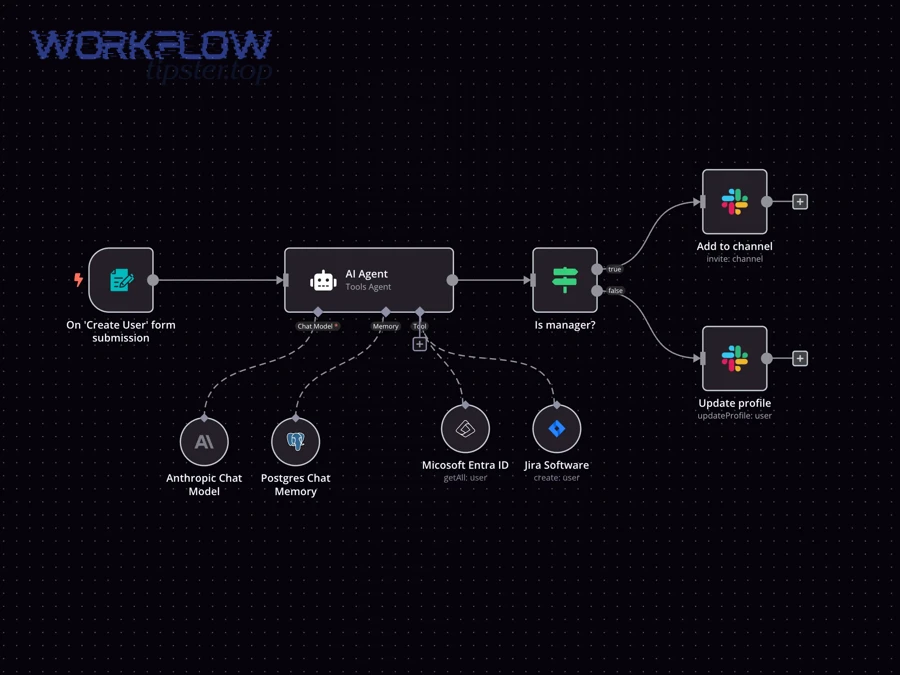
In addition, each pattern should have a dedicated channel strategy so the automation reinforces structure instead of fragmenting attention.
Which workflow patterns reduce noise while keeping teams informed?
There are 4 noise-reduction patterns—filtering, batching, escalation, and “mention-only” alerts—based on the criterion of how many messages a channel can tolerate without becoming background.
Specifically, these patterns keep your Discord clean:
- Filtering by folder or tag
- Only post from
Drafts/orReview/folders - Ignore personal docs and experiments
- Only post from
- Batching into digests
- “Daily doc updates” at a fixed time
- Great for channels where awareness matters more than immediacy
- Escalation rules
- Post silently for normal events
- Mention roles only when deadlines are near or approval is required
- Mention-only alerts for comments
- Post only when a user is @mentioned in a comment
- Protects deep work while still catching critical collaboration
This is where “Not Manual Posting” becomes more than a slogan: you’re not just automating—you’re designing attention.
How should you route different document types to different Discord channels?
Routing should follow a clear taxonomy—by folder, naming convention, project tag, or owner—so each document type lands in the channel where the next action naturally happens.
Moreover, routing is how you scale beyond a single team. A simple routing scheme might look like:
- Marketing briefs and drafts →
#content-drafts - Review requests →
#content-review(with@Editors) - Engineering specs →
#eng-specs - Operations SOPs →
#ops-updates - Leadership summaries →
#weekly-digest
If you maintain multiple automations, keep a shared naming system so the team recognizes patterns across workflows—like “calendly to jira” for scheduling-to-ticketing, “freshdesk to linear” for support-to-triage, and “airtable to todoist” for database-to-task execution. These examples reinforce that Docs → Discord is one node in a bigger workflow ecosystem.
Which method is better: no-code automation tools or a custom Discord webhook?
No-code tools win in speed and maintainability, Discord webhooks are best for customization and control, and a hybrid approach is optimal for teams that need both reliability and advanced routing at scale.
However, the “better” method is the one that matches your constraints: team skill level, compliance needs, volume, and how structured your messages must be.
To illustrate the decision clearly, the table below compares the three options by the criteria teams usually care about.
| Method | Best for | Strength | Trade-off |
|---|---|---|---|
| No-code connector | Fast setup, non-technical owners | Quick deployment, easier handoff | Limited logic and payload control |
| Custom webhook/script | Advanced formatting and routing | Full control of message content and conditions | Requires development + maintenance |
| Hybrid (connector + webhook) | Scaled teams with governance needs | Balance of speed + customization | More moving parts to document |
How does a Google Apps Script → Discord webhook workflow work in practice?
A Google Apps Script → Discord webhook workflow works by detecting a Google-side event (often via Drive or a scheduled check), building a structured message payload, and sending it to a Discord webhook URL that posts directly into a chosen channel.
More specifically, the flow typically looks like this:
- Event detection: identify a doc update (new file, comment mention, moved folder, etc.).
- Data extraction: pull doc title, URL, owner/editor, and the update type.
- Decision logic: apply filters (folder rules, keywords, owner-team mapping).
- Payload build: format a message or embed-like structure for clarity.
- Webhook post: send the payload to Discord’s webhook endpoint.
- Error handling: retry or log failures so posts don’t silently drop.
This approach is powerful because it turns “Docs updates” into a programmable system—ideal when you want consistent formatting, strict routing, and predictable behavior.
What are the limitations of Discord messages for rich document content?
Links win for accuracy, short summaries are best for speed, and full document content is rarely optimal—because Discord messages are designed for communication, not for reproducing a collaborative editor experience.
Meanwhile, the practical constraints show up in three ways:
- Formatting constraints: long content becomes hard to scan, and complex doc structures don’t translate cleanly.
- Context loss: a snippet without surrounding headings can confuse readers.
- Permission mismatch: a Discord message can’t bypass Doc access rules, so links and permissions must be handled properly.
That’s why most teams treat Discord as the notification and coordination layer and Google Docs as the source of truth. The best automation respects that boundary.
How do you keep Google Docs to Discord automation secure and reliable?
Google Docs to Discord automation stays secure and reliable when you enforce least-privilege access, control who can change workflows, use structured routing rules, and monitor failures—because automation is only valuable if it posts the right message without exposing the wrong document.
More importantly, trust is fragile: one accidental post of a sensitive doc link into a public channel can cause teams to turn the system off entirely.
What permissions and access controls should teams review before turning it on?
There are 6 permission checkpoints teams should review—Google sharing, folder boundaries, connector scopes, Discord channel permissions, webhook secrecy, and workflow edit rights—based on the criterion of where data could leak or be misrouted.
Specifically:
- Google Doc sharing settings
- Ensure sensitive docs are not “anyone with the link” unless intended
- Prefer restricted sharing for internal work
- Folder boundaries
- Use dedicated folders for “automation-safe” documents
- Keep personal or confidential folders out of scope
- Connector access scopes
- Grant only what is required (avoid overly broad access where possible)
- Use a team-owned account when appropriate for continuity
- Discord channel permissions
- Verify who can view the destination channel
- Use private channels for sensitive streams
- Webhook secrecy (if using webhooks)
- Treat webhook URLs like passwords
- Rotate if exposed and restrict who can view configs
- Workflow edit rights
- Limit who can modify automations
- Document ownership and escalation paths
A simple policy helps: “If the channel can’t safely contain the link, the automation shouldn’t post the link there.”
How do you troubleshoot when Google Docs alerts don’t post to Discord?
There are 7 common failure causes—expired authentication, wrong channel mapping, missing permissions, trigger mismatch, overly strict filters, rate/volume issues, and formatting/payload errors—based on the criterion of where the workflow can break end-to-end.
Then, troubleshoot in order, from most likely to most structural:
- Check authentication: Google or Discord token expired, revoked, or changed.
- Verify channel mapping: the workflow points to the correct server and channel.
- Confirm permissions: the workflow account can access the doc and can post in the channel.
- Validate trigger: the event you expect actually fires (e.g., edits might not trigger if the platform only tracks Drive-level changes).
- Inspect filters: folder filters, keyword rules, or conditions might block everything.
- Look for duplicates/noise controls: dedupe rules may be too aggressive.
- Review message formatting: invalid payloads or special characters can cause silent failures in some setups.
Evidence: According to research cited by the University of California, Irvine’s Informatics program, in 2018, it can take over 23 minutes to fully regain focus after an interruption, which is why teams benefit from fewer, higher-quality alerts instead of frequent noisy notifications. (informatics.uci.edu)
Contextual Border: At this point, you can already post reliable Docs updates into Discord without manual posting. Next, you’ll shift from “getting it working” to “making it excellent” by optimizing tool choice, message formatting, edge-case handling, and governance.
How can you optimize Google Docs to Discord automation beyond basic alerts?
Optimizing Google Docs to Discord automation means improving routing precision, message clarity, governance, and edge-case resilience—so the system stays useful as your team grows and your document volume increases.
Next, focus on micro-level improvements that make the workflow feel invisible: fewer irrelevant pings, better context in each message, and clearer ownership when something breaks.
Which platform is best for your use case: Zapier vs Make vs n8n vs IFTTT?
Zapier is best for fast, template-driven setup, Make is strongest for visual branching and scenario complexity, n8n is optimal for teams that want self-hosted control and deep customization, and IFTTT fits simple “if this then that” triggers for lighter workflows.
However, the best platform is the one your team can maintain. A workflow that’s “powerful” but unowned is less reliable than a simpler workflow that’s documented and monitored.
If you run a content ops brand like Workflow Tipster, treat platform selection as a product decision: pick the stack your audience (or internal team) can actually replicate, support, and scale.
How do you format Discord messages for clarity: embeds, mentions, and summaries?
There are 4 formatting layers that improve clarity—structured titles, minimal mentions, scannable summaries, and consistent templates—based on the criterion of how quickly a reader can understand and act.
Then, treat formatting like UX:
- Structured title:
[REVIEW],[NEW DOC],[PERMISSION CHANGE] - Mentions only when action is required: avoid @everyone; prefer role mentions
- One-sentence summary: “Needs review by Friday” or “Comment mention from Alex”
- Consistent template: same fields every time (title, owner, action, link)
If your team uses embeds or rich formatting, a single high-quality “review request” message can replace three follow-up questions in chat.
What rare edge cases break Google Docs → Discord workflows ?
There are 6 rare but real edge cases—rate bursts, permission inheritance changes, file moves/renames, shared drive nuances, webhook rotation, and duplicate event firing—based on the criterion of events that don’t happen daily but cause outsized disruption when they do.
More specifically, prevention looks like this:
- Rate bursts: batch updates or throttle posts during high-edit periods.
- Permission inheritance: if a folder’s sharing changes, ensure your automation still has access (or fails loudly).
- File moves/renames: rely on file IDs where possible, not just names.
- Shared drives: confirm the workflow supports shared drive behavior and access rules.
- Webhook rotation: store secrets safely and rotate proactively when staff changes occur.
- Duplicate firing: use dedupe logic (e.g., “only post once per doc per hour” for certain events).
This is the hidden work that keeps automation from becoming “that thing that randomly breaks.”
How do you handle sensitive documents: private channels, least privilege, and compliance concerns?
Private channels win for containment, least-privilege access is best for prevention, and a “metadata-only alert” pattern is optimal when compliance is strict—because the safest automation is one that reveals only what’s necessary to prompt the right action.
Besides, sensitive-doc automation usually improves when you separate awareness from access:
- Metadata-only alerts: post “A doc in HR folder changed” without posting a public link
- Private review channels: route sensitive workflows into restricted channels
- Approval gates: require a human review step before broadcasting widely
- Audit-friendly logging: log events and failures so compliance teams can verify behavior
When done well, security doesn’t slow automation down—it makes it sustainable.