


Connecting Google Calendar to Slack is the most direct way to keep meetings visible where your team already communicates: you can receive reminders and event updates in Slack, and you can sync status signals like “In a meeting” so colleagues know when to expect replies. (slack.com)
Beyond the initial connection, most teams also need to configure where reminders appear (DM vs channel), which calendars and events trigger them, and how to balance timely updates with notification fatigue—because too many pings can be as harmful as missing the meeting.
Then, you’ll want a practical troubleshooting path for the common breakdowns (missing events, wrong time zone, duplicate alerts, permission conflicts) so the integration stays reliable even as your workspace grows. (slack.com)
Introduce a new idea: once the core setup works, the real advantage comes from optimizing edge cases—multi-calendar teams, privacy-sensitive invites, and combining native features with Automation Integrations without creating chaos.
What does it mean to integrate Google Calendar with Slack for meeting reminders and status sync?
Integrating Google Calendar with Slack is a workspace connection that surfaces calendar events inside Slack (reminders, invites, updates) and can automatically sync your Slack status based on meeting availability. (slack.com)
To better understand why this matters, it helps to think in two layers: meeting visibility (Slack becomes the “notification surface”) and availability signaling (Slack becomes the “presence surface”). When you get those two layers right, your team reduces missed meetings and avoids constant “Are you free?” messages, because the answer is visible.
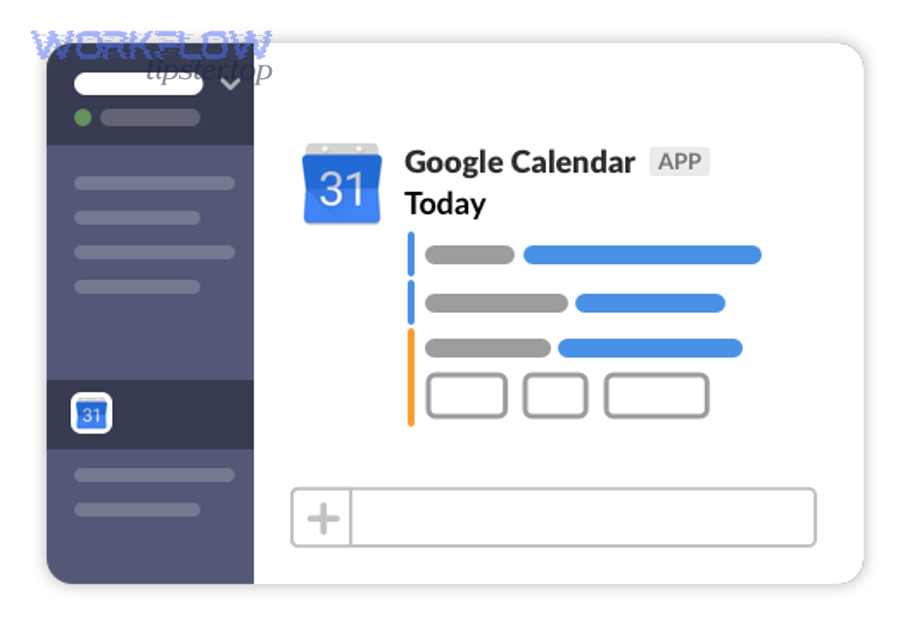
At a practical level, the Google Calendar app in Slack typically supports workflows like:
- Receiving event notifications (invites, upcoming meetings, schedule summaries depending on plan/settings). (slack.com)
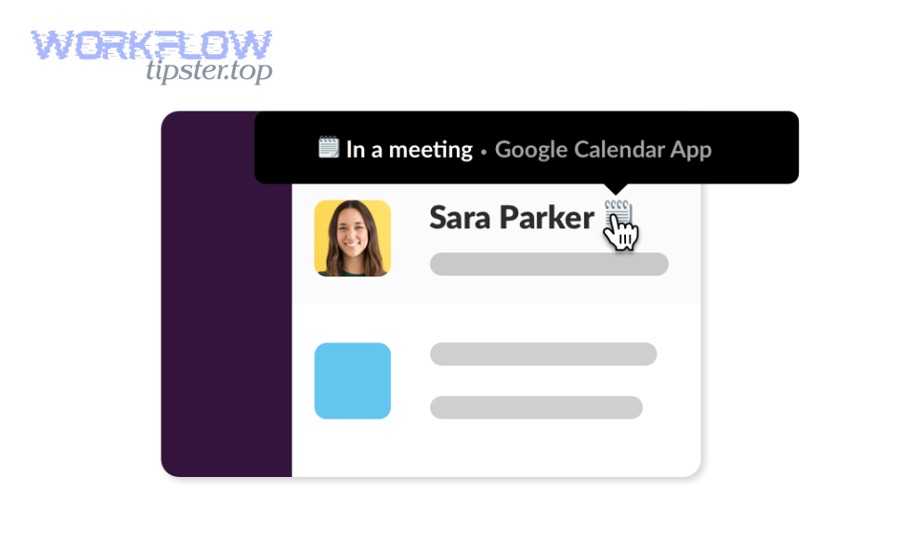
- Updating Slack status to “In a meeting” or “Out of Office” using calendar signals (accepted/busy events, certain keywords like OOO/PTO). (slack.com)
- Sharing meeting invitations into a specific Slack conversation when creating an event from within the app. (slack.com)
This is not the same as “moving your whole calendar into Slack.” The calendar stays authoritative in Google Calendar; Slack becomes a high-signal interface for reminders and coordination.
Which Slack spaces can Google Calendar updates appear in (DMs vs channels)?
There are two main “destinations” for calendar updates in Slack: direct messages (DMs) and channels, and teams usually use both based on who needs to act on the reminder.
Next, here’s the simplest mental model for choosing the destination: DMs are for personal execution, channels are for shared awareness.
DM updates (best for personal execution)
- You want your own reminders so you don’t miss a meeting.
- You want less noise in public channels.
- You want privacy by default (especially for titles that shouldn’t be posted broadly).
Channel updates (best for shared awareness)
- A project channel needs visibility (e.g., “Client call starts in 10 minutes”).
- A shared calendar is used by a team, and the team expects schedule signals in-channel.
- You want quick coordination (“Running 5 minutes late—reply in thread”).
A common team setup is:
- Personal reminders → DM
- Shared project calendar reminders → specific project channel
- Company-wide events → announcements channel (only if the volume is low)
Slack provides steps to configure channel notifications from the Google Calendar app and even notes that shared calendar schedule notifications can be enabled on paid plans. (slack.com)
What information from a calendar event can be shown in Slack notifications?
Event notifications can include core event details (like time and basic context), but teams should assume privacy-safe defaults and avoid broadcasting sensitive specifics in public channels.
Then, to keep expectations clear, align on three “visibility tiers” for your workspace:
Tier 1: Minimal (privacy-first)
- “Busy” / “In a meeting”
- Start/end time only
- No title in channels
Tier 2: Operational (team coordination)
- Meeting title (non-sensitive)
- Time + location or conference link when appropriate
- RSVP actions where supported
Tier 3: Detailed (rare, only for tight-knit teams)
- Agenda notes
- Guest list and external participants
- Internal links to docs
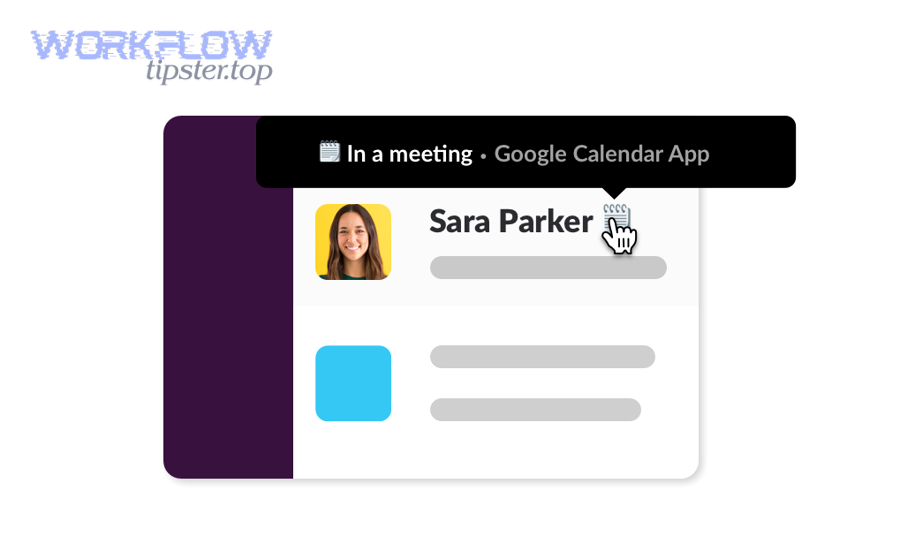
Slack explicitly notes that status updates won’t include the name of the meeting and that only accepted or “Busy” events trigger status updates—details that matter when a team is worried about oversharing. (slack.com)
Can you connect Google Calendar to Slack using the native Google Calendar app?
Yes—most teams should start by connecting Google Calendar to Slack using the native Google Calendar app because it’s the fastest to deploy, supports channel notifications, and can automatically sync meeting-based status with minimal maintenance. (slack.com)
Next, the key success factor is not “installing the app,” but ensuring the right people can authenticate, the right calendars are selected, and the right destinations are configured so the integration actually reduces missed meetings rather than creating noise.
How do you install the Google Calendar app in Slack and authorize your Google account?
Installing and authorizing the Google Calendar app follows a simple sequence: add the app → connect your account → open app settings → choose notification behaviors and destinations. (slack.com)
To better understand the flow, think of authorization as the bridge that allows Slack to read your event timing signals and deliver reminders into the Slack surface.
A practical, team-friendly setup path looks like this:
- Add the Google Calendar app in your Slack workspace (often via Tools → Apps). (slack.com)
- Connect your Google account when prompted (OAuth sign-in).
- Open the app Home tab → Settings to manage calendar selection, channel notifications, and status sync controls. (slack.com)
- Invite the app to a channel if you want channel notifications (often via
/invite @google calendar). (slack.com)
If your organization restricts app installs, the install step may require an admin-approved workflow—so the fastest route is often to confirm workspace app policies before you plan a rollout.
Which permissions are required, and how do you keep access secure (least privilege)?
Permissions are required because Slack needs authorized access to calendar signals to trigger reminders and status updates, and least-privilege security means granting only what’s needed, reviewing access periodically, and revoking authorization when roles change. (slack.com)
However, “least privilege” is not only a security idea—it’s also a noise-control strategy: when you connect the wrong account or the wrong calendars, you create irrelevant reminders and team confusion.
Use this quick checklist to keep the integration secure and clean:
- Use the correct Google identity (work account vs personal account).
- Select only relevant calendars for reminders (avoid subscribing to everything).
- Limit channel notifications to channels that truly need shared awareness.
- Revoke and reconnect if the integration gets “stuck” or if authorization looks suspicious (Slack provides a revoke/reconnect path for fixing syncing issues). (slack.com)
According to a study by the University of California, Irvine from the Department of Informatics, in 2008, interruptions pushed people to work faster but increased stress and frustration—so teams should treat “permission and notification scope” as a well-being and productivity control, not just an IT step. (ics.uci.edu)
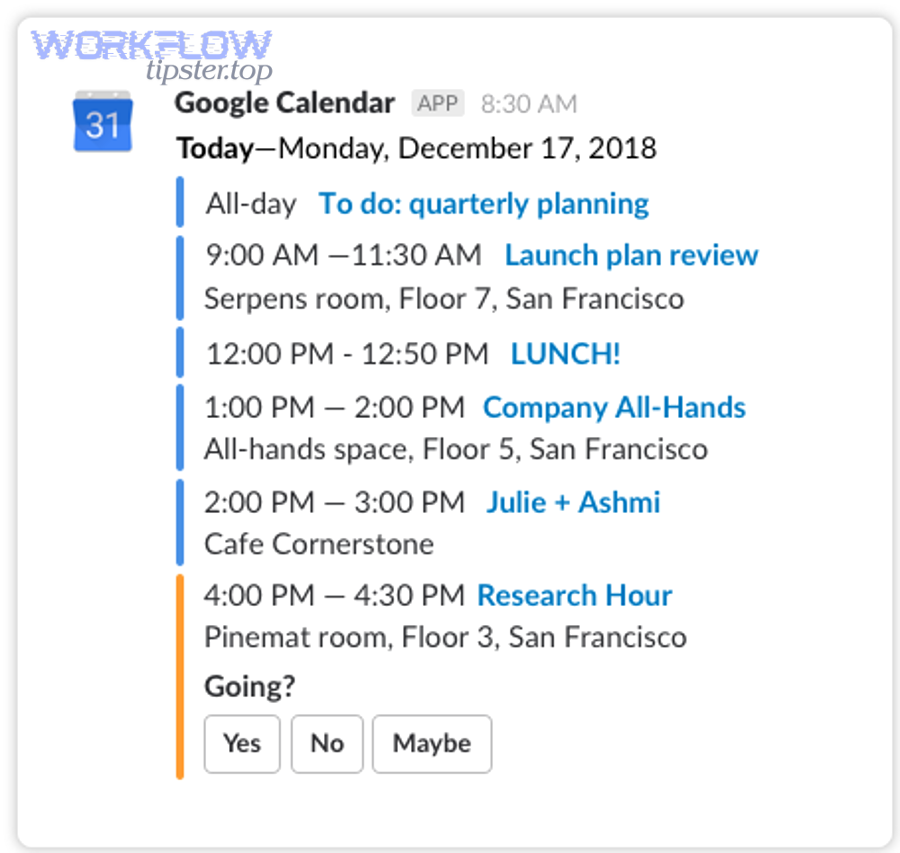
How do you set up meeting reminders in Slack so you don’t miss updates?
Setting up meeting reminders in Slack works best when you define (1) the calendars to monitor, (2) the destinations to notify, and (3) the timing rules—so reminders are timely, relevant, and low-noise. (slack.com)
Specifically, teams miss meetings for predictable reasons: reminders arrive in the wrong place, arrive too late, or get buried under unrelated notifications. That’s why reminder design should be treated as part of your team’s operating system.
How do you choose what events trigger reminders (all events vs specific calendars)?
There are two main “types” of reminder scope: all events on a primary calendar vs specific calendars (and sometimes shared calendars) based on team context. (slack.com)
Next, pick your scope using a single criterion: who needs to act on the reminder.
Option A: All events (personal execution)
- Best when reminders go only to your DM.
- Works for individuals who want “never miss a meeting.”
Option B: Specific calendars (team alignment)
- Best when reminders go to a channel.
- Works for teams with a shared project calendar or rotation schedule.
A practical team pattern is:
- Personal calendar reminders → DM only
- Shared team calendar reminders → one channel per project (not multiple)
Slack’s channel notification settings are designed for shared calendars or channels that should be notified about calendar events, which is the “specific calendars” model many teams want for coordination. (slack.com)
How do you control reminder timing and reduce noise (too many pings)?
Slack reminders work when timing is consistent, and noise drops when you standardize reminder windows by meeting type—so the team receives fewer but more meaningful pings.
Then, apply a simple timing framework:
Recommended reminder windows (a team baseline)
- Client/external meeting: 15–30 minutes before
- Internal project meeting: 10–15 minutes before
- Daily standup: 5–10 minutes before
- Focus blocks: no channel reminders (DM-only or none)
To reduce noise without losing signal:
- Use DM reminders for most meetings.
- Reserve channel reminders for meetings that require group alignment.
- Keep Slack’s broader notification settings consistent so calendar pings don’t get drowned out or overly amplified (Slack’s notification configuration options help define what you’re notified about across devices). (slack.com)
If you decide to use an automation platform for reminder timing (for example, posting a formatted message to a channel when an event matches specific keywords), Zapier describes its integration model as triggers and actions—meaning a calendar event can trigger a Slack message, reaction, or other workflow step. (zapier.com)
Does Slack status automatically sync with your calendar meetings?
Yes—Slack status can automatically sync with Google Calendar meetings because the Google Calendar app can set your status to “In a meeting” or “Out of Office,” improving response expectations, reducing follow-up messages, and protecting focus time. (slack.com)
Next, the important nuance is that status sync is not a blunt override: it follows specific rules (accepted/busy events, overlaps, and certain keywords), and it won’t replace a status you set manually.
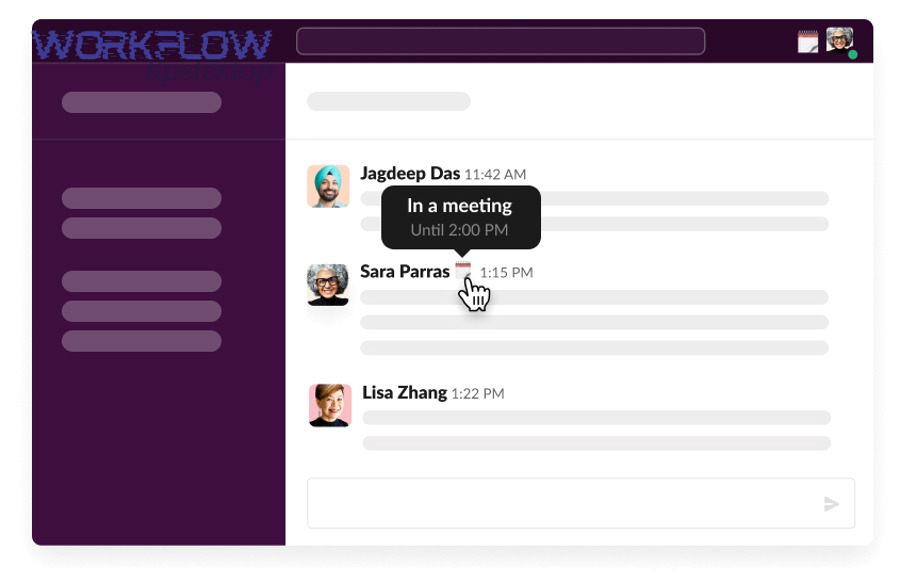
How do you enable/disable calendar-based status sync in Slack?
Enabling calendar-based status sync is typically a settings action inside the Google Calendar app in Slack: open the app, go to its Home tab, and toggle Status Sync on or off. (slack.com)
Then, validate the behavior by running a short test:
- Create a test meeting that marks you as Busy.
- Ensure the meeting has invitees if you want “In a meeting” behavior to trigger as expected. (slack.com)
- Confirm the status appears at meeting start and clears afterward.
Slack also documents rules that matter for debugging: for example, status changes won’t happen for overlapping events, and events need to be accepted or set to Busy. (slack.com)
What’s the difference between status sync and Do Not Disturb for meeting time?
Status sync wins at signaling availability, Do Not Disturb is best for suppressing interruptions, and combining them thoughtfully is optimal for teams that want both clarity and deep work.
However, if you treat these as interchangeable, you create mixed signals: someone looks “In a meeting” but still replies instantly, or someone is DND but their status says nothing—both cause confusion.
Use this simple comparison:
- Status sync: tells others what to expect (response delay is understandable). (slack.com)
- Do Not Disturb: protects your attention by reducing notifications (especially useful for focus blocks).
- Best practice: status sync for meetings + DND for deep work (not every meeting needs DND).
According to a study by the University of California, Irvine from the Department of Informatics, in 2008, interruptions increased stress and time pressure—so the status signal alone is often not enough; teams should pair clear status expectations with disciplined notification habits. (ics.uci.edu)
What are the most common problems when connecting Google Calendar to Slack, and how do you fix them?
There are five common problem types when connecting Google Calendar to Slack: authorization issues, missing events, wrong destinations, time-zone mismatches, and duplicate notifications—each with a quick diagnostic path. (slack.com)
Next, treat troubleshooting like a funnel: start with the simplest “is it connected?” checks, then move toward configuration, then toward system-level issues (admin restrictions, device settings, or overlapping workflows).
To make the troubleshooting process faster, the table below summarizes the symptom → likely cause → fastest fix so you can move from confusion to resolution in minutes.
| Symptom | Most likely cause | Fastest fix |
|---|---|---|
| No events appear in Slack | Authorization revoked / wrong account | Revoke + reconnect the integration; confirm the correct Google account is connected. (slack.com) |
| Reminders go to the wrong place | Destination misconfigured | Re-check app settings and channel notification settings; confirm the app is invited to the channel. (slack.com) |
| Times are wrong | Slack/Google time zone mismatch | Verify time zone settings in both Slack and Google Calendar; re-test with a new event. |
| Duplicate reminders | Native + automation both posting | Pick one source of truth per channel; disable one set of reminders for that scope. |
| Status doesn’t update | Event not accepted / not “Busy” / overlaps | Accept the event, set availability to Busy, avoid overlaps; confirm Status Sync is enabled. (slack.com) |
Why aren’t my events or reminders showing up in Slack?
Events or reminders usually don’t show up because the integration is not properly authorized, the wrong Google account is connected, or the calendar/notification scope is misconfigured.
Then, follow this checklist in order:
- Confirm the Google Calendar app is connected (open the app and check its Home tab context). (slack.com)
- Confirm the account (work Google identity vs personal).
- Confirm the calendar selection (primary vs secondary calendars).
- Confirm destination (DM vs channel) and ensure the app is invited to the channel (
/invite @google calendar). (slack.com) - Revoke and reconnect authorization if syncing is stale (Slack documents a configuration-tab revoke and reconnect approach for fixing syncing issues). (slack.com)
If you’re using an automation tool, also verify whether the automation is polling or instant, because polling-based workflows can introduce delays depending on plan and configuration (Zapier describes polling intervals for some triggers). (zapier.com)
Why are my reminders at the wrong time (time zone / daylight saving issues)?
Reminders show at the wrong time when Slack, Google Calendar, or your device uses a different time zone or daylight saving behavior—so the event time is interpreted differently across surfaces.
Next, correct time issues using a three-point alignment:
- Google Calendar time zone (account setting and the event’s own time zone)
- Slack time zone (workspace/user setting)
- Device time zone (desktop/mobile OS)
After aligning, create a brand-new test meeting (don’t rely on an old one) and confirm:
- The Slack reminder hits at the expected lead time
- The status tooltip (if enabled) shows the correct “until” time
Even with perfect time settings, overly broad Slack notification rules can make the reminder feel mistimed (e.g., delayed push notifications), so it’s worth ensuring your Slack notification configuration is consistent across devices. (slack.com)
Should teams use native integration or automation tools for Google Calendar → Slack workflows?
Native integration wins on simplicity and status sync, automation tools are best for conditional routing and custom formatting, and a hybrid approach works when you clearly separate responsibilities to avoid duplicates. (slack.com)
Next, don’t choose based on hype—choose based on operational ownership: who maintains it, how often it breaks, and how quickly a new team member can understand it.
Here’s a decision table (with context) to help teams choose the best approach based on reliability, customization, and maintenance effort.
| Approach | Best for | Strengths | Tradeoffs |
|---|---|---|---|
| Native Google Calendar app in Slack | Most teams | Fast setup, built-in channel notifications, status sync | Limited conditional logic; less custom formatting (slack.com) |
| Automation tool (e.g., Zapier) | Teams with custom workflows | Conditional routing, multi-step workflows, custom messages | Requires monitoring; can duplicate native alerts if not scoped (zapier.com) |
| Hybrid (native + automation) | Mature teams | Native for status + basic reminders; automation for special cases | Needs strict rules to avoid noise |
This is also the moment to think beyond one integration: teams often connect multiple systems as they scale. For example, your operations team might standardize Automation Integrations across workflows like google docs to calendly scheduling confirmations, google docs to linear ticket creation, or community notifications like airtable to discord—but those only work long-term when scope and ownership are crystal clear.
When is the native app enough for a team workflow?
The native app is enough when your team mainly needs meeting reminders, basic channel notifications for shared calendars, and automatic status updates—without complex conditional routing.
Then, it becomes “enough” when these are true:
- You can connect the correct Google accounts reliably.
- Channel notifications are limited to the channels that truly benefit.
- Status sync is enabled for most members who want availability signals. (slack.com)
A simple example: a product team wants meeting reminders in DMs, plus a weekly shared calendar schedule post to a project channel. Slack explicitly notes schedule notifications as an available behavior (depending on plan/settings), which aligns with this “native is enough” scenario. (slack.com)
When do automation platforms make more sense (custom messages, conditional routing)?
Automation platforms make more sense when you need triggers and rules like “only post to #launch if the event title contains Launch,” “tag the on-call person,” or “send different messages depending on attendee count.”
Next, use automation when the workflow needs any of the following:
- Conditional logic (keywords, calendar match rules, event metadata checks)
- Custom formatting (templates, mentions, structured message blocks)
- Cross-app workflows (calendar → Slack → task tool → doc creation)
Zapier frames this as a trigger-action model—an event in Google Calendar can trigger an action in Slack—so you can build workflows that extend beyond native capabilities when your team requires it. (zapier.com)
How can teams optimize Google Calendar → Slack for advanced setups without creating notification chaos?
Optimize Google Calendar → Slack by using a three-step system—scope calendars carefully, standardize privacy rules, and enforce “one source of truth” per channel—so advanced setups stay high-signal instead of turning into constant noise. (slack.com)
Next, treat optimization like micro-semantics: you’re no longer asking “Can I connect them?” but “How do we keep updates relevant across edge cases?” That’s where teams win or lose trust in the integration.
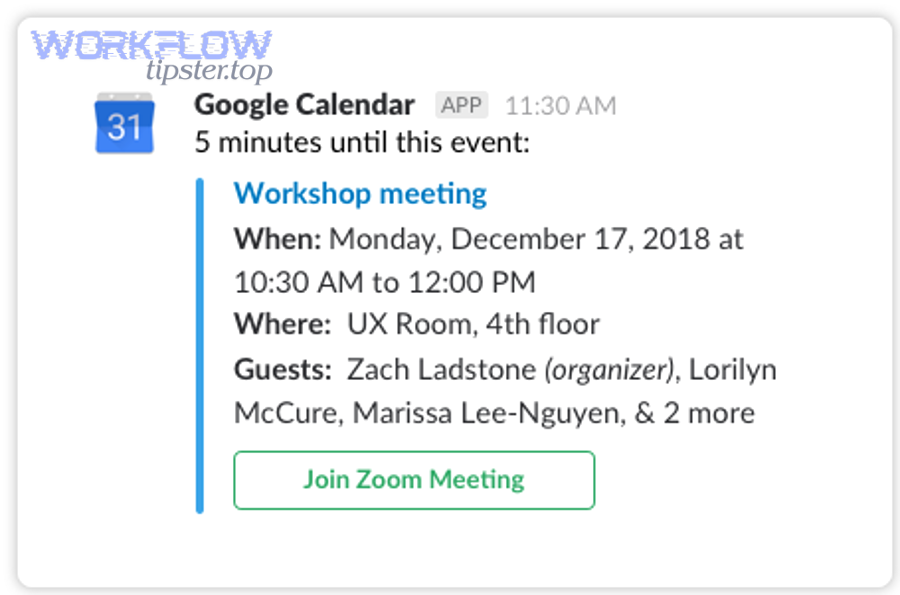
How do you connect multiple or shared calendars to Slack while keeping reminders relevant?
Multi-calendar setups work when you group calendars by purpose and route notifications accordingly—so you don’t dump every schedule into every channel.
Then, use a simple grouping strategy:
- Personal calendars → DM reminders only
- Project calendars → one project channel each
- Company-wide calendars → one broadcast channel, low-frequency updates only
Slack’s channel notification settings are explicitly designed for shared calendars and channel-level notifications, which is the foundation of “relevant multi-calendar routing.” (slack.com)
A practical tip: if a calendar exists primarily for awareness (e.g., holiday calendar), keep it out of channel reminders unless your team truly needs it, because it creates low-action notifications that dilute signal.
How do you handle privacy so Slack notifications don’t expose sensitive event details?
Privacy works when you adopt channel-safe defaults—share only what the channel needs, and keep sensitive titles and details in DMs or inside Google Calendar.
Next, set a policy your team can actually follow:
- In public channels, treat event titles as public and avoid client names if needed.
- Use “busy/availability” signaling rather than detailed agenda sharing.
- For sensitive meetings, rely on personal reminders (DM) and status sync rather than channel posts.
Slack documents that status updates won’t include the meeting name, which supports a privacy-preserving default for availability signals. (slack.com)
What admin controls can affect the integration (workspace restrictions, Google Workspace policies)?
Admin controls can affect the integration by restricting app installs, limiting authorization behavior, or enforcing authentication policies—so even correct user steps may fail if workspace policy blocks them. (slack.com)
Then, if your team hits a wall (can’t install, can’t authorize, can’t post in channels), the most efficient approach is to ask an admin to check:
- App installation approvals in Slack
- Whether the workspace allows the Google Calendar app
- Whether domain-wide authentication policies change how accounts disconnect/reconnect (Slack notes domain-wide authentication can limit certain disconnect behavior). (slack.com)
This keeps troubleshooting grounded: instead of guessing, you confirm whether the system allows the workflow you’re attempting.
How do you avoid duplicate alerts when using both the native app and automation tools?
You avoid duplicate alerts by assigning each channel a single “notification owner”—native app or automation—and preventing overlap in scope (calendars, event types, destinations).
Next, use these rules:
- Rule 1: One source per channel. If native posts to #project-x, automation should not post the same event type to #project-x.
- Rule 2: Separate by purpose. Native handles status sync + basic reminders; automation handles special-case announcements.
- Rule 3: Test with one calendar first. Validate behavior, then expand.
- Rule 4: Document the logic. A one-paragraph “why and how” note prevents future duplication.
Zapier’s trigger/action model makes it easy to create overlapping workflows, so the discipline has to come from your team: decide what’s native, what’s automated, and what’s intentionally not notified at all. (zapier.com)