


If your team lives in Google Calendar but executes work in Asana, you can automate a reliable “event-to-task” workflow so meetings, deadlines, and time blocks become actionable tasks—without manually copying titles, dates, and links. The most practical setup is a one-way automation (Google Calendar → Asana) that creates or updates tasks based on specific events, while your team keeps the “source of truth” clear and avoids duplicates.
Next, you’ll also want clarity on what “sync” really means, because calendar “sync” can refer to very different outcomes: tasks showing up on a calendar, events turning into tasks, or even two-way updates across both tools. Understanding the direction, the fields you can map, and the limitations upfront prevents confusing expectations during rollout.
Then, choosing the right method matters: Asana’s built-in calendar syncing is great for visibility, but it does not equal event-to-task automation for teams. For teams that need events converted into assignable work—with routing, templates, and governance—you typically use an automation platform (or a two-way connector if you truly need bi-directional edits).
Introduce a new idea: once you know the goal (events → tasks), the rest becomes a structured build—define your rules, map your fields, compare your options, and harden the workflow so it stays clean as the team scales.
Can you automate Google Calendar to Asana so events become tasks for a team?
Yes—Google Calendar to Asana automation can turn events into tasks for a team because it standardizes follow-through, reduces copy-paste overhead, and makes ownership visible through assignments, due dates, and project placement. Next, the key is to treat this as an event-to-task workflow (not just a calendar view) and decide what “team-ready” means: shared calendars, consistent naming, and clear task-routing rules.
What do you need before you connect Google Calendar to Asana for automation?
There are 5 essentials you should confirm before connecting anything: accounts, permissions, scope, structure, and rules, based on the criterion “will this create consistent tasks the team can use immediately?”
- Accounts & access
- A Google account with access to the calendar(s) you’ll automate (personal or shared).
- An Asana account with permission to create tasks in the target workspace/project.
- Calendar scope
- Decide whether you’re automating a shared team calendar, a single owner’s calendar, or multiple calendars.
- Confirm how your team labels event types (e.g., “Client Call,” “Internal Review,” “Launch”).
- Asana destination structure
- Choose the workspace, project(s), and section(s) where tasks should land.
- Decide whether tasks should be created in one “Calendar Intake” project or routed to multiple projects.
- Ownership model
- Define who becomes the assignee (organizer, meeting owner, event attendee, or a fixed role like “Project Coordinator”).
- Automation rules
- Filters (only events with a keyword, only certain calendars, exclude “Private,” etc.).
- Dedupe logic (what happens when an event is edited, rescheduled, or made recurring).
What should you decide first to avoid manual copy-paste later?
You should decide your mapping policy first: what an event represents as work (task, task + subtasks, or task template) and which fields must be filled for the task to be actionable. To better understand why this matters, think about what “manual copy-paste” usually contains: meeting link, attendees, purpose, and next steps—so your automation should embed these into the Asana task description in a consistent format.
A practical mapping policy for teams looks like this:
- Event title → Task name (with a prefix if needed, e.g., “Meeting: …”)
- Start time → Due date/time (or due date only, depending on your workflow)
- Location / video link → Task description
- Attendees → Mentioned stakeholders (or a custom field like “Stakeholders”)
- Notes/agenda → Task description (with a standard template)
This decision is also where teams prevent “busywork tasks.” If your calendar includes personal holds, focus blocks, or tentative events, you’ll want filters so only events that represent real work become tasks.
What does “Google Calendar to Asana sync” actually mean in practice?
“Google Calendar to Asana sync” is an integration category that can mean either (1) tasks appearing on a calendar for visibility or (2) calendar events generating Asana tasks for execution, and the standout difference is the direction and edit behavior (one-way vs two-way). Then, because teams often assume “sync” means bi-directional updates, you should define the exact outcome you want: event → task creation, task → calendar visibility, or two-way mapping.
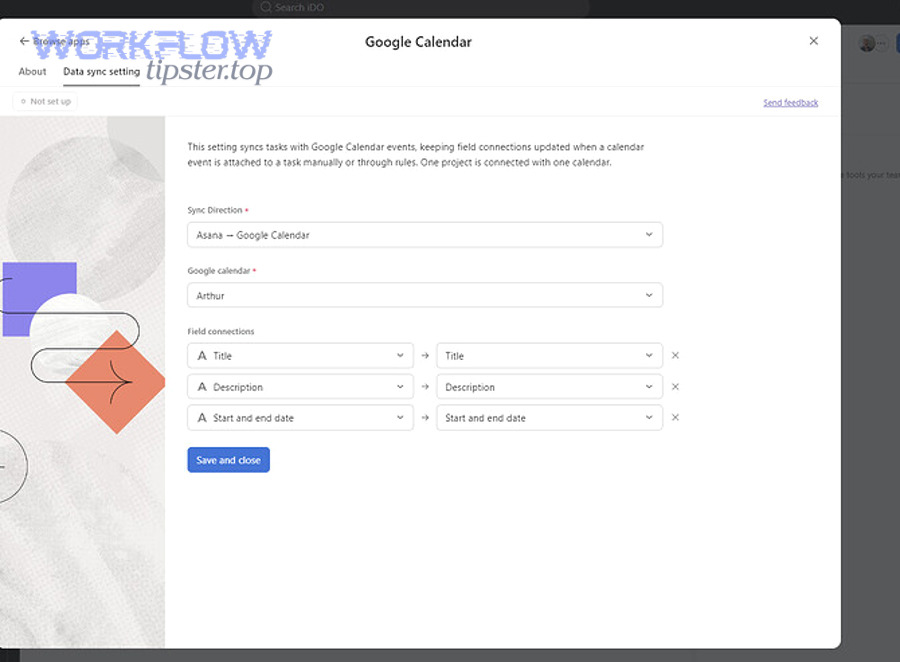
What information from a calendar event can be mapped into an Asana task?
There are 8 common event elements you can map into a task, based on the criterion “will this help the assignee act without opening the calendar?”
- Event title → Task name
- Event description/notes → Task description
- Start date/time → Task due date/time (or start date if your workflow supports it)
- End time → Optional context in description (useful for time-boxed work)
- Location → Task description (especially for onsite events)
- Video meeting link → Task description (Google Meet/Zoom link)
- Attendees → Mentions in description or custom field
- Event URL → Task description (“Source: Calendar event link”)
For teams, the biggest usability upgrade is a structured description. Instead of dumping raw event text, format the task like:
- Purpose / outcome
- Agenda (optional)
- Owner
- Link to meeting
- Required prep checklist
This turns “calendar info” into “work instructions,” which is exactly what prevents manual copy-paste.
What’s the difference between event→task automation and task→calendar visibility?
Event→task automation wins for execution, while task→calendar visibility is best for planning, and two-way sync is optimal only when you truly need edits in either tool to update the other. However, teams often implement the wrong one because the word “sync” sounds universal.
- Event → task automation
- Best when calendar entries represent work that must be owned (prep tasks, follow-ups, deliverables).
- Produces assignable tasks in Asana with due dates, projects, and templates.
- Task → calendar visibility
- Best when you want to see deadlines on a calendar for planning your week.
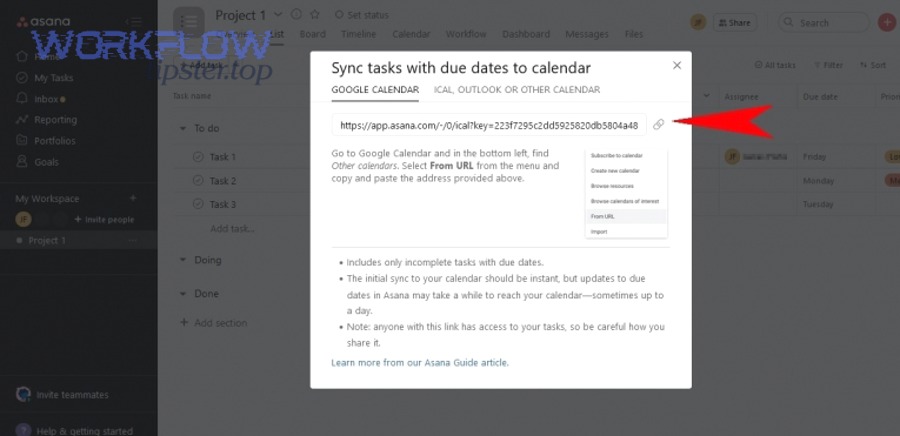
- Asana explicitly notes its Google Calendar syncing is one-way (Asana → calendar), meaning calendar edits don’t push back into Asana. (asana.com)
- Two-way sync
- Best when teams must manage the same item in either place (rare, but possible).
- Requires stricter governance (conflict rules, source-of-truth decisions).
How do you set up Google Calendar → Asana automation step by step?
Use an event-to-task automation method with 6 core steps—select a trigger, apply filters, map fields, route tasks, test edge cases, and monitor—so new (or updated) events consistently become actionable Asana tasks. Next, treat the setup like a small product launch: define the workflow rules first, then build and test with a limited calendar before rolling out team-wide.
How do you create an “event created” trigger and filter the right calendar events?
There are 4 main filtering patterns teams use, based on the criterion “only convert events that represent work”:
- Calendar-based filtering
- Only trigger on a specific calendar (e.g., “Team Delivery Calendar”).
- This is the cleanest approach because it avoids keyword chaos.
- Keyword-based filtering
- Trigger on events that contain a keyword like “TASK,” “ASANA,” or “FOLLOW-UP.”
- Example: “Client Call — TASK” becomes a task automatically.
- Event-type filtering
- Only convert events with guests, only events longer than 15 minutes, or only events with a meeting link.
- Privacy/state filtering
- Exclude “Private” events.
- Exclude “Tentative” or events marked “Free” (depending on your team’s habits).
For reliable teams workflows, pick one primary filter (usually calendar-based) and use keywords as a fallback. Otherwise, you risk task spam.
Also decide how to handle these high-impact cases:
- All-day events: should they become tasks with a due date only (no time)?
- Recurring events: should each instance become a task, or only the series owner?
- Edits & reschedules: should the automation update the existing task or create a new one?
How do you create the Asana task and map fields so it’s usable immediately?
There are 6 critical mapping choices that make tasks “team-usable” rather than “just created,” based on the criterion “can the assignee act without extra clarification?”
- Project + section
- Default to a “Calendar → Asana Intake” section, then auto-triage later, or
- Route by keyword/calendar to a specific project section.
- Assignee
- Assign to the organizer if the organizer is always the owner, or
- Assign to a role account (e.g., Ops Lead) for triage.
- Due date/time
- Use event start time as due time if it represents a deadline or meeting prep.
- Use event end time if the task must be completed after the meeting.
- Task description format
- Include meeting link, agenda, expected outcome, and source event link.
- Custom fields (optional, but powerful)
- Priority, client name, meeting type, SLA, or status.
- Subtasks/template
- For recurring meeting types, auto-create a checklist:
- “Review notes”
- “Prepare agenda”
- “Send follow-up”
- “Update project status”
- For recurring meeting types, auto-create a checklist:
If you want one quick, team-friendly template, use this structure:
- What this is: (meeting/event type)
- Owner: (assignee)
- When: (start/end time)
- Link: (video meeting URL)
- Outcome: (what success looks like)
- Prep checklist: (3–6 bullets)
You can embed one short tutorial video to help non-technical teammates understand the concept:
Which method is best: native Asana calendar options or automation tools?
Native Asana calendar syncing wins for deadline visibility, automation tools are best for event→task creation at scale, and two-way connectors are optimal for bi-directional updates with strict rules and governance. Meanwhile, the right choice depends less on “features” and more on your team’s definition of “sync”: visibility vs execution vs mutual updates.
Here’s a decision table to make the tradeoffs obvious—this table compares approaches by outcome, effort, and risk:
| Method | Best for | Direction | Setup effort | Risk level |
|---|---|---|---|---|
| Native Asana Sync to Calendar | Seeing Asana tasks on a calendar | Asana → Calendar (one-way) | Low | Low |
| Automation platform (no-code) | Turning events into tasks | Calendar → Asana (usually one-way) | Medium | Medium |
| Two-way connector | Keeping tasks/events aligned both ways | Bi-directional | High | High |
Asana’s own guidance emphasizes that syncing tasks to Google Calendar is one-way—calendar edits don’t write back into Asana. (asana.com)
When is a native one-way calendar view enough (and when is it not)?
A native one-way calendar view is enough when your goal is planning and visibility, but it’s not enough when your goal is accountability and execution that starts from calendar events. However, teams often need both: visibility for deadlines and automation for meeting-related work.
Native calendar sync is enough if:
- Your calendar is mostly for time planning, while Asana is the actual work engine.
- You just want to see due dates alongside other events to avoid overbooking.
- You don’t need events to create tasks automatically.
It is not enough if:
- Your team runs on meetings that require prep and follow-up tasks.
- You want events to automatically land in a project like “Client Delivery” or “Sprint Execution.”
- You need routing, templates, assignees, and consistent formatting.
This is where many teams adopt “calendar-to-task” automation as their execution bridge: the calendar remains a scheduling tool; Asana becomes the work record.
When do you need a two-way connector instead of a one-way automation?
Yes, you need a two-way connector when both tools must be editable sources of truth—because one-way automations can’t reliably resolve conflicts, manage reschedules bidirectionally, or prevent duplicated updates across systems. More importantly, two-way sync only makes sense when you define which fields are allowed to sync and who is allowed to edit them.
Two-way sync is justified when:
- Teams update task dates in Asana and expect the calendar to reflect changes automatically.
- Teams reschedule meetings in the calendar and expect task due dates to update.
- You can enforce governance: naming conventions, ownership rules, and conflict handling.
Two-way sync becomes risky when:
- Multiple people edit the same event/task.
- Recurring series get modified in inconsistent ways.
- The team can’t agree on which tool “wins” during conflicts.
If you’re evaluating options, Asana’s directory and help content clearly separate calendar visibility from deeper automation use cases. (help.asana.com)
How do you prevent duplicates, missed tasks, and messy workflows?
Preventing duplicates and missed tasks requires 5 controls—dedupe keys, update rules, recurring-event strategy, permission hygiene, and monitoring—so your Google Calendar → Asana automation stays clean even when events change. Besides, teams don’t usually fail at the initial setup; they fail when reschedules, recurring events, and multiple editors collide.
How can you stop duplicate tasks from recurring events and edits?
A duplicate-proof workflow uses an idempotency rule: one calendar event instance should map to exactly one Asana task, even if the event is edited. To illustrate, the simplest approach is storing the calendar event ID (or event URL) inside the Asana task description or a custom field, then using a “find-or-create” step: find the existing task first, update it if found, and only create if missing.
Practical anti-duplicate rules:
- Recurring events
- Decide whether to create:
- One task per occurrence (best for recurring deliverables), or
- One “series task” that represents the recurring meeting (best for internal standups).
- Decide whether to create:
- Event edits
- If title/time changes, update the existing task rather than creating a new one.
- Cancelations
- If an event is canceled, close the related task or move it to a “Canceled” section.
You’ll also want a “noise gate” rule: if someone books a tentative placeholder (“Hold”), it should not generate tasks unless it’s confirmed.
What are the most common integration problems and how do you fix them?
There are 7 common issues teams run into, based on the criterion “does the task output remain reliable and usable?”
- Permission failures
- Fix: ensure the connector has access to the right Google calendar(s) and the right Asana project permissions.
- Wrong scope (task spam)
- Fix: restrict to a dedicated calendar or apply strict keywords.
- Time zone and DST confusion
- Fix: standardize workspace time zone rules and verify all-day event handling.
- Recurring event duplication
- Fix: define recurrence strategy and implement find-or-create logic.
- Missing meeting link
- Fix: include “location/meeting link” fields in your mapping and require hosts to add it.
- Private events / hidden guest lists
- Fix: exclude private events or accept that some fields cannot sync for privacy reasons.
- Silent failures
- Fix: create an error notification path (email/Slack) and review failed runs weekly.
Evidence (why cleanup matters): According to a study by the University of California, Irvine from the Department of Informatics, in 2008, researchers found that people often compensate for interruptions by working faster, but this is associated with higher stress, frustration, time pressure, and effort. (ics.uci.edu)
How can teams customize Google Calendar → Asana automation for advanced workflows?
Teams can customize Google Calendar → Asana automation by adding routing rules, task templates, edge-case handling, and governance so the workflow scales beyond simple event-to-task creation into a consistent operating system for meetings and deliverables. Next, this is where “Automation Integrations” become a strategy rather than a feature: you’re designing how work enters the system, not just connecting two apps.
How can you route events into different Asana projects and sections automatically?
There are 4 routing models teams use, based on the criterion “how should events be classified into workstreams?”
- Calendar-to-project routing
- “Sales Calendar” → Sales Ops project
- “Delivery Calendar” → Client Delivery project
- Keyword-to-section routing
- Titles containing “Client” → “Client Work” section
- Titles containing “Internal” → “Internal Ops” section
- Organizer/owner routing
- If organizer is “PM Team,” route to PM project
- If organizer is “Support Lead,” route to Support project
- Meeting type routing
- “Weekly Review” → recurring checklist template
- “Kickoff” → kickoff task template with subtasks
A clean naming convention makes routing reliable. Example:
[Type] - [Client/Project] - [Outcome]Kickoff - Project Atlas - Confirm scope
This approach also mirrors how teams build cross-app workflows in other pipelines—like airtable to smartsheet for reporting handoffs, or google docs to google chat for content-to-notification flows—so one naming logic can power multiple automations without chaos.
How can you convert events into task templates with subtasks and custom fields?
There are 3 levels of turning events into structured work, based on the criterion “how much repeatability does this event type have?”
- Level 1: Simple tasks
- Event creates one task with a clean description template.
- Level 2: Template tasks
- Event creates a task plus a standard checklist (subtasks).
- Example subtasks:
- “Prepare agenda”
- “Review last notes”
- “Capture decisions”
- “Send follow-up”
- Level 3: Structured tasks with custom fields
- Populate custom fields like:
- Meeting Type
- Client
- Priority
- Follow-up SLA
- This enables dashboards and consistent reporting.
- Populate custom fields like:
If you’re building for teams, Level 2 is often the sweet spot: it turns meetings into repeatable execution without overcomplicating maintenance.
What rare edge cases break calendar-to-task workflows ?
There are 5 rare edge cases that commonly break “it worked in testing” setups, based on the criterion “does the automation still behave predictably under change?”
- Edited recurring series
- Fix: decide whether edits apply to the series task or only the next occurrence.
- All-day events used as deadlines
- Fix: treat all-day events as due-date-only tasks, and put the real time window in the description.
- DST and time-zone shifts
- Fix: store the event time zone in the task and test around DST weeks for your main region.
- Private events with limited metadata
- Fix: exclude, or accept that only minimal fields can map.
- Multiple editors creating conflicting updates
- Fix: restrict who can edit event fields that drive routing (title keywords, calendar choice).
These are “micro semantics” problems: small details that only appear at scale, but they determine whether teams trust the automation.
Is two-way sync ever “safe,” and what governance should teams apply?
Yes, two-way sync can be safe when you limit synced fields, define a source-of-truth policy, and enforce role-based editing—because without governance, bi-directional updates amplify conflicts instead of reducing work. More importantly, governance is what turns a connector into a team system.
A simple governance policy that works:
- Source of truth
- Calendar is the source of truth for meeting time and attendance.
- Asana is the source of truth for execution status and deliverables.
- Allowed synced fields
- Sync only dates/times and titles, not free-form notes (to prevent overwrite battles).
- Ownership
- Only meeting owners can change event titles/keywords that drive routing.
- Audit & monitoring
- Weekly review of failed runs and duplicates.
- A “quarantine section” for tasks created without required fields.
Evidence (why governance matters): According to a study by the University of North Carolina at Charlotte from the Department of Psychology, in 2006, researchers surveyed employees (including a sample of N=676 for weekly meetings and N=304 for daily meetings) and found that perceived meeting effectiveness has a strong relationship with employee well-being. (pubmed.ncbi.nlm.nih.gov)