


Manually copy-pasting emails into Notion works, but it doesn’t scale: you lose context, miss follow-ups, and turn your inbox into a second task manager. A Gmail to Notion integration fixes that by automatically capturing the right emails and turning them into structured Notion items—tasks, tickets, leads, or meeting notes—so your system stays searchable and consistent.
Next, you’ll learn what this integration can (and can’t) do in real life—what data to capture, what a “good” Notion database looks like, and where teams usually break the workflow without realizing it.
Then, you’ll get step-by-step setup paths (Zapier, Make, and a light-code option), plus the decision logic for choosing the best method for your budget, volume, and security needs.
Introduce a new idea: once the integration is running, the real leverage comes from templates and governance—recipes that match your work, and rules that prevent duplicates, permission leaks, and “automation chaos.”
Can you automate Gmail to Notion instead of manual copy-paste?
Yes—you can automate Gmail to Notion, and it’s better than manual copy-paste for three reasons: it captures emails consistently, reduces missed follow-ups, and standardizes how teams turn messages into trackable work items.
To begin, the biggest win is consistency: the automation records the same fields every time (subject, sender, date, labels, thread link, summary), which makes your Notion database genuinely searchable and reportable instead of a pile of pasted text.
Why does automation reduce missed follow-ups compared to copying by hand?
Manual transfer fails when you’re busy: you read an email, intend to act later, and it disappears into the scroll. Automation creates a “single moment” rule: when an email matches your criteria, it instantly becomes a Notion item with a status and owner—so it’s visible in your workflow even if you never open that email again.
How does automation improve focus and reduce the cost of interruptions?
Email nudges you into constant context switching. In a study by the University of California, Irvine (Department of Informatics), in 2008, interrupted work led people to work faster but with higher stress, frustration, time pressure, and effort—showing the hidden cost of frequent disruptions. (ics.uci.edu)
When is manual copy-paste still acceptable?
Manual copy-paste is fine when volume is low (a few emails per week), when the data must be curated carefully (e.g., legal review), or when security policy forbids automation tools. Even then, you can still use the same Notion database structure described below—so if you later automate, you won’t rebuild your system from scratch.
What does a Gmail to Notion integration actually do?
A Gmail to Notion integration is an automation workflow that detects specific emails in Gmail (by search, label, sender, keywords, etc.) and creates or updates items in a Notion database with structured properties and a link back to the email thread.
Next, think of it as “email → database record,” not “email → note.” Notes are hard to filter; database records are easy to sort, assign, and measure.
What data should you capture from Gmail into Notion?
Capture only what you’ll actually use. A strong default set looks like this:
- Title (email subject)
- From (sender name/email)
- Received date
- Gmail label / category (e.g., “Action Required,” “Lead,” “Support”)
- Short summary (manual or AI-generated)
- Status (New / Triaged / In progress / Done)
- Owner (person responsible)
- Source link (Gmail message/thread link)
- Attachments (either links or stored files—tool-dependent)
What does “two-way sync” mean—and do you need it?
Most Gmail→Notion setups are one-way (capture emails into Notion). Two-way sync would mean Notion updates affect Gmail (labels, replies, etc.). Many teams don’t need two-way sync; they need a reliable intake funnel plus clear ownership in Notion.
What is the minimum Notion database you need before automating?
At minimum: Title, Status, Owner, Received date, Source link, and one classification property (like Type or Label). If you automate without these, you’ll just create a cleaner mess—faster.
How do you set up Gmail to Notion in Zapier, Make, or a lightweight custom workflow?
You can set up Gmail to Notion by creating a workflow with 5 steps—define a Gmail trigger, map fields, write to a Notion database, add de-duplication, and apply a success marker (label or status) to prevent repeats.
Then, choose a route: no-code (Zapier), visual builder (Make), or lightweight custom (Apps Script) depending on flexibility and control.
Setup path A: Zapier (fastest for most teams)
- Create a trigger: Gmail “New Email Matching Search” (use Gmail search operators like label:action-required or from:client@domain.com subject:(invoice OR quote)).
- Choose an action: Notion “Create Database Item.”
- Map fields: Subject → Title, From → Sender, Date → Received, Snippet/Body → Description, Thread/Message link → Source.
- Add a filter: Only continue if the email truly matches intent (keyword, label, category).
- Add a de-duplication strategy: Use a unique key like Gmail Message ID or Thread ID (store it in a Notion property and “Find or Create” logic if supported).
- Mark success: Apply a Gmail label like “Saved to Notion” after creation to avoid re-processing.
Zapier explicitly supports connecting Gmail and Notion with prebuilt triggers/actions, which is why this path is usually the quickest to deploy. (zapier.com)
Setup path B: Make (best when you want advanced logic)
- Trigger: Watch Emails in Gmail (filter by query or label).
- Router: Split logic by email type (support vs sales vs ops).
- Notion module: Create a database item (or update if exists).
- Text tools: Clean the email body (remove signatures, collapse quoted replies).
- Error handler: Retry, log failures, and notify Slack/email on critical errors.
- Success marker: Apply a label in Gmail or store “processed_at” in Notion.
Make is ideal when you want branching workflows, transformations, and higher customizability without going full engineering.
Setup path C: Google Apps Script (lightweight control, less vendor dependency)
Use Apps Script if you want a simple “label → Notion database” pipeline under your Google account control:
- Watch for new labeled emails (label:to-notion).
- Extract subject, sender, date, snippet, and permalink.
- Call Notion API to create/update a database item.
- Store Gmail Message ID in Notion to prevent duplicates.
- Apply a “done” label when successfully written.
This is especially useful when your team already maintains scripts—just keep scope tight to avoid creating an unmaintainable integration.
Which automation method fits you: Zapier vs Make vs Apps Script?
Zapier wins in speed-to-launch, Make is best for complex routing and transformations, and Apps Script is optimal for teams that need tighter control and customization with fewer third-party layers.
Next, decide based on criteria that affect outcomes—not hype.
Comparison table: choose the right method for Gmail → Notion
This table contains the practical criteria most teams use to choose an automation method, so you can match the tool to your volume, complexity, and governance needs.
| Criterion | Zapier | Make | Apps Script |
|---|---|---|---|
| Time to first working workflow | Fastest | Fast | Slowest (requires scripting) |
| Logic complexity (routing/branching) | Medium | High | High (but manual) |
| Maintenance burden | Low | Medium | Medium–High |
| Cost predictability | Medium | Medium | Low (time cost instead) |
| Best for | Standard workflows | Advanced workflows | Controlled custom workflows |
When should you choose Zapier?
Choose Zapier when you want: fast setup, reliable triggers, minimal logic, and a workflow your team can own without engineering.
When should you choose Make?
Choose Make when you need: multi-step transformations, multiple Notion destinations, advanced filters, or rich error handling.
When should you choose Apps Script?
Choose Apps Script when you need: full control of how data is extracted and written, and you can afford light engineering ownership.
What are the most useful Gmail-to-Notion automation recipes?
There are 6 main Gmail-to-Notion automation recipe types: Actionable Tasks, Support Tickets, Sales/Leads, Meeting Follow-ups, Document Requests, and Personal Knowledge Capture—based on the criterion of why the email matters.
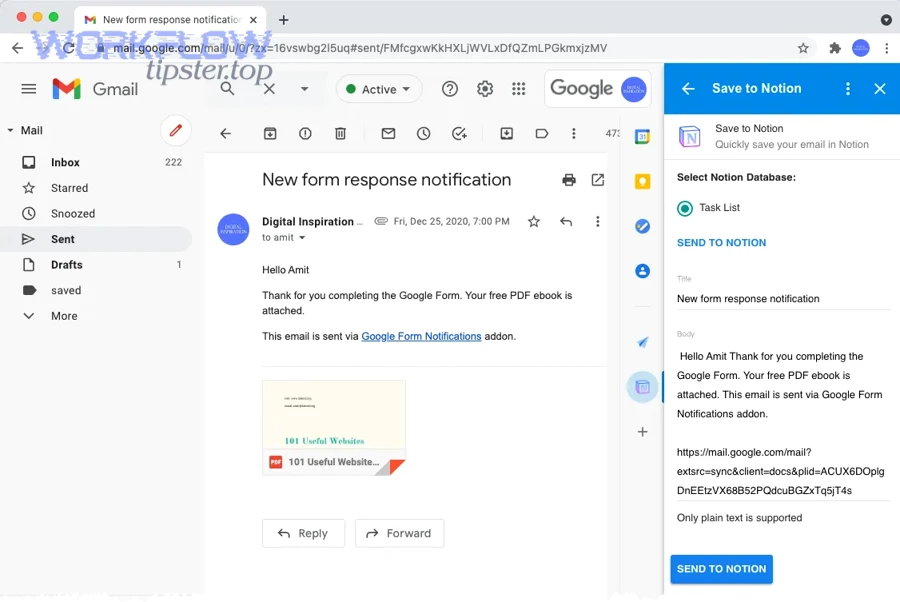
Then, implement only the recipes that match your workflow; more recipes isn’t better—cleaner intake is.
Recipe 1: Label-to-task (Action Required → Notion Tasks)
- Trigger: Gmail label “Action Required”
- Notion: Create task with Status = New, Priority based on sender/keywords
- Best practice: Auto-assign owner by rules (e.g., finance@ → Finance owner)
Recipe 2: Support intake (Bug/Issue emails → Notion Tickets)
- Trigger: to:support@ or subject contains “bug,” “error,” “failed”
- Notion: Create ticket, set Type = Support, capture environment details if present
- Best practice: Store thread link so all follow-ups map to the same ticket
Recipe 3: Sales lead capture (Inbound inquiries → Notion CRM)
- Trigger: subject:(pricing OR quote OR demo) or from specific domains
- Notion: Create lead with Stage = New, Company parsed from signature
- Best practice: Add SLA property (e.g., respond within 24h)
Recipe 4: Approvals pipeline (Approvals needed → Notion Approvals DB)
- Trigger: label “Needs Approval”
- Notion: Create approval record with Due date and Decision field
- Best practice: Add a checklist template inside the Notion item
Recipe 5: Attachment logging (Invoices/contracts → Notion Documents DB)
- Trigger: subject keywords + attachment present
- Notion: Create doc record; store file link(s) or upload via tool capability
- Best practice: Tag doc type and retention policy
Recipe 6: Personal knowledge capture (Newsletters/research → Notion Reading DB)
- Trigger: label “Read Later”
- Notion: Save snippet + link; optional summary
- Best practice: Weekly review view to prevent backlog buildup
In addition, if your organization also runs broader Automation Integrations, you can standardize these recipes across other workflows such as google forms to salesforce, clickup to dropbox, or airtable to jotform—so teams share a common intake pattern even across different tools.
How do you prevent duplicates and keep data clean in Notion?
You prevent duplicates and keep data clean by enforcing three controls: a unique identifier (Message ID or Thread ID), an idempotent “find-or-create” step, and a Gmail-side success marker (label or archive rule).
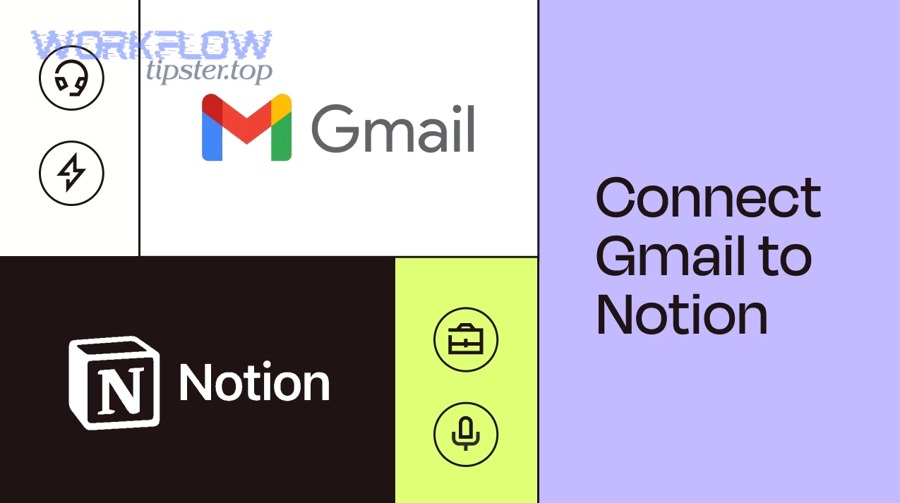
Next, treat data cleanliness as part of the automation—not an afterthought.
Use a unique key property in Notion
Create a Notion property like Gmail Message ID or Gmail Thread ID. Every time the automation runs, it must store this value. If the workflow sees the same ID again, it should update the existing record—not create a new one.
Prefer “thread-based” capture for ongoing conversations
If your workflow creates a Notion item for every message in a long thread, you’ll flood your database. Instead:
- Create one record per thread
- Append new messages into a single “Updates” field
- Update “Last activity date” each time
Add a “Processed” label in Gmail
After successfully writing to Notion, label the email “Saved to Notion.” That gives you:
- A safety lock against re-processing
- A quick way to audit what was captured
- A human override when needed
Normalize Notion properties (the hidden scaling lever)
Pick a small, stable set of properties and stick to them:
- Status, Owner, Type, Source, Received date, Priority (optional)
Avoid creating new properties per team preference—use filtered views instead.
What should you do when your Gmail to Notion automation fails?
When your Gmail to Notion automation fails, you should triage in three steps—identify the failure point, isolate the triggering email(s), and apply a fix (auth, permissions, mapping, or rate/limits) with a retry plan.
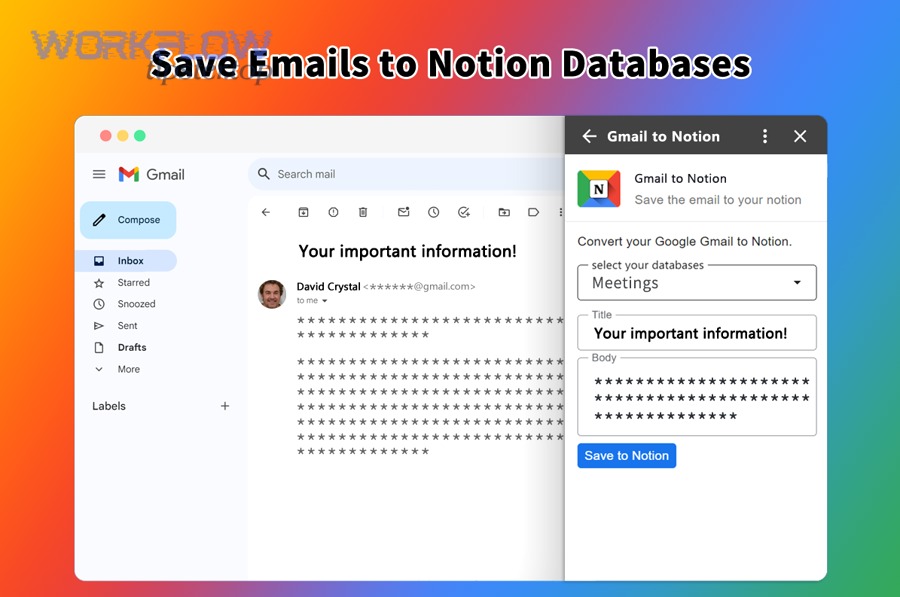
Then, set up prevention so the same failure doesn’t repeat silently.
Failure type 1: Authentication expired
Symptoms:
- “Invalid grant,” “token expired,” or reconnect required
Fix:
- Reconnect Gmail and/or Notion accounts in your automation tool
- Confirm the correct workspace and database permissions
Failure type 2: Notion permissions or database mismatch
Symptoms:
- “Cannot access database,” “object not found,” or missing fields
Fix:
- Confirm the integration has access to the target database
- Ensure required properties exist and match types (text vs select vs date)
Failure type 3: Field mapping breaks because the email body is messy
Symptoms:
- Notion pages created with empty body or corrupted formatting
Fix:
- Store snippet instead of full HTML body
- Add a cleanup step: remove quoted replies, signatures, tracking pixels
Failure type 4: Duplicate loops
Symptoms:
- Same email creates multiple Notion items
Fix:
- Enforce unique key + “find-or-create”
- Apply Gmail “Processed” label only after Notion write succeeds
Failure type 5: Volume spikes and throttling
Symptoms:
- Random failures during high email volume
Fix:
- Batch processing (every 5–15 minutes)
- Queue-based design (label intake → process labels in batches)
How can teams improve security, governance, and scaling for Gmail to Notion?
Teams improve security, governance, and scaling by implementing 5 governance pillars: least-privilege access, standardized database schemas, audit-friendly logging, automation ownership, and change control.
Next, use governance to make automation safe—so it stays trusted when your team grows.
Pillar 1: Least-privilege access
- Use a dedicated integration account (not a personal mailbox)
- Limit Notion access to the minimum databases needed
- Avoid “god-mode” permissions unless absolutely required
Pillar 2: Standard schemas across teams
Define shared properties and meanings:
- Status (with definitions)
- Type taxonomy (Support / Sales / Ops / Legal)
- Ownership rules
This makes cross-team dashboards possible and prevents “semantic drift.”
Pillar 3: Logging and audit trails
You want to answer: “Which email created this Notion item, when, and under what rule?” At minimum store:
- Gmail ID, thread link
- Automation name/version
- Created/updated timestamp
Pillar 4: Clear ownership and on-call responsibility
Decide who owns:
- Credential renewals
- Error alerts
- Schema changes
If nobody owns it, the automation will silently decay until it becomes a liability.
Pillar 5: Change control (stop breaking your own workflow)
Before changing fields, filters, or routing:
- Test with a staging database
- Roll out one change at a time
- Keep a rollback plan (duplicate the scenario/zap before edits)
Evidence (where applicable)
According to a study by the University of California, Irvine from the Department of Informatics, in 2008, people completed interrupted work faster but experienced higher stress, frustration, time pressure, and effort—highlighting why automating email-to-work capture can reduce costly context switching. (ics.uci.edu)