


Connecting Gmail to Jira is absolutely possible, and it lets support and project teams turn emails into trackable Jira issues without copying, pasting, or losing context between tools.
Most readers also want clarity on which integration approach fits their setup—native Gmail add-ons, Marketplace apps, or automation workflows—so they can pick the fastest, most reliable path.
After you choose the method, the next practical need is building a clean “email → issue” workflow: correct field mapping, attachments, and routing rules so tickets stay actionable instead of messy.
Finally, long-term success depends on security, governance, and troubleshooting so the integration works predictably at team scale. Introduce a new idea: start with what’s possible, then move step-by-step into setup, workflow design, routing, security, and fixes.
Is it possible to connect Gmail to Jira to create issues from emails?
Yes—Gmail-to-Jira integration is possible, and it works because (1) Gmail add-ons can create Jira issues from email content, (2) Jira permissions control what users can create/update, and (3) the workflow keeps the email context attached to the issue for faster triage.
Then, to make that “Yes” useful in real work, you need to understand what gets transferred from Gmail into Jira and who benefits most from doing it in the inbox.
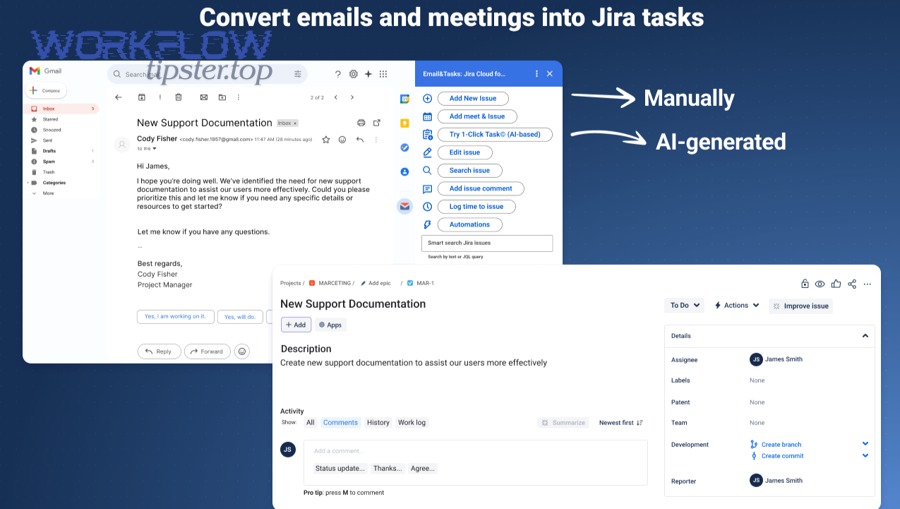
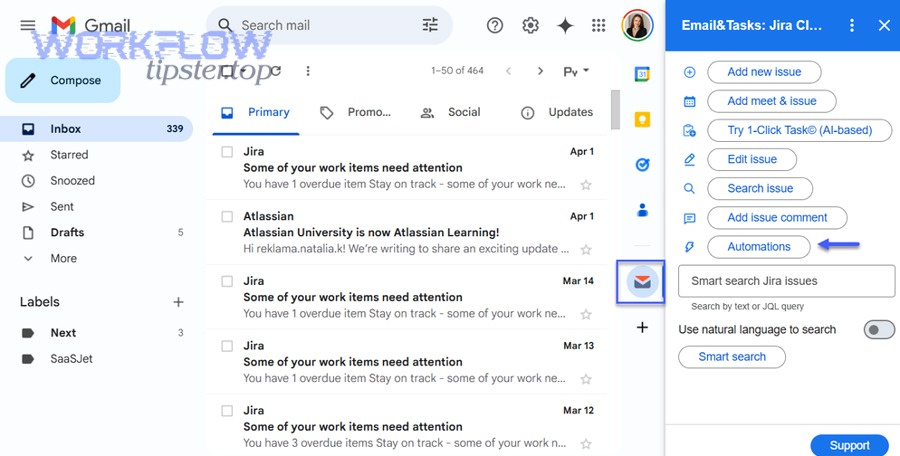
In practice, “connect Gmail to Jira” usually means one of three things:
- A Gmail side-panel add-on that lets you create and manage Jira issues inside Gmail (best for speed and consistency).
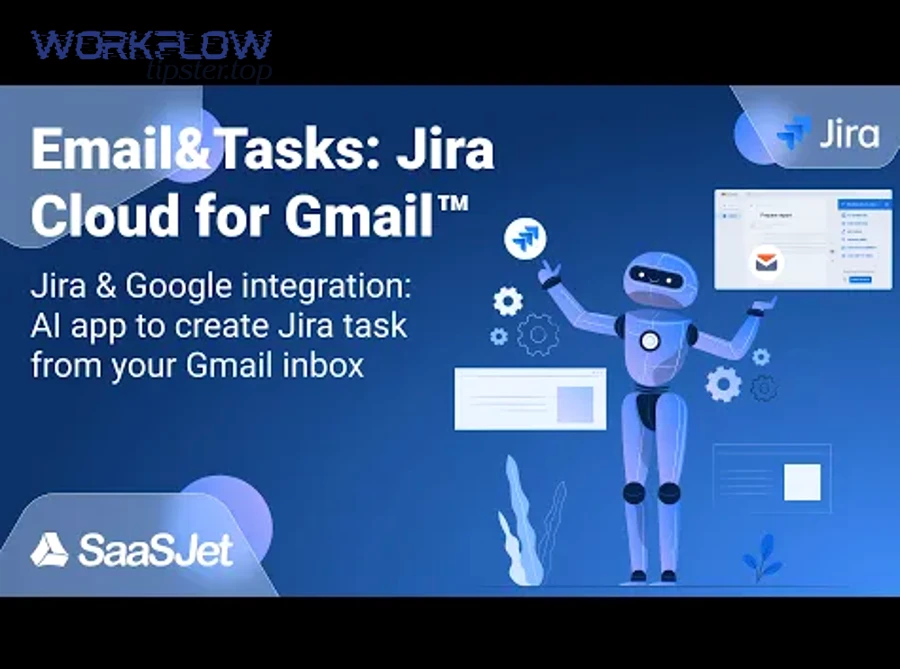
- A Marketplace app that adds extra features like routing templates, AI field suggestions, or calendar linkage.
- An automation integration that creates issues in the background when rules match (best for advanced routing and enrichment).
The key is that Jira remains your system of record, while Gmail becomes the capture point—where work enters the system with fewer steps.
What exactly happens when you turn an email into a Jira issue?
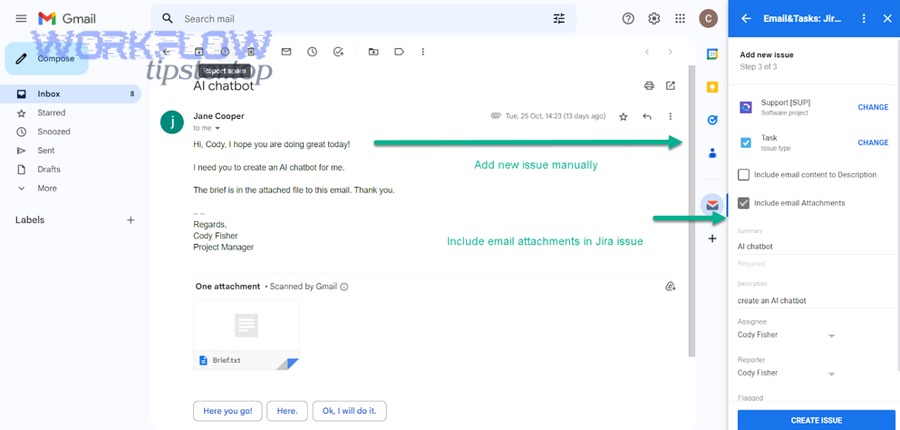
Turning an email into a Jira issue is a capture-and-structure process where the email’s subject and body become an issue’s summary and description, the email thread can be referenced for context, and attachments can be included so the issue stands alone as an actionable work item.
Next, because the goal is a trackable ticket, you should treat the email as raw input and Jira as the structured output.
A typical “email → issue” transformation looks like this:
- Email subject → Issue summary (short, action-oriented, searchable)
- Email body → Issue description (the detailed request, symptoms, context)
- Sender info → Reporter or requestor (depending on Jira configuration and permissions)
- Attachments → Issue attachments (screenshots, PDFs, logs)
- Thread link/quote → Reference (so responders can verify original context)
To keep issues readable, consider adding a standardized “intake header” at the top of the description:
- Request type: Bug / Feature / Question / Access / Support
- Impact: Blocker / High / Medium / Low
- System/area: Product / Team / Component
- Expected outcome: One sentence
This small structure prevents “email-shaped issues” (long threads, mixed topics, unclear asks) and makes reporting and triage faster.
Which users benefit most from Gmail-to-Jira—support teams, project teams, or both?
There are two main audience groups that benefit most from Gmail-to-Jira: support teams (who triage inbound requests) and project teams (who convert discussions into deliverables).
Then, once you know which group you’re optimizing for, you can tune fields, routing, and permissions accordingly.
Support teams benefit because:
- They can convert customer emails into issues at the moment of receipt
- They can preserve evidence (screenshots, logs) without rework
- They can route tickets into the correct queue with less manual handling
Project teams benefit because:
- They can turn stakeholder emails into tasks/stories without losing details
- They can create follow-ups directly from approval threads
- They can reduce “decision drift” by linking the email context to the issue
In many organizations, both groups benefit—but the configuration differs: support workflows prioritize routing and SLAs, while project workflows prioritize clarity, ownership, and backlog hygiene.
What are the main ways to integrate Gmail with Jira?
There are three main ways to integrate Gmail with Jira: (A) a native-style Gmail add-on experience, (B) third-party Marketplace apps with extra features, and (C) automation platforms that create issues via rules—chosen based on UI needs, governance, and workflow complexity.
However, the “best” choice depends on whether you want humans to create issues inside Gmail or systems to create them automatically in the background.
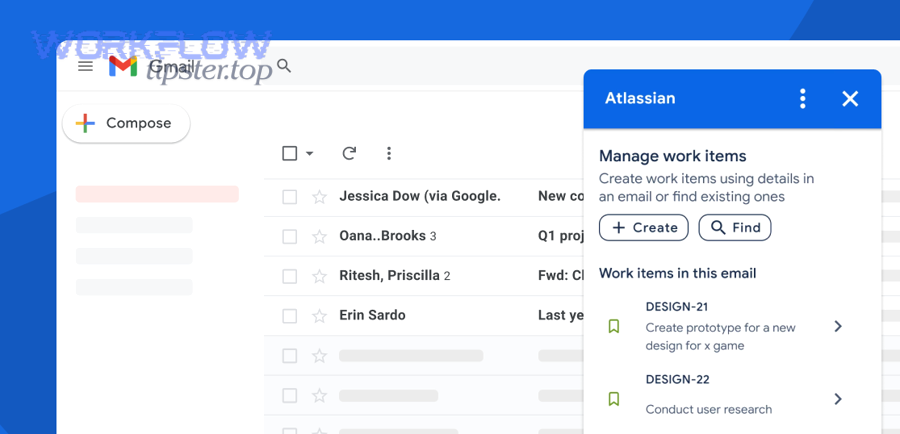
This table contains the most important differences among the three approaches so you can match the method to your team’s needs.
| Integration approach | Best for | Strength | Trade-off |
|---|---|---|---|
| Gmail add-on (in-inbox UI) | Fast human triage | Minimal context switching | Less complex routing logic |
| Marketplace app (enhanced add-on) | Teams needing extra features | Templates, enrichment, optional AI | Depends on vendor features/policies |
| Automation platform (rules-based) | Advanced routing + enrichment | Powerful logic and branching | More setup + maintenance |
This is also where “Automation Integrations” matter: some teams prefer a consistent pattern across tools (for example, linking workflows like google calendar to slack notifications or connecting file processes like dropbox sign to google drive) so the Jira intake works as part of a broader operational system.
What is the difference between a Gmail add-on and an automation-based integration?
A Gmail add-on is interactive and human-driven, while an automation-based integration is rule-driven and system-executed—meaning the add-on helps users create and manage issues inside Gmail, while automation creates issues when conditions are met.
To better understand the difference, focus on where the work happens and who triggers it.
Gmail add-on (human-triggered)
- The user opens an email
- The user clicks “Create issue” (or similar)
- The user selects project/issue type and confirms fields
- Result: high control, good for nuanced emails
Automation integration (rule-triggered)
- An email arrives (trigger)
- Rules evaluate sender/labels/keywords
- Jira issue is created automatically (action)
- Result: high scale, good for standardized intake
If your incoming emails vary widely, human-triggered add-ons reduce mistakes. If your intake is predictable, automation reduces manual workload.
When should you use native Jira for Gmail vs a third-party app?
Native-style Jira-for-Gmail workflows usually win when you need simplicity and consistency, while third-party apps are best when you need specialized features like templates, advanced mapping, or cross-tool actions.
Meanwhile, your admin posture—security reviews, vendor policies, and managed rollout—often decides this more than feature lists.
Use a native-style Gmail add-on when:
- You want a fast “turn email into issue” workflow
- Most tickets can be created with a small set of fields
- You want lower operational overhead
Use a third-party app when:
- You need customizable issue templates per request type
- You want enrichment (auto-fill components, dedupe, calendar linking)
- You need deeper workflow features beyond basic creation/editing
If your organization already standardizes vendor approvals and app governance, third-party apps can be fine. If not, start simpler.
How do you set up Gmail-to-Jira step by step for a team?
The most reliable way to set up Gmail-to-Jira is a 5-step rollout method—install the add-on, authorize accounts, connect the Jira site, run a pilot workflow test, and then deploy with admin controls—so teams can create and manage issues from Gmail consistently.
Next, because setup failures often come from permissions mismatches, you should confirm access in both Google Workspace and Jira before rolling out widely.
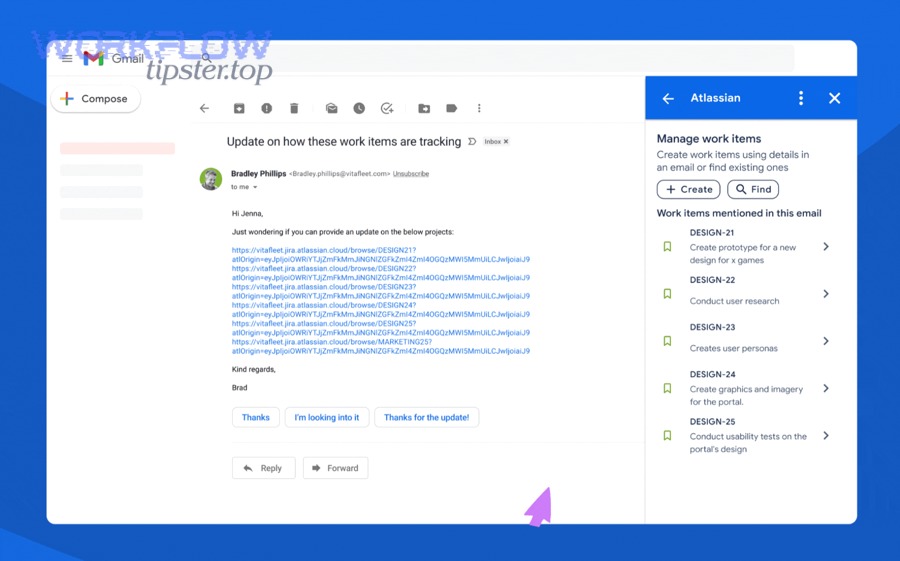
- Choose the integration method (add-on vs app vs automation)
- Install (admin or user install depending on policy)
- Authorize Google + Atlassian/Jira access
- Connect to the correct Jira cloud site / project
- Pilot with real emails (10–20 representative examples)
- Document the “email → issue” standards
- Roll out by team (support first, then project teams)
What permissions and access do you need in Google Workspace and Jira?
You need (1) permission to install/enable the Gmail add-on in your Workspace environment, (2) user authorization to connect accounts, and (3) Jira project permissions to create and edit issues—otherwise users will see the add-on but fail at creation or updates.
Besides, “it’s installed” is not the same as “it can create issues,” so verifying Jira project roles is essential.
On the Google Workspace side:
- Admin policies may control whether add-ons can be installed
- Domain allowlists may restrict third-party integrations
- Some orgs require admin-install for consistency
On the Jira side:
- Users must have permission to Create Issues in the target project
- Required fields (like Components, Priority, or custom fields) must be fillable
- Issue security settings can block visibility after creation
A good default is “least privilege”: give users only the project access they need, then add additional projects after the workflow proves stable.
How do you verify the integration works before rolling it out company-wide?
You verify Gmail-to-Jira works by testing (1) issue creation from representative emails, (2) attachment handling, (3) status/comment updates, and (4) visibility/notifications across roles—then documenting the results as a rollout checklist.
More importantly, you should test edge cases early so the integration doesn’t fail on day one.
- A short email request (simple intake)
- A long thread with multiple decisions (complex context)
- An email with attachments (PDF + screenshots)
- A “wrong project” scenario to test routing and guardrails
- A permissions scenario (user without create permission)
Define success criteria:
- Issues created successfully in the right project
- Required fields completed without manual rework
- Attachments appear correctly
- Notifications go to the right assignees/watchers
This pilot becomes your rollout runbook, and it prevents “random” failures when you scale to more users.
How should you structure the “email → Jira issue” workflow so tickets are clean and actionable?
A clean email-to-issue workflow is built by standardizing field mapping, enforcing a short intake template, and defining what gets attached vs summarized—so every Jira issue is readable, triage-ready, and measurable.
Specifically, the fastest path is to treat Gmail as the capture surface and Jira as the structured record, which means you should not copy raw threads into descriptions without formatting.
The most common failure pattern is “the issue is just the email,” which leads to unclear ownership, unclear next steps, no prioritization, duplicate work, and inconsistent reporting.
Instead, define a workflow standard for your teams:
- Subject line rule: summarize the request in 8–12 words
- Description rule: problem + impact + expected outcome
- Evidence rule: attach files or link the thread; don’t paste everything
- Ownership rule: assign during triage, not later
- Status rule: consistent transitions (To Do → In Progress → Done, etc.)
Which email elements should map to Jira fields (summary, description, reporter, priority)?
There are five core mapping elements that work in most organizations: subject → summary, body → description, sender → reporter/requestor, attachments → attachments, and urgency cues → priority (when standardized).
Then, once you use consistent mapping, you can scale reporting and automation without confusion.
- Summary: rewrite the subject if needed into an action phrase
- Description: what is requested + impact + expected outcome
- Reporter/requestor: usually the email sender (or the shared inbox identity)
- Priority: map only if you have a strict pattern (otherwise prioritize during triage)
If you want fewer low-quality tickets, require one short triage step: “Rewrite summary + add impact line.” That adds 20–40 seconds but saves minutes later.
How do you handle attachments, screenshots, and long email threads in Jira?
You handle attachments and long threads best by attaching critical files, summarizing decisions in 3–6 bullets, and linking the thread for full context—so the Jira issue remains readable while the original email remains accessible.
In addition, this reduces the chance that teams miss important details buried deep in a thread.
- Attach: screenshots, PDFs, logs, contracts (if policy allows)
- Summarize: decisions, acceptance criteria, constraints
- Link: the email thread (or reference it) for audit and deep context
For long threads, use a “decision capsule”:
- Decision: what was agreed
- Owner: who is responsible
- Due date: when it’s needed
- Dependencies: what blocks progress
This turns “email chaos” into an issue that can move through a Jira workflow cleanly.
How do you route Gmail emails to the right Jira project and issue type?
You route Gmail emails effectively by using clear classification criteria (sender, label, keyword, and request type) and mapping them to the correct Jira project and issue type—so each ticket lands in the right queue with the right workflow.
Next, because routing is where scale is won or lost, you should design routing rules around organizational ownership, not just keywords.
A reliable routing model usually has:
- A small number of projects (avoid fragmentation)
- Clear issue types (Task, Bug, Story, Service Request)
- A routing rule hierarchy (sender/domain > label > keyword > default)
What routing rules work best for support vs internal requests?
Support routing wins when it prioritizes category + urgency, while internal request routing wins when it prioritizes department + approval path.
However, mixing them in one routing rule set creates confusion, so define distinct routing patterns by request class.
Support routing rules (best practice)
- Sender domain indicates customer vs partner vs internal
- Keywords/labels map to product area (Billing, Login, API, Mobile)
- Severity defaults to “Medium” unless confirmed by impact criteria
- Issue type: Service Request or Bug (depending on workflow model)
Internal request routing rules
- Labels map to department (IT, Finance, People Ops, Legal)
- Request templates enforce needed fields (access level, system, deadline)
- Issue type: Task or Service Request with approvals (if required)
The goal is simple: the same email pattern should always land in the same queue so teams build trust in the system.
How do you prevent duplicates when multiple people forward the same email?
You prevent duplicate Jira issues by using (1) a single-owner triage approach, (2) clear forwarding rules, and (3) dedupe checks using thread identifiers or standardized subject patterns—so the same email doesn’t become multiple tickets.
More importantly, duplicates are usually a process problem, not a tooling problem.
- Single owner rule: only the triage owner converts emails into issues
- Label-first rule: users label/assign emails, not create tickets directly (in some teams)
- Thread-based naming: include a short unique token or reference ID in the issue
- Automation dedupe (if used): check for existing open issues with the same sender + subject pattern
If duplicates still happen, fix incentives: people create duplicates when they don’t trust that “someone is handling it.” Make ownership visible (assignee + SLA) so duplicates drop naturally.
How do you keep Gmail-to-Jira integrations secure and compliant?
You keep Gmail-to-Jira integrations secure by enforcing least-privilege permissions, controlling what email data is copied into Jira, using admin governance for installations, and testing visibility rules—so sensitive information doesn’t spread beyond intended Jira projects.
Especially in regulated environments, you should treat email content as potentially sensitive by default.
Security and compliance depend on three layers:
- Identity and authorization (who can connect)
- Data flow (what content gets stored in Jira)
- Access control in Jira (who can view the issue once created)
A key governance practice is documenting “what is allowed to become a Jira issue.” For example, you might forbid passwords, payment details, or personal health information from being pasted into Jira descriptions.
What data from Gmail is stored in Jira, and how can you minimize exposure?
Typically, Jira stores what you choose to transfer—such as the email subject/body (as summary/description), attachments, and any added comments—so minimizing exposure means transferring only what’s needed to execute work and leaving sensitive details in the original email thread.
Moreover, you can standardize redaction and summarization to reduce risk.
- Summarize instead of pasting entire threads
- Remove sensitive identifiers (account numbers, private addresses)
- Store attachments only when necessary
- Use restricted Jira projects for sensitive work
- Use issue security levels (if configured) to limit visibility
If you work with external customer data, treat your Jira project settings and permissions as part of the compliance boundary, not “just workflow configuration.”
How do Cloud and Data Center deployments change your integration options?
Jira Cloud generally supports modern Gmail add-on integration patterns more directly, while Data Center environments often rely on alternative connectors or automation approaches—so your deployment model influences which method is realistic and supportable.
On the other hand, many organizations run hybrid setups, so you may need a “lowest common denominator” workflow.
Cloud-leaning options:
- Gmail add-ons and marketplace apps that connect via OAuth and cloud APIs
- Faster feature rollout and simpler user onboarding
Data Center / hybrid considerations:
- Integration may require different connectors, proxy rules, or SSO constraints
- Some Gmail add-ons may not support non-cloud endpoints
- Automation platforms may be used to bridge systems in a controlled way
If you’re unsure, start by validating your environment constraints: identity provider rules, network controls, and whether your Jira instance is reachable through approved integration mechanisms.
Evidence: According to a study by the University of California, Irvine from the Department of Informatics, in 2008, interrupted workers completed tasks faster but reported higher stress, frustration, time pressure, and effort—showing why reducing context switching (by working in Gmail) can improve workflow experience even when speed alone doesn’t tell the whole story.
What are the most common Gmail-to-Jira problems and how do you fix them?
There are five common Gmail-to-Jira problems—add-on not appearing, authorization failures, permission errors in Jira, required fields blocking creation, and wrong-project routing—and you fix them by verifying Workspace policy, reauthorizing accounts, validating Jira project permissions, and testing with known-good emails.
Then, because failures often look the same to end users, you should create a short troubleshooting playbook that support and admins can share.
A quick diagnostic checklist:
- Does the add-on load at all?
- Is the correct Google account signed in?
- Is the correct Jira site connected?
- Can the user create issues in the target Jira project directly?
- Are required fields configured in Jira blocking creation?
This narrows the problem from “it doesn’t work” to a specific layer (Workspace, identity, Jira permissions, or configuration).
Why does Jira not appear in Gmail (or the add-on won’t load)?
Jira may not appear in Gmail because (1) the add-on is blocked by Workspace admin policy, (2) the user is signed into the wrong Google account, or (3) browser/session settings prevent the side panel from loading.
To illustrate, the fastest fix is usually confirming installation visibility and account alignment.
- Confirm the add-on is installed and enabled for the user or org unit
- Check that the user is in the correct Workspace domain policy group
- Try in an alternate browser session (clean profile)
- Confirm third-party cookies or security policies aren’t blocking the panel
- Reinstall or re-enable the add-on if it was disabled
If multiple users can’t see it, it’s likely an admin policy issue. If one user can’t see it, it’s likely an account/session mismatch.
Why can’t users create issues even though the integration is installed?
Users often can’t create issues even when installed because (1) they lack Jira “Create Issues” permission, (2) Jira requires fields they can’t populate, or (3) the project/issue type is restricted—so installation alone doesn’t guarantee creation rights.
More importantly, the fix is almost always found in Jira project configuration.
- Verify the user can create the same issue type directly in Jira
- Check required fields on the create screen (including custom fields)
- Confirm the user has the correct project role/group membership
- Try creating a simpler issue type (Task) to isolate field constraints
- Ensure the integration is targeting the correct Jira site and project
If creation fails only for certain issue types, the blocker is likely required field configuration or workflow constraints tied to that issue type.
Evidence: According to a study by the University of California, Irvine from the Department of Informatics, in 2008, interruptions increased stress and time pressure even when work speed increased—supporting the idea that fixing integration friction (like failed creation attempts) matters because it prevents repeated context switching and repeated “try again” cycles.
How can you optimize Gmail-to-Jira beyond the basics for speed, accuracy, and edge cases?
You can optimize Gmail-to-Jira by balancing manual clarity with automated enrichment, adding dedupe and routing intelligence, and designing for shared inbox realities—so you get faster intake without sacrificing correctness or governance.
Next, because optimization is where teams differentiate, it helps to compare manual ticket writing with AI-assisted or automation-assisted creation and then choose the right level of control.
This is also where it’s useful to think in patterns: teams that build one strong intake workflow often reuse the same operational playbook for other flows—like google docs to woocommerce product updates or announcement routing like google calendar to slack alerts—so your Jira intake becomes a repeatable systems habit rather than a one-off setup.
How does AI-assisted issue creation compare to manual ticket writing for consistency and triage speed?
AI-assisted creation often wins for speed and consistency, while manual writing is best for nuance and risk control—so the best setup is usually AI-assisted drafts with human confirmation for critical queues.
However, your ticket quality depends on your templates more than the AI itself.
- AI-assisted (draft + confirm): faster initial capture, more consistent formatting, but risk of incorrect assumptions
- Manual (human authored): better nuance and interpretation, but risk of inconsistent structure
A good middle path is to use AI to propose summary/description and require humans to confirm project, issue type, priority, and acceptance criteria.
What advanced automation patterns help route, enrich, and deduplicate issues (Zapier/n8n-style flows)?
There are four high-impact automation patterns for Gmail-to-Jira: routing, enrichment, deduplication, and escalation—based on labels/senders/keywords and tied to Jira fields and workflows.
Then, when you implement them, you should document the logic so people can trust what’s happening behind the scenes.
- Routing pattern: label-based project + issue type mapping
- Enrichment pattern: lookup requestor details and auto-assign by component ownership
- Deduplication pattern: add comment to an existing open issue instead of creating a new one
- Escalation pattern: VIP/outage keywords trigger high priority and notify the right channel
These patterns mirror how teams connect other workflows too, like filing signed documents into the right folder (dropbox sign to google drive)—the logic is the same: classify, enrich, route, and notify.
How do shared inboxes, aliases, and delegated mailboxes affect Gmail-to-Jira reliability?
Shared inboxes and delegated mailboxes affect reliability because identity ownership and permission boundaries become ambiguous—so you need a clear triage owner, consistent account linkage, and an explicit process for who converts emails into issues.
Especially, alias-heavy setups can confuse “who is the reporter” unless you standardize it.
- Assign a primary triage owner per inbox (per shift if needed)
- Decide whether issues should be created under the triage owner or a service account
- Use consistent labels/categories before issue creation
- Ensure Jira issues reflect the real requestor in a custom field if needed
If you don’t clarify ownership, shared inboxes produce duplicates, missed tickets, and unclear accountability.
What compliance and data-handling practices matter in regulated environments?
In regulated environments, compliance hinges on minimizing sensitive data transfer, controlling Jira visibility, auditing access, and enforcing retention and redaction rules—so email content doesn’t become broadly accessible work artifacts.
Moreover, you should treat compliance as a workflow design constraint, not an afterthought.
- Redact sensitive fields before creating the issue
- Store only what’s needed to complete work
- Use restricted projects/security levels for sensitive tickets
- Review app permissions regularly
- Maintain audit trails for access and changes
This is the difference between “a convenient integration” and “a trustworthy system”—and it’s what allows Gmail-to-Jira to scale safely across teams.