


Automating email export from Gmail to Google Sheets means you reliably turn incoming (or selected) emails into structured spreadsheet rows—so Support and Ops teams can track work, report trends, and reduce manual copy-paste without losing essential context.
Because “Gmail to Sheets” can mean different outcomes, this guide clarifies the first decision that shapes everything else: do you want a near-continuous sync-style log of new emails, or a backup-style export of historical emails for audits, migrations, or snapshots?
Next, you’ll learn how to choose the best implementation path—no-code automation tools, Google Workspace add-ons, or Google Apps Script—based on volume, security requirements, and how much customization you need for parsing, deduplication, and team workflows.
Introduce a new idea: once you pick your approach, the real difference between a “messy spreadsheet” and a dependable operational system comes down to schema design, filtering strategy, and maintenance habits that prevent gaps, duplicates, and sensitive-data surprises.
What does it mean to export Gmail emails to Google Sheets automatically?
Exporting Gmail emails to Google Sheets automatically is a workflow that captures email events and metadata (and sometimes content) from Gmail and writes them into a spreadsheet in a consistent, queryable format—usually one row per message or one row per thread.
To better understand why this matters, think like a Support or Ops lead: you want a sheet that behaves like a lightweight database, not a dumping ground—so each exported email has a stable identifier, clear columns, and predictable update rules.
Which Gmail fields should you capture in a Google Sheet to make the export useful for teams?
A Gmail-to-Sheets export is most useful when you capture fields that support triage, reporting, and follow-up—so your team can sort, filter, assign, and measure work without reopening every email.
Specifically, start with a “minimum viable schema” that covers identity, timing, context, and retrieval:
- Message identity: message ID (or unique key), thread ID, conversation link/permalink
- Sender and recipients: from address/name, to, cc (if needed), reply-to (if different)
- Timing: received timestamp, exported timestamp, timezone or normalized ISO time
- Subject and summary: subject, snippet (short preview), category (optional)
- Classification: label(s) applied, rule name, export pipeline name (if multiple workflows)
- Operational fields: owner/assignee, status, SLA target, next action date (team-managed columns)
- Attachment indicators: has attachments (yes/no), attachment count, filenames or Drive links (optional)
More importantly, decide early whether your export will be append-only (always adding rows) or upsert (update the same row when the email/thread changes). That decision determines whether message ID or thread ID becomes your primary key.
If you’re building for Support, add columns that match how work gets done: ticket ID (if present), customer account ID, priority, channel, and escalation flags. If you’re building for Ops, add columns that support reporting: category tags, response time markers, and outcome codes.
Should you export the full email body or only structured fields?
Structured fields win in privacy and performance, full body is best for deep search, and a hybrid approach is optimal for most teams who need context without copying every sentence into a spreadsheet.
However, the “full body” question is usually a trap because spreadsheets are not designed to be long-text archives. A better decision is: where should the canonical content live, and what should the sheet store as a pointer?
Use this practical rule:
- Export structured fields only when you mainly track workflow (who/when/what) and you must minimize exposure of sensitive content.
- Export a snippet + key extracted fields when triage requires a quick preview and you want reliable dashboards.
- Export full body only when you have strong governance, a clear retention plan, and a real need for full-text analysis inside Sheets.
To illustrate the difference, the sheet can store a short snippet and a Gmail permalink, while the full content remains in Gmail for compliance and auditability. This keeps the sheet fast, reduces accidental sharing, and still lets team members open the original message instantly.
Do you need “sync” or “backup” for Gmail → Sheets (and what’s the difference)?
Sync wins for ongoing operational logging, backup is best for historical extraction, and scheduled batch export is optimal when you need a controlled snapshot cadence without near-real-time complexity.
Next, let’s ground those options in daily team reality—because “Gmail to Google Sheets” often fails when people choose the wrong outcome and then fight their tooling to behave differently.
Is Gmail → Sheets “sync” possible in real time, and how close can you get?
Yes, Gmail → Sheets can behave like near-real-time sync, but it usually means “fast enough for operations” rather than truly instantaneous, because many setups poll, trigger on conditions, or process in short intervals.
Specifically, “near-real-time” depends on three factors:
- Trigger style: event-based triggers vs polling intervals
- Filtering rules: label-based and query-based filters can delay capture until classification occurs
- Processing load: parsing, attachment handling, and deduplication add runtime
For Support, a 1–5 minute delay is often fine if the sheet is used for triage queues and SLA monitoring. For Ops, hourly or daily is often acceptable when the sheet supports reporting rather than immediate response.
When teams over-optimize for “instant sync,” they often create fragile workflows that break under volume. So instead of chasing real-time, define the business requirement: “Support queue updates within X minutes” or “Ops report updates every morning at 9 a.m.” Then select the simplest mechanism that meets that requirement.
According to a study by UC Irvine from the Department of Informatics, in 2008, workers experienced measurable reorientation costs after interruptions, highlighting why reducing manual inbox-checking loops can protect focus in knowledge work. (ics.uci.edu)
When is a one-time Gmail export to Sheets the better option than continuous logging?
Backup-style export wins for audits, migrations, and historical analysis, sync-style logging is best for active operations, and batch snapshots are optimal for periodic reporting that must remain stable across a defined time window.
Meanwhile, a one-time export is the right move when you need a bounded dataset and you don’t want the numbers to change underneath you. Typical scenarios include:
- Audit readiness: collect all emails matching a label/search for a defined period
- Migration planning: inventory message volume by sender, domain, or category before moving systems
- Retrospectives: analyze a past incident or campaign without mixing in new traffic
- Cleanup projects: list emails that match patterns (e.g., “no response in 14 days”) for bulk action
In these cases, “backup” doesn’t always mean copying full content into Sheets. It can mean extracting metadata and a permalink so you can segment and analyze, while the canonical message remains in Gmail.
Which method should you use to automate Gmail → Google Sheets (no-code, add-on, or Apps Script)?
No-code wins in speed and simplicity, add-ons are best for Gmail-export-specific features, and Apps Script is optimal for teams who need custom parsing, strict deduplication, and scalable control.
Then, to choose correctly, match the tool to your constraints: data sensitivity, mailbox type (personal vs shared), export volume, and whether you need “one row per message” or “one row per thread.”
This table contains a quick decision guide to help you select the best approach based on operational constraints and required customization.
| Approach | Best for | Strengths | Tradeoffs |
|---|---|---|---|
| No-code automation | Fast setup, standard logging | Quick mapping, easy maintenance | Less control over complex parsing and idempotency |
| Workspace add-on | Email export + parsing features | Export-focused UX, label-based export | Feature set depends on vendor, governance review may be needed |
| Google Apps Script | Custom workflows at scale | Full control, upsert logic, custom schemas | Requires development, quotas and monitoring |
What is the fastest no-code way to log new Gmail messages to a Google Sheet?
The fastest no-code method is to set a “new email” trigger with a filter (label or query) and an “add row to Google Sheets” action that maps core fields into a predefined schema.
Specifically, follow a tool-agnostic pattern that works across many Automation Integrations:
- Step 1: Define what “counts” (e.g., only messages labeled “To Log” or only messages from certain domains).
- Step 2: Create a sheet with headers before turning on automation.
- Step 3: Map fields (from, subject, date, snippet, message link) into columns.
- Step 4: Add a unique key column (message ID or a derived key) for dedupe.
- Step 5: Test with 5–10 sample emails that include edge cases (attachments, long subjects, forwarded content).
For example, a Support lead can label “Escalations” and log them into a sheet that also tracks assignee and status. An Ops analyst can label “Vendor Invoices” and log sender/domain and month for reconciliation reports.
As you extend beyond Gmail, the same blueprint often applies to related flows such as google forms to slack alerts for intake escalation or airtable to microsoft sharepoint syncing for document governance—because the core pattern is always trigger → filter → map → write → monitor.
When should you choose a Google Workspace add-on instead of an automation platform?
A Workspace add-on wins when your main job is exporting and parsing Gmail messages (often by label or query) and you want export-specific features without building a broader multi-app automation stack.
However, the decision is not only technical—it’s organizational. Add-ons can be simpler for end-users because they present “email export” as the primary product, with built-in features like:
- Export by label, date range, sender domain, or search operator
- Field extraction templates (subject patterns, order IDs, customer emails)
- Attachment metadata capture and link generation
- Incremental export modes that avoid reprocessing everything
Choose an add-on when the workflow is narrow and stable. Choose broader no-code platforms when you plan to chain actions across systems (for example, logging email into Sheets, then creating tasks in another tool, then notifying a channel).
In a helpdesk environment, you may also connect exported email logs to downstream operations—like linking “message logged” to ticket lifecycle reporting, or cross-referencing patterns with freshdesk to basecamp handoffs when support work becomes a project timeline.
When does Google Apps Script become the best option for Gmail → Sheets automation?
Apps Script is the best option when you need precise control over parsing, deduplication, thread behavior, and data governance—and you can invest in a maintainable script with monitoring and quota-aware execution.
Especially, Apps Script becomes the clear choice when you need advanced logic like:
- Upsert by message ID: update the same row if the script re-runs or if labels change
- Thread consolidation: write one row per conversation and update “last message date”
- Custom parsing: extract IDs from subject/body using regex and validate formats
- Selective redaction: store only safe fields, mask PII, or hash identifiers
- Multi-inbox routing: map multiple labels/inboxes into multiple tabs with consistent schema
One practical constraint is quotas. According to a study by Google Developers from the Apps Script documentation team, in 2025, Apps Script services have daily quotas and limitations that can stop execution when exceeded, so teams should design workflows with batching and monitoring. (developers.google.com)
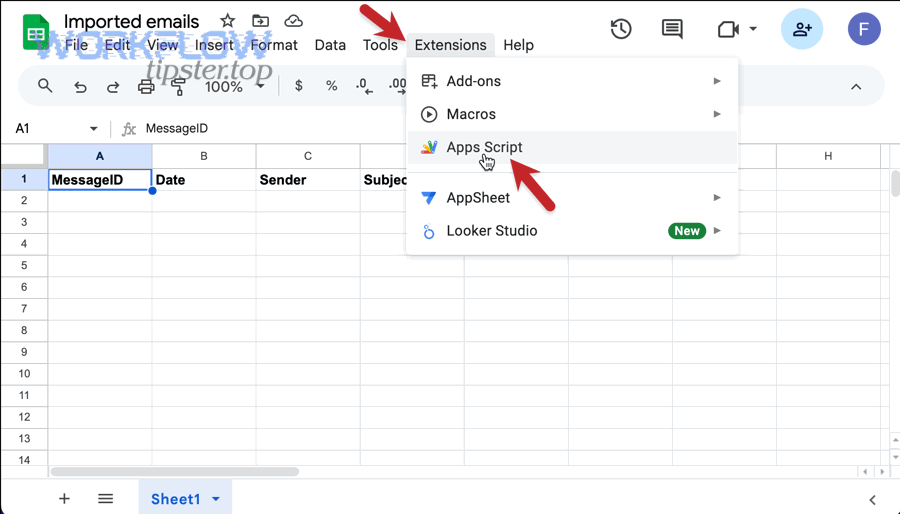
If you want a quick starting point, embed a mail-merge-style script tutorial and adapt the “data from Sheets” concept in reverse: instead of using Sheets to send Gmail, you capture Gmail events and write to Sheets.
How do you structure a Google Sheet so Gmail exports stay clean and usable?
A clean Gmail-export sheet is a schema-first spreadsheet that uses stable keys, consistent column types, and team-owned workflow columns—so your automation writes predictable data while humans safely add status, assignment, and notes.
Besides tool choice, sheet structure is where most exports succeed or fail, because even perfect automation can’t compensate for a sheet that lacks identifiers, mixes formats, or allows accidental overwrites.
What column schema prevents duplicates and supports “update vs insert” behavior?
A dedupe-safe schema uses one unique key column (message ID or thread ID) plus a “last updated” timestamp, which allows your automation to insert new rows only when the key is absent and update existing rows when the key already exists.
Specifically, build your sheet with three layers of columns:
- System columns (automation-owned): message ID, thread ID, received time, exported time, from, subject, snippet, permalink, labels.
- Workflow columns (human-owned): status, assignee, priority, next action date, resolution code.
- Quality columns (shared rules): dedupe flag, validation status, parsing confidence, error notes.
If you export one row per message, make message ID the primary key. If you export one row per thread, make thread ID the primary key and store “last message date” to reflect ongoing activity.
To prevent duplicates, add a hard rule: the automation never writes into “human-owned” columns. Instead, it updates only system columns, and it updates by key, not by row number. This protects team edits and prevents chaos when someone sorts the sheet.
According to a study by Dartmouth from the Tuck School of Business, in 2009, audits of operational spreadsheets found a high prevalence of spreadsheet errors, reinforcing why stable keys and disciplined structure matter when teams rely on Sheets operationally. (mba.tuck.dartmouth.edu)
How do you label and filter emails so only the right messages are exported?
Label-and-filter strategy works best when you define one “export gate” label and a small set of inclusion/exclusion rules, so your automation logs only the emails that match your operational definition of “trackable work.”
For example, Support teams often export only escalations, complaints, high-value customers, or messages that require a response within a defined SLA. Ops teams often export invoices, vendor confirmations, policy requests, or procurement approvals.
Start with a clear filter hierarchy:
- Inclusion rule: “Export when label = To-Log” OR “Export when subject contains [tag]”
- Exclusion rule: exclude newsletters, no-reply senders, internal monitoring pings
- Deduplication rule: if message ID already exists, update labels/status instead of adding a new row
More specifically, labels are stronger than folders because they can represent workflow state (To-Log, In-Progress, Waiting, Resolved). That makes the sheet a mirror of operational reality, not a passive archive.
What are the key setup steps to automate Gmail → Sheets end-to-end?
There are 6 core steps to automate Gmail → Sheets end-to-end: define outcome, design schema, set filters, map fields, implement dedupe, and monitor runs—so your export stays reliable as volume and team usage grow.
To begin, treat this like launching a mini system: the goal isn’t just “data in a sheet,” it’s “a repeatable operational pipeline that keeps working after week one.”
How do you map Gmail fields to sheet columns without losing important context?
Field mapping works best when you map identity, timing, and retrieval first, then add parsing and workflow fields—so every row is traceable back to the original email even when subjects repeat or senders change.
Specifically, map these “always-on” fields first:
- message_id (or thread_id)
- received_at (normalized format)
- from_email and from_name (split if possible)
- subject
- snippet (short preview)
- gmail_link (permalink to open the message fast)
- labels (as a single cell or comma-separated list)
Then, add optional context fields that improve operations:
- has_attachments (yes/no) and attachment_names (optional)
- customer_id or order_id (extracted via parsing rules)
- category or queue (routing logic)
When mapping, keep one principle: every column must have a clear job. If a column doesn’t support triage, reporting, or traceability, remove it. That keeps the sheet lean and reduces errors from inconsistent data entry.
How do you test and validate the workflow before rolling it out to a team?
Testing is strongest when you validate the workflow with at least 10 representative emails and confirm three outcomes: the right messages are captured, the sheet stays deduped, and team edits remain safe under re-runs.
Next, run a structured validation checklist:
- Filter validation: confirm inclusion and exclusion rules with real messages (newsletters, forwards, replies).
- Schema validation: confirm timestamps, sender parsing, and links render correctly.
- Deduplication validation: resend or relabel the same email and confirm no duplicate row appears.
- Permission validation: confirm the automation account can read the mailbox and write to the sheet.
- Human-edit safety: sort the sheet, edit workflow columns, and confirm the automation still updates the correct row by key.
Finally, define a simple rollback plan: if the export breaks, you can pause the workflow, export a small batch manually, and resume without creating duplicates. That last step is what turns “automation” into “operations.”
What common problems happen in Gmail → Sheets automation, and how do you fix them?
There are 5 common problems in Gmail → Sheets automation—missing emails, duplicates, broken permissions, parsing failures, and sensitive-data leaks—and each is fixable with better filters, stable keys, quota-aware runs, and governance rules.
Moreover, the fastest way to stabilize your workflow is to treat issues as categories, not mysteries: identify the failure mode, apply the standard fix, and add a guardrail so it can’t quietly return.
Why are some emails missing from the sheet, and how can you prevent gaps?
Emails go missing when filters are too strict, labels are applied late, permissions don’t cover the right mailbox, or quotas/timeouts stop runs mid-stream, so prevention requires a “capture gate” label, periodic backfills, and execution monitoring.
Specifically, diagnose missing emails in this order:
- Filter mismatch: the email didn’t match your sender/subject/query rules.
- Label timing: the email arrived but got labeled later than the trigger expected.
- Mailbox access: the automation account can’t read a shared inbox or delegated mailbox.
- Runtime limits: long parsing or attachment handling caused timeouts.
- Quotas: the workflow hit daily limits and stopped before processing all items.
Then, add two guardrails:
- Backfill job: once per day, query Gmail for messages in the last 24–48 hours that match your export condition and confirm they exist in the sheet by message ID.
- Run logging: write run status (start time, end time, processed count, error count) to a “Logs” tab.
That combination prevents silent gaps and gives Support/Ops leaders confidence that the numbers they report are complete.
How do you prevent duplicate rows when automations retry or re-run?
You prevent duplicates by making the export idempotent: always write by a unique key (message ID/thread ID) and update existing rows instead of appending when the same email appears again.
However, dedupe must be designed, not hoped for. Use one of these patterns:
- Upsert pattern: “If key exists, update; else insert.” Best for Apps Script and advanced tools.
- Append + dedupe view: keep raw rows but build a deduped reporting tab using formulas/pivots. Best when you can’t upsert.
- Locking pattern: prevent two runs from writing at the same time (important for high volume).
If you must append, store a hash (e.g., message ID + received timestamp) and create a dedupe check column that flags repeats. That way, duplicates become visible immediately and can be filtered out of dashboards.
How do you handle sensitive data and access control for Support & Ops teams?
You handle sensitive data by minimizing what you export, restricting sheet access by role, and enforcing governance rules that keep PII out of broadly shared tabs—so the spreadsheet helps operations without becoming a compliance risk.
Especially in Support workflows, email content can include addresses, phone numbers, payment references, and private customer details. To control exposure:
- Minimize: export metadata + snippet instead of full body unless absolutely necessary.
- Redact: mask patterns (e.g., replace digits in suspected card-like strings) if you parse content.
- Segment: store sensitive columns in a restricted tab; publish only aggregates to wider audiences.
- Audit: track who has edit access and avoid “anyone with the link” sharing for operational logs.
According to a study by the U.S. National Library of Medicine from the Biomedical Informatics research community, in 2008, manual and semi-manual data transcription can produce measurable error rates, which reinforces why sensitive fields should be minimized and validated when moved between systems. (pmc.ncbi.nlm.nih.gov)
How can you enhance Gmail → Sheets exports with parsing, attachments, and scale controls?
You can enhance Gmail → Sheets exports by adding parsing rules, attachment handling, quota-aware batching, and privacy controls—so your sheet becomes a dependable operational dataset rather than a simple inbox mirror.
In addition, these enhancements are where micro-semantics create real leverage: once you can extract IDs, link attachments, and scale safely, your export can power routing, reporting, and cross-system workflows without constant cleanup.
How do you parse email content to extract IDs (orders, tickets, names) into separate columns?
Email parsing works best when you use a small set of stable patterns (regex or keyword anchors), validate extracted values, and record a confidence signal—so the sheet captures useful structure without turning parsing into a fragile guessing game.
Specifically, design parsing like an Ops system:
- Define targets: order ID, ticket ID, customer email, invoice number, product code.
- Define anchors: “Order #”, “Ticket:”, “Invoice ID:”, “Customer:”
- Apply patterns: regex that matches the expected format (length, prefix, digits).
- Validate: reject values that fail format checks; store blank instead of wrong data.
- Record confidence: set parsing_confidence to High/Medium/Low based on how many checks pass.
To illustrate, if the subject line contains “Order #A12345” and the body repeats it, you can boost confidence. If only the body contains a partial match, you reduce confidence and require manual verification.
This parsing approach also translates to other pipelines. A team that can parse Gmail into Sheets can often parse intake from forms and route alerts, just like a google forms to slack escalation flow, because both rely on extracting key fields into the right destination.
How should you log attachments—metadata only, or save files to Drive and store links?
Metadata-only wins for speed and minimalism, Drive-link storage is best for traceability and collaboration, and “store only approved attachment types” is optimal when security and compliance matter most.
However, attachments are where “sync vs backup” becomes concrete. If your goal is operational triage, you usually only need to know that an attachment exists and what it’s called. If your goal is a durable record, you need a stable storage location and a link.
Use a layered attachment policy:
- Baseline: store has_attachments, attachment_count, attachment_names.
- Operational upgrade: store attachment_links for files saved to Drive, plus a folder path or case ID.
- Governed upgrade: allowlist file types, scan or review before broad sharing, and store only what policy permits.
On the other hand, storing attachments in Drive can create an immediate collaboration win: Ops teams can annotate files, Support teams can attach evidence to cases, and everyone uses a single source of truth rather than downloading and re-uploading files across tools.
What should you do when Gmail/Script/tool limits affect high-volume inboxes?
When limits hit, you should batch processing, narrow the capture scope with labels/queries, implement incremental backfills, and add monitoring—so your workflow remains stable even when message volume spikes or scripts approach quota ceilings.
Specifically, apply these scale controls in order:
- Batch by time window: process “last 15 minutes” or “last 1 hour” instead of scanning everything.
- Batch by label: export only what has been classified as trackable work.
- Incremental checkpoints: store last_processed_timestamp and resume from there.
- Selective parsing: parse only when needed; avoid heavy regex on every message.
- Separate pipelines: split “critical” vs “bulk” categories into different schedules.
Meanwhile, if your organization is scaling multiple workflows, it helps to think in a portfolio: one pipeline logs Gmail to Sheets, another pipeline posts alerts, another pipeline syncs records. That’s where broader Automation Integrations become valuable, because you can coordinate flows across services while keeping each one simple and quota-aware.
How do you align Gmail → Sheets exports with privacy, retention, and audit needs?
You align Gmail → Sheets exports with governance by defining what data is exported, how long it stays, who can access it, and how it is audited—so the sheet supports operations without expanding your risk surface.
To sum up, governance becomes manageable when you write it down as policy-like decisions:
- Data minimization: which fields are allowed in Sheets, which must remain only in Gmail
- Retention: delete or archive rows after X days, keep aggregates longer if needed
- Access control: separate editor vs viewer roles, restrict sensitive tabs
- Audit trail: include exported_at, last_updated_at, workflow_name, and run_id columns
Finally, connect governance to workflow. If a Support process uses a helpdesk tool and projects move into collaboration systems, your Gmail-export sheet can serve as the bridge dataset—especially when you track how conversations become tasks and then become deliverables, similar to how freshdesk to basecamp handoffs turn support outcomes into project timelines.