


If you want to automate a Dropbox to Notion integration for a team, the fastest path is to connect the apps (native embedding or a no-code automation tool), define one clear trigger (like “new file in a folder”), and write results into a Notion database so everyone can find, filter, and act on them.
The next thing most teams need is clarity on what “sync” really means here—because Dropbox stores files, while Notion organizes work and knowledge. Once you understand preview vs automation vs “true sync,” your setup choices become much easier and your workflow stays clean.
Then, you’ll want a practical playbook: which tool to use (Zapier vs Make vs n8n), which workflow patterns cover most team use cases (asset libraries, project hubs, onboarding), and how to structure a Notion database so it remains searchable instead of turning into a link dump.
Finally, reliability matters: permissions, broken previews, duplicates, and missed updates are predictable problems. Introduce a new idea: you can prevent most of them by designing a “find-or-update” workflow and assigning clear ownership for governance—before you scale automation across the team.
What does “Dropbox to Notion integration” mean for teams (preview vs automation vs “sync”)?
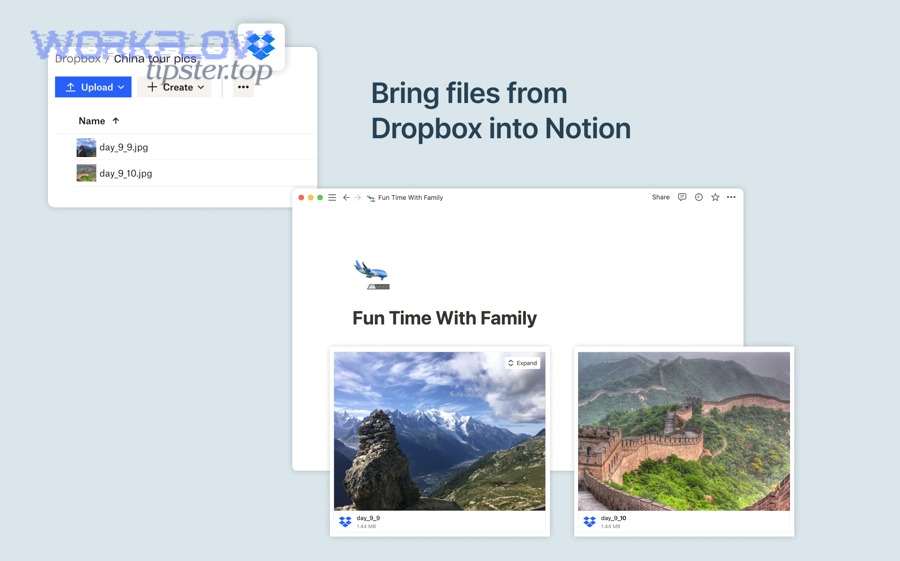
A Dropbox to Notion integration for teams means you can (1) embed or preview Dropbox files inside Notion and/or (2) automate creating and updating Notion pages or database items from Dropbox events, but it is not inherently a full two-way file “sync” between systems.
Next, to avoid mismatched expectations, it helps to separate what you see in Notion (preview) from what you automate (records, metadata, links).
Is Dropbox-to-Notion “sync” a real two-way sync?
No, Dropbox-to-Notion “sync” is not a real two-way file sync because Notion is not a file system; it primarily stores pages and databases, while Dropbox stores files and folders with versioning and permissions.
However, teams can still achieve “sync-like” outcomes by automating consistent updates in Notion whenever Dropbox changes.
In practice, “sync” usually means one of these team-friendly outcomes:
- Indexing: Every new file in a Dropbox folder creates a Notion database row with a link, owner, and status.
- Cataloging: Every new project folder creates a Notion project page, including standardized sections and a folder link.
- Updating: When a file is renamed or updated, the Notion item is updated (or at least timestamped) so the team knows what changed.
The key advantage is that Notion becomes the team’s operational layer—where work is assigned, reviewed, and discussed—while Dropbox remains the storage layer.
What data can be moved or referenced (files, folders, metadata, links, previews)?
There are 4 main “data types” teams use in a Dropbox-to-Notion integration—file links, previews, metadata, and workflow state—based on whether you need visibility, organization, or actionability.
Then, you can choose what matters most for your Notion structure: visibility (preview), traceability (link + metadata), or governance (status + owner).
- File/folder links (most common)
- Dropbox shared link URL (view/download)
- Folder link for navigation
- Deep link to a specific path (if your tool supports it)
- Previews/embeds (visibility layer)
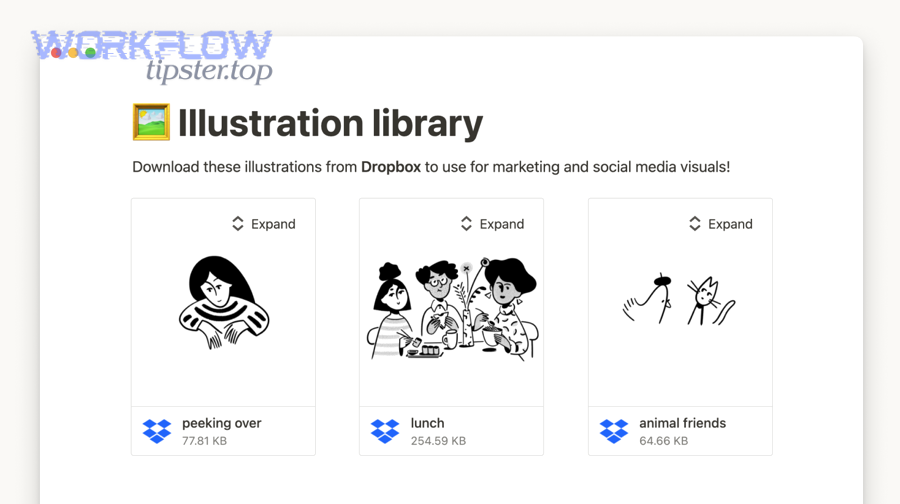
- A preview card or embedded file view inside Notion pages
- Best for quick reference and team context during discussions
- Metadata (organization layer)
- File name, file type, size (sometimes)
- Created time / last modified time
- Path or folder name (very useful for tagging)
- Uploader/owner (depends on tool/permissions)
- Workflow state (action layer in Notion)
- Status (e.g., “To review,” “Approved,” “Needs changes”)
- Assigned owner/reviewer
- Project, client, sprint, or department tags
- Notes and decisions (why the file exists and what to do next)
Native integration is strongest at preview + linking, while automation tools are strongest at metadata + workflow state.
Notion’s official Dropbox integration emphasizes adding and previewing Dropbox files inside Notion to help teams collaborate around content in one place.
Which team use cases fit best (asset library, project hub, documentation, onboarding)?
There are 4 common team use cases for Dropbox → Notion integration—asset libraries, project hubs, documentation, and onboarding—based on how your team searches, shares, and acts on files.
Next, you can map each use case to a Notion “home” (database vs page) so the team has one predictable place to look.
- Asset library (marketing, design, brand)
- Dropbox holds large files; Notion indexes them.
- Best Notion model: Database with views by campaign, asset type, and status.
- Why it works: fast filtering, clear ownership, consistent naming.
- Project hub (cross-functional delivery)
- Dropbox folder is the source of truth for artifacts.
- Best Notion model: Project page template + linked database for deliverables.
- Why it works: one page collects timeline, decisions, and links.
- Documentation (knowledge base)
- Dropbox stores PDFs, SOPs, policies; Notion organizes access.
- Best Notion model: Database + linked pages that summarize each doc.
- Why it works: people don’t read long PDFs unless guided.
- Onboarding (repeatable workflows)
- Dropbox contains training files; Notion sequences learning.
- Best Notion model: Onboarding checklist page linked to an “Onboarding docs” database.
- Why it works: new hires need step-by-step navigation, not a folder dump.
How do you set up Dropbox to Notion integration with no-code tools step-by-step?
You set up a Dropbox to Notion integration with no-code tools by (1) choosing an outcome (preview or automation), (2) connecting accounts, (3) selecting a trigger and action, and (4) mapping fields into a Notion database, which produces a reliable team-facing file index.
Below, the goal is to build a “minimum working integration” first, then expand it without breaking your team’s structure.
What do you need before connecting (permissions, workspace access, admin approval)?
You need 3 basics before connecting Dropbox and Notion—the right permissions, a shared destination in Notion, and a stable owner account—so your team doesn’t lose the integration when someone leaves.
To begin, treat the integration as a team asset, not a personal shortcut.
Permissions checklist (Dropbox):
- The connection owner must have access to the relevant Dropbox folders (ideally shared team folders).
- Sharing settings should allow generating share links if your workflow depends on URLs.
- If your team restricts external sharing, coordinate with an admin so your workflow doesn’t break later.
Workspace checklist (Notion):
- Decide where the output lives: a dedicated Notion database inside a team space.
- Confirm the integration owner can create/edit pages and database properties in that space.
- Agree on a minimal set of properties (Owner, Status, File URL, Path/Folder, Project).
Ownership rule (teams):
- Use a shared automation owner (service account or a team-managed account) whenever possible.
- Document where the integration is connected and who can maintain it.
This prep work prevents the most common failure mode: everything works for one person, then collapses during role changes.
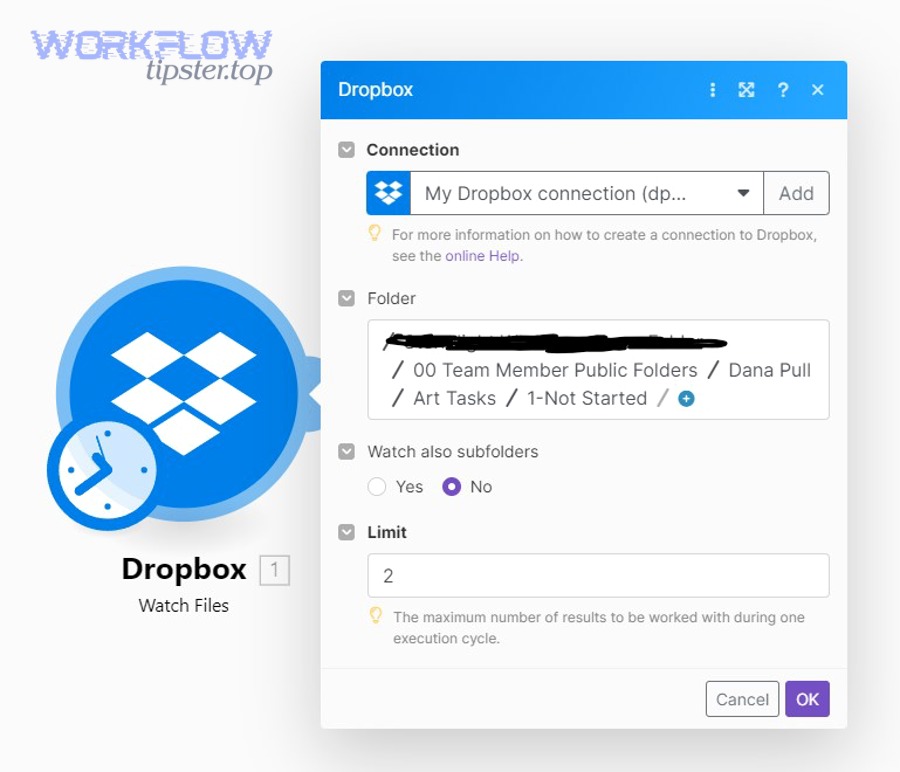
How do you create the simplest workflow: “New file in Dropbox → New page in Notion”?
You create the simplest workflow by setting a Dropbox “new file” trigger, a Notion “create page or database item” action, and mapping the file link and filename into a Notion record so the team can find it immediately.
Then, test with a real file to confirm permissions and preview behavior before you scale.
Minimal workflow (recommended for teams):
- Pick the Dropbox scope
- Choose one folder that represents a clear category (e.g., “/Marketing/Final Assets/”).
- Choose the trigger
- “New file in folder” (or equivalent trigger in your tool).
- Choose the Notion destination
- Prefer “Create database item” over “Create page” so you can filter and dedupe.
- Map the minimum fields
- Title = filename
- File URL = Dropbox share link
- Path/Folder = folder name or path
- Status = “To review” (default)
- Owner = blank or default team owner
- Test
- Add one file to Dropbox and verify a new Notion item is created.
This is the fastest way to turn Dropbox activity into an organized team queue, rather than a stream of messages people ignore.
Zapier’s examples emphasize patterns like creating Notion pages when new Dropbox folders are added, because it keeps a documentation layer updated without manual work.
How do you extend it to folders: “New file in a specific folder → Add database item with tags”?
You extend the workflow by adding 2 factors—filters and tagging logic—so Notion receives structured records (with project labels, asset types, or departments) rather than unclassified entries.
Next, use folder paths as a “taxonomy source,” because teams already organize work in folders.
Practical tagging patterns:
- Tag from folder name: If path contains “/Clients/ACME/”, set Client = ACME.
- Tag from file type: If file ends with .pdf, set Type = Document; if .png/.jpg, set Type = Image.
- Tag from subfolder: “/Campaigns/Q1 Launch/Design/” → Campaign = Q1 Launch, Department = Design.
Implementation steps:
- Add a filter so only files in a specific folder (or matching a path rule) trigger the workflow.
- Add a formatter/mapper step (tool-dependent) to extract folder names or file extensions.
- Map extracted values to Notion database properties (Select/Multi-select fields).
Team benefit: When your Notion database has consistent tags, every role can build a view that matches their work—design review, legal review, publish-ready assets—without touching Dropbox.
Which Dropbox-to-Notion automation tool should a team choose (Zapier vs Make vs n8n)?
Zapier wins for speed and simplicity, Make is best for visual multi-step workflows and deeper routing, and n8n is optimal for teams that want self-hosting, customization, and greater control over data and logic.
However, the right choice depends on how complex your workflows are and how much governance your team requires.
Which is easiest for non-technical teams: Zapier or Make?
Zapier is usually easiest for non-technical teams because it prioritizes guided setup and templates, while Make is easier for teams who think in diagrams and need richer branching logic.
However, your team should decide based on who will maintain the workflow six months from now.
Zapier tends to fit teams that:
- Want to launch fast with minimal configuration
- Prefer template-driven automations
- Need straightforward workflows like “new file → create database item”
Make tends to fit teams that:
- Need multi-step scenarios (router branches, complex filters)
- Want more control over how data transforms between steps
- Expect to maintain more elaborate integrations over time
A simple decision rule is: if your workflow fits on a napkin, Zapier is often enough; if it needs branching, Make starts to pay off.
When does a team need n8n (self-hosted) instead of SaaS tools?
A team needs n8n when it requires data residency, advanced customization, and deeper control over authentication, logic, and error handling—especially in regulated environments or at high volume.
Meanwhile, many teams choose n8n when “quick setup” stops being the main priority and “operational reliability” becomes the priority.
Common reasons teams move to n8n:
- Self-hosting requirements (security policies, internal compliance)
- Complex logic that would be expensive in per-task pricing
- Custom integrations (webhooks, internal APIs, specialized mapping)
- Advanced error handling and reprocessing for failed runs
This doesn’t mean n8n is automatically “better.” It means your team is ready to treat automation like a product, not a quick hack.
How do costs and limits affect “file-heavy” automations?
Costs and limits affect file-heavy automations because most platforms charge by runs/tasks/operations, and Dropbox monitoring can generate many events, especially in active team folders.
More importantly, file-heavy automation can produce hidden costs when you process every minor change instead of meaningful milestones.
Common cost multipliers:
- Watching a broad folder tree instead of a narrow “inbox” folder
- Triggering on every update, rename, or move
- Multi-step enrichment (tagging, formatting, notifying, logging)
Cost-control tactics:
- Use an “intake folder” pattern: only files placed in “/To Index/” trigger automation.
- Trigger on new files only, not updates, unless you truly need updates.
- Batch backfills in controlled schedules instead of always-on scanning.
Evidence: According to a report by McKinsey Global Institute, in 2017, scenario modeling estimated automation could raise global productivity growth by 0.8 to 1.4 percent annually.
This is also where teams start exploring broader Automation Integrations across tools—not just Dropbox and Notion—so the workflow becomes part of a wider operational system instead of a one-off shortcut.
What are the best Dropbox → Notion workflow patterns for teams?
There are 4 best Dropbox → Notion workflow patterns for teams—ingest, organize, notify, and review—based on whether you need capture, structure, communication, or decision-making.
Next, you can implement the simplest version of each pattern so your team gains value immediately without overengineering.
Which workflows cover 80% of needs (ingest, organize, notify, review)?
The workflows that cover most team needs are: Ingest (capture files), Organize (tag and classify), Notify (alert the right people), and Review (move items through status).
To illustrate why this matters, each pattern reduces a different kind of team friction: searching, context switching, missed handoffs, and unclear ownership.
- Ingest (capture)
- Trigger: new file in Dropbox “intake” folder
- Action: create Notion database item
- Outcome: everything becomes searchable and trackable
- Organize (classify)
- Trigger: file captured
- Action: tag based on folder/file type; set project/client
- Outcome: Notion views become useful, not noisy
- Notify (handoff)
- Trigger: new item created with a specific tag (e.g., “Legal”)
- Action: notify Slack/email; assign owner
- Outcome: the right person sees it without manual chasing
- Review (decision)
- Trigger: status changes in Notion
- Action: move file to “Approved” folder (optional) or generate a checklist
- Outcome: decisions are visible, not buried in chat
This is also where related integrations like google calendar to notion can complement your file workflow—your team can connect schedules, deadlines, and deliverables to the same Notion project hub so files and timelines live together.
How should you design the Notion database (properties) for Dropbox assets?
You should design the Notion database with a small set of stable properties that support finding, filtering, and owning work, because teams lose trust when the database becomes inconsistent.
More specifically, think of the database as a “catalog + queue,” not a storage replacement.
Before the table, here is what it contains: the table lists recommended Notion database properties that make Dropbox assets searchable and actionable for teams.
| Property (Notion) | Type | Why it matters for Dropbox assets | Example value |
|---|---|---|---|
| Name / Title | Title | Human-readable anchor | Q1 Launch Banner v3 |
| File URL | URL | One-click access to Dropbox | Share link |
| Dropbox Path | Text | Context + tagging source | /Campaigns/Q1/Design/ |
| Asset Type | Select | Fast filtering by content | PDF, Image, Video |
| Status | Select | Workflow visibility | To review / Approved |
| Owner | Person | Accountability | Alex |
| Project / Client | Select/Relation | Grouping by initiative | ACME Rebrand |
| Last Modified | Date | Recency signal | 2026-01-29 |
| Notes | Text | Decisions and context | Approved for web |
Design principle: Use properties your team will actually maintain. If a property is rarely used, remove it or automate it.
Scaling principle: Create saved views for roles:
- To review (Design)
- Legal queue
- Approved assets
- Recently updated
This structure makes Notion feel like a dashboard, not a dumping ground.
How do you keep Notion clean (dedupe, update existing items, avoid clutter)?
You keep Notion clean by using a unique identifier, choosing update-over-create whenever possible, and adding filters that prevent low-value file events from generating records.
Besides, cleanliness is what makes teams continue to use the system after the novelty wears off.
Dedupe strategies that work in practice:
- Unique key = Dropbox shared link (if stable)
- Unique key = Dropbox path + filename (works well if naming is consistent)
- Unique key = file ID (best, if your tool exposes it)
Update-over-create logic:
- Search Notion database for an item with the same unique key.
- If found, update Last Modified and any changed tags.
- If not found, create a new item.
Clutter prevention rules:
- Only trigger from intake folders.
- Ignore temporary files (e.g., “.tmp”, “~$”).
- Ignore edits unless your team truly needs version-tracking in Notion.
And if your team also runs other workflows—like airtable to pandadoc for document generation—this “clean database” principle becomes even more important, because downstream automations depend on structured, reliable records.
How do you troubleshoot Dropbox-to-Notion issues (missing previews, permission errors, duplicates)?
You troubleshoot Dropbox-to-Notion issues by checking sharing permissions first, then confirming link/preview behavior, and finally adjusting dedupe and trigger settings, because most failures come from access rules or overly broad triggers.
Next, use a consistent troubleshooting order so your team fixes root causes instead of repeatedly patching symptoms.
Why do Dropbox links show “content not found” or fail to preview in Notion?
Dropbox links fail or show “content not found” when the file is not shared correctly, the viewer lacks permission, or the link points to a moved/renamed asset that no longer matches the share settings.
However, most teams can fix this quickly with a permissions-first checklist.
Permissions-first checklist:
- Confirm the file still exists at the source path in Dropbox.
- Confirm the link is a valid Dropbox share link (not an internal-only link).
- Confirm the Notion viewers have access to the file (or to the shared link).
- If your organization restricts external sharing, confirm the policy allows the type of link you’re generating.
Preview-specific checks:
- Not all file types preview the same way.
- Some previews require the viewer to be authenticated or authorized.
This is why many teams prefer the database pattern: even if preview fails, the link and metadata still keep work moving.
What should you do if the workflow creates duplicates or misses updates?
If the workflow creates duplicates or misses updates, you should tighten the trigger scope, implement a unique key for dedupe, and switch from “always create” to “find then update” logic so each Dropbox asset maps to one Notion record.
Meanwhile, teams should decide whether they truly need update tracking or only need capture-at-creation.
When duplicates happen, it’s usually because:
- Multiple triggers fire (new file + file updated + file moved)
- The monitored folder is too broad
- The tool sees a “new event” that humans view as the same file
Fix sequence that works:
- Narrow monitoring to an intake folder.
- Add a dedupe key property in Notion (e.g., Dropbox URL or file ID).
- Add a “Find database item” step before creating anything.
- Update the existing item if found; otherwise create a new one.
- Add a “cooldown” or schedule if your tool supports it (reduces rapid-fire duplicates).
When missed updates happen, it’s usually because:
- Your trigger only watches for new files, not changes
- Polling intervals are too long for your expectations
- The file is updated but the share link doesn’t change
If updates matter, define what “update” means (content change, rename, approval change) and automate only the updates that affect team decisions.
How do you handle rate limits and large migrations (backfills) safely?
You handle rate limits and large migrations safely by doing incremental backfills in batches, scheduling runs, and using retries with logging so the process doesn’t fail silently or overwhelm your tools.
More importantly, you should separate “one-time migration” from “ongoing automation,” because they have different risk profiles.
Safe backfill plan:
- Export or list target folders first (smallest scope).
- Backfill by date range or by subfolder batches.
- Write results into Notion with a “Backfilled” tag to track progress.
- Pause between batches if your platform throttles operations.
Ongoing automation safety:
- Add alerts for failures (email/Slack).
- Keep a simple error log database in Notion if your team prefers one dashboard.
- Review volume weekly for the first month to catch cost surprises.
Transition (Contextual Border): Now that your core Dropbox → Notion automation works—meaning it captures files reliably, stays organized, and can be troubleshot—your next priority is governance: who owns it, how access is controlled, and how you prevent automation from becoming an unmanaged risk at scale.
How can teams secure and govern Dropbox-to-Notion automations at scale (ownership, access, compliance)?
Teams can secure and govern Dropbox-to-Notion automations at scale by assigning a stable owner, enforcing least-privilege access, designing idempotent workflows to prevent duplication, and defining when not to automate to protect sensitive work.
Next, governance turns your automation from “useful today” into “reliable for the long term,” especially when multiple departments rely on it.
Who should own the integration (personal account vs shared “automation owner” account)?
A shared “automation owner” account is usually better than a personal account because it prevents failures during employee offboarding, keeps credentials managed, and makes responsibility visible across the team.
However, small teams can start with a personal owner if they document ownership and plan a migration path.
Personal account ownership fits when:
- One person runs the workflow for a small team
- The workflow is low-risk and easy to rebuild
- The team is still validating value
Shared ownership fits when:
- The workflow supports multiple departments
- Losing the automation would block operations
- You need consistent governance and credential rotation
A simple rule is: if a workflow affects deadlines, approvals, or client deliverables, it should not depend on one person’s account.
What permission model prevents oversharing (least privilege, shared link policies)?
A least-privilege permission model prevents oversharing by limiting the automation account to only the folders it needs, restricting link creation policies where possible, and ensuring Notion outputs live in the correct workspace with controlled access.
Besides, oversharing often happens accidentally when automations create broadly accessible links that outlive the original context.
Practical least-privilege controls:
- Use dedicated “Automation Intake” folders in Dropbox with controlled membership.
- Generate links that match your organization’s policy (internal-only when available).
- Place the Notion database in a team space with explicit membership (not “entire workspace” by default).
- Avoid writing sensitive file names or client identifiers into public-facing Notion spaces.
Notion and Dropbox both position their native integration as a collaboration aid for teams, which makes it even more important to set boundaries intentionally so collaboration does not become uncontrolled distribution.
How do you design idempotent workflows (avoid duplicates) using a unique file identifier?
You design idempotent workflows by selecting a unique file identifier (file ID, stable share link, or path+name), storing it in Notion, and enforcing a “find existing item before create” rule so the same Dropbox asset always maps to a single Notion record.
More specifically, idempotency is the difference between a trustworthy system and a noisy one.
Idempotency pattern (team-proof):
- Create a Notion property called Dropbox Key.
- On trigger, compute Dropbox Key:
- Best: file ID (if available)
- Good: shared link
- Fallback: path + filename
- Search Notion database for Dropbox Key.
- If found → update the record (Last Modified, Status, metadata).
- If not found → create the record.
Why teams love this:
- Review views remain accurate.
- People stop questioning whether the record is “the latest one.”
- Automation failures become obvious instead of silently multiplying.
Evidence: According to a report by Forrester Research, in January 2024, the combined low-code and digital process automation market was estimated at $13.2B by the end of 2023.
When should you avoid automation and use manual processes instead?
Yes, teams should sometimes avoid automation for Dropbox-to-Notion workflows because manual handling can be safer when stakes are high, context is nuanced, or errors create legal/compliance risk—especially for sensitive documents, restricted sharing environments, or low-frequency tasks.
However, the decision becomes easier when you define clear “do not automate” rules.
Avoid automation when:
- The files contain sensitive personal data or confidential contracts and sharing must be manually verified.
- The workflow involves complex judgment (e.g., “is this deliverable final?”) that automation can’t reliably infer.
- Volume is low and the cost of setting up governance exceeds the time saved.
- A mistake would create irreversible harm (wrong client receives wrong file, or an internal doc is exposed).
Use automation when:
- The trigger is objective (“new file in intake folder”).
- The output is structured (database record, assigned owner, review status).
- The team benefits from transparency and searchability more than from manual control.
In short, the best Dropbox-to-Notion automation is not the one that does the most—it’s the one your team can trust, maintain, and govern while still keeping work moving.